navigation DODGE CHARGER SRT 2015 7.G Uconnect 8.4A
[x] Cancel search | Manufacturer: DODGE, Model Year: 2015, Model line: CHARGER SRT, Model: DODGE CHARGER SRT 2015 7.GPages: 429, PDF Size: 4.01 MB
Page 225 of 429
Bluetooth® Communication Link
Mobile phones have been found to lose connection to the
Uconnect® Phone. When this happens, the connection
can generally be re-established by switching the mobile
phone OFF/ON. Your mobile phone is recommended to
remain in Bluetooth® ON mode.
Power-Up
After switching the ignition key from OFF to either the
ON or ACC position, or after a language change, you
must wait at least 15 seconds prior to using the system.
General Information
This device complies with Part 15 of the FCC rules and
RSS 210 of Industry Canada. Operation is subject to the
following conditions:
•Changes or modifications not expressly approved by
the party responsible for compliance could void the
user’s authority to operate the equipment.
•This device may not cause harmful interference.
•This device must accept any interference received,
including interference that may cause undesired op-
eration.
NAVIGATION
Navigation Registration (Uconnect® 8.4A Only)
Uconnect® 8.4A is Navigation-capable for dealer activa-
tion. See dealer for details.
Getting Started
Once the Navigation system has been activated by your
authorized dealer, access the system by pressing the
“Nav” button on the bottom of the touchscreen.
224 Uconnect® 8.4A — If Equipped
Page 228 of 429
Intersection
Press this button on the touchscreen to enter in two street
names as a destination.
Go Home
Press this button on the touchscreen to program or
confirm a route to the saved home address.
Trips
Press this button on the touchscreen to program a new
trip or recall a saved trip.
GEO Coordinates
Press this button on the touchscreen to route to a GEO
Coordinate. A geo coordinate is a coordinate used in
geography. You can determine a geo coordinate with the
help of a handheld GPS receiver, a map, or the navigation
system.
Point on Map
Press this button on the touchscreen to select a destina-
tion directly from the Map screen. By selecting a street
segment or icon, you can quickly enter a destination
without the need to input the city name or street.
City Center
Press this button on the touchscreen to route to a particu-
lar city. The navigation system will calculate a route with
the destination at the center of the city.
Trails
Press the “Trails” button on the touchscreen and select
the option to start trail recording to track the route you
are driving. Select the option to#stop trail recording#to
end tracking. This gives you a point of reference to for a
particular route if needed.
3
Uconnect® 8.4A — If Equipped 227
Page 229 of 429
Closest City
Press this button on the touchscreen to route to a nearby
city. The screen will display an alphabetical listing of
nearby cities. The navigation system will calculate a route
with the destination at the center of the nearby city.
Phone Number
Press this button on the touchscreen to route to a location
or point of interest by the phone number.
You can press the “back” arrow button on the touch-
screen to return to the previous screen or the “X” button
on the touchscreen to exit.
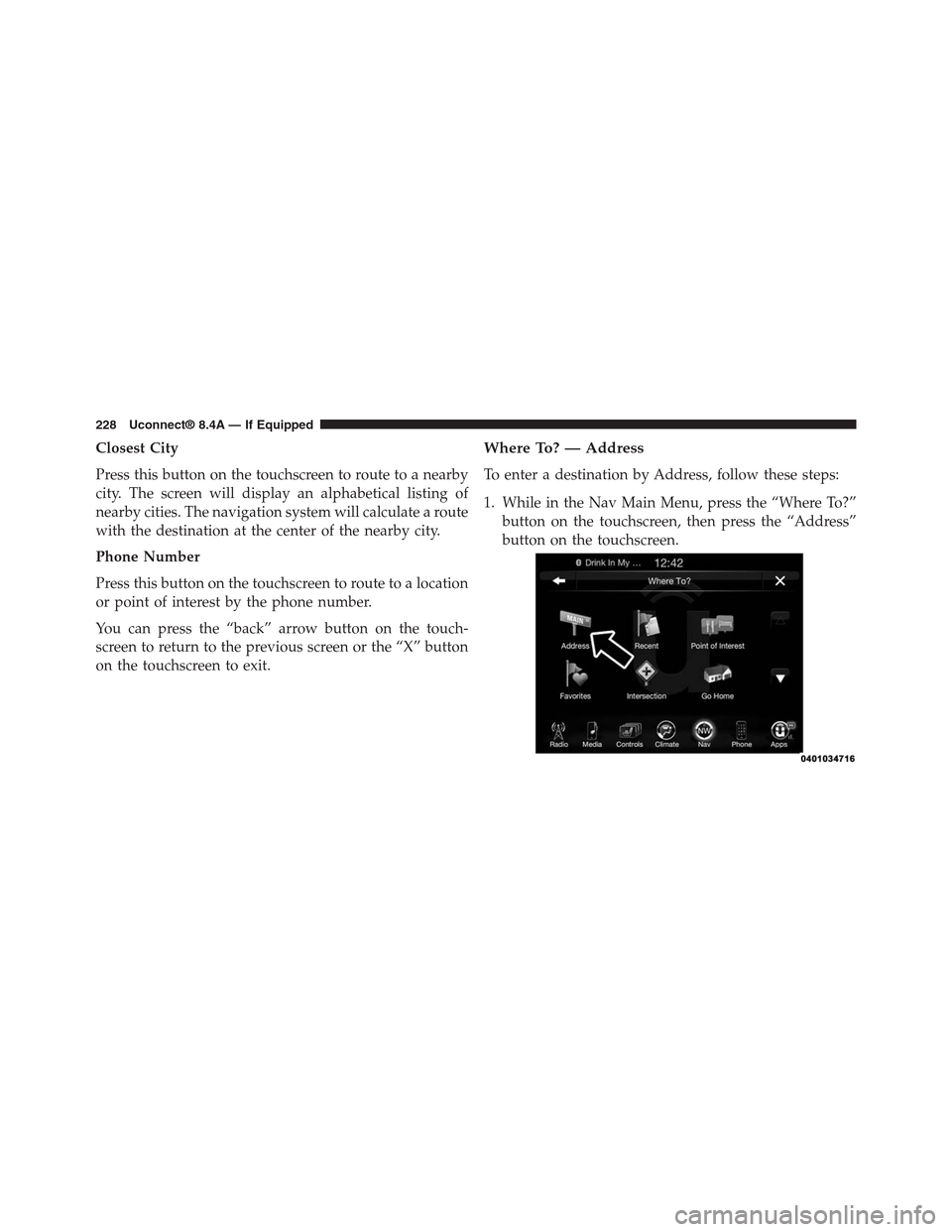
Where To? — Address
To enter a destination by Address, follow these steps:
1. While in the Nav Main Menu, press the “Where To?”
button on the touchscreen, then press the “Address”
button on the touchscreen.
228 Uconnect® 8.4A — If Equipped
Page 272 of 429
•Junction View
Press this button on the touchscreen to enable Junction
View during route guidance. Press and release the button
on the touchscreen until a check-mark appears, showing
the setting has been selected.
•Navigation Turn-by-Turn Displayed In Cluster
Press this button on the touchscreen to enable navigation
turn-by-turn displayed in vehicles cluster during route
guidance. Press and release the button on the touchscreen
until a check-mark appears, showing the setting has been
selected.
•TMC Route Mode (If Equipped)
Press this button on the touchscreen to change how the
Traffic Message Channel (TMC) Route Mode functions
during route guidance. Press the desired button on the
touchscreen.
Automatic
By Delay Time
Manual
Off
•TMC Avoidance Types (IF Equipped)
Press this button on the touchscreen to display the
available Traffic Message Channel (TMC) Avoidance
Types you would like displayed while in route guidance.
Press and release the desired selection button on the
touchscreen until a check-mark appears, showing the
setting has been selected.
•Avoid
Press the Avoid button on the touchscreen to choose road
types to avoid during your route. To make a selection
press and release the desired setting until a check-mark
appears.
3
Uconnect® 8.4A — If Equipped 271
Page 290 of 429
Uconnect® 8.4AN — If Equipped
CONTENTS
!Uconnect® 8.4AN SYSTEM................291
!RADIO MODE.........................292
▫Setting Presets........................295
▫SiriusXM Satellite Radio Mode — If Equipped . .296
▫Audio..............................304
!MEDIA MODE.........................306
▫Disc Mode — If Equipped...............306
▫USB/iPod® Mode.....................308
▫AUX Mode..........................309
▫SD Card Mode — If Equipped............310
▫Bluetooth® Mode.....................312
!Uconnect® PHONE.....................314
▫Overview...........................314
▫Operation...........................317
▫Phone Call Features...................327
▫Advanced Phone Connectivity............332
▫Things You Should Know About Your Uconnect®
Phone.............................333
▫General Information...................339
!NAVIGATION.........................339
4
Page 292 of 429
Uconnect® 8.4AN SYSTEM
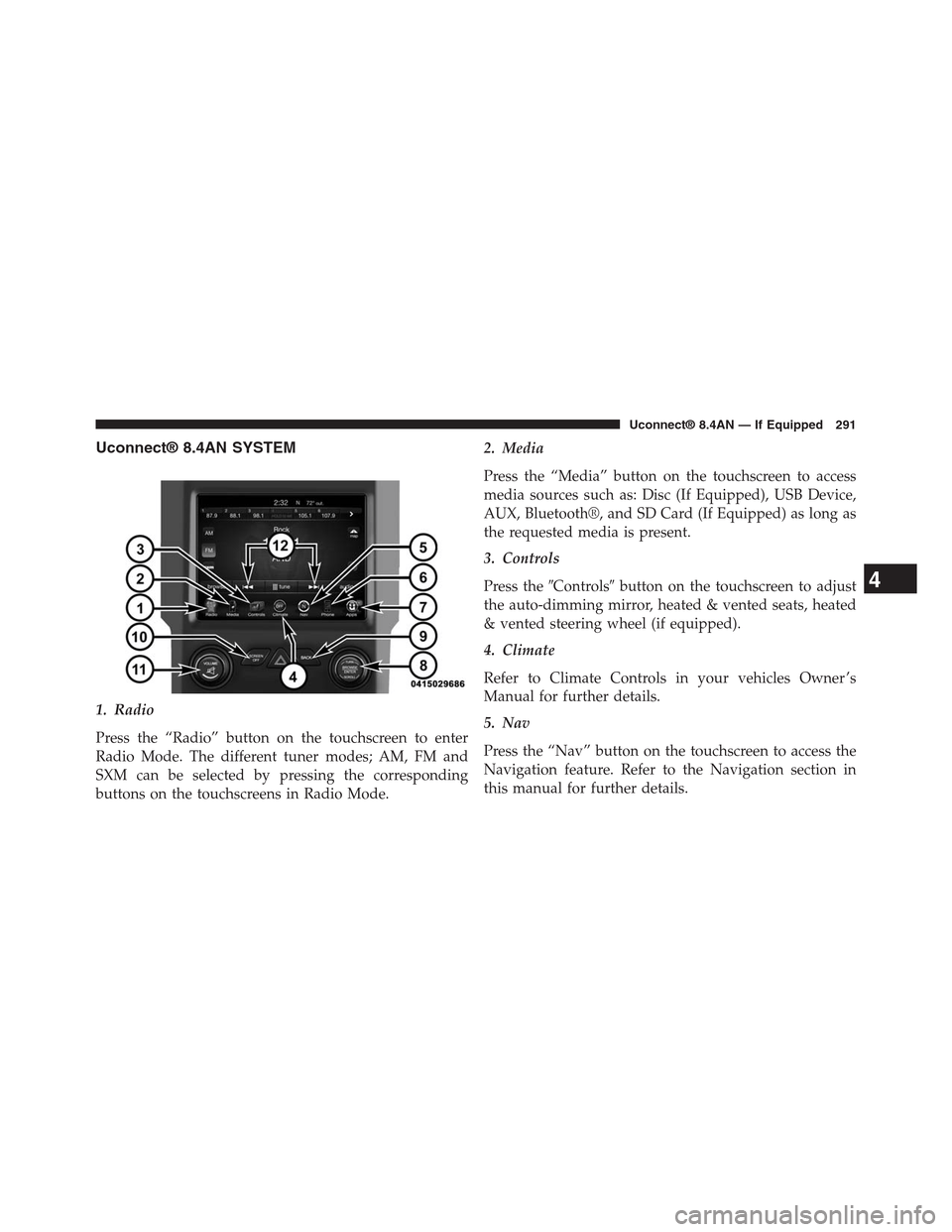
1. Radio
Press the “Radio” button on the touchscreen to enter
Radio Mode. The different tuner modes; AM, FM and
SXM can be selected by pressing the corresponding
buttons on the touchscreens in Radio Mode.
2. Media
Press the “Media” button on the touchscreen to access
media sources such as: Disc (If Equipped), USB Device,
AUX, Bluetooth®, and SD Card (If Equipped) as long as
the requested media is present.
3. Controls
Press the#Controls#button on the touchscreen to adjust
the auto-dimming mirror, heated & vented seats, heated
& vented steering wheel (if equipped).
4. Climate
Refer to Climate Controls in your vehicles Owner ’s
Manual for further details.
5. Nav
Press the “Nav” button on the touchscreen to access the
Navigation feature. Refer to the Navigation section in
this manual for further details.
4
Uconnect® 8.4AN — If Equipped 291
Page 340 of 429
Bluetooth® Communication Link
Mobile phones have been found to lose connection to the
Uconnect® Phone. When this happens, the connection
can generally be re-established by switching the mobile
phone OFF/ON. Your mobile phone is recommended to
remain in Bluetooth® ON mode.
Power-Up
After switching the ignition key from OFF to either the
ON or ACC position, or after a language change, you
must wait at least 15 seconds prior to using the system.
General Information
This device complies with Part 15 of the FCC rules and
RSS 210 of Industry Canada. Operation is subject to the
following conditions:
•Changes or modifications not expressly approved by
the party responsible for compliance could void the
user’s authority to operate the equipment.
•This device may not cause harmful interference.
•This device must accept any interference received,
including interference that may cause undesired op-
eration.
NAVIGATION
Getting Started
To access the Navigation system, press the#Nav#button
on the bottom of the touchscreen.
4
Uconnect® 8.4AN — If Equipped 339
Page 343 of 429
Intersection
Press this button on the touchscreen to enter in two street
names as a destination.
Go Home
Press this button on the touchscreen to program or
confirm a route to the saved home address.
Trips
Press this button on the touchscreen to program a new
trip or recall a saved trip.
GEO Coordinates
Press this button on the touchscreen to route to a GEO
Coordinate. A geo coordinate is a coordinate used in
geography. You can determine a geo coordinate with the
help of a handheld GPS receiver, a map, or the navigation
system.
Point on Map
Press this button on the touchscreen to select a destina-
tion directly from the Map screen. By selecting a street
segment or icon, you can quickly enter a destination
without the need to input the city name or street.
City Center
Press this button on the touchscreen to route to a particu-
lar city. The navigation system will calculate a route with
the destination at the center of the city.
Trails
Press the “Trails” button on the touchscreen and select
the option to start trail recording to track the route you
are driving. Select the option to#stop trail recording#to
end tracking. This gives you a point of reference to for a
particular route if needed.
342 Uconnect® 8.4AN — If Equipped
Page 344 of 429
Closest City
Press this button on the touchscreen to route to a nearby
city. The screen will display an alphabetical listing of
nearby cities. The navigation system will calculate a route
with the destination at the center of the nearby city.
Phone Number
Press this button on the touchscreen to route to a location
or point of interest by the phone number.
NOTE:You can press the “back” arrow button on the
touchscreen to return to the previous screen or the “X”
button on the touchscreen to exit.
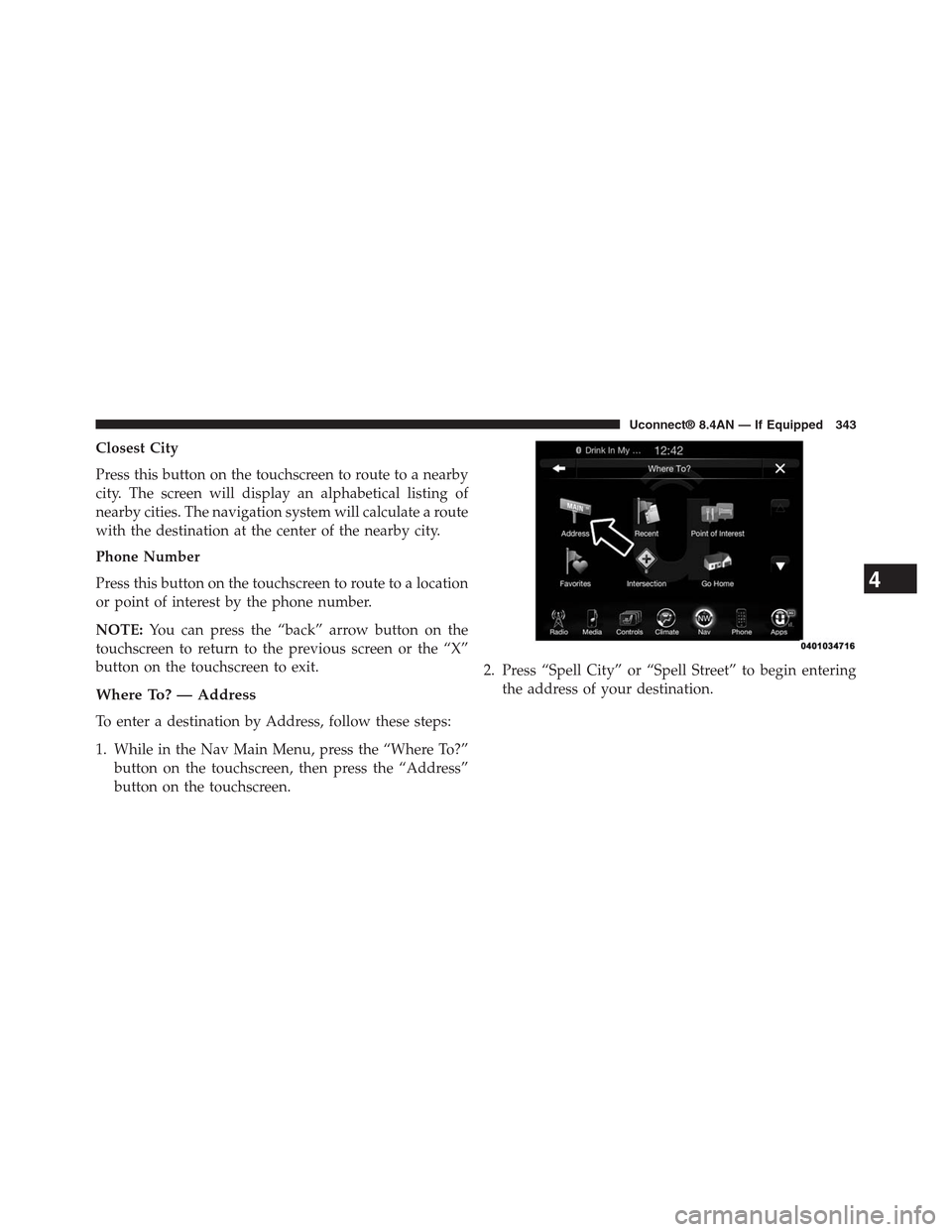
Where To? — Address
To enter a destination by Address, follow these steps:
1. While in the Nav Main Menu, press the “Where To?”
button on the touchscreen, then press the “Address”
button on the touchscreen.
2. Press “Spell City” or “Spell Street” to begin entering
the address of your destination.
4
Uconnect® 8.4AN — If Equipped 343
Page 386 of 429
3D City Models (Available On The Uconnect 8.4AN)
Press this button on the touchscreen to display 3D city
models while in Map View. Press and release the button
on the touchscreen until a check-mark appears, showing
the setting has been selected.
3D Landmarks (Available On The Uconnect 8.4AN)
Press this button on the touchscreen to display 3D
landmarks while in Map View. Press and release the
button on the touchscreen until a check-mark appears,
showing the setting has been selected. Next, change Map
View to 3D by selecting Navigation Options - Settings -
Map Setup - Map View.
Digital Terrain Model (8.4AN Only)
Press this button on the touchscreen to display the areas
terrain while in Map View. Press and release the button
on the touchscreen until a check-mark appears, showing
the setting has been selected.
Park Areas
Press this button on the touchscreen to display Park
Areas while in Map View. Press and release the button on
the touchscreen until a check-mark appears, showing the
setting has been selected.
Railroads
Press this button on the touchscreen to display Railroad
tracks while in Map View. Press and release the button on
the touchscreen until a check-mark appears, showing the
setting has been selected.
City Areas
Press this button on the touchscreen to display City Areas
while in Map View. Press and release the button on the
touchscreen until a check-mark appears, showing the
setting has been selected.
4
Uconnect® 8.4AN — If Equipped 385