steering DODGE CHARGER SRT 2015 7.G Uconnect 8.4A
[x] Cancel search | Manufacturer: DODGE, Model Year: 2015, Model line: CHARGER SRT, Model: DODGE CHARGER SRT 2015 7.GPages: 429, PDF Size: 4.01 MB
Page 96 of 429
Generic Phone Setup Instructions (your phone’s setup
process may be similar):
1. On phone select “Settings” (or the equivalent on your
phone)
2. Select Wireless/Bluetooth® settings
3. Ensure Bluetooth® is on (box checked)
4. Select Bluetooth® settings
5. Select Advanced setting
6. Ensure Message Access service is on (box checked)
7. Select Message Access settings
8. Check the box for SMS
9. Press the back button twice to return to the Bluetooth®
settings screen
10. Check the box for Discoverable
If a Bluetooth® authorization window appears showing
your phone requesting permissions, check the box for
Always and press Accept.
Sending A New Text Message From Radio
1. Pushon the steering wheel.
2. Say“Send text message.”
3. The system will respond “Say the phone number or
the full name and the phone type of the contact that
you want to send a message to.”
4. Dictate message (“I will be home at eight.”)
5. When finished dictating, wait for prompt and say
“Send.”
2
ALL ABOUT Uconnect® ACCESS 95
Page 98 of 429
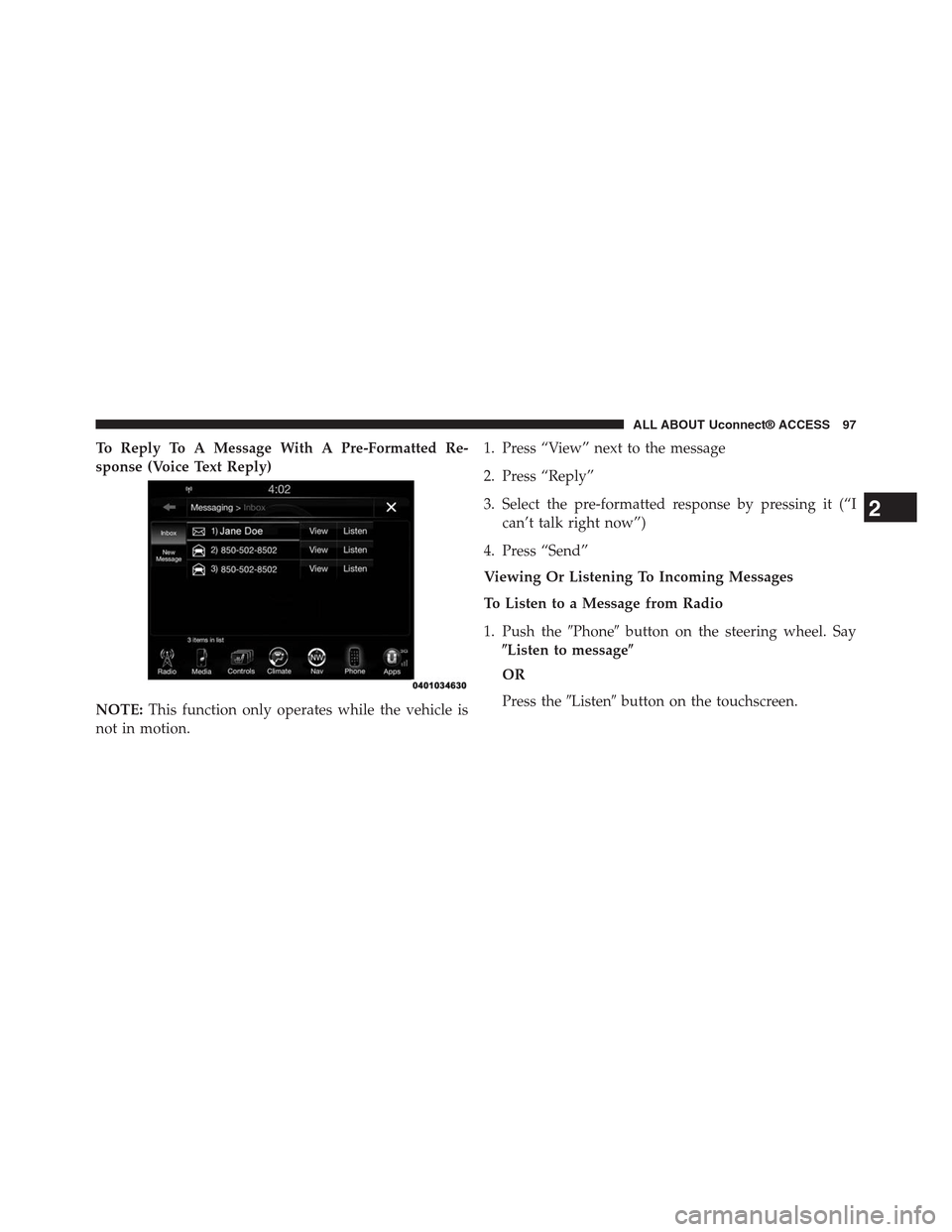
To Reply To A Message With A Pre-Formatted Re-
sponse (Voice Text Reply)
NOTE:This function only operates while the vehicle is
not in motion.
1. Press “View” next to the message
2. Press “Reply”
3. Select the pre-formatted response by pressing it (“I
can’t talk right now”)
4. Press “Send”
Viewing Or Listening To Incoming Messages
To Listen to a Message from Radio
1. Push the#Phone#button on the steering wheel. Say
$Listen to message$
OR
Press the#Listen#button on the touchscreen.
2
ALL ABOUT Uconnect® ACCESS 97
Page 99 of 429
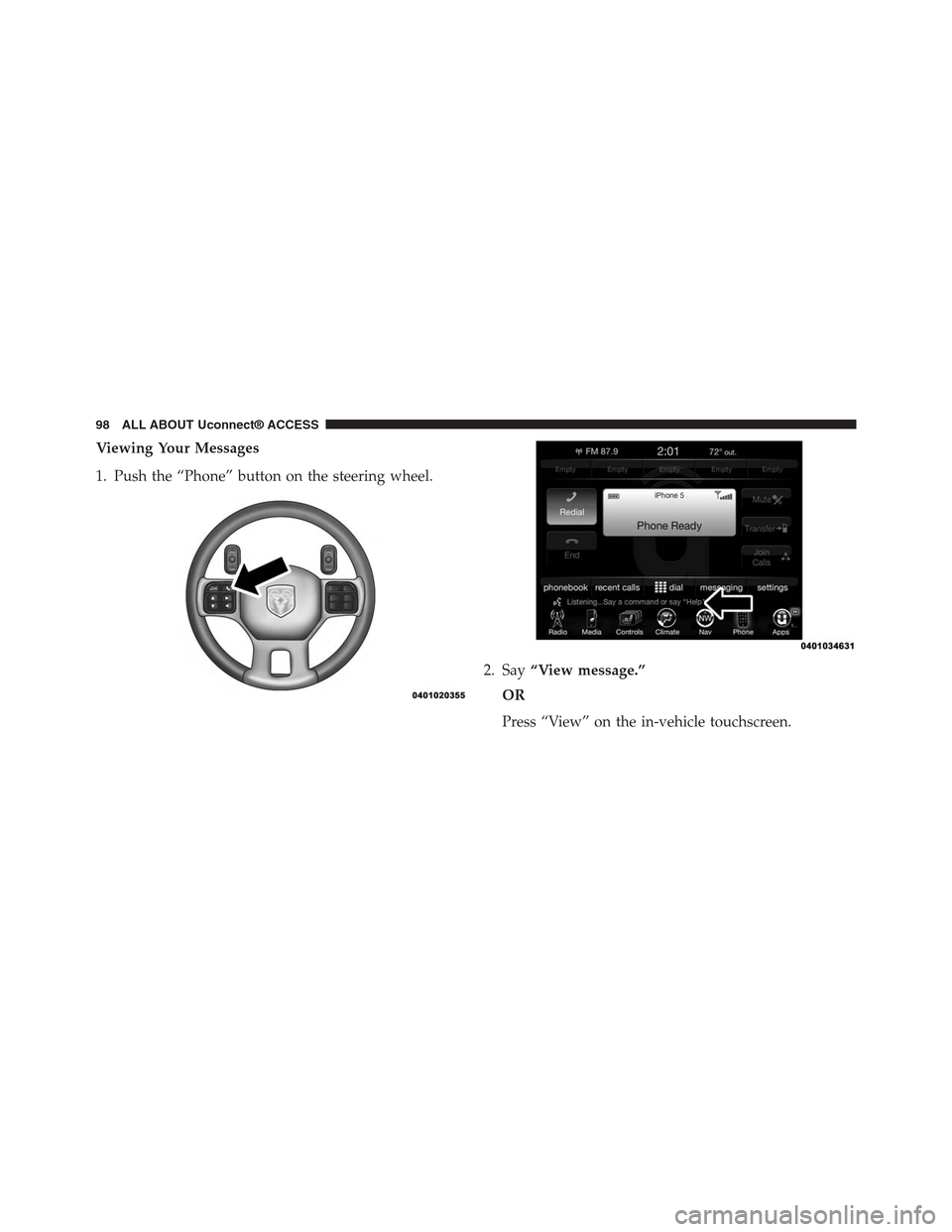
Viewing Your Messages
1. Push the “Phone” button on the steering wheel.
2. Say“View message.”
OR
Press “View” on the in-vehicle touchscreen.
98 ALL ABOUT Uconnect® ACCESS
Page 100 of 429
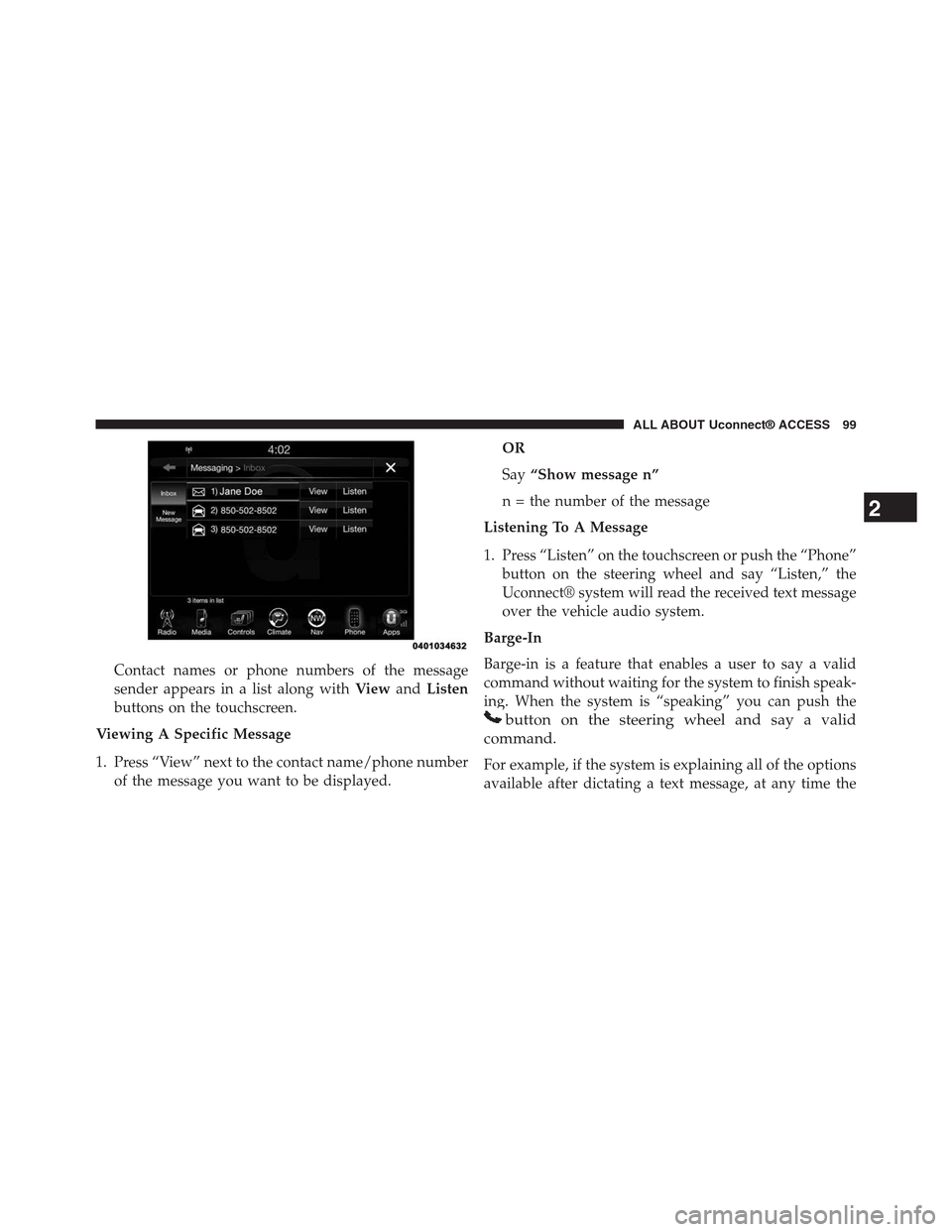
Contact names or phone numbers of the message
sender appears in a list along withViewandListen
buttons on the touchscreen.
Viewing A Specific Message
1. Press “View” next to the contact name/phone number
of the message you want to be displayed.
OR
Say“Show message n”
n = the number of the message
Listening To A Message
1. Press “Listen” on the touchscreen or push the “Phone”
button on the steering wheel and say “Listen,” the
Uconnect® system will read the received text message
over the vehicle audio system.
Barge-In
Barge-in is a feature that enables a user to say a valid
command without waiting for the system to finish speak-
ing. When the system is “speaking” you can push the
button on the steering wheel and say a valid
command.
For example, if the system is explaining all of the options
available after dictating a text message, at any time the
2
ALL ABOUT Uconnect® ACCESS 99
Page 101 of 429
user can press#Listen#on touchscreen or push the
#Phone#button on the steering wheel and say#Listen.#
Requirements
•(MAP may not be compatible with Apple iPhones®
(pre iOS 6). Apple iOS 6 supports receiving text
messages, but does not support sending text mes-
sages).
•Available on vehicles sold in the United States with a
Uconnect® 8.4A (sales code RA3) or Uconnect® 8.4AN
(sales code RA4) radio equipped with Uconnect®
Access.
•Vehicle must be registered with an active Uconnect®
Access Advantage trial or paid subscription for free
form text response to work.
•Vehicle and phone must be in range of the cellular
network.
•Customer must have a properly paired and connected
cellular device with Bluetooth® Message Access Pro-
file (MAP) enabled. Voice Texting is compatible with
many newer BlackBerry and Android mobile devices.
Apple iOS 5 and earlier does not support MAP so
iPhones will not send free form text messages. Apple
iOS 6 supports receiving, not sending text messages.
To check if your device has been tested to be compat-
ible please visitUconnectPhone.com.
Disclaimers
•Not all Voice Texting features may be available on your
phone.
•Your MAP supported phone must be paired and
connected to a compatible Uconnect® radio.
•You must have an active cellular connection and be
within cellular range to voice text.
100 ALL ABOUT Uconnect® ACCESS
Page 102 of 429
•Chrysler Uconnect® and its affiliates are not respon-
sible for errant text messages.
•Vehicle must be registered with an active Uconnect®
Access trial or paid subscription.
WARNING!
ALWAYS drive safely with your hands on the
steering wheel. You have full responsibility and
assume all risks related to the use of the
Uconnect® features and applications in this ve-
hicle. Only use Uconnect® when it is safe to do so.
Failure to do so may result in an accident involv-
ing serious injury or death.
FAQs
1.Can I still voice text if my phone is not listed?We are
constantly testing phones and updating our compat-
ibility database. If your phone is not listed, you may
still be able to pair and connect your MAP supported
phone to a compatible Uconnect® radio to see if all or
most voice texting functions work. Check your phone
manufacturer if MAP is supported on your phone.
2.Can I use voice texting while in my other Chrysler
vehicle?The Voice Texting free text response feature is
available only on Uconnect® 8.4A (sales code RA3) or
Uconnect® 8.4AN (sales code RA4) radios. Other
Chrysler vehicles do support hands free texting, but
only with fixed responses.
2
ALL ABOUT Uconnect® ACCESS 101
Page 104 of 429
10.Can I use Text Messaging if the “messaging” button
doesn’t turn white?Only MAP compatible phones
will work with Text Messaging. If your phone is
compatible, the “messaging” light will turn white,
after the phone is Bluetooth® connected, and you
will then be able to do hands free Text Messaging.
The system will respond with “Sorry, I didn’t under-
stand you” if you push the steering wheel “Phone”
button and say a voice command for Text Messaging,
when the button isn’t active (“white”).
Remote Door Lock/Unlock
Lock Or Unlock Your Vehicle From Virtually Anywhere
Using Your Computer Or Smartphone App.
Description
The Remote Door Lock/Unlock feature provides you the
ability to lock or unlock the door on your vehicle,
without the keys and from virtually any distance. You
can send a request to your vehicle in one of three ways:
•Using the Uconnect® Access App from a compatible
smartphone
•From the Mopar® Owner Connect website
(moparownerconnect.com)
•Contacting Uconnect® Care
If you want, you can set up notifications for your account
to receive an email or text (SMS) message every time a
command is sent to lock or unlock your doors.
How It Works
Uconnect® Access App:
1. Download the Uconnect® Access App to a compatible
smartphone and login using your username and pass-
word.
2. To lock the doors, push the button with the closed lock
icon; to unlock the driver ’s door push the button with
the open lock icon.
2
ALL ABOUT Uconnect® ACCESS 103
Page 121 of 429
Via Mobile Apps
Pandora® — If Equipped
Pandora® gives people the music and comedy they love
anytime, anywhere. Personalized stations launch in-
stantly, with the input of a favorite artist, track, come-
dian, or genre.
Description
Easily control your Pandora® app through an intuitive
interface via the vehicle touchscreen and steering wheel
controls.
•Reduce the need to use your Smartphone to access
Pandora® so you can stay focused on driving.
•Launch Pandora® using Voice Recognition (VR) via a
button on the steering wheel.
•Pandora® offers personalized radio based on your
favorite artists, or songs and can create a custom
#station#playing similar music. Custom stations are
created on the Pandora® website or the mobile app.
•Listen to previously created stations in “shuffle” mode
•For the best music experience, continuously personal-
ize your music using the “Like” or “Dislike” buttons
on the touchscreen whenever a particular song is
played that you want to hear more or less of.
•Enjoy a higher quality of music by adjusting the
Pandora® settings.
•Customers can leverage an existing Pandora® account,
or set up a new account on the Pandora® website at
pandora.com.
•Customers can also create a new Pandora® account by
clicking on a link from the Uconnect® Access Via
Mobile profile page during registration and setup.
120 ALL ABOUT Uconnect® ACCESS
Page 123 of 429
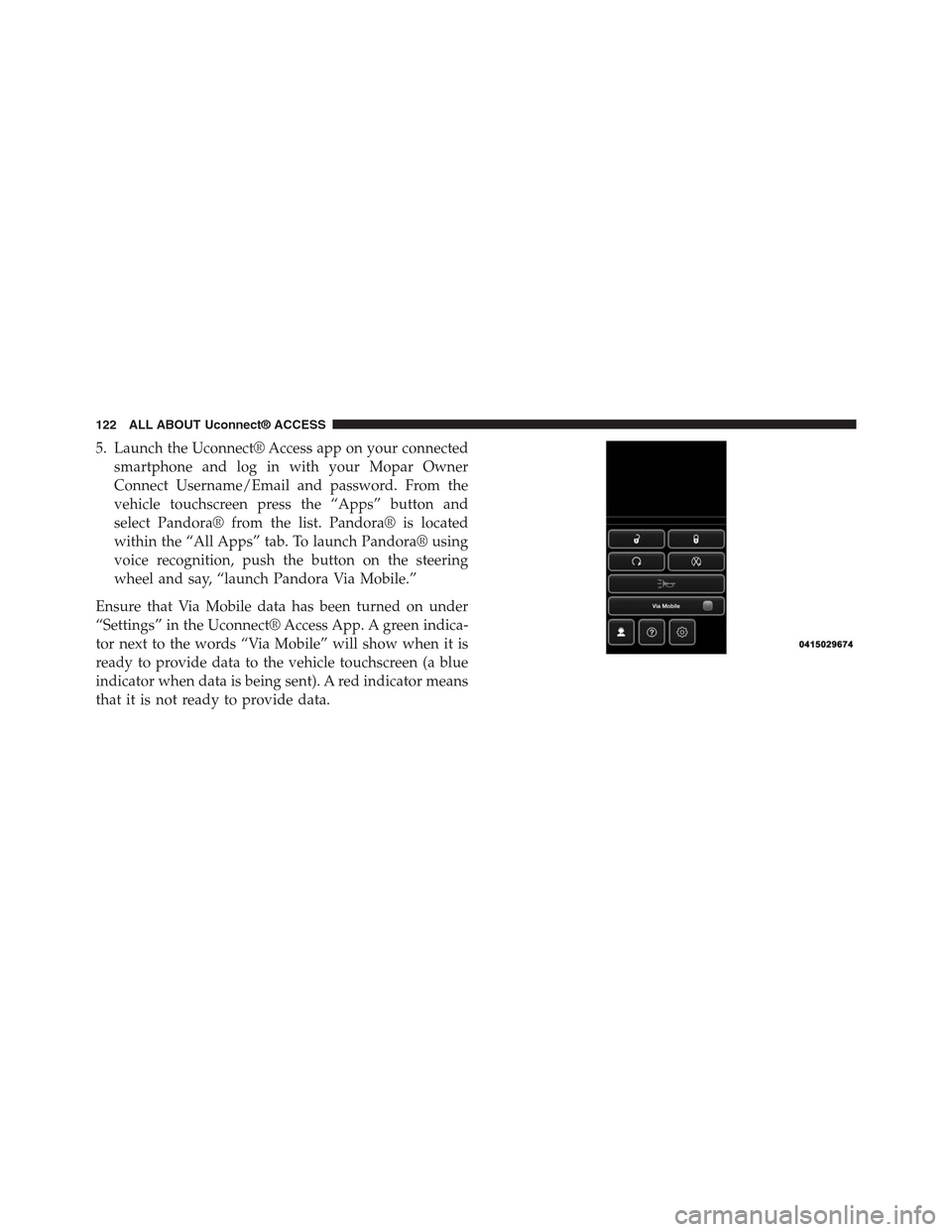
5. Launch the Uconnect® Access app on your connected
smartphone and log in with your Mopar Owner
Connect Username/Email and password. From the
vehicle touchscreen press the “Apps” button and
select Pandora® from the list. Pandora® is located
within the “All Apps” tab. To launch Pandora® using
voice recognition, push the button on the steering
wheel and say, “launch Pandora Via Mobile.”
Ensure that Via Mobile data has been turned on under
“Settings” in the Uconnect® Access App. A green indica-
tor next to the words “Via Mobile” will show when it is
ready to provide data to the vehicle touchscreen (a blue
indicator when data is being sent). A red indicator means
that it is not ready to provide data.
122 ALL ABOUT Uconnect® ACCESS
Page 126 of 429
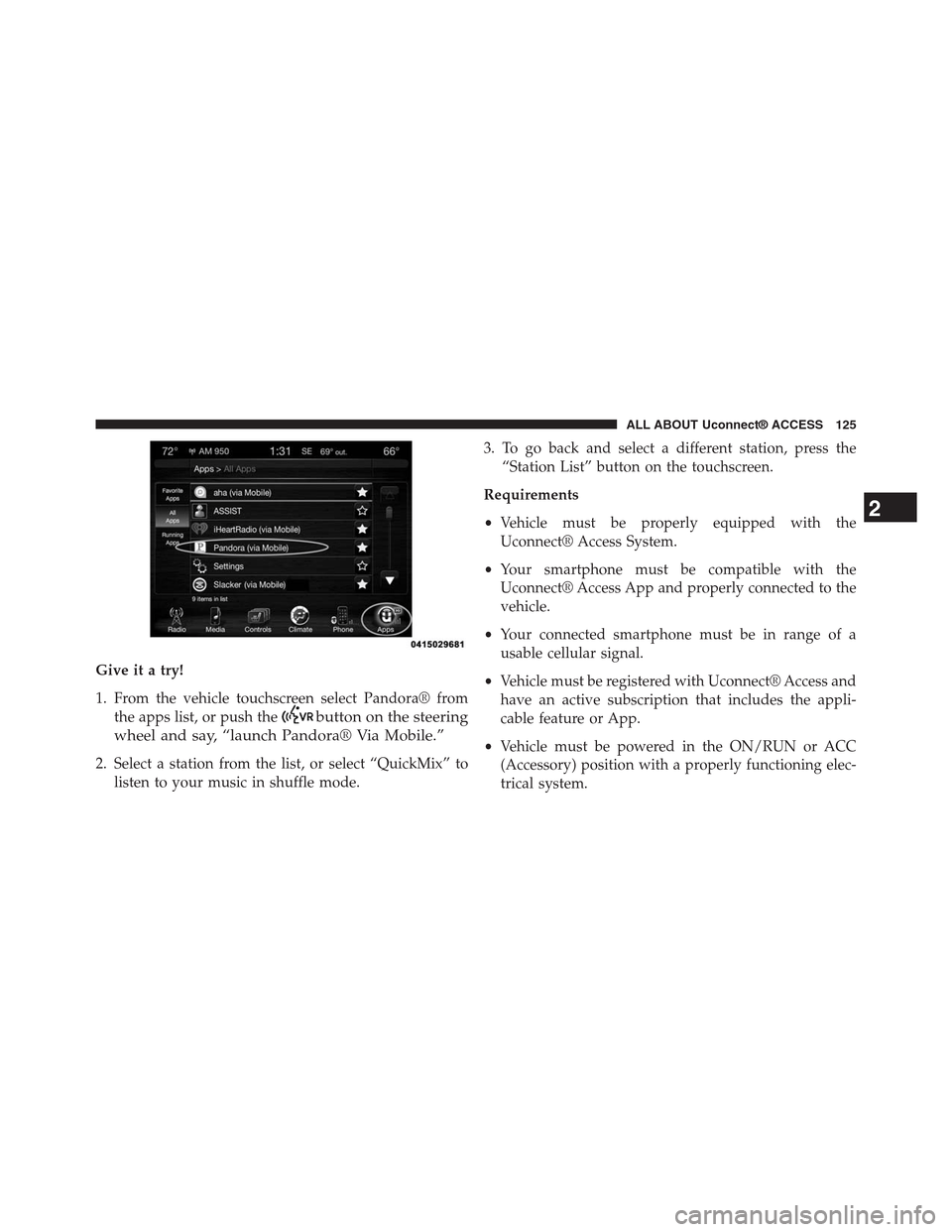
Give it a try!
1. From the vehicle touchscreen select Pandora® from
the apps list, or push thebutton on the steering
wheel and say, “launch Pandora® Via Mobile.”
2. Select a station from the list, or select “QuickMix” to
listen to your music in shuffle mode.
3. To go back and select a different station, press the
“Station List” button on the touchscreen.
Requirements
•Vehicle must be properly equipped with the
Uconnect® Access System.
•Your smartphone must be compatible with the
Uconnect® Access App and properly connected to the
vehicle.
•Your connected smartphone must be in range of a
usable cellular signal.
•Vehicle must be registered with Uconnect® Access and
have an active subscription that includes the appli-
cable feature or App.
•Vehicle must be powered in the ON/RUN or ACC
(Accessory) position with a properly functioning elec-
trical system.
2
ALL ABOUT Uconnect® ACCESS 125