buttons DODGE CHARGER SRT 2015 7.G Uconnect 8.4A
[x] Cancel search | Manufacturer: DODGE, Model Year: 2015, Model line: CHARGER SRT, Model: DODGE CHARGER SRT 2015 7.GPages: 429, PDF Size: 4.01 MB
Page 211 of 429
Call Controls
The touchscreen allows you to control the following call
features:
•Answer
•End
•Ignore
•Hold/unhold
•Mute/unmute
•Transfer the call to/from the phone
•Swap two active calls
•Join two active calls together
Touch-Tone Number Entry
1. Press the “Phone” button on the touchscreen.
2. Press the “Dial” button on the touchscreen.
3. The Touch-Tone screen will be displayed.
4. Use the numbered buttons on the touchscreens to
enter the number and press “Call.”
To send a touch-tone using Voice Recognition (VR), push
the Voice Commandbutton on your steering
wheel while in a call and say “Send 1234#” or you can
say “Send Voicemail Password” if Voicemail password
is stored in your mobile phonebook.
210 Uconnect® 8.4A — If Equipped
Page 264 of 429
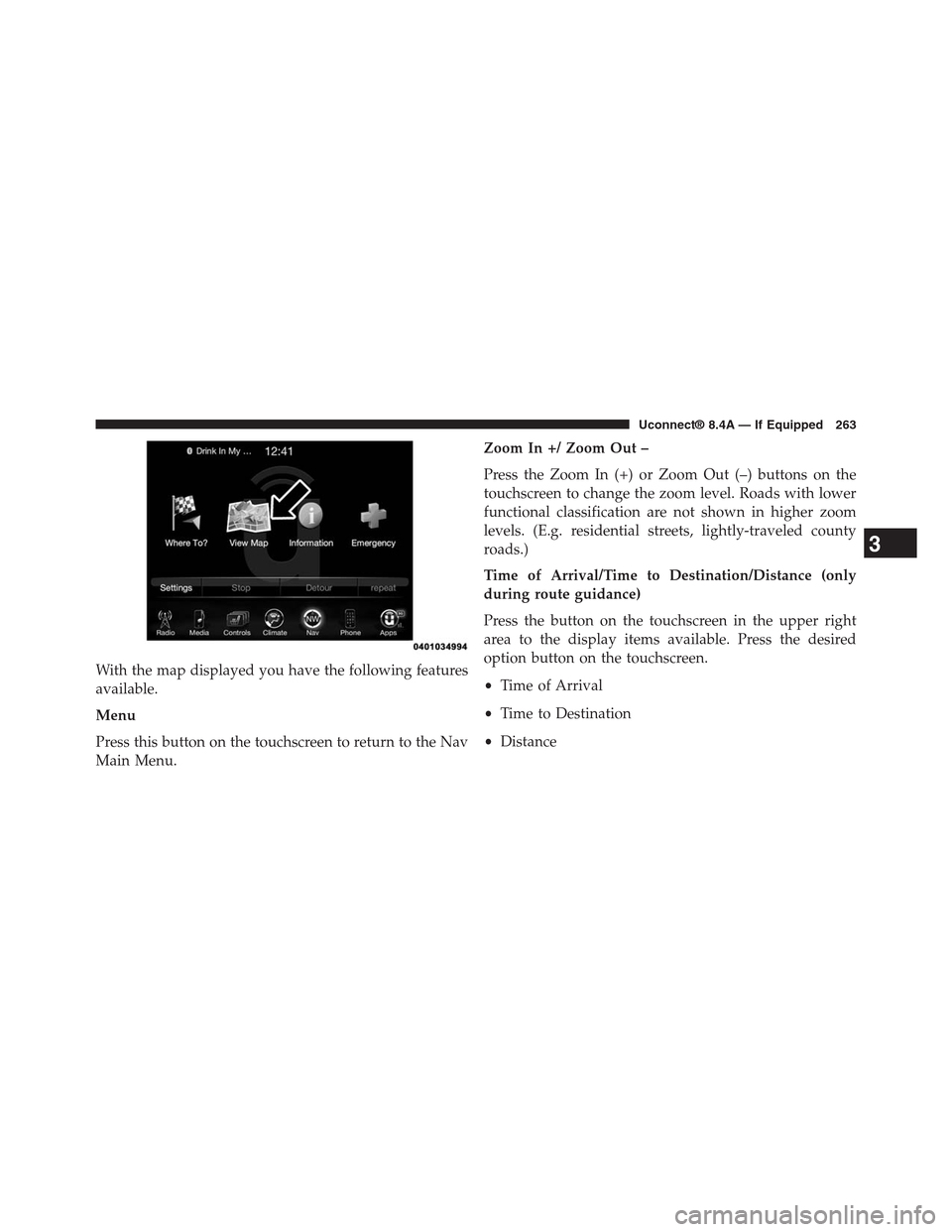
With the map displayed you have the following features
available.
Menu
Press this button on the touchscreen to return to the Nav
Main Menu.
Zoom In +/ Zoom Out –
Press the Zoom In (+) or Zoom Out (–) buttons on the
touchscreen to change the zoom level. Roads with lower
functional classification are not shown in higher zoom
levels. (E.g. residential streets, lightly-traveled county
roads.)
Time of Arrival/Time to Destination/Distance (only
during route guidance)
Press the button on the touchscreen in the upper right
area to the display items available. Press the desired
option button on the touchscreen.
•Time of Arrival
•Time to Destination
•Distance
3
Uconnect® 8.4A — If Equipped 263
Page 271 of 429
•River Names
Press this button on the touchscreen to display River
Names while in Map View. Press and release the button
on the touchscreen until a check-mark appears, showing
the setting has been selected.
NOTE:You can press the “back arrow” button on the
touchscreen to return to the previous screen or the “X”
button on the touchscreen to exit.
Settings — Guidance
With the Map displayed, press the “Options” button on
the touchscreen, then press the “Settings” button on the
touchscreen and then the “Guidance” button on the
touchscreen. You can also access this menu by pressing
the “Settings” button in the lower right of the Nav Main
Menu.
The following Guidance options are available.
•Play Voice Guidance Prompts
Press this button on the touchscreen to enable Voice
Guidance Prompts during route guidance. Press and
release the button on the touchscreen until a check-mark
appears, showing the setting has been selected.
•Nav Volume Adjustment
Press the “+” or “–” buttons on the touchscreen to adjust
the Nav Voice Prompt Volume.
•Lane Recommendation
Press this button on the touchscreen to enable Lane
Recommendation during route guidance. Press and re-
lease the button on the touchscreen until a check-mark
appears, showing the setting has been selected.
270 Uconnect® 8.4A — If Equipped
Page 292 of 429
Uconnect® 8.4AN SYSTEM
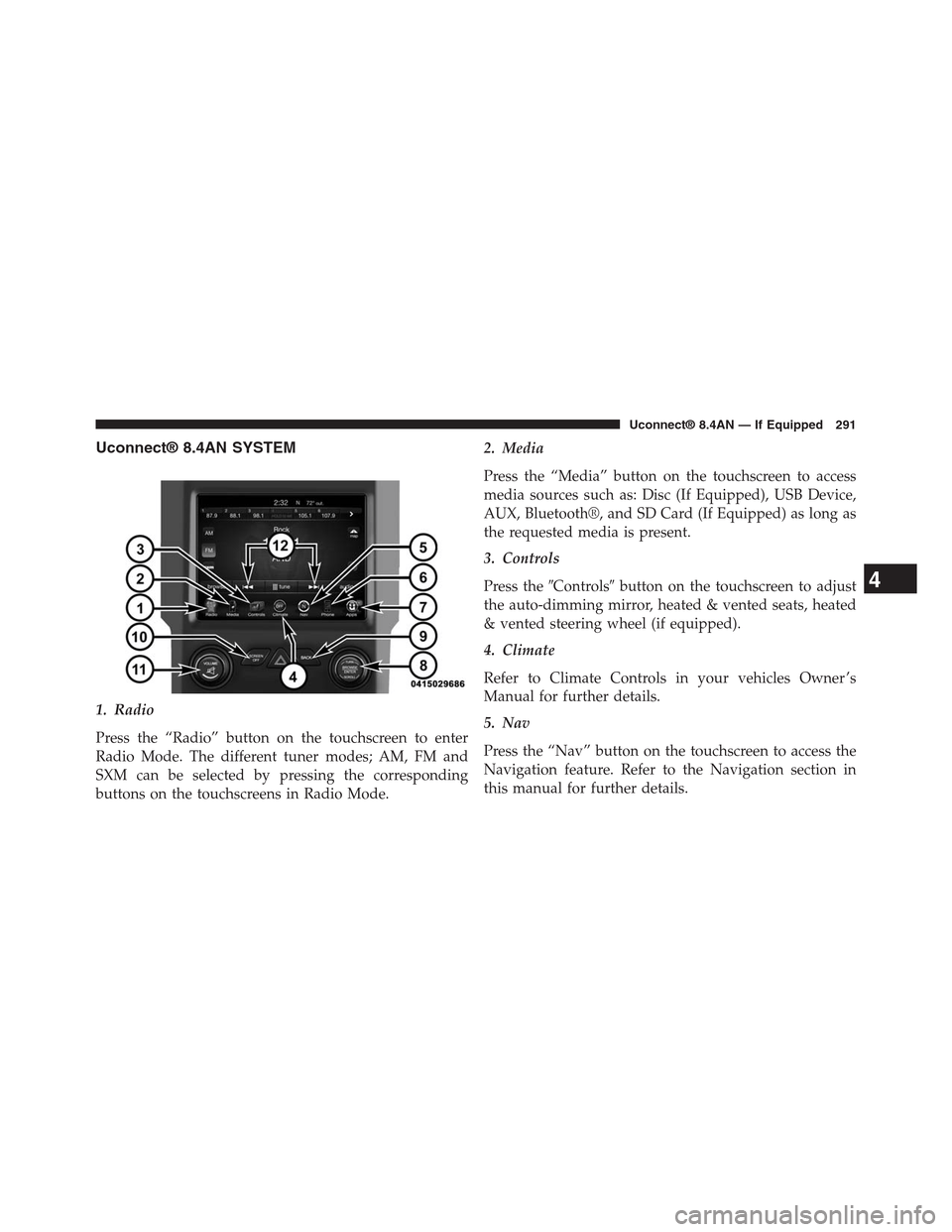
1. Radio
Press the “Radio” button on the touchscreen to enter
Radio Mode. The different tuner modes; AM, FM and
SXM can be selected by pressing the corresponding
buttons on the touchscreens in Radio Mode.
2. Media
Press the “Media” button on the touchscreen to access
media sources such as: Disc (If Equipped), USB Device,
AUX, Bluetooth®, and SD Card (If Equipped) as long as
the requested media is present.
3. Controls
Press the#Controls#button on the touchscreen to adjust
the auto-dimming mirror, heated & vented seats, heated
& vented steering wheel (if equipped).
4. Climate
Refer to Climate Controls in your vehicles Owner ’s
Manual for further details.
5. Nav
Press the “Nav” button on the touchscreen to access the
Navigation feature. Refer to the Navigation section in
this manual for further details.
4
Uconnect® 8.4AN — If Equipped 291
Page 293 of 429
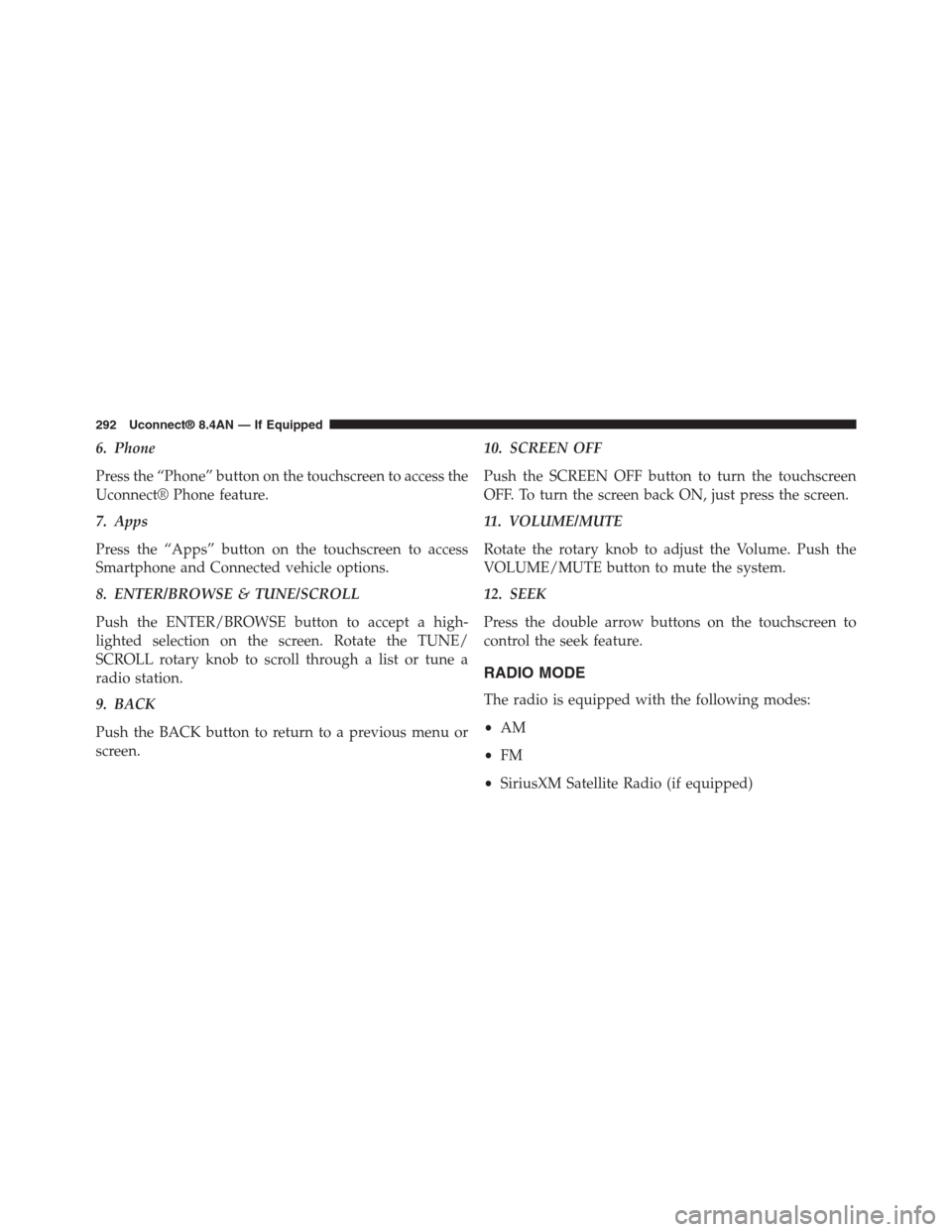
6. Phone
Press the “Phone” button on the touchscreen to access the
Uconnect® Phone feature.
7. Apps
Press the “Apps” button on the touchscreen to access
Smartphone and Connected vehicle options.
8. ENTER/BROWSE & TUNE/SCROLL
Push the ENTER/BROWSE button to accept a high-
lighted selection on the screen. Rotate the TUNE/
SCROLL rotary knob to scroll through a list or tune a
radio station.
9. BACK
Push the BACK button to return to a previous menu or
screen.
10. SCREEN OFF
Push the SCREEN OFF button to turn the touchscreen
OFF. To turn the screen back ON, just press the screen.
11. VOLUME/MUTE
Rotate the rotary knob to adjust the Volume. Push the
VOLUME/MUTE button to mute the system.
12. SEEK
Press the double arrow buttons on the touchscreen to
control the seek feature.
RADIO MODE
The radio is equipped with the following modes:
•AM
•FM
•SiriusXM Satellite Radio (if equipped)
292 Uconnect® 8.4AN — If Equipped
Page 294 of 429
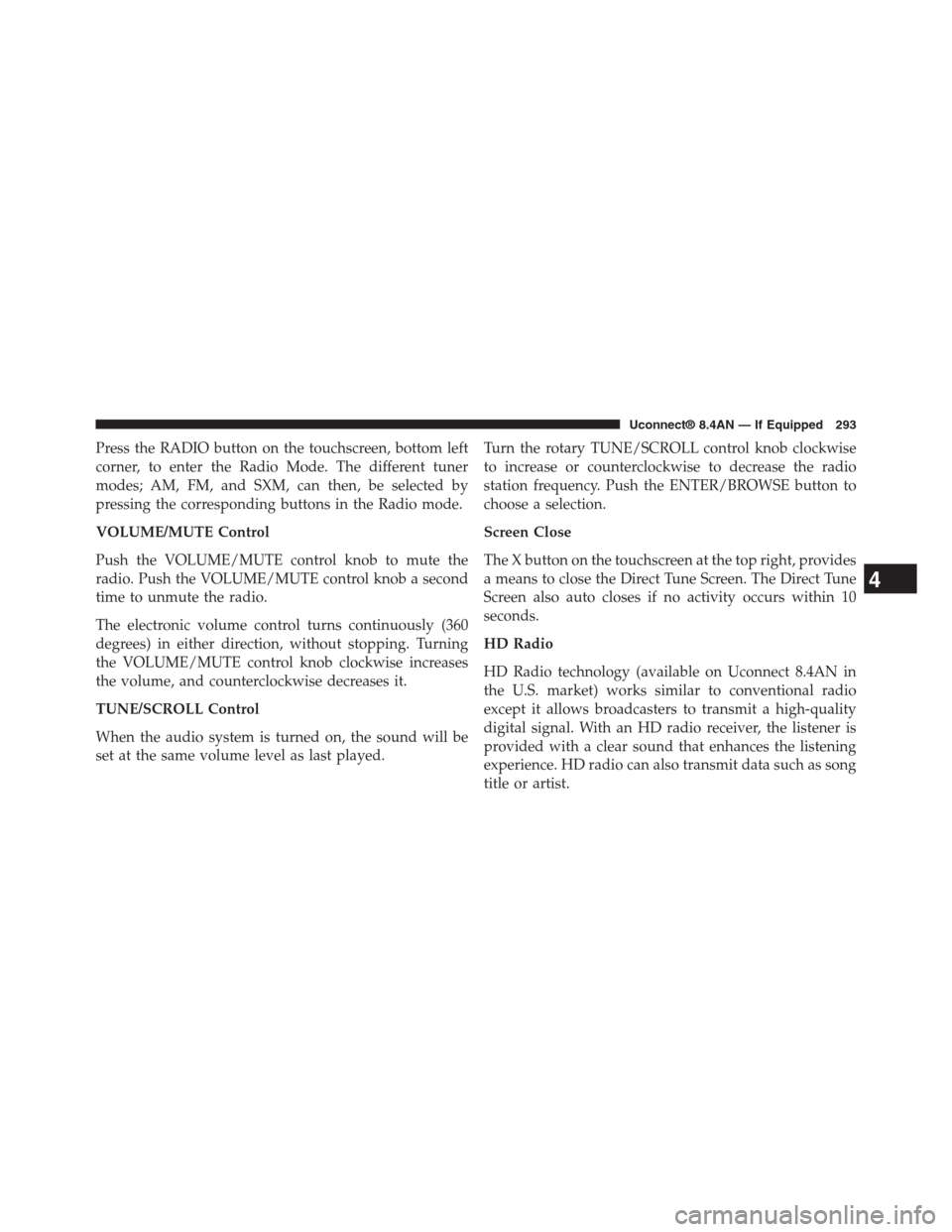
Press the RADIO button on the touchscreen, bottom left
corner, to enter the Radio Mode. The different tuner
modes; AM, FM, and SXM, can then, be selected by
pressing the corresponding buttons in the Radio mode.
VOLUME/MUTE Control
Push the VOLUME/MUTE control knob to mute the
radio. Push the VOLUME/MUTE control knob a second
time to unmute the radio.
The electronic volume control turns continuously (360
degrees) in either direction, without stopping. Turning
the VOLUME/MUTE control knob clockwise increases
the volume, and counterclockwise decreases it.
TUNE/SCROLL Control
When the audio system is turned on, the sound will be
set at the same volume level as last played.
Turn the rotary TUNE/SCROLL control knob clockwise
to increase or counterclockwise to decrease the radio
station frequency. Push the ENTER/BROWSE button to
choose a selection.
Screen Close
The X button on the touchscreen at the top right, provides
a means to close the Direct Tune Screen. The Direct Tune
Screen also auto closes if no activity occurs within 10
seconds.
HD Radio
HD Radio technology (available on Uconnect 8.4AN in
the U.S. market) works similar to conventional radio
except it allows broadcasters to transmit a high-quality
digital signal. With an HD radio receiver, the listener is
provided with a clear sound that enhances the listening
experience. HD radio can also transmit data such as song
title or artist.
4
Uconnect® 8.4AN — If Equipped 293
Page 295 of 429
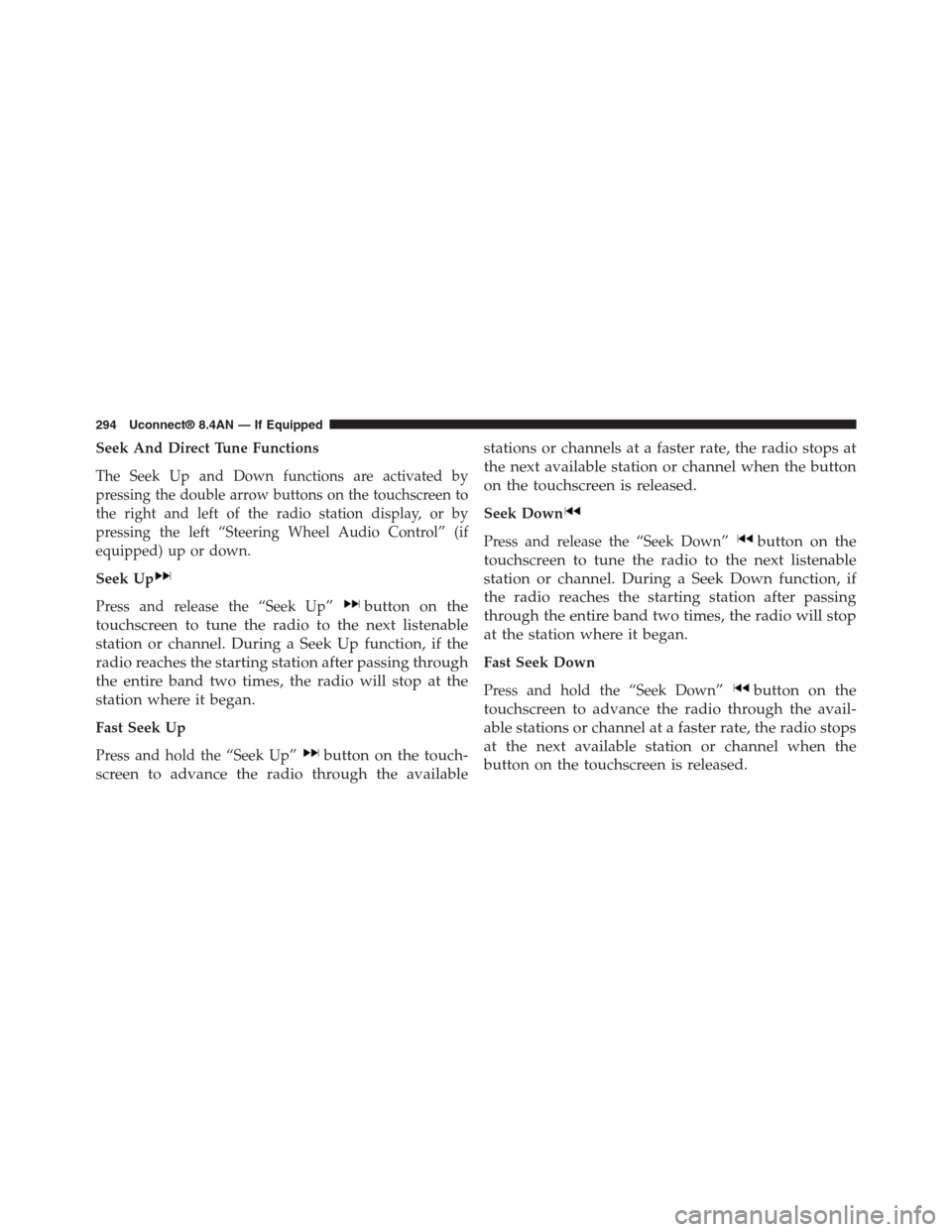
Seek And Direct Tune Functions
The Seek Up and Down functions are activated by
pressing the double arrow buttons on the touchscreen to
the right and left of the radio station display, or by
pressing the left “Steering Wheel Audio Control” (if
equipped) up or down.
Seek Up
Press and release the “Seek Up”button on the
touchscreen to tune the radio to the next listenable
station or channel. During a Seek Up function, if the
radio reaches the starting station after passing through
the entire band two times, the radio will stop at the
station where it began.
Fast Seek Up
Press and hold the “Seek Up”button on the touch-
screen to advance the radio through the available
stations or channels at a faster rate, the radio stops at
the next available station or channel when the button
on the touchscreen is released.
Seek Down
Press and release the “Seek Down”button on the
touchscreen to tune the radio to the next listenable
station or channel. During a Seek Down function, if
the radio reaches the starting station after passing
through the entire band two times, the radio will stop
at the station where it began.
Fast Seek Down
Press and hold the “Seek Down”button on the
touchscreen to advance the radio through the avail-
able stations or channel at a faster rate, the radio stops
at the next available station or channel when the
button on the touchscreen is released.
294 Uconnect® 8.4AN — If Equipped
Page 296 of 429
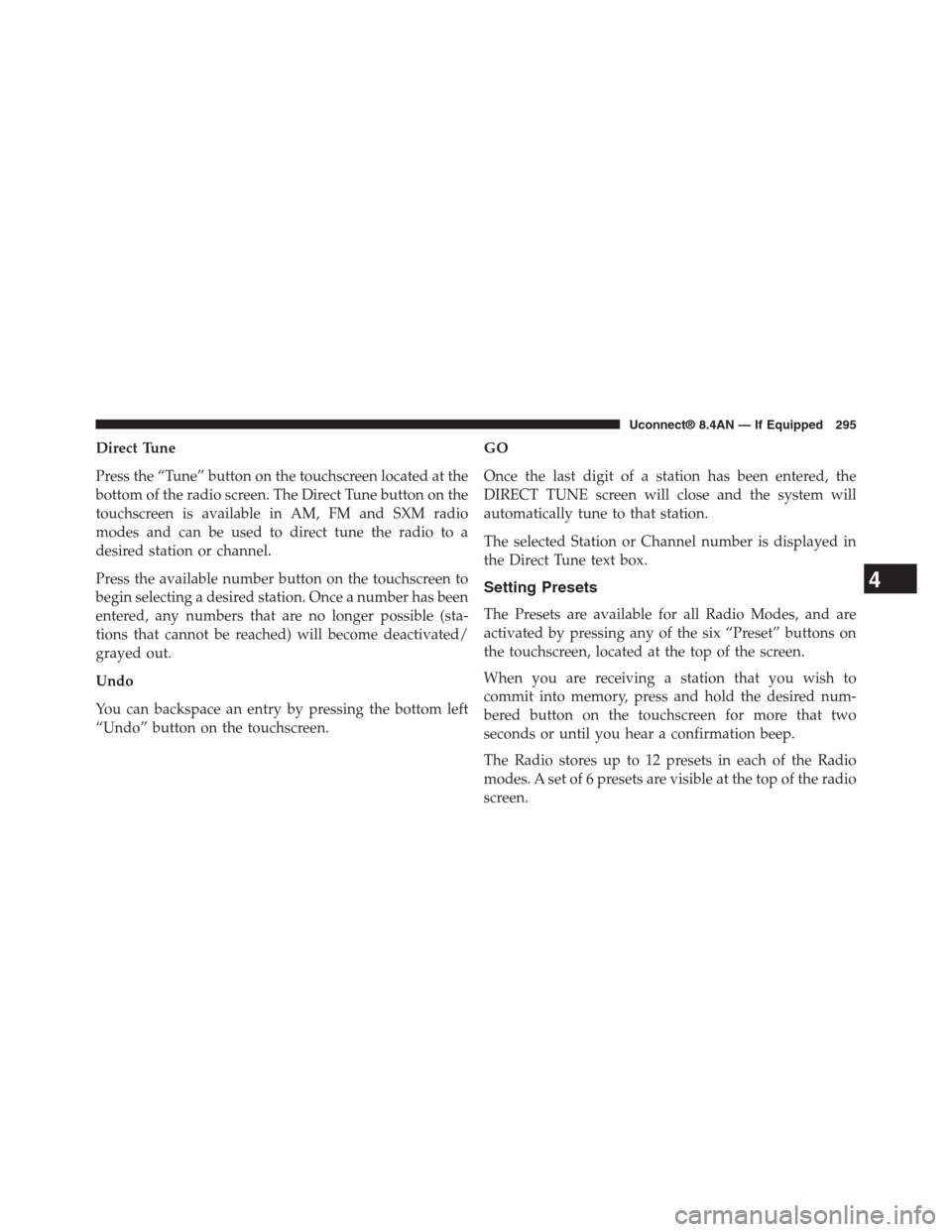
Direct Tune
Press the “Tune” button on the touchscreen located at the
bottom of the radio screen. The Direct Tune button on the
touchscreen is available in AM, FM and SXM radio
modes and can be used to direct tune the radio to a
desired station or channel.
Press the available number button on the touchscreen to
begin selecting a desired station. Once a number has been
entered, any numbers that are no longer possible (sta-
tions that cannot be reached) will become deactivated/
grayed out.
Undo
You can backspace an entry by pressing the bottom left
“Undo” button on the touchscreen.
GO
Once the last digit of a station has been entered, the
DIRECT TUNE screen will close and the system will
automatically tune to that station.
The selected Station or Channel number is displayed in
the Direct Tune text box.
Setting Presets
The Presets are available for all Radio Modes, and are
activated by pressing any of the six “Preset” buttons on
the touchscreen, located at the top of the screen.
When you are receiving a station that you wish to
commit into memory, press and hold the desired num-
bered button on the touchscreen for more that two
seconds or until you hear a confirmation beep.
The Radio stores up to 12 presets in each of the Radio
modes. A set of 6 presets are visible at the top of the radio
screen.
4
Uconnect® 8.4AN — If Equipped 295
Page 299 of 429
This functionality is only available for radios equipped
with a Satellite receiver. In order to receive satellite radio,
the vehicle needs to be outside with a clear view to the
sky.
If the screen shows Acquiring Signal, you might have to
change the vehicle’s position in order to receive a signal.
In most cases, the satellite radio does not receive a signal
in underground parking garages or tunnels.
No Subscription
Radios equipped with a Satellite receiver, require a
subscription to the SiriusXM Service. When the Radio
does not have the necessary subscription, the Radio is
able to receive the Pre-View channel only.
Acquiring SiriusXM Subscription
To activate the SiriusXM Satellite Radio subscription, call
1-800-643-2112 for U.S. residents and 1-877-438-9677 for
Canadian residents. You will need to provide the Siri-
usXM ID (RID) located at the bottom of the Channel 0
screen.
The Satellite Mode is activated by a press of the “SXM”
button on the touchscreen.
When in Satellite mode:
•The SXM button on the touchscreen is highlighted.
•The SiriusXM Presets are displayed at the top of the
screen.
•The Genre is displayed below the Presets Bar.
•The SiriusXM Channel Number is displayed in the
center.
•The Program Information is displayed at the bottom of
the Channel Number.
•The SiriusXM function buttons are displayed below
the Program Information.
298 Uconnect® 8.4AN — If Equipped
Page 300 of 429
Tuning is done by operating the Tune Knob or by Direct
Tune, similar to other Radio Bands, see Presets, browse,
Tune Knob, and Direct Tune.
In addition to the tuning Operation functions common to
all Radio modes, the replay, Traffic/Weather Jump, and
fav button functions are available in SiriusXM Mode.
Replay
The replay function provides a means to store and replay
up to 22 minutes of music audio and 48 minutes of talk
radio. Once the channel is switched, content in replay
memory is lost.
Press the “Replay” button on the touchscreen. The play/
pause, rewind/forward and live buttons will display at
the top of the screen, along with the replay time.
You can exit by pressing the “Replay” button on the
touchscreen, any time during the Replay mode.
Play/Pause
Press the “Pause/Play” button on the touchscreen to
pause the playing of live or rewound content at any time.
Play can be resumed again by pressing of the “Pause/
Play” button on the touchscreen.
Rewind
Press the “RW” button on the touchscreen to rewind the
content in steps of five seconds. Pressing the “RW”
button on the touchscreen for more than two seconds
rewinds the content. The Radio begins playing the con-
tent at the point at which the press is released.
Forward
Each press of the “FW” button on the touchscreen
forwards the content in steps of five seconds. Forwarding
of the content can only be done when the content is
previously rewound, and therefore, can not be done for
live content. A continuous press of the “FW” button on
4
Uconnect® 8.4AN — If Equipped 299