steering DODGE DURANGO 2015 3.G Owner's Manual
[x] Cancel search | Manufacturer: DODGE, Model Year: 2015, Model line: DURANGO, Model: DODGE DURANGO 2015 3.GPages: 689, PDF Size: 20.05 MB
Page 191 of 689
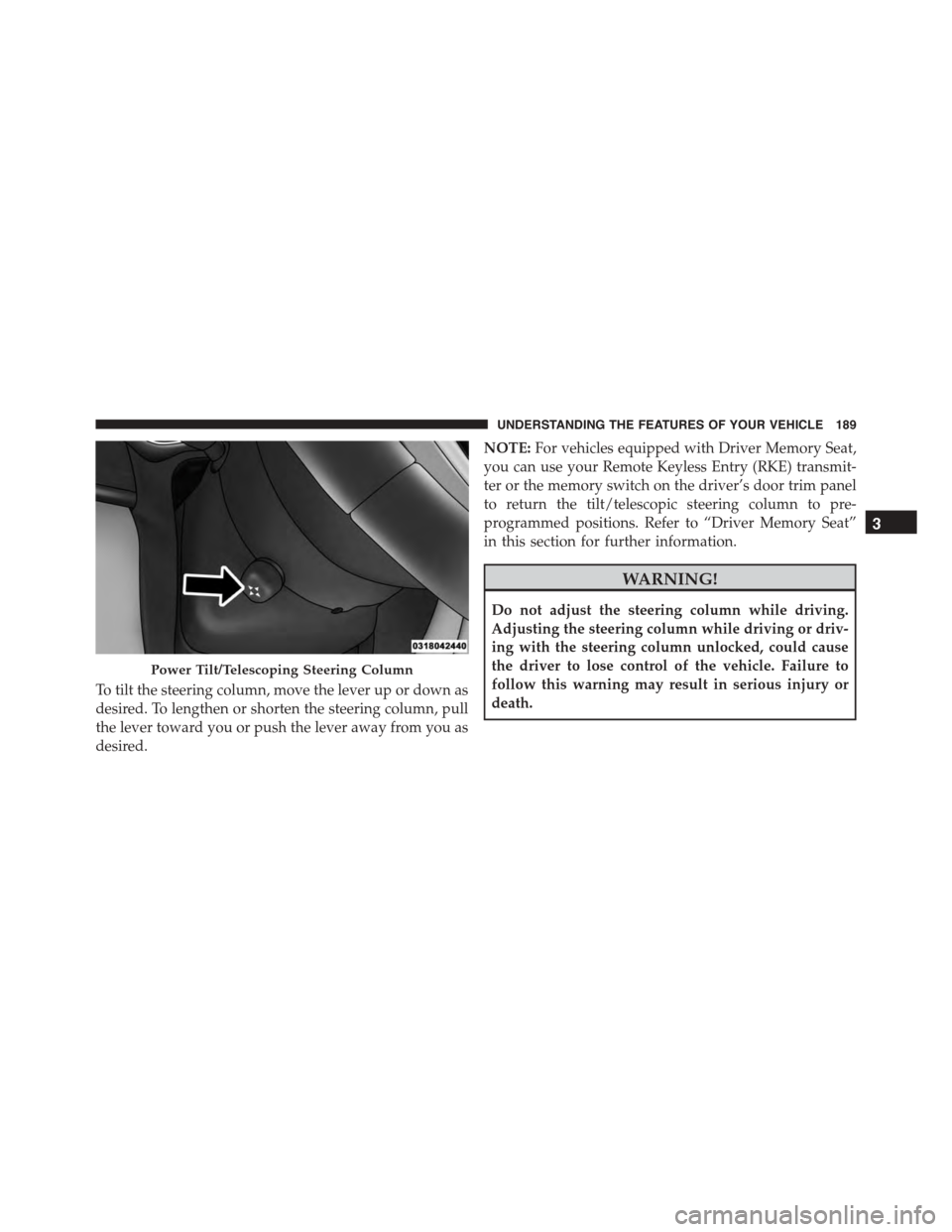
To tilt the steering column, move the lever up or down as
desired. To lengthen or shorten the steering column, pull
the lever toward you or push the lever away from you as
desired.
NOTE:For vehicles equipped with Driver Memory Seat,
you can use your Remote Keyless Entry (RKE) transmit-
ter or the memory switch on the driver’s door trim panel
to return the tilt/telescopic steering column to pre-
programmed positions. Refer to “Driver Memory Seat”
in this section for further information.
WARNING!
Do not adjust the steering column while driving.
Adjusting the steering column while driving or driv-
ing with the steering column unlocked, could cause
the driver to lose control of the vehicle. Failure to
follow this warning may result in serious injury or
death.
Power Tilt/Telescoping Steering Column
3
UNDERSTANDING THE FEATURES OF YOUR VEHICLE 189
Page 192 of 689
HEATED STEERING WHEEL — IF EQUIPPED
The steering wheel contains a heating element that helps
warm your hands in cold weather. The heated steering
wheel has only one temperature setting. Once the heated
steering wheel has been turned on it will operate for up
to 80 minutes before automatically shutting off. The
heated steering wheel can shut off early or may not turn
on when the steering wheel is already warm.
The heated steering wheel control button is located
within the Uconnect® system. You can gain access to the
control button through the climate screen or the controls
screen.
•Press the heated steering wheel buttononce to
turn the heating element ON.
•Press the heated steering wheel buttona second
time to turn the heating element OFF.
NOTE:The engine must be running for the heated
steering wheel to operate.
Vehicles Equipped With Remote Start
On models that are equipped with remote start, the
heated steering wheel can be programmed to come on
during a remote start through the Uconnect® system.
Refer to “Uconnect® Settings” in “Understanding Your
Instrument Panel” for further information.
190 UNDERSTANDING THE FEATURES OF YOUR VEHICLE
Page 193 of 689
WARNING!
•Persons who are unable to feel pain to the skin
because of advanced age, chronic illness, diabetes,
spinal cord injury, medication, alcohol use, exhaus-
tion, or other physical conditions must exercise
care when using the steering wheel heater. It may
cause burns even at low temperatures, especially if
used for long periods.
•Do not place anything on the steering wheel that
insulates against heat, such as a blanket or steering
wheel covers of any type and material. This may
cause the steering wheel heater to overheat.
ELECTRONIC SPEED CONTROL — IF EQUIPPED
When engaged, the Electronic Speed Control takes over
accelerator operations at speeds greater than 25 mph
(40 km/h).
The Electronic Speed Control buttons are located on the
right side of the steering wheel.
3
UNDERSTANDING THE FEATURES OF YOUR VEHICLE 191
Page 200 of 689
WARNING!(Continued)
•Will bring the vehicle to a complete stop while
following a target vehicle and hold the vehicle
for 2 seconds in the stop position. If the target
vehicle does not start moving within two seconds
the ACC system will display a message that the
system will release the brakes and that the
brakes must be applied manually. An audible
chime will sound when the brakes are released.
You should switch off the ACC system:
•When driving in fog, heavy rain, heavy snow, sleet,
heavy traffic, and complex driving situations (i.e.,
in highway construction zones).
•When entering a turn lane or highway off ramp;
when driving on roads that are winding, icy, snow-
covered, slippery, or have steep uphill or downhill
slopes.
(Continued)
WARNING!(Continued)
•When towing a trailer up or down steep slopes.
•When circumstances do not allow safe driving at a
constant speed.
Adaptive Cruise Control (ACC) Operation
The speed control buttons (located on the right side of the
steering wheel) operates the ACC system.
198 UNDERSTANDING THE FEATURES OF YOUR VEHICLE
Page 213 of 689

WARNING!(Continued)
these warnings can result in a collision and death or
serious personal injury.
Adaptive Cruise Control (ACC) Menu
The DID displays the current ACC system settings. The
DID is located in the center of the instrument cluster. The
information it displays depends on ACC system status.
Push the ADAPTIVE CRUISE CONTROL (ACC) ON/
OFF button (located on the steering wheel) until one of
the following displays in the DID:
Adaptive Cruise Control Off
When ACC is deactivated, the display will read “Adap-
tive Cruise Control Off.”
Adaptive Cruise Control Ready
When ACC is activated but the vehicle speed setting has
not been selected, the display will read “Adaptive Cruise
Control Ready.”
Push the SET + or the SET- button (located on the steering
wheel) and the following will display in the DID:
ACC SET
When ACC is set, the set speed will display in the
instrument cluster.
The ACC screen may display once again if any ACC
activity occurs, which may include any of the following:
•System Cancel
•Driver Override
•System Off
•ACC Proximity Warning
3
UNDERSTANDING THE FEATURES OF YOUR VEHICLE 211
Page 227 of 689
NOTE:
•The minimum speed for FCW activation is 5 mph
(8 km/h).
•The FCW alerts may be triggered on objects other than
vehicles such as guard rails or sign posts based on the
course prediction. This is expected and is a part of
normal FCW activation and functionality.
•It is unsafe to test the FCW system. To prevent such
misuse of the system, after four Active Braking events
within an ignition cycle, the Active Braking portion of
FCW will be deactivated until the next ignition cycle.
•The FCW system is intended for on-road use only. If
the vehicle is taken off-road, the FCW system should
be deactivated to prevent unnecessary warnings to the
surroundings. If the vehicle enters 4WD Low Range,
the FCW system will be automatically deactivated.
WARNING!
Forward Collision Warning (FCW) is not intended to
avoid a collision on its own, nor can FCW detect
every type of potential collision. The driver has the
responsibility to avoid a collision by controlling the
vehicle via braking and steering. Failure to follow
this warning could lead to serious injury or death.
Turning FCW ON Or OFF
NOTE:The default status of FCW is “On”, this allows
the system to warn you of a possible collision with the
vehicle in front of you.
The forward collision button is located on the switch
panel below the Uconnect® display.
To turn the FCW system OFF, push the forward collision
button once to turn the system OFF (led turns on).
3
UNDERSTANDING THE FEATURES OF YOUR VEHICLE 225
Page 240 of 689
NOTE:The ParkView® Rear Back Up Camera has pro-
grammable modes of operation that may be selected
through the Uconnect® System. Refer to “Uconnect®
Settings” in “Understanding Your Instrument Panel” for
further information.
When enabled, active guide lines are overlaid on the
image to illustrate the width of the vehicle and its
projected backup path based on the steering wheel
position. A dashed center line overlay indicates the center
of the vehicle to assist with parking or aligning to a
hitch/receiver.#Different colored zones indicate the dis-
tance to the rear of the vehicle.#The following table
shows the approximate distances for each zone:
ZoneDistance to the rear of the vehicle
Red0 - 1 ft (0 - 30 cm)
Yellow1 ft - 6.5 ft (30 cm - 2 m)
Green6.5 ft or greater (2 m or greater)
WARNING!
Drivers must be careful when backing up even when
using the ParkView® Rear Back Up Camera. Always
check carefully behind your vehicle, and be sure to
(Continued)
WARNING!(Continued)
check for pedestrians, animals, other vehicles, ob-
structions, or blind spots before backing up. You are
responsible for the safety of your surroundings and
must continue to pay attention while backing up.
Failure to do so can result in serious injury or death.
238 UNDERSTANDING THE FEATURES OF YOUR VEHICLE
Page 276 of 689
WARNING!(Continued)
handling. To avoid loss of control resulting in per-
sonal injury, follow these guidelines for loading your
vehicle:
•Do not carry loads which exceed the load limits
described on the label attached to the left door or
left door center pillar.
•Always place cargo evenly on the cargo floor. Put
heavier objects as low and as far forward as pos-
sible.
•Place as much cargo as possible in front of the rear
axle. Too much weight or improperly placed weight
over or behind the rear axle can cause the rear of
the vehicle to sway.
•Do not pile luggage or cargo higher than the top of
the seatback. This could impair visibility or be-
come a dangerous projectile in a sudden stop or
accident.
REAR WINDOW FEATURES
Rear Window Wiper/Washer
The rear wiper/washer controls are located on the mul-
tifunction lever on the left side of the steering column.
The rear wiper/washer is operated by rotating a switch,
located at the middle of the lever.
274 UNDERSTANDING THE FEATURES OF YOUR VEHICLE
Page 290 of 689
!Uconnect® RADIOS — IF EQUIPPED........354
!iPod®/USB/MP3 CONTROL — IF EQUIPPED . .354
▫Connecting The iPod® Or External USB
Device.............................354
▫Using This Feature.....................355
▫Second Row USB Charging Port...........356
!Uconnect® REAR SEAT ENTERTAINMENT (RSE)
SYSTEM — IF EQUIPPED................357
▫Getting Started.......................357
▫Dual Video Screen.....................359
▫Blu-ray™ Disc Player...................360
▫Play Video Games.....................362
▫Play A DVD/Blu-ray™ Disc Using The
Touchscreen Radio.....................363
▫Important Notes For Dual Video Screen
System.............................365
▫Blu-ray™ Disc Player Remote Control — If
Equipped...........................366
▫Replacing The Remote Control Batteries......367
▫Headphones Operation.................368
▫Controls............................369
▫Replacing The Headphone Batteries.........370
▫Unwired® Stereo Headphone Lifetime Limited
Warranty...........................370
!STEERING WHEEL AUDIO CONTROLS — IF
EQUIPPED...........................377
▫Radio Operation......................378
▫CD Player...........................378
288 UNDERSTANDING YOUR INSTRUMENT PANEL
Page 304 of 689
•Fuel Economy
•Trip
•Audio
•Stored Messages
•Screen Setup
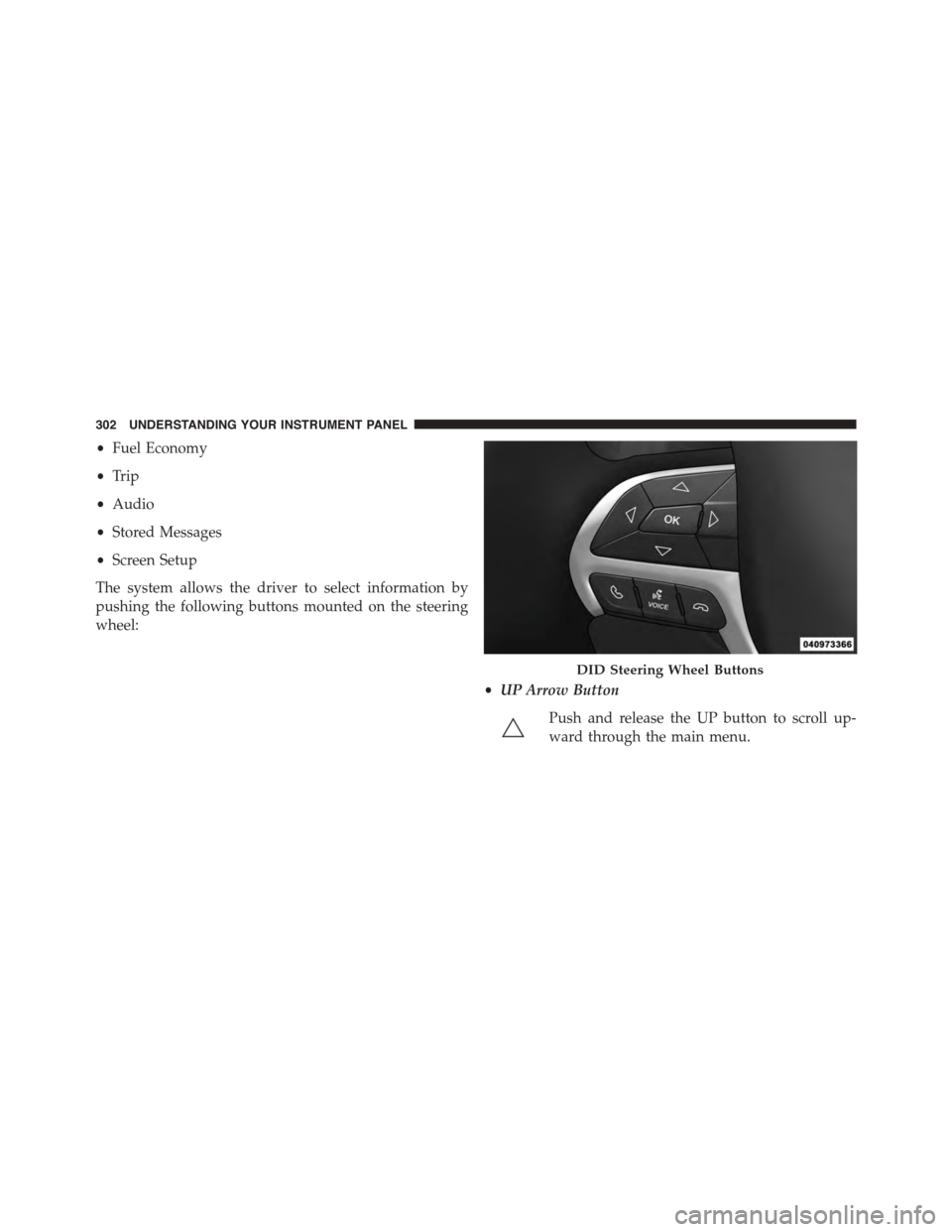
The system allows the driver to select information by
pushing the following buttons mounted on the steering
wheel:
•UP Arrow Button
Push and release the UP button to scroll up-
ward through the main menu.
DID Steering Wheel Buttons
302 UNDERSTANDING YOUR INSTRUMENT PANEL