instrument panel DODGE DURANGO 2015 3.G Owner's Guide
[x] Cancel search | Manufacturer: DODGE, Model Year: 2015, Model line: DURANGO, Model: DODGE DURANGO 2015 3.GPages: 689, PDF Size: 20.05 MB
Page 175 of 689
Automatic Headlights — If Equipped
This system automatically turns the headlights on or off
according to ambient light levels. To turn the system on,
rotate the headlight switch counterclockwise to the
AUTO position. When the system is on, the headlight
time delay feature is also on. This means the headlights
will stay on for up to 90 seconds after you place the
ignition into the OFF position. To turn the automatic
system off, move the headlight switch out of the AUTO
position.
NOTE:The engine must be running before the headlights
will come on in the automatic mode.
Headlights On Automatically With Wipers
If your vehicle is equipped with Automatic Headlights, it
also has this customer-programmable feature. When
your headlights are in the automatic mode and the
engine is running, they will automatically turn on when
the wiper system is on. This feature is programmable
through the Uconnect® system. Refer to “Uconnect®
Settings/Customer Programmable Features” in “Under-
standing Your Instrument Panel” for further information.
NOTE:When your headlights come on during the day-
time, the vehicle will monitor outside brightness and
decide if the instrument panel needs to be dimmed or
not. Refer to “Lights” in this section for further informa-
tion.
Automatic High Beam — If Equipped
The Automatic High Beam Headlamp Control system
provides increased forward lighting at night by automat-
ing high beam control through the use of a digital camera
mounted on the inside rearview mirror. This camera
detects vehicle specific light and automatically switches
from high beams to low beams until the approaching
vehicle is out of view.
3
UNDERSTANDING THE FEATURES OF YOUR VEHICLE 173
Page 177 of 689
Headlight Delay
To aid in your exit, your vehicle is equipped with a
headlight delay that will leave the headlights on for
approximately 90 seconds. This delay is initiated when
the ignition is turned OFF while the headlight switch is
on, and then the headlight switch is cycled off. Headlight
delay can be cancelled by either turning the headlight
switch on then off, or by turning the ignition ON.
NOTE:The headlight delay time is programmable
through the Uconnect® System. Refer to “Uconnect®
Settings/Customer Programmable Features” in “Under-
standing Your Instrument Panel” for further information.
Parking Lights And Panel Lights
To turn on the parking lights and instrument
panel lights, rotate the headlight switch clockwise.
To turn off the parking lights, rotate the headlight switch
back to the O (Off) position.
Fog Lights — If Equipped
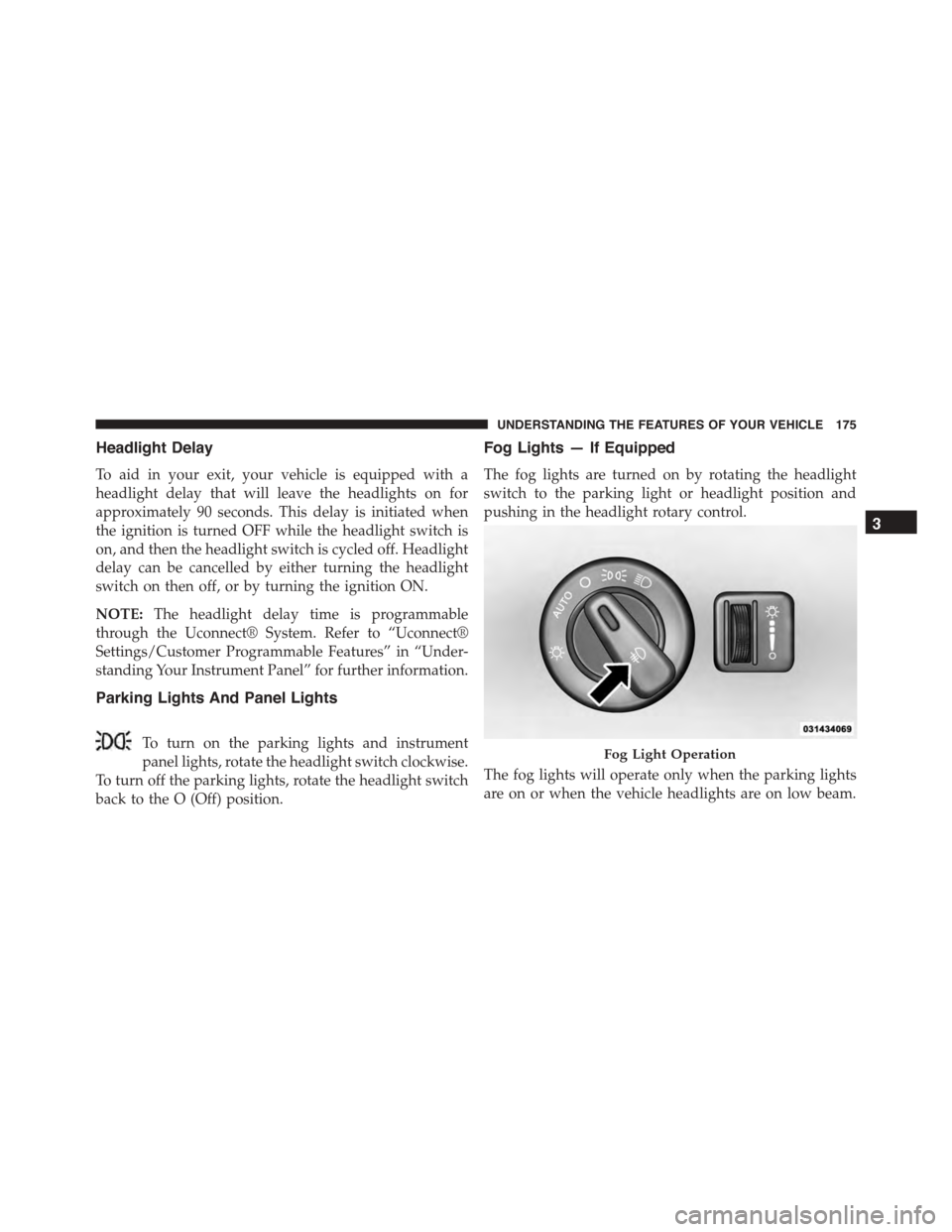
The fog lights are turned on by rotating the headlight
switch to the parking light or headlight position and
pushing in the headlight rotary control.
The fog lights will operate only when the parking lights
are on or when the vehicle headlights are on low beam.
Fog Light Operation
3
UNDERSTANDING THE FEATURES OF YOUR VEHICLE 175
Page 178 of 689
An indicator light located in the instrument cluster will
illuminate when the fog lights are on. The fog lights will
turn off when the switch is pushed a second time, when
the headlight switch is rotated to the off position, or the
high beam is selected.
Interior Lights
Courtesy and dome lights are turned on when the front
doors are opened or when the dimmer control (rotating
wheel on the right side of the headlight switch) is rotated
to the its farthest upward position. If your vehicle is
equipped with Remote Keyless Entry (RKE) and the
UNLOCK button is pushed on the RKE transmitter, the
courtesy and dome lights will turn on. When a door is
open and the interior lights are on, rotating the dimmer
control all the way down, to the OFF detent, will cause all
the interior lights to go out. This is also known as the
“Party” mode because it allows the doors to stay open for
extended periods of time without discharging the vehi-
cle’s battery.
The brightness of the instrument panel lighting can be
regulated by rotating the dimmer control up (brighter) or
down (dimmer). When the headlights are on you can
supplement the brightness of the odometer, trip odom-
eter, radio and overhead console by rotating the control
to its farthest position up until you hear a click. This
feature is termed the “Parade” mode and is useful when
headlights are required during the day.
176 UNDERSTANDING THE FEATURES OF YOUR VEHICLE
Page 183 of 689
When the Daytime Running Lights are on and a turn
signal is activated, the Daytime Running Lamp will turn
off on the side of the vehicle in which the turn signal is
flashing. The Daytime Running Lamp will turn back on
when the turn signal is turned off.
Lane Change Assist
Tap the lever up or down once, without moving beyond
the detent, and the turn signal (right or left) will flash
three times then automatically turn off.
Flash-To-Pass
You can signal another vehicle with your headlights by
partially pulling the multifunction lever toward the steer-
ing wheel. This will cause the high beam headlights to
turn on until the lever is released.
High/Low Beam Switch
Push the multifunction lever toward the instrument
panel to switch the headlights to high beam. Pulling the
multifunction back toward the steering wheel will turn
the low beams back on, or shut the high beams off.
3
UNDERSTANDING THE FEATURES OF YOUR VEHICLE 181
Page 188 of 689
Rain Sensing Wipers — If Equipped
This feature senses moisture on the windshield and
automatically activates the wipers for the driver. The
feature is especially useful for road splash or overspray
from the windshield washers of the vehicle ahead. Rotate
the end of the multifunction lever to one of four settings
to activate this feature.
The sensitivity of the system can be adjusted with the
multifunction lever. Wiper delay position one is the least
sensitive, and wiper delay position four is the most
sensitive. Setting three should be used for normal rain
conditions. Settings one and two can be used if the driver
desires less wiper sensitivity. Setting four can be used if
the driver desires more sensitivity. Place the wiper switch
in the OFF position when not using the system.
NOTE:
•The Rain Sensing feature will not operate when the
wiper switch is in the low or high-speed position.
•The Rain Sensing feature may not function properly
when ice, or dried salt water is present on the wind-
shield.
•Use of Rain-X® or products containing wax or silicone
may reduce Rain Sensing performance.
•The Rain Sensing feature can be turned on and off
using the Uconnect® System, refer to “Uconnect®
Settings” in “Understanding Your Instrument Panel”
for further information.
The Rain Sensing system has protection features for the
wiper blades and arms, and will not operate under the
following conditions:
•Low Ambient Temperature— When the ignition is
first turned ON, the Rain Sensing system will not
operate until the wiper switch is moved, vehicle speed
is greater than 0 mph (0 km/h), or the outside tem-
perature is greater than 32°F (0°C).
186 UNDERSTANDING THE FEATURES OF YOUR VEHICLE
Page 192 of 689
HEATED STEERING WHEEL — IF EQUIPPED
The steering wheel contains a heating element that helps
warm your hands in cold weather. The heated steering
wheel has only one temperature setting. Once the heated
steering wheel has been turned on it will operate for up
to 80 minutes before automatically shutting off. The
heated steering wheel can shut off early or may not turn
on when the steering wheel is already warm.
The heated steering wheel control button is located
within the Uconnect® system. You can gain access to the
control button through the climate screen or the controls
screen.
•Press the heated steering wheel buttononce to
turn the heating element ON.
•Press the heated steering wheel buttona second
time to turn the heating element OFF.
NOTE:The engine must be running for the heated
steering wheel to operate.
Vehicles Equipped With Remote Start
On models that are equipped with remote start, the
heated steering wheel can be programmed to come on
during a remote start through the Uconnect® system.
Refer to “Uconnect® Settings” in “Understanding Your
Instrument Panel” for further information.
190 UNDERSTANDING THE FEATURES OF YOUR VEHICLE
Page 196 of 689
The drivers preferred units can be selected through the
instrument panel settings if equipped. Refer to “Under-
standing Your Instrument Panel” for more information.
The speed increment shown is dependant on the chosen
speed unit of U.S. (mph) or Metric (km/h):
U.S. Speed (mph)
•Pushing the SET+button once will result in a 1 mph
increase in set speed. Each subsequent tap of the
button results in an increase of 1 mph.
•If the button is continually pushed, the set speed will
continue to increase until the button is released, then
the new set speed will be established.
Metric Speed (km/h)
•Pushing the SET+button once will result in a 1 km/h
increase in set speed. Each subsequent tap of the
button results in an increase of 1 km/h.
•If the button is continually pushed, the set speed will
continue to increase until the button is released, then
the new set speed will be established.
To Decrease Speed
When the Electronic Speed Control is set, you can de-
crease speed by pushing the SET-button.
The drivers preferred units can be selected through the
instrument panel settings if equipped. Refer to “Under-
standing Your Instrument Panel” for more information.
The speed decrement shown is dependant on the chosen
speed unit of U.S. (mph) or Metric (km/h):
U.S. Speed (mph)
•Pushing the SET-button once will result ina1mph
decrease in set speed. Each subsequent tap of the
button results in a decrease of 1 mph.
194 UNDERSTANDING THE FEATURES OF YOUR VEHICLE
Page 205 of 689
•The Normal (Fixed Speed) Electronic Speed Control
ON/OFF button is pushed.
•The ignition is turned OFF.
•You switch to Four-Wheel Drive Low.
To Resume
If there is a set speed in memory push the RES (resume)
button and then remove your foot from the accelerator
pedal. The DID will display the last set speed.
NOTE:
•If your vehicle stays at standstill for longer than two
seconds, then the system will cancel and the brake
force will be ramped-out. The driver will have to apply
the brakes to keep the vehicle at a standstill.
•ACC cannot be resumed if there is a stationary vehicle
in-front of your vehicle in close proximity.
WARNING!
The Resume function should only be used if traffic
and road conditions permit. Resuming a set speed
that is too high or too low for prevailing traffic and
road conditions could cause the vehicle to accelerate
or decelerate too sharply for safe operation. Failure to
follow these warnings can result in a collision and
death or serious personal injury.
To Vary The Speed Setting
To Increase Speed
While ACC is set, you can increase the set speed by
pushing the SET+button.
The drivers preferred units can be selected through the
instrument panel settings if equipped. Refer to “ Under-
standing Your Instrument Panel” for more information.
3
UNDERSTANDING THE FEATURES OF YOUR VEHICLE 203
Page 206 of 689
The speed increment shown is dependant on the chosen
speed unit of U.S. (mph) or Metric (km/h):
U.S. Speed (mph)
•Pushing the SET+button once will result in a 1 mph
increase in set speed. Each subsequent tap of the
button results in an increase of 1 mph.
•If the button is continually pushed, the set speed will
continue to increase in 5 mph increments until the
button is released. The increase in set speed is reflected
in the DID.
Metric Speed (km/h)
•Pushing the SET+button once will result in a 1 km/h
increase in set speed. Each subsequent tap of the
button results in an increase of 1 km/h.
•If the button is continually pushed, the set speed will
continue to increase in 10 km/h increments until the
button is released. The increase in set speed is reflected
in the DID.
To Decrease Speed
While ACC is set, the set speed can be decreased by
pushing the SET-button.
The drivers preferred units can be selected through the
instrument panel settings if equipped. Refer to “ Under-
standing Your Instrument Panel” for more information.
The speed decrement shown is dependant on the chosen
speed unit of U.S. (mph) or Metric (km/h):
U.S. Speed (mph)
•Pushing the SET-button once will result ina1mph
decrease in set speed. Each subsequent tap of the
button results in a decrease of 1 mph.
204 UNDERSTANDING THE FEATURES OF YOUR VEHICLE
Page 223 of 689
The drivers preferred units can be selected through the
instrument panel settings if equipped. Refer to “Under-
standing Your Instrument Panel” for more information.
The speed increment shown is dependant on the speed of
U.S. (mph) or Metric (km/h) units:
U.S. Speed (mph)
•Pushing the SET+button once will result in a 1 mph
increase in set speed. Each subsequent tap of the
button results in an increase of 1 mph.
•If the button is continually pushed, the set speed will
continue to increase in 5 mph increments until the
button is released. The increase in set speed is reflected
in the DID display.
Metric Speed (km/h)
•Pushing the SET+button once will result in a 1 km/h
increase in set speed. Each subsequent tap of the
button results in an increase of 1 km/h.
•If the button is continually pushed, the set speed will
continue to increase in 10 km/h increments until the
button is released. The increase in set speed is reflected
in the DID display.
To Decrease Speed
When the Normal (Fixed Speed) Cruise Control is set,
you can decrease speed by pushing the SET-button.
The drivers preferred units can be selected through the
instrument panel settings if equipped. Refer to “Under-
standing Your Instrument Panel” for more information.
The speed decrement shown is dependant on the speed
of U.S. (mph) or Metric (km/h) units:
U.S. Speed (mph)
•Pushing the SET-button once will result ina1mph
decrease in set speed. Each subsequent tap of the
button results in a decrease of 1 mph.
3
UNDERSTANDING THE FEATURES OF YOUR VEHICLE 221