wheel DODGE DURANGO 2019 User Guide
[x] Cancel search | Manufacturer: DODGE, Model Year: 2019, Model line: DURANGO, Model: DODGE DURANGO 2019Pages: 598, PDF Size: 4.32 MB
Page 85 of 598
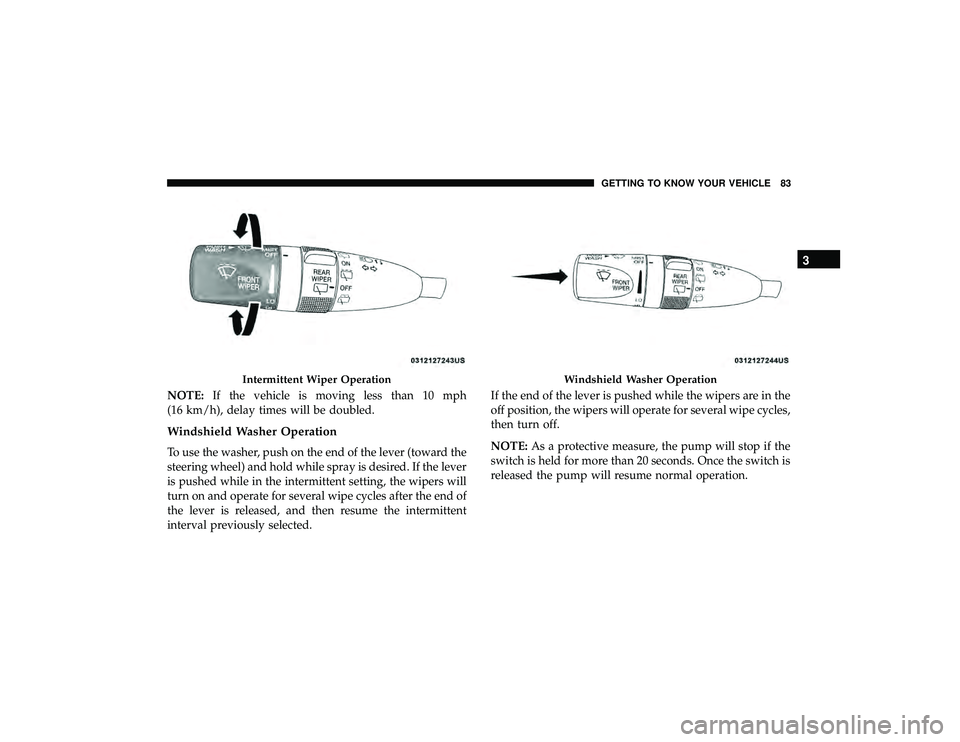
NOTE:If the vehicle is moving less than 10 mph
(16 km/h), delay times will be doubled.
Windshield Washer Operation
To use the washer, push on the end of the lever (toward the
steering wheel) and hold while spray is desired. If the lever
is pushed while in the intermittent setting, the wipers will
turn on and operate for several wipe cycles after the end of
the lever is released, and then resume the intermittent
interval previously selected. If the end of the lever is pushed while the wipers are in the
off position, the wipers will operate for several wipe cycles,
then turn off.
NOTE:
As a protective measure, the pump will stop if the
switch is held for more than 20 seconds. Once the switch is
released the pump will resume normal operation.
Intermittent Wiper OperationWindshield Washer Operation
3
GETTING TO KNOW YOUR VEHICLE 83
Page 94 of 598
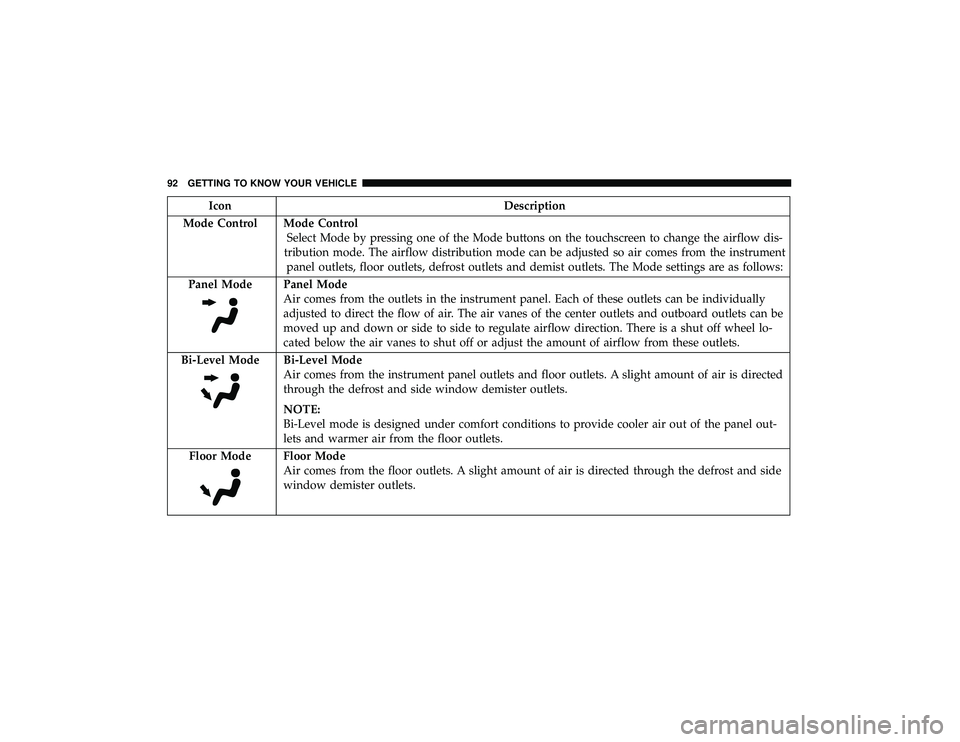
IconDescription
Mode Control Mode Control Select Mode by pressing one of the Mode buttons on the touchscreen to change the airflow dis-
tribution mode. The airflow distribution mode can be adjusted so air comes from the instrument panel outlets, floor outlets, defrost outlets and demist outlets. The Mode settings are as follows:
Panel Mode
Panel Mode
Air comes from the outlets in the instrument panel. Each of these outlets can be individually
adjusted to direct the flow of air. The air vanes of the center outlets and outboard outlets can be
moved up and down or side to side to regulate airflow direction. There is a shut off wheel lo-
cated below the air vanes to shut off or adjust the amount of airflow from these outlets.
Bi-Level Mode
Bi-Level Mode
Air comes from the instrument panel outlets and floor outlets. A slight amount of air is directed
through the defrost and side window demister outlets.
NOTE:
Bi-Level mode is designed under comfort conditions to provide cooler air out of the panel out-
lets and warmer air from the floor outlets.
Floor Mode
Floor Mode
Air comes from the floor outlets. A slight amount of air is directed through the defrost and side
window demister outlets.
92 GETTING TO KNOW YOUR VEHICLE
Page 144 of 598
WARNING!
Cargo must be securely tied down before driving your
vehicle. Improperly secured loads can fly off the ve-
hicle, particularly at high speeds, resulting in personal
injury or property damage. Follow the roof rack cau-
tions when carrying cargo on your roof rack.
CAUTION!
•To prevent damage to the roof of your vehicle, DO
NOT carry any loads on the roof rack without the
crossbars deployed. The load should be secured and
placed on top of the crossbars, not directly on the
roof. If it is necessary to place the load on the roof,
place a blanket or other protective layer between the
load and the roof surface.
• To avoid damage to the roof rack and vehicle, do not
exceed the maximum roof rack load capacity of 150 lb
(68 kg). Always distribute heavy loads as evenly as
possible and secure the load appropriately.
(Continued)
CAUTION! (Continued)
•Load should always be secured to cross bars first,
with tie down loops used as additional securing
points if needed. Tie loops are intended as supple-
mentary tie down points only. Do not use ratcheting
mechanisms with the tie loops. Check the straps and
thumb wheels frequently to be sure that the load
remains securely attached.
• Long loads that extend over the windshield, such as
wood panels or surfboards, or loads with large
frontal area should be secured to both the front and
rear of the vehicle.
• Travel at reduced speeds and turn corners carefully
when carrying large or heavy loads on the roof rack.
Wind forces, due to natural causes or nearby truck
traffic, can add sudden upward lift to a load. This is
especially true on large flat loads and may result in
damage to the cargo or your vehicle.
• The use of Sport Mode is not recommended when
using the Roof Luggage Rack to carry a load.
(Continued)
142 GETTING TO KNOW YOUR VEHICLE
Page 148 of 598
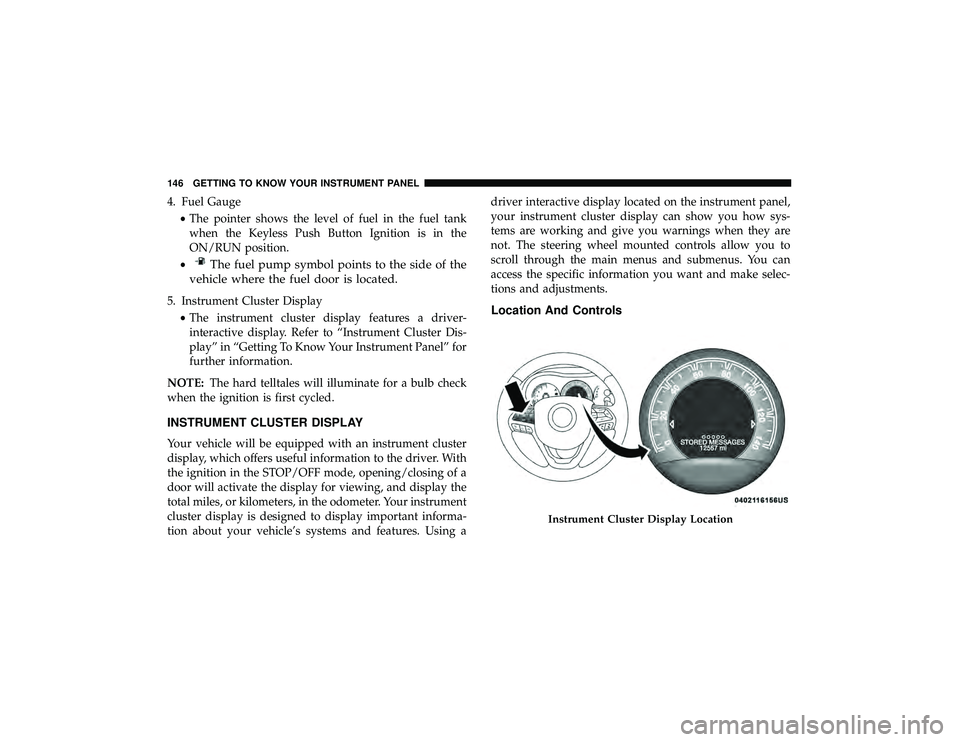
4. Fuel Gauge•The pointer shows the level of fuel in the fuel tank
when the Keyless Push Button Ignition is in the
ON/RUN position.
•
The fuel pump symbol points to the side of the
vehicle where the fuel door is located.
5. Instrument Cluster Display
•The instrument cluster display features a driver-
interactive display. Refer to “Instrument Cluster Dis-
play” in “Getting To Know Your Instrument Panel” for
further information.
NOTE: The hard telltales will illuminate for a bulb check
when the ignition is first cycled.
INSTRUMENT CLUSTER DISPLAY
Your vehicle will be equipped with an instrument cluster
display, which offers useful information to the driver. With
the ignition in the STOP/OFF mode, opening/closing of a
door will activate the display for viewing, and display the
total miles, or kilometers, in the odometer. Your instrument
cluster display is designed to display important informa-
tion about your vehicle’s systems and features. Using a driver interactive display located on the instrument panel,
your instrument cluster display can show you how sys-
tems are working and give you warnings when they are
not. The steering wheel mounted controls allow you to
scroll through the main menus and submenus. You can
access the specific information you want and make selec-
tions and adjustments.
Location And Controls
Instrument Cluster Display Location
146 GETTING TO KNOW YOUR INSTRUMENT PANEL
Page 149 of 598
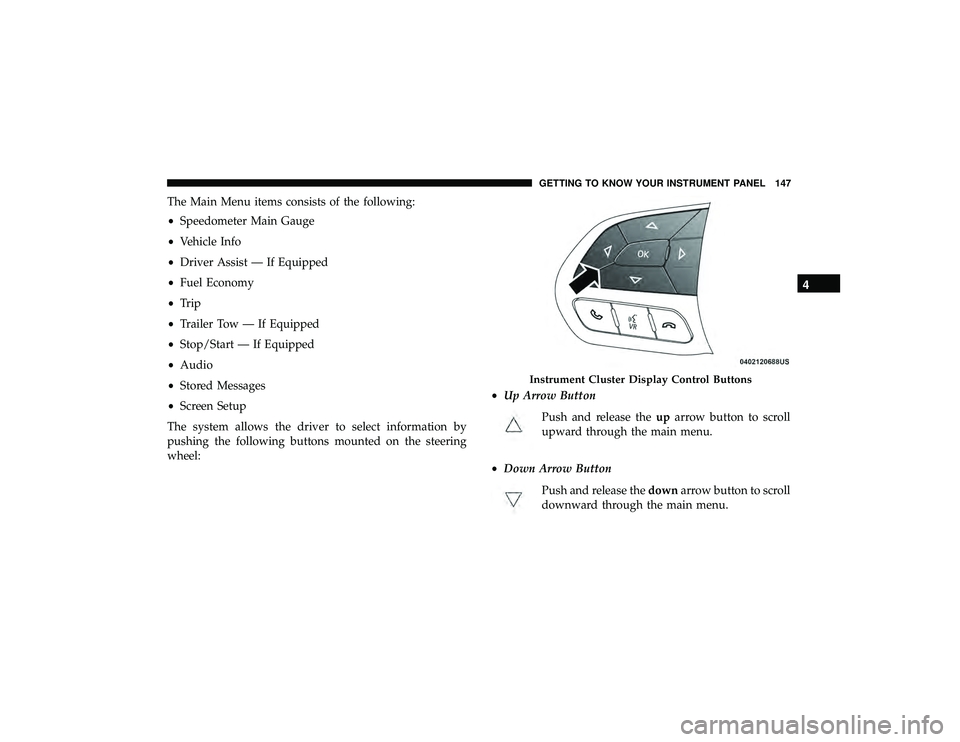
The Main Menu items consists of the following:
•Speedometer Main Gauge
• Vehicle Info
• Driver Assist — If Equipped
• Fuel Economy
• Trip
• Trailer Tow — If Equipped
• Stop/Start — If Equipped
• Audio
• Stored Messages
• Screen Setup
The system allows the driver to select information by
pushing the following buttons mounted on the steering
wheel: •
Up Arrow Button
Push and release the uparrow button to scroll
upward through the main menu.
• Down Arrow Button
Push and release the downarrow button to scroll
downward through the main menu.
Instrument Cluster Display Control Buttons
4
GETTING TO KNOW YOUR INSTRUMENT PANEL 147
Page 150 of 598
•Right Arrow Button
Push and release the rightarrow button to access
the information screens or submenu screens of a
main menu item.
• Left Arrow Button
Push the leftarrow button to return to the main
menu from an info screen or submenu item.
• OK Button
Push the OKbutton to access/select the information
screens or submenu screens of a main menu item. Push and
hold the OKbutton for one second to reset displayed/
selected features that can be reset.
The instrument cluster display is located in the center
portion of the cluster and consist of multiple sections:
• Main Screen — The inner ring of the display will
illuminate in grey under normal conditions, yellow for
non critical warnings, red for critical warnings, and
white for on demand information. •
Submenu Dots — Whenever there are submenus avail-
able, the position within the submenus is shown here.
• Reconfigurable Telltales/Information
• Gear Selector Status (PRND)
• Driver Interactive Display (Compass, Temp, Range to
Empty, Trip A, Trip B, Average Fuel Economy, Current
Fuel Economy, Time, Trailer Trip and Gain)
• All Wheel Drive (AWD) Status — If Equipped
The instrument cluster display will normally display the
main menu or the screens of a selected feature of the main
menu. The main display area also displays “pop up”
messages that consist of approximately 60 possible warn-
ing or information messages. These pop up messages fall
into several categories:
• Five Second Stored Messages
When the appropriate conditions occur, this type of mes-
sage takes control of the main display area for five seconds
and then returns to the previous screen. Most of the
messages of this type are then stored (as long as the
condition that activated it remains active) and can be
reviewed from the “Messages” main menu item. Examples
of this message type are “Right Front Turn Signal Lamp
Out” and “Low Tire Pressure.”
148 GETTING TO KNOW YOUR INSTRUMENT PANEL
Page 151 of 598
•Unstored Messages
This message type is displayed indefinitely or until the
condition that activated the message is cleared. Examples
of this message type are “Turn Signal On” (if a turn signal
is left on) and “Lights On” (if driver leaves the vehicle).
• Unstored Messages Until RUN
These messages deal primarily with the Remote Start
feature. This message type is displayed until the ignition is
in the RUN state. Examples of this message type are
“Remote Start Canceled - Door Ajar” and “Press Brake
Pedal and Push Button to Start.”
• Five Second Unstored Messages
When the appropriate conditions occur, this type of mes-
sage takes control of the main display area for five seconds
and then returns to the previous screen. An example of this
message type is “Automatic High Beams On.”
Engine Oil Life Reset
Oil Change Required
Your vehicle is equipped with an engine oil change indi-
cator system. The “Oil Change Required” message will
display in the instrument cluster display for five seconds after a single chime has sounded, to indicate the next
scheduled oil change interval. The engine oil change indi-
cator system is duty cycle based, which means the engine
oil change interval may fluctuate, dependent upon your
personal driving style.
Unless reset, this message will continue to display each
time you place the ignition in the ON/RUN position. To
turn off the message temporarily, push and release the
OK
or arrow buttons. To reset the oil change indicator system
(after performing the scheduled maintenance), refer to the
following procedure.
Vehicles Equipped With Keyless Enter-N-Go — Ignition
Use the steering wheel instrument cluster display controls
for the following procedure(s):
1. Without pressing the brake pedal, push the ENGINE START/STOP button and place the ignition in the
ON/RUN position (do not start the engine).
2. Push and release the downarrow button to scroll
downward through the main menu to “Vehicle Info.”
3. Push and release the rightarrow button to access the
”Oil Life” screen.
4
GETTING TO KNOW YOUR INSTRUMENT PANEL 149
Page 156 of 598
Trailer Trip will display the following:
•Distance
• Average Fuel Economy
• Elapsed Time
NOTE: Press and hold the OKbutton to reset all the
information.
Trailer Brake will display the following:
• Output
• Type
• Gain
Stop/Start – If Equipped
Push and release the upordown arrow button on
the steering wheel to scroll to the Stop/Start menu
in the driver interactive display. This menu will give access
to Stop/Start settings using the leftand right arrow
buttons on the steering wheel.
For further information on the use and different modes of
the Stop/Start System accessible through these settings,
refer to “Stop/Start System – If Equipped” in “Starting
And Operating”.
Audio
Push and release the upordown arrow button until the
Audio Menu icon/title is highlighted in the instrument
cluster display. This menu will display the audio source
information, including the Song name, Artist name, and
audio source with an accompanying graphic.
Stored Messages
Push and release the upordown arrow button until the
Messages Menu item is highlighted. This feature shows the
number of stored warning messages. Pushing the right
arrow button will allow you to see what the stored
messages are.
When no messages are present, main menu icon will be a
closed envelope.
Screen Setup
Push and release the upordown arrow button until the
Screen Setup Menu icon/title is highlighted in the instru-
ment cluster display. Push and release the OKbutton to
enter the submenus and follow the prompts on the screen
as needed. The Screen Setup feature allows you to change
what information is displayed in the instrument cluster as
well as the location that information is displayed.
154 GETTING TO KNOW YOUR INSTRUMENT PANEL
Page 159 of 598
NOTE:
•The charging system is independent from load reduc-
tion. The charging system performs a diagnostic on the
charging system continuously.
• If the Battery Charge Warning Light is on it may indicate
a problem with the charging system. Refer to “Battery
Charge Warning Light” in “Getting To Know Your
Instrument Panel” for further information.
The electrical loads that may be switched off (if equipped),
and vehicle functions which can be affected by load
reduction:
• Heated Seat/Vented Seats/Heated Wheel
• Rear Defroster And Heated Mirrors
• HVAC System
• 115V AC Power Inverter System
• Audio and Telematics System
Loss of the battery charge may indicate one or more of the
following conditions:
• The charging system cannot deliver enough electrical
power to the vehicle system because the electrical loads
are larger than the capability of charging system. The
charging system is still functioning properly. •
Turning on all possible vehicle electrical loads (e.g.
HVAC to max settings, exterior and interior lights,
overloaded power outlets +12V, 115V AC, USB ports)
during certain driving conditions (city driving, towing,
frequent stopping, etc.).
• Installing options like additional lights, upfitter electri-
cal accessories, audio systems, alarms and similar de-
vices.
• Unusual driving cycles (short trips separated by long
parking periods).
• The vehicle was parked for an extended period of time
(weeks, months).
• The battery was recently replaced and was not charged
completely.
• The battery was discharged by an electrical load left on
when the vehicle was parked.
• The battery was used for an extended period with the
engine not running to supply radio, lights, chargers,
+12V portable appliances like vacuum cleaners, game
consoles and similar devices.
4
GETTING TO KNOW YOUR INSTRUMENT PANEL 157
Page 167 of 598
CAUTION!
Do not continue driving with one or more flat tires as
handling may be compromised. Stop the vehicle,
avoiding sharp braking and steering. If a tire puncture
occurs, repair immediately using the dedicated tire
repair kit and contact an authorized dealer as soon as
possible.
Each tire, including the spare (if provided), should be
checked monthly when cold and inflated to the inflation
pressure recommended by the vehicle manufacturer on the
vehicle placard or tire inflation pressure label. (If your
vehicle has tires of a different size than the size indicated
on the vehicle placard or tire inflation pressure label, you
should determine the proper tire inflation pressure for
those tires.)
As an added safety feature, your vehicle has been
equipped with a Tire Pressure Monitoring System (TPMS)
that illuminates a low tire pressure telltale when one or
more of your tires is significantly under-inflated. Accord-
ingly, when the low tire pressure telltale illuminates, you
should stop and check your tires as soon as possible, and
inflate them to the proper pressure. Driving on a signifi-
cantly under-inflated tire causes the tire to overheat and can lead to tire failure. Under-inflation also reduces fuel
efficiency and tire tread life, and may affect the vehicle’s
handling and stopping ability.
Please note that the TPMS is not a substitute for proper tire
maintenance, and it is the driver ’s responsibility to main-
tain correct tire pressure, even if under-inflation has not
reached the level to trigger illumination of the TPMS low
tire pressure telltale.
Your vehicle has also been equipped with a TPMS malfunc-
tion indicator to indicate when the system is not operating
properly. The TPMS malfunction indicator is combined
with the low tire pressure telltale. When the system detects
a malfunction, the telltale will flash for approximately one
minute and then remain continuously illuminated. This
sequence will continue upon subsequent vehicle start-ups
as long as the malfunction exists. When the malfunction
indicator is illuminated, the system may not be able to
detect or signal low tire pressure as intended. TPMS
malfunctions may occur for a variety of reasons, including
the installation of replacement or alternate tires or wheels
on the vehicle that prevent the TPMS from functioning
properly. Always check the TPMS malfunction telltale after
replacing one or more tires or wheels on your vehicle to
ensure that the replacement or alternate tires and wheels
allow the TPMS to continue to function properly.
4
GETTING TO KNOW YOUR INSTRUMENT PANEL 165