wheel DODGE DURANGO 2019 Workshop Manual
[x] Cancel search | Manufacturer: DODGE, Model Year: 2019, Model line: DURANGO, Model: DODGE DURANGO 2019Pages: 598, PDF Size: 4.32 MB
Page 293 of 598
3. At the next vehicle stop (after turning off the STOP/START system), the engine will not be stopped.
4. The STOP/START system will reset itself back to an ON condition every time the ignition is turned off and back
on.
To Manually Turn On The Stop/Start System
Push the STOP/START OFF switch (located on the switch
bank). The light on the switch will turn off.
System Malfunction
If there is a malfunction in the STOP/START system, the
system will not shut down the engine. A “SERVICE STOP/
START SYSTEM” message will appear in the instrument
cluster display. Refer to “Instrument Cluster Display“ in
“Getting to Know Your Instrument Panel” for further
information.
If the “SERVICE STOP/START SYSTEM” message appears
in the instrument cluster display, have the system checked
by an authorized dealer.
SPEED CONTROL — IF EQUIPPED
When engaged, the Speed Control takes over accelerator
operations at speeds greater than 20 mph (32 km/h).
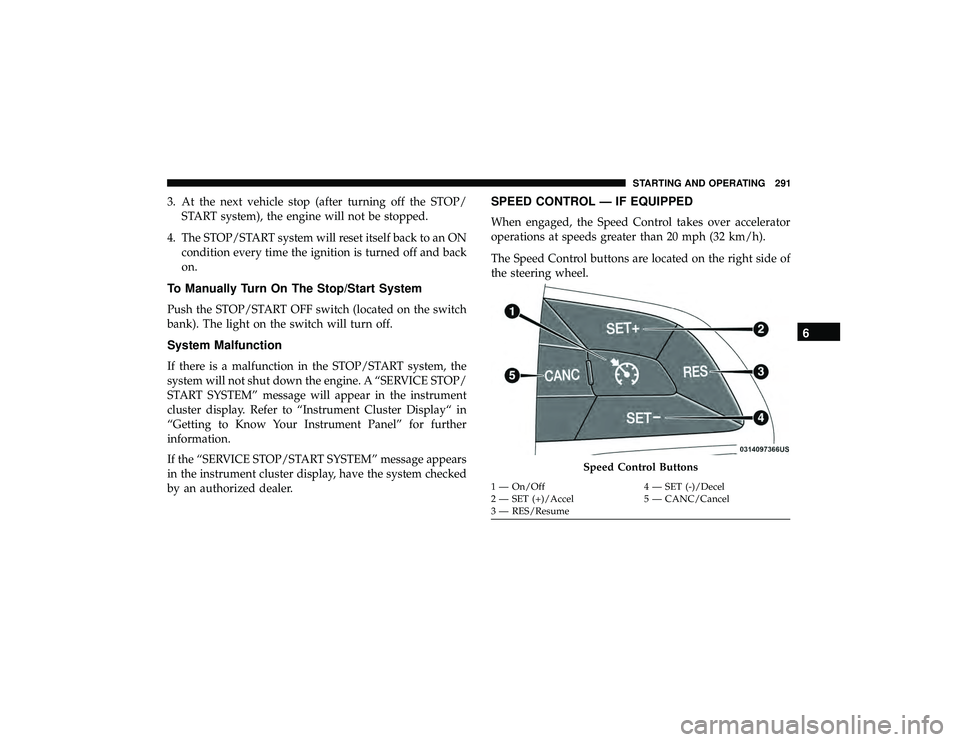
The Speed Control buttons are located on the right side of
the steering wheel.
Speed Control Buttons
1 — On/Off 4 — SET (-)/Decel
2 — SET (+)/Accel 5 — CANC/Cancel
3 — RES/Resume
6
STARTING AND OPERATING 291
Page 298 of 598
WARNING!(Continued)
•Will bring the vehicle to a complete stop while
following a target vehicle and hold the vehicle for
2 seconds in the stop position. If the target vehicle
does not start moving within two seconds the ACC
system will display a message that the system will
release the brakes and that the brakes must be
applied manually. An audible chime will sound
when the brakes are released.
You should switch off the ACC system:
• When driving in fog, heavy rain, heavy snow, sleet,
heavy traffic, and complex driving situations (i.e., in
highway construction zones).
• When entering a turn lane or highway off ramp;
when driving on roads that are winding, icy, snow-
covered, slippery, or have steep uphill or downhill
slopes.
• When towing a trailer up or down steep slopes.
• When circumstances do not allow safe driving at a
constant speed.
Adaptive Cruise Control (ACC) Operation
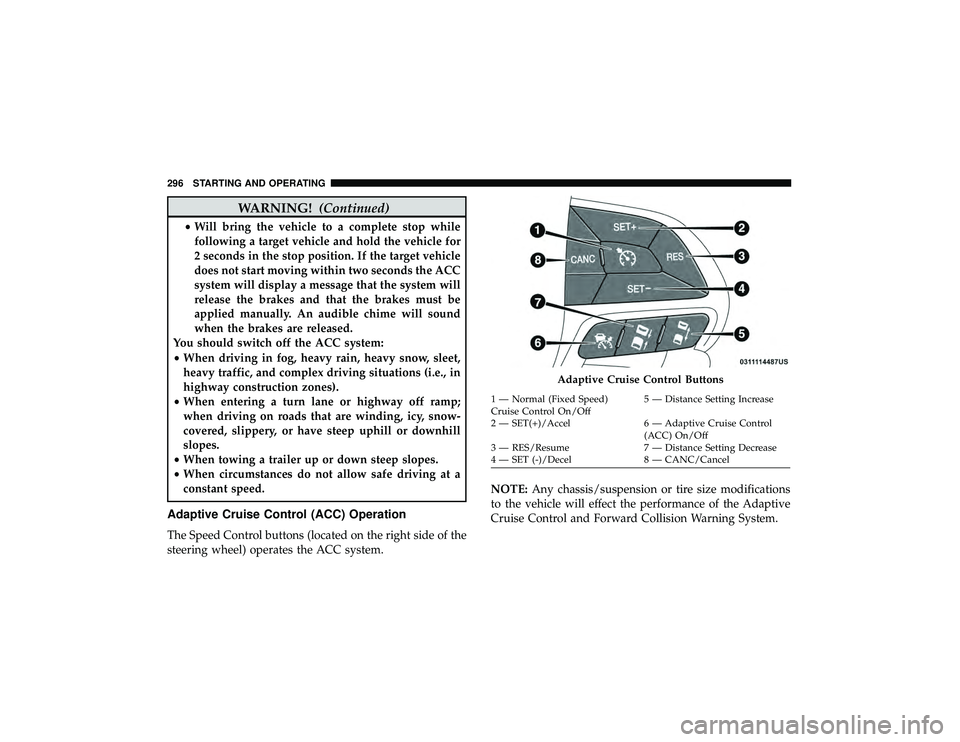
The Speed Control buttons (located on the right side of the
steering wheel) operates the ACC system. NOTE:
Any chassis/suspension or tire size modifications
to the vehicle will effect the performance of the Adaptive
Cruise Control and Forward Collision Warning System.
Adaptive Cruise Control Buttons
1 — Normal (Fixed Speed)
Cruise Control On/Off 5 — Distance Setting Increase
2 — SET(+)/Accel 6 — Adaptive Cruise Control (ACC) On/Off
3 — RES/Resume 7 — Distance Setting Decrease
4 — SET (-)/Decel 8 — CANC/Cancel
296 STARTING AND OPERATING
Page 299 of 598
Activating Adaptive Cruise Control (ACC)
You can only engage ACC if the vehicle speed is above
0 mph (0 km/h).
The minimum set speed for the ACC system is 20 mph
(32 km/h).
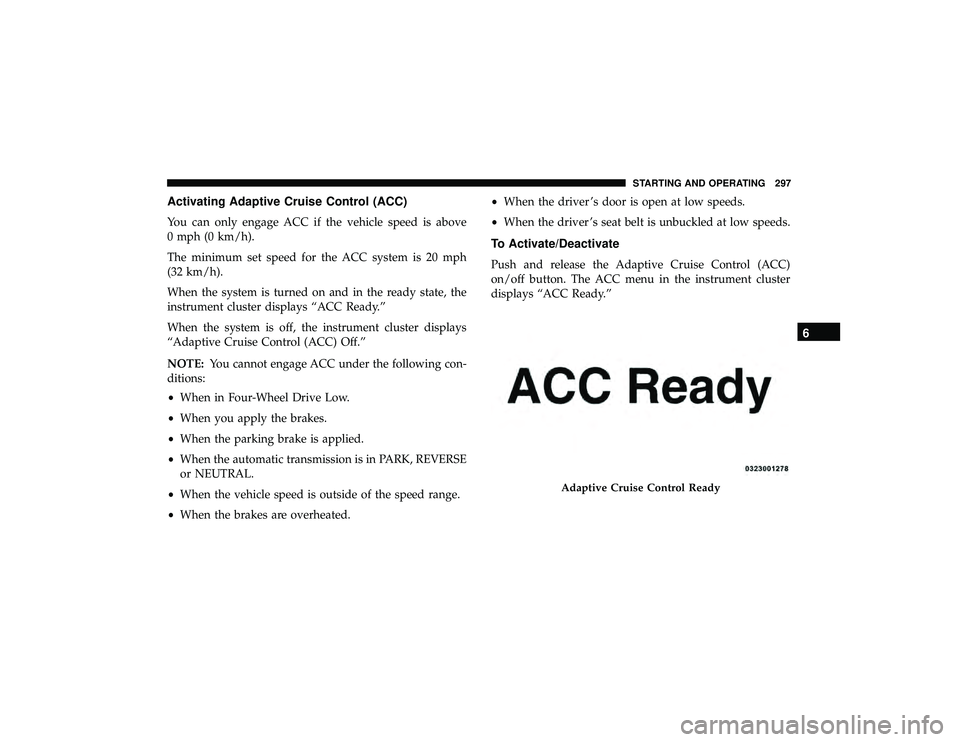
When the system is turned on and in the ready state, the
instrument cluster displays “ACC Ready.”
When the system is off, the instrument cluster displays
“Adaptive Cruise Control (ACC) Off.”
NOTE:You cannot engage ACC under the following con-
ditions:
• When in Four-Wheel Drive Low.
• When you apply the brakes.
• When the parking brake is applied.
• When the automatic transmission is in PARK, REVERSE
or NEUTRAL.
• When the vehicle speed is outside of the speed range.
• When the brakes are overheated. •
When the driver ’s door is open at low speeds.
• When the driver ’s seat belt is unbuckled at low speeds.
To Activate/Deactivate
Push and release the Adaptive Cruise Control (ACC)
on/off button. The ACC menu in the instrument cluster
displays “ACC Ready.”
Adaptive Cruise Control Ready
6
STARTING AND OPERATING 297
Page 307 of 598
While ACC with Stop is holding your vehicle at a stand-
still, if the driver seatbelt is unbuckled or the driver door is
opened, the ACC with Stop system will cancel and the
brakes will release. A cancel message will display on the
instrument cluster display and produce a warning chime.
Driver intervention will be required at this moment.
WARNING!
When the ACC system is resumed, the driver must
ensure that there are no pedestrians, vehicles or objects
in the path of the vehicle. Failure to follow these
warnings can result in a collision and death or serious
personal injury.
Adaptive Cruise Control (ACC) Menu
The instrument cluster display will show the current ACC
system settings. The instrument cluster display is located
in the center of the instrument cluster. The information it
displays depends on ACC system status.
Push the Adaptive Cruise Control (ACC) on/off button
(located on the steering wheel) until one of the following
appears in the instrument cluster display:Adaptive Cruise Control Off
When ACC is deactivated, the display will read “Adaptive
Cruise Control Off.”
Adaptive Cruise Control Ready
When ACC is activated, but the vehicle speed setting has
not been selected, the display will read “Adaptive Cruise
Control Ready.”
Adaptive Cruise Control Set
When the SET (+) or the SET (-) button (located on the
steering wheel) is pushed, the display will read “ACC
SET.”
When ACC is set, the set speed will show in the instrument
cluster display.
The ACC screen may display once again if any ACC
activity occurs, which may include any of the following:
•
System Cancel
• Driver Override
• System Off
• ACC Proximity Warning
• ACC Unavailable Warning
6
STARTING AND OPERATING 305
Page 336 of 598
When both lane markings are detected and the driver
unintentionally drifts out of the lane (no turn signal
applied), the LaneSense system provides a haptic warning
in the form of torque applied to the steering wheel to
prompt the driver to remain within the lane boundaries. If
the driver continues to unintentionally drift out of the lane,
the LaneSense system provides a visual warning through
the instrument cluster display to prompt the driver to
remain within the lane boundaries.
The driver may manually override the haptic warning by
applying torque into the steering wheel at any time.
When only a single lane marking is detected and the driver
unintentionally drifts across the lane marking (no turn
signal applied), the LaneSense system provides visual
warnings through the instrument cluster display to prompt
the driver to remain within the lane. When only a single
lane marking is detected, a haptic (torque) warning will not
be provided.
NOTE:When operating conditions have been met, the
LaneSense system will monitor if the driver ’s hands are on
the steering wheel and provides an audible warning to the
driver when the driver ’s hands are not detected on the
steering wheel. The system will cancel if the driver does
not return their hands to the wheel.Turning LaneSense On Or Off
The default status of LaneSense is off. The LED in Lane-
Sense button will be illuminated while the system is
deactivated.
The LaneSense button is located on the switch
panel below the Uconnect display.
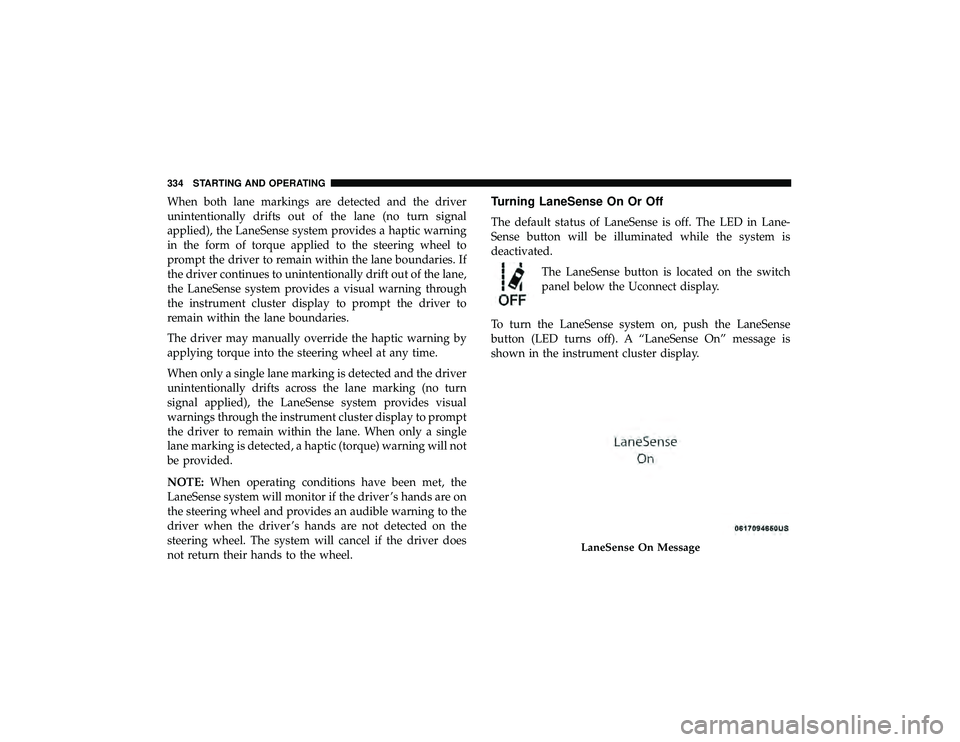
To turn the LaneSense system on, push the LaneSense
button (LED turns off). A “LaneSense On” message is
shown in the instrument cluster display.
LaneSense On Message
334 STARTING AND OPERATING
Page 338 of 598
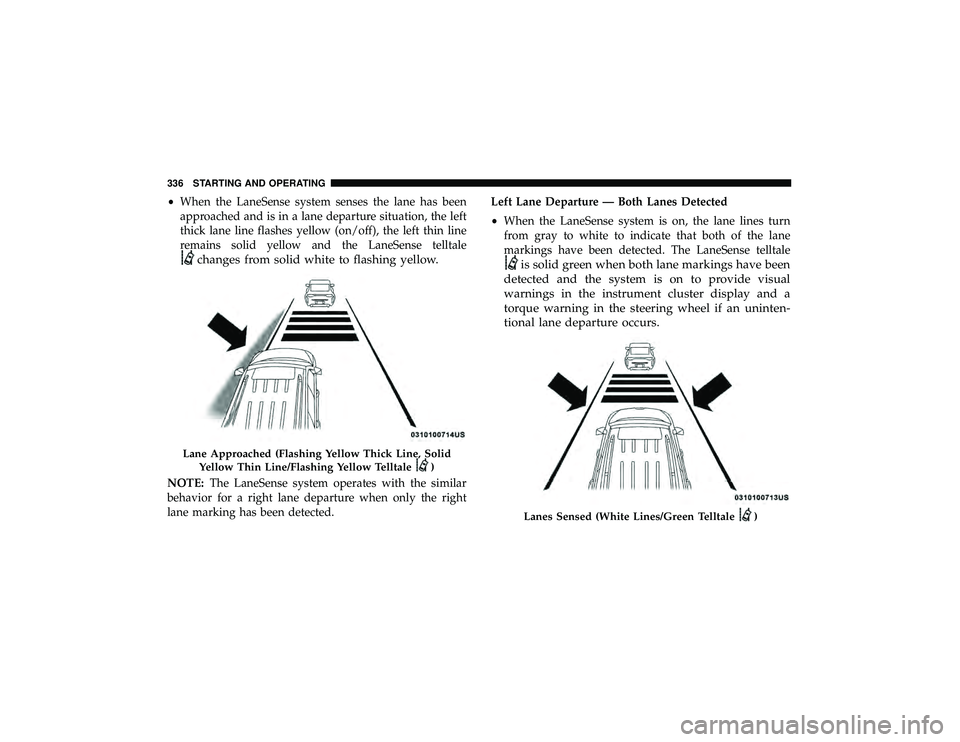
•When the LaneSense system senses the lane has been
approached and is in a lane departure situation, the left
thick lane line flashes yellow (on/off), the left thin line
remains solid yellow and the LaneSense telltale
changes from solid white to flashing yellow.
NOTE: The LaneSense system operates with the similar
behavior for a right lane departure when only the right
lane marking has been detected. Left Lane Departure — Both Lanes Detected
•
When the LaneSense system is on, the lane lines turn
from gray to white to indicate that both of the lane
markings have been detected. The LaneSense telltale
is solid green when both lane markings have been
detected and the system is on to provide visual
warnings in the instrument cluster display and a
torque warning in the steering wheel if an uninten-
tional lane departure occurs.
Lane Approached (Flashing Yellow Thick Line, Solid
Yellow Thin Line/Flashing Yellow Telltale
)
Lanes Sensed (White Lines/Green Telltale)
336 STARTING AND OPERATING
Page 339 of 598
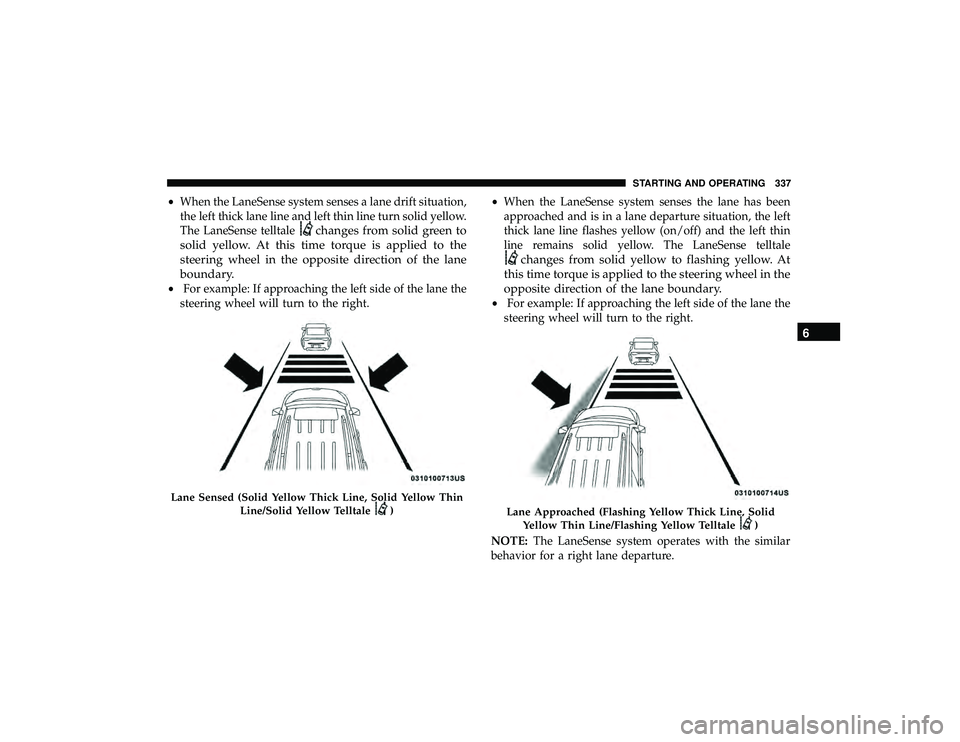
•When the LaneSense system senses a lane drift situation,
the left thick lane line and left thin line turn solid yellow.
The LaneSense telltale
changes from solid green to
solid yellow. At this time torque is applied to the
steering wheel in the opposite direction of the lane
boundary.
• For example: If approaching the left side of the lane the
steering wheel will turn to the right. •
When the LaneSense system senses the lane has been
approached and is in a lane departure situation, the left
thick lane line flashes yellow (on/off) and the left thin
line remains solid yellow. The LaneSense telltale
changes from solid yellow to flashing yellow. At
this time torque is applied to the steering wheel in the
opposite direction of the lane boundary.
• For example: If approaching the left side of the lane the
steering wheel will turn to the right.
NOTE: The LaneSense system operates with the similar
behavior for a right lane departure.
Lane Sensed (Solid Yellow Thick Line, Solid Yellow Thin
Line/Solid Yellow Telltale
)Lane Approached (Flashing Yellow Thick Line, SolidYellow Thin Line/Flashing Yellow Telltale
)
6
STARTING AND OPERATING 337
Page 340 of 598
Changing LaneSense Status
The LaneSense system has settings to adjust the intensity of
the torque warning and the warning zone sensitivity
(early/late) that you can configure through the Uconnect
system screen. Refer to “Uconnect Settings” in “Multime-
dia” for further information.
NOTE:
•When enabled the system operates above 37 mph
(60 km/h) and below 112 mph (180 km/h).
• Use of the turn signal suppresses the warnings.
• The system will not apply torque to the steering wheel
whenever a safety system engages (anti-lock brakes,
traction control system, electronic stability control, for-
ward collision warning, etc.).
PARKVIEW REAR BACK UP CAMERA
Your vehicle is equipped with the ParkView Rear Back Up
Camera that allows you to see an on-screen image of the
rear surroundings of your vehicle whenever the gear
selector is put into REVERSE. The image will be displayed
on the Navigation/Multimedia radio display screen along
with a caution note to “check entire surroundings” across the top of the screen. After five seconds this note will
disappear. The ParkView camera is located on the rear of
the vehicle above the rear license plate.
When the vehicle is shifted out of REVERSE (with camera
delay turned off), the rear camera mode is exited and the
navigation or audio screen appears again.
Manual Activation Of The Rear View Camera
1. Press the “Controls” button located on the bottom of the
Uconnect display.
2. Press the “Backup Camera” button to turn the Rear View Camera system on.
NOTE: The ParkView Rear Back Up Camera has program-
mable modes of operation that may be selected through the
Uconnect System.
Refer to “Uconnect Settings” in “Multimedia” for further
information.
When the vehicle is shifted out of REVERSE (with camera
delay turned off), the rear camera mode is exited and the
previous screen appears again. When the vehicle is shifted
out of REVERSE (with camera delay turned on), the camera
image will continue to be displayed for up to ten seconds
after shifting out of REVERSE unless the vehicle speed
338 STARTING AND OPERATING
Page 341 of 598
![DODGE DURANGO 2019 Workshop Manual exceeds 8 mph (13 km/h), the vehicle is shifted into PARK,
the vehicle’s ignition is cycled to the OFF position, or the
user presses image defeat [X] to exit out of the camera
video display.
When en](/img/12/40504/w960_40504-340.png "DODGE DURANGO 2019 Workshop Manual exceeds 8 mph (13 km/h), the vehicle is shifted into PARK,
the vehicle’s ignition is cycled to the OFF position, or the
user presses image defeat [X] to exit out of the camera
video display.
When en")
exceeds 8 mph (13 km/h), the vehicle is shifted into PARK,
the vehicle’s ignition is cycled to the OFF position, or the
user presses image defeat [X] to exit out of the camera
video display.
When enabled, active guide lines are overlaid on the image
to illustrate the width of the vehicle and its projected
backup path based on the steering wheel position. Adashed center line overlay indicates the center of the
vehicle to assist with parking or aligning to a hitch/
receiver. Different colored zones indicate the distance to the
rear of the vehicle.
The following table shows the approximate distances for
each zone:
Zone
Distance To The Rear Of The Vehicle
Red 0-1ft(0-30cm)
Yellow 1 ft - 6.5 ft (30 cm-2m)
Green 6.5 ft or greater (2 m or greater)
WARNING!
Drivers must be careful when backing up even when
using the ParkView Rear Back Up Camera. Always
check carefully behind your vehicle, and be sure to
check for pedestrians, animals, other vehicles, obstruc-
tions, or blind spots before backing up. You are re-
sponsible for the safety of your surroundings and must
continue to pay attention while backing up. Failure to
do so can result in serious injury or death.
CAUTION!
•To avoid vehicle damage, ParkView should only be
used as a parking aid. The ParkView camera is
unable to view every obstacle or object in your drive
path.
• To avoid vehicle damage, the vehicle must be driven
slowly when using ParkView to be able to stop in
time when an obstacle is seen. It is recommended
that the driver look frequently over his/her shoulder
when using ParkView.
6
STARTING AND OPERATING 339
Page 345 of 598
NOTE:If the fuel door does not latch after the manual
release cable has been activated, the actuator latch should
be manually returned to the closed position.
VEHICLE LOADING
Gross Vehicle Weight Rating (GVWR)
The GVWR is the total permissible weight of your vehicle
including driver, passengers, vehicle, options and cargo.
The label also specifies maximum capacities of front and
rear axle systems (GAWR). Total load must be limited so
GVWR and front and rear GAWR are not exceeded.
Payload
The payload of a vehicle is defined as the allowable load
weight a truck can carry, including the weight of the driver,
all passengers, options and cargo.
Gross Axle Weight Rating (GAWR)
The GAWR is the maximum permissible load on the front
and rear axles. The load must be distributed in the cargo
area so that the GAWR of each axle is not exceeded.
Each axle GAWR is determined by the components in the
system with the lowest load carrying capacity (axle,
springs, tires or wheels). Heavier axles or suspension components sometimes specified by purchasers for in-
creased durability does not necessarily increase the vehi-
cle’s GVWR.
Tire Size
The tire size on the Vehicle Certification Label represents
the actual tire size on your vehicle. Replacement tires must
be equal to the load capacity of this tire size.
Rim Size
This is the rim size that is appropriate for the tire size
listed.
Inflation Pressure
This is the cold tire inflation pressure for your vehicle for
all loading conditions up to full GAWR.
Curb Weight
The curb weight of a vehicle is defined as the total weight
of the vehicle with all fluids, including vehicle fuel, at full
capacity conditions, and with no occupants or cargo loaded
into the vehicle. The front and rear curb weight values are
determined by weighing your vehicle on a commercial
scale before any occupants or cargo are added.
6
STARTING AND OPERATING 343