phone DODGE DURANGO 2020 Workshop Manual
[x] Cancel search | Manufacturer: DODGE, Model Year: 2020, Model line: DURANGO, Model: DODGE DURANGO 2020Pages: 464, PDF Size: 22.14 MB
Page 436 of 464

434MULTIMEDIA
Listening To Audio With The Screen Closed
To listen to only audio portion of the channel
with the screen closed:
Set the audio to the desired source and
channel.
Close the video screen.
To change the current audio mode, push the
remote control’s SOURCE button. This will
automatically select the next available audio
mode without using the Mode/Source Select
menu.
When the screen is reopened, the video
screen will automatically turn back on and
show the appropriate display menu or media.
If the screen is closed and there is no audio
heard, verify that the headphones are turned on
(the ON indicator is illuminated) and the
headphone selector switch is on the desired
channel. If the headphones are turned on, push
the remote control’s power button to turn audio
on. If audio is still not heard, check that fully
charged batteries are installed in the
headphones.
Disc Formats
The Blu-ray™ Disc player is capable of playing
the following types of 4.7-inch (12 centimeter)
diameter discs:
BD: BDMV (Profile 1.1), BDAV (Profile 1.1)
DVD: DVD-Video, DVD-Audio, AVCREC,
AVCHD, DVD-VR
CD: CD-DA, VCD, CD-TEXT
DVD/CD: MP3, WMA, AAC, DivX (versions 3 –
6) profile 3.0
DVD Region Codes
The Blu-ray™ Disc player and many DVD discs
are coded by geographic region. These region
codes must match in order for the disc to play.
If the region code for the DVD disc does not
match the region code for the player, the disc
will not play.
DVD Audio Support
When a DVD-Audio disc is inserted in the
Blu-ray™ Disc player, the DVD-Audio title on the
disc is played by default (most DVD-Audio discs
also have a Video title, but the Video title is
ignored). All multi-channel program material is
automatically mixed down to two channels,
which may result in a lowered apparent volume
level. If you increase the volume level to
account for this change in level, remember to
lower the volume before changing the disc or to
another mode.
Recorded Discs
The Blu-ray™ Disc player will play CD-R and
CD-RW discs recorded in CD-Audio or Video-CD
format, or as a CD-ROM containing MP3 or WMA
files. The player will also play DVD-Video content
recorded to a DVD-R or DVD-RW disc. DVD-ROM
discs (either pressed or recorded) are not
supported.
If you record a disc using a personal computer,
there may be cases where the Blu-ray™ Disc
player may not be able to play some or the
entire disc, even if it is recorded in a compatible
format and is playable on other players.
20_WD_OM_EN_USC_t.book Page 434
Page 438 of 464
436MULTIMEDIA
If a disc has a damaged track which results in
audible or visible errors that persists for two
seconds, the Blu-ray™ Disc player will attempt
to continue playing the disc by skipping forward
one to three seconds at a time. If the end of the
disc is reached, the Blu-ray™ Disc player will
return to the beginning of the disc and attempt
to play the start of the first track.
The Blu-ray™ Disc player may shut down during
extremely hot conditions, such as when the
vehicle’s interior temperature is above 120°F
(48.9°C). When this occurs, the player will
display "High Temp" and will shut off the rear
seat displays until a safe temperature is
reached. This shutdown is necessary to protect
the optics of the Blu-ray™ Disc player.
Product Agreement
This product incorporates copyright protection
technology that is protected by US patents and
other intellectual property rights. Use of this
copyright protection technology must be
authorized by Macrovision, and is intended for
home or other limited viewing uses otherwise
authorized by Macrovision. Reverse
engineering or disassembly is prohibited. Dolby Digital and MLP Lossless
Manufactured under license from
Dolby Laboratories. "Dolby", "MLP
Lossless", and the double-D symbol
are trademarks of Dolby Laboratories.
Confidential unpublished works. Copyright
1992-1997 Dolby Laboratories. All rights
reserved.
RADIO OPERATION AND MOBILE PHONES
Under certain conditions, the mobile phone
being on in your vehicle can cause erratic or
noisy performance from your radio. This
condition may be lessened or eliminated by
relocating the mobile phone antenna. This
condition is not harmful to the radio. If your
radio performance does not satisfactorily
“clear” by the repositioning of the antenna, it is
recommended that the radio volume be turned
down or off during mobile phone operation
when not using Uconnect (if equipped).
REGULATORY AND SAFETY
I
NFORMATION
USA/CANADA
Exposure to Radio Frequency Radiation
The radiated output power of the internal
wireless radio is far below the FCC and IC radio
frequency exposure limits. Nevertheless, the
wireless radio will be used in such a manner
that the radio is 8 in (20 cm) or further from the
human body.
The internal wireless radio operates within
guidelines found in radio frequency safety
standards and recommendations, which reflect
the consensus of the scientific community.
The radio manufacturer believes the internal
wireless radio is safe for use by consumers. The
level of energy emitted is far less than the
electromagnetic energy emitted by wireless
devices such as mobile phones. However, the
use of wireless radios may be restricted in some
situations or environments, such as aboard
airplanes. If you are unsure of restrictions, you
are encouraged to ask for authorization before
turning on the wireless radio.
20_WD_OM_EN_USC_t.book Page 436
Page 440 of 464
438MULTIMEDIA
UCONNECT VOICE RECOGNITION QUICK TIPS
INTRODUCING UCONNECT
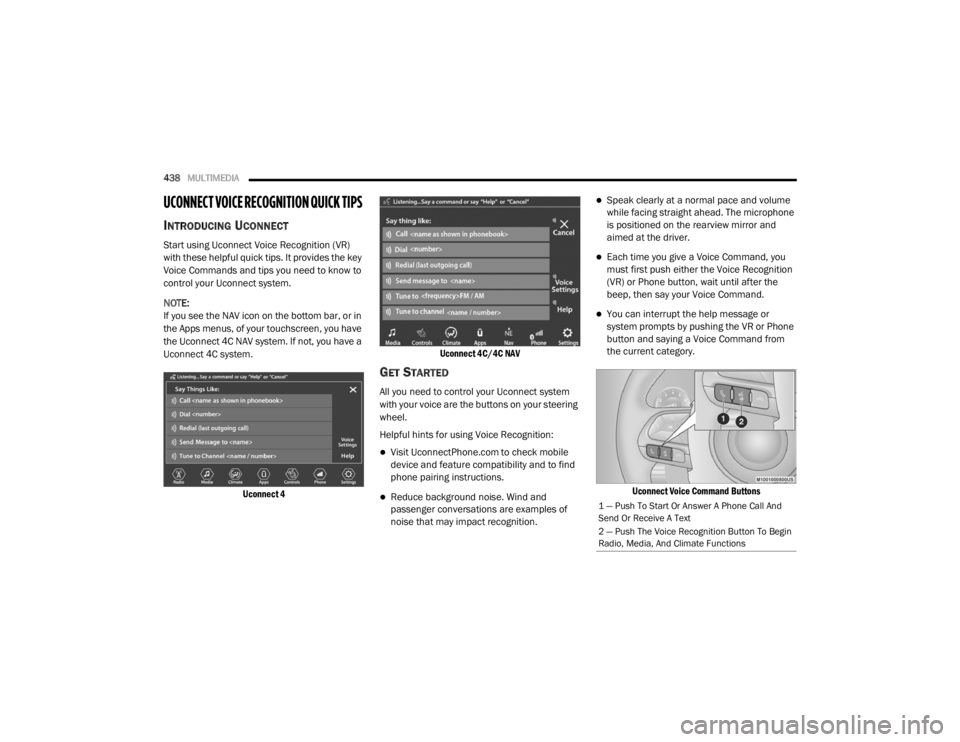
Start using Uconnect Voice Recognition (VR)
with these helpful quick tips. It provides the key
Voice Commands and tips you need to know to
control your Uconnect system.
NOTE:
If you see the NAV icon on the bottom bar, or in
the Apps menus, of your touchscreen, you have
the Uconnect 4C NAV system. If not, you have a
Uconnect 4C system.
Uconnect 4 Uconnect 4C/4C NAV
GET STARTED
All you need to control your Uconnect system
with your voice are the buttons on your steering
wheel.
Helpful hints for using Voice Recognition:
Visit UconnectPhone.com to check mobile
device and feature compatibility and to find
phone pairing instructions.
Reduce background noise. Wind and
passenger conversations are examples of
noise that may impact recognition.
Speak clearly at a normal pace and volume
while facing straight ahead. The microphone
is positioned on the rearview mirror and
aimed at the driver.
Each time you give a Voice Command, you
must first push either the Voice Recognition
(VR) or Phone button, wait until after the
beep, then say your Voice Command.
You can interrupt the help message or
system prompts by pushing the VR or Phone
button and saying a Voice Command from
the current category.
Uconnect Voice Command Buttons
1 — Push To Start Or Answer A Phone Call And
Send Or Receive A Text
2 — Push The Voice Recognition Button To Begin
Radio, Media, And Climate Functions
20_WD_OM_EN_USC_t.book Page 438
Page 441 of 464

MULTIMEDIA439
BASIC VOICE COMMANDS
The basic Voice Commands below can be given
at any point while using your Uconnect system.
Push the VR button . After the beep, say:
“Cancel ” to stop a current voice session
“Help ” to hear a list of suggested Voice
Commands
“ Repeat ” to listen to the system prompts
again
Notice the visual cues that inform you of your
voice recognition system’s status. Cues appear
on the touchscreen.
RADIO
Use your voice to quickly get to the AM, FM, or
SiriusXM® Satellite Radio stations you would
like to hear. (Subscription or included
SiriusXM® Satellite Radio trial required.)
Push the VR button . After the beep, say:
“ Tune to ninety-five-point-five FM”
“Tune to Satellite Channel Hits 1”TIP:
At any time, if you are not sure of what to say or
want to learn a Voice Command, push the VR
button and say, “
Help”. The system provides
you with a list of commands.
MEDIA
Uconnect offers connections via USB,
Bluetooth®, and auxiliary ports (if equipped).
Voice operation is only available for connected
USB and AUX devices.
Push the VR button . After the beep, say one
of the following commands and follow the
prompts to switch your media source or choose
an artist.
“ Change source to Bluetooth®”
“Change source to AUX”
“Change source to USB”
“Play artist Beethoven”; “ Play album
Greatest Hits”; “ Play song Moonlight
Sonata”; “ Play genre Classical” TIP:
Press the Browse button on the touchscreen to
see all of the music on your USB device. Your
Voice Command must match exactly how the
artist, album, song, and genre information is
displayed.
PHONE
Making and answering hands-free phone calls
is easy with Uconnect. When the Phonebook
button is illuminated on your touchscreen, your
system is ready. Check UconnectPhone.com for
mobile phone compatibility and pairing
instructions.
Push the Phone button . After the beep, say
one of the following commands:
“ Call John Smith”
“Dial 123-456-7890 and follow the system
prompts”
“ Redial (call previous outgoing phone
number)”
“ Call back (call previous incoming phone
number)”
9
20_WD_OM_EN_USC_t.book Page 439
Page 442 of 464

440MULTIMEDIA
TIP:
When providing a Voice Command, push the
Phone button and say “ Call”, then
pronounce the name exactly as it appears in
your phone book. When a contact has multiple
phone numbers, you can say “ Call John Smith
work.”
VOICE TEXT REPLY — IF EQUIPPED
Uconnect announces incoming text messages.
Push the VR button or Phone button (if
enabled) and say “ Listen.” (Must have
compatible mobile phone paired to Uconnect
system.)
1. Once an incoming text message is read to
you, push the VR button
or Phone button
(if enabled). After the beep, say: “ Reply
”.
2. Listen to the Uconnect prompts. After the beep, repeat one of the pre-defined
messages and follow the system prompts. NOTE:
Only use the numbering listed, otherwise the
system does not transpose the message. TIP:
Your mobile phone must have the full imple
-
mentation of the Message Access Profile (MAP)
to take advantage of this feature. For details
about MAP, visit UconnectPhone.com.
Apple® iPhone® iOS 6 or later supports reading
incoming text messages only. For further
information on how to enable this feature on
your Apple® iPhone®, refer to your mobile
phone’s User Manual.
TIP:
Voice Text Reply is not compatible with
iPhone®, but if your vehicle is equipped with
Siri® Eyes Free, you can use your voice to send
a text message.
CLIMATE
Adjust vehicle temperatures hands-free and
keep everyone comfortable while you keep
moving ahead. (If vehicle is equipped with
climate control.)
PRE-DEFINED VOICE TEXT REPLY RESPONSES
Yes. Stuck in
traffic. See you later.
No. Start without
me. I’ll be late.
Okay. Where are
you? I will be 5
25, 30, 45,
60> minutes late.
Call me.
Are you there
yet?
I’ll call you later. I need
directions. See you in 5
minutes.
I’m on my
way. Can’t talk
right now.
I’m lost. Thanks.
20_WD_OM_EN_USC_t.book Page 440
Page 443 of 464

MULTIMEDIA441
Push the VR button . After the beep, say one
of the following commands:
“Set driver temperature to 70 degrees ”
“Set passenger temperature to 70 degrees ”
TIP:
Voice Command for Climate may only be used
to adjust the interior temperature of your
vehicle. Voice Command will not work to adjust
the heated seats or steering wheel if equipped.
NAVIGATION (4C NAV)
The Uconnect navigation feature helps you save
time and become more productive when you
know exactly how to get to where you want to go.
1. To enter a destination, push the VR button
. After the beep, say: “ Find address
800
Chrysler Drive Auburn Hills, Michigan”.
2. Then follow the system prompts.
TIP:
To start a POI search, push the VR button .
After the beep, say: “ Find nearest coffee shop”.
SIRI® EYES FREE — IF EQUIPPED
Siri lets you use your voice to send text
messages, select media, place phone calls and
much more. Siri uses your natural language to
understand what you mean and responds back
to confirm your requests. The system is
designed to keep your eyes on the road and
your hands on the wheel by letting Siri help you
perform useful tasks.
To enable Siri, push and hold, then release the
Uconnect Voice Recognition (VR) button on the
steering wheel. After you hear a double beep
you can ask Siri to play podcasts and music, get
directions, read text messages, and many other
useful requests.
DO NOT DISTURB
With Do Not Disturb, you can disable
notifications from incoming calls and texts,
allowing you to keep your eyes on the road and
hands on the wheel. For your convenience,
there is a counter display to keep track of your
missed calls and text messages while you were
using Do Not Disturb. Do Not Disturb can automatically reply with a
text message, a call, or both, when declining an
incoming call and send it to voicemail.
Automatic reply messages can be:
“I am driving right now, I will get back to you
shortly.”
Create a custom auto reply message up to
160 characters.
NOTE:
Only the first 25 characters can be seen on the
touchscreen while typing a custom message.
While in Do Not Disturb, Conference Call can be
selected so you can still place a second call
without being interrupted by incoming calls.
NOTE:
Reply with text message is not compatible
with iPhones®.
Auto reply with text message is only available
on phones that support Bluetooth® MAP.9
20_WD_OM_EN_USC_t.book Page 441
Page 444 of 464

442MULTIMEDIA
ANDROID AUTO™ — IF EQUIPPED
NOTE:
Feature availability depends on your carrier and
mobile phone manufacturer. Some Android
Auto™ features may or may not be available in
every region and/or language.
Android Auto™ allows you to use your voice to
interact with Android’s™ best-in-class speech
technology through your vehicle’s voice
recognition system, and use your smartphone’s
data plan to project your Android™-powered
smartphone and a number of its apps onto your
Uconnect touchscreen. Connect your Android™
5.0 or higher to one of the media USB ports,
using the factory-provided USB cable, and press
the new Android Auto™ icon that replaces your
“Phone” icon on the main menu bar to begin
Android Auto™. Push and hold the VR button on
the steering wheel, or press and hold the
Microphone icon within Android Auto™, to
activate Android’s™ VR, which recognizes
natural voice commands, to use a list of your
smartphone’s features:
Maps
Music
Phone
Text Messages
Additional Apps
Refer to your Uconnect Owner’s Manual
Supplement for further information.
NOTE:
Requires compatible smartphone running
Android™ 5.0 or higher and download app on
Google Play. Android™, Android Auto™, and
Google Play are trademarks of Google Inc.
APPLE CARPLAY® — IF EQUIPPED
NOTE:
Feature availability depends on your carrier and
mobile phone manufacturer. Some Apple
CarPlay® features may or may not be available
in every region and/or language.
Apple CarPlay® allows you to use your voice to
interact with Siri through your vehicle’s voice
recognition system, and use your smartphone’s
data plan to project your iPhone® and a
number of its apps onto your Uconnect
touchscreen. Connect your iPhone® 5, or higher, to one of the
media USB ports, using the factory-provided
Lightning cable, and press the new Apple
CarPlay® icon that replaces your Phone icon on
the main menu bar to begin Apple CarPlay®.
Push and hold the VR button on the steering
wheel, or press and hold the Home button
within Apple CarPlay®, to activate Siri, which
recognizes natural voice commands to use a list
of your iPhone’s® features:
Phone
Music
Messages
Maps — if equipped
Additional Apps — if equipped
Refer to your Uconnect Owner’s Manual
Supplement for further information.
NOTE:
Requires compatible iPhone®. See dealer for
phone compatibility. Data plan rates apply.
Vehicle user interface is a product of Apple®.
20_WD_OM_EN_USC_t.book Page 442
Page 445 of 464

MULTIMEDIA443
Apple CarPlay® is a trademark of Apple® Inc.
iPhone® is a trademark of Apple® Inc., regis -
tered in the US and other countries. Apple®
terms of use and privacy statements apply.
GENERAL INFORMATION
The following regulatory statement applies to all
Radio Frequency (RF) devices equipped in this
vehicle:
This device complies with Part 15 of the FCC
Rules and with Innovation, Science and
Economic Development Canada license-exempt
RSS standard(s).
Operation is subject to the following two
conditions:
1. This device may not cause harmful interference, and
2. This device must accept any interference received, including interference that may
cause undesired operation. Le présent appareil est conforme aux CNR
d`Innovation, Science and Economic
Development applicables aux appareils radio
exempts de licence. L'exploitation est autorisée
aux deux conditions suivantes:
1. l'appareil ne doit pas produire de
brouillage, et
2. l'utilisateur de l'appareil doit accepter tout brouillage radioélectrique subi, même si le
brouillage est susceptible d'en compro -
mettre le fonctionnement.
La operación de este equipo está sujeta a las
siguientes dos condiciones:
1. es posible que este equipo o dispositivo no cause interferencia perjudicial y
2. este equipo o dispositivo debe aceptar cualquier interferencia, incluyendo la que
pueda causar su operación no deseada.
NOTE:
Changes or modifications not expressly
approved by the party responsible for compli -
ance could void the user’s authority to operate
the equipment. ADDITIONAL
INFORMATION
© 202 1 FCA US LLC. All rights reserved.
Mopar and Uconnect are registered
trademarks and Mopar Owner Connect is a
trademark of FCA US LLC. Android™ is a
trademark of Google Inc. SiriusXM® and all
related marks and logos are trademarks of
SiriusXM® Radio Inc.
Uconnect System Support:
US residents visit www.DriveUconnect.com or
call: 1-877-855-8400 (24 hours a day 7 days
a week)
Canadian residents visit www.DriveUcon -
nect.ca or call: 1-800-465-2001 (English) or
1-800-387-9983 (French)
SiriusXM Guardian™ services support:
US residents visitwww.driveuconnect.com/
sirius-xm-guardian or call: 1-844-796-4827
Canadian residents visitwww.siriusxm.ca/
guardian-v1/ or call: 1-877-324-90919
20_WD_OM_EN_USC_t.book Page 443
Page 446 of 464
444
CUSTOMER ASSISTANCE
SUGGESTIONS FOR OBTAINING SERVICE
FOR YOUR VEHICLE
PREPARE FOR THE APPOINTMENT
If you are having warranty work done, be sure to
have the right papers with you. Take your
warranty folder. All work to be performed may
not be covered by the warranty. Discuss
additional charges with the service manager.
Keep a maintenance log of your vehicle's
service history. This can often provide a clue to
the current problem.
PREPARE A LIST
Make a written list of your vehicle's problems or
the specific work you want done. If you've had
an accident or work done that is not on your
maintenance log, let the service advisor know.
BE REASONABLE WITH REQUESTS
If you list a number of items and you must have
your vehicle by the end of the day, discuss the
situation with the service advisor and list the
items in order of priority. At many authorized dealers, you may obtain a
rental vehicle at a minimal daily charge. If you
need a rental, it is advisable to make these
arrangements when you call for an
appointment.
IF YOU NEED ASSISTANCE
The manufacturer and its authorized dealers
are vitally interested in your satisfaction. We
want you to be happy with our products and
services.
Warranty service must be done by an
authorized dealer. We strongly recommend that
you take the vehicle to an authorized dealer.
They know your vehicle the best, and are most
concerned that you get prompt and high quality
service. The manufacturer's authorized dealers
have the facilities, factory-trained technicians,
special tools, and the latest information to
ensure the vehicle is fixed correctly and in a
timely manner.
This is why you should always talk to an
authorized dealer service manager first. Most
matters can be resolved with this process.
If for some reason you are still not satisfied,
talk to the general manager or owner of the
authorized dealer. They want to know if you
need assistance.
If an authorized dealer is unable to resolve
the concern, you may contact the manufac
-
turer's customer center.
Any communication to the manufacturer's
customer center should include the following
information:
Owner's name and address
Owner's telephone number (home, mobile,
and office)
Authorized dealer name
Vehicle Identification Number (VIN)
Vehicle delivery date and mileage
20_WD_OM_EN_USC_t.book Page 444
Page 447 of 464

CUSTOMER ASSISTANCE445
FCA US LLC CUSTOMER CENTER
P.O. Box 21–8004
Auburn Hills, MI 48321–8004
Phone: (800) 423-6343
FCA CANADA INC. CUSTOMER CENTER
P.O. Box 1621
Windsor, Ontario N9A 4H6
Phone: (800) 465-2001 English / (800)
387-9983 French
IN MEXICO CONTACT
Av. Prolongacion Paseo de la Reforma, 1240
Sante Fe C.P. 05109
Mexico, D. F.
In Mexico City: (800) 505-1300
Outside Mexico City: +(52) 55 50817568
PUERTO RICO AND US VIRGIN ISLANDS
FCA Caribbean LLC
P.O. Box 191857
San Juan 00919-1857
Phone: (800) 423-6343
Fax: (787) 782-3345
CUSTOMER ASSISTANCE FOR THE
H
EARING OR SPEECH IMPAIRED
(TDD/TTY)
To assist customers who have hearing
difficulties, the manufacturer has installed
special Telecommunication Devices for the
Deaf (TDD) equipment at its customer center.
Any hearing or speech impaired customer, who
has access to a TDD or a conventional
teletypewriter (TTY) in the United States, can
communicate with the manufacturer by dialing
1-800-380-CHRY.
Canadian residents with hearing difficulties that
require assistance can use the special needs
relay service offered by Bell Canada. For TTY
teletypewriter users, dial 711 and for Voice
callers, dial 1-800-855-0511 to connect with a
Bell Relay Service operator.
SERVICE CONTRACT
You may have purchased a service contract for
a vehicle to help protect you from the high cost
of unexpected repairs after FCA US LLC's New
Vehicle Limited Warranty expires. The Mopar
Vehicle Protection plans are the ONLY vehicle
extended protection plans authorized,
endorsed and backed by FCA US LLC to provide
additional protection beyond your vehicle’s
warranty. If you purchased a Mopar Vehicle
Protection Plan, you will receive Plan Provisions
and an Owner Identification Card in the mail
within three weeks of the vehicle delivery date.
If you have any questions about the service
contract, call the FCA US LLC’s Service Contract
National Customer Hotline at 1-800-521-9922
(Canadian residents, call (800) 465-2001
English / (800) 387-9983 French).
FCA US LLC is not responsible for any service
contract you may have purchased from another
manufacturer. If you require service after the
FCA US LLC New Vehicle Limited Warranty
expires, please refer to the contract documents,
and contact the person listed in those
documents.
10
20_WD_OM_EN_USC_t.book Page 445