audio DODGE GRAND CARAVAN 2020 User Guide
[x] Cancel search | Manufacturer: DODGE, Model Year: 2020, Model line: GRAND CARAVAN, Model: DODGE GRAND CARAVAN 2020Pages: 380, PDF Size: 14.92 MB
Page 289 of 380

MULTIMEDIA287
Your radio will play the following formats:
MP3, WMA, AAC, M4A, CD Audio, DVD Audio,
and DVD Video.
Do not insert anything other than the supported
CD/DVD formats.
SACD (SACD layer), VCD DualDisc, SVCD, VCD
format on DVD MPEG-4 are not supported.
A complete list of supported CD/DVD formats is
available at DriveUconnect.com (US Residents)
or DriveUconnect.ca (Canadian Residents).
Inserting A Disc
1. Push the Load button once.
2. After the screen opens, with the printed side upward, insert the disc into the disc slot of
the radio. The radio pulls the disc automat-
ically and closes the flip screen. The radio
selects the appropriate mode after the disc
is recognized and starts playing the first
track. The display shows “Reading...” during
this process. NOTE:
A faulty CD is NOT automatically ejected. Use
only standard size discs. Discs that have
been modified with an adhesive label should
not be used in the CD/DVD player.
On Data CDs with a large number of songs it
may take several seconds to read, play and
display information for all songs on the disc.
Recording your own CD on a home computer
at a lower write speed will result in a more
consistent quality.
High definition content and media
(e.g, HD-DVD, Blu-Ray™) is not supported.
If the user does not remove an ejected CD
within approximately 10 seconds the CD will
reload.
Removing A Disc
1. Push the Load button.
2. After the display opens the disc is ejected and can be removed. NOTE:
If the disc is not removed within approximately
10 seconds, the unit pulls it back into the slot
(park position). The disc may be ejected when
the ignition is OFF.
3. Push the Load button to close the display. If
you do not push the Load button or insert a
new disc, the display will close 30 seconds
after the display was opened.
Selecting Disc Mode
Activate Disc Mode by pushing the Media
button located on the faceplate. The disc mode
can be selected by pressing the Disc button on
the touchscreen.
NOTE:
When a disc is inserted, the appropriate mode
is automatically selected once the disc is
recognized.
Scan Search
Press the Scan button.
The first few seconds of each individual track
will be played in succession.
Press the Stop Scan button to stop the scan
function.
9
20_RT_OM_EN_USC_t.book Page 287
Page 291 of 380
MULTIMEDIA289
The Gracenote® service uses a unique
identifier to track queries for statistical
purposes. The purpose of a randomly assigned
numeric identifier is to allow the Gracenote®
service to count queries without knowing
anything about who you are. For more
information, see the web page for the
Gracenote® Privacy Policy for the Gracenote®
service.
The Gracenote® Software and each item of
Gracenote® Data are licensed to you “AS IS.”
Gracenote® makes no representations or
warranties, express or implied, regarding the
accuracy of any Gracenote® Data from in the
Gracenote® Servers. Gracenote® reserves the
right to delete data from the Gracenote®
Servers or to change data categories for any
cause that Gracenote® deems sufficient. No
warranty is made that the Gracenote® Software
or Gracenote® Servers are error-free or that
functioning of Gracenote® Software or
Gracenote® Servers will be uninterrupted.
Gracenote® is not obligated to provide you with
new enhanced or additional data types or
categories that Gracenote® may provide in the
future and is free to discontinue its services at
any time. GRACENOTE DISCLAIMS ALL WARRANTIES
EXPRESS OR IMPLIED, INCLUDING, BUT NOT
LIMITED TO, IMPLIED WARRANTIES OF
MERCHANTABILITY, FITNESS FOR A
PARTICULAR PURPOSE, TITLE, AND
NON-INFRINGEMENT. GRACENOTE DOES NOT
WARRANT THE RESULTS THAT WILL BE
OBTAINED BY YOUR USE OF THE GRACENOTE
SOFTWARE OR ANY GRACENOTE SERVER. IN
NO CASE WILL GRACENOTE BE LIABLE FOR ANY
CONSEQUENTIAL OR INCIDENTAL DAMAGES OR
FOR ANY LOST PROFITS OR LOST REVENUES.
© Gracenote®, Inc. 2010
Portions of the content is copyright ©Muze or its
providers.
NOTE:
Visit
DriveUconnect.com (U.S. Residents) or
DriveUconnect.ca (Canadian Residents) for
update information.
Copy Disc To Hard-Drive
Press the Copy button to copy the
current disc to the Hard Disc Drive. Disc Menu
While in disc mode with inserted audio disc,
push the Menu button to access the Disc Menu.
Press the Random button to play the titles on
the disc in random order. Press the Random
button a second time to turn Random off.
Press the Repeat Folder button to repeat all
songs in the currently playing folder (MP3/WMA
disc only). Press the Repeat Folder button a
second time to stop the repeat mode.
Playing A MP3/WMA Disc
1. Push the Load button once.
2. With the printed side upwards, insert the
disc into the disc slot of the radio. The radio
pulls the disc automatically and closes the
flip screen. The radio selects the
appropriate mode after the disc is
recognized, and starts playing the first
track. The display shows “Reading...” during
this process.
A MP3/WMA disc may contain audio files in
a folder structure. The folder, if any, is
shown in the list view.
Press the Tracks button if the list is not dis -
played.
9
20_RT_OM_EN_USC_t.book Page 289
Page 293 of 380
MULTIMEDIA291
Press the PREV button to start playback from
the beginning of the current chapter or track.
When you press the button twice in quick
succession, playback starts from the beginning
of the preceding chapter or track.
DISC Menu
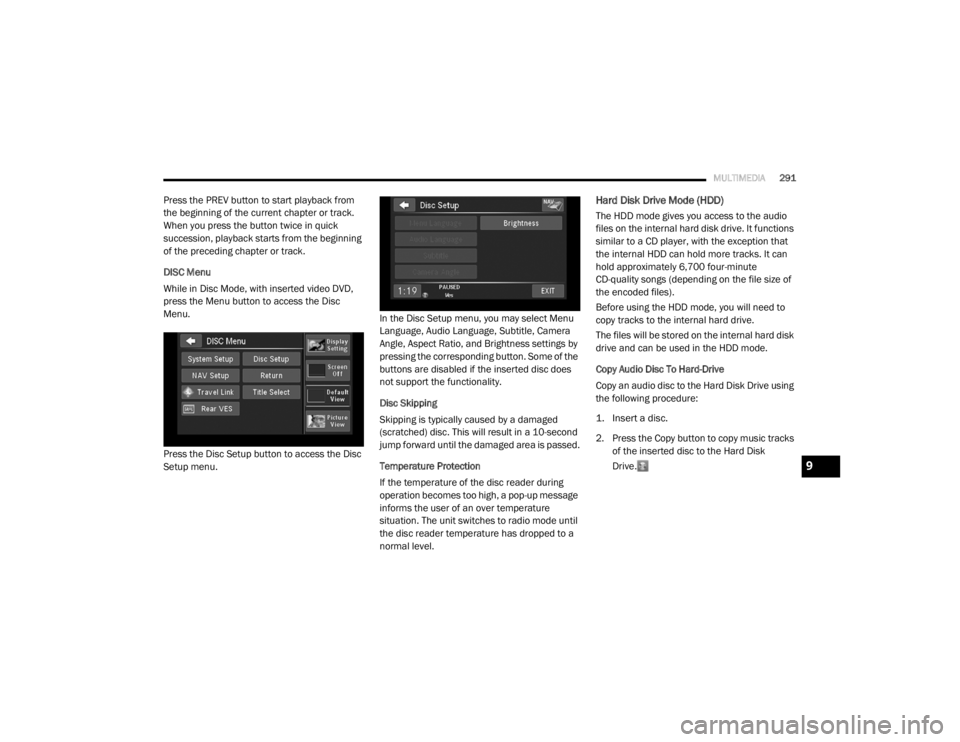
While in Disc Mode, with inserted video DVD,
press the Menu button to access the Disc
Menu.
Press the Disc Setup button to access the Disc
Setup menu. In the Disc Setup menu, you may select Menu
Language, Audio Language, Subtitle, Camera
Angle, Aspect Ratio, and Brightness settings by
pressing the corresponding button. Some of the
buttons are disabled if the inserted disc does
not support the functionality.
Disc Skipping
Skipping is typically caused by a damaged
(scratched) disc. This will result in a 10-second
jump forward until the damaged area is passed.
Temperature Protection
If the temperature of the disc reader during
operation becomes too high, a pop-up message
informs the user of an over temperature
situation. The unit switches to radio mode until
the disc reader temperature has dropped to a
normal level.Hard Disk Drive Mode (HDD)
The HDD mode gives you access to the audio
files on the internal hard disk drive. It functions
similar to a CD player, with the exception that
the internal HDD can hold more tracks. It can
hold approximately 6,700 four-minute
CD-quality songs (depending on the file size of
the encoded files).
Before using the HDD mode, you will need to
copy tracks to the internal hard drive.
The files will be stored on the internal hard disk
drive and can be used in the HDD mode.
Copy Audio Disc To Hard-Drive
Copy an audio disc to the Hard Disk Drive using
the following procedure:
1. Insert a disc.
2. Press the Copy button to copy music tracks
of the inserted disc to the Hard Disk
Drive.
9
20_RT_OM_EN_USC_t.book Page 291
Page 294 of 380
292MULTIMEDIA
After a short pause, the copy process begins
and the audio resumes playback from the start
of the track. The copy process continues in the
background while the audio plays. The progress
is shown in the display. Even if you change to
another mode (radio, AUX, etc.) or turn the radio
Off (ignition ON/RUN), the copy process will
continue in the background.
It is also possible to listen to radio modes during
this process. Copying time is greater than 4x the
normal playback rate.
NOTE:
When copying CD-Audio to HDD, audio files are
converted from CD-Audio to AAC. If available,
the artist name, album name, cover art, track
names and genres are stored with the tracks on
the HDD. DVD-Audio cannot be copied to the
HDD. If the CD-Audio disc is not recognized by
the Gracenote® Music Recognition Service, you
can rip the CD-Audio disc on your
internet-equipped computer first, then copy the
resulting compressed audio files to a USB
memory stick. Then insert the USB memory
stick in the radio and copy the audio files to the
HDD mode. Copy WMA/MP3 Files To Hard-Drive
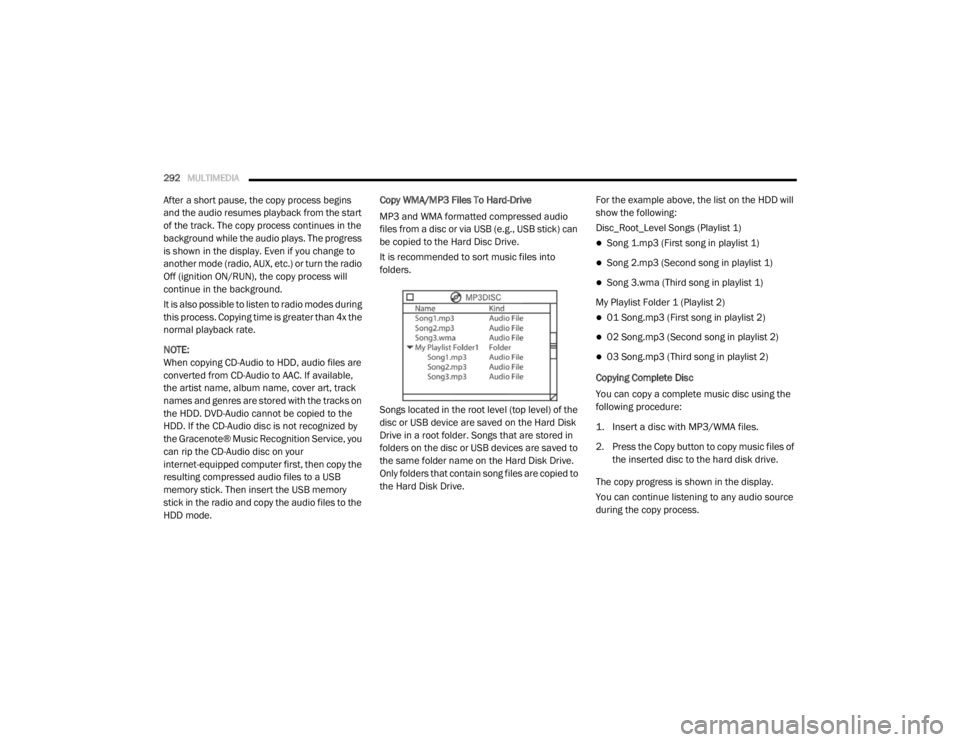
MP3 and WMA formatted compressed audio
files from a disc or via USB (e.g., USB stick) can
be copied to the Hard Disc Drive.
It is recommended to sort music files into
folders.
Songs located in the root level (top level) of the
disc or USB device are saved on the Hard Disk
Drive in a root folder. Songs that are stored in
folders on the disc or USB devices are saved to
the same folder name on the Hard Disk Drive.
Only folders that contain song files are copied to
the Hard Disk Drive.
For the example above, the list on the HDD will
show the following:
Disc_Root_Level Songs (Playlist 1)
Song 1.mp3 (First song in playlist 1)
Song 2.mp3 (Second song in playlist 1)
Song 3.wma (Third song in playlist 1)
My Playlist Folder 1 (Playlist 2)
01 Song.mp3 (First song in playlist 2)
02 Song.mp3 (Second song in playlist 2)
03 Song.mp3 (Third song in playlist 2)
Copying Complete Disc
You can copy a complete music disc using the
following procedure:
1. Insert a disc with MP3/WMA files.
2. Press the Copy button to copy music files of the inserted disc to the hard disk drive.
The copy progress is shown in the display.
You can continue listening to any audio source
during the copy process.
20_RT_OM_EN_USC_t.book Page 292
Page 296 of 380
294MULTIMEDIA
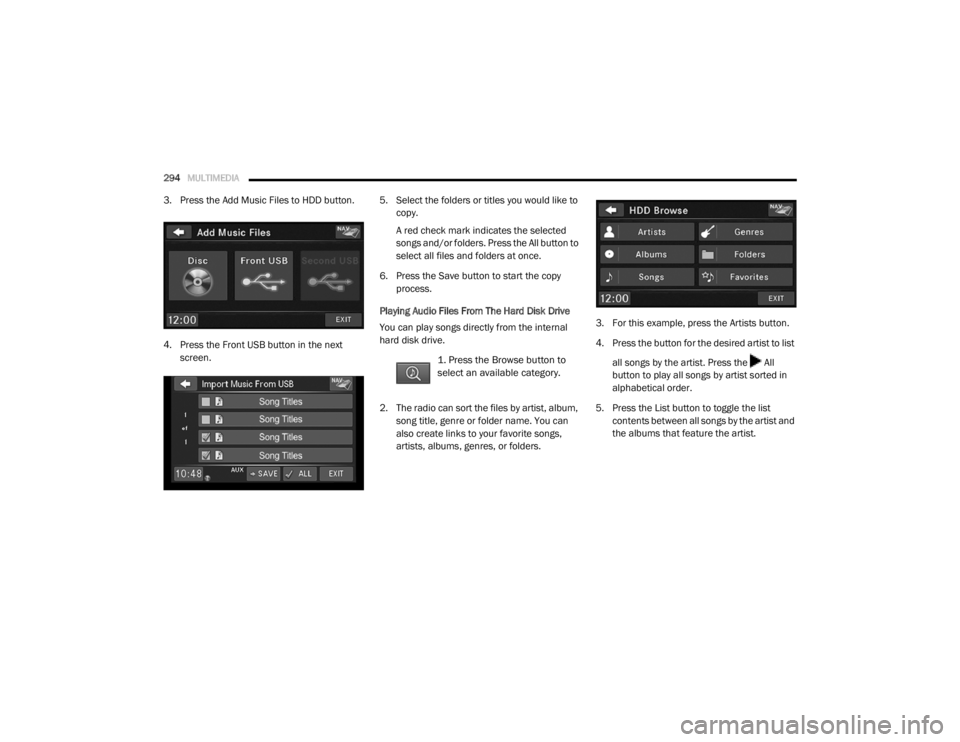
3. Press the Add Music Files to HDD button.
4. Press the Front USB button in the next
screen. 5. Select the folders or titles you would like to
copy.
A red check mark indicates the selected
songs and/or folders. Press the All button to
select all files and folders at once.
6. Press the Save button to start the copy process.
Playing Audio Files From The Hard Disk Drive
You can play songs directly from the internal
hard disk drive.
1. Press the Browse button to
select an available category.
2. The radio can sort the files by artist, album, song title, genre or folder name. You can
also create links to your favorite songs,
artists, albums, genres, or folders. 3. For this example, press the Artists button.
4. Press the button for the desired artist to list
all songs by the artist. Press the All
button to play all songs by artist sorted in
alphabetical order.
5. Press the List button to toggle the list contents between all songs by the artist and
the albums that feature the artist.
20_RT_OM_EN_USC_t.book Page 294
Page 301 of 380
MULTIMEDIA299
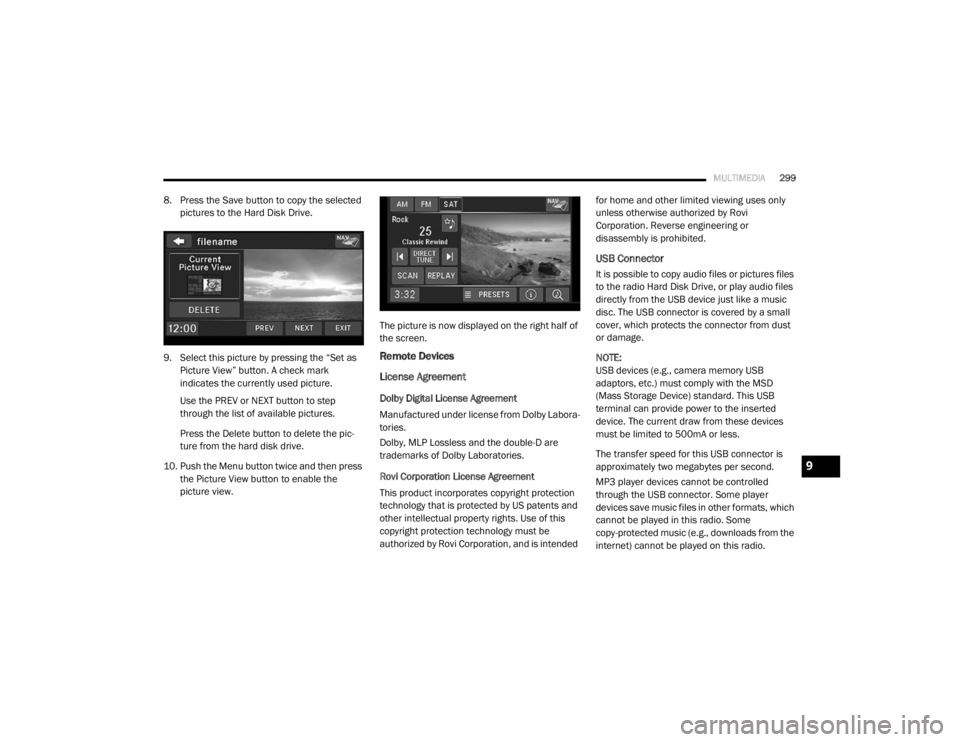
8. Press the Save button to copy the selected
pictures to the Hard Disk Drive.
9. Select this picture by pressing the “Set as Picture View” button. A check mark
indicates the currently used picture.
Use the PREV or NEXT button to step
through the list of available pictures.
Press the Delete button to delete the pic -
ture from the hard disk drive.
10. Push the Menu button twice and then press the Picture View button to enable the
picture view. The picture is now displayed on the right half of
the screen.
Remote Devices
License Agreement
Dolby Digital License Agreement
Manufactured under license from Dolby Labora-
tories.
Dolby, MLP Lossless and the double-D are
trademarks of Dolby Laboratories.
Rovi Corporation License Agreement
This product incorporates copyright protection
technology that is protected by US patents and
other intellectual property rights. Use of this
copyright protection technology must be
authorized by Rovi Corporation, and is intended for home and other limited viewing uses only
unless otherwise authorized by Rovi
Corporation. Reverse engineering or
disassembly is prohibited.
USB Connector
It is possible to copy audio files or pictures files
to the radio Hard Disk Drive, or play audio files
directly from the USB device just like a music
disc. The USB connector is covered by a small
cover, which protects the connector from dust
or damage.
NOTE:
USB devices (e.g., camera memory USB
adaptors, etc.) must comply with the MSD
(Mass Storage Device) standard. This USB
terminal can provide power to the inserted
device. The current draw from these devices
must be limited to 500mA or less.
The transfer speed for this USB connector is
approximately two megabytes per second.
MP3 player devices cannot be controlled
through the USB connector. Some player
devices save music files in other formats, which
cannot be played in this radio. Some
copy-protected music (e.g., downloads from the
internet) cannot be played on this radio.
9
20_RT_OM_EN_USC_t.book Page 299
Page 303 of 380
MULTIMEDIA301
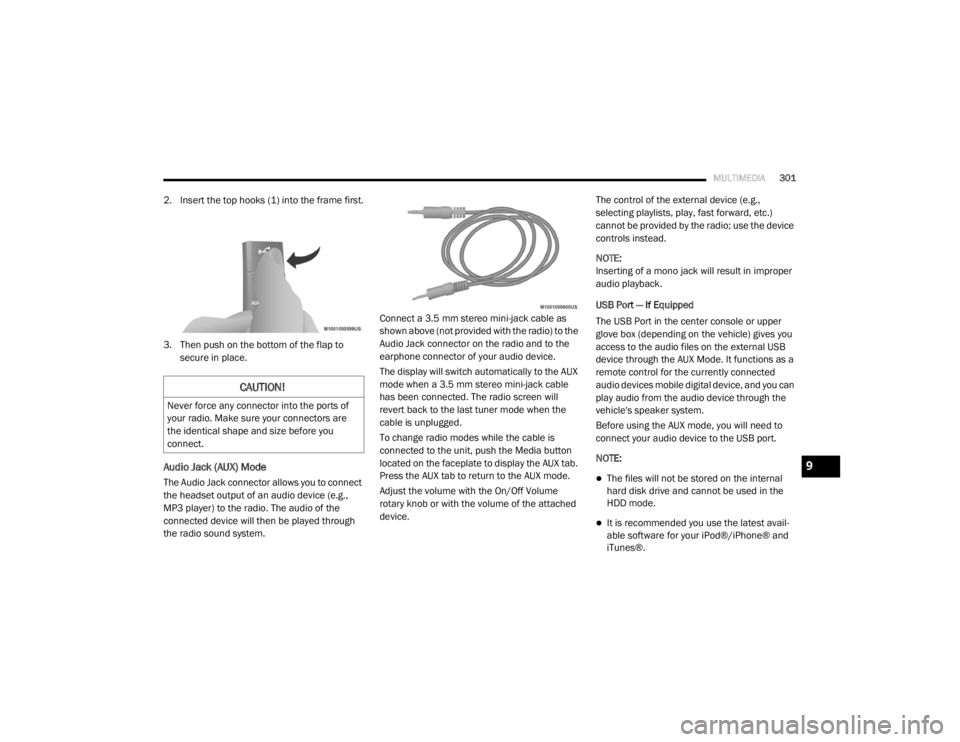
2. Insert the top hooks (1) into the frame first.
3. Then push on the bottom of the flap to
secure in place.
Audio Jack (AUX) Mode
The Audio Jack connector allows you to connect
the headset output of an audio device (e.g.,
MP3 player) to the radio. The audio of the
connected device will then be played through
the radio sound system. Connect a 3.5 mm stereo mini-jack cable as
shown above (not provided with the radio) to the
Audio Jack connector on the radio and to the
earphone connector of your audio device.
The display will switch automatically to the AUX
mode when a 3.5 mm stereo mini-jack cable
has been connected. The radio screen will
revert back to the last tuner mode when the
cable is unplugged.
To change radio modes while the cable is
connected to the unit, push the Media button
located on the faceplate to display the AUX tab.
Press the AUX tab to return to the AUX mode.
Adjust the volume with the On/Off Volume
rotary knob or with the volume of the attached
device.The control of the external device (e.g.,
selecting playlists, play, fast forward, etc.)
cannot be provided by the radio; use the device
controls instead.
NOTE:
Inserting of a mono jack will result in improper
audio playback.
USB Port — If Equipped
The USB Port in the center console or upper
glove box (depending on the vehicle) gives you
access to the audio files on the external USB
device through the AUX Mode. It functions as a
remote control for the currently connected
audio devices mobile digital device, and you can
play audio from the audio device through the
vehicle's speaker system.
Before using the AUX mode, you will need to
connect your audio device to the USB port.
NOTE:The files will not be stored on the internal
hard disk drive and cannot be used in the
HDD mode.
It is recommended you use the latest avail
-
able software for your iPod®/iPhone® and
iTunes®.
CAUTION!
Never force any connector into the ports of
your radio. Make sure your connectors are
the identical shape and size before you
connect.
9
20_RT_OM_EN_USC_t.book Page 301
Page 304 of 380
302MULTIMEDIA
Playing Audio Files From The Audio Device
You can play songs directly from the external
USB device.
Press the Tracks button to display a list view.
Press the button with the desired list item to
select and play the item.
Press the Info button to display the
track information, press the button a
second time to close the display.
Press the Browse button to browse by
categories.
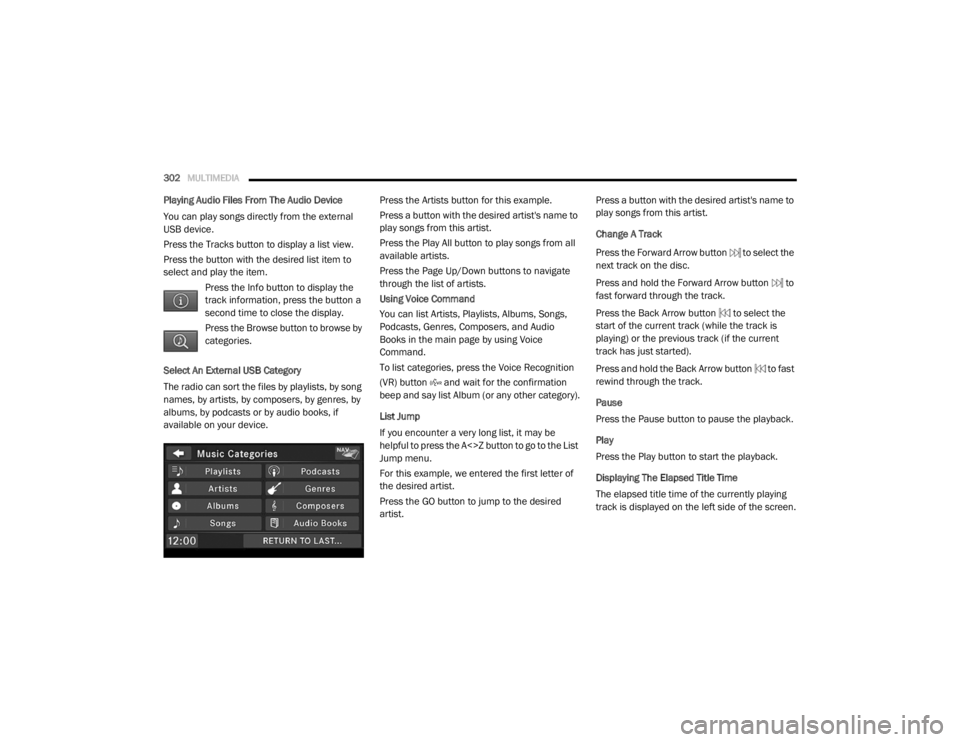
Select An External USB Category
The radio can sort the files by playlists, by song
names, by artists, by composers, by genres, by
albums, by podcasts or by audio books, if
available on your device. Press the Artists button for this example.
Press a button with the desired artist's name to
play songs from this artist.
Press the Play All button to play songs from all
available artists.
Press the Page Up/Down buttons to navigate
through the list of artists.
Using Voice Command
You can list Artists, Playlists, Albums, Songs,
Podcasts, Genres, Composers, and Audio
Books in the main page by using Voice
Command.
To list categories, press the Voice Recognition
(VR) button and wait for the confirmation
beep and say list Album (or any other category).
List Jump
If you encounter a very long list, it may be
helpful to press the A<>Z button to go to the List
Jump menu.
For this example, we entered the first letter of
the desired artist.
Press the GO button to jump to the desired
artist.Press a button with the desired artist's name to
play songs from this artist.
Change A Track
Press the Forward Arrow button to select the
next track on the disc.
Press and hold the Forward Arrow button to
fast forward through the track.
Press the Back Arrow button to select the
start of the current track (while the track is
playing) or the previous track (if the current
track has just started).
Press and hold the Back Arrow button to fast
rewind through the track.
Pause
Press the Pause button to pause the playback.
Play
Press the Play button to start the playback.
Displaying The Elapsed Title Time
The elapsed title time of the currently playing
track is displayed on the left side of the screen.
20_RT_OM_EN_USC_t.book Page 302
Page 305 of 380

MULTIMEDIA303
Scan Search
Press the Scan button.
The first few seconds of each individual track
will be played in succession for 10 seconds
each.
Press the Stop Scan button to stop the scan
function.
Track Info
Press the Info button.
Information on the currently playing
track, if available, will be displayed on
the right half of the touchscreen.
AUX Menu
While in AUX mode, push the Menu button on
the faceplate to access the AUX Menu. Random Playback
The random playback function plays random
tracks from the audio device. Press the Random
button to switch the random play function on or
off.
A red check mark indicates the random play
function is active.
Repeat Track
The repeat track function repeats the currently
played track. Press the Rpt. TRK button to
switch the repeat track function on or off.
A red check mark indicates the repeat track
function is active.
Bluetooth® Streaming Audio (BTSA)
Music can be streamed from your cellular
phone through Uconnect Phone (if equipped)
and played through the vehicle’s sound system.Controlling BTSA Using The Radio
To enter BTSA mode, push the Media button
located on the faceplate then press the Aux
button located on the touchscreen, or push the
Voice Recognition button (if equipped) and
after the confirmation beep, say
“Bluetooth Streaming Audio.”
Play Mode
When switching to BTSA mode, some audio
devices will start playing music directly through
the vehicle’s sound system. However, some
devices require the music to be initiated on the
device before it will stream through Uconnect
Phone (if equipped).
Selecting A Different Audio Device
1. Push the Uconnect Phone button .
2. After the “Ready” prompt and the following
beep, say “Setup,” then “Select Audio
Devices.”
3. You can say the name of the Audio Device to select or say “List Audio Devices” to have
Uconnect Phone list the available devices.
9
20_RT_OM_EN_USC_t.book Page 303
Page 306 of 380
304MULTIMEDIA
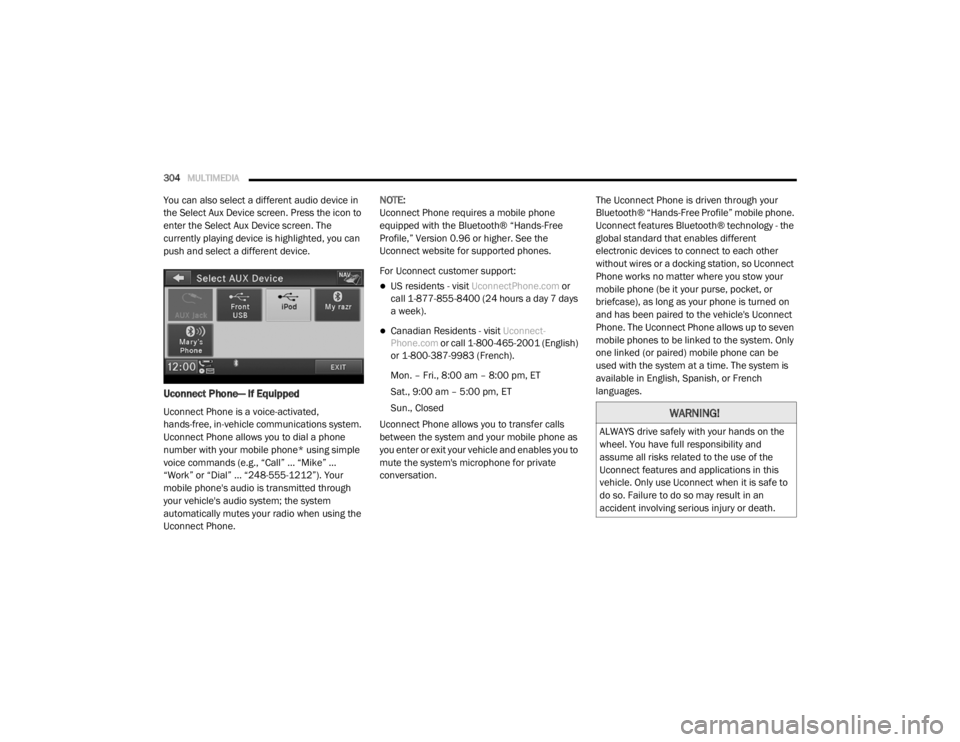
You can also select a different audio device in
the Select Aux Device screen. Press the icon to
enter the Select Aux Device screen. The
currently playing device is highlighted, you can
push and select a different device.
Uconnect Phone— If Equipped
Uconnect Phone is a voice-activated,
hands-free, in-vehicle communications system.
Uconnect Phone allows you to dial a phone
number with your mobile phone* using simple
voice commands (e.g., “Call” … “Mike” …
“Work” or “Dial” … “248-555-1212”). Your
mobile phone's audio is transmitted through
your vehicle's audio system; the system
automatically mutes your radio when using the
Uconnect Phone. NOTE:
Uconnect Phone requires a mobile phone
equipped with the Bluetooth® “Hands-Free
Profile,” Version 0.96 or higher. See the
Uconnect website for supported phones.
For Uconnect customer support:
US residents - visit
UconnectPhone.com or
call 1-877-855-8400 (24 hours a day 7 days
a week).
Canadian Residents - visit Uconnect-
Phone.com or call 1-800-465-2001 (English)
or 1-800-387-9983 (French).
Mon. – Fri., 8:00 am – 8:00 pm, ET
Sat., 9:00 am – 5:00 pm, ET
Sun., Closed
Uconnect Phone allows you to transfer calls
between the system and your mobile phone as
you enter or exit your vehicle and enables you to
mute the system's microphone for private
conversation. The Uconnect Phone is driven through your
Bluetooth® “Hands-Free Profile” mobile phone.
Uconnect features Bluetooth® technology - the
global standard that enables different
electronic devices to connect to each other
without wires or a docking station, so Uconnect
Phone works no matter where you stow your
mobile phone (be it your purse, pocket, or
briefcase), as long as your phone is turned on
and has been paired to the vehicle's Uconnect
Phone. The Uconnect Phone allows up to seven
mobile phones to be linked to the system. Only
one linked (or paired) mobile phone can be
used with the system at a time. The system is
available in English, Spanish, or French
languages.
WARNING!
ALWAYS drive safely with your hands on the
wheel. You have full responsibility and
assume all risks related to the use of the
Uconnect features and applications in this
vehicle. Only use Uconnect when it is safe to
do so. Failure to do so may result in an
accident involving serious injury or death.
20_RT_OM_EN_USC_t.book Page 304