audio DODGE GRAND CARAVAN 2020 Owner's Manual
[x] Cancel search | Manufacturer: DODGE, Model Year: 2020, Model line: GRAND CARAVAN, Model: DODGE GRAND CARAVAN 2020Pages: 380, PDF Size: 14.92 MB
Page 307 of 380
MULTIMEDIA305
Uconnect Phone Button
The radio or steering wheel controls (if
equipped) contain the two control buttons
(Uconnect Phone button and Voice
Command button) that enables you to
access the system. When you push the button
you hear the word Uconnect followed by a BEEP.
The beep is your signal to give a command.
NOTE:
The driver side upper windshield trim contains
the microphone for the Uconnect Phone.
Voice Command Button
Actual button location may vary with the radio.
The individual buttons are described in the
“Operation” section. The Uconnect Phone can be used with any
Hands-Free Profile certified Bluetooth® mobile
phone. See the Uconnect website for supported
phones. Refer to your mobile service provider or
the phone manufacturer for details.
The Uconnect Phone is fully integrated with the
vehicle's audio system. The volume of the
Uconnect Phone can be adjusted either from
the radio volume control knob or from the
steering wheel radio control (right switch), if
equipped.
The Uconnect display will be used for visual
prompts from the Uconnect Phone such as
“CELL” or caller ID on certain radios.
Operation
Voice commands can be used to operate the
Uconnect Phone and to navigate through the
Uconnect Phone menu structure. Voice
commands are required after most Uconnect
Phone prompts. You will be prompted for a
specific command and then guided through the
available options.
Prior to giving a voice command, wait for the
beep, which follows the “Ready” prompt or
another prompt.
For certain operations, compound
commands can be used. For example,
instead of saying “Setup” and then “Phone
Pairing,” the following compound command
can be said: “Setup Phone Pairing.”
For each feature explanation in this section,
only the compound form of the voice
command is given. You can also break the
commands into parts and say each part of
the command when you are asked for it. For
example, you can use the compound form
voice command “Phonebook New Entry,” or
you can break the compound form command
into two voice commands: “Phonebook” and
“New Entry.” Please remember, the Uconnect
Phone works best when you talk in a normal
conversational tone, as if speaking to
someone sitting a few feet/meters away from
you.
Help Command
If you need assistance at any prompt, or if you
want to know your options at any prompt, say
“Help” following the beep. The Uconnect Phone
will play all the options at any prompt if you ask
for help.
WARNING!
Any voice commanded system should be
used only in safe driving conditions following
all applicable laws. Your attention should be
focused on safely operating the vehicle.
Failure to do so may result in a collision
causing serious injury or death.
9
20_RT_OM_EN_USC_t.book Page 305
Page 311 of 380

MULTIMEDIA309
4. After you enter the name, the Uconnect
Phone will ask you which designation you
wish to delete: home, work, mobile, other, or
all. Say the designation you wish to delete.
Note that only the phonebook entry in the
current language is deleted.
NOTE:
Automatic downloaded phonebook entries
cannot be deleted or edited.
Delete/Erase “All” Uconnect Phonebook
Entries
NOTE:
ONLY the phonebook in the current language
is deleted.
Automatic downloaded phonebook entries
cannot be deleted or edited. To delete or erase all Uconnect phonebook
entries using Voice Command:
1. Push the Phone button to begin.
2. After the “Ready” prompt and the following
beep, say “Phonebook Erase All.”
The Uconnect Phone will ask you to verify
that you wish to delete all the entries
from the phonebook.
3. After confirmation, the phonebook entries will be deleted.
List All Names In The Uconnect Phonebook
Push the Phone button to begin.
After the “Ready” prompt and the following
beep, say “Phonebook List Names.”
The Uconnect Phone will play the names of
all the phonebook entries, including the
downloaded phonebook entries, if available.
To call one of the names in the list, push the
Voice Recognition button during the
playing of the desired name, and say “Call.” NOTE:
The user can also exercise “Edit” or “Delete”
operations at this point.
The Uconnect Phone will then prompt you as
to the number designation you wish to call.
The selected number will be dialed.
Phone Call Features
The following features can be accessed through
the Uconnect Phone if the feature(s) are
available on your mobile service plan. For
example, if your mobile service plan provides
three-way calling, this feature can be accessed
through the Uconnect Phone. Check with your
mobile service provider for the features that you
have.
Answer Or Reject An Incoming Call — No Call
Currently In Progress
When you receive a call on your mobile phone,
the Uconnect Phone will interrupt the vehicle
audio system, if on, and will ask if you would like
to answer the call. Push the Phone button to
accept the call. To reject the call, push and hold
the Phone button until you hear a single
beep, indicating that the incoming call was
rejected.
9
20_RT_OM_EN_USC_t.book Page 309
Page 315 of 380
MULTIMEDIA313
You can also send stored Uconnect Phonebook
entries as tones for fast and easy access to
voice mail and pager entries. To use this
feature, dial the number you wish to call and
then push the Voice Command button and
say, “Send.” The system will prompt you to enter
the name or number and say the name of the
phonebook entry you wish to send. The
Uconnect Phone will then send the
corresponding phone number associated with
the phonebook entry, as tones over the phone.
NOTE:
You may not hear all of the tones due to
mobile phone network configurations. This is
normal.
Some paging and voice mail systems have
system time out settings that are too short
and may not allow the use of this feature.
Barge In – Overriding Prompts
The “Voice Command” button can be used
when you wish to skip part of a prompt and
issue your voice command immediately. For
example, if a prompt is asking “Would you like to pair a phone, clear a...,” you could push the
Voice Recognition button and say, “Pair a
Phone” to select that option without having to
listen to the rest of the voice prompt.
Turning Confirmation Prompts On/Off
Turning confirmation prompts off will stop the
system from confirming your choices (e.g., the
Uconnect Phone will not repeat a phone
number before you dial it).
To turn confirmation prompts on or off using
Voice Command:
1. Push the Phone button to begin.
2. After the “Ready” prompt and the following
beep, say:“Setup Confirmations Prompts On” or
“Setup Confirmations Prompts Off”
Phone And Network Status Indicators
If available on the radio and/or on a premium
display such as the instrument panel cluster,
and supported by your mobile phone, the
Uconnect Phone will provide notification to
inform you of your phone and network status when you are attempting to make a phone call
using Uconnect Phone. The status is given for
roaming, network signal strength, phone battery
strength, etc.
Dialing Using The Mobile Phone Keypad
You can dial a phone number with your mobile
phone keypad and still use the Uconnect Phone
(while dialing via the mobile phone keypad, the
user must exercise caution and take precau
-
tionary safety measures). By dialing a number
with your paired Bluetooth® mobile phone, the
audio will be played through your vehicles audio
system. The Uconnect Phone will work the same
as if you dial the number using Voice Command.
NOTE:
Certain brands of mobile phones do not send
the dial ring to the Uconnect Phone to play it on
the vehicle audio system, so you will not hear it.
Under this situation, after successfully dialing a
number the user may feel that the call did not
go through even though the call is in progress.
Once your call is answered, you will hear the
audio.
9
20_RT_OM_EN_USC_t.book Page 313
Page 318 of 380

316MULTIMEDIA
NOTE:
Even though the system is designed for users
speaking in North American English, French,
and Spanish accents, the system may not
always work for some.
When navigating through an automated
system such as voice mail, or when sending
a page, at the end of speaking the digit string,
make sure to say “Send.”
Storing names in the phonebook when the
vehicle is not in motion is recommended.
It is not recommended to store similar
sounding names in the Uconnect Phonebook.
Phonebook (Downloaded and Uconnect
Phone Local) name recognition rate is opti -
mized when the entries are not similar.
Numbers must be spoken in single digits.
“800” must be spoken “eight-zero-zero” not
“eight hundred.”
You can say “O” (letter “O”) for “0” (zero).
Even though international dialing for most
number combinations is supported, some
shortcut dialing number combinations may
not be supported. Far End Audio Performance
Audio quality is maximized under:
Low-to-medium blower setting
Low-to-medium vehicle speed
Low road noise
Smooth road surface
Fully closed windows
Dry weather conditions
Operation from the driver's seat
Performance, such as audio clarity, echo,
and loudness to a large degree relies on the
phone and network, and not the Uconnect
Phone
Echo at the phone far end can sometimes be
reduced by lowering the in-vehicle audio
volume
Recent Calls
If your phone supports “Automatic Phonebook
Download,” Uconnect Phone can list your
Outgoing, Incoming and Missed Calls. SMS
Uconnect Phone can read or send new
messages on your phone.
Read Messages:
If you receive a new text message while your
phone is connected to Uconnect Phone, an
announcement will be made to notify you that
you have a new text message. If you wish to
hear the new message:
1. Push the Phone button .
2. After the “Ready” prompt and the following
beep, say “SMS Read” or “Read Messages”.
Uconnect Phone will play the new text
message for you.
After reading a message, you can “Reply” or
“Forward” the message using Uconnect Phone.
Send Messages:
You can send messages using Uconnect Phone.
To send a new message:
1. Push the Phone button .
2. After the “Ready” prompt and the following beep, say “SMS Send” or “Send Message”.
20_RT_OM_EN_USC_t.book Page 316
Page 333 of 380
MULTIMEDIA331
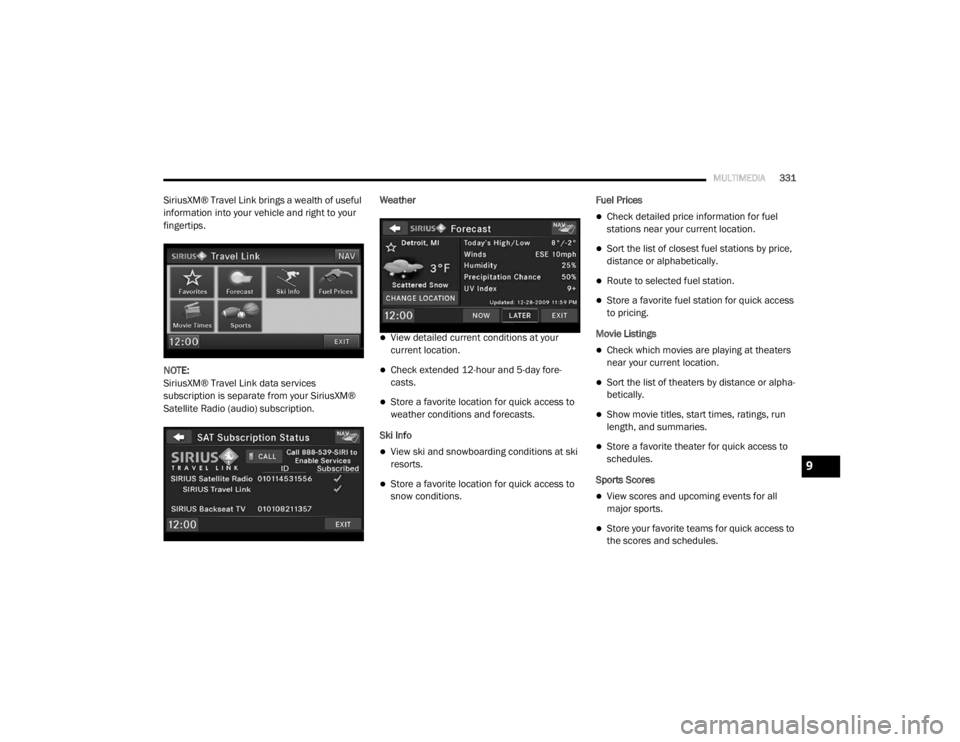
SiriusXM® Travel Link brings a wealth of useful
information into your vehicle and right to your
fingertips.
NOTE:
SiriusXM® Travel Link data services
subscription is separate from your SiriusXM®
Satellite Radio (audio) subscription. Weather
View detailed current conditions at your
current location.
Check extended 12-hour and 5-day fore
-
casts.
Store a favorite location for quick access to
weather conditions and forecasts.
Ski Info
View ski and snowboarding conditions at ski
resorts.
Store a favorite location for quick access to
snow conditions. Fuel Prices
Check detailed price information for fuel
stations near your current location.
Sort the list of closest fuel stations by price,
distance or alphabetically.
Route to selected fuel station.
Store a favorite fuel station for quick access
to pricing.
Movie Listings
Check which movies are playing at theaters
near your current location.
Sort the list of theaters by distance or alpha -
betically.
Show movie titles, start times, ratings, run
length, and summaries.
Store a favorite theater for quick access to
schedules.
Sports Scores
View scores and upcoming events for all
major sports.
Store your favorite teams for quick access to
the scores and schedules.
9
20_RT_OM_EN_USC_t.book Page 331
Page 334 of 380

332MULTIMEDIA
NOTE:
SiriusXM® Travel Link data services
subscription is separate from your SiriusXM®
Satellite Radio (audio) subscription.
SiriusXM® and all related marks and logos are
trademarks of SiriusXM® Radio Inc. and its
subsidiaries. SiriusXM® Radio requires a
subscription, sold separately after trial
subscription included with vehicle purchase.
Prices and programming are provided by
SiriusXM® and are subject to change.
Subscriptions governed by Terms & Conditions
available at www.sirius.com/serviceterms .
SiriusXM® Radio U.S. service only available to
those at least 18 years of age in the 48
contiguous United States, D.C., & PR. Visit
www.sirius.com/TravelLink for more
information on SIRIUS Travel Link.End-User License Agreement
Software License Agreement
BY USING THE NAVIGATION SYSTEM, YOU
AGREE TO BE BOUND BY THE TERMS AND
CONDITIONS OF THE FOLLOWING SOFTWARE
LICENSE AGREEMENT. PLEASE READ THIS
AGREEMENT CAREFULLY.
Garmin® Ltd. and its subsidiaries (“Garmin®”)
grant you a limited license to use the software
embedded in this device (the “Software”) in
binary executable form in the normal operation
of the product. Title, ownership rights, and
intellectual property rights in and to the
Software remain in Garmin® and/or its
third-party providers.
You acknowledge that the Software is the
property of Garmin® and/or its third-party
providers and is protected under the United
States of America copyright laws and interna -
tional copyright treaties. You further
acknowledge that the structure, organization,
and code of the Software, for which source code
is not provided, are valuable trade secrets of
Garmin® and/or its third-party providers and
that the Software in source code form remains
a valuable trade secret of Garmin® and/or its
third-party providers. You agree not to decompile, disassemble, modify, reverse
assemble, reverse engineer, or reduce to
human readable form the Software or any part
thereof or create any derivative works based on
the Software. You agree not to export or
re-export the Software to any country in
violation of the export control laws of the United
States of America or the export control laws of
any other applicable country.
NAVTEQ End-user License Agreement
The software embedded in your Garmin®
product (the “Software”) is owned by Garmin®
Ltd. or its subsidiaries (“Garmin®”). The
third-party map data embedded in or
accompanying your Garmin® product
(the “Map Data”) is owned by NAVTEQ North
America LLC and/or its affiliates (“NAVTEQ”)
and is licensed to Garmin®. Garmin® also
licenses information, text, images, graphics,
photographs, audio, video, images and other
applications and data from third party data
providers (“Third Party Content Data”). The Map
Data and Third Party Content Data are collec
-
tively the “Data”. Both the Software and Data
are protected under copyright laws and interna-
tional copyright treaties. The Software and Data
are licensed, not sold. The Software and Data
are provided under the following license and
CAUTION!
Neither SiriusXM® nor FCA US LLC is
responsible for any errors in accuracies in the
SiriusXM® data services or its use in
vehicles.
20_RT_OM_EN_USC_t.book Page 332
Page 342 of 380
340MULTIMEDIA
STEERING WHEEL AUDIO CONTROLS — IF
EQUIPPED
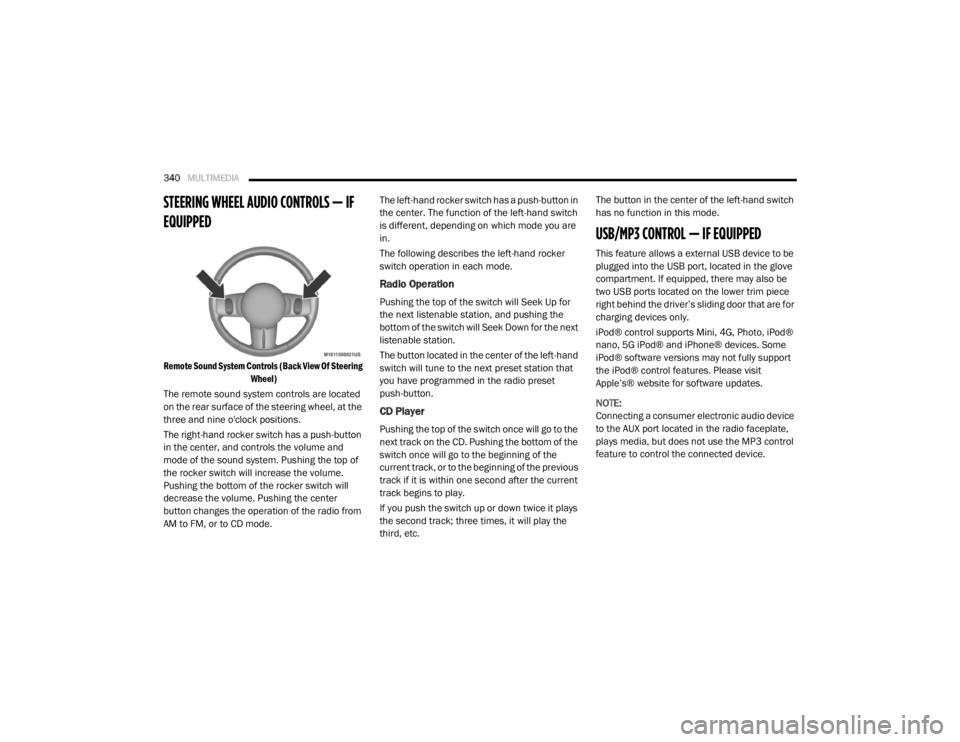
Remote Sound System Controls (Back View Of Steering
Wheel)
The remote sound system controls are located
on the rear surface of the steering wheel, at the
three and nine o'clock positions.
The right-hand rocker switch has a push-button
in the center, and controls the volume and
mode of the sound system. Pushing the top of
the rocker switch will increase the volume.
Pushing the bottom of the rocker switch will
decrease the volume. Pushing the center
button changes the operation of the radio from
AM to FM, or to CD mode. The left-hand rocker switch has a push-button in
the center. The function of the left-hand switch
is different, depending on which mode you are
in.
The following describes the left-hand rocker
switch operation in each mode.
Radio Operation
Pushing the top of the switch will Seek Up for
the next listenable station, and pushing the
bottom of the switch will Seek Down for the next
listenable station.
The button located in the center of the left-hand
switch will tune to the next preset station that
you have programmed in the radio preset
push-button.
CD Player
Pushing the top of the switch once will go to the
next track on the CD. Pushing the bottom of the
switch once will go to the beginning of the
current track, or to the beginning of the previous
track if it is within one second after the current
track begins to play.
If you push the switch up or down twice it plays
the second track; three times, it will play the
third, etc.The button in the center of the left-hand switch
has no function in this mode.
USB/MP3 CONTROL — IF EQUIPPED
This feature allows a external USB device to be
plugged into the USB port, located in the glove
compartment. If equipped, there may also be
two USB ports located on the lower trim piece
right behind the driver’s sliding door that are for
charging devices only.
iPod® control supports Mini, 4G, Photo, iPod®
nano, 5G iPod® and iPhone® devices. Some
iPod® software versions may not fully support
the iPod® control features. Please visit
Apple’s® website for software updates.
NOTE:
Connecting a consumer electronic audio device
to the AUX port located in the radio faceplate,
plays media, but does not use the MP3 control
feature to control the connected device.
20_RT_OM_EN_USC_t.book Page 340
Page 343 of 380
MULTIMEDIA341
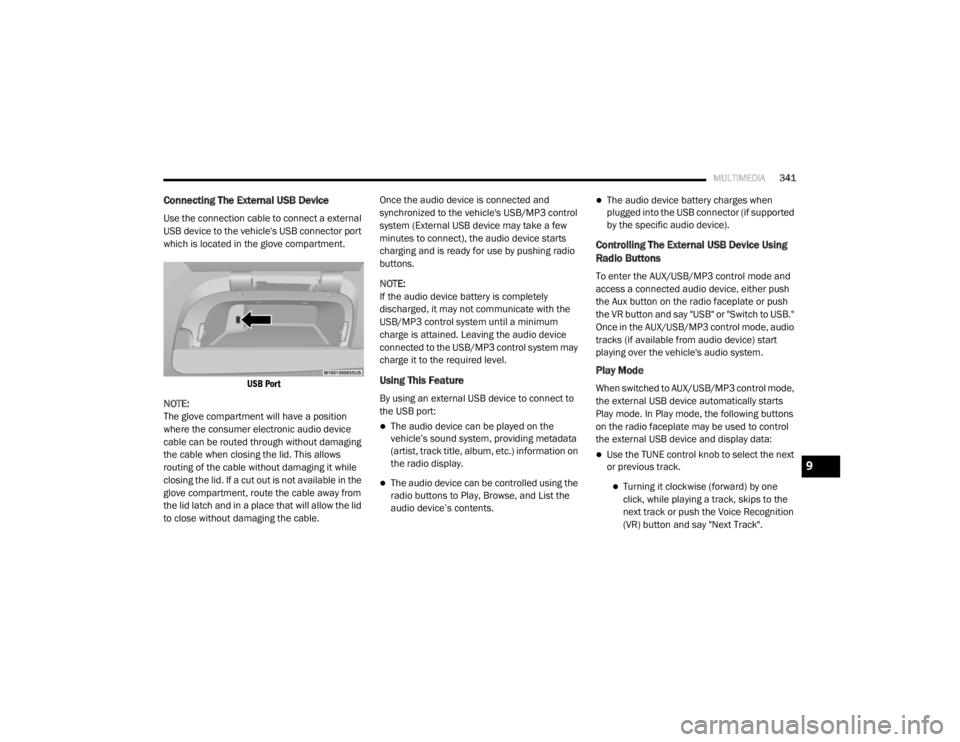
Connecting The External USB Device
Use the connection cable to connect a external
USB device to the vehicle's USB connector port
which is located in the glove compartment.
USB Port
NOTE:
The glove compartment will have a position
where the consumer electronic audio device
cable can be routed through without damaging
the cable when closing the lid. This allows
routing of the cable without damaging it while
closing the lid. If a cut out is not available in the
glove compartment, route the cable away from
the lid latch and in a place that will allow the lid
to close without damaging the cable. Once the audio device is connected and
synchronized to the vehicle's USB/MP3 control
system (External USB device may take a few
minutes to connect), the audio device starts
charging and is ready for use by pushing radio
buttons.
NOTE:
If the audio device battery is completely
discharged, it may not communicate with the
USB/MP3 control system until a minimum
charge is attained. Leaving the audio device
connected to the USB/MP3 control system may
charge it to the required level.
Using This Feature
By using an external USB device to connect to
the USB port:
The audio device can be played on the
vehicle’s sound system, providing metadata
(artist, track title, album, etc.) information on
the radio display.
The audio device can be controlled using the
radio buttons to Play, Browse, and List the
audio device’s contents.
The audio device battery charges when
plugged into the USB connector (if supported
by the specific audio device).
Controlling The External USB Device Using
Radio Buttons
To enter the AUX/USB/MP3 control mode and
access a connected audio device, either push
the Aux button on the radio faceplate or push
the VR button and say "USB" or "Switch to USB."
Once in the AUX/USB/MP3 control mode, audio
tracks (if available from audio device) start
playing over the vehicle's audio system.
Play Mode
When switched to AUX/USB/MP3 control mode,
the external USB device automatically starts
Play mode. In Play mode, the following buttons
on the radio faceplate may be used to control
the external USB device and display data:
Use the TUNE control knob to select the next
or previous track.
Turning it clockwise (forward) by one
click, while playing a track, skips to the
next track or push the Voice Recognition
(VR) button and say "Next Track".
9
20_RT_OM_EN_USC_t.book Page 341
Page 344 of 380

342MULTIMEDIA
Turning it counterclockwise (backward)
by one click will jump to the previous
track in the list or push the VR button and
say "Previous Track".
Jump backward in the current track by
pushing and holding the << RW button.
Holding the << RW button long enough will
jump to the beginning of the current track.
Jump forward in the current track by pushing
and holding the FF >> button.
A single push backward << RW or forward FF
>> will jump backward or forward respec -
tively, for five seconds.
Use the << SEEK and SEEK >> buttons to
jump to the previous or next track. Pushing
the SEEK >> button during play mode will
jump to the next track in the list, or push the
VR button and say "Next or Previous Track."
While a track is playing, push the INFO button
to see the associated metadata (artist, track
title, album, etc.) for that track. Pushing the
INFO button again jumps to the next screen
of data for that track. Once all screens have
been viewed, the last INFO button push will
go back to the play mode screen on the radio.
Pushing the Repeat button will change the
audio device mode to repeat the current
playing track or push the VR button and say
"Repeat On" or "Repeat Off".
Push the Scan button to use AUX/USB/MP3
device scan mode, which will play the first 10
seconds of each track in the current list and
then forward to the next song. To stop Scan
mode and start playing the desired track,
when it is playing the track, push the Scan
button again. During Scan mode, pushing the
<< SEEK and SEEK >> buttons will select the
previous and next tracks.
RND button: Pushing this button toggles
between Shuffle ON and Shuffle OFF modes
for the external USB device, or push the VR
button and say "Shuffle On" or "Shuffle Off." If
the RND icon is showing on the radio display,
then the shuffle mode is On.
List Or Browse Mode
During Play mode, pushing any of the buttons
described below will bring up List mode. List
mode enables scrolling through the list of
menus and tracks on the audio device. Tune control knob: The Tune control knob
functions in a similar manner as the scroll
wheel on the audio device or external USB
device.
Turning it clockwise (forward) and counter-
clockwise (backward) scrolls through the
lists, displaying the track detail on the radio
display. Once the track to be played is high-
lighted on the radio display, push the Tune
control knob to select and start playing the
track. Turning the TUNE control knob fast will
scroll through the list faster. During fast
scroll, a slight delay in updating the informa
-
tion on the radio display may be noticeable.
In List mode, the radio Preset buttons are used
as shortcuts to the following lists on the
external USB device:
Preset 1 – Playlists
Preset 2 – Artists
Preset 3 – Albums
Preset 4 – Genres
Preset 5 – Audiobooks
Preset 6 – Podcasts
20_RT_OM_EN_USC_t.book Page 342
Page 345 of 380
MULTIMEDIA343
Pushing a PRESET button will display the
current list on the top line and the first item in
that list on the second line.
To exit List mode without selecting a track, push
the same Preset button again to go back to
Play mode.
List button: The List button will display the top
level menu of the external USB device.
Turn the Tune control knob to list the
top-menu item to be selected and push the
Tune control knob. This will display the next
sub-menu list item on the audio device, then
follow the same steps to go to the desired
track in that list. Not all external USB device
sub-menu levels are available on this system.
Music Type button: The Music Type button is
another shortcut button to the genre listing on
your audio device.
Bluetooth® Streaming Audio (BTSA)
Music can be streamed from your cellular
phone to the Uconnect phone system.
Refer to the Uconnect Owner’s Manual
Supplement for further information on
Bluetooth® connectivity.
Controlling BTSA Using Radio Buttons
To enter BTSA mode, push either AUX button on
the radio or push the VR button and say
“Bluetooth® Streaming Audio”.
Play Mode
When switched to BTSA mode, some audio
devices can start playing music over the
vehicle’s audio system, but some devices
require the music to be initiated on the device
first. Then, it will get streamed to the Uconnect
phone system. Seven devices can be paired to
the Uconnect phone system, but just one can be
selected and played.
Selecting A Different Audio Device
1. Push the Phone button to begin.
2. After the "Ready" prompt and following the beep, say "Setup", then say "Select Audio
Devices".
3. Say the name of the audio device or ask the Uconnect phone system to list the audio
devices.
Next Track
Use the Seek Up button, or push the VR
button on the radio and say “Next Track,” to
jump to the next music track on your cellular
phone.
WARNING!
Do not plug in or remove the iPod® or
external USB device while driving. Failure to
follow this warning could result in an
accident.
CAUTION!
Leaving the iPod® or external USB device
(or any supported device) anywhere in the
vehicle in extreme heat or cold can alter the
operation or damage the device. Follow the
device manufacturer’s guidelines.
Placing items on the iPod® or external USB
device, or connections to the iPod® or
external USB device in the vehicle, can
cause damage to the device and/or to the
connectors.
9
20_RT_OM_EN_USC_t.book Page 343