phone DODGE GRAND CARAVAN 2020 Owner's Guide
[x] Cancel search | Manufacturer: DODGE, Model Year: 2020, Model line: GRAND CARAVAN, Model: DODGE GRAND CARAVAN 2020Pages: 380, PDF Size: 14.92 MB
Page 346 of 380
344MULTIMEDIA
Previous Track
Use the Seek Down button, or push the VR
button on the radio and say “Previous Track,” to
jump to the previous music track on your
cellular phone.
Browse
Browsing is not available on a Bluetooth®
Streaming Audio (BTSA) device. Only the current
song that is playing will display info.
UCONNECT MULTIMEDIA — VIDEO
ENTERTAINMENT SYSTEM (VES) — IF
EQUIPPED
Your rear seat Video Entertainment System
(VES) is designed to give your family years of
enjoyment. You can play your favorite CDs or
DVDs, listen to audio over the wireless
headphones, or plug and play a variety of
standard video games or audio devices. Please
review this Owner's Manual to become familiar
with its features and operation. NOTE:
The screen is located in the 2nd row overhead
console.
Getting Started
Screen located in the overhead console
:
Unfold the overhead LCD screen(s) by
pushing the button on the overhead console
behind the screen(s).
Cycle the ignition to the ON/RUN or ACC
position.
Turn on the Player by pushing the Power
button, located on the far left, or by pushing
the button on the Remote Control.
When the video screen is open and a DVD is
inserted into the VES player, the screen turns
on automatically, the headphone transmit -
ters turn on and playback begins.
The system can be controlled by the front
seat occupants using either the touchscreen
radio, the DVD, or by the rear seat occupants
using the remote control.
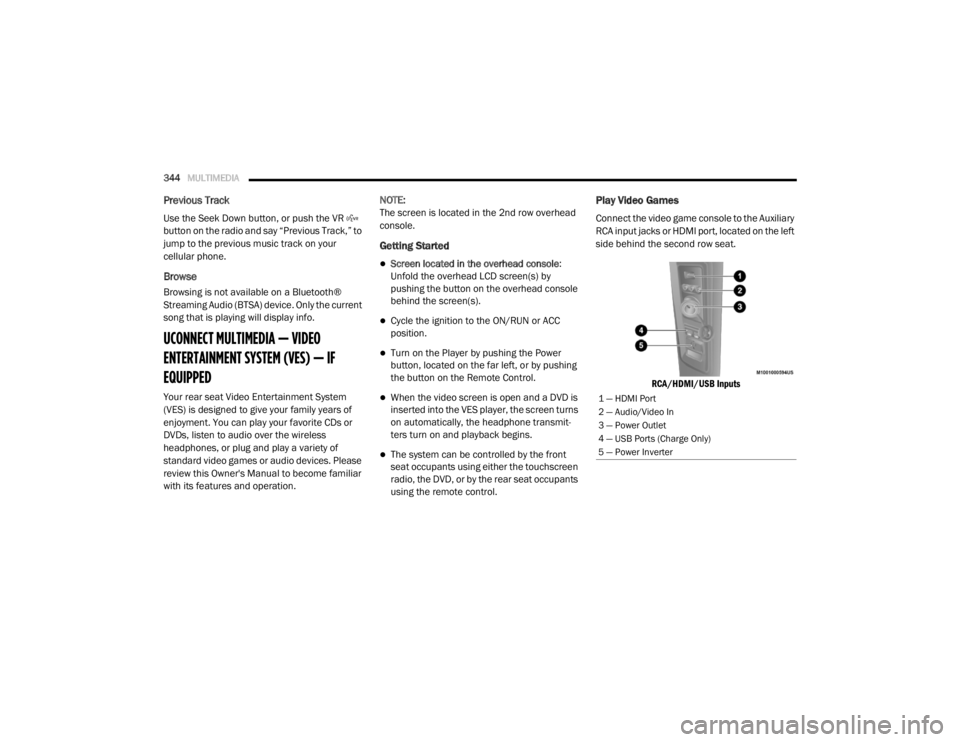
Play Video Games
Connect the video game console to the Auxiliary
RCA input jacks or HDMI port, located on the left
side behind the second row seat.
RCA/HDMI/USB Inputs
1 — HDMI Port
2 — Audio/Video In
3 — Power Outlet
4 — USB Ports (Charge Only)
5 — Power Inverter
20_RT_OM_EN_USC_t.book Page 344
Page 350 of 380
348MULTIMEDIA
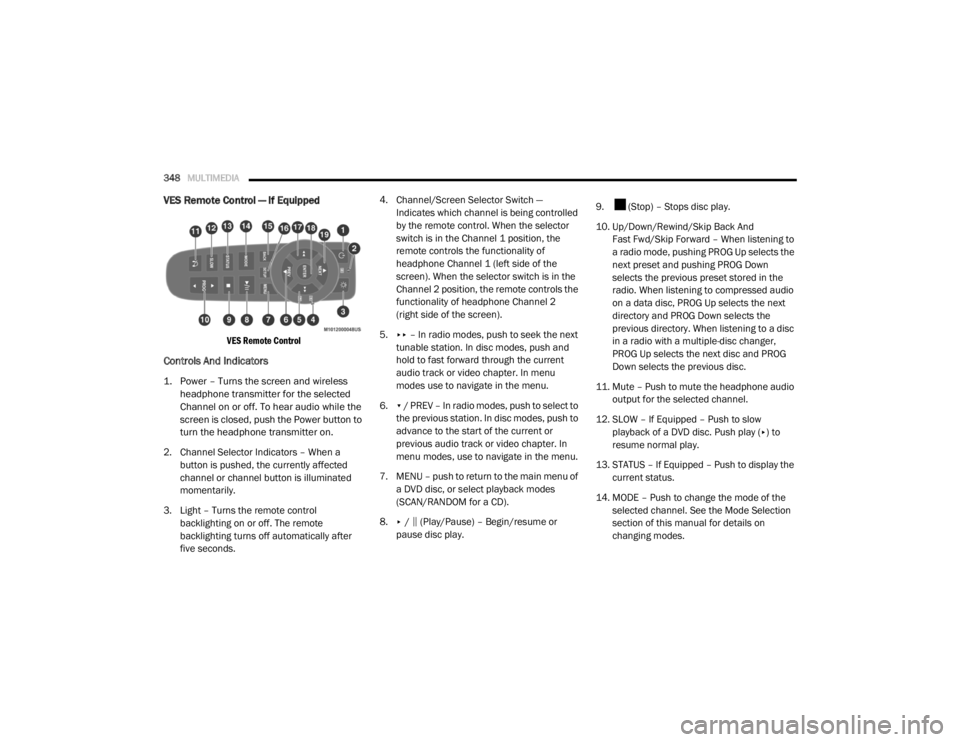
VES Remote Control — If Equipped
VES Remote Control
Controls And Indicators
1. Power – Turns the screen and wireless
headphone transmitter for the selected
Channel on or off. To hear audio while the
screen is closed, push the Power button to
turn the headphone transmitter on.
2. Channel Selector Indicators – When a button is pushed, the currently affected
channel or channel button is illuminated
momentarily.
3. Light – Turns the remote control backlighting on or off. The remote
backlighting turns off automatically after
five seconds. 4. Channel/Screen Selector Switch —
Indicates which channel is being controlled
by the remote control. When the selector
switch is in the Channel 1 position, the
remote controls the functionality of
headphone Channel 1 (left side of the
screen). When the selector switch is in the
Channel 2 position, the remote controls the
functionality of headphone Channel 2
(right side of the screen).
5. ▸▸ – In radio modes, push to seek the next
tunable station. In disc modes, push and
hold to fast forward through the current
audio track or video chapter. In menu
modes use to navigate in the menu.
6. ▾ / PREV – In radio modes, push to select to
the previous station. In disc modes, push to
advance to the start of the current or
previous audio track or video chapter. In
menu modes, use to navigate in the menu.
7. MENU – push to return to the main menu of a DVD disc, or select playback modes
(SCAN/RANDOM for a CD).
8. ▸ / ‖ (Play/Pause) – Begin/resume or
pause disc play. 9. (Stop) – Stops disc play.
10. Up/Down/Rewind/Skip Back And
Fast Fwd/Skip Forward – When listening to
a radio mode, pushing PROG Up selects the
next preset and pushing PROG Down
selects the previous preset stored in the
radio. When listening to compressed audio
on a data disc, PROG Up selects the next
directory and PROG Down selects the
previous directory. When listening to a disc
in a radio with a multiple-disc changer,
PROG Up selects the next disc and PROG
Down selects the previous disc.
11. Mute – Push to mute the headphone audio output for the selected channel.
12. SLOW – If Equipped – Push to slow playback of a DVD disc. Push play ( ▸) to
resume normal play.
13. STATUS – If Equipped – Push to display the current status.
14. MODE – Push to change the mode of the selected channel. See the Mode Selection
section of this manual for details on
changing modes.
20_RT_OM_EN_USC_t.book Page 348
Page 352 of 380
350MULTIMEDIA
Headphones Operation
Front seat occupants receive some headphone
audio coverage to allow them to adjust the
headphone volume for the young rear seat
occupants that may not be able to do so for
themselves.
If no audio is heard after increasing the volume
control, verify that the screen is turned on and
in the down position and that the channel is not
muted. If audio is still not heard, check that fully
charged batteries are installed in the
headphones.
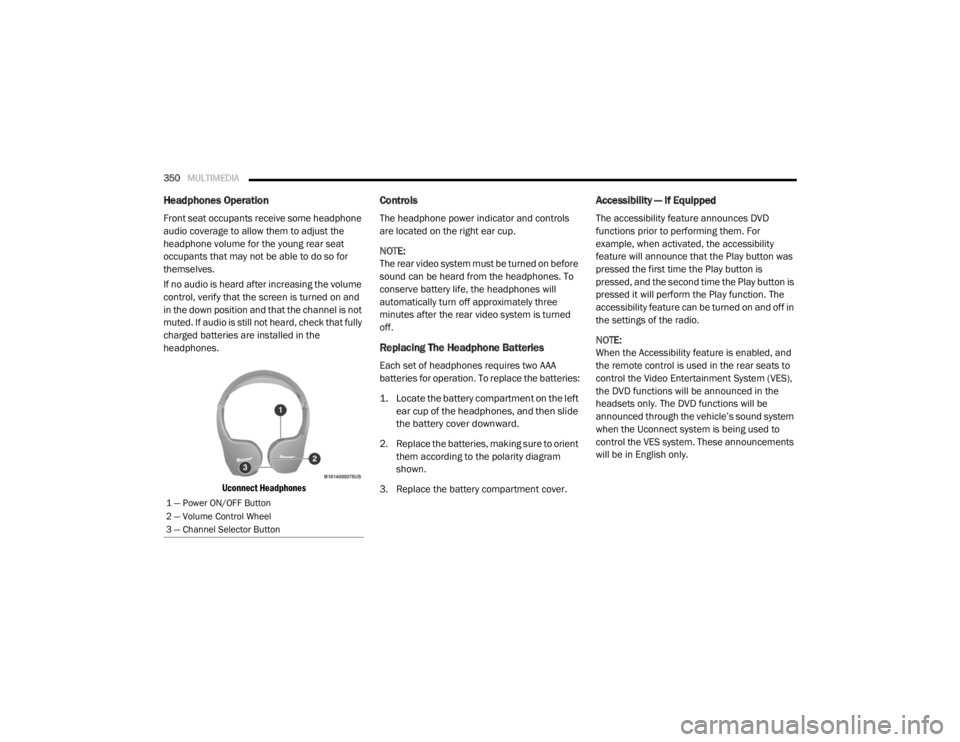
Uconnect Headphones
Controls
The headphone power indicator and controls
are located on the right ear cup.
NOTE:
The rear video system must be turned on before
sound can be heard from the headphones. To
conserve battery life, the headphones will
automatically turn off approximately three
minutes after the rear video system is turned
off.
Replacing The Headphone Batteries
Each set of headphones requires two AAA
batteries for operation. To replace the batteries:
1. Locate the battery compartment on the left ear cup of the headphones, and then slide
the battery cover downward.
2. Replace the batteries, making sure to orient them according to the polarity diagram
shown.
3. Replace the battery compartment cover.
Accessibility — If Equipped
The accessibility feature announces DVD
functions prior to performing them. For
example, when activated, the accessibility
feature will announce that the Play button was
pressed the first time the Play button is
pressed, and the second time the Play button is
pressed it will perform the Play function. The
accessibility feature can be turned on and off in
the settings of the radio.
NOTE:
When the Accessibility feature is enabled, and
the remote control is used in the rear seats to
control the Video Entertainment System (VES),
the DVD functions will be announced in the
headsets only. The DVD functions will be
announced through the vehicle’s sound system
when the Uconnect system is being used to
control the VES system. These announcements
will be in English only.
1 — Power ON/OFF Button
2 — Volume Control Wheel
3 — Channel Selector Button
20_RT_OM_EN_USC_t.book Page 350
Page 353 of 380
MULTIMEDIA351
Stereo Headphone Lifetime Limited
Warranty
Who Does This Warranty Cover? This warranty
covers the initial user or purchaser ("you" or
"your") of this particular Aptiv PLC (“Aptiv”)
wireless headphone ("Product"). The warranty is
not transferable.
How Long Does the Coverage Last? This
warranty lasts as long as you own the Product.
What Does This Warranty Cover? Except as
specified below, this warranty covers any
Product that in normal use is defective in
workmanship or materials.
What Does This Warranty Not Cover? This
warranty does not cover any damage or defect
that results from misuse, abuse or modification
of the Product other than by Aptiv. Foam
earpieces, which will wear over time through
normal use, are specifically not covered
(replacement foam is available for a nominal
charge). APTIV IS NOT LIABLE FOR ANY
INJURIES OR DAMAGES TO PERSONS OR
PROPERTY RESULTING FROM THE USE OF, OR
ANY FAILURE OR DEFECT IN, THE PRODUCT,
NOR IS APTIV LIABLE FOR ANY GENERAL, SPECIAL, DIRECT, INDIRECT, INCIDENTAL,
CONSEQUENTIAL, EXEMPLARY, PUNITIVE OR
OTHER DAMAGES OF ANY KIND OR NATURE
WHATSOEVER. Some states and jurisdictions
may not allow the exclusion or limitation of
incidental or consequential damages, so the
above limitation may not apply to you. This
warranty gives you specific legal rights. You may
also have other rights, which vary from
jurisdiction to jurisdiction.
What Will Aptiv Do?
Aptiv, at its option, will
repair or replace any defective Product. Aptiv
reserves the right to replace any discontinued
Product with a comparable model. THIS
WARRANTY IS THE SOLE WARRANTY FOR THIS
PRODUCT, SETS FORTH YOUR EXCLUSIVE
REMEDY REGARDING DEFECTIVE PRODUCTS,
AND IS IN LIEU OF ALL OTHER WARRANTIES
(EXPRESS OR IMPLIED), INCLUDING ANY
WARRANTY FOR MERCHANTABILITY OR
FITNESS FOR A PARTICULAR PURPOSE.
If you have any questions or comments
regarding your Aptiv wireless headphones,
please email [email protected] or phone:
888-293-3332
System Information
Shared Modes
This allows the VES to output radio sources to
the headphones and the radio to output VES
sources to the vehicle speakers.
If the radio functions (FM, AM, or SXM) are in the
shared mode, with the VES, only the radio is
able to control the radio functions. In this case,
VES can share the radio mode, but not change
stations until the radio mode is changed to a
mode that is different from the VES selected
radio mode. When shared, the radio has priority
over the VES or all radio modes (FM, AM, and
SAT). The VES has the ability to switch tuner
(AM/FM), SEEK, SCAN, TUNE, and recall presets
in radio modes as long as it is not in shared
mode.
9
20_RT_OM_EN_USC_t.book Page 351
Page 354 of 380

352MULTIMEDIA
When in shared disc mode both the radio and
the VES have control of the video functions. The
VES has the ability to control the following video
modes:
1. CD: Ability to Fast Forward, Rewind, Scan,
and Track Up/Down.
2. CD Changer (in radio): Ability to Disk Up/Down and program all listed CD controls
(Fast Forward, Rewind, Scan, and Track
Up/Down).
The VES can even control radio modes or video
modes while the radio is turned off. The VES can
access the radio modes or disc modes by
navigating to those modes on the VES and
activating a radio mode or disc mode.
Station List Menu
When listening to Satellite audio, pushing the
remote control’s Pop-Up/Menu button displays
a list of all available channels. Navigate this list
using the remote control’s navigation buttons
(▴, ▾ ) to find the desired station, push the
remote control’s Enter/OK button to tune to
that station. To jump through the list more
quickly, navigate to the Page Up and Page Down
icons on the screen.
Disc Menu
When listening to a CD Audio or CD Data disc,
pushing the remote control’s Pop-Up/Menu
button displays a list of all commands which
control playback of the disc. Using the options
you can activate or cancel Scan play and
Random play.
Display Settings
When watching a video source (DVD Video with
the disc in Play mode, Aux Video, etc.), pushing
the remote control’s Setup button activates the
Display Settings menu. These settings control
the appearance of the video on the screen. The
factory default settings are already set for
optimum viewing, so there is no need to change
these settings under normal circumstances.
To change the settings, push the remote
control’s navigation buttons ( ▴, ▾) to select an
item, then push the remote control’s navigation
buttons ( ▸, ◂) to change the value for the
currently selected item. To reset all values back
to the original settings, select the Default
Settings menu option and press the remote
control’s Enter/OK button. Disc Features control the remote DVD settings
of DVD being watched in the remote player.
Listening To Audio With The Screen Closed
To listen to only audio portion of the channel
with the screen closed:
1. Set the audio to the desired source and
channel.
2. Close the video screen.
3. To change the current audio mode, push the remote control’s Mode button. This will
automatically select the next available
audio mode without using the Mode/Select
menu.
If the screen is closed and there is no audio
heard, verify that the headphones are turned on
(the On indicator is illuminated) and the
headphone selector switch is on the desired
channel. If the headphones are turned on, push
the remote control’s power button to turn audio
on. If audio is still not heard, check that fully
charged batteries are installed in the
headphones.
20_RT_OM_EN_USC_t.book Page 352
Page 361 of 380
MULTIMEDIA359
RADIO OPERATION AND MOBILE PHONES
Under certain conditions, the mobile phone
being on in your vehicle can cause erratic or
noisy performance from your radio. This
condition may be lessened or eliminated by
relocating the mobile phone antenna. This
condition is not harmful to the radio. If your
radio performance does not satisfactorily
“clear” by the repositioning of the antenna, it is
recommended that the radio volume be turned
down or off during mobile phone operation
when not using Uconnect (if equipped).
Regulatory And Safety Information
USA/CANADA
Exposure to Radio Frequency Radiation
The radiated output power of the internal
wireless radio is far below the FCC and IC radio
frequency exposure limits. Nevertheless, the
wireless radio will be used in such a manner
that the radio is 8 in (20 cm) or further from the
human body.
The internal wireless radio operates within
guidelines found in radio frequency safety
standards and recommendations, which reflect
the consensus of the scientific community. The radio manufacturer believes the internal
wireless radio is safe for use by consumers. The
level of energy emitted is far less than the
electromagnetic energy emitted by wireless
devices such as mobile phones. However, the
use of wireless radios may be restricted in some
situations or environments, such as aboard
airplanes. If you are unsure of restrictions, you
are encouraged to ask for authorization before
turning on the wireless radio.
The following regulatory statement applies to all
Radio Frequency (RF) devices equipped in this
vehicle:
This device complies with Part 15 of the FCC
Rules and with Innovation, Science and
Economic Development Canada license-exempt
RSS standard(s). Operation is subject to the
following two conditions:
1. This device may not cause harmful
interference.
2. This device must accept any interference received, including interference that may
cause undesired operation. Le présent appareil est conforme aux CNR
d`Innovation, Science and Economic
Development applicables aux appareils radio
exempts de licence. L'exploitation est autorisée
aux deux conditions suivantes:
1. l'appareil ne doit pas produire de
brouillage, et
2. l'utilisateur de l'appareil doit accepter tout brouillage radioélectrique subi, même si le
brouillage est susceptible d'en compro -
mettre le fonctionnement.
La operación de este equipo está sujeta a las
siguientes dos condiciones:
1. es posible que este equipo o dispositivo no cause interferencia perjudicial y
2. este equipo o dispositivo debe aceptar cualquier interferencia, incluyendo la que
pueda causar su operación no deseada.
NOTE:
Changes or modifications not expressly
approved by the party responsible for
compliance could void the user’s authority to
operate the equipment.
9
20_RT_OM_EN_USC_t.book Page 359
Page 366 of 380
364
CUSTOMER ASSISTANCE
SUGGESTIONS FOR OBTAINING SERVICE
FOR YOUR VEHICLE
Prepare For The Appointment
If you are having warranty work done, be sure to
have the right papers with you. Take your
warranty folder. All work to be performed may
not be covered by the warranty. Discuss
additional charges with the service manager.
Keep a maintenance log of your vehicle's
service history. This can often provide a clue to
the current problem.
Prepare A List
Make a written list of your vehicle's problems or
the specific work you want done. If you've had
an accident or work done that is not on your
maintenance log, let the service advisor know.
Be Reasonable With Requests
If you list a number of items and you must have
your vehicle by the end of the day, discuss the
situation with the service advisor and list the
items in order of priority. At many authorized
dealers, you may obtain a rental vehicle at a
minimal daily charge. If you need a rental, it is
advisable to make these arrangements when
you call for an appointment.
IF YOU NEED ASSISTANCE
The manufacturer and its authorized dealers
are vitally interested in your satisfaction. We
want you to be happy with our products and
services.
Warranty service must be done by an
authorized dealer. We strongly recommend that
you take the vehicle to an authorized dealer.
They know your vehicle the best, and are most
concerned that you get prompt and high quality
service. The manufacturer's authorized dealers
have the facilities, factory-trained technicians,
special tools, and the latest information to
ensure the vehicle is fixed correctly and in a
timely manner.This is why you should always talk to an
authorized dealer service manager first. Most
matters can be resolved with this process.
If for some reason you are still not satisfied,
talk to the general manager or owner of the
authorized dealer. They want to know if you
need assistance.
If an authorized dealer is unable to resolve
the concern, you may contact the manufac
-
turer's customer center.
Any communication to the manufacturer's
customer center should include the following
information:
Owner's name and address
Owner's telephone number (home, mobile,
and office)
Authorized dealer name
Vehicle Identification Number (VIN)
Vehicle delivery date and mileage
20_RT_OM_EN_USC_t.book Page 364
Page 367 of 380

CUSTOMER ASSISTANCE365
FCA US LLC Customer Center
P.O. Box 21–8004
Auburn Hills, MI 48321–8004
Phone: (800) 423-6343
FCA Canada Inc. Customer Center
P.O. Box 1621
Windsor, Ontario N9A 4H6
Phone: (800) 465-2001 English / (800)
387-9983 French
In Mexico Contact
Av. Prolongacion Paseo de la Reforma, 1240
Sante Fe C.P. 05109
Mexico, D. F.
In Mexico City: 800-505-1300
Outside Mexico City: + (52) 55 50817568
Puerto Rico And U.S. Virgin Islands
FCA Caribbean LLC
P.O. Box 191857
San Juan 00919-1857
Phone: (800) 423-6343
Fax: (787) 782-3345
Customer Assistance For The Hearing Or
Speech Impaired (TDD/TTY)
To assist customers who have hearing
difficulties, the manufacturer has installed
special TDD (Telecommunication Devices for
the Deaf) equipment at its customer center. Any
hearing or speech impaired customer, who has
access to a TDD or a conventional teletypewriter
(TTY) in the United States, can communicate
with the manufacturer by dialing
1-800-380-CHRY.
Canadian residents with hearing difficulties that
require assistance can use the special needs
relay service offered by Bell Canada. For TTY
teletypewriter users, dial 711 and for Voice
callers, dial 1-800-855-0511 to connect with a
Bell Relay Service operator.
Service Contract
You may have purchased a service contract for
a vehicle to help protect you from the high cost
of unexpected repairs after the manufacturer's
New Vehicle Limited Warranty expires. The
Mopar Vehicle Protection plans are the ONLY
vehicle extended protection plans authorized,
endorsed and backed by FCA US LLC to provide
additional protection beyond your vehicle’s
warranty. If you purchased a Mopar Vehicle Protection Plan, you will receive Plan Provisions
and an Owner Identification Card in the mail
within three weeks of the vehicle delivery date.
If you have any questions about the service
contract, call the manufacturer's Service
Contract National Customer Hotline at
1-800-521-9922 (Canadian residents, call
(800) 465-2001 English / (800) 387-9983
French).
FCA US LLC is not responsible for any service
contract you may have purchased from another
manufacturer. If you require service after the
FCA US LLC New Vehicle Limited Warranty
expires, please refer to the contract documents,
and contact the person listed in those
documents.
We appreciate that you have made a major
investment when you purchased the vehicle. An
authorized dealer has also made a major
investment in facilities, tools, and training to
assure that you are absolutely delighted with
the ownership experience. You will be pleased
with their sincere efforts to resolve any warranty
issues or related concerns.
10
20_RT_OM_EN_USC_t.book Page 365
Page 369 of 380
CUSTOMER ASSISTANCE367
PUBLICATION ORDER FORMS
To order the following manuals, you may use
either the website or the phone numbers listed
below.
Service Manuals
These comprehensive Service Manuals provide
the information that students and professional
technicians need in diagnosing/trouble -
shooting, problem solving, maintaining,
servicing, and repairing FCA US LLC vehicles. A
complete working knowledge of the vehicle,
system, and/or components is written in
straightforward language with illustrations,
diagrams, and charts. Diagnostic Procedure Manuals
Diagnostic Procedure Manuals are filled with
diagrams, charts and detailed illustrations.
These practical manuals make it easy for
students and technicians to find and fix
problems on computer-controlled vehicle
systems and features. They show exactly how to
find and correct problems the first time, using
step-by-step troubleshooting and drivability
procedures, proven diagnostic tests and a
complete list of all tools and equipment.
Owner's Manuals
These Owner's Manuals have been prepared
with the assistance of service and engineering
specialists to acquaint you with specific FCA US
LLC vehicles. Included are starting, operating,
emergency and maintenance procedures as
well as specifications, capabilities and safety
tips.
To access your Owner's Information online, visit
www.mopar.com/om
To order a hard copy of your Owner's
Information, call Tech Authority toll free at:
1-800-890-4038 (US)
1-800-387-1143 (Canada)
Or
Visit us on the Worldwide Web at:
www.techauthority.com (US)
10
20_RT_OM_EN_USC_t.book Page 367
Page 371 of 380

369
Brake System
...................................... 242, 266Anti-Lock (ABS).......................................... 266Fluid Check..................................... 243, 274Parking...................................................... 164Warning Light.............................................. 94Brake/Transmission Interlock....................... 166Bulb Replacement......................................... 194Bulbs, Light.......................................... 161, 194
C
Calibration Compass
..................................................... 89Camera, Rear................................................ 179Capacities, Fluid............................................ 271Caps, FillerOil (Engine)................................................ 231Power Steering.......................................... 173Radiator (Coolant Pressure)...................... 241Car Washes................................................... 263Carbon Monoxide Warning.................. 159, 270CargoVehicle Loading........................................... 63Cargo Area Cover............................................. 63Cargo Compartment........................................ 63Luggage Carrier........................................... 79Cellular Phone..................................... 304, 359Center High Mounted Stop Light...................197Certification Label......................................... 182Chains, Tire.................................................... 260Change Oil Indicator........................................ 87
Changing A Flat Tire............................. 202, 244Chart, Tire Sizing........................................... 246Check Engine Light
(Malfunction Indicator Light)......................... 102Checking Your Vehicle For Safety................. 159Checks, Safety.............................................. 159Child Restraint.............................................. 141Child RestraintsBooster Seats........................................... 144Child Seat Installation..................... 153, 155How To Stow An unused ALR Seat Belt.... 152Infant And Child Restraints....................... 142Locating The LATCH Anchorages.............. 149Lower Anchors And Tethers For Children.. 146Older Children And Child Restraints......... 143Seating Positions...................................... 145Using The Top Tether Anchorage.............. 157Clean Air Gasoline......................................... 268CleaningWheels..................................................... 259Climate Control................................................ 42Automatic.................................................... 48Manual........................................................ 42Coat Hook........................................................ 73Cold Weather Operation............................... 163Compact Spare Tire...................................... 257Compass.......................................................... 88Calibration................................................... 89Variance...................................................... 89Computer, Trip/Travel............................... 87, 93
Console............................................................69Floor............................................................69Console, Overhead...........................................71Contract, Service........................................... 365Cooling Pressure Cap (Radiator Cap)............ 241Cooling System............................................. 239Adding Coolant (Antifreeze)...................... 240Cooling Capacity....................................... 271Disposal Of Used Coolant......................... 242Drain, Flush, And Refill............................. 240Inspection................................................. 240Points To Remember................................ 242Pressure Cap............................................ 241Radiator Cap............................................. 241Selection Of Coolant
(Antifreeze).............................240, 271, 272Corrosion Protection..................................... 262Cruise Light................................................... 100Cupholders............................................. 73, 265Customer Assistance.................................... 364Cybersecurity................................................ 275
D
Daytime Brightness, Interior Lights..................41Daytime Running Lights............................37, 38Dealer Service............................................... 233Defroster, Windshield................................... 160Delay (Intermittent) Wipers..............................42Diagnostic System, Onboard......................... 101
11
20_RT_OM_EN_USC_t.book Page 369