phone DODGE HORNET 2023 User Guide
[x] Cancel search | Manufacturer: DODGE, Model Year: 2023, Model line: HORNET, Model: DODGE HORNET 2023Pages: 288, PDF Size: 14.2 MB
Page 71 of 288
GETTING TO KNOW YOUR INSTRUMENT PANEL69
SPEEDOMETER
The Speedometer menu options may consist of the
following:
Digital speed and speed unit (MPH or km/h)
Gear Shift Indicator (GSI)
Gear
Drive mode name
The speed units can be changed from MPH to km/h by
pressing the Thumbwheel.
NAVIGATION — IF EQUIPPED
Turn the Thumbwheel up or down to increase or decrease
the zoom on this screen. Press the Thumbwheel to go
back to the initial frame. The zoom level is automatically
reset to the factory settings whenever the engine is
restarted.
The following information is shown:
Direction Indicators
Distance to next change of direction (in miles or kilome -
ters, depending on instrument panel settings)
Suggested lanes
Address of the road to be followed after the change of
direction Press and hold the Thumbwheel to disable the indications
in the right-hand ring for the current navigation. If a
predicted route is selected, the route shall start without
further confirmation.
NOTE:During projection modes (Apple CarPlay® or
Android Auto™) the native map is not available.
PHONE
This menu displays the current status of a phone
connected to the vehicle via Bluetooth®. The System
supports up to two phones connected at the same time.
Information available in cluster depends on which phone
is dynamically selected by the user in each moment (i.e.
the phone in focus), to enter and select one of the phone
connected user should press Thumbwheel
If no phone is connected, the menu will not function when
the
OK button is pushed. Otherwise, if a phone is
connected, push the OK button to enter the menu.
The following items will display:
Recent calls: displays a list of the last 10 calls.
SMS reader: displays the last 10 text messages and if
they are read or unread.
Favorite numbers: displays a maximum of 10 favorite
numbers.
PERFORMANCE
Performance page content automatically changes
according to the selected drive mode.
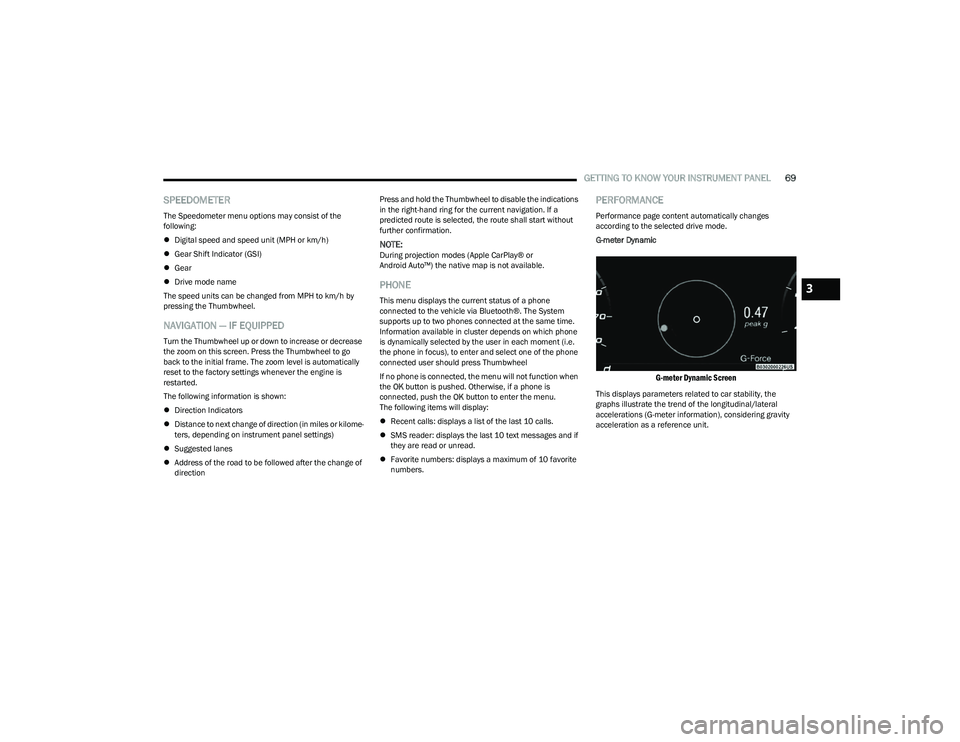
G-meter Dynamic
G-meter Dynamic Screen
This displays parameters related to car stability, the
graphs illustrate the trend of the longitudinal/lateral
accelerations (G-meter information), considering gravity
acceleration as a reference unit.
3
23_GG_OM_EN_USC_t.book Page 69
Page 134 of 288
132MULTIMEDIA
My Profile
Navigation Turn-by-Turn Displayed in Cluster This setting will display Navigation prompts in the Instrument Cluster Display.
Phone Pop-ups Displayed In Cluster This setting will display smartphone notifications and messages in the Instrument Cluster
Display.
Setting Name
Description
When the My Profile button is pressed on the touchscreen, the system displays options related to the vehicle’s profiles.
NOTE:Depending on the vehicle’s options, feature settings may vary.
Setting NameDescription
Language This setting will change the language of the Uconnect system and Instrument Cluster
Display. The available languages are Español (Mexico), English (United States), Italiano,
and Français (Canada).
Display Mode This setting will adjust the display for the radio to “Auto” or “Manual”. “Manual” allows for
more customization with the radio display.
Display Brightness Nighttime This setting will allow you to adjust the “Brightness Nighttime” setting. Selectable options
are 1 through 10.
Display Brightness Daytime This setting will allow you to adjust the “Brightness Daytime” setting. Selectable options
are 1 through 10.
Set Theme This setting will allow you to change the display theme.
Units This setting will allow you to customize the units for “Speed” (MPH or km/h), “Distance”
(mi or km), “Fuel Consumption” (MPG [US], MPG [UK], L/100 km, or km/L), “Pressure”
(psi, kPa, or bar), “Temperature” (°C or °F), and “Torque” (Nm or lb-ft) units of
measurement independently. Unit settings can be selected for “US”, “Metric A”,
“Metric B”, “Imperial”, or “Custom”.
23_GG_OM_EN_USC_t.book Page 132
Page 136 of 288
134MULTIMEDIA
New Text Message Pop-ups This setting will allow you to have pop-up notifications for new text messages.
Setting options are “On” and “Off”.
Missed Calls Message This setting will allow you to have pop-up notifications for missed calls. Setting options
are “On” and “Off”.
Navigation Pop-ups This setting will allow you to have pop-up notifications for Navigation. Setting options are
“On” and “Off”.
Reset App Drawer to Default Order This setting will reset the app drawer to its factory default layout.
Restore Settings to Default This setting will return all the previously changed settings to their factory defaults.
More Profile Options This setting will give access to more profile options.
Warning Cluster Buzzer Volume This setting will let you adjust the Warning Cluster Buzzer Volume. Selectable options are
“Low”, “Mid”, and “High”.
Cluster Options This setting will display options for the cluster using the Uconnect touchscreen.
Options include “Trip B On Cluster”, “Custom Areas on Cluster”, and “Widget List”.
Auto-On Comfort This setting will activate the vehicle’s comfort systems and heated seats or heated
steering wheel when the vehicle is remote started or ignition is started. The “Off” setting
will not activate the comfort systems. The “Remote Start” setting will only activate the
comfort systems when using Remote Start. The “All Start” setting will activate the comfort
systems whenever the vehicle is started.
Navigation Turn-by-Turn Displayed in Cluster This setting will display Navigation prompts in the Instrument Cluster Display.
Phone Pop-ups Displayed In Cluster This setting will display smartphone notifications and messages in the Instrument Cluster
Display.
Setting Name
Description
23_GG_OM_EN_USC_t.book Page 134
Page 140 of 288
138MULTIMEDIA
Phone/Bluetooth®
When the Phone/Bluetooth® button is pressed on the touchscreen, the system displays the options related to Bluetooth® connectivity from an external audio device or smartphone.
The list of paired audio devices or smartphones can be accessed from this menu.
NOTE:Depending on the vehicle’s options, feature settings may vary.
Setting Name Description
Device Manager This setting will open the Device Manager main screen.
Do Not Disturb All This setting will open the Do Not Disturb All settings menu. The available options
are “On” and “Off”.
Enable Two Active Phones This setting will enable or disable two active phones within the vehicle.
The setting options are “On” and “Off”.
Phone Pop-Ups Displayed In Cluster This setting will activate phone message pop-ups in the Instrument Cluster Display.
23_GG_OM_EN_USC_t.book Page 138
Page 147 of 288
MULTIMEDIA145
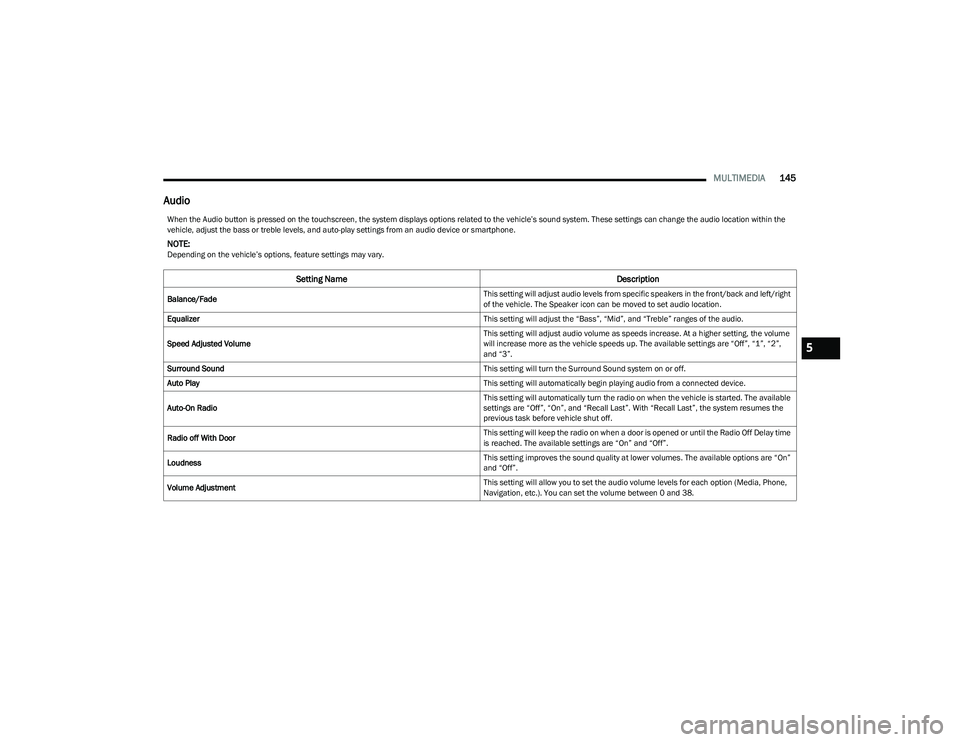
Audio
When the Audio button is pressed on the touchscreen, the system displays options related to the vehicle’s sound system. These settings can change the audio location within the
vehicle, adjust the bass or treble levels, and auto-play settings from an audio device or smartphone.
NOTE:Depending on the vehicle’s options, feature settings may vary.
Setting Name Description
Balance/Fade This setting will adjust audio levels from specific speakers in the front/back and left/right
of the vehicle. The Speaker icon can be moved to set audio location.
Equalizer This setting will adjust the “Bass”, “Mid”, and “Treble” ranges of the audio.
Speed Adjusted Volume This setting will adjust audio volume as speeds increase. At a higher setting, the volume
will increase more as the vehicle speeds up. The available settings are “Off”, “1”, “2”,
and “3”.
Surround Sound This setting will turn the Surround Sound system on or off.
Auto Play This setting will automatically begin playing audio from a connected device.
Auto-On Radio This setting will automatically turn the radio on when the vehicle is started. The available
settings are “Off”, “On”, and “Recall Last”. With “Recall Last”, the system resumes the
previous task before vehicle shut off.
Radio off With Door This setting will keep the radio on when a door is opened or until the Radio Off Delay time
is reached. The available settings are “On” and “Off”.
Loudness This setting improves the sound quality at lower volumes. The available options are “On”
and “Off”.
Volume Adjustment This setting will allow you to set the audio volume levels for each option (Media, Phone,
Navigation, etc.). You can set the volume between 0 and 38.
5
23_GG_OM_EN_USC_t.book Page 145
Page 148 of 288
146MULTIMEDIA
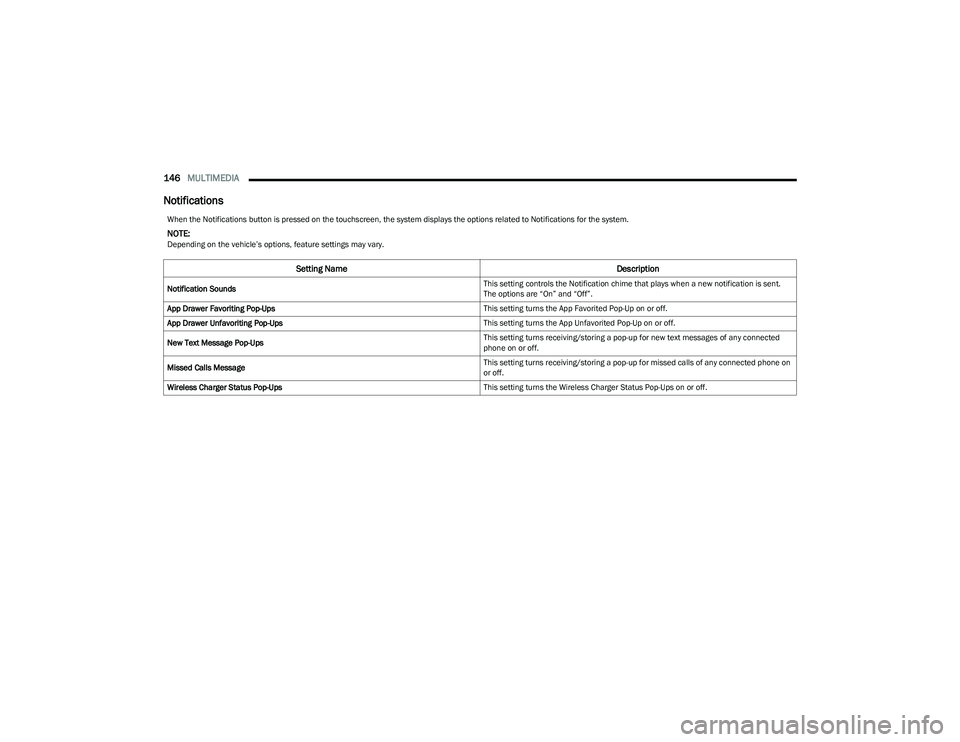
Notifications
When the Notifications button is pressed on the touchscreen, the system displays the options related to Notifications for the system.
NOTE:Depending on the vehicle’s options, feature settings may vary.
Setting Name Description
Notification Sounds This setting controls the Notification chime that plays when a new notification is sent.
The options are “On” and “Off”.
App Drawer Favoriting Pop-Ups This setting turns the App Favorited Pop-Up on or off.
App Drawer Unfavoriting Pop-Ups This setting turns the App Unfavorited Pop-Up on or off.
New Text Message Pop-Ups This setting turns receiving/storing a pop-up for new text messages of any connected
phone on or off.
Missed Calls Message This setting turns receiving/storing a pop-up for missed calls of any connected phone on
or off.
Wireless Charger Status Pop-Ups This setting turns the Wireless Charger Status Pop-Ups on or off.
23_GG_OM_EN_USC_t.book Page 146
Page 152 of 288
150MULTIMEDIA
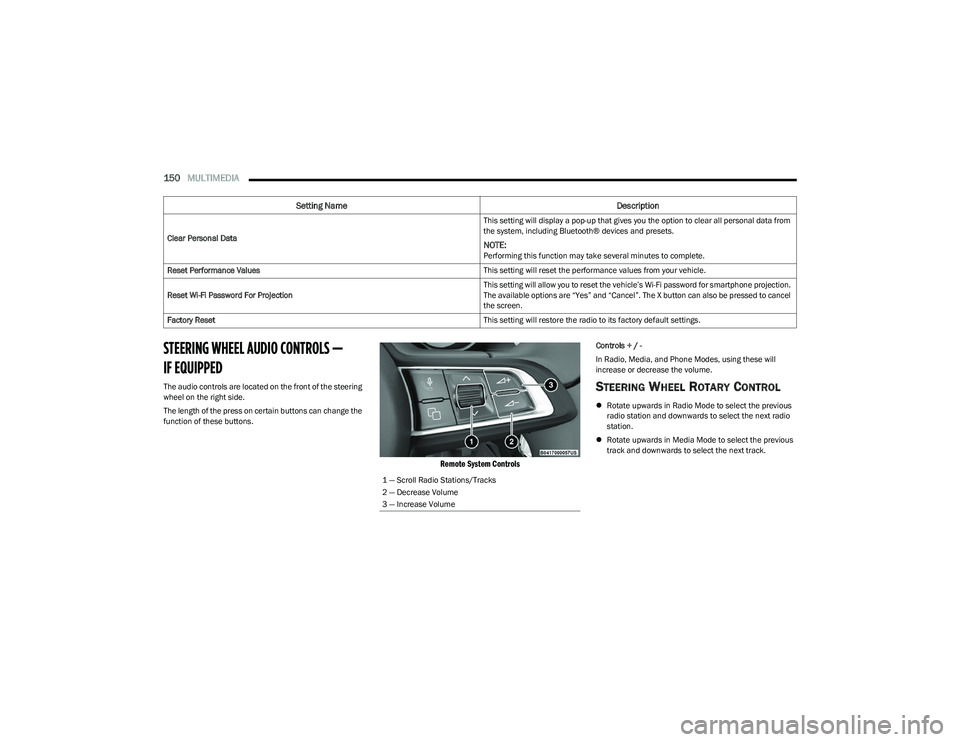
STEERING WHEEL AUDIO CONTROLS —
IF EQUIPPED
The audio controls are located on the front of the steering
wheel on the right side.
The length of the press on certain buttons can change the
function of these buttons.
Remote System Controls
Controls + / -
In Radio, Media, and Phone Modes, using these will
increase or decrease the volume.
STEERING WHEEL ROTARY CONTROL
Rotate upwards in Radio Mode to select the previous
radio station and downwards to select the next radio
station.
Rotate upwards in Media Mode to select the previous
track and downwards to select the next track.
Clear Personal Data
This setting will display a pop-up that gives you the option to clear all personal data from
the system, including Bluetooth® devices and presets.
NOTE:Performing this function may take several minutes to complete.
Reset Performance Values This setting will reset the performance values from your vehicle.
Reset Wi-Fi Password For Projection This setting will allow you to reset the vehicle’s Wi-Fi password for smartphone projection.
The available options are “Yes” and “Cancel”. The X button can also be pressed to cancel
the screen.
Factory Reset This setting will restore the radio to its factory default settings.
Setting NameDescription
1 — Scroll Radio Stations/Tracks
2 — Decrease Volume
3 — Increase Volume
23_GG_OM_EN_USC_t.book Page 150
Page 155 of 288
MULTIMEDIA153
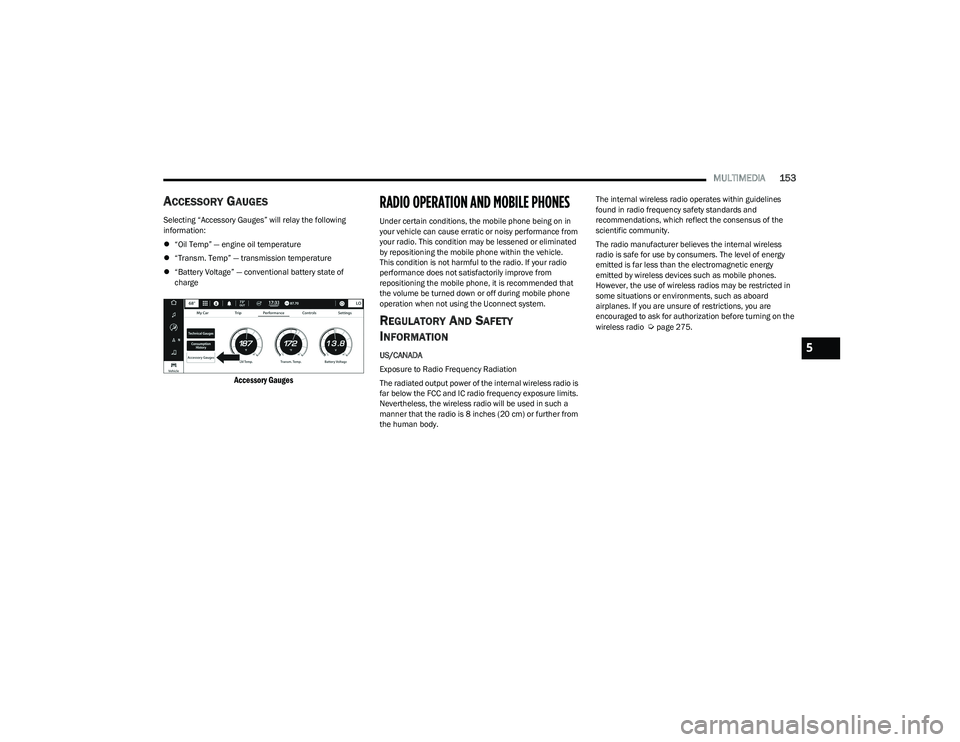
ACCES SO RY GAUG ES
Selecting “Accessory Gauges” will relay the following
information:
“Oil Temp” — engine oil temperature
“Transm. Temp” — transmission temperature
“Battery Voltage” — conventional battery state of
charge
Accessory Gauges
RADIO OPERATION AND MOBILE PHONES
Under certain conditions, the mobile phone being on in
your vehicle can cause erratic or noisy performance from
your radio. This condition may be lessened or eliminated
by repositioning the mobile phone within the vehicle.
This condition is not harmful to the radio. If your radio
performance does not satisfactorily improve from
repositioning the mobile phone, it is recommended that
the volume be turned down or off during mobile phone
operation when not using the Uconnect system.
RE G ULA TO RY AN D SAFE TY
I
N FO RM ATIO N
US/CANADA
Exposure to Radio Frequency Radiation
The radiated output power of the internal wireless radio is
far below the FCC and IC radio frequency exposure limits.
Nevertheless, the wireless radio will be used in such a
manner that the radio is 8 inches (20 cm) or further from
the human body. The internal wireless radio operates within guidelines
found in radio frequency safety standards and
recommendations, which reflect the consensus of the
scientific community.
The radio manufacturer believes the internal wireless
radio is safe for use by consumers. The level of energy
emitted is far less than the electromagnetic energy
emitted by wireless devices such as mobile phones.
However, the use of wireless radios may be restricted in
some situations or environments, such as aboard
airplanes. If you are unsure of restrictions, you are
encouraged to ask for authorization before turning on the
wireless radio
Úpage275.
5
23_GG_OM_EN_USC_t.book Page 153
Page 208 of 288
206IN CASE OF EMERGENCY
(Continued)
Automatic SOS — If Equipped
Automatic SOS is a hands-free safety service that can
immediately connect you with help in the event that your
vehicle’s airbags deploy. Please refer to your provided
radio supplement for complete information.
ASSIST Call
The vehicle is equipped with an on-board assist, which is
located within the Uconnect system. The ASSIST feature is
used to automatically connect you to any one of the
following support centers:
Roadside Assistance – If you get a flat tire, or need a
tow, just push the ASSIST button to connect to
someone who can help. Roadside Assistance will know
what vehicle you’re driving and its location. Additional
fees may apply for roadside assistance.
Vehicle Customer Care – Total support for all other
vehicle issues.
Dodge Connect Customer Care – Total support for
Radio, Phone and NAV issues.
For further information, refer to the vehicles radio
supplement.
JACKING AND TIRE CHANGING —
IF EQUIPPED
Use this QR code to access your digital
experience.
PREPARATIONS FOR JACKING
1. Park the vehicle on a firm level surface as far from the edge of the roadway as possible. Avoid icy or
slippery areas.
2. Turn on the Hazard Warning Flashers.
3. Apply the parking brake.
4. Place the ignition in the OFF position.
WARNING!
Do not attempt to change a tire on the side of the
vehicle close to moving traffic. Pull far enough off the
road to avoid the danger of being hit when operating
the jack or changing the wheel.
Being under a jacked-up vehicle is dangerous. The
vehicle could slip off the jack and fall on you. You
could be crushed. Never put any part of your body
under a vehicle that is on a jack. If you need to get
under a raised vehicle, take it to a service center
where it can be raised on a lift.
Never start or run the engine while the vehicle is on
a jack.
The jack is designed to be used as a tool for changing
tires only. The jack should not be used to lift the
vehicle for service purposes. The vehicle should be
jacked on a firm level surface only. Avoid ice or slip -
pery areas.
WARNING!
Do not attempt to change a tire on the side of the
vehicle close to moving traffic. Pull far enough off the
road to avoid being hit when operating the jack or
changing the wheel.
WARNING!
23_GG_OM_EN_USC_t.book Page 206
Page 272 of 288
270
CUSTOMER ASSISTANCE
SUGGESTIONS FOR OBTAINING SERVICE
FOR YOUR VEHICLE
PREPARE FOR THE APPOINTMENT
All work to be performed may not be covered by the
warranty. Discuss additional charges with the service
manager. Keep a maintenance log of your vehicle's
service history. This can often provide a clue to the
current problem.
PREPARE A LIST
Make a written list of your vehicle's problems or the
specific work you want done. If you've had an accident or
work done that is not on your maintenance log, let the
service advisor know.
BE REASONABLE WITH REQUESTS
If you list a number of items and you must have your
vehicle by the end of the day, discuss the situation with the
service advisor and list the items in order of priority. At
many authorized dealers, you may obtain a rental vehicle
(additional charges may apply). If you need a rental, it is
advisable to make these arrangements when you call for
an appointment.
IF YOU NEED ASSISTANCE
FCA US LLC and its authorized dealers are vitally
interested in your satisfaction. We want you to be happy
with our products and services.
Warranty service must be done by an authorized dealer.
We strongly recommend that you take the vehicle to an
authorized dealer. They know your vehicle the best, and
are most concerned that you get prompt and high quality
service. FCA US LLC’s authorized dealers have the
facilities, factory-trained technicians, special tools, and
the latest information to ensure the vehicle is fixed
correctly and in a timely manner.This is why you should always talk to an authorized
dealer’s service manager first. If for some reason you are
still not satisfied, talk to the general manager or owner of
the authorized dealer. They want to know if you need
assistance. If an authorized dealer is unable to resolve the
concern, you may contact FCA US LLC's Customer
Assistance center.
Any communication to FCA US LLC’s customer center
should include the following information:
Owner's name and address
Owner's telephone number (home, mobile, and office)
Authorized dealer name
Vehicle Identification Number (VIN)
Vehicle delivery date and mileage
23_GG_OM_EN_USC_t.book Page 270