radio DODGE HORNET 2023 Owner's Manual
[x] Cancel search | Manufacturer: DODGE, Model Year: 2023, Model line: HORNET, Model: DODGE HORNET 2023Pages: 288, PDF Size: 14.2 MB
Page 131 of 288
129
MULTIMEDIA
UCONNECT SYSTEMS
For detailed information about your Uconnect 5/5 NAV
With 10.25-inch Display system, refer to your Uconnect
Radio Instruction Manual.
NOTE:Uconnect screen images are for illustration purposes only
and may not reflect exact software for your vehicle.
CYBERSECURITY
Depending on applicability, your vehicle may be able to
send or receive information from a wired or wireless
network. This information allows systems and features in
your vehicle to function properly.Your vehicle may be equipped with certain security
features to reduce the risk of unauthorized and unlawful
access to vehicle systems and wireless communications.
Vehicle software technology continues to evolve over time
and FCA US LLC, working with its suppliers, evaluates and
takes appropriate steps as needed. As always, if you
experience unusual behavior, contact an authorized
dealer immediately,
Úpage 270, or refer to your
Uconnect Radio Instruction Manual for additional contact
information.
The risk of unauthorized and unlawful access to your
vehicle systems may still exist, even if the most recent
version of vehicle software (such as Uconnect software) is
installed.
NOTE:To help further improve user experience, features,
stability, etc., and minimize the potential risk of a security
breach, vehicle owners should routinely check
www.driveuconnect.com (US Residents) or www.driveuco -
nnect.ca (Canadian Residents) to learn about available
Uconnect software updates.
WARNING!
ONLY insert trusted media devices/components into
your vehicle. Media of unknown origin could possibly
contain malicious software, and if installed in your
vehicle, it may increase the possibility for vehicle
systems to be breached.
As always, if you experience unusual vehicle
behavior, contact an authorized dealer immediately.
5
23_GG_OM_EN_USC_t.book Page 129
Page 132 of 288
130MULTIMEDIA
UCONNECT SETTINGS
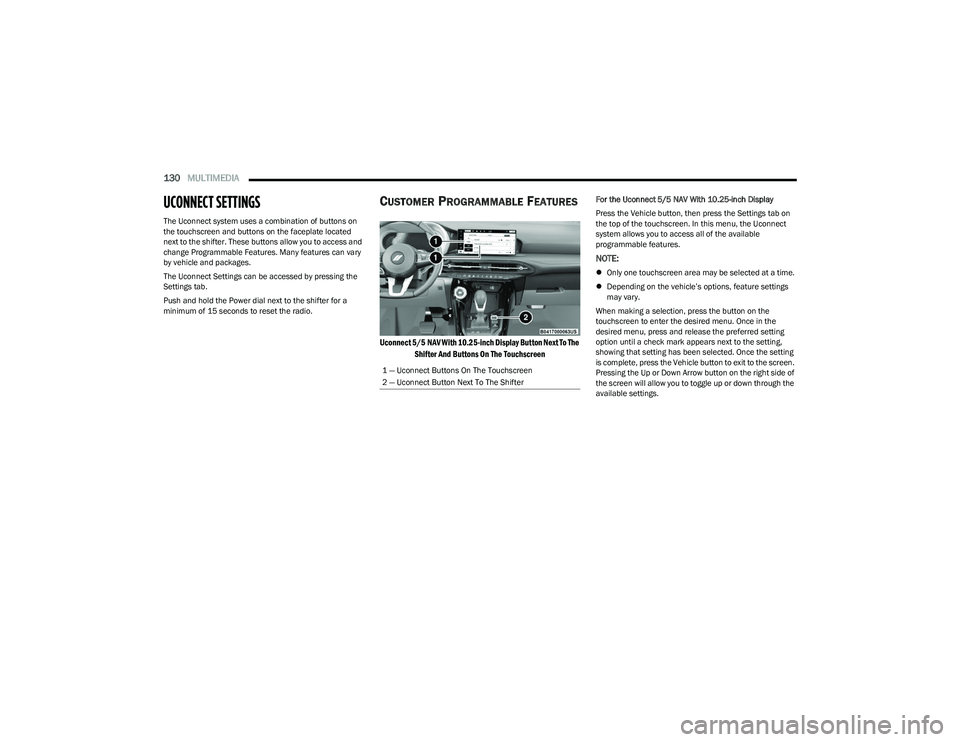
The Uconnect system uses a combination of buttons on
the touchscreen and buttons on the faceplate located
next to the shifter. These buttons allow you to access and
change Programmable Features. Many features can vary
by vehicle and packages.
The Uconnect Settings can be accessed by pressing the
Settings tab.
Push and hold the Power dial next to the shifter for a
minimum of 15 seconds to reset the radio.
CUSTOMER PROGRAMMABLE FEATURES
Uconnect 5/5 NAV With 10.25-inch Display Button Next To The
Shifter And Buttons On The Touchscreen
For the Uconnect 5/5 NAV With 10.25-inch Display
Press the Vehicle button, then press the Settings tab on
the top of the touchscreen. In this menu, the Uconnect
system allows you to access all of the available
programmable features.
NOTE:
Only one touchscreen area may be selected at a time.
Depending on the vehicle’s options, feature settings
may vary.
When making a selection, press the button on the
touchscreen to enter the desired menu. Once in the
desired menu, press and release the preferred setting
option until a check mark appears next to the setting,
showing that setting has been selected. Once the setting
is complete, press the Vehicle button to exit to the screen.
Pressing the Up or Down Arrow button on the right side of
the screen will allow you to toggle up or down through the
available settings.
1 — Uconnect Buttons On The Touchscreen
2 — Uconnect Button Next To The Shifter
23_GG_OM_EN_USC_t.book Page 130
Page 134 of 288
132MULTIMEDIA
My Profile
Navigation Turn-by-Turn Displayed in Cluster This setting will display Navigation prompts in the Instrument Cluster Display.
Phone Pop-ups Displayed In Cluster This setting will display smartphone notifications and messages in the Instrument Cluster
Display.
Setting Name
Description
When the My Profile button is pressed on the touchscreen, the system displays options related to the vehicle’s profiles.
NOTE:Depending on the vehicle’s options, feature settings may vary.
Setting NameDescription
Language This setting will change the language of the Uconnect system and Instrument Cluster
Display. The available languages are Español (Mexico), English (United States), Italiano,
and Français (Canada).
Display Mode This setting will adjust the display for the radio to “Auto” or “Manual”. “Manual” allows for
more customization with the radio display.
Display Brightness Nighttime This setting will allow you to adjust the “Brightness Nighttime” setting. Selectable options
are 1 through 10.
Display Brightness Daytime This setting will allow you to adjust the “Brightness Daytime” setting. Selectable options
are 1 through 10.
Set Theme This setting will allow you to change the display theme.
Units This setting will allow you to customize the units for “Speed” (MPH or km/h), “Distance”
(mi or km), “Fuel Consumption” (MPG [US], MPG [UK], L/100 km, or km/L), “Pressure”
(psi, kPa, or bar), “Temperature” (°C or °F), and “Torque” (Nm or lb-ft) units of
measurement independently. Unit settings can be selected for “US”, “Metric A”,
“Metric B”, “Imperial”, or “Custom”.
23_GG_OM_EN_USC_t.book Page 132
Page 135 of 288
MULTIMEDIA133
Touchscreen Beep This setting will allow you to turn the touchscreen beep on or off.
Show Main Category Bar Labels This setting will allow the main category bar labels to be shown on or off.
Time Format This setting will allow you to set the time format (AM/PM). Sync Time With GPS must be
“Off” for this setting to be available. The “12 hrs” setting will set the time to a 12-hour
format. The “24 hrs” setting will set the time to a 24-hour format.
Voice Options This setting will allow you to change the voice options for the radio to “Male” or “Female”.
Wake Up Word This setting will allow you to set the system “Wake Up” word. The available options are
“Off”, “Hey, Uconnect”, and “Hey, Dodge”.
Voice Barge-in This setting will allow Voice Barge-in to be turned on or off.
Show Command List This setting will allow the Command List to be shown on or off.
Navigation Settings This setting will redirect to the list of Navigation settings. Refer to your Uconnect Radio
Instruction Manual for further information.
Auto-On Driver Heated/Ventilated Seat & Heated Steering Wheel This setting will activate the vehicle’s comfort system and heated seats or heated
steering wheel when the vehicle is remote started or ignition is started. The “Off” setting
will not activate the comfort systems. The “Remote Start” setting will only activate the
comfort systems when using Remote Start. The “All Start” setting will activate the comfort
systems whenever the vehicle is started.
Radio Off Delay This setting will keep certain electrical features running after the engine is turned off.
When any door is opened, the electronics will deactivate. The available settings are
“0 min” and “20 min”.
Radio Off With Door This setting will allow you to determine if the radio shuts off when any of the doors are
opened.
Audio Settings This setting will open the submenu, containing the audio settings
Úpage 145.
App Drawer Favoriting Pop-ups This setting will allow you to favorite app drawer pop-ups with “On” and “Off” options.
App Drawer Unfavoritings Pop-ups This setting will allow you to unfavorite app drawer pop-ups with “On” and “Off” options.
Setting NameDescription
5
23_GG_OM_EN_USC_t.book Page 133
Page 139 of 288
MULTIMEDIA137
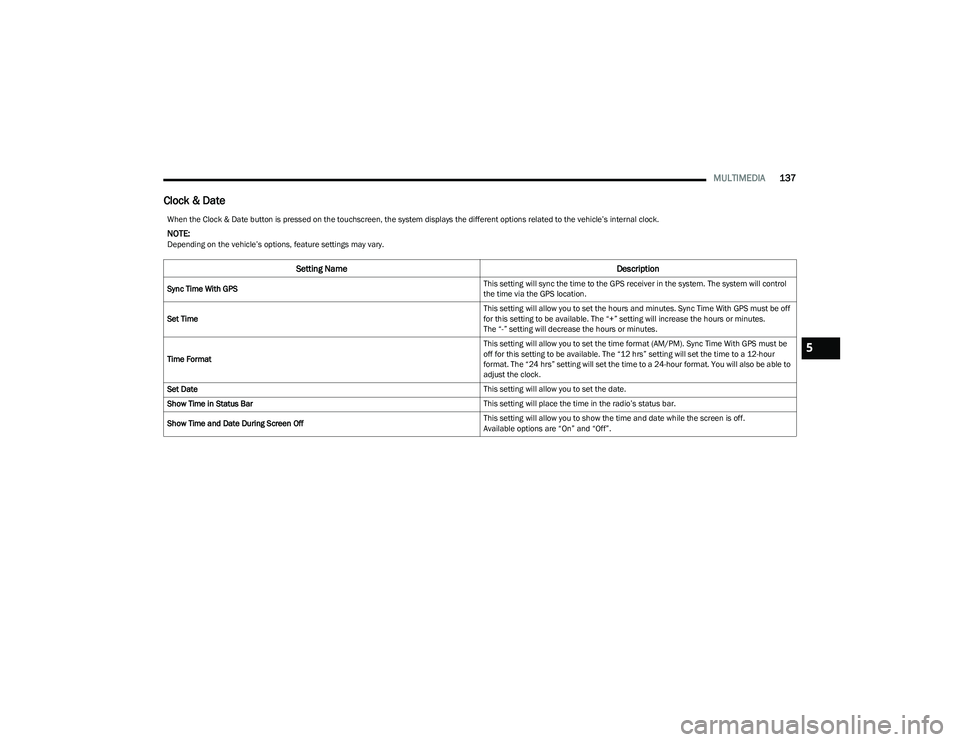
Clock & Date
When the Clock & Date button is pressed on the touchscreen, the system displays the different options related to the vehicle’s internal clock.
NOTE:Depending on the vehicle’s options, feature settings may vary.
Setting Name Description
Sync Time With GPS This setting will sync the time to the GPS receiver in the system. The system will control
the time via the GPS location.
Set Time This setting will allow you to set the hours and minutes. Sync Time With GPS must be off
for this setting to be available. The “+” setting will increase the hours or minutes.
The “-” setting will decrease the hours or minutes.
Time Format This setting will allow you to set the time format (AM/PM). Sync Time With GPS must be
off for this setting to be available. The “12 hrs” setting will set the time to a 12-hour
format. The “24 hrs” setting will set the time to a 24-hour format. You will also be able to
adjust the clock.
Set Date This setting will allow you to set the date.
Show Time in Status Bar This setting will place the time in the radio’s status bar.
Show Time and Date During Screen Off This setting will allow you to show the time and date while the screen is off.
Available options are “On” and “Off”.
5
23_GG_OM_EN_USC_t.book Page 137
Page 141 of 288
MULTIMEDIA139
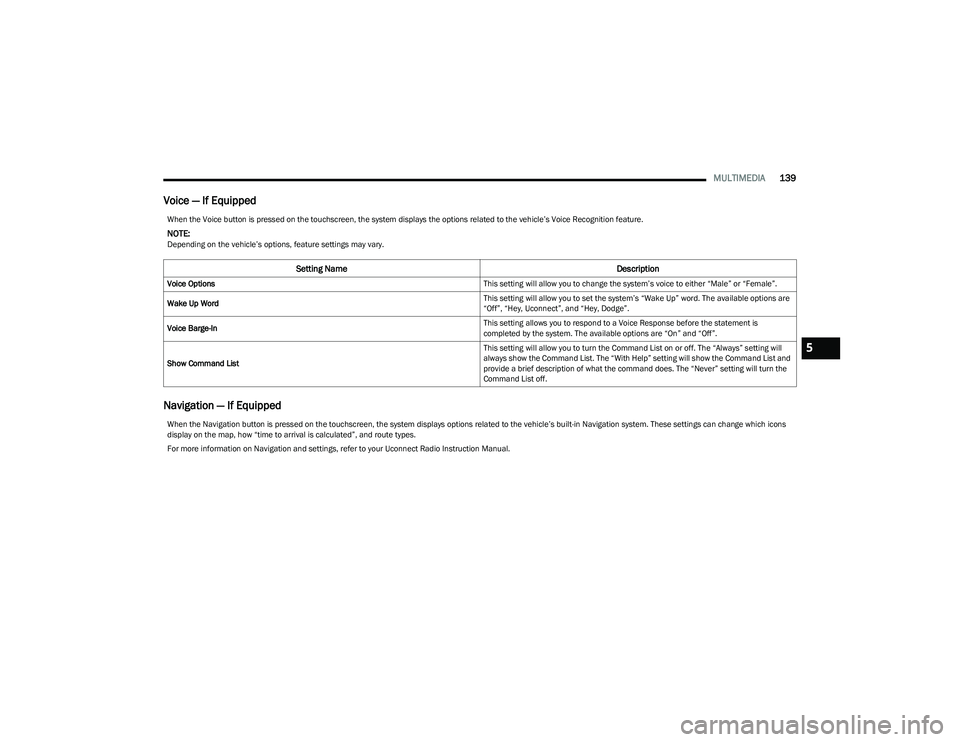
Voice — If Equipped
Navigation — If Equipped
When the Voice button is pressed on the touchscreen, the system displays the options related to the vehicle’s Voice Recognition feature.
NOTE:Depending on the vehicle’s options, feature settings may vary.
Setting Name Description
Voice Options This setting will allow you to change the system’s voice to either “Male” or “Female”.
Wake Up Word This setting will allow you to set the system’s “Wake Up” word. The available options are
“Off”, “Hey, Uconnect”, and “Hey, Dodge”.
Voice Barge-In This setting allows you to respond to a Voice Response before the statement is
completed by the system. The available options are “On” and “Off”.
Show Command List This setting will allow you to turn the Command List on or off. The “Always” setting will
always show the Command List. The “With Help” setting will show the Command List and
provide a brief description of what the command does. The “Never” setting will turn the
Command List off.
When the Navigation button is pressed on the touchscreen, the system displays options related to the vehicle’s built-in Navigation system. These settings can change which icons
display on the map, how “time to arrival is calculated”, and route types.
For more information on Navigation and settings, refer to your Uconnect Radio Instruction Manual.
5
23_GG_OM_EN_USC_t.book Page 139
Page 146 of 288
144MULTIMEDIA
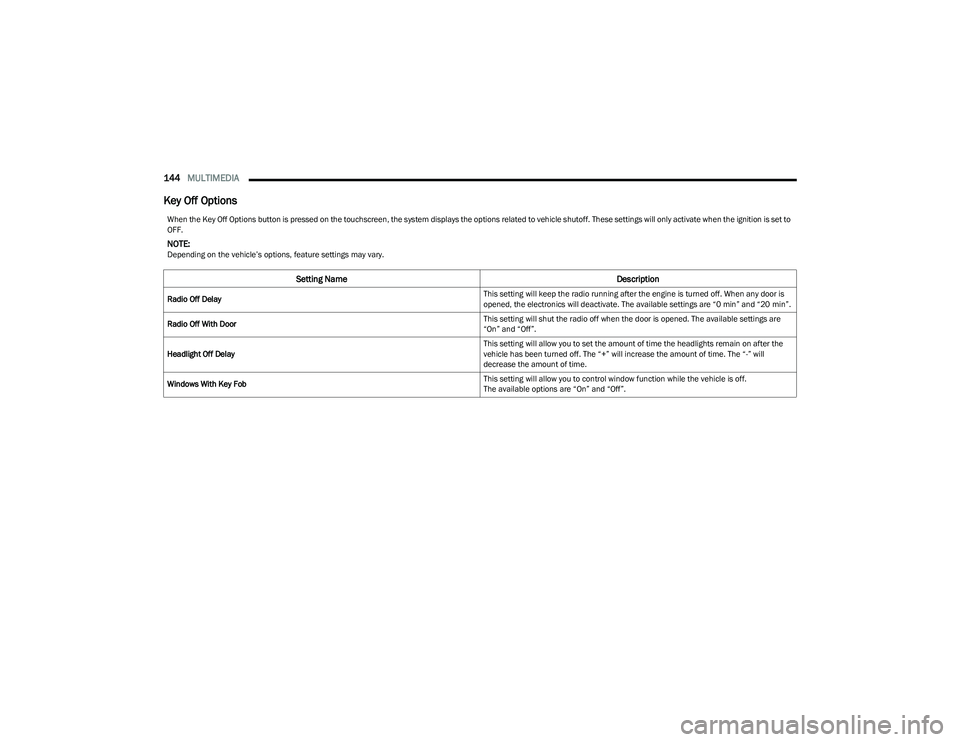
Key Off Options
When the Key Off Options button is pressed on the touchscreen, the system displays the options related to vehicle shutoff. These settings will only activate when the ignition is set to
OFF.
NOTE:Depending on the vehicle’s options, feature settings may vary.
Setting Name Description
Radio Off Delay This setting will keep the radio running after the engine is turned off. When any door is
opened, the electronics will deactivate. The available settings are “0 min” and “20 min”.
Radio Off With Door This setting will shut the radio off when the door is opened. The available settings are
“On” and “Off”.
Headlight Off Delay This setting will allow you to set the amount of time the headlights remain on after the
vehicle has been turned off. The “+” will increase the amount of time. The “-” will
decrease the amount of time.
Windows With Key Fob This setting will allow you to control window function while the vehicle is off.
The available options are “On” and “Off”.
23_GG_OM_EN_USC_t.book Page 144
Page 147 of 288
MULTIMEDIA145
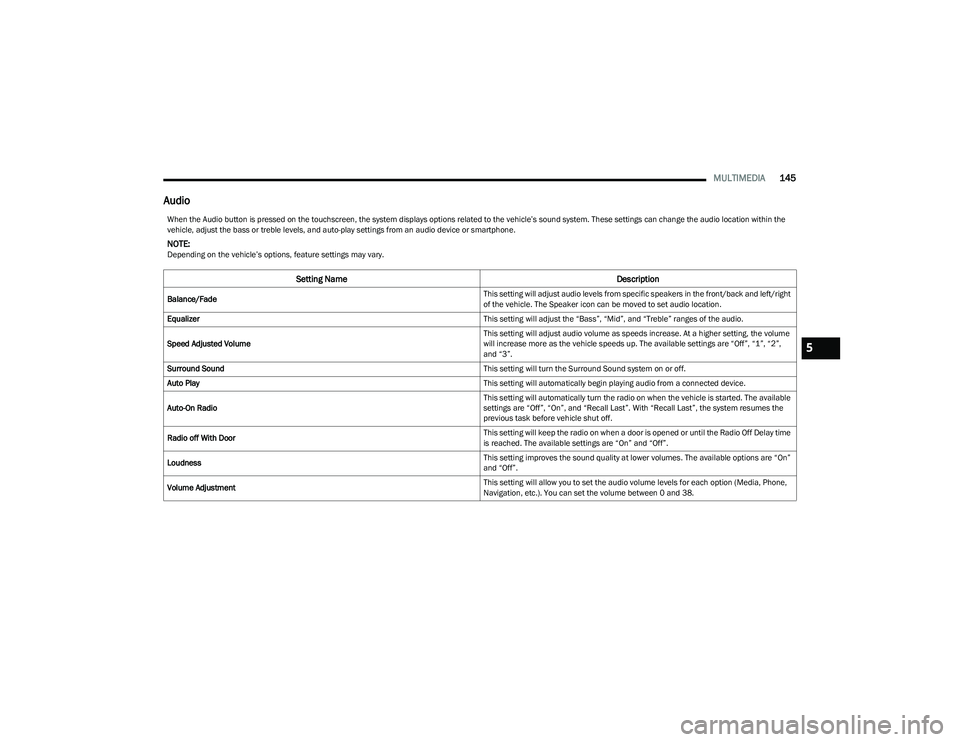
Audio
When the Audio button is pressed on the touchscreen, the system displays options related to the vehicle’s sound system. These settings can change the audio location within the
vehicle, adjust the bass or treble levels, and auto-play settings from an audio device or smartphone.
NOTE:Depending on the vehicle’s options, feature settings may vary.
Setting Name Description
Balance/Fade This setting will adjust audio levels from specific speakers in the front/back and left/right
of the vehicle. The Speaker icon can be moved to set audio location.
Equalizer This setting will adjust the “Bass”, “Mid”, and “Treble” ranges of the audio.
Speed Adjusted Volume This setting will adjust audio volume as speeds increase. At a higher setting, the volume
will increase more as the vehicle speeds up. The available settings are “Off”, “1”, “2”,
and “3”.
Surround Sound This setting will turn the Surround Sound system on or off.
Auto Play This setting will automatically begin playing audio from a connected device.
Auto-On Radio This setting will automatically turn the radio on when the vehicle is started. The available
settings are “Off”, “On”, and “Recall Last”. With “Recall Last”, the system resumes the
previous task before vehicle shut off.
Radio off With Door This setting will keep the radio on when a door is opened or until the Radio Off Delay time
is reached. The available settings are “On” and “Off”.
Loudness This setting improves the sound quality at lower volumes. The available options are “On”
and “Off”.
Volume Adjustment This setting will allow you to set the audio volume levels for each option (Media, Phone,
Navigation, etc.). You can set the volume between 0 and 38.
5
23_GG_OM_EN_USC_t.book Page 145
Page 149 of 288
MULTIMEDIA147
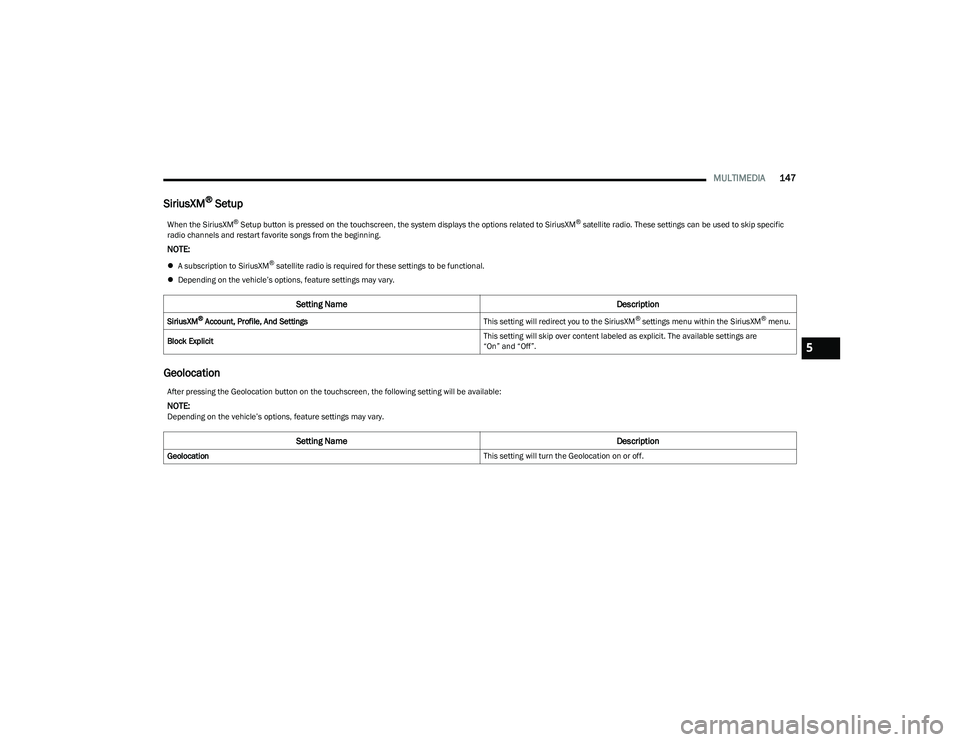
SiriusXM® Setup
Geolocation
When the SiriusXM® Setup button is pressed on the touchscreen, the system displays the options related to SiriusXM® satellite radio. These settings can be used to skip specific
radio channels and restart favorite songs from the beginning.
NOTE:
A subscription to SiriusXM® satellite radio is required for these settings to be functional.
Depending on the vehicle’s options, feature settings may vary.
Setting Name Description
SiriusXM® Account, Profile, And SettingsThis setting will redirect you to the SiriusXM® settings menu within the SiriusXM® menu.
Block Explicit This setting will skip over content labeled as explicit. The available settings are
“On” and “Off”.
After pressing the Geolocation button on the touchscreen, the following setting will be available:
NOTE:Depending on the vehicle’s options, feature settings may vary.
Setting Name
Description
Geolocation This setting will turn the Geolocation on or off.
5
23_GG_OM_EN_USC_t.book Page 147
Page 150 of 288
148MULTIMEDIA
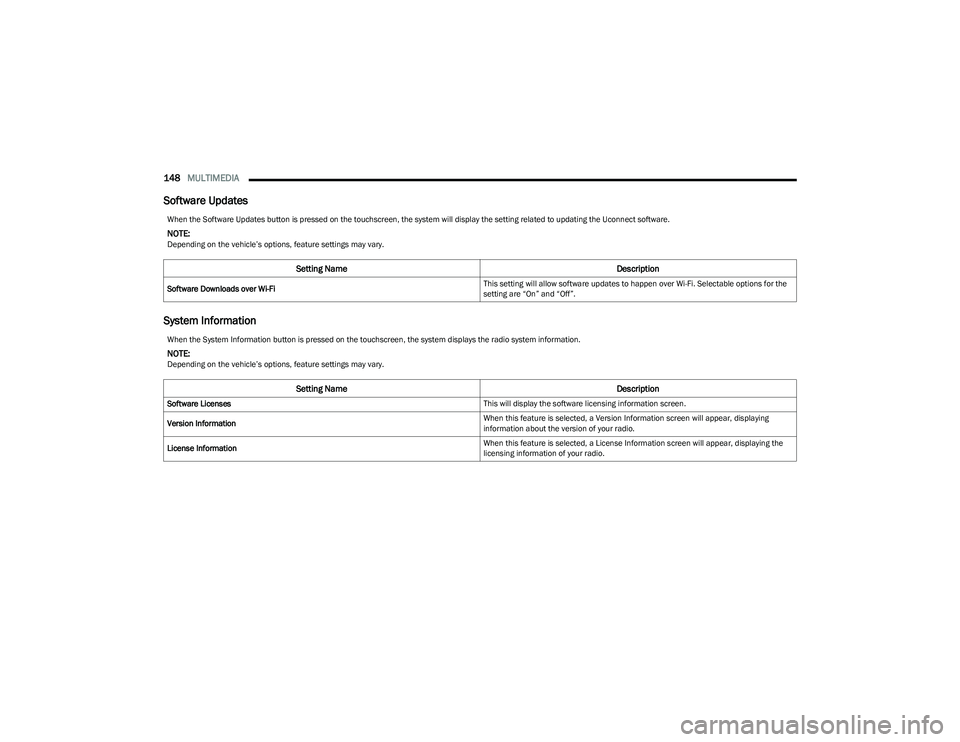
Software Updates
System Information
When the Software Updates button is pressed on the touchscreen, the system will display the setting related to updating the Uconnect software.
NOTE:Depending on the vehicle’s options, feature settings may vary.
Setting Name Description
Software Downloads over Wi-Fi This setting will allow software updates to happen over Wi-Fi. Selectable options for the
setting are “On” and “Off”.
When the System Information button is pressed on the touchscreen, the system displays the radio system information.
NOTE:Depending on the vehicle’s options, feature settings may vary.
Setting Name
Description
Software Licenses This will display the software licensing information screen.
Version Information When this feature is selected, a Version Information screen will appear, displaying
information about the version of your radio.
License Information When this feature is selected, a License Information screen will appear, displaying the
licensing information of your radio.
23_GG_OM_EN_USC_t.book Page 148