key DODGE JOURNEY 2014 1.G Owner's Manual
[x] Cancel search | Manufacturer: DODGE, Model Year: 2014, Model line: JOURNEY, Model: DODGE JOURNEY 2014 1.GPages: 124, PDF Size: 3.37 MB
Page 28 of 124
Uconnect® 8.4
• Press the Controls soft-key located on theUconnect® display.
• Press the Driver or Passenger seat soft- key once to select HI-level heating. Press
the soft-key a second time to select LO-
level heating. Press the soft-key a third
time to shut the heating elements OFF.
• If the High-level setting is selected, the system will automatically switch to Low-
level after approximately 60 minutes. The
Low-level setting will turn Off automati-
cally after approximately 45 minutes.
HEATED STEERING WHEEL
• The steering wheel contains a heating el-ement that heats the steering wheel to
one temperature setting.
• To access the Heated Steering Wheel soft-key, touch the “Controls” soft-key lo-
cated on the Uconnect® display.
• Touch the soft-key once to turn the heat- ing element On. Press the soft-key a sec-
ond time to turn the heating element Off.
• Once the heated steering wheel has been turned on, it will operate for up to 80 min-
utes before automatically shutting off.
The heated steering wheel can shut off
early or may not turn on when the steering
wheel is already warm.
WARNING!
• Persons who are unable to feel pain to the skin because of advanced age, chronic
illness, diabetes, spinal cord injury, medication, alcohol use, exhaustion, or other
physical conditions must exercise care when using the steering wheel heater. It may
cause burns even at low temperatures, especially if used for long periods.
• Do not place anything on the steering wheel that insulates against heat, such as a
blanket or steering wheel covers of any type and material. This may cause the
steering wheel heater to overheat.
GETTING STARTED
26
Page 36 of 124
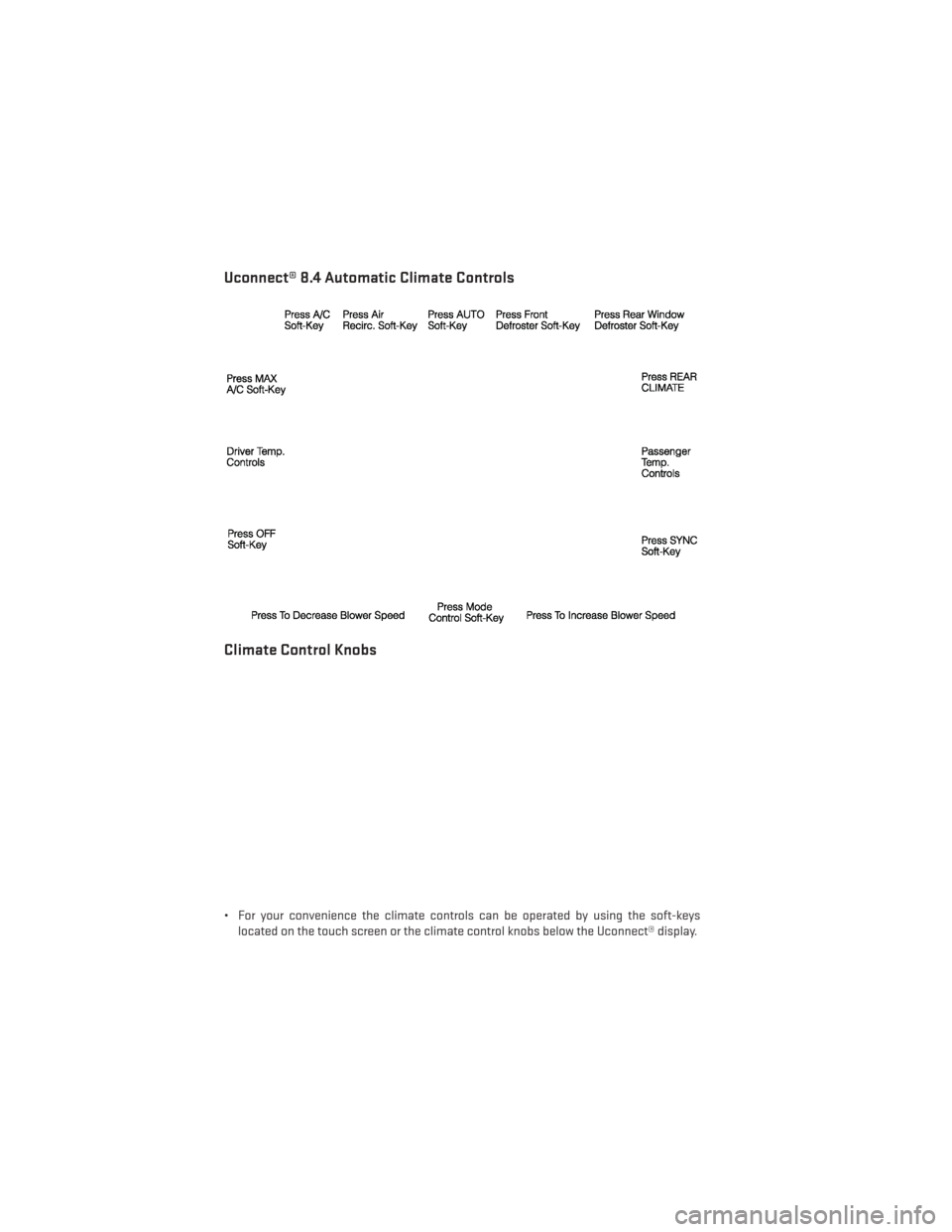
Uconnect® 8.4 Automatic Climate Controls
Climate Control Knobs
• For your convenience the climate controls can be operated by using the soft-keyslocated on the touch screen or the climate control knobs below the Uconnect® display.
OPERATING YOUR VEHICLE
34
Page 37 of 124
Automatic Operation
• Press the AUTO button or AUTO soft-key.
• Select the desired temperature by pressing the Temperature Controls for the driver orpassenger.
• The system will maintain the set temperature automatically.
SYNC Temperature Soft-Key
•Press the SYNC soft-key once to control driver and passenger temperatures simultaneously.
• Press the SYNC soft-key a second time to control the temperatures individually.
Air Recirculation
• Use recirculation for maximum A/C operation.
• For window defogging, turn the recirculation button off.
• If the hard-key Recirculation button is pushed while in the AUTO mode, the indicator light may flash three times to indicate the cabin air is being controlled automatically.
The soft-key recirculation button will be greyed out in these conditions.
Heated Mirrors
The mirrors are heated to melt frost or ice. This feature is activated whenever you turn on
the rear window defroster.
PARKVIEW® REAR BACK-UP CAMERA
You can see an on-screen image of the rear of your vehicle whenever the shift lever is put
into REVERSE. The ParkView® Rear Back-Up Camera image will be displayed on the radio
display screen, located on the center stack of the instrument panel.
If the radio display screen appears foggy, clean the camera lens located on the liftgate.
Refer to your Owner's Manual on the DVD for further details.
WARNING!
Drivers must be careful when backing up; even when using the ParkView® Rear Back-Up
Camera. Always check carefully behind your vehicle, and be sure to check for pedestri-
ans, animals, other vehicles, obstructions, or blind spots before backing up. You must
continue to pay attention while backing up. Failure to do so can result in serious injury or
death.
OPERATING YOUR VEHICLE
35
Page 39 of 124
Pinch Protection Feature
This feature will detect an obstruction in the opening of the sunroof during Express Close
operation. If an obstruction in the path of the sunroof is detected, the sunroof will auto-
matically retract. Remove the obstruction if this occurs. Next, press the switch forward and
release to Express Close.
NOTE:
If three consecutive sunroof close attempts result in Pinch Protect reversals, the fourth
close attempt will be a Manual Close movement with Pinch Protect disabled.
WARNING!
• Do not let children play with the sunroof. Never leave children unattended in a vehicle,or with access to an unlocked vehicle. Do not leave the Key Fob in or near the vehicle,
and do not leave the ignition of a vehicle equipped with Keyless Enter-N-Go™ in the
ACC or ON/RUN mode. Occupants, particularly unattended children, can become
entrapped by the power sunroof while operating the power sunroof switch. Such
entrapment may result in serious injury or death.
• In a collision, there is a greater risk of being thrown from a vehicle with an open
sunroof. You could also be severely injured or killed. Always fasten your seat belt
properly and make sure all passengers are properly secured.
• Do not allow small children to operate the sunroof. Never allow your fingers, other
body parts, or any object to project through the sunroof opening. Injury may result.
WIND BUFFETING
Wind buffeting can be described as a helicopter-type percussion sound. If buffeting occurs
with the rear windows open, adjust the front and rear windows together.
If buffeting occurs with the sunroof open, adjust the sunroof opening, or adjust any window.
This will minimize buffeting.
OPERATING YOUR VEHICLE
37
Page 42 of 124
IDENTIFYING YOUR RADIO
Uconnect® 4.3 & 4.3S
• Models 4.3 and 4.3S have a 4.3 inchtouchscreen with hard-keys to each side
of it.
• Model 4.3S has all Model 4.3 features, plus SiriusXM Satellite Radio (1 year trial
subscription included).
• Model 4.3S is identified by the presence of SAT on the band button, indicating the
presence of satellite radio.
Uconnect® 8.4 & 8.4N
• Models 8.4 and 8.4N have an 8.4 inchtouchscreen.
• Model 8.4N has all Model 8.4 features, plus Garmin® Navigation and SiriusXM
Travel Link (1-year trial subscription in-
cluded).
• Model 8.4N is identified by the unique Nav button on the main screen menu bar,
located at the bottom of the screen,
and the presence of SiriusXM Travel Link
within the More menu.
ELECTRONICS
40
Page 43 of 124
Uconnect® 4.3 & 4.3S AT A GLANCE
Displaying The Time
• If the time is not currently displayed at the top of the screen when in Radio mode, pressthe SETTINGS button, then touch “Clock.” Select “Show Time,” then touch “On.”
Setting The Time
• Press the SETTINGS hard-key, then touch the “Clock” soft-key.
• Touch the “Time” soft-key.
• Touch the “Up or Down” soft-keys to adjust the hours, minutes or AM/PM.
NOTE:
12hr format and 24hr format can also be set.
• Once the time is set press the “Done” soft-key to exit the time screen.
Audio Settings
• Press the SETTINGS hard-key on the right side of the unit.
• Then scroll down and press the “Audio” soft-key to get to the Audio menu.
• The Audio Menu shows the following options for you to customize your audio settings. • Equalizer
• Balance/Fade
• Speed Adjust Volume
• Touch the “Exit” soft-key to exit from the Audio Menu.
ELECTRONICS
41
Page 44 of 124
Equalizer
•
Touch the “Equalizer” soft-key to adjust the Bass, Mid and Treble. Use the “+” or “–” soft-key
to adjust the equalizer to your desired settings. Press the “Done” soft-key when done.
Balance/Fade
• Touch the “Balance/Fade” soft-key to adjust the sound from the speakers. Use the “arrow” soft-key to adjust the sound level from the front and rear or right and left side
speakers. Touch the center “C” soft-key to reset the balance and fade to the factory
setting. Press the “Done” soft-key when done.
Speed Adjust Volume
• Touch the “Speed Adjust Volume” soft-key to select between OFF, 1, 2 or 3. This will decrease the radio volume relative to a decrease in vehicle speed. Press the “Done”
soft-key when done.
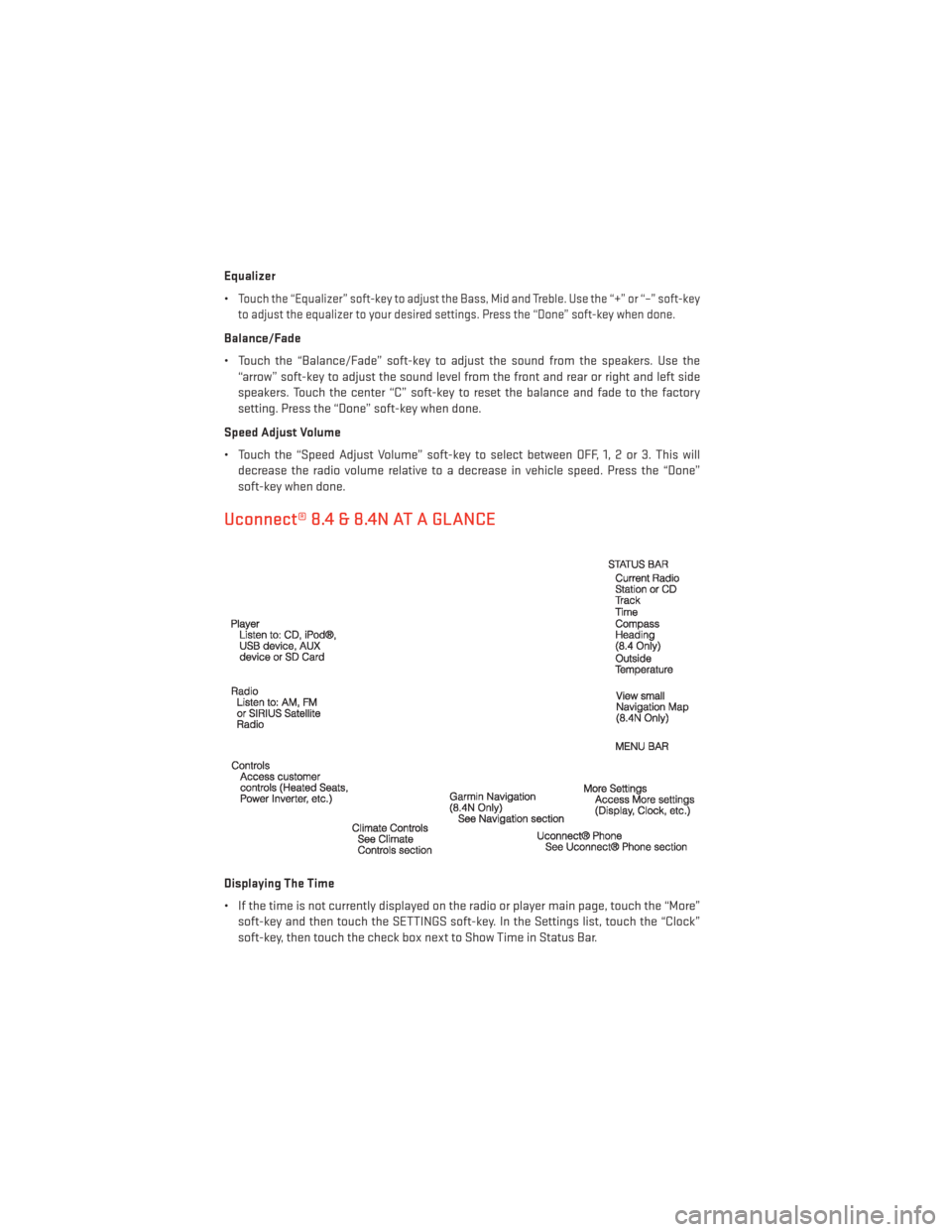
Uconnect® 8.4 & 8.4N AT A GLANCE
Displaying The Time
• If the time is not currently displayed on the radio or player main page, touch the “More”soft-key and then touch the SETTINGS soft-key. In the Settings list, touch the “Clock”
soft-key, then touch the check box next to Show Time in Status Bar.
ELECTRONICS
42
Page 45 of 124
Setting The Time
• Model 8.4N synchronizes time automatically via GPS, so should not require any timeadjustment. If you do need to set the time manually, follow the instructions below for
Model 8.4.
• For Model 8.4, turn the unit on, then touch the “Time Display” at the top of the screen. Touch “Yes”.
• If the time is not displayed at the top of the screen, touch “More” soft-key and then “Settings” soft-key. In the Settings screen, touch the “Clock” soft-key, then check or
uncheck this option.
• Touch “+” or “–” next to Set Time Hours and Set Time Minutes to adjust the time.
• If these features are not available, uncheck the “Sync” with GPS box.
• Touch “X” to save your settings and exit out of the Clock Setting screen.
Audio Settings
• Touch the “Audio” soft-key to activate the Audio settings screen to adjust Balance\Fade, Equalizer and Speed Adjusted Volume.
• You can return to the Radio screen by touching the “X” located at the top right.
Balance/Fade
• Touch the “Balance/Fade” soft-key to Balance audio between the front speakers or fade the audio between the rear and front speakers.
• Touching the “Front,” “Rear,” ”Left” or “Right” soft-keys or touch and drag the red Speaker Icon to adjust the Balance/Fade.
Equalizer
• Touch the “Equalizer” soft-key to activate the Equalizer screen.
• Touch the “+” or “ –” soft-keys, or by touching and dragging over the level bar for each of the equalizer bands. The level value, which spans between ±9, is displayed at the bottom
of each of the Bands.
Speed Adjusted Volume
• Touch the “Speed Adjusted Volume” soft-key to activate the Speed Adjusted Volume screen. The Speed Adjusted Volume is adjusted by touching the “+” and “–” buttons or by
touching and dragging over the level bar. This alters the automatic adjustment of the
audio volume with variation to vehicle speed.
ELECTRONICS
43
Page 47 of 124
• To access the Radio mode, touch the RADIO hard-key on the upper left side of thefaceplate (4.3 & 4.3S) or the “Radio” soft-key at the lower left of the screen (8.4 & 8.4N).
• Unless otherwise noted, the information provided on the operation and functionality of the radios in this section is common to all Uconnect® radios.
Selecting Radio Stations
• Touch the “Radio band” soft-key to cycle through AM, FM or SAT (4.3 & 4.3S) or the desired radio band (AM, FM or SAT) soft-key (8.4 & 8.4N). SiriusXM Satellite Radio is not
available on the 4.3.
Seek Up/Seek Down
• Touch the “Seek arrow” soft-keys for less than two seconds to seek through radio stations.
• Touch and hold either “arrow” soft-key for more than two seconds to bypass stations without stopping. The radio will stop at the next listenable station once the arrow
soft-key is released.
Direct Tune
• Tune directly to a radio station by pressing the “Tune” button on the screen, and entering the desired station number.
Store Radio Presets
• Your radio can store 12 total preset stations. They are shown at the top of your screen. To see all 12 stations, Press the “All” soft-key (4.3 & 4.3S) or press the “arrow” soft-key at
the top right of the screen to toggle between the six presets (8.4 & 8.4N).
• To set a station into memory press and hold the desired numbered soft-key for more than two seconds or until you hear a confirmation beep.
SiriusXM SATELLITE RADIO
• SiriusXM Satellite Radio gives you over 130 channels, including 100% commercial-freemusic from nearly every genre, plus all your favorite sports, news, talk and entertainment
channels – all with crystal clear, coast-to-coast coverage, all in one place and all at your
fingertips.
• To access SiriusXM Satellite Radio, touch the “Radio band” soft-key and select the “SAT” soft-key (4.3S) or touch the “SAT” soft-key on the main Radio screen (8.4 & 8.4N).
• The following describes features that are available when in SiriusXM Satellite Radio mode.
• Unless otherwise noted, the information provided on the operation and functionality of the radios in this section is common to all Uconnect® radios.
ELECTRONICS
45
Page 48 of 124
Selecting SiriusXM Satellite Channels
Seek Up/Seek Down
• Touch the “Seek arrow” soft-keys for less than two seconds to seek through channels inSAT mode.
• Touch and hold either “arrow” soft-key for more than two seconds to bypass channels without stopping. The radio will stop at the next listenable channel once the arrow
soft-key is released.
Direct Tune
• Tune directly to a SAT channel by pressing the “Tune” button on the screen, and entering the desired station number.
Info (4.3S Only)
• Provides detailed information about the current SiriusXM Satellite Radio channel.
More... (4.3S Only)
• Access more menus: Audio, Favorites, Game Zone, and Replay.
Jump (8.4 & 8.4N Only)
• Automatically tells you when Traffic & Weather for a favorite city is available, and gives you the option to switch to that channel. Select Traffic then touch “Jump” to activate the
feature. After listening to Traffic and Weather, touch “Jump” again to return to the
previous channel.
Fav (8.4 & 8.4N Only)
• Activates the favorites menu. You can add up to 50 favorite artists or songs. Just touch “Add Fav Artist” or “Add Fav Song” while the song is playing. You will then be alerted any
time one of these songs, or works by these artists, is playing on other SiriusXM Satellite
Radio channels.
SiriusXM Parental Controls
• You can skip or hide certain channels from view if you do not want access to them. Press the SETTINGS hard-key (4.3S) or touch the “More” soft-key, then the “Settings” soft-key
(8.4 & 8.4N), next touch the “SiriusXM Satellite Radio Setup” soft-key, then select
“Channel Skip.” Touch the channel(s) to be skipped (4.3S) or touch the box, check-mark,
next to the channel you want skipped (8.4 & 8.4N). They will not show up in normal usage.
• SiriusXM Satellite Radio also offers the option to permanently block selected channels. Call 1-888-539-7474 and request the Family Package.
ELECTRONICS
46