key DODGE JOURNEY 2014 1.G Owner's Manual
[x] Cancel search | Manufacturer: DODGE, Model Year: 2014, Model line: JOURNEY, Model: DODGE JOURNEY 2014 1.GPages: 124, PDF Size: 3.37 MB
Page 50 of 124

iPod®/CD/AUX CONTROLS
Models 4.3 & 4.3S
• The iPod®/CD/AUX controls are accessed by pressing the PLAYER hard-key to enter thePlayer main screen, then touch the “Source” soft-key and choose between Disc, AUX,
iPod® or Bluetooth®.
NOTE:
Uconnect® will usually automatically switch
to the appropriate mode when something is
first connected or inserted into the system.
ELECTRONICS
48
Page 51 of 124

Models 8.4 & 8.4N
• The iPod®/USB, CD, Audio Jack, SD Card or Bluetooth® source is accessed by touchingthe “Player” soft-key to enter the Player main screen, then touch the “Source” soft-key
and choose between Disc, Aux, iPod®, Bluetooth® or SD Card.
NOTE:
Uconnect® will usually automatically switch
to the appropriate mode when something is
first connected or inserted into the system.
ELECTRONICS
49
Page 52 of 124
GARMIN® NAVIGATION
Garmin® Navigation (8.4N Only)
• Uconnect® 8.4N integrates Garmin’s consumer-friendly navigation into your vehicle.Garmin Navigation includes Lane Assist and Junction View, Speed Limit information,
and a database with over 6 million points of interest.
• Touch the “Nav” soft-key in the menu bar to access the Navigation system.
Changing The Navigation Voice Prompt Volume
1. Program a destination.
2. While traveling on your route, touch the upper left area of the map screen where your next turn is displayed.
3. The Navigation system will then repeat the distance to your next turn.
4. While the Navigation system is speaking, use the ON/OFF VOLUME rotary knob to adjust the volume to a comfortable level. Please note the volume setting for Navigation Voice
Prompt is different than the audio system.
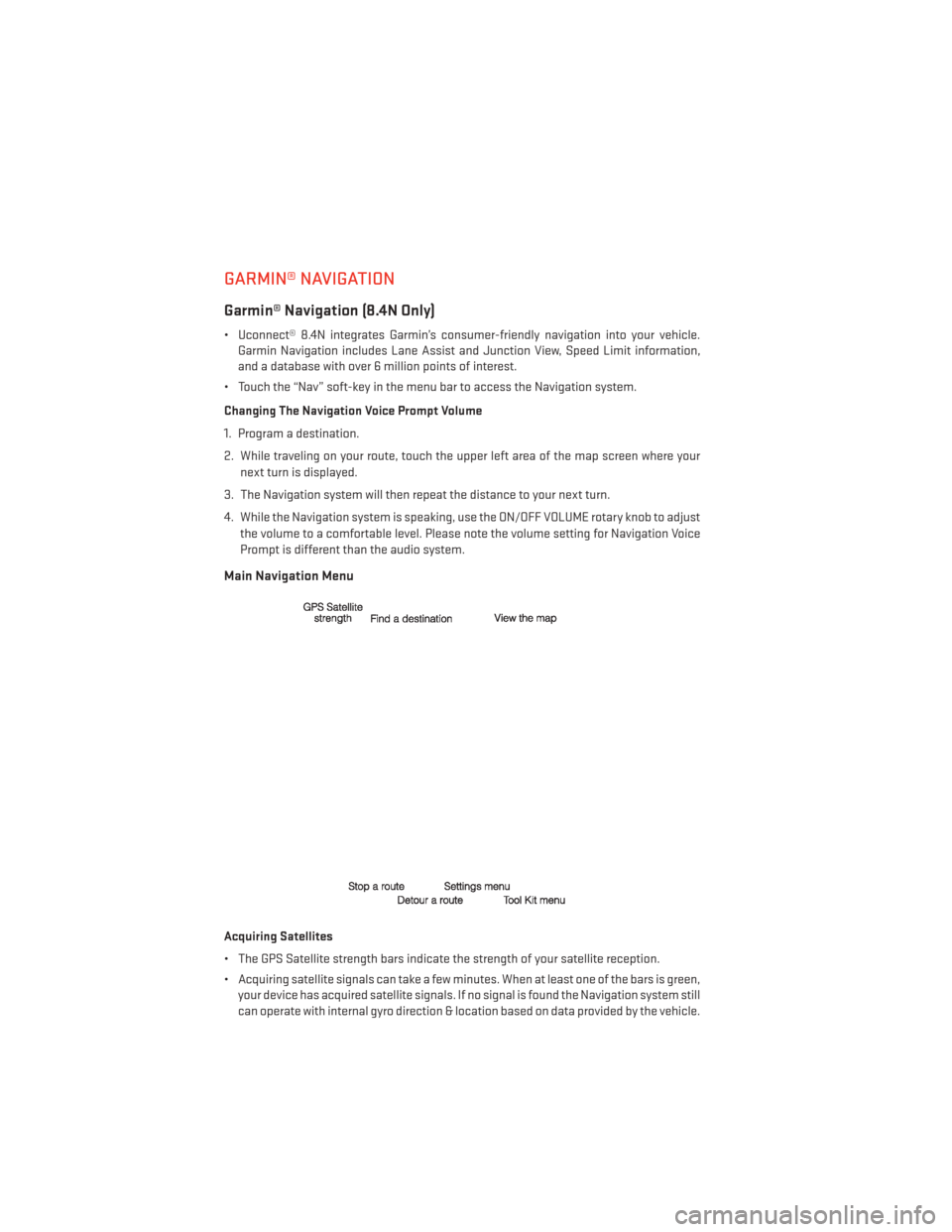
Main Navigation Menu
Acquiring Satellites
• The GPS Satellite strength bars indicate the strength of your satellite reception.
• Acquiring satellite signals can take a few minutes. When at least one of the bars is green,your device has acquired satellite signals. If no signal is found the Navigation system still
can operate with internal gyro direction & location based on data provided by the vehicle.
ELECTRONICS
50
Page 53 of 124
• Dead Reckoning technology uses the speed sensors attached to your vehicle’s drivetrain,and a gyroscope, to supplement the existing GPS data. The combined data provides
accurate positioning for your vehicle in tunnels, indoor parking garages, urban canyons,
and any other area where GPS signals can become obstructed.
Finding Points Of Interest
• From the main Navigation menu touch “Where To?” then touch “Points of Interest.”
• Select a Category, then a subcategory if necessary.
• Select your destination and touch “Go.”
Finding A Place By Spelling The Name
• From the Main Navigation Menu touch “Where to?” Touch “Points of Interest” and then touch “Spell Name.”
• Enter the name of your destination.
• Touch “Done.”
• Select your destination and touch “Go.”
Entering A Destination Address
• From the main Navigation menu, touch “Where To?” then touch “Address.”
• Follow the on-screen prompts to enter the address and touch “Go.”
Searching Near Another Location
• From the main Navigation menu, touch “Where To?” Touch a destination and touch “Near.”
• Select an option from the available choices.
Setting Or Changing Your Home Location
• Touch the “Nav” soft-key in the menu bar to access the Navigation system and the Main Navigation menu.
• Touch “Where To?” then touch “Go Home.”
• You may enter your address directly, use your current location as your home address, or choose from recently found locations.
• To edit your Home location (or other saved locations), touch “Where To?” from the Main Navigation menu, touch “Favorites,” then touch the location you want to edit. After
selecting a location to edit, touch “Press for More,” then “Edit.”
Go Home
• A Home location must be saved in the system. From the Main Navigation menu, touch “Where To?” then touch “Go Home.”
ELECTRONICS
51
Page 55 of 124
SiriusXM TRAVEL LINK
SiriusXM Travel Link (8.4N Only)
• SiriusXM Travel Link is only available in the United States.
• SiriusXM Travel Link brings a wealth of useful information into your vehicle and right toyour fingertips.
• To access Travel Link, touch the “More” soft-key, then the “Travel Link” soft-key.
NOTE:
SiriusXM Travel Link requires a subscription, sold separately after the 1 year trial subscrip-
tion included with your vehicle purchase.
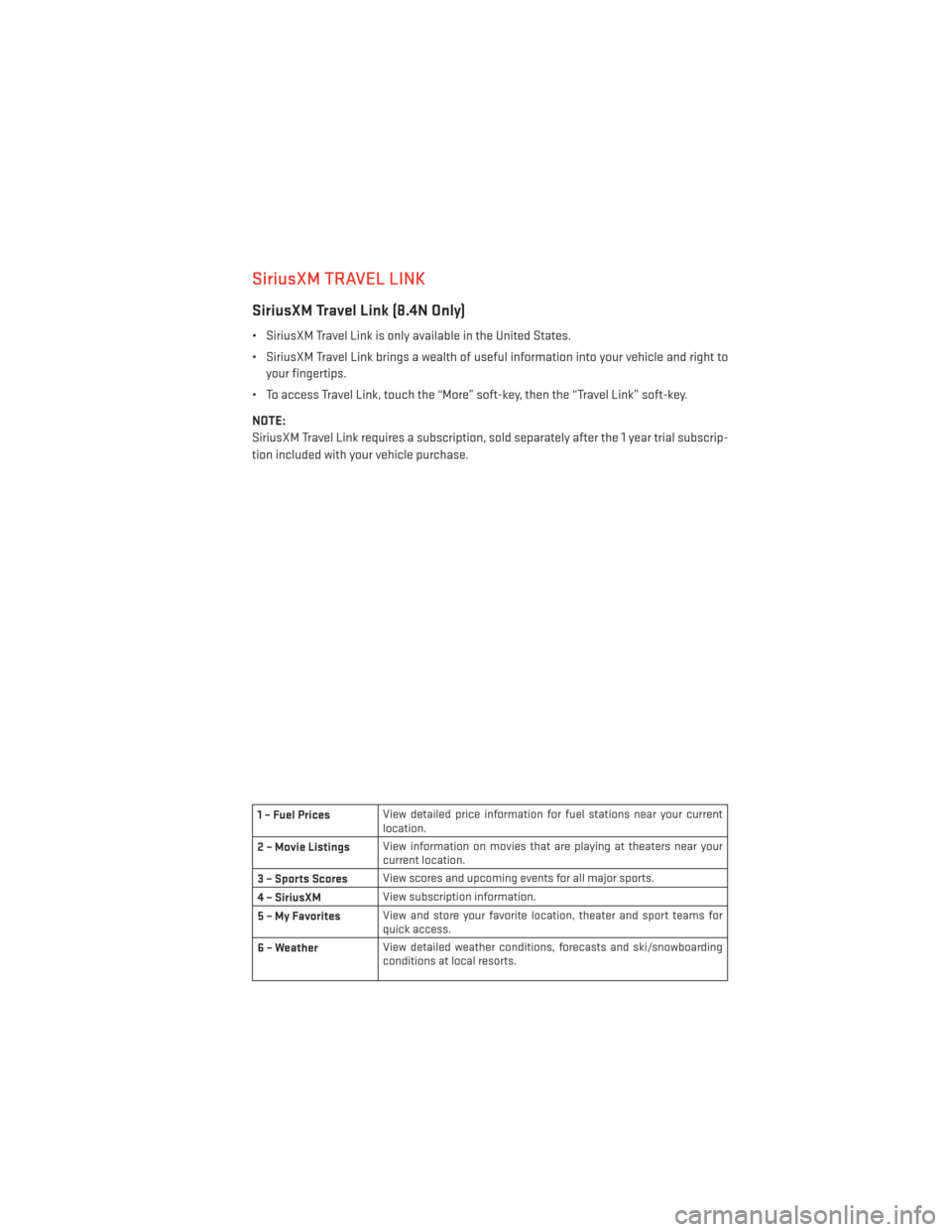
1 – Fuel Prices View detailed price information for fuel stations near your current
location.
2 – Movie Listings View information on movies that are playing at theaters near your
current location.
3 – Sports Scores View scores and upcoming events for all major sports.
4 – SiriusXM View subscription information.
5–MyFavorites View and store your favorite location, theater and sport teams for
quick access.
6 – Weather View detailed weather conditions, forecasts and ski/snowboarding
conditions at local resorts.
ELECTRONICS
53
Page 56 of 124
PLAYING iPod®/USB/MP3 DEVICES
• There are many ways to play music from iPod®/MP3 players or USB devices through yourvehicles sound system.
Audio Jack (AUX)
• The Audio Jack, located in the center console, allows a portable device, such as an MP3player or an iPod®, to be plugged into the radio and utilize the vehicles sound system,
using a 3.5 mm audio cable, to amplify the source and play through the vehicle speakers.
• Touching the “Player” soft-key then choose AUX source will change the mode to auxiliary device if the Audio Jack is connected, allowing the music from your portable device to be
heard through the vehicles speakers.
• The functions of the portable device are controlled using the device buttons. The volume may be controlled using the radio or portable device.
• To route the audio cable out of the center console, use the access cut out in the front of the console.
USB Port
• Connect your iPod® or compatible device using a USB cable into the USB Port. The USBPort is contained within the center console. USB Memory sticks with audio files can also
be used. Then, audio from the device can be played on the vehicles sound system while
providing metadata (artist, track title, album, etc.) information on the radio display.
• When connected, the iPod®/compatible USB device can be controlled using the radio or Steering Wheel Audio Controls to play, skip to the next or previous track, browse, and list
the contents.
• The iPod® battery charges when plugged into the USB port (if supported by the specific device).
• To route the USB/iPod® cable out of the center console, use the access cut out in the front of the console.
NOTE:
• When connecting your iPod® device for the first time, the system may take several minutes to read your music, depending on the number of files. For example, the system
will take approximately five minutes for every 1000 songs loaded on the device. Also
during the reading process, the Shuffle and Browse functions will be disabled. This
process is needed to ensure the full use of your iPod® features and only happens the first
time it is connected. After the first time, the reading process of your iPod® will take
considerably less time unless changes are made or new songs are added to the playlist.
• The USB port supports certain Mini, Classic, Nano, Touch, and iPhone® devices. The USB port also supports playing music from compatible external USB Mass Storage Class
memory devices. Some iPod® software versions may not fully support the USB port
features. Please visit Apple’s website for iPod® software updates.
ELECTRONICS
54
Page 57 of 124
SD Card (8.4 and 8.4N Only)
• Play songs stored on an SD card inserted into the SD card slot, located on the radiofaceplate.
• Song playback can be controlled using the radio or Steering Wheel Audio Controls to play, skip to the next or previous track, browse, and list the contents.
Bluetooth® Streaming Audio
• If equipped with Uconnect® Voice Command, your Bluetooth® - equipped iPod® devices,cell phones or other media players, may also be able to stream music to your vehicles
sound system. Your connected device must be Bluetooth® - compatible, and paired with
your Uconnect® system (see Uconnect® Phone for pairing instructions). You can access
the music from your connected Bluetooth® device by touching the “Source” soft-key
while in Player mode.
Uconnect® PHONE
Uconnect® Phone (Bluetooth® Hands Free Calling)
• If the Uconnect® Phone Buttonexists on your steering wheel, then you have the
Uconnect® Phone features.
• The Uconnect® Phone is a voice-activated, hands-free, in-vehicle communications system with Voice Command Capability (see Voice Command section).
• The Uconnect® Phone allows you to dial a phone number with your mobile phone using simple voice commands or using screen soft-keys.
• Refer to the “Understand The Features Of Your Vehicle” section of your vehicle's Owner's Manual on the DVD for further details.
NOTE:
The Uconnect® Phone requires a mobile phone equipped with the Bluetooth® Hands-Free
Profile, Version 1.0 or higher. For Uconnect® customer support: U.S. residents - visit
www.UconnectPhone.com or call 1–877–855–8400. Canadian Residents - call 1-800-465–2001
(English) or 1-800-387-9983 (French).
Pairing A Phone
• To use the Uconnect® Phone feature, you must first pair your Bluetooth® phone with the Uconnect® system.
ELECTRONICS
55
Page 58 of 124
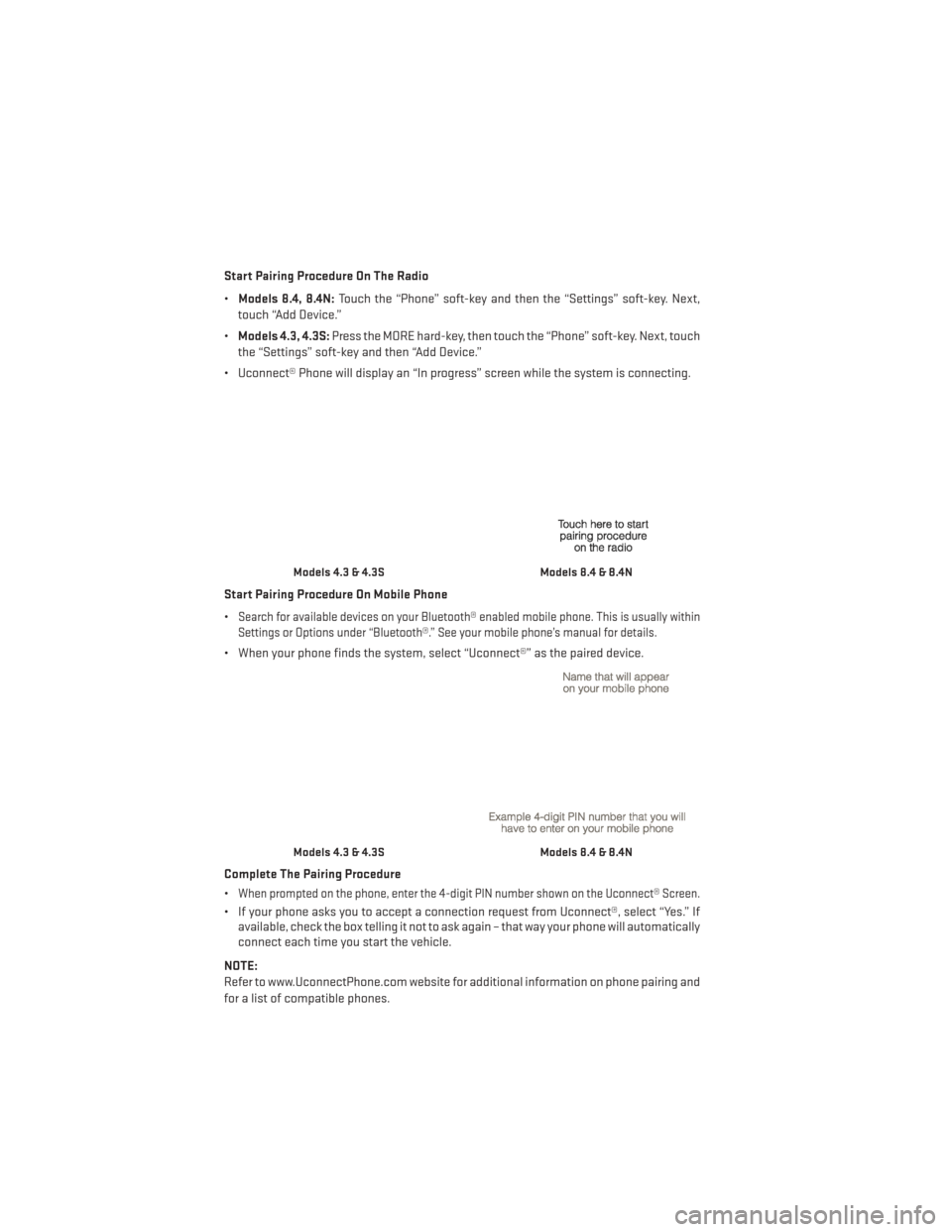
Start Pairing Procedure On The Radio
•Models 8.4, 8.4N: Touch the “Phone” soft-key and then the “Settings” soft-key. Next,
touch “Add Device.”
• Models 4.3, 4.3S: Press the MORE hard-key, then touch the “Phone” soft-key. Next, touch
the “Settings” soft-key and then “Add Device.”
• Uconnect® Phone will display an “In progress” screen while the system is connecting.
Start Pairing Procedure On Mobile Phone
•
Search for available devices on your Bluetooth® enabled mobile phone. This is usually within
Settings or Options under “Bluetooth®.” See your mobile phone’s manual for details.
• When your phone finds the system, select “Uconnect®” as the paired device.
Complete The Pairing Procedure
•
When prompted on the phone, enter the 4-digit PIN number shown on the Uconnect® Screen.
• If your phone asks you to accept a connection request from Uconnect®, select “Yes.” If available, check the box telling it not to ask again – that way your phone will automatically
connect each time you start the vehicle.
NOTE:
Refer to www.UconnectPhone.com website for additional information on phone pairing and
for a list of compatible phones.
Models 4.3 & 4.3SModels 8.4 & 8.4N
Models 4.3 & 4.3SModels 8.4 & 8.4N
ELECTRONICS
56
Page 60 of 124
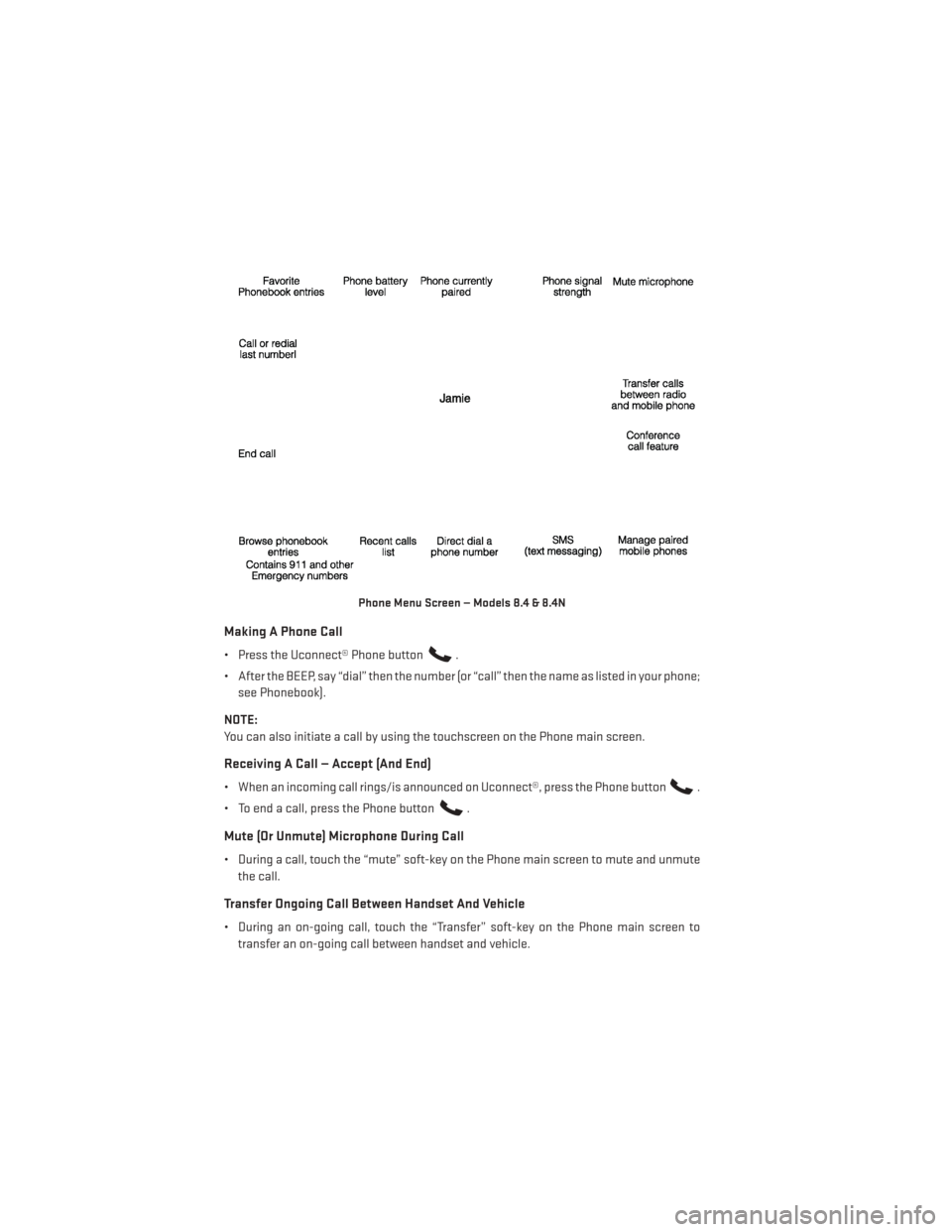
Making A Phone Call
• Press the Uconnect® Phone button.
• After the BEEP, say “dial” then the number (or “call” then the name as listed in your phone; see Phonebook).
NOTE:
You can also initiate a call by using the touchscreen on the Phone main screen.
Receiving A Call — Accept (And End)
• When an incoming call rings/is announced on Uconnect®, press the Phone button.
• To end a call, press the Phone button
.
Mute (Or Unmute) Microphone During Call
• During a call, touch the “mute” soft-key on the Phone main screen to mute and unmute the call.
Transfer Ongoing Call Between Handset And Vehicle
• During an on-going call, touch the “Transfer” soft-key on the Phone main screen totransfer an on-going call between handset and vehicle.
Phone Menu Screen — Models 8.4 & 8.4N
ELECTRONICS
58
Page 61 of 124
Common Phone Commands (Examples)
• “Call John Smith”
• “Call John Smith mobile”
• “Dial 1 248 555 1212”
• “Call Emergency”
• “Call Towing Assistance”
• “Redial”
Phonebook
• Uconnect® radios will automatically download your phonebook from your paired phone,if this feature is supported by your phone. Entries are updated each time that the phone
is connected. If your phone book entries do not appear, check the settings on your phone.
Some phones require you to enable this feature manually.
• Your phonebook can be browsed on your radio screen, but editing can only be done on your phone. To browse, touch the “Phone” soft-key, then the “Phonebook” soft-key.
• Favorite phonebook entries can be saved as Favorites for quicker access. Favorites are shown at the top of your main phone screen.
Voice Command Tips (8.4 And 8.4N Only)
• Using complete names (i.e; Call John Doe vs. Call John) will result in greater systemaccuracy.
• You can “chain” commands together for faster results. Say “Call John Doe mobile,” for example.
• If you are listening to available voice command options, you do not have to listen to the entire list. When you hear the command that you need, press the
button on the
steering wheel, wait for the beep and say your command.
Changing The Volume
• Start a dialogue by pressing the Phone button, then say a command for example -
"Help."
• Use the radio ON/OFF VOLUME rotary knob to adjust the volume to a comfortable level while the Uconnect® system is speaking. Please note the volume setting for Uconnect®
is different than the audio system.
NOTE:
To access help, press the Uconnect® Phone
button on the steering wheel and say
"help." Touch the display or push either
orbutton and say "cancel" to cancel
the help session.
ELECTRONICS
59