CD player DODGE JOURNEY 2015 1.G Owners Manual
[x] Cancel search | Manufacturer: DODGE, Model Year: 2015, Model line: JOURNEY, Model: DODGE JOURNEY 2015 1.GPages: 648
Page 129 of 648
Pair A Bluetooth® Streaming Audio Device
1. Push the PLAYER button on the faceplate to begin.
2. Press the “Source” button on the touchscreen.
3. Change the Source to Bluetooth®.
4. Press the “Add Device” button on the touchscreen.
5. Search for available devices on your Bluetooth® en-
abled Audio Device. When prompted on the device,
select the “Uconnect®” device and enter the PIN.
6. Uconnect® Phone will display an in process screen
while the system is connecting.
7. When the pairing process has successfully completed,
the system will prompt you to choose whether or not
this is your favorite device. Selecting Yes will make
this device the highest priority. This device will take
precedence over other paired devices within range.
NOTE:If No is selected, device priority is determined by
the order in which it was paired. The latest device paired
will have the higher priority.
You can also use the following VR command to bring up
a list of paired audio devices.
•“Show Paired Audio Devices.”
Connecting To A Particular Mobile Phone Or
Audio Device
Uconnect® Phone will automatically connect to the high-
est priority paired phone and/or Audio Device within
range. If you need to choose a particular Phone or Audio
Device follow these steps:
1. Push the SETTINGS button on the faceplate.
2. Press the “Phone/Bluetooth®” button on the touch-
screen.
3
UNDERSTANDING THE FEATURES OF YOUR VEHICLE 127
Page 156 of 648
NOTE:For phones which are not made a favorite, the
phone priority is determined by the order in which it was
paired. The latest phone paired will have the higher
priority.
You can also use the following VR commands to bring up
the Paired Phone screen from any screen on the radio:
•“Show Paired Phones”
•“Connect My Phone”
Pair A Bluetooth® Streaming Audio Device
1. Press the “Player” button on the touchscreen to begin.
2. Change the Source to Bluetooth®.
3. Press the “Bluetooth®” button on the touchscreen to
display the Paired Audio Devices screen.
4. Press the “Add Device” button on the touchscreen.
NOTE:If there is no device currently connected with the
system, a pop-up will appear.
5. Search for available devices on your Bluetooth® en-
abled audio device. When prompted on the device,
enter the PIN shown on the Uconnect® screen.
6. Uconnect® Phone will display an in process screen
while the system is connecting.
7. When the pairing process has successfully completed,
the system will prompt you to choose whether or not
this is your favorite device. Selecting “Yes” will make
this device the highest priority. This device will take
precedence over other paired devices within range.
NOTE:For devices which are not made a favorite, the
device priority is determined by the order in which it was
paired. The latest device paired will have the higher
priority.
154 UNDERSTANDING THE FEATURES OF YOUR VEHICLE
Page 185 of 648
NOTE:Available Voice Commands are shown in bold
face and underlined in the gray shaded boxes.
General Information
This device complies with Part 15 of the FCC rules and
RSS 210 of Industry Canada. Operation is subject to the
following conditions:
•Changes or modifications not expressly approved by
the party responsible for compliance could void the
user’s authority to operate the equipment.
•This device may not cause harmful interference.
•This device must accept any interference received,
including interference that may cause undesired op-
eration.
VOICE COMMAND
Uconnect® 8.4/8.4 Nav
The Uconnect® Voice Command system allows
you to control your AM, FM radio, satellite
radio, disc player, SD Card, USB/iPod® and
SiriusXM Travel Link.
NOTE:Take care to speak into the Voice Command
system as calmly and normally as possible. The ability of
the Voice Command system to recognize user voice
commands may be negatively affected by rapid speaking
or a raised voice level.
WARNING!
Any voice commanded system should be used only
in safe driving conditions following all applicable
(Continued)
3
UNDERSTANDING THE FEATURES OF YOUR VEHICLE 183
Page 189 of 648
Starting Voice Recognition (VR) Session In
Radio/Player Modes
In this mode, you can say the following commands:
NOTE:The commands can be said on any screen when
a call is not active after pushing the Uconnect® Voice
Commandbutton.
Source
To switch to the audio source, say “Change source to
Disc” for example. This command can be given in any
mode or screen:
•“Track” (#) (to change the track)
3
UNDERSTANDING THE FEATURES OF YOUR VEHICLE 187
Page 197 of 648
NOTE:
•Only available with Navigation equipped vehicles.
•You can replace “Player” with “Radio,” “Navigation,”
“Phone,” “Climate,” “More” or “Settings.”
•Navigation commands only work if equipped with
Navigation.
NOTE:Available Voice Commands are shown in bold
face and shaded grey.
3
UNDERSTANDING THE FEATURES OF YOUR VEHICLE 195
Page 211 of 648
NOTE:
•The head restraints should only be removed by quali-
fied technicians, for service purposes only. If either of
the head restraints require removal, see your autho-
rized dealer.
•In the event of deployment of an Active Head Re-
straint, refer to “Occupant Restraints/Supplemental
Active Head Restraints (AHR)/Resetting Active Head
Restraints (AHR)” in “Things To Know Before Start-
ing” for further information.
WARNING!
•Do not place items over the top of the Active Head
Restraint, such as coats, seat covers or portable
DVD players. These items may interfere with the
operation of the Active Head Restraint in the event
of a collision and could result in serious injury or
death.
•Active Head Restraints may be deployed if they are
struck by an object such as a hand, foot or loose
cargo. To avoid accidental deployment of the Ac-
tive Head Restraint ensure that all cargo is secured,
as loose cargo could contact the Active Head Re-
straint during sudden stops. Failure to follow this
warning could cause personal injury if the Active
Head Restraint is deployed.
3
UNDERSTANDING THE FEATURES OF YOUR VEHICLE 209
Page 351 of 648
2. Insert the DVD with the label facing up. The radio
automatically selects the appropriate mode after the
disc is recognized and displays the menu screen or
starts playing the first track.
3. Ensure the VES™ Remote Control and the Headphone
switch is on Channel 1.
Using The Remote Control
1. Push the MODE button on the Remote Control.
2. While looking at the video screen, highlight DISC by
either pushing Up/Down/Left/Right buttons or by
repeatedly pushing the MODE button, then push
ENTER on the Remote Control.
NOTE:The VES™ system will retain the last setting
when turned off.
Play Video Games
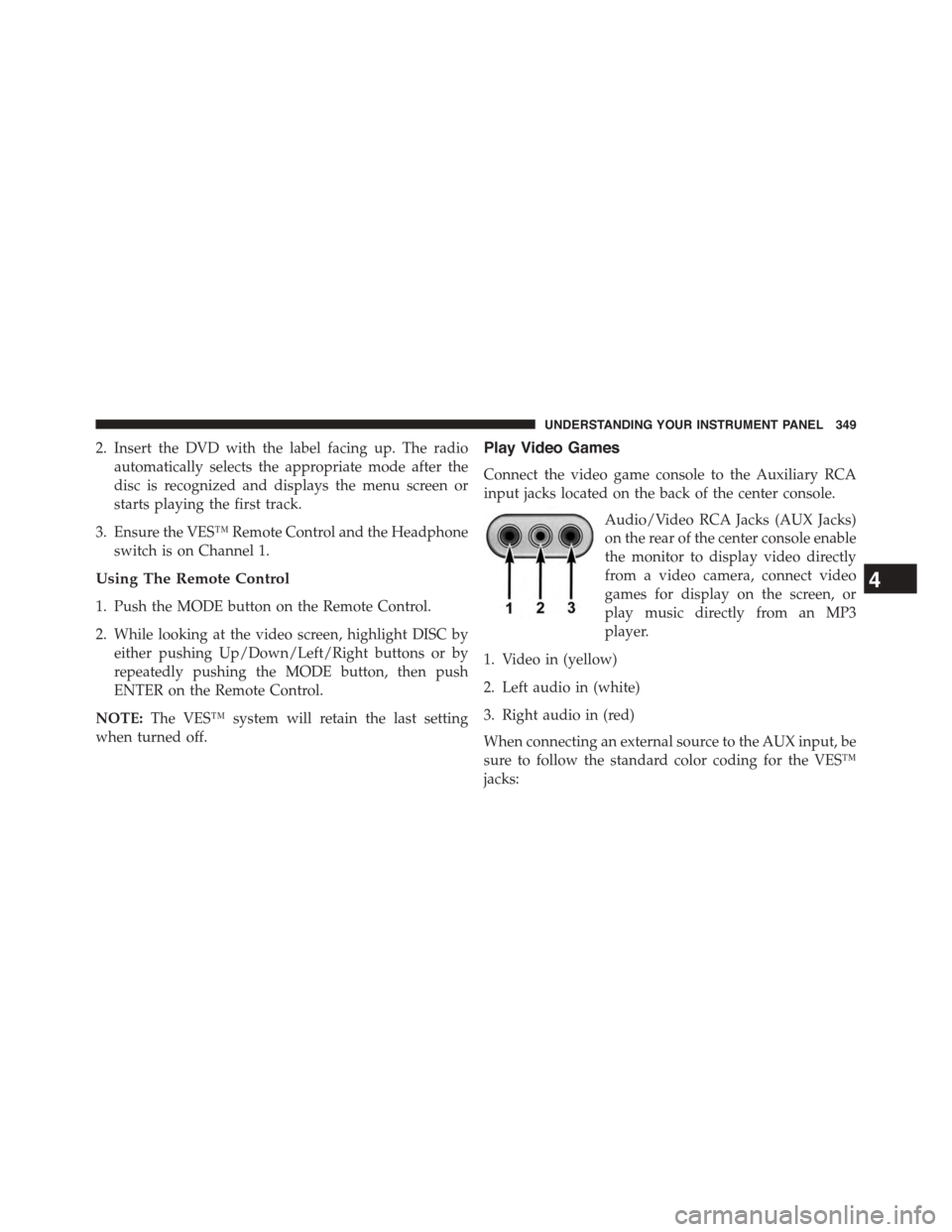
Connect the video game console to the Auxiliary RCA
input jacks located on the back of the center console.
Audio/Video RCA Jacks (AUX Jacks)
on the rear of the center console enable
the monitor to display video directly
from a video camera, connect video
games for display on the screen, or
play music directly from an MP3
player.
1. Video in (yellow)
2. Left audio in (white)
3. Right audio in (red)
When connecting an external source to the AUX input, be
sure to follow the standard color coding for the VES™
jacks:
4
UNDERSTANDING YOUR INSTRUMENT PANEL 349
Page 356 of 648
switch is in the Channel 2, position the remote controls
the functionality of headphone Channel 2 (left side of
the screen).
5.!!– In radio modes, push to seek the next tunable
station. In disc modes, push and hold to fast forward
through the current audio track or video chapter. In
menu modes use to navigate in the menu.
6."/ Prev – In radio modes, push to select to the
previous station. In disc modes, push to advance to the
start of the current or previous audio track or video
chapter. In menu modes, use to navigate in the menu.
7. MENU – Push to return to the main menu of a DVD
disc, to select a satellite audio or video channel from
the Station list, or select playback modes (SCAN/
RANDOM for a CD).
8.!/$(Play/Pause) – Begin/resume or pause disc play.
9.▪(Stop) – Stops disc play.
10. PROG Up/Down – When listening to a radio mode,
pushing PROG Up selects the next preset and push-
ing PROG Down selects the previous preset stored in
the radio.
11. MUTE – Push to mute the headphone audio output
for the selected channel.
12. SLOW – Push to slow playback of a DVD disc. Push
play (!) to resume normal play.
13. STATUS – Push to display the current status.
14. MODE – Push to change the mode of the selected
channel. See the Mode Selection section of this
manual for details on changing modes.
15. SETUP – When in a video mode, push the SETUP
button to access the display settings (see the display
settings section) to access the DVD setup menu, select
the menu button on the radio. When a disc is loaded
in the DVD player (if equipped) and the VES™ mode
354 UNDERSTANDING YOUR INSTRUMENT PANEL
Page 368 of 648
Disc Formats
The DVD player is capable of playing the following types
of discs (12 cm or 8 cm diameter):
•DVD-Video discs (MPEG-2 video compression) (see
notes about DVD Region Codes)
•Audio Compact Discs (CDs)
•CD Data discs with MP3 and WMA compressed audio
format files
•Video CDs (MPEG-1 video compression)
DVD Region Codes
The DVD player and many DVD discs are coded by
geographic region. These region codes must match in
order for the disc to play. If the region code for the DVD
disc does not match the region code for the player, the
disc will stop playing and a warning will be displayed.
DVD Audio Support
When a DVD-Audio disc is inserted in the DVD player,
the DVD-Audio title on the disc is played by default
(most DVD-Audio discs also have a Video title, but the
Video title is ignored). All multi-channel program mate-
rial is automatically mixed down to two channels, which
may result in a lowered apparent volume level. If you
increase the volume level to account for this change in
level, remember to lower the volume before changing the
disc or to another mode.
Recorded Discs
The DVD player will play CD-R and CD-RW discs
recorded in CD-Audio or Video-CD format, or as a
CD-ROM containing MP3 or WMA files. The player will
also play DVD-Video content recorded to a DVD-R,
DVD-RW and DVD-ROM discs.
366 UNDERSTANDING YOUR INSTRUMENT PANEL
Page 369 of 648
If you record a disc using a personal computer, there may
be cases where the DVD player may not be able to play
some or the entire disc, even if it is recorded in a
compatible format and is playable on other players. To
help avoid playback problems, use the following guide-
lines when recording discs.
•Open sessions are ignored. Only sessions that are
closed are playable.
•For multi-session CDs that contain only multiple CD-
Audio sessions, the player will renumber the tracks so
each track number is unique.
•For CD Data (or CD-ROM) discs, always use the
ISO-9660 (Level 1 or Level 2), Joliet, or UDF format.
CD-DA may also be used for PCM Audio contained on
CD-Based Data.
•The player recognizes a maximum of 512 files and 99
folders per CD-R and CD-RW disc.
•Mixed media recordable DVD formats will only play
the Video_TS portion of the disc.
If you are still having trouble writing a disc that is
playable in the DVD player, check with the disc recording
software publisher for more information about burning
playable discs.
The recommended method for labeling recordable discs
(CD-R, CD-RW, DVD-R and DVD-RW) is with a perma-
nent marker. Do not use adhesive labels as they may
separate from the disc, become stuck, and cause perma-
nent damage to the DVD player.
Compressed Audio Files (MP3, WMA AND ACC)
The DVD player is capable of playing MP3 (MPEG-1
Audio Layer 3 with data bitrates from 32 to 320 kbit/s,
including variable bit rates), WMA (All Standard 8.x, 9.x
4
UNDERSTANDING YOUR INSTRUMENT PANEL 367