warning DODGE JOURNEY 2020 Owners Manual
[x] Cancel search | Manufacturer: DODGE, Model Year: 2020, Model line: JOURNEY, Model: DODGE JOURNEY 2020Pages: 396, PDF Size: 25.53 MB
Page 171 of 396
STARTING AND OPERATING 169
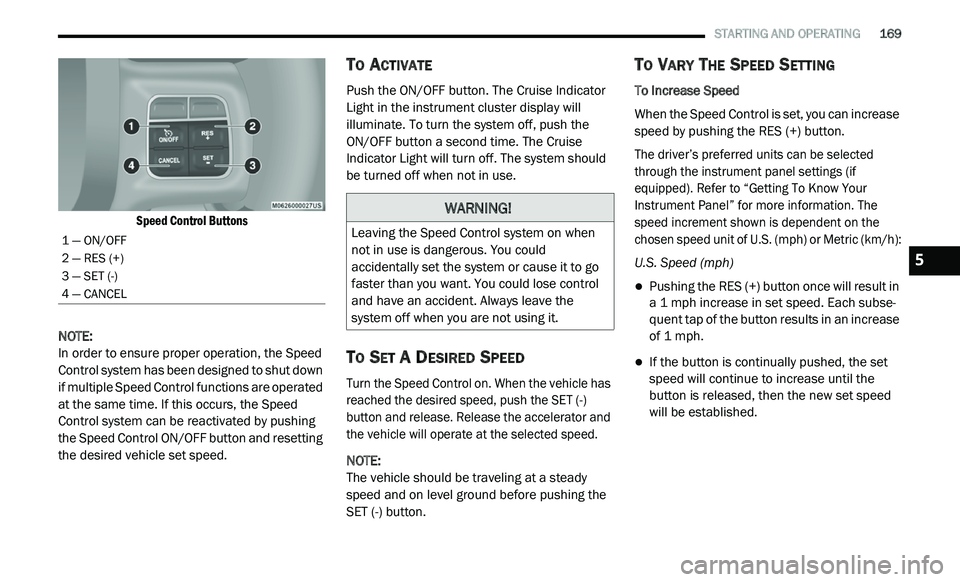
Speed Control Buttons
NOTE:
In order to ensure proper operation, the Speed
Co
ntrol system has been designed to shut down
if multiple Speed Control functions are operated
at the same time. If this occurs, the Speed
Control system can be reactivated by pushing
the Speed Control ON/OFF button and resetting
the desired vehicle set speed.
TO ACTIVATE
Push the ON/OFF button. The Cruise Indicator
Light in the instrument cluster display will
illuminate. To turn the system off, push the
ON/OFF button a second time. The Cruise
I n
dicator Light will turn off. The system should
be turned off when not in use.
TO SET A DESIRED SPEED
Turn the Speed Control on. When the vehicle has
reached the desired speed, push the SET (-)
button and release. Release the accelerator and
the vehicle will operate at the selected speed.
NOTE:
The vehicle should be traveling at a steady
s p
eed and on level ground before pushing the
SET (-) button.
TO VARY THE SPEED SETTING
To Increase Speed
When the Speed Control is set, you can increase
s p
eed by pushing the RES (+) button.
The driver’s preferred units can be selected
t h
rough the instrument panel settings (if
equipped). Refer to “Getting To Know Your
Instrument Panel” for more information. The
speed increment shown is dependent on the
chosen speed unit of U.S. (mph) or Metric (km/h):
U.S. Speed (mph)
Pushing the RES (+) button once will result in
a 1 mph increase in set speed. Each subse -
quent tap of the button results in an increase
o f
1 mph.
If the button is continually pushed, the set
speed will continue to increase until the
button is released, then the new set speed
will be established.
1 — ON/OFF
2 — RES (+)
3 — SET (-)
4 — CANCEL
WARNING!
Leaving the Speed Control system on when
not in use is dangerous. You could
accidentally set the system or cause it to go
faster than you want. You could lose control
and have an accident. Always leave the
system off when you are not using it.
5
Page 172 of 396
170 STARTING AND OPERATING
Metric Speed (km/h)
Pushing the RES (+) button once will result in
a 1 km/h increase in set speed. Each subse -
quent tap of the button results in an increase
o f
1 km/h.
If the button is continually pushed, the set
speed will continue to increase until the
button is released, then the new set speed
will be established.
To Decrease Speed
When the Speed Control is set, you can
d e
crease speed by pushing the SET (-) button.
The driver’s preferred units can be selected
t h
rough the instrument panel settings (if
equipped). Refer to “Getting To Know Your
Instrument Panel” for more information. The
speed decrement shown is dependent on the
chosen speed unit of U.S. (mph) or Metric (km/h):
U.S. Speed (mph)
Pushing the SET (-) button once will result in
a 1 mph decrease in set speed. Each subse -
quent tap of the button results in a decrease
o f
1 mph.
If the button is continually pushed, the set
speed will continue to decrease until the
button is released, then the new set speed
will be established.
Metric Speed (km/h)
Pushing the SET (-) button once will result in
a 1 km/h decrease in set speed. Each subse -
quent tap of the button results in a decrease
o f
1 km/h.
If the button is continually pushed, the set
speed will continue to decrease until the
button is released, then the new set speed
will be established.
TO ACCELERATE FOR PASSING
Press the accelerator as you would normally.
When the pedal is released, the vehicle will
return to the set speed.
Using Speed Control On Hills
The transmission may downshift on hills to
maintain the vehicle set speed. NOTE:
The Speed Control system maintains speed up
a n
d down hills. A slight speed change on
moderate hills is normal.
On steep hills, a greater speed loss or gain may
o c
cur so it may be preferable to drive without
Speed Control.
TO RESUME SPEED
To resume a previously set speed, push the RES
(+) button and release. Resume can be used at
any speed above 20 mph (32 km/h).
WARNING!
Speed Control can be dangerous where the
system cannot maintain a constant speed.
Your vehicle could go too fast for the
conditions, and you could lose control and
have an accident. Do not use Speed Control
in heavy traffic or on roads that are winding,
icy, snow-covered or slippery.
Page 174 of 396
172 STARTING AND OPERATING
PARKSENSE DISPLAY
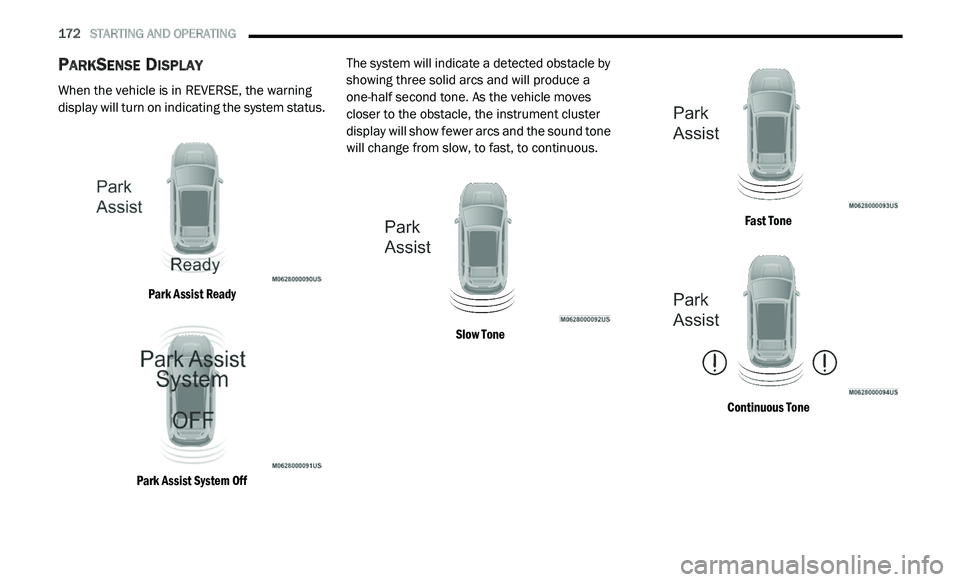
When the vehicle is in REVERSE, the warning
display will turn on indicating the system status.
Park Assist Ready
Park Assist System Off
The system will indicate a detected obstacle by
sh
owing three solid arcs and will produce a
one-half second tone. As the vehicle moves
closer to the obstacle, the instrument cluster
display will show fewer arcs and the sound tone
will change from slow, to fast, to continuous.
Slow Tone Fast Tone
Continuous Tone
Page 175 of 396
STARTING AND OPERATING 173
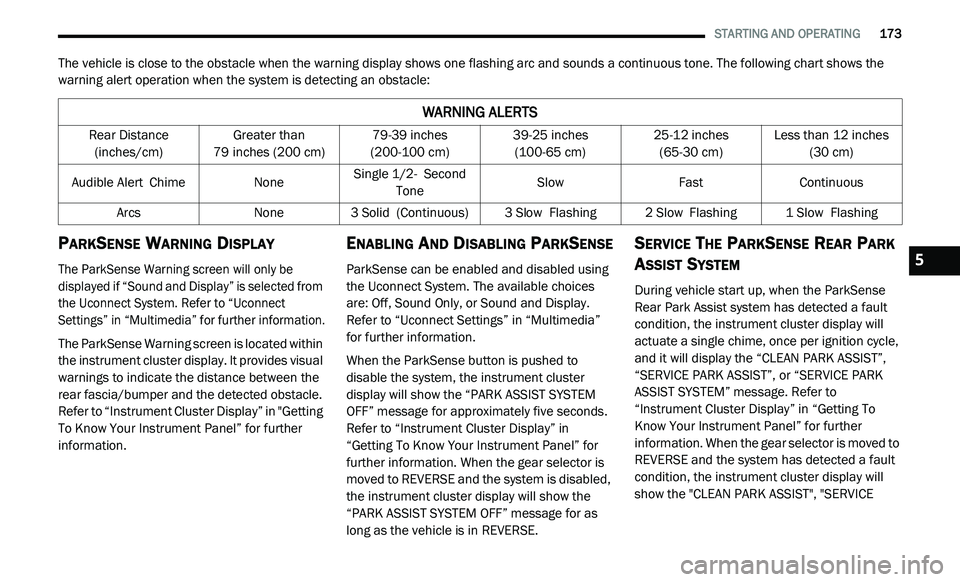
The vehicle is close to the obstacle when the warning display shows one flashing arc and sounds a continuous tone. The following chart shows the
warning alert operation when the system is detecting an obstacle:
PARKSENSE WARNING DISPLAY
The ParkSense Warning screen will only be
displayed if “Sound and Display” is selected from
the Uconnect System. Refer to “Uconnect
Settings” in “Multimedia” for further information.
The ParkSense Warning screen is located within
th
e instrument cluster display. It provides visual
warnings to indicate the distance between the
rear fascia/bumper and the detected obstacle.
Refer to “Instrument Cluster Display” in "Getting
To Know Your Instrument Panel” for further
information.
ENABLING AND DISABLING PARKSENSE
ParkSense can be enabled and disabled using
the Uconnect System. The available choices
are: Off, Sound Only, or Sound and Display.
Refer to “Uconnect Settings” in “Multimedia”
for further information.
When the ParkSense button is pushed to
di
sable the system, the instrument cluster
display will show the “PARK ASSIST SYSTEM
OFF” message for approximately five seconds.
Refer to “Instrument Cluster Display” in
“Getting To Know Your Instrument Panel” for
further information. When the gear selector is
moved to REVERSE and the system is disabled,
the instrument cluster display will show the
“PARK ASSIST SYSTEM OFF” message for as
long as the vehicle is in REVERSE.
SERVICE THE PARKSENSE REAR PARK
A
SSIST SYSTEM
During vehicle start up, when the ParkSense
Rear Park Assist system has detected a fault
condition, the instrument cluster display will
actuate a single chime, once per ignition cycle,
and it will display the “CLEAN PARK ASSIST”,
“SERVICE PARK ASSIST”, or “SERVICE PARK
ASSIST SYSTEM” message. Refer to
“Instrument Cluster Display” in “Getting To
Know Your Instrument Panel” for further
information. When the gear selector is moved to
REVERSE and the system has detected a fault
condition, the instrument cluster display will
show the "CLEAN PARK ASSIST", "SERVICE
WARNING ALERTS
Rear Distance
(inches/cm) Greater than
79
inches (200 cm) 79-39
inches
(2
00-100 cm) 39-25
inches
(1
00-65 cm) 25-12
inches
(6
5-30 cm) Less than 12
inches
(3
0 cm)
Audible Alert C
hime None Single 1/2-
S econd
Tone Slow
FastContinuous
Arcs None3 Solid (Continuous) 3
Slow Flashing2 Slow Flashing1 Slow Flashing
5
Page 176 of 396
174 STARTING AND OPERATING
(Continued)
PARK ASSIST", OR "SERVICE PARK ASSIST
SYSTEM" messages for as long as the vehicle is
in REVERSE. Under this condition, ParkSense
will not operate.
If “CLEAN PARK ASSIST” appears in the
in
strument cluster display, make sure the outer
surface and the underside of the rear fascia/
bumper are clean and clear of snow, ice, mud,
dirt or other obstruction. Then, cycle the
ignition. If the message continues to appear,
see an authorized dealer.
If “SERVICE PARK ASSIST” or “SERVICE PARK
A S
SIST SYSTEM” appears in the instrument
cluster display, see an authorized dealer.
CLEANING THE PARKSENSE SYSTEM
Clean the ParkSense sensors with water, car
wash soap and a soft cloth. Do not use rough or
hard cloths. Do not scratch or poke the sensors.
Otherwise, you could damage the sensors.
PARKSENSE SYSTEM USAGE
P
RECAUTIONS
NOTE:
Ensure that the rear bumper is free of snow, ice,
mud, dirt and debris to keep the ParkSense
system operating properly.
Jackhammers, large trucks, and other vibrations
could affect the performance of ParkSense.
When you turn ParkSense off, the instrument
cluster display will read “PARK ASSIST
SYSTEM OFF.” Furthermore, once you turn
ParkSense off, it remains off until you turn it
on again, even if you cycle the ignition key.
When you move the gear selector to the
REVERSE position and ParkSense is turned
off, the instrument cluster display will show
the “PARK ASSIST SYSTEM OFF” message for
as long as the vehicle is in REVERSE.
Clean the ParkSense sensors regularly,
taking care not to scratch or damage them.
The sensors must not be covered with ice,
snow, slush, mud, dirt or debris. Failure to do
so can result in the system not working prop -erly. The ParkSense system might not detect
a
n
obstacle behind the fascia/bumper, or it
could provide a false indication that an
obstacle is behind the fascia/bumper.
Ensure the ParkSense system is off if objects
such as bicycle carriers, trailer hitches, etc.,
are placed within 12 inches (30 cm) from the
r e
ar fascia/bumper. Failure to do so can
result in the system misinterpreting a close
object as a sensor problem, causing the
“SERVICE PARK ASSIST SYSTEM” message
to appear in the instrument cluster display.
WARNING!
Drivers must be careful when backing up
even when using ParkSense. Always check
carefully behind your vehicle, look behind
you, and be sure to check for pedestrians,
animals, other vehicles, obstructions, and
blind spots before backing up. You are
responsible for safety and must continue to
pay attention to your surroundings. Failure to
do so can result in serious injury or death.
Page 177 of 396
STARTING AND OPERATING 175
(Continued)
PARKVIEW REAR BACK UP CAMERA
Your vehicle is equipped with the ParkView Rear
Back Up Camera that allows you to see an
on-screen image of the rear surroundings of
your vehicle whenever the gear selector is put
into REVERSE. The image will be displayed in
the touchscreen display along with a caution
note to “Check Entire Surroundings” across the
top of the screen. After five seconds this note
will disappear. The ParkView camera is located
on the rear of the vehicle above the rear license
plate.
When the vehicle is shifted out of REVERSE, the
r e
ar camera mode is exited and the last
selected touchscreen appears again.
The camera image is also available in the
r e
arview mirror if the touchscreen display is
unavailable. If your vehicle is equipped with the Camera
D
e
lay feature and it is turned on, the rear
camera image will be displayed for up to
10 seconds when the vehicle is shifted out of
R E
VERSE unless the forward vehicle speed
exceeds 8 mph (13 km/h), the transmission is
s h
ifted into PARK, the “X” button on the camera
display screen is pressed, or the vehicle's
ignition is placed in the OFF position.
Static grid lines will illustrate the width of the
v e
hicle. These lines will show separate zones
that will help indicate the distance to the rear of
the vehicle.
NOTE:
The ParkView Rear Back Up Camera has
p r
ogrammable modes of operation that may be
selected through the Uconnect system. Refer to
“Uconnect Settings” in “Multimedia” for further
information.
Different colored zones indicate the distance to
t h
e rear of the vehicle.
Before using ParkSense, it is strongly
recommended that the ball mount and
hitch ball assembly is disconnected from
the vehicle when the vehicle is not used for
towing. Failure to do so can result in injury
or damage to vehicles or obstacles
because the hitch ball will be much closer
to the obstacle than the rear fascia when
the loudspeaker sounds the continuous
tone. Also, the sensors could detect the ball
mount and hitch ball assembly, depending
on its size and shape, giving a false indica -
tion that an obstacle is behind the vehicle.
CAUTION!
ParkSense is only a parking aid and it is
unable to recognize every obstacle,
including small obstacles. Parking curbs
might be temporarily detected or not
detected at all. Obstacles located above or
below the sensors will not be detected
when they are in close proximity.
WARNING! (Continued)
The vehicle must be driven slowly when
using ParkSense in order to be able to stop
in time when an obstacle is detected. It is
recommended that the driver looks over
his/her shoulder when using ParkSense.
CAUTION! (Continued)
5
Page 178 of 396
176 STARTING AND OPERATING
The following table shows the approximate
distances for each zone:
NOTE:
If snow, ice, mud, or any foreign substance
bu
ilds up on the camera lens, clean the lens,
rinse with water, and dry with a soft cloth. Do
not cover the lens.
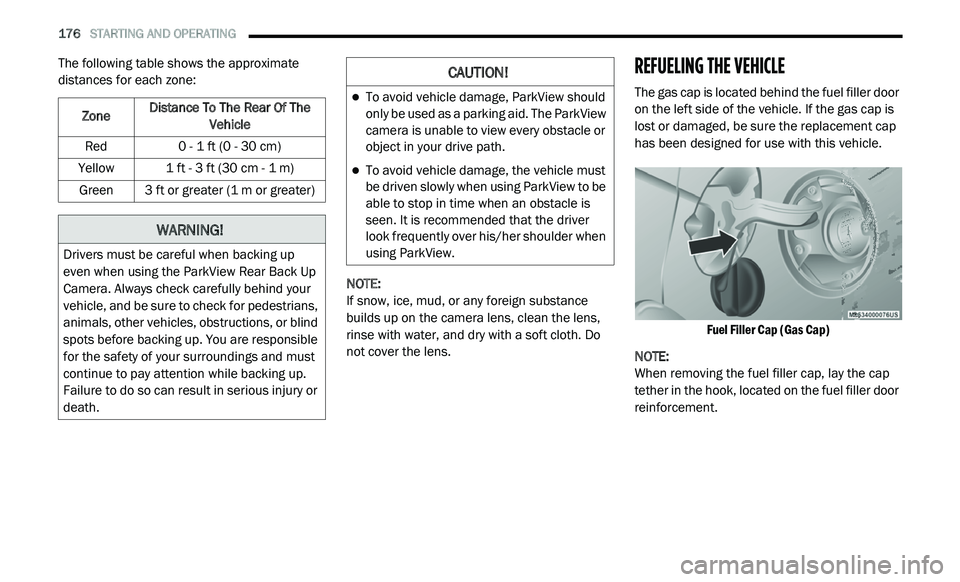
REFUELING THE VEHICLE
The gas cap is located behind the fuel filler door
on the left side of the vehicle. If the gas cap is
lost or damaged, be sure the replacement cap
has been designed for use with this vehicle.
Fuel Filler Cap (Gas Cap)
NOTE:
When removing the fuel filler cap, lay the cap
t e
ther in the hook, located on the fuel filler door
reinforcement.
Zone
Distance To The Rear Of The
Ve
hicle
Red 0 - 1 ft (0 - 30 cm)
Yellow 1 ft - 3 ft (30 cm - 1 m)
Green 3 ft or greater (1 m or greater)
WARNING!
Drivers must be careful when backing up
even when using the ParkView Rear Back Up
Camera. Always check carefully behind your
vehicle, and be sure to check for pedestrians,
animals, other vehicles, obstructions, or blind
spots before backing up. You are responsible
for the safety of your surroundings and must
continue to pay attention while backing up.
Failure to do so can result in serious injury or
death.
CAUTION!
To avoid vehicle damage, ParkView should
only be used as a parking aid. The ParkView
camera is unable to view every obstacle or
object in your drive path.
To avoid vehicle damage, the vehicle must
be driven slowly when using ParkView to be
able to stop in time when an obstacle is
seen. It is recommended that the driver
look frequently over his/her shoulder when
using ParkView.
Page 179 of 396
STARTING AND OPERATING 177
(Continued)
NOTE:
Tighten the gas cap until you hear a “clicking”
s o
und. This is an indication that the gas cap is
tightened properly. The MIL in the instrument
cluster may turn on if the gas cap is not secured
properly. Make sure that the gas cap is tight -
ened each time the vehicle is refueled.
LOOSE FUEL FILLER CAP MESSAGE
If the vehicle diagnostic system determines that
the fuel filler cap is loose, improperly installed,
or damaged, a ”gASCAP” message will display in
the odometer or a “Check Gascap” message will
display in the instrument cluster. If this occurs,
tighten the fuel filler cap properly and press the
Trip Odometer button to turn off the message. If
the problem continues, the message will appear
the next time the vehicle is started.
A loose, improperly installed, or damaged fuel
f i
ller cap may also turn on the MIL.
VEHICLE LOADING
The load carrying capacity of your vehicle is
shown on the “Vehicle Certification Label”. This
information should be used for passenger and
luggage loading as indicated.
Do not exceed the specified Gross Vehicle
W e
ight Rating (GVWR) or the Gross Axle Weight
Rating (GAWR).
VEHICLE CERTIFICATION LABEL
Your vehicle has a Vehicle Certification Label
affixed to the drivers side B-pillar or the rear of
the driver’s door.
The label contains the following information:
Name of manufacturer
Month and year of manufacture
Gross Vehicle Weight Rating (GVWR)
Gross Axle Weight Rating (GAWR) front
Gross Axle Weight Rating (GAWR) rear
Vehicle Identification Number (VIN)
Type of vehicle
Month, Day, and Hour of manufacture (MDH)
WARNING!
Never have any smoking materials lit in or
near the vehicle when the gas cap is
removed or the tank is being filled.
Never add fuel to the vehicle when the
engine is running.
A fire may result if gasoline is pumped into
a portable container that is inside of a
vehicle. You could be burned. Always place
gas containers on the ground while filling.
Failure to follow this warning may result in
serious injury or death.
CAUTION!
Damage to the fuel system or emissions
control system could result from using an
improper fuel tank filler tube cap.
A poorly fitting fuel filler cap could let impu -
rities into the fuel system.
A poorly fitting fuel filler cap may cause the
“Malfunction Indicator Light (MIL)” to turn on.
To avoid fuel spillage and overfilling, do not
“top off” the fuel tank after filling. When the
fuel nozzle “clicks” or shuts off, the fuel
tank is full.
CAUTION! (Continued)
5
Page 180 of 396
178 STARTING AND OPERATING
The bar code allows a computer scanner to read
the VIN.
GROSS VEHICLE WEIGHT RATING
(GVWR)
The GVWR is the total allowable weight of your
vehicle. This includes driver, passengers, and
cargo. The total load must be limited so that you
do not exceed the GVWR.
GROSS AXLE WEIGHT RATING (GAWR)
The GAWR is the maximum capacity of the front
and rear axles. Distribute the load over the front
and rear axles evenly. Make sure that you do
not exceed either front or rear GAWR.
OVERLOADING
The load carrying components (axle, springs,
tires, wheels, etc.) of your vehicle will provide
satisfactory service as long as you do not
exceed the GVWR and the front and rear GAWR.
The best way to figure out the total weight of your
v e
hicle is to weigh it when it is fully loaded and
ready for operation. Weigh it on a commercial
scale to ensure that it is not over the GVWR.
Figure out the weight on the front and rear of
t h
e vehicle separately. It is important that you
distribute the load evenly over the front and rear
axles.
Overloading can cause potential safety hazards
a n
d shorten useful service life. Heavier axles or
suspension components do not necessarily
increase the vehicle's GVWR.
LOADING
To load your vehicle properly, first figure out
its empty weight, axle-by-axle and side-by-side.
S t
ore heavier items down low and be sure you
distribute their weight as evenly as possible. Stow
all loose items securely before driving. If weighing
the loaded vehicle shows that you have exceeded
either GAWR, but the total load is within the
specified GVWR, you must redistribute the weight. Improper weight distribution can have an
adverse effect on the way your vehicle steers and
handles and the way the brakes operate.
TRAILER TOWING
In this section you will find safety tips and
information on limits to the type of towing you can
reasonably do with your vehicle. Before towing a
trailer, carefully review this information to tow
your load as efficiently and safely as possible.
To maintain the New Vehicle Limited Warranty
c
o
verage, follow the requirements and
recommendations in this manual concerning
vehicles used for trailer towing.
COMMON TOWING DEFINITIONS
The following trailer towing related definitions
will assist you in understanding the following
information:
Gross Vehicle Weight Rating (GVWR)
The GVWR is the total allowable weight of your
vehicle. This includes driver, passengers, cargo
and tongue weight. The total load must be
limited so that you do not exceed the GVWR.
Refer to “Vehicle Loading/Vehicle Certification
Label” in “Starting And Operating” for further
information.
WARNING!
Because the front wheels steer the vehicle, it
is important that you do not exceed the
maximum front or rear GAWR. A dangerous
driving condition can result if either rating is
exceeded. You could lose control of the
vehicle and have a collision.
Page 181 of 396
STARTING AND OPERATING 179
Gross Trailer Weight (GTW)
The GTW is the weight of the trailer plus the
weight of all cargo, consumables, and
equipment (permanent or temporary) loaded in
or on the trailer in its "loaded and ready for
operation" condition.
The recommended way to measure GTW is to
pu
t your fully loaded trailer on a vehicle scale.
The entire weight of the trailer must be
supported by the scale.
Gross Combination Weight Rating (GCWR)
The GCWR is the total allowable weight of your
vehicle and trailer when weighed in
combination.
Gross Axle Weight Rating (GAWR)
The GAWR is the maximum capacity of the front
and rear axles. Distribute the load over the front
and rear axles evenly. Make sure that you do
not exceed either front or rear GAWR. Refer to
“Vehicle Loading/Vehicle Certification Label” in
“Starting And Operating” for further
information.
Tongue Weight (TW)
The Tongue Weight is the downward force
exerted on the hitch ball by the trailer. You must
consider this as part of the load on your vehicle.
Trailer Frontal Area
The frontal area is the maximum height multiplied
by the maximum width of the front of a trailer.
Trailer Sway Control — Electronic
Refer to “Safety Features/Trailer Sway Control
(TSC)” in “Safety” for further information.
Trailer Sway Control — Mechanical
The Trailer Sway Control (TSC) is a telescoping
link that can be installed between the hitch
receiver and the trailer tongue that typically
provides adjustable friction associated with the
telescoping motion to dampen any unwanted
trailer swaying motions while traveling.
Weight-Carrying Hitch
A weight-carrying hitch supports the trailer
Tongue Weight, just as if it were luggage located
at a hitch ball or some other connecting point of
the vehicle. These kinds of hitches are the most
popular on the market today and they are
commonly used to tow small and medium sized
trailers.
Weight-Distributing Hitch
A weight-distributing system works by applying
leverage through spring (load) bars. They are
typically used for heavier loads to distribute
trailer Tongue Weight to the tow vehicle's front
axle and the trailer axle(s). When used in
accordance with the manufacturer's directions, it
provides for a more level ride, offering more
consistent steering and brake control thereby
enhancing towing safety. The addition of a
friction/hydraulic sway control also dampens
sway caused by traffic and crosswinds and
contributes positively to tow vehicle and trailer
stability. Trailer sway control and a weight
distributing (load equalizing) hitch are
recommended for heavier Tongue Weights (TW)
and may be required depending on vehicle and
trailer configuration/loading to comply with Gross
Axle Weight Rating (GAWR) requirements.
WARNING!
It is important that you do not exceed the
maximum front or rear GAWR. A dangerous
driving condition can result if either rating is
exceeded. You could lose control of the
vehicle and have a collision.
5