audio DODGE JOURNEY 2020 Owner's Manual
[x] Cancel search | Manufacturer: DODGE, Model Year: 2020, Model line: JOURNEY, Model: DODGE JOURNEY 2020Pages: 396, PDF Size: 25.53 MB
Page 302 of 396
300 MULTIMEDIA
Call By Saying A Phonebook Name
1. Push the VR button on your steering wheel
t
o begin.
2. A fter the “Listening” prompt and the
f
ollowing beep, say “Call John Doe Mobile.”
3. T he Uconnect Phone will dial the number
a
ssociated with John Doe, or if there are
multiple numbers it will ask which number
you want to call for John Doe.
Call Controls
The touchscreen allows you to control the
f o
llowing call features:
Answer
End
Ignore
Hold/Unhold
Mute/Unmute
Transfer the call to/from the phone
Swap two active calls
Join two active calls together Touch-Tone Number Entry
1. P
ress the Phone button on the
t
ouchscreen.
2. P ress the Dial button on the touchscreen.
3
. T he Touch-Tone screen will be displayed.
4
. U se the numbered buttons on the touchscreen
t
o enter the number and press Call.
To send a touch tone using Voice Recognition
( V
R), push the Voice Command button while
in a call and say “1234#” or you can say “Send
V o
icemail Password” if Voicemail password is
stored in your mobile phonebook.
Recent Calls
You may browse up to 34 of the most recent of
e a
ch of the following call types:
Incoming Calls
Outgoing Calls
Missed Calls
All Calls These can be accessed by touching the recent
c
a
lls button on the touchscreen on the Phone
main screen.
You can also push the Phone button and say
“Show my incoming calls” from any screen and
t h
e Incoming calls will be displayed.
NOTE:
Incoming can also be replaced with “Outgoing”,
“ R
ecent” or “Missed”.
Answer Or Reject An Incoming Call — No Call
C u
rrently In Progress
When you receive a call on your mobile phone,
t h
e Uconnect Phone will interrupt the vehicle
audio system, if on, and will display a pop-up
showing Answer or Ignore. Press the Answer
button on the touchscreen or push the Phone
button on the steering wheel to accept the call.
Answer Or Ignore An Incoming Call — Call
C u
rrently In Progress
If a call is currently in progress and you have
a n
other incoming call, you will hear the same
network tones for call waiting that you normally
hear when using your mobile phone. Push the
Phone button on the steering wheel, or press
Page 305 of 396
MULTIMEDIA 303
the Voice Command button and say, “Send
3 7 4 6 #.” Saying “Send” followed by a number,
o r
sequence of numbers, is also to be used for
navigating through an automated customer
service center menu structure, and to leave a
number on a pager.
You can also send stored mobile phonebook
en
tries as tones for fast and easy access to
voice mail and pager entries. For example, if you
previously created a Phonebook entry and/or
Last Name as “Voice Password,” then if you
push the Voice Command button and say
“Send Voicemail Password,” the Uconnect
P h
one will then send the corresponding phone
number associated with the phonebook entry,
as tones over the phone.
NOTE:
The first number encountered for that
contact will be sent. All other numbers
entered for that contact will be ignored.
You may not hear all of the tones due to
mobile phone network configurations.
This is normal.
Some paging and voice mail systems have
system time out settings that are too short
and may not allow the use of this feature.
Pauses, wait or other characters that are
supported by some phones are not
supported over Bluetooth®. These additional
symbols will be ignored when dialing a
numbered sequence.
Barge In — Overriding Prompts
The Voice Command button can be used
when you wish to skip part of a prompt and
i s
sue your voice command immediately.
For example, if a prompt is asking “There are
t w
o numbers with the name John. Say the full
name” you could push the Voice Command
button and say, “John Smith” to select that
o p
tion without having to listen to the rest of the
voice prompt.
Voice Response Length
It is possible for you to choose between Brief
a n
d Detailed Voice Response Length.
1. P ush the MORE button on the faceplate,
t
hen press the Settings button on the
touchscreen.
2. P ress the Display button on the
t
ouchscreen, then scroll down to Voice
Response Length. 3. S
elect either “Brief” or “Detailed” by
p
ressing the box next to the selection.
A check-mark will appear to indicate your
s e
lection.
Phone And Network Status Indicators
Uconnect Phone will provide notification to
in
form you of your phone and network status
when you are attempting to make a phone call
using Uconnect Phone. The status is given for
network signal strength and phone battery
strength.
Dialing Using The Mobile Phone Keypad
You can dial a phone number with your mobile
p h
one keypad and still use the Uconnect Phone
(while dialing via the mobile phone keypad, the
user must exercise caution and take
precautionary safety measures). By dialing a
number with your connected Bluetooth® mobile
phone, the audio will be played through your
vehicle's audio system. The Uconnect Phone will
work the same as if you dial the number using a
voice command.
NOTE:
Certain brands of mobile phones do not send
t h
e dial ring to the Uconnect Phone to play it on
the vehicle audio system, so you will not hear it.
9
Page 306 of 396
304 MULTIMEDIA
Under this situation, after successfully dialing a
number the user may feel that the call did not
go through even though the call is in progress.
Once your call is answered, you will hear the
audio.
Mute/Un-Mute (Mute OFF)
When you mute the Uconnect Phone, you will
st
ill be able to hear the conversation coming
from the other party, but the other party will not
be able to hear you. To mute the Uconnect
Phone simply press the Mute button on the
Phone main screen.
Advanced Phone Connectivity
Transfer Call To And From Mobile Phone
The Uconnect Phone allows ongoing calls to be
t r
ansferred from your mobile phone to the
Uconnect Phone without terminating the call.
To transfer an ongoing call from your connected
m o
bile phone to the Uconnect Phone or vice
versa, press the Transfer button on the Phone
main screen. Connect Or Disconnect Link Between the
U
c
onnect Phone And Mobile Phone
If you would like to connect or disconnect the
B l
uetooth® connection between a Uconnect
Phone paired mobile phone and the Uconnect
Phone, follow the instructions described in your
mobile phone User's Manual.
Things You Should Know About Your
Uconnect Phone
Voice Command
For best performance:
Adjust the rearview mirror to provide at least
½-inch (1 cm) gap between the overhead
console (if equipped) and the mirror.
Always wait for the beep before speaking.
Speak normally without pausing, just as you
would speak to a person sitting a few feet/
meters away from you.
Make sure that no one other than you is
speaking during a Voice Command period. Performance is maximized under:
Low-to-medium blower setting
Low-to-medium vehicle speed
Low road noise
Smooth road surface
Fully closed windows
Dry weather conditions
NOTE:
Even though the system is designed for users
speaking in North American English, French,
and Spanish accents, the system may not
always work for some.
When navigating through an automated
system such as voice mail, or when sending
a page, at the end of speaking the digit string,
make sure to say “Send.”
Storing names in the phonebook when the
vehicle is not in motion is recommended.
It is not recommended to store similar
sounding names in the Uconnect Phonebook.
Page 307 of 396
MULTIMEDIA 305
Phonebook (Downloaded and Uconnect
Phone Local) name recognition rate is opti -
mized when the entries are not similar.
Numbers must be spoken in single digits.
“800” must be spoken “eight-zero-zero” not
“eight hundred.”
You can say “O” (letter “O”) for “0” (zero).
Even though international dialing for most
number combinations is supported, some
shortcut dialing number combinations may
not be supported.
Far End Audio Performance
Audio quality is maximized under:
Low-to-medium blower setting
Low-to-medium vehicle speed
Low road noise
Smooth road surface
Fully closed windows
Dry weather conditions
Operation from the driver's seat
Performance, such as audio clarity, echo,
and loudness to a large degree, relies on the
phone and network, and not the Uconnect
Phone
Echo at the phone far end can sometimes be
reduced by lowering the in-vehicle audio
volume
Bluetooth® Communication Link
Mobile phones have been found to lose
c o
nnection to the Uconnect Phone. When this
happens, the connection can generally be
reestablished by switching the phone off/on.
Your mobile phone is recommended to remain
in Bluetooth® ON mode.
Power-Up
After switching the ignition key from OFF to
e i
ther the ON/RUN or ACC position, or after a
language change, you must wait at least
15 seconds prior to using the system.
MORE MODE
More Button
Push the MORE button to display the More Main
Menu. The More Main Menu contains the
following options:
Economy — If Equipped
Phone
Outlet — If Equipped
Time
Compass
Clock Setting
1. P ush the MORE button on the right side of
t
he display, then press the Time button.
Next, press the Set button.
Or,
Push the SETTINGS button on the right side
of
the display, then press the Clock button.
The Time setting screen is displayed and
t h
e clock can be adjusted as described in
the following procedure.
9
Page 309 of 396
MULTIMEDIA 307
4 — PLAYER
Press the Player button on the touchscreen to
ac
cess media sources such as: Disc, USB
Device, and AUX as long as the requested
media is present.
5 — CONTROLS
Press the Controls button on the touchscreen to
a c
cess the Settings list. Controls such as
Heated Seats, Heated Steering Wheel, Vented
Seats, etc. can be selected or turned on/off by
pressing the corresponding button.
6 — CLIMATE (Touchcreen Controls)
Refer to “Climate Controls” in “Getting To Know
Y o
ur Vehicle” for more information.
7 — NAV (Uconnect 3 NAV Only)
Press the Nav button on the touchscreen to
ac
cess the Navigation feature.
8 — PHONE — If Equipped
Press the Phone button on the touchscreen to
ac
cess the Uconnect Phone feature. Refer to
“Uconnect Phone” in this section for more
information. 9 — MORE
Press the More button on the touchscreen to
a
c
cess additional options. Options available
such as Settings and SiriusXM® Travel Link
(if equipped) can be accessed by pressing the
c o
rresponding button in the More Menu.
10 — ENTER/BROWSE & TUNE/SCROLL
Push the ENTER/BROWSE button to accept a
hi
ghlighted selection on the screen. Rotate the
TUNE/SCROLL rotary knob to scroll through a
list or tune a radio station.
11 — SD CARD SLOT
Insert an SD Card containing audio media files
t o
play them through the vehicle’s sound
system.
12 — DISC SLOT
When inserting a disc, ensure the label is facing
u p
. Push the Eject button to eject the disc.
RADIO MODE
Overview
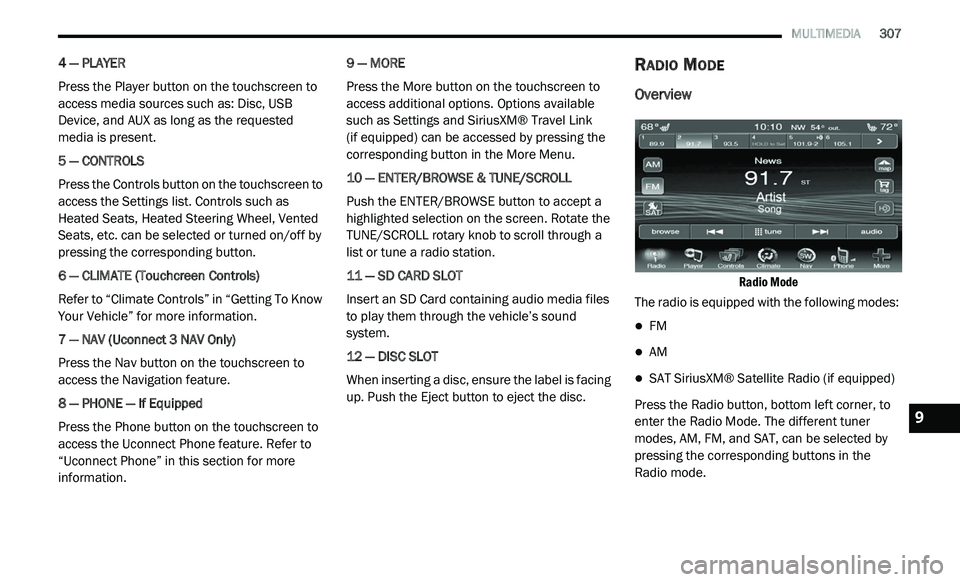
Radio Mode
The radio is equipped with the following modes:
FM
AM
SAT SiriusXM® Satellite Radio (if equipped)
Press the Radio button, bottom left corner, to
e n
ter the Radio Mode. The different tuner
modes, AM, FM, and SAT, can be selected by
pressing the corresponding buttons in the
Radio mode.9
Page 310 of 396
308 MULTIMEDIA
Common Radio Functions
The following operations offer the same
functionality across all Radio Modes, and
further instructions are provided where
differences exist.
ON/OFF & Volume Control
Push the ON/OFF Volume Control
knob to turn on the radio. Push the
ON
/OFF Volume Control knob a
second time to turn off the radio.
The electronic Volume control turns
c o
ntinuously (360 degrees) in either direction,
without stopping. Turning the ON/OFF Volume
Control knob clockwise increases the Volume
and counterclockwise decreases it.
When the audio system is turned on, the sound
wi
ll be set at the same Volume level as last
played.
Tune/Scroll Control
Turn the rotary TUNE/SCROLL control
knob clockwise to increase or
co
unterclockwise to decrease the
radio station frequency. Push the
ENTER/BROWSE button to choose a selection.
Seek And Direct Tune Functions
The Seek Up and Down functions are activated
by pressing the Double Arrow buttons to the
right and left of the radio station display, or by
pushing the left Steering Wheel Audio Control
(if equipped) up or down.
Seek Up
Press and release the Seek Up button on the
touchscreen to tune the radio to the next
l i
stenable station or channel.
During a Seek Up function, if the radio reaches
t h
e starting station after passing through the
entire band two times, the radio will stop at the
station where it began.
Fast Seek Up
Press and hold the Seek Up button on the
touchscreen to advance the radio through the
a v
ailable stations or channels at a faster rate.
The radio stops at the next available station or
channel when the button on the touchscreen is
released. Seek Down
Press and release the Seek Down
button on
the touchscreen to tune the radio to the next
l i
stenable station or channel.
During a Seek Down function, if the radio
r e
aches the starting station after passing
through the entire band two times, the radio will
stop at the station where it began.
Fast Seek Down
Press and hold the Seek Down button on the
touchscreen to advance the radio through the
a v
ailable stations or channel at a faster rate.
The radio stops at the next available station or
channel when the button is released.
Direct Tune
Press the Tune button located at the bottom of
t h
e radio screen. The Direct Tune screen is
available in AM, FM, and SAT radio modes and
can be used to direct tune the radio to a desired
station or channel.
Page 313 of 396
MULTIMEDIA 311
limitations). Our Internet radio service is available
throughout our satellite service area and in AK and
HI. © 2020 SiriusXM® Radio Inc. Sirius, XM and all
related marks and logos are trademarks of
SiriusXM® Radio Inc.
This functionality is only available for radios
eq
uipped with a Satellite receiver. To receive
satellite radio, the vehicle needs to be outside
with a clear view to the sky.
If the screen shows Acquiring Signal, you might
h a
ve to change the vehicle’s position to receive
a signal. In most cases, the satellite radio does
not receive a signal in underground parking
garages or tunnels.
No Subscription
Radios equipped with a Satellite receiver
r e
quire a subscription to the SiriusXM® Service.
When the Radio does not have the necessary
subscription, the Radio is able to receive the
Preview channel only.
Acquiring SiriusXM® Subscription
To activate the SiriusXM® Satellite Radio
s u
bscription, call 800-643-2112 (USA
residents) or 888-534-7474 (Canadian
Residents). You will need to provide the Sirius ID (ESN) located at the bottom of the Channel 0
screen.
The SiriusXM® Satellite Mode is activated by a
pr
ess of the SAT button on the touchscreen.
When in SiriusXM® Satellite mode:
The SAT button is highlighted.
The SiriusXM® Presets are displayed at the
top of the screen.
The Genre is displayed below the Presets
Bar.
The SiriusXM® Channel Number is displayed
in the center.
The Program Information is displayed at the
bottom of the Channel Number.
The SiriusXM® function buttons are
displayed below the Program Information.
Tuning is done by operating the Tune Knob or by
D i
rect Tune, similar to other Radio Bands, see
Presets, browse, Tune Knob, and Direct Tune.
In addition to the tuning Operation functions
c o
mmon to all Radio modes, the replay, Traffic/
Weather Jump, and Fav button functions are
available in SiriusXM® Mode. Replay
The replay function provides a means to store
a
n
d replay up to 22 minutes of music audio and
4 8
minutes of talk radio. Once the channel is
s w
itched, content in replay memory is lost.
Press the Replay button. The Play/Pause,
R e
wind/Forward and Live buttons will display at
the top of the screen, along with the replay time.
You can exit by pressing the Replay button any
t i
me during the Replay mode.
Play/Pause
Press the Pause/Play buttons to pause playing
of
the content at any time that the content is
playing live or rewound content. Play can be
resumed again by pressing the Pause/Play
button.
Rewind
Press the RW button to rewind the content in
s t
eps of five seconds. Pressing the RW button
for more than two seconds rewinds the content.
The Radio begins playing the content when the
RW button is released.
9
Page 316 of 396
314 MULTIMEDIA
Traffic & Weather
Press the Traffic & Weather button to tune to a
Si
riusXM® Traffic & Weather channel.
Press the Up and Down Arrows to the right side
o f
the list to view all the available cities. This
operation can also be done with operation of
the TUNE/SCROLL knob.
Press the check box next to the desired City. A
c h
eck mark appears besides the selected City.
Audio
Press the Audio button to activate the Audio
settings screen to adjust Balance/Fade,
Equalizer and Speed Adjusted Volume.
You can return to the Radio screen by pressing
th
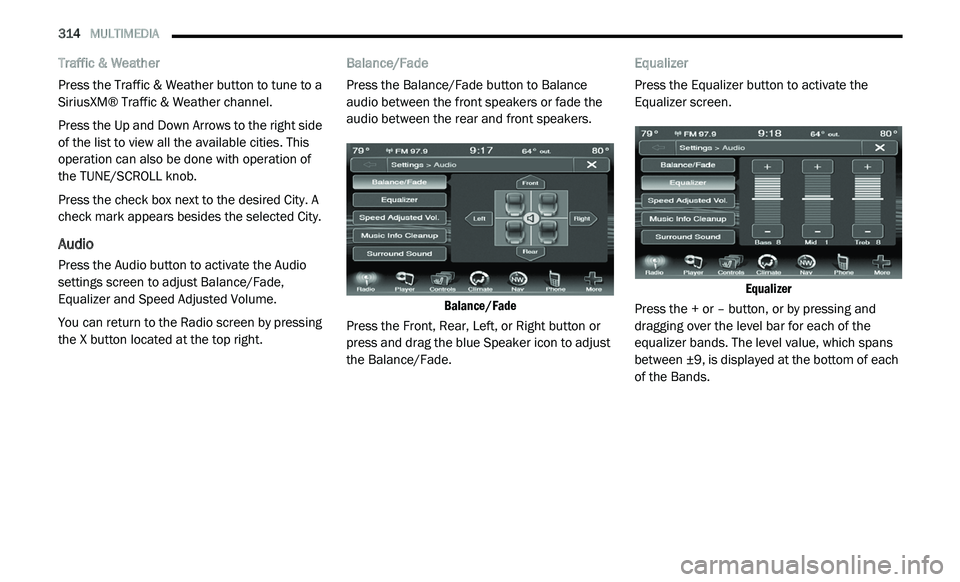
e X button located at the top right. Balance/Fade
Press the Balance/Fade button to Balance
a
u
dio between the front speakers or fade the
audio between the rear and front speakers.
Balance/Fade
Press the Front, Rear, Left, or Right button or
p r
ess and drag the blue Speaker icon to adjust
the Balance/Fade. Equalizer
Press the Equalizer button to activate the
E
q
ualizer screen.
Equalizer
Press the + or – button, or by pressing and
d r
agging over the level bar for each of the
equalizer bands. The level value, which spans
between ±9, is displayed at the bottom of each
of the Bands.
Page 317 of 396
MULTIMEDIA 315
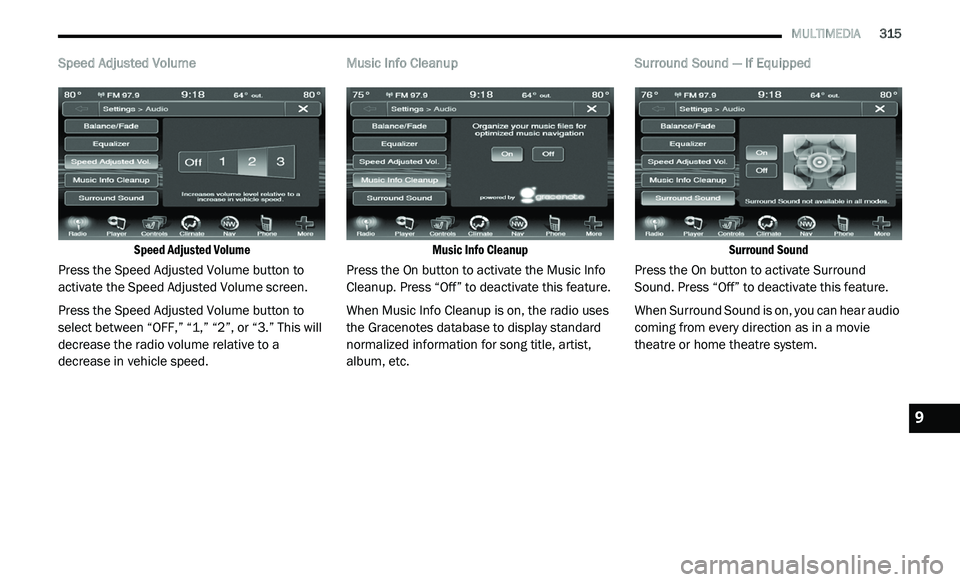
Speed Adjusted Volume
Speed Adjusted Volume
Press the Speed Adjusted Volume button to
a c
tivate the Speed Adjusted Volume screen.
Press the Speed Adjusted Volume button to
s e
lect between “OFF,” “1,” “2”, or “3.” This will
decrease the radio volume relative to a
decrease in vehicle speed. Music Info Cleanup
Music Info Cleanup
Press the On button to activate the Music Info
C le
anup. Press “Off” to deactivate this feature.
When Music Info Cleanup is on, the radio uses
t h
e Gracenotes database to display standard
normalized information for song title, artist,
album, etc. Surround Sound — If Equipped
Surround Sound
Press the On button to activate Surround
S o
und. Press “Off” to deactivate this feature.
When Surround Sound is on, you can hear audio
c o
ming from every direction as in a movie
theatre or home theatre system.
9
Page 319 of 396
MULTIMEDIA 317
Fast Seek Down
Press and hold the Left Arrow button and the
Di
sc player will begin to rewind through the
current track until the button is released.
Browse
Press the Browse button to display the browse
w i
ndow. The left side of the browse window
displays a list of ways you can browse through
the contents of the Disc. If supported by the
device, you can browse by Folders, Artists,
Playlists, Albums, Songs, etc. Press the desired
button on the left side of the screen. The center
of the browse window shows items and it’s
sub-functions, which can be scrolled by
pressing the Up and Down buttons to the right.
The TUNE/SCROLL knob can also be used to
scroll.
Source
Press the Source button on the touchscreen to
s e
lect the desired audio source: Disc/USB/SD
Card/AUX/Bluetooth®. This screen will time out
after a few seconds and return to the main radio
screen if no selection is made. Repeat
Press the Repeat button to toggle the repeat
f
u
nctionality. The Repeat button is highlighted
when active. The radio will continue to play the
current track, repeatedly, as long as the repeat
is active.
Shuffle
Press the Shuffle button to play the selections
o n
the compact disc in random order to provide
an interesting change of pace. Press the Shuffle
button a second time to turn this feature off.
Info
Press the Info button to display the current
t r
ack information. Press the Info button a
second time to cancel this feature.
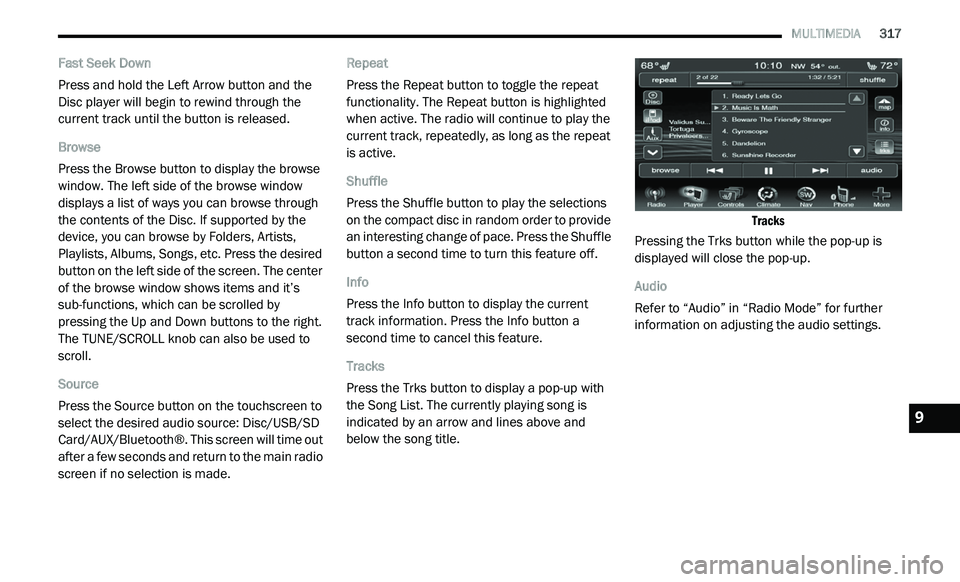
Tracks
Press the Trks button to display a pop-up with
t h
e Song List. The currently playing song is
indicated by an arrow and lines above and
below the song title.
Tracks
Pressing the Trks button while the pop-up is
d i
splayed will close the pop-up.
Audio
Refer to “Audio” in “Radio Mode” for further
i n
formation on adjusting the audio settings.
9