steering DODGE JOURNEY 2020 Service Manual
[x] Cancel search | Manufacturer: DODGE, Model Year: 2020, Model line: JOURNEY, Model: DODGE JOURNEY 2020Pages: 396, PDF Size: 25.53 MB
Page 283 of 396
MULTIMEDIA 281
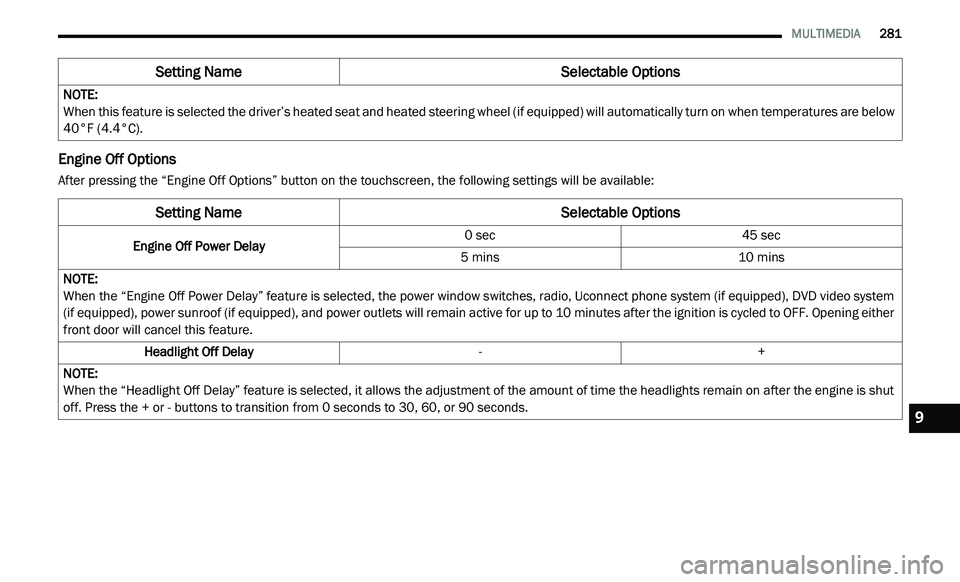
Engine Off Options
After pressing the “Engine Off Options” button on the touchscreen, the following settings will be available:NOTE:
When this feature is selected the driver’s heated seat and heated steering wheel (if equipped) will automatically turn on when temperatures are below
40
°F (4.4°C).
Setting Name Selectable Options
Setting NameSelectable Options
Engine Off Power Delay0 sec
45 sec
5 mins 10 mins
NOTE:
When the “Engine Off Power Delay” feature is selected, the power window switches, radio, Uconnect phone system (if equipped), DVD video system
( i
f equipped), power sunroof (if equipped), and power outlets will remain active for up to 10 minutes after the ignition is cycled to OFF. Opening either
f r
ont door will cancel this feature.
Headlight Off Delay -+
NOTE:
When the “Headlight Off Delay” feature is selected, it allows the adjustment of the amount of time the headlights remain on after the engine is shut
of
f. Press the + or - buttons to transition from 0 seconds to 30, 60, or 90 seconds.
9
Page 287 of 396
MULTIMEDIA 285
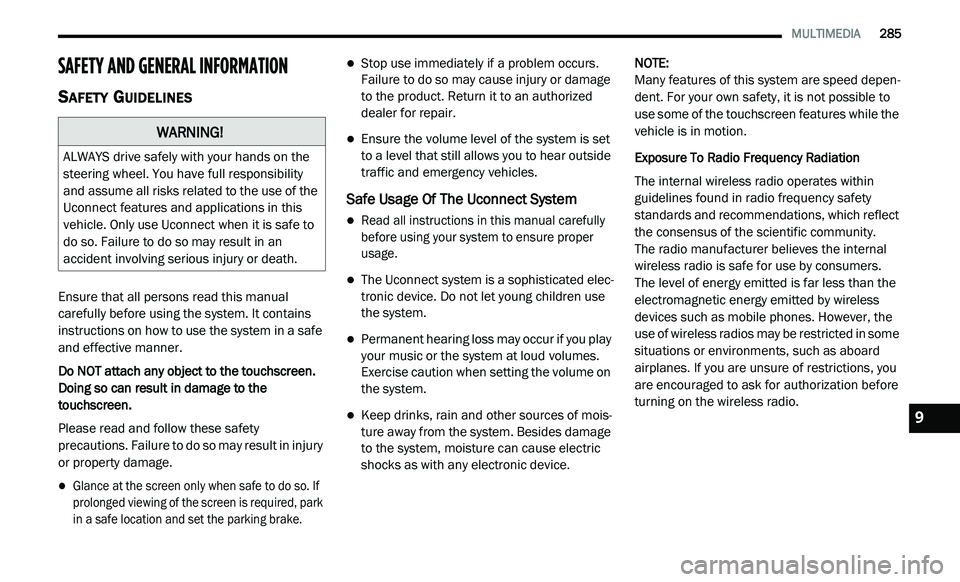
SAFETY AND GENERAL INFORMATION
SAFETY GUIDELINES
Ensure that all persons read this manual
carefully before using the system. It contains
instructions on how to use the system in a safe
and effective manner.
Do NOT attach any object to the touchscreen.
Do
ing so can result in damage to the
touchscreen.
Please read and follow these safety
p r
ecautions. Failure to do so may result in injury
or property damage.
Glance at the screen only when safe to do so. If
prolonged viewing of the screen is required, park
in a safe location and set the parking brake.
Stop use immediately if a problem occurs.
Failure to do so may cause injury or damage
to the product. Return it to an authorized
dealer for repair.
Ensure the volume level of the system is set
to a level that still allows you to hear outside
traffic and emergency vehicles.
Safe Usage Of The Uconnect System
Read all instructions in this manual carefully
before using your system to ensure proper
usage.
The Uconnect system is a sophisticated elec -
tronic device. Do not let young children use
t h
e system.
Permanent hearing loss may occur if you play
your music or the system at loud volumes.
Exercise caution when setting the volume on
the system.
Keep drinks, rain and other sources of mois -
ture away from the system. Besides damage
t o
the system, moisture can cause electric
shocks as with any electronic device. NOTE:
Many features of this system are speed depen -
dent. For your own safety, it is not possible to
u s
e some of the touchscreen features while the
vehicle is in motion.
Exposure To Radio Frequency Radiation
The internal wireless radio operates within
g u
idelines found in radio frequency safety
standards and recommendations, which reflect
the consensus of the scientific community.
The radio manufacturer believes the internal
w i
reless radio is safe for use by consumers.
The level of energy emitted is far less than the
e l
ectromagnetic energy emitted by wireless
devices such as mobile phones. However, the
use of wireless radios may be restricted in some
situations or environments, such as aboard
airplanes. If you are unsure of restrictions, you
are encouraged to ask for authorization before
turning on the wireless radio.
WARNING!
ALWAYS drive safely with your hands on the
steering wheel. You have full responsibility
and assume all risks related to the use of the
Uconnect features and applications in this
vehicle. Only use Uconnect when it is safe to
do so. Failure to do so may result in an
accident involving serious injury or death.
9
Page 288 of 396
286 MULTIMEDIA
Care And Maintenance
Touchscreen
Do not press the touchscreen with any hard
or sharp objects (pen, USB stick, jewelry,
etc.), which could scratch the touchscreen
surface!
Do not spray any liquid or caustic chemicals
directly on the screen! Use a clean and dry
microfiber lens cleaning cloth in order to
clean the touchscreen.
If necessary, use a lint-free cloth dampened
with a cleaning solution, such as isopropyl
alcohol or an isopropyl alcohol and water
solution ratio of 50:50. Be sure to follow the
solvent manufacturer's precautions and
directions.
RADIO 4.3
INTRODUCTION
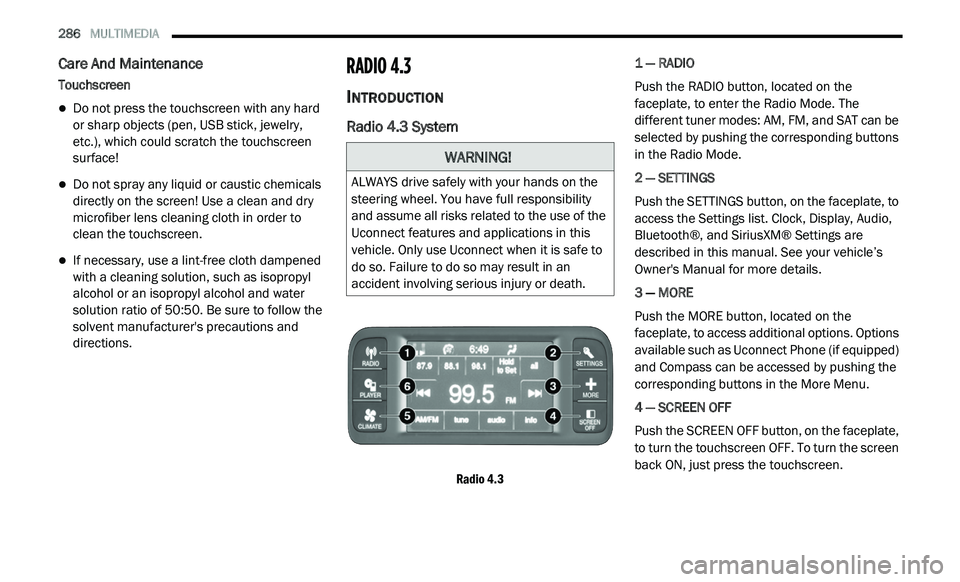
Radio 4.3 System
Radio 4.3
1 — RADIO
Push the RADIO button, located on the
f
a
ceplate, to enter the Radio Mode. The
different tuner modes: AM, FM, and SAT can be
selected by pushing the corresponding buttons
in the Radio Mode.
2 — SETTINGS
Push the SETTINGS button, on the faceplate, to
a c
cess the Settings list. Clock, Display, Audio,
Bluetooth®, and SiriusXM® Settings are
described in this manual. See your vehicle’s
Owner's Manual for more details.
3 — MORE
Push the MORE button, located on the
f a
ceplate, to access additional options. Options
available such as Uconnect Phone (if equipped)
and Compass can be accessed by pushing the
corresponding buttons in the More Menu.
4 — SCREEN OFF
Push the SCREEN OFF button, on the faceplate,
t o
turn the touchscreen OFF. To turn the screen
back ON, just press the touchscreen.
WARNING!
ALWAYS drive safely with your hands on the
steering wheel. You have full responsibility
and assume all risks related to the use of the
Uconnect features and applications in this
vehicle. Only use Uconnect when it is safe to
do so. Failure to do so may result in an
accident involving serious injury or death.
Page 297 of 396
MULTIMEDIA 295
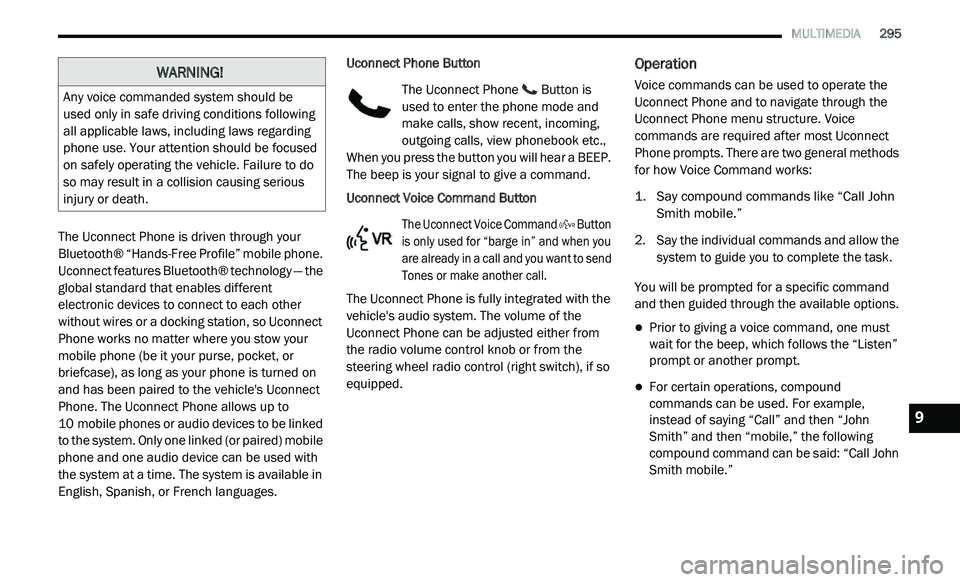
The Uconnect Phone is driven through your
Bluetooth® “Hands-Free Profile” mobile phone.
Uconnect features Bluetooth® technology — the
global standard that enables different
electronic devices to connect to each other
without wires or a docking station, so Uconnect
Phone works no matter where you stow your
mobile phone (be it your purse, pocket, or
briefcase), as long as your phone is turned on
and has been paired to the vehicle's Uconnect
Phone. The Uconnect Phone allows up to
10
mobile phones or audio devices to be linked
t o
the system. Only one linked (or paired) mobile
phone and one audio device can be used with
the system at a time. The system is available in
English, Spanish, or French languages. Uconnect Phone Button
The Uconnect Phone Button is
used to enter the phone mode and
ma
ke calls, show recent, incoming,
outgoing calls, view phonebook etc.,
When you press the button you will hear a BEEP.
The beep is your signal to give a command.
Uconnect Voice Command Button
The Uconnect Voice Command Button
is only used for “barge in” and when you
a r
e already in a call and you want to send
Tones or make another call.
The Uconnect Phone is fully integrated with the
v e
hicle's audio system. The volume of the
Uconnect Phone can be adjusted either from
the radio volume control knob or from the
steering wheel radio control (right switch), if so
equipped.
Operation
Voice commands can be used to operate the
Uconnect Phone and to navigate through the
Uconnect Phone menu structure. Voice
commands are required after most Uconnect
Phone prompts. There are two general methods
for how Voice Command works:
1. S ay compound commands like “Call John
S
mith mobile.”
2. S ay the individual commands and allow the
s
ystem to guide you to complete the task.
You will be prompted for a specific command
a n
d then guided through the available options.
Prior to giving a voice command, one must
wait for the beep, which follows the “Listen”
prompt or another prompt.
For certain operations, compound
commands can be used. For example,
instead of saying “Call” and then “John
Smith” and then “mobile,” the following
compound command can be said: “Call John
Smith mobile.”
WARNING!
Any voice commanded system should be
used only in safe driving conditions following
all applicable laws, including laws regarding
phone use. Your attention should be focused
on safely operating the vehicle. Failure to do
so may result in a collision causing serious
injury or death.
9
Page 298 of 396
296 MULTIMEDIA
For each feature explanation in this section, only
the compound command form of the voice
command is given. You can also break the
commands into parts and say each part of the
command when you are asked for it. For
example, you can use the compound command
form voice command “Search for John Smith,” or
you can break the compound command form into
two voice commands: “Search Contact” and
when asked “John Smith.” Please remember, the
Uconnect Phone works best when you talk in a
normal conversational tone, as if speaking to
someone sitting a few feet/meters away from
you.
Natural Speech
Your Uconnect Phone Voice system uses a
Na
tural Language Voice Recognition (VR)
engine.
Natural speech allows the user to speak
c o
mmands in phrases or complete sentences.
The system filters out certain non-word
utterances and sounds such as “ah” and “eh”.
The system handles fill-in words such as “I would
like to.”
The system handles multiple inputs in the same
p
h
rase or sentence such as “make a phone
call” and “to Kelly Smith.” For multiple inputs in
the same phrase or sentence, the system
identifies the topic or context and provides the
associated follow-up prompt such as “Who do
you want to call?” in the case where a phone
call was requested but the specific name was
not recognized.
The system utilizes continuous dialog; when the
s y
stem requires more information from the user
it will ask a question to which the user can
respond without pushing the Voice Command
button on your steering wheel.
Help Command
If you need assistance at any prompt, or if you
w a
nt to know your options at any prompt, say
“Help” following the beep.
To activate the Uconnect Phone from idle,
s i
mply push the Phone button (if active) on
your steering wheel and say a command or say
“ h
elp”. All Uconnect Phone sessions begin with
a push of the VR button or the Phone button
(if active) on the radio control head. Cancel Command
At any prompt, after the beep, you can say
“
C
ancel” and you will be returned to the main
menu.
You can also push the Voice Recognition (VR)
b u
tton or Phone button (if active) on your
steering wheel when the system is listening for
a
command and be returned to the main or
previous menu.
Pair (Link) Uconnect Phone To A Mobile Phone
To begin using your Uconnect Phone, you must
p a
ir your compatible Bluetooth® enabled
mobile phone.
To complete the pairing process, you will need
t o
reference your mobile phone Owner's
Manual. The Uconnect website may also
provide detailed instructions for pairing.
NOTE:
You must have Bluetooth® enabled on your
phone to complete this procedure.
The vehicle must be in PARK.
Page 302 of 396
300 MULTIMEDIA
Call By Saying A Phonebook Name
1. Push the VR button on your steering wheel
t
o begin.
2. A fter the “Listening” prompt and the
f
ollowing beep, say “Call John Doe Mobile.”
3. T he Uconnect Phone will dial the number
a
ssociated with John Doe, or if there are
multiple numbers it will ask which number
you want to call for John Doe.
Call Controls
The touchscreen allows you to control the
f o
llowing call features:
Answer
End
Ignore
Hold/Unhold
Mute/Unmute
Transfer the call to/from the phone
Swap two active calls
Join two active calls together Touch-Tone Number Entry
1. P
ress the Phone button on the
t
ouchscreen.
2. P ress the Dial button on the touchscreen.
3
. T he Touch-Tone screen will be displayed.
4
. U se the numbered buttons on the touchscreen
t
o enter the number and press Call.
To send a touch tone using Voice Recognition
( V
R), push the Voice Command button while
in a call and say “1234#” or you can say “Send
V o
icemail Password” if Voicemail password is
stored in your mobile phonebook.
Recent Calls
You may browse up to 34 of the most recent of
e a
ch of the following call types:
Incoming Calls
Outgoing Calls
Missed Calls
All Calls These can be accessed by touching the recent
c
a
lls button on the touchscreen on the Phone
main screen.
You can also push the Phone button and say
“Show my incoming calls” from any screen and
t h
e Incoming calls will be displayed.
NOTE:
Incoming can also be replaced with “Outgoing”,
“ R
ecent” or “Missed”.
Answer Or Reject An Incoming Call — No Call
C u
rrently In Progress
When you receive a call on your mobile phone,
t h
e Uconnect Phone will interrupt the vehicle
audio system, if on, and will display a pop-up
showing Answer or Ignore. Press the Answer
button on the touchscreen or push the Phone
button on the steering wheel to accept the call.
Answer Or Ignore An Incoming Call — Call
C u
rrently In Progress
If a call is currently in progress and you have
a n
other incoming call, you will hear the same
network tones for call waiting that you normally
hear when using your mobile phone. Push the
Phone button on the steering wheel, or press
Page 308 of 396
306 MULTIMEDIA
2. Press the Up or Down Arrow button to adjust
the hours or minutes, next select the AM or
PM button. You can also select 12 hr or 24 hr
format by pressing the desired button.
Setting The Clock
Once the time is set, press the Done button
t o
exit the time screen.
UCONNECT 3/3 NAV WITH 8.4-INCH
DI
SPLAY
INTRODUCTION TO THE UCONNECT 3/
3 NAV W
ITH 8.4-INCH DISPLAY
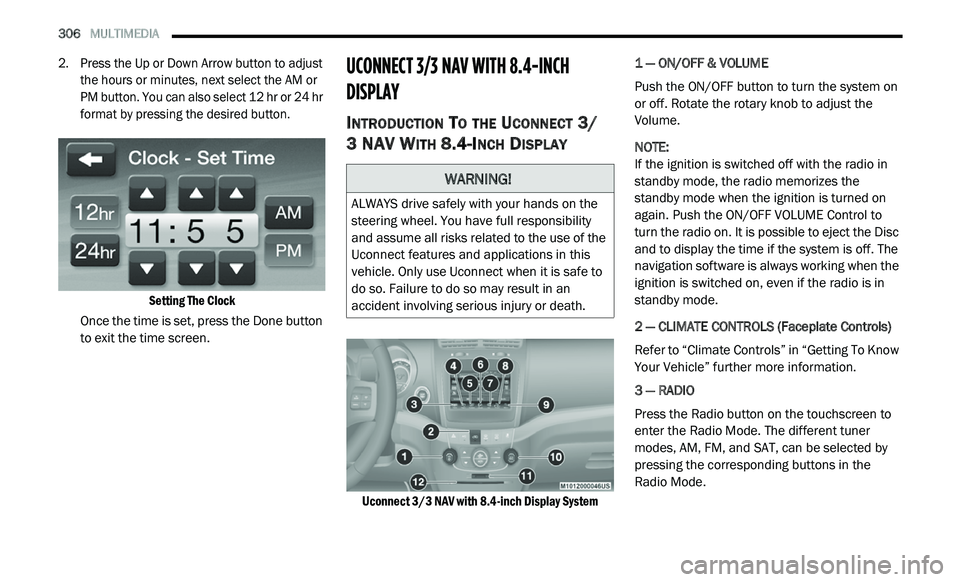
Uconnect 3/3 NAV with 8.4-inch Display System
1 — ON/OFF & VOLUME
Push the ON/OFF button to turn the system on
o
r
off. Rotate the rotary knob to adjust the
Volume.
NOTE:
If the ignition is switched off with the radio in
st
andby mode, the radio memorizes the
standby mode when the ignition is turned on
again. Push the ON/OFF VOLUME Control to
turn the radio on. It is possible to eject the Disc
and to display the time if the system is off. The
navigation software is always working when the
ignition is switched on, even if the radio is in
standby mode.
2 — CLIMATE CONTROLS (Faceplate Controls)
Refer to “Climate Controls” in “Getting To Know
Y o
ur Vehicle” further more information.
3 — RADIO
Press the Radio button on the touchscreen to
en
ter the Radio Mode. The different tuner
modes, AM, FM, and SAT, can be selected by
pressing the corresponding buttons in the
Radio Mode.
WARNING!
ALWAYS drive safely with your hands on the
steering wheel. You have full responsibility
and assume all risks related to the use of the
Uconnect features and applications in this
vehicle. Only use Uconnect when it is safe to
do so. Failure to do so may result in an
accident involving serious injury or death.
Page 309 of 396
MULTIMEDIA 307
4 — PLAYER
Press the Player button on the touchscreen to
ac
cess media sources such as: Disc, USB
Device, and AUX as long as the requested
media is present.
5 — CONTROLS
Press the Controls button on the touchscreen to
a c
cess the Settings list. Controls such as
Heated Seats, Heated Steering Wheel, Vented
Seats, etc. can be selected or turned on/off by
pressing the corresponding button.
6 — CLIMATE (Touchcreen Controls)
Refer to “Climate Controls” in “Getting To Know
Y o
ur Vehicle” for more information.
7 — NAV (Uconnect 3 NAV Only)
Press the Nav button on the touchscreen to
ac
cess the Navigation feature.
8 — PHONE — If Equipped
Press the Phone button on the touchscreen to
ac
cess the Uconnect Phone feature. Refer to
“Uconnect Phone” in this section for more
information. 9 — MORE
Press the More button on the touchscreen to
a
c
cess additional options. Options available
such as Settings and SiriusXM® Travel Link
(if equipped) can be accessed by pressing the
c o
rresponding button in the More Menu.
10 — ENTER/BROWSE & TUNE/SCROLL
Push the ENTER/BROWSE button to accept a
hi
ghlighted selection on the screen. Rotate the
TUNE/SCROLL rotary knob to scroll through a
list or tune a radio station.
11 — SD CARD SLOT
Insert an SD Card containing audio media files
t o
play them through the vehicle’s sound
system.
12 — DISC SLOT
When inserting a disc, ensure the label is facing
u p
. Push the Eject button to eject the disc.
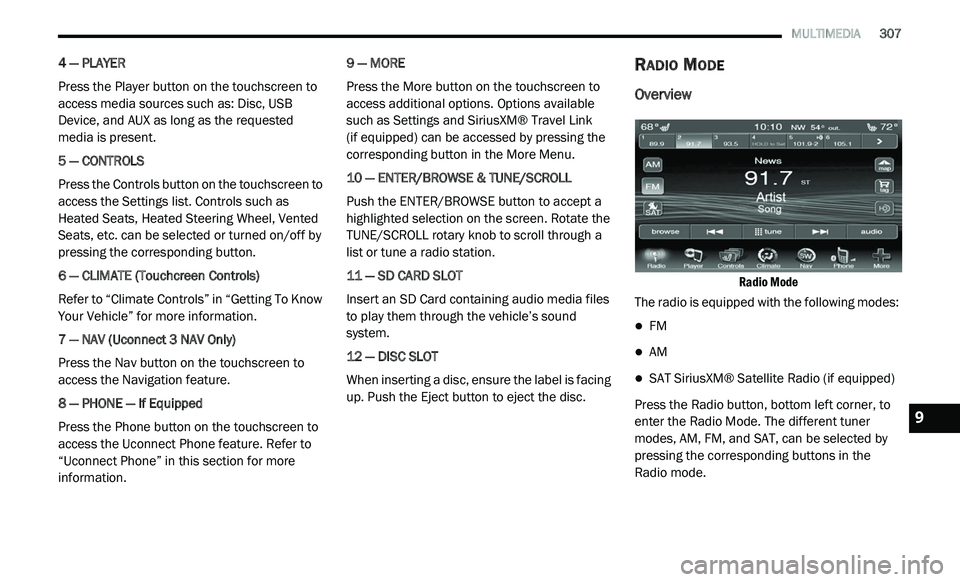
RADIO MODE
Overview
Radio Mode
The radio is equipped with the following modes:
FM
AM
SAT SiriusXM® Satellite Radio (if equipped)
Press the Radio button, bottom left corner, to
e n
ter the Radio Mode. The different tuner
modes, AM, FM, and SAT, can be selected by
pressing the corresponding buttons in the
Radio mode.9
Page 310 of 396
308 MULTIMEDIA
Common Radio Functions
The following operations offer the same
functionality across all Radio Modes, and
further instructions are provided where
differences exist.
ON/OFF & Volume Control
Push the ON/OFF Volume Control
knob to turn on the radio. Push the
ON
/OFF Volume Control knob a
second time to turn off the radio.
The electronic Volume control turns
c o
ntinuously (360 degrees) in either direction,
without stopping. Turning the ON/OFF Volume
Control knob clockwise increases the Volume
and counterclockwise decreases it.
When the audio system is turned on, the sound
wi
ll be set at the same Volume level as last
played.
Tune/Scroll Control
Turn the rotary TUNE/SCROLL control
knob clockwise to increase or
co
unterclockwise to decrease the
radio station frequency. Push the
ENTER/BROWSE button to choose a selection.
Seek And Direct Tune Functions
The Seek Up and Down functions are activated
by pressing the Double Arrow buttons to the
right and left of the radio station display, or by
pushing the left Steering Wheel Audio Control
(if equipped) up or down.
Seek Up
Press and release the Seek Up button on the
touchscreen to tune the radio to the next
l i
stenable station or channel.
During a Seek Up function, if the radio reaches
t h
e starting station after passing through the
entire band two times, the radio will stop at the
station where it began.
Fast Seek Up
Press and hold the Seek Up button on the
touchscreen to advance the radio through the
a v
ailable stations or channels at a faster rate.
The radio stops at the next available station or
channel when the button on the touchscreen is
released. Seek Down
Press and release the Seek Down
button on
the touchscreen to tune the radio to the next
l i
stenable station or channel.
During a Seek Down function, if the radio
r e
aches the starting station after passing
through the entire band two times, the radio will
stop at the station where it began.
Fast Seek Down
Press and hold the Seek Down button on the
touchscreen to advance the radio through the
a v
ailable stations or channel at a faster rate.
The radio stops at the next available station or
channel when the button is released.
Direct Tune
Press the Tune button located at the bottom of
t h
e radio screen. The Direct Tune screen is
available in AM, FM, and SAT radio modes and
can be used to direct tune the radio to a desired
station or channel.
Page 327 of 396
MULTIMEDIA 325
Listening to Music on your Bluetooth®
Device via the touchscreen.
Pairing up to 10 phones/audio devices for
easy access to connect to them quickly.
NOTE:
Your phone must be capable of SMS messaging
v i
a Bluetooth® for messaging features to work
properly. Your mobile phone’s audio is trans -
mitted through your vehicles audio system; the
s y
stem will automatically mute your radio when
using the Uconnect Phone. For Uconnect
customer support, visit the following website:
US residents — visit UconnectPhone.com or
call 1-877-855-8400.
Canadian residents — visit Uconnect-
Phone.com or call 1-800-465-2001 (English)
or 1-800-387-9983 (French).
Uconnect Phone allows you to transfer calls
b e
tween the system and your mobile phone as
you enter or exit your vehicle and enables you to
mute the system's microphone for private
conversation. The Uconnect Phone is driven through your
B
l
uetooth® “Hands-Free Profile” mobile phone.
Uconnect features Bluetooth® technology — the
global standard that enables different
electronic devices to connect to each other
without wires or a docking station, so Uconnect
Phone works no matter where you stow your
mobile phone (be it your purse, pocket, or
briefcase), as long as your phone is turned on
and has been paired to the vehicle's Uconnect
Phone.
The Uconnect Phone allows up to 10 mobile
p h
ones or audio devices to be linked to the
system. Only one linked (or paired) mobile
phone and one audio device can be used with
the system at a time. The system is available in
English, Spanish, or French languages. Uconnect Phone Button
The Uconnect Phone button
is used to enter
the phone mode and make calls, show recent
i n
coming and outgoing calls, view phonebook
along with other features. When you push the
button you will hear a BEEP. The beep is your
signal to give a command.
Uconnect Voice Command Button
The Voice Recognition button is only used for
“barge in” and when you are already in a call and
y o
u want to send Tones or make another call.
The Voice Recognition button is also used to
access the Voice Commands for the Uconnect
V o
ice Command features if your vehicle is
equipped. Please see the Uconnect Voice
Command section for direction on how to use
the Voice Command button.
The Uconnect Phone is fully integrated with the
ve
hicle’s audio system. The volume of the
Uconnect Phone can be adjusted either from the
radio volume control knob or from the steering
wheel radio control (right switch), if so equipped.
WARNING!
Any voice commanded system should be
used only in safe driving conditions following
all applicable laws, including laws regarding
phone use. Your attention should be focused
on safely operating the vehicle. Failure to do
so may result in an accident causing serious
injury or death.
9