radio DODGE JOURNEY 2020 Workshop Manual
[x] Cancel search | Manufacturer: DODGE, Model Year: 2020, Model line: JOURNEY, Model: DODGE JOURNEY 2020Pages: 396, PDF Size: 25.53 MB
Page 298 of 396
296 MULTIMEDIA
For each feature explanation in this section, only
the compound command form of the voice
command is given. You can also break the
commands into parts and say each part of the
command when you are asked for it. For
example, you can use the compound command
form voice command “Search for John Smith,” or
you can break the compound command form into
two voice commands: “Search Contact” and
when asked “John Smith.” Please remember, the
Uconnect Phone works best when you talk in a
normal conversational tone, as if speaking to
someone sitting a few feet/meters away from
you.
Natural Speech
Your Uconnect Phone Voice system uses a
Na
tural Language Voice Recognition (VR)
engine.
Natural speech allows the user to speak
c o
mmands in phrases or complete sentences.
The system filters out certain non-word
utterances and sounds such as “ah” and “eh”.
The system handles fill-in words such as “I would
like to.”
The system handles multiple inputs in the same
p
h
rase or sentence such as “make a phone
call” and “to Kelly Smith.” For multiple inputs in
the same phrase or sentence, the system
identifies the topic or context and provides the
associated follow-up prompt such as “Who do
you want to call?” in the case where a phone
call was requested but the specific name was
not recognized.
The system utilizes continuous dialog; when the
s y
stem requires more information from the user
it will ask a question to which the user can
respond without pushing the Voice Command
button on your steering wheel.
Help Command
If you need assistance at any prompt, or if you
w a
nt to know your options at any prompt, say
“Help” following the beep.
To activate the Uconnect Phone from idle,
s i
mply push the Phone button (if active) on
your steering wheel and say a command or say
“ h
elp”. All Uconnect Phone sessions begin with
a push of the VR button or the Phone button
(if active) on the radio control head. Cancel Command
At any prompt, after the beep, you can say
“
C
ancel” and you will be returned to the main
menu.
You can also push the Voice Recognition (VR)
b u
tton or Phone button (if active) on your
steering wheel when the system is listening for
a
command and be returned to the main or
previous menu.
Pair (Link) Uconnect Phone To A Mobile Phone
To begin using your Uconnect Phone, you must
p a
ir your compatible Bluetooth® enabled
mobile phone.
To complete the pairing process, you will need
t o
reference your mobile phone Owner's
Manual. The Uconnect website may also
provide detailed instructions for pairing.
NOTE:
You must have Bluetooth® enabled on your
phone to complete this procedure.
The vehicle must be in PARK.
Page 308 of 396
306 MULTIMEDIA
2. Press the Up or Down Arrow button to adjust
the hours or minutes, next select the AM or
PM button. You can also select 12 hr or 24 hr
format by pressing the desired button.
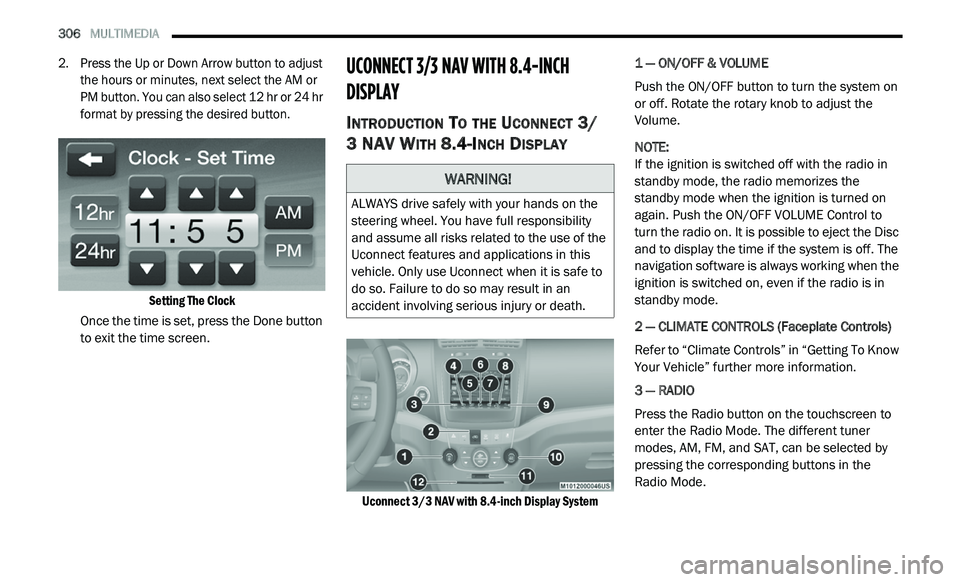
Setting The Clock
Once the time is set, press the Done button
t o
exit the time screen.
UCONNECT 3/3 NAV WITH 8.4-INCH
DI
SPLAY
INTRODUCTION TO THE UCONNECT 3/
3 NAV W
ITH 8.4-INCH DISPLAY
Uconnect 3/3 NAV with 8.4-inch Display System
1 — ON/OFF & VOLUME
Push the ON/OFF button to turn the system on
o
r
off. Rotate the rotary knob to adjust the
Volume.
NOTE:
If the ignition is switched off with the radio in
st
andby mode, the radio memorizes the
standby mode when the ignition is turned on
again. Push the ON/OFF VOLUME Control to
turn the radio on. It is possible to eject the Disc
and to display the time if the system is off. The
navigation software is always working when the
ignition is switched on, even if the radio is in
standby mode.
2 — CLIMATE CONTROLS (Faceplate Controls)
Refer to “Climate Controls” in “Getting To Know
Y o
ur Vehicle” further more information.
3 — RADIO
Press the Radio button on the touchscreen to
en
ter the Radio Mode. The different tuner
modes, AM, FM, and SAT, can be selected by
pressing the corresponding buttons in the
Radio Mode.
WARNING!
ALWAYS drive safely with your hands on the
steering wheel. You have full responsibility
and assume all risks related to the use of the
Uconnect features and applications in this
vehicle. Only use Uconnect when it is safe to
do so. Failure to do so may result in an
accident involving serious injury or death.
Page 309 of 396
MULTIMEDIA 307
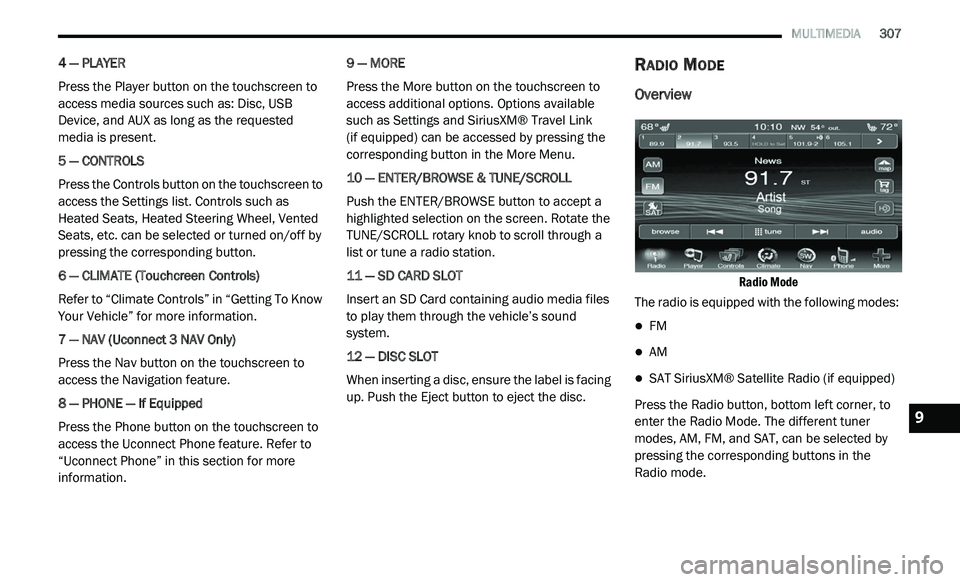
4 — PLAYER
Press the Player button on the touchscreen to
ac
cess media sources such as: Disc, USB
Device, and AUX as long as the requested
media is present.
5 — CONTROLS
Press the Controls button on the touchscreen to
a c
cess the Settings list. Controls such as
Heated Seats, Heated Steering Wheel, Vented
Seats, etc. can be selected or turned on/off by
pressing the corresponding button.
6 — CLIMATE (Touchcreen Controls)
Refer to “Climate Controls” in “Getting To Know
Y o
ur Vehicle” for more information.
7 — NAV (Uconnect 3 NAV Only)
Press the Nav button on the touchscreen to
ac
cess the Navigation feature.
8 — PHONE — If Equipped
Press the Phone button on the touchscreen to
ac
cess the Uconnect Phone feature. Refer to
“Uconnect Phone” in this section for more
information. 9 — MORE
Press the More button on the touchscreen to
a
c
cess additional options. Options available
such as Settings and SiriusXM® Travel Link
(if equipped) can be accessed by pressing the
c o
rresponding button in the More Menu.
10 — ENTER/BROWSE & TUNE/SCROLL
Push the ENTER/BROWSE button to accept a
hi
ghlighted selection on the screen. Rotate the
TUNE/SCROLL rotary knob to scroll through a
list or tune a radio station.
11 — SD CARD SLOT
Insert an SD Card containing audio media files
t o
play them through the vehicle’s sound
system.
12 — DISC SLOT
When inserting a disc, ensure the label is facing
u p
. Push the Eject button to eject the disc.
RADIO MODE
Overview
Radio Mode
The radio is equipped with the following modes:
FM
AM
SAT SiriusXM® Satellite Radio (if equipped)
Press the Radio button, bottom left corner, to
e n
ter the Radio Mode. The different tuner
modes, AM, FM, and SAT, can be selected by
pressing the corresponding buttons in the
Radio mode.9
Page 310 of 396
308 MULTIMEDIA
Common Radio Functions
The following operations offer the same
functionality across all Radio Modes, and
further instructions are provided where
differences exist.
ON/OFF & Volume Control
Push the ON/OFF Volume Control
knob to turn on the radio. Push the
ON
/OFF Volume Control knob a
second time to turn off the radio.
The electronic Volume control turns
c o
ntinuously (360 degrees) in either direction,
without stopping. Turning the ON/OFF Volume
Control knob clockwise increases the Volume
and counterclockwise decreases it.
When the audio system is turned on, the sound
wi
ll be set at the same Volume level as last
played.
Tune/Scroll Control
Turn the rotary TUNE/SCROLL control
knob clockwise to increase or
co
unterclockwise to decrease the
radio station frequency. Push the
ENTER/BROWSE button to choose a selection.
Seek And Direct Tune Functions
The Seek Up and Down functions are activated
by pressing the Double Arrow buttons to the
right and left of the radio station display, or by
pushing the left Steering Wheel Audio Control
(if equipped) up or down.
Seek Up
Press and release the Seek Up button on the
touchscreen to tune the radio to the next
l i
stenable station or channel.
During a Seek Up function, if the radio reaches
t h
e starting station after passing through the
entire band two times, the radio will stop at the
station where it began.
Fast Seek Up
Press and hold the Seek Up button on the
touchscreen to advance the radio through the
a v
ailable stations or channels at a faster rate.
The radio stops at the next available station or
channel when the button on the touchscreen is
released. Seek Down
Press and release the Seek Down
button on
the touchscreen to tune the radio to the next
l i
stenable station or channel.
During a Seek Down function, if the radio
r e
aches the starting station after passing
through the entire band two times, the radio will
stop at the station where it began.
Fast Seek Down
Press and hold the Seek Down button on the
touchscreen to advance the radio through the
a v
ailable stations or channel at a faster rate.
The radio stops at the next available station or
channel when the button is released.
Direct Tune
Press the Tune button located at the bottom of
t h
e radio screen. The Direct Tune screen is
available in AM, FM, and SAT radio modes and
can be used to direct tune the radio to a desired
station or channel.
Page 311 of 396
MULTIMEDIA 309
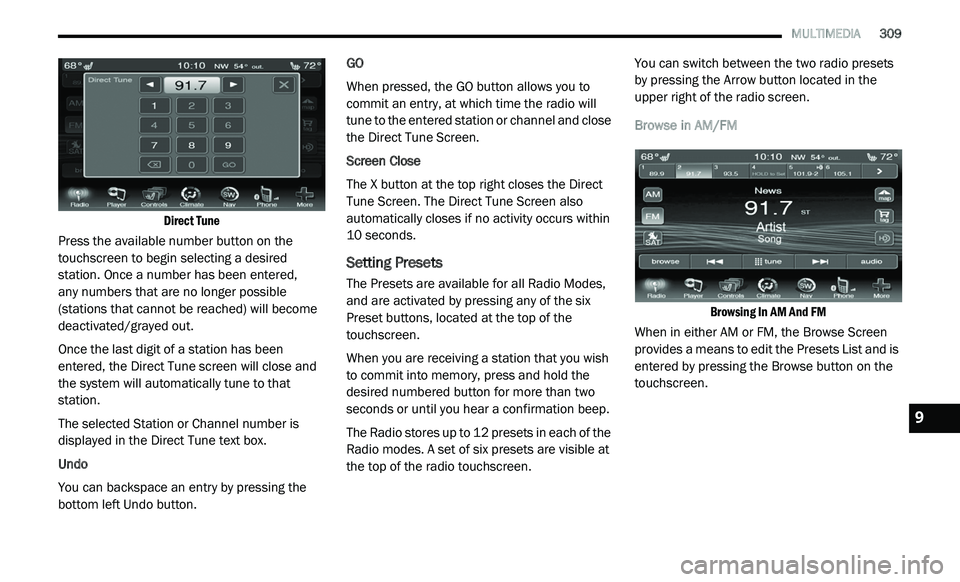
Direct Tune
Press the available number button on the
t o
uchscreen to begin selecting a desired
station. Once a number has been entered,
any numbers that are no longer possible
( s
tations that cannot be reached) will become
deactivated/grayed out.
Once the last digit of a station has been
e n
tered, the Direct Tune screen will close and
the system will automatically tune to that
station.
The selected Station or Channel number is
d i
splayed in the Direct Tune text box.
Undo
You can backspace an entry by pressing the
bo
ttom left Undo button. GO
When pressed, the GO button allows you to
c
o
mmit an entry, at which time the radio will
tune to the entered station or channel and close
the Direct Tune Screen.
Screen Close
The X button at the top right closes the Direct
T u
ne Screen. The Direct Tune Screen also
automatically closes if no activity occurs within
10 seconds.
Setting Presets
The Presets are available for all Radio Modes,
and are activated by pressing any of the six
Preset buttons, located at the top of the
touchscreen.
When you are receiving a station that you wish
t o
commit into memory, press and hold the
desired numbered button for more than two
seconds or until you hear a confirmation beep.
The Radio stores up to 12 presets in each of the
R a
dio modes. A set of six presets are visible at
the top of the radio touchscreen. You can switch between the two radio presets
b
y
pressing the Arrow button located in the
upper right of the radio screen.
Browse in AM/FM
Browsing In AM And FM
When in either AM or FM, the Browse Screen
p r
ovides a means to edit the Presets List and is
entered by pressing the Browse button on the
touchscreen.
9
Page 312 of 396
310 MULTIMEDIA
Scrolling Preset List
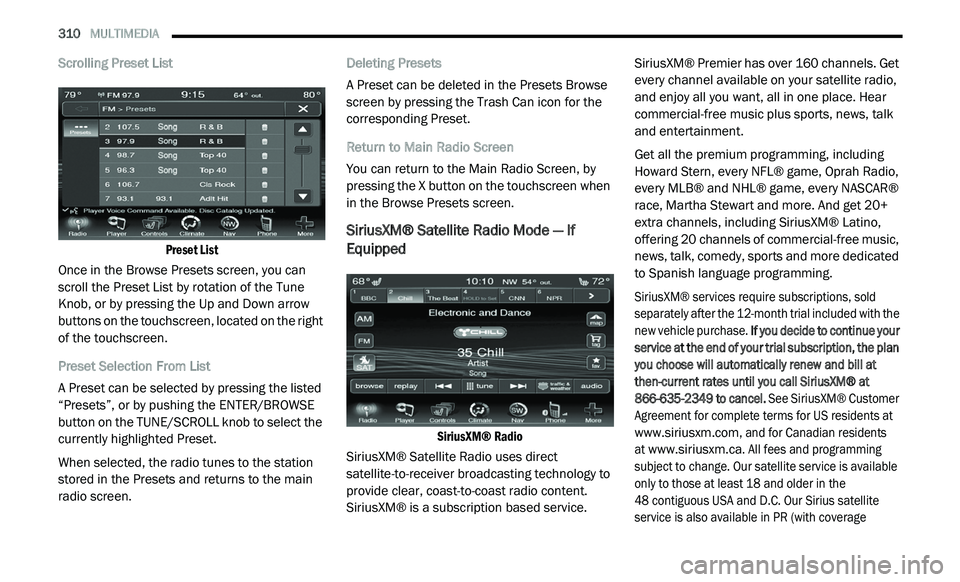
Preset List
Once in the Browse Presets screen, you can
s c
roll the Preset List by rotation of the Tune
Knob, or by pressing the Up and Down arrow
buttons on the touchscreen, located on the right
of the touchscreen.
Preset Selection From List
A Preset can be selected by pressing the listed
“ P
resets”, or by pushing the ENTER/BROWSE
button on the TUNE/SCROLL knob to select the
currently highlighted Preset.
When selected, the radio tunes to the station
s t
ored in the Presets and returns to the main
radio screen. Deleting Presets
A Preset can be deleted in the Presets Browse
sc
reen by pressing the Trash Can icon for the
corresponding Preset.
Return to Main Radio Screen
You can return to the Main Radio Screen, by
p r
essing the X button on the touchscreen when
in the Browse Presets screen.
SiriusXM® Satellite Radio Mode — If
Equipped
SiriusXM® Radio
SiriusXM® Satellite Radio uses direct
s a
tellite-to-receiver broadcasting technology to
provide clear, coast-to-coast radio content.
SiriusXM® is a subscription based service. SiriusXM® Premier has over 160 channels. Get
e
v
ery channel available on your satellite radio,
and enjoy all you want, all in one place. Hear
commercial-free music plus sports, news, talk
and entertainment.
Get all the premium programming, including
Ho
ward Stern, every NFL® game, Oprah Radio,
every MLB® and NHL® game, every NASCAR®
race, Martha Stewart and more. And get 20+
extra channels, including SiriusXM® Latino,
offering 20 channels of commercial-free music,
news, talk, comedy, sports and more dedicated
to Spanish language programming.
SiriusXM® services require subscriptions, sold
s e
parately after the 12-month trial included with the
new vehicle purchase. If you decide to continue your
service at the end of your trial subscription, the plan
you choose will automatically renew and bill at
then-current rates until you call SiriusXM® at
866-635-2349 to cancel. See SiriusXM® Customer
Agreement for complete terms for US residents at
www.siriusxm.com
, and for Canadian residents
at
www.siriusxm.ca
. All fees and programming
subject to change. Our satellite service is available
o n
ly to those at least 18 and older in the
48 contiguous USA and D.C. Our Sirius satellite
s e
rvice is also available in PR (with coverage
Page 313 of 396
MULTIMEDIA 311
limitations). Our Internet radio service is available
throughout our satellite service area and in AK and
HI. © 2020 SiriusXM® Radio Inc. Sirius, XM and all
related marks and logos are trademarks of
SiriusXM® Radio Inc.
This functionality is only available for radios
eq
uipped with a Satellite receiver. To receive
satellite radio, the vehicle needs to be outside
with a clear view to the sky.
If the screen shows Acquiring Signal, you might
h a
ve to change the vehicle’s position to receive
a signal. In most cases, the satellite radio does
not receive a signal in underground parking
garages or tunnels.
No Subscription
Radios equipped with a Satellite receiver
r e
quire a subscription to the SiriusXM® Service.
When the Radio does not have the necessary
subscription, the Radio is able to receive the
Preview channel only.
Acquiring SiriusXM® Subscription
To activate the SiriusXM® Satellite Radio
s u
bscription, call 800-643-2112 (USA
residents) or 888-534-7474 (Canadian
Residents). You will need to provide the Sirius ID (ESN) located at the bottom of the Channel 0
screen.
The SiriusXM® Satellite Mode is activated by a
pr
ess of the SAT button on the touchscreen.
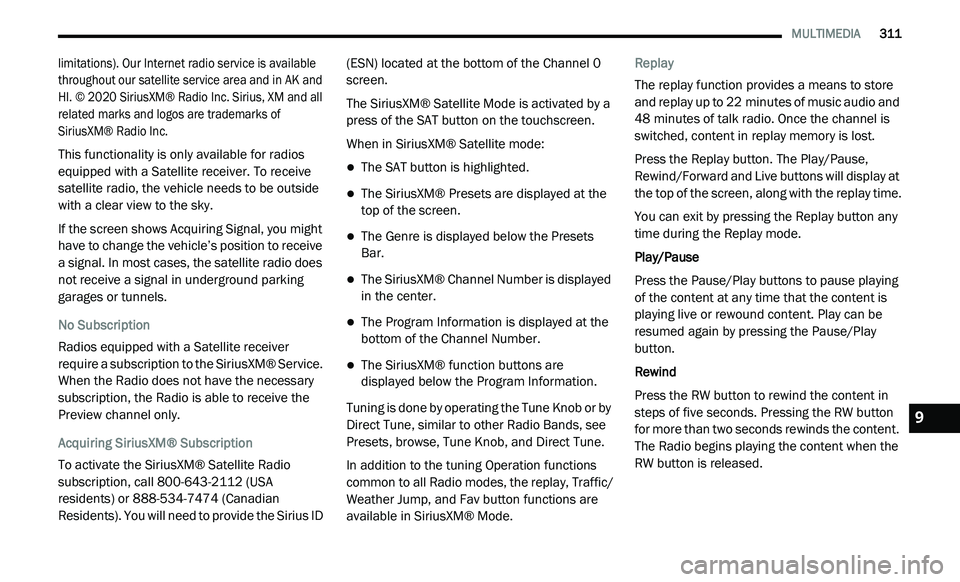
When in SiriusXM® Satellite mode:
The SAT button is highlighted.
The SiriusXM® Presets are displayed at the
top of the screen.
The Genre is displayed below the Presets
Bar.
The SiriusXM® Channel Number is displayed
in the center.
The Program Information is displayed at the
bottom of the Channel Number.
The SiriusXM® function buttons are
displayed below the Program Information.
Tuning is done by operating the Tune Knob or by
D i
rect Tune, similar to other Radio Bands, see
Presets, browse, Tune Knob, and Direct Tune.
In addition to the tuning Operation functions
c o
mmon to all Radio modes, the replay, Traffic/
Weather Jump, and Fav button functions are
available in SiriusXM® Mode. Replay
The replay function provides a means to store
a
n
d replay up to 22 minutes of music audio and
4 8
minutes of talk radio. Once the channel is
s w
itched, content in replay memory is lost.
Press the Replay button. The Play/Pause,
R e
wind/Forward and Live buttons will display at
the top of the screen, along with the replay time.
You can exit by pressing the Replay button any
t i
me during the Replay mode.
Play/Pause
Press the Pause/Play buttons to pause playing
of
the content at any time that the content is
playing live or rewound content. Play can be
resumed again by pressing the Pause/Play
button.
Rewind
Press the RW button to rewind the content in
s t
eps of five seconds. Pressing the RW button
for more than two seconds rewinds the content.
The Radio begins playing the content when the
RW button is released.
9
Page 314 of 396
312 MULTIMEDIA
Forward
Each press of the FW button forwards the
co
ntent in steps of five seconds. Forwarding of
the content can only be done when the content
is previously rewound, and therefore, can not be
done for live content. A continuous press of the
FW button also forwards the content. The Radio
begins playing the content when the FW button
is released.
Live
Press the Live button to resume playing Live
c o
ntent.
Favorites
Press the Fav button to activate the favorites
m e
nu, which will time out in five seconds in
absence of user interaction.
You can exit the Favorites Menu by a press of
t h
e “X” in the top right corner.
The favorites feature enables you to set a
f a
vorite artist, or song that is currently playing.
The Radio then uses this information to alert
you when either the favorite song, or favorite
artist are being played at any time by any of the
SiriusXM® Channels. The maximum number of favorites that can be
s
t
ored in the Radio is 50.
Fav. Artist
While the song is playing, to set a Favorite Artist,
pr
ess the Fav button and then the Fav Artist
button.
Fav. Song
While the song is playing, to set a Favorite Song,
p r
ess the Fav button and then the Fav Song
button.
Traffic & Weather
Press the Traffic & Weather button to tune to a
S i
riusXM® Traffic & Weather channel. To set a
Traffic & Weather alert for any one of the cities
in the Browse list, see Browse in SAT.
When the Traffic & Weather button is pressed,
t h
e Jump Traffic & Weather channel is tuned.
If the Traffic & Weather alert City is not set, you
a r
e presented with a pop-up to allow you to
select the favorite city using the Browse Screen.
Browse In Sat
Press the Browse button to edit Presets,
Favorites, Game Zone, and Jump settings, along
with providing the SiriusXM® Channel List.
This Screen contains many submenus. You can
e x
it a submenu to get back to a parent menu by
a press of the Back Arrow.
All
Press the All button on the touchscreen at the
l e
ft of the Browse Screen.
Channel List
P
ress the Channel List to display all the
S i
riusXM® Channel Numbers along with the
corresponding Genre. You can scroll the
Channel list by pressing the Up and Down
Arrows, located on the right side of the screen.
Scrolling can also be done by operating the
Tune/Scroll Knob.
Genre
Press the Genre button to display a list of
G e
nres. You can select any desired Genre by
pressing the Genre list, at which point, the
Radio tunes to a channel with the content in the
selected Genre.
Page 315 of 396
MULTIMEDIA 313
Presets
Press the Presets button located at the left of
th
e Browse screen.
You can scroll the Presets list pressing the Up
a n
d Down Arrows, located at the right side of
the screen. Scrolling can also be done by
operating the TUNE/SCROLL knob.
Preset Selection
A Preset can be selected by pressing any of the
l i
sted Presets, or by pushing the ENTER/BROWSE
button on the TUNE/SCROLL knob to select the
currently highlighted Preset. When selected, the
Radio tunes to the station stored in the Preset,
and returns to the main Radio screen.
Deleting a Preset
A Preset can be deleted in the Presets Browse
s c
reen by pressing the Trash Can icon for the
corresponding Preset.
Favorites
Press the Favorites button, located at the left of
t h
e Browse screen.
The Favorites menu provides a means to Edit the
F a
vorites list and to configure the Alert Settings,
along with providing a list of Channels currently
airing any of the items in the Favorites list.
You can scroll the Favorites list pressing the Up
an
d Down Arrows, located at the right side of
the screen. Scrolling can also be done by
operating the TUNE/SCROLL knob.
Remove Favorites
Press the Remove Favorites tab at the top of the
s c
reen. Press the Delete All button to delete all
of the Favorites or press the Trash Can icon next
to the Favorite to be deleted.
Alert Settings
Press the Alert Setting tab at the top of the
s c
reen. The Alert Settings menu allows you to
choose from a Visual alert or Audible and Visual
alert when one of your favorites is airing on any
of the SiriusXM® channels.
Game Zone
Press the Game Zone button on the
t o
uchscreen, located at the left of the Browse
screen. This feature provides you with the ability
to select teams, edit the selection, and set
alerts.
On Air
Press the On-Air tab at the top of the screen. The
O n
-Air list provides a list of Channels currently
airing any of the items in the Selections list, and pressing any of the items in the list tunes the
radio to that channel.
Select Teams
Press the Select Teams button on the
t
o
uchscreen to activate the League Scroll list.
Press the chosen league and a scroll list of all
teams within the league will appear, then you can
select a team by pressing the corresponding box.
A check mark appears for all teams that are
chosen.
Remove Selection
Press the Remove Selection tab at the top of the
s c
reen. Press the Delete All button on the
touchscreen to delete all of the Selections or
press the Trash Can icon next to the Selection to
be deleted.
Alert Settings
Press the Alert Setting tab at the top of the
s c
reen. The Alert Settings menu allows you to
choose from “Alert me to on-air games upon
start” or “Alert upon score update” or both when
one or more of your selections is airing on any
of the SiriusXM® channels.
9
Page 316 of 396
314 MULTIMEDIA
Traffic & Weather
Press the Traffic & Weather button to tune to a
Si
riusXM® Traffic & Weather channel.
Press the Up and Down Arrows to the right side
o f
the list to view all the available cities. This
operation can also be done with operation of
the TUNE/SCROLL knob.
Press the check box next to the desired City. A
c h
eck mark appears besides the selected City.
Audio
Press the Audio button to activate the Audio
settings screen to adjust Balance/Fade,
Equalizer and Speed Adjusted Volume.
You can return to the Radio screen by pressing
th
e X button located at the top right. Balance/Fade
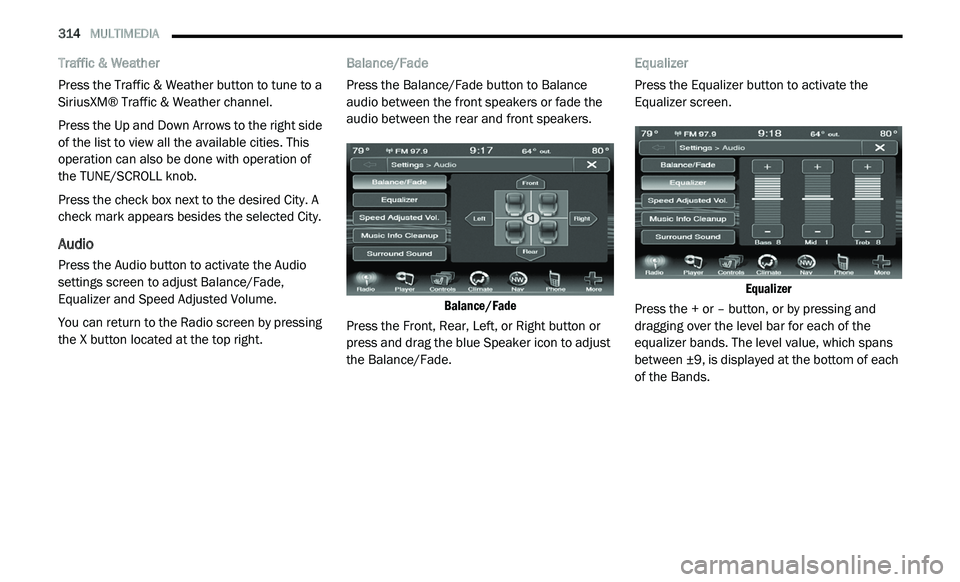
Press the Balance/Fade button to Balance
a
u
dio between the front speakers or fade the
audio between the rear and front speakers.
Balance/Fade
Press the Front, Rear, Left, or Right button or
p r
ess and drag the blue Speaker icon to adjust
the Balance/Fade. Equalizer
Press the Equalizer button to activate the
E
q
ualizer screen.
Equalizer
Press the + or – button, or by pressing and
d r
agging over the level bar for each of the
equalizer bands. The level value, which spans
between ±9, is displayed at the bottom of each
of the Bands.