radio DODGE JOURNEY 2020 Repair Manual
[x] Cancel search | Manufacturer: DODGE, Model Year: 2020, Model line: JOURNEY, Model: DODGE JOURNEY 2020Pages: 396, PDF Size: 25.53 MB
Page 317 of 396
MULTIMEDIA 315
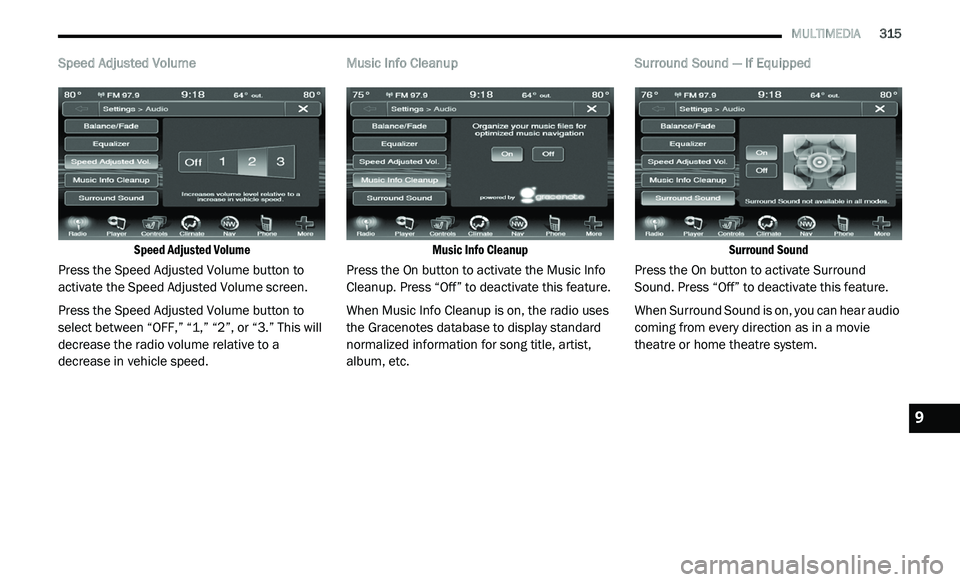
Speed Adjusted Volume
Speed Adjusted Volume
Press the Speed Adjusted Volume button to
a c
tivate the Speed Adjusted Volume screen.
Press the Speed Adjusted Volume button to
s e
lect between “OFF,” “1,” “2”, or “3.” This will
decrease the radio volume relative to a
decrease in vehicle speed. Music Info Cleanup
Music Info Cleanup
Press the On button to activate the Music Info
C le
anup. Press “Off” to deactivate this feature.
When Music Info Cleanup is on, the radio uses
t h
e Gracenotes database to display standard
normalized information for song title, artist,
album, etc. Surround Sound — If Equipped
Surround Sound
Press the On button to activate Surround
S o
und. Press “Off” to deactivate this feature.
When Surround Sound is on, you can hear audio
c o
ming from every direction as in a movie
theatre or home theatre system.
9
Page 318 of 396
316 MULTIMEDIA
MEDIA MODE
Disc Mode
Overview
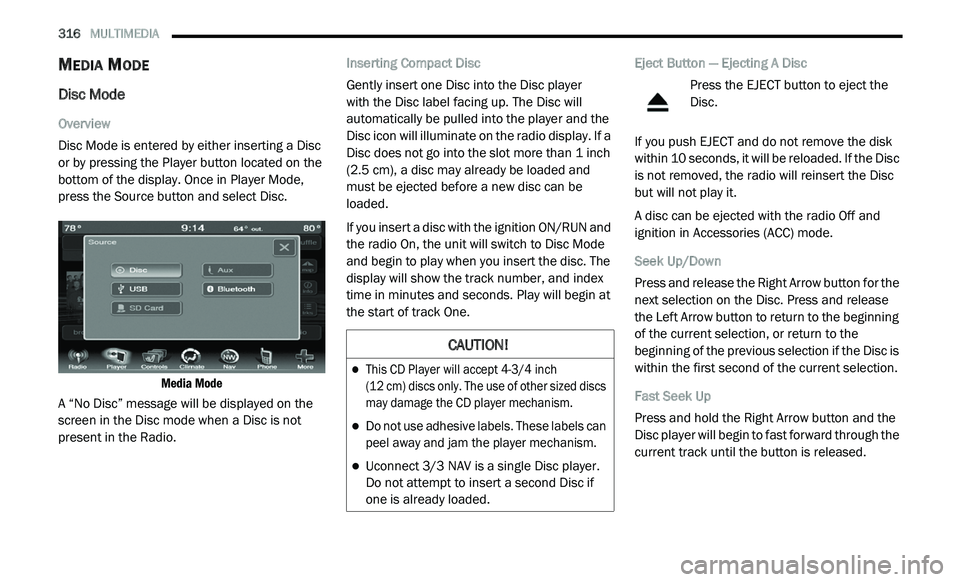
Disc Mode is entered by either inserting a Disc
or
by pressing the Player button located on the
bottom of the display. Once in Player Mode,
press the Source button and select Disc.
Media Mode
A “No Disc” message will be displayed on the
s c
reen in the Disc mode when a Disc is not
present in the Radio. Inserting Compact Disc
Gently insert one Disc into the Disc player
with the Disc label facing up. The Disc will
a u
tomatically be pulled into the player and the
Disc icon will illuminate on the radio display. If a
Disc does not go into the slot more than 1 inch
( 2
.5 cm), a disc may already be loaded and
must be ejected before a new disc can be
loaded.
If you insert a disc with the ignition ON/RUN and
t h
e radio On, the unit will switch to Disc Mode
and begin to play when you insert the disc. The
display will show the track number, and index
time in minutes and seconds. Play will begin at
the start of track One. Eject Button — Ejecting A Disc
Press the EJECT button to eject the
Disc.
If you push EJECT and do not remove the disk
w i
thin 10 seconds, it will be reloaded. If the Disc
is not removed, the radio will reinsert the Disc
but will not play it.
A disc can be ejected with the radio Off and
i g
nition in Accessories (ACC) mode.
Seek Up/Down
Press and release the Right Arrow button for the
n e
xt selection on the Disc. Press and release
the Left Arrow button to return to the beginning
of the current selection, or return to the
beginning of the previous selection if the Disc is
within the first second of the current selection.
Fast Seek Up
Press and hold the Right Arrow button and the
D i
sc player will begin to fast forward through the
current track until the button is released.
CAUTION!
This CD Player will accept 4-3/4 inch
(12 cm) discs only. The use of other sized discs
m a
y damage the CD player mechanism.
Do not use adhesive labels. These labels can
peel away and jam the player mechanism.
Uconnect 3/3 NAV is a single Disc player.
Do
not attempt to insert a second Disc if
one is already loaded.
Page 319 of 396
MULTIMEDIA 317
Fast Seek Down
Press and hold the Left Arrow button and the
Di
sc player will begin to rewind through the
current track until the button is released.
Browse
Press the Browse button to display the browse
w i
ndow. The left side of the browse window
displays a list of ways you can browse through
the contents of the Disc. If supported by the
device, you can browse by Folders, Artists,
Playlists, Albums, Songs, etc. Press the desired
button on the left side of the screen. The center
of the browse window shows items and it’s
sub-functions, which can be scrolled by
pressing the Up and Down buttons to the right.
The TUNE/SCROLL knob can also be used to
scroll.
Source
Press the Source button on the touchscreen to
s e
lect the desired audio source: Disc/USB/SD
Card/AUX/Bluetooth®. This screen will time out
after a few seconds and return to the main radio
screen if no selection is made. Repeat
Press the Repeat button to toggle the repeat
f
u
nctionality. The Repeat button is highlighted
when active. The radio will continue to play the
current track, repeatedly, as long as the repeat
is active.
Shuffle
Press the Shuffle button to play the selections
o n
the compact disc in random order to provide
an interesting change of pace. Press the Shuffle
button a second time to turn this feature off.
Info
Press the Info button to display the current
t r
ack information. Press the Info button a
second time to cancel this feature.
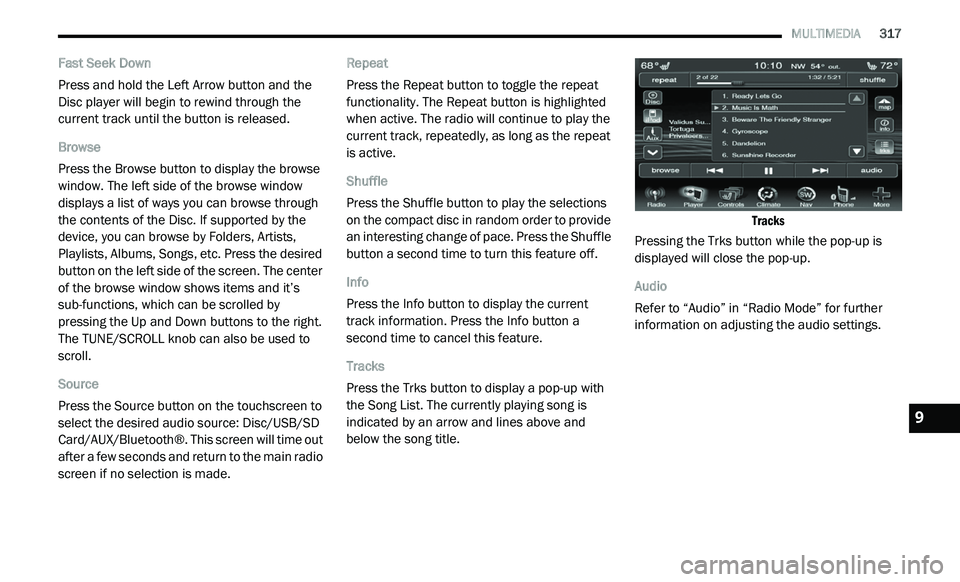
Tracks
Press the Trks button to display a pop-up with
t h
e Song List. The currently playing song is
indicated by an arrow and lines above and
below the song title.
Tracks
Pressing the Trks button while the pop-up is
d i
splayed will close the pop-up.
Audio
Refer to “Audio” in “Radio Mode” for further
i n
formation on adjusting the audio settings.
9
Page 320 of 396
318 MULTIMEDIA
USB Operation
Overview
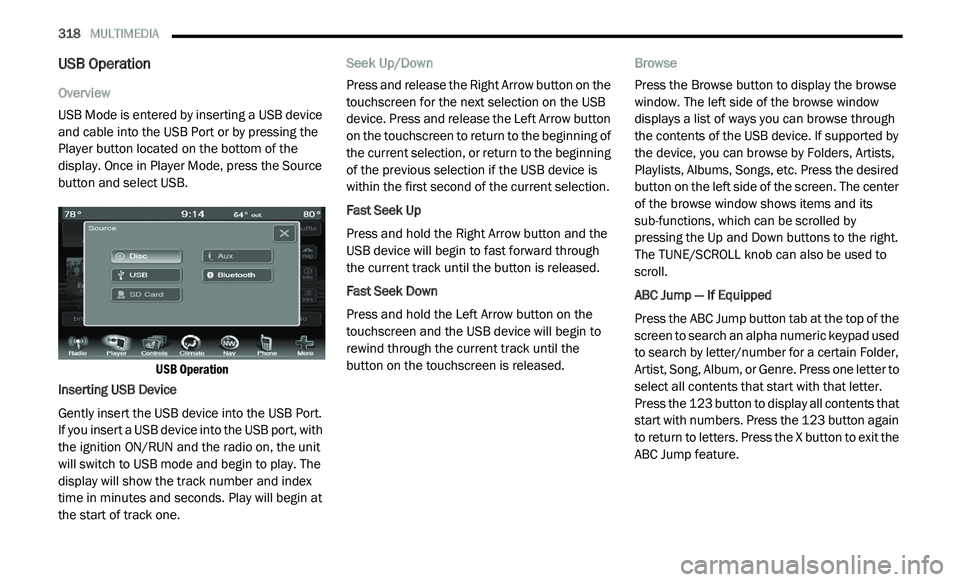
USB Mode is entered by inserting a USB device
an
d cable into the USB Port or by pressing the
Player button located on the bottom of the
display. Once in Player Mode, press the Source
button and select USB.
USB Operation
Inserting USB Device
Gently insert the USB device into the USB Port.
I f
you insert a USB device into the USB port, with
the ignition ON/RUN and the radio on, the unit
will switch to USB mode and begin to play. The
display will show the track number and index
time in minutes and seconds. Play will begin at
the start of track one. Seek Up/Down
Press and release the Right Arrow button on the
t
o
uchscreen for the next selection on the USB
device. Press and release the Left Arrow button
on the touchscreen to return to the beginning of
the current selection, or return to the beginning
of the previous selection if the USB device is
within the first second of the current selection.
Fast Seek Up
Press and hold the Right Arrow button and the
U S
B device will begin to fast forward through
the current track until the button is released.
Fast Seek Down
Press and hold the Left Arrow button on the
t o
uchscreen and the USB device will begin to
rewind through the current track until the
button on the touchscreen is released. Browse
Press the Browse button to display the browse
w
i
ndow. The left side of the browse window
displays a list of ways you can browse through
the contents of the USB device. If supported by
the device, you can browse by Folders, Artists,
Playlists, Albums, Songs, etc. Press the desired
button on the left side of the screen. The center
of the browse window shows items and its
sub-functions, which can be scrolled by
pressing the Up and Down buttons to the right.
The TUNE/SCROLL knob can also be used to
scroll.
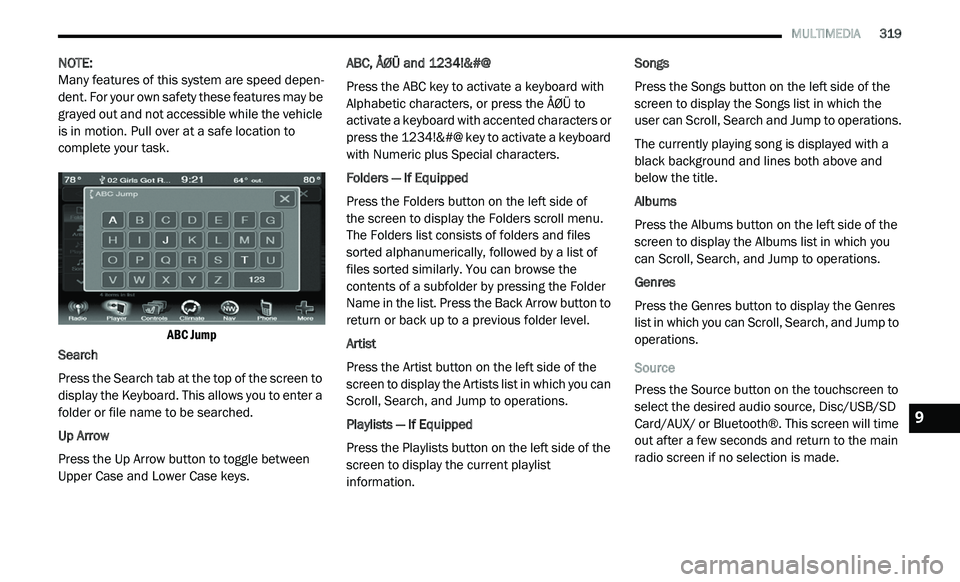
ABC Jump — If Equipped
Press the ABC Jump button tab at the top of the
s c
reen to search an alpha numeric keypad used
to search by letter/number for a certain Folder,
Artist, Song, Album, or Genre. Press one letter to
select all contents that start with that letter.
Press the 123 button to display all contents that
start with numbers. Press the 123 button again
to return to letters. Press the X button to exit the
ABC Jump feature.
Page 321 of 396
MULTIMEDIA 319
NOTE:
Many features of this system are speed depen -
dent. For your own safety these features may be
g r
ayed out and not accessible while the vehicle
is in motion. Pull over at a safe location to
complete your task.
ABC Jump
Search
Press the Search tab at the top of the screen to
d i
splay the Keyboard. This allows you to enter a
folder or file name to be searched.
Up Arrow
Press the Up Arrow button to toggle between
U p
per Case and Lower Case keys. ABC, ÅØÜ and 1234!&#@
Press the ABC key to activate a keyboard with
A
l
phabetic characters, or press the ÅØÜ to
activate a keyboard with accented characters or
press the 1234!&#@ key to activate a keyboard
with Numeric plus Special characters.
Folders — If Equipped
Press the Folders button on the left side of
the screen to display the Folders scroll menu.
T h
e Folders list consists of folders and files
sorted alphanumerically, followed by a list of
files sorted similarly. You can browse the
contents of a subfolder by pressing the Folder
Name in the list. Press the Back Arrow button to
return or back up to a previous folder level.
Artist
Press the Artist button on the left side of the
s c
reen to display the Artists list in which you can
Scroll, Search, and Jump to operations.
Playlists — If Equipped
Press the Playlists button on the left side of the
s c
reen to display the current playlist
information. Songs
Press the Songs button on the left side of the
sc
reen to display the Songs list in which the
user can Scroll, Search and Jump to operations.
The currently playing song is displayed with a
b la
ck background and lines both above and
below the title.
Albums
Press the Albums button on the left side of the
s c
reen to display the Albums list in which you
can Scroll, Search, and Jump to operations.
Genres
Press the Genres button to display the Genres
l i
st in which you can Scroll, Search, and Jump to
operations.
Source
Press the Source button on the touchscreen to
s e
lect the desired audio source, Disc/USB/SD
Card/AUX/ or Bluetooth®. This screen will time
out after a few seconds and return to the main
radio screen if no selection is made.
9
Page 322 of 396
320 MULTIMEDIA
Repeat
Press the Repeat button to toggle the repeat
fu
nctionality. The Repeat button is highlighted
when active. The Radio will continue to play the
current track, repeatedly, as long as the repeat
is active.
Shuffle
Press the Shuffle button to play the selections on
t h
e USB device in random order. Press the Shuffle
button a second time to turn this feature off.
Info
Press the Info button to display the current
t r
ack information. Press the Info button a
second time to cancel this feature.
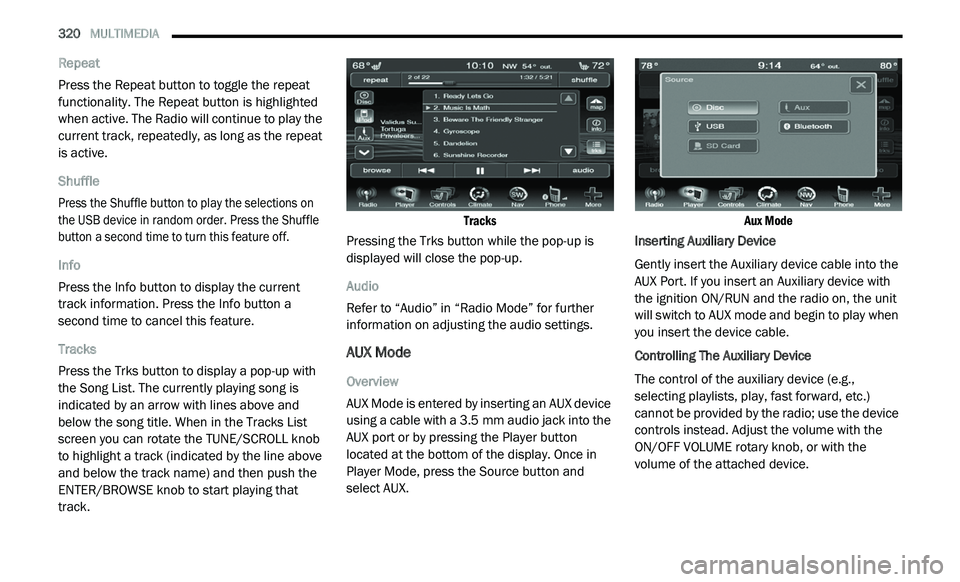
Tracks
Press the Trks button to display a pop-up with
t h
e Song List. The currently playing song is
indicated by an arrow with lines above and
below the song title. When in the Tracks List
screen you can rotate the TUNE/SCROLL knob
to highlight a track (indicated by the line above
and below the track name) and then push the
ENTER/BROWSE knob to start playing that
track.
Tracks
Pressing the Trks button while the pop-up is
d i
splayed will close the pop-up.
Audio
Refer to “Audio” in “Radio Mode” for further
i n
formation on adjusting the audio settings.
AUX Mode
Overview
AUX Mode is entered by inserting an AUX device
us
ing a cable with a 3.5 mm audio jack into the
A U
X port or by pressing the Player button
located at the bottom of the display. Once in
Player Mode, press the Source button and
select AUX.
Aux Mode
Inserting Auxiliary Device
Gently insert the Auxiliary device cable into the
A U
X Port. If you insert an Auxiliary device with
the ignition ON/RUN and the radio on, the unit
will switch to AUX mode and begin to play when
you insert the device cable.
Controlling The Auxiliary Device
The control of the auxiliary device (e.g.,
s e
lecting playlists, play, fast forward, etc.)
cannot be provided by the radio; use the device
controls instead. Adjust the volume with the
ON/OFF VOLUME rotary knob, or with the
volume of the attached device.
Page 323 of 396
MULTIMEDIA 321
NOTE:
The vehicle radio unit is acting as the amplifier
f o
r audio output from the Auxiliary device.
Therefore if the volume control on the Auxiliary
device is set too low, there will be insufficient
audio signal for the radio unit to play the music
on the device.
Source
Press the Source button on the touchscreen to
s e
lect the desired audio source, Disc/USB/SD
Card/AUX/ or Bluetooth®. This screen will time
out after a few seconds and return to the main
radio screen if no selection is made.
Audio
Refer to “Audio” in “Radio Mode” for further
i n
formation on adjusting the audio settings.
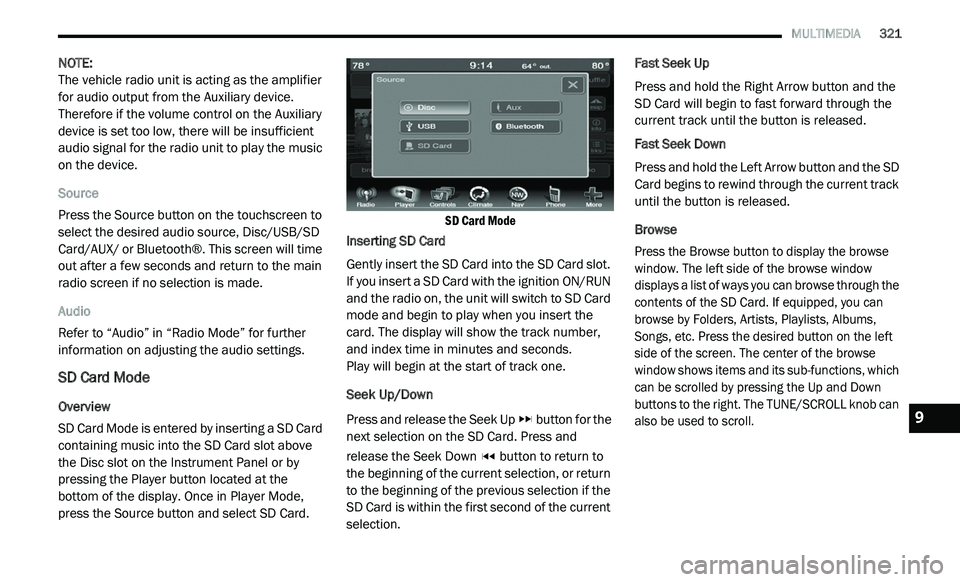
SD Card Mode
Overview
SD Card Mode is entered by inserting a SD Card
co
ntaining music into the SD Card slot above
the Disc slot on the Instrument Panel or by
pressing the Player button located at the
bottom of the display. Once in Player Mode,
press the Source button and select SD Card.
SD Card Mode
Inserting SD Card
Gently insert the SD Card into the SD Card slot.
I f
you insert a SD Card with the ignition ON/RUN
and the radio on, the unit will switch to SD Card
mode and begin to play when you insert the
card. The display will show the track number,
and index time in minutes and seconds.
Play will begin at the start of track one.
Seek Up/Down
Press and release the Seek Up button for the
next selection on the SD Card. Press and
r e
lease the Seek Down button to return to
the beginning of the current selection, or return
t o
the beginning of the previous selection if the
SD Card is within the first second of the current
selection. Fast Seek Up
Press and hold the Right Arrow button and the
S
D
Card will begin to fast forward through the
current track until the button is released.
Fast Seek Down
Press and hold the Left Arrow button and the SD
C a
rd begins to rewind through the current track
until the button is released.
Browse
Press the Browse button to display the browse
w i
ndow. The left side of the browse window
displays a list of ways you can browse through the
contents of the SD Card. If equipped, you can
browse by Folders, Artists, Playlists, Albums,
Songs, etc. Press the desired button on the left
side of the screen. The center of the browse
window shows items and its sub-functions, which
can be scrolled by pressing the Up and Down
buttons to the right. The TUNE/SCROLL knob can
also be used to scroll.
9
Page 325 of 396
MULTIMEDIA 323
Source
Press the Source button on the touchscreen to
se
lect the desired audio source, Disc/USB/SD
Card/AUX/ or Bluetooth®. This screen will time
out after a few seconds and return to the main
radio screen if no selection is made.
Repeat
Press the Repeat button to toggle the repeat
f u
nctionality. The Repeat button is highlighted
when active. The Radio will continue to play the
current track, repeatedly, as long as the repeat
is active.
Shuffle
Press the Shuffle button to play the selections
o n
the Auxiliary device in random order to
provide an interesting change of pace. Press
the Shuffle button a second time to turn this
feature off.
Info
Press the Info button to display the current
t r
ack information. Press the Info button a
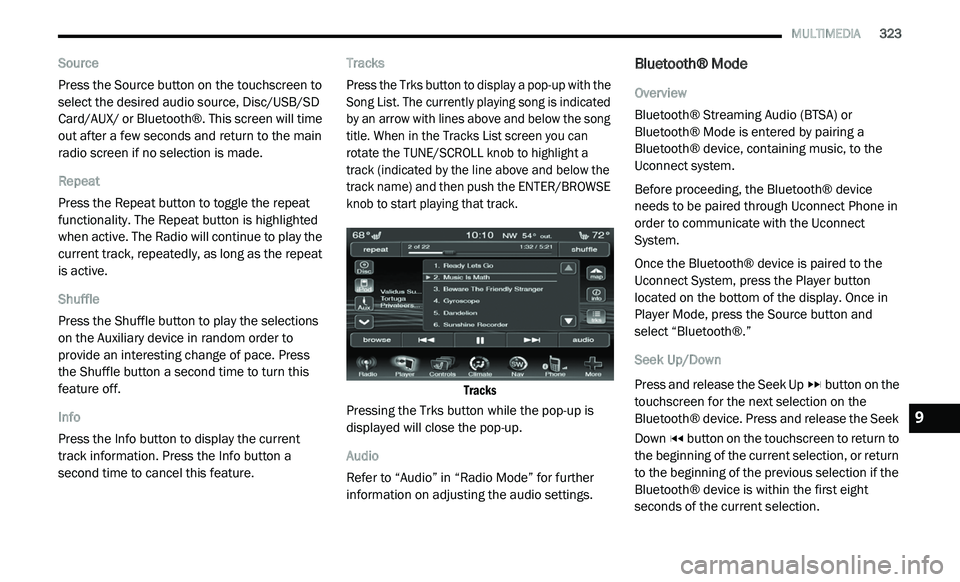
second time to cancel this feature. Tracks
Press the Trks button to display a pop-up with the
S
o
ng List. The currently playing song is indicated
by an arrow with lines above and below the song
title. When in the Tracks List screen you can
rotate the TUNE/SCROLL knob to highlight a
track (indicated by the line above and below the
track name) and then push the ENTER/BROWSE
knob to start playing that track.
Tracks
Pressing the Trks button while the pop-up is
d i
splayed will close the pop-up.
Audio
Refer to “Audio” in “Radio Mode” for further
i n
formation on adjusting the audio settings.
Bluetooth® Mode
Overview
Bluetooth® Streaming Audio (BTSA) or
Bl
uetooth® Mode is entered by pairing a
Bluetooth® device, containing music, to the
Uconnect system.
Before proceeding, the Bluetooth® device
n e
eds to be paired through Uconnect Phone in
order to communicate with the Uconnect
System.
Once the Bluetooth® device is paired to the
U c
onnect System, press the Player button
located on the bottom of the display. Once in
Player Mode, press the Source button and
select “Bluetooth®.”
Seek Up/Down
Press and release the Seek Up button on the
touchscreen for the next selection on the
B l
uetooth® device. Press and release the Seek
Down button on the touchscreen to return to
the beginning of the current selection, or return
t o
the beginning of the previous selection if the
Bluetooth® device is within the first eight
seconds of the current selection.
9
Page 326 of 396
324 MULTIMEDIA
Fast Seek Up
Press and hold the Seek Up button and the
Bluetooth® device will begin to fast forward
th
rough the current track until the button is
released.
Fast Seek Down
Press and hold the Seek Down button and
the Bluetooth® device will begin to rewind
t h
rough the current track until the button is
released.
Source
Press the Source button on the touchscreen to
s e
lect the desired audio source, Disc/USB/SD
Card/AUX/ or Bluetooth®. This screen will time
out after a few seconds and return to the main
radio screen if no selection is made.
Repeat
Press the Repeat button to toggle the repeat
f u
nctionality. The Repeat button is highlighted
when active. The Radio will continue to play the
current track, repeatedly, as long as the repeat
is active. Info
Press the Info button to display the current
t
r
ack information. Press the Info button a
second time to cancel this feature.
Audio
Refer to “Audio” in “Radio Mode” for further
i n
formation on adjusting the audio settings.
UCONNECT PHONE
Uconnect Phone is a voice-activated,
hands-free, in-vehicle communications system.
Uconnect Phone allows you to dial a phone
number with your mobile phone.
Uconnect Phone supports the following
fe
atures:
Voice Activated Features:
Hands-Free dialing via Voice (“Call John
Smith Mobile” or, “Dial 248 555 1212”).
Hands-Free text-to-speech listening of your
incoming SMS messages.
Hands-Free text messaging (“Send a
message to John Smith Mobile”).
Redialing last dialed numbers (“Redial”).
Calling Back the last incoming call number
(“Call Back”).
Viewing Call logs on screen (“Show Incoming
Calls,” “Show Outgoing Calls,” “Show Missed
Calls,” “Show Recent Calls”).
Searching Contacts phone number (“Search
for John Smith Mobile”).
Screen Activated Features
Dialing via Keypad using touchscreen.
Viewing and Calling contacts from Phone -
books displayed on the touchscreen.
Setting Favorite Contact Phone numbers so
they are easily accessible on the Main Phone
screen.
Viewing and Calling contacts from Recent
Call logs.
Reviewing your recent Incoming SMS.
Sending a text message via the touchscreen.
Page 327 of 396
MULTIMEDIA 325
Listening to Music on your Bluetooth®
Device via the touchscreen.
Pairing up to 10 phones/audio devices for
easy access to connect to them quickly.
NOTE:
Your phone must be capable of SMS messaging
v i
a Bluetooth® for messaging features to work
properly. Your mobile phone’s audio is trans -
mitted through your vehicles audio system; the
s y
stem will automatically mute your radio when
using the Uconnect Phone. For Uconnect
customer support, visit the following website:
US residents — visit UconnectPhone.com or
call 1-877-855-8400.
Canadian residents — visit Uconnect-
Phone.com or call 1-800-465-2001 (English)
or 1-800-387-9983 (French).
Uconnect Phone allows you to transfer calls
b e
tween the system and your mobile phone as
you enter or exit your vehicle and enables you to
mute the system's microphone for private
conversation. The Uconnect Phone is driven through your
B
l
uetooth® “Hands-Free Profile” mobile phone.
Uconnect features Bluetooth® technology — the
global standard that enables different
electronic devices to connect to each other
without wires or a docking station, so Uconnect
Phone works no matter where you stow your
mobile phone (be it your purse, pocket, or
briefcase), as long as your phone is turned on
and has been paired to the vehicle's Uconnect
Phone.
The Uconnect Phone allows up to 10 mobile
p h
ones or audio devices to be linked to the
system. Only one linked (or paired) mobile
phone and one audio device can be used with
the system at a time. The system is available in
English, Spanish, or French languages. Uconnect Phone Button
The Uconnect Phone button
is used to enter
the phone mode and make calls, show recent
i n
coming and outgoing calls, view phonebook
along with other features. When you push the
button you will hear a BEEP. The beep is your
signal to give a command.
Uconnect Voice Command Button
The Voice Recognition button is only used for
“barge in” and when you are already in a call and
y o
u want to send Tones or make another call.
The Voice Recognition button is also used to
access the Voice Commands for the Uconnect
V o
ice Command features if your vehicle is
equipped. Please see the Uconnect Voice
Command section for direction on how to use
the Voice Command button.
The Uconnect Phone is fully integrated with the
ve
hicle’s audio system. The volume of the
Uconnect Phone can be adjusted either from the
radio volume control knob or from the steering
wheel radio control (right switch), if so equipped.
WARNING!
Any voice commanded system should be
used only in safe driving conditions following
all applicable laws, including laws regarding
phone use. Your attention should be focused
on safely operating the vehicle. Failure to do
so may result in an accident causing serious
injury or death.
9