ESP DODGE JOURNEY 2020 Repair Manual
[x] Cancel search | Manufacturer: DODGE, Model Year: 2020, Model line: JOURNEY, Model: DODGE JOURNEY 2020Pages: 396, PDF Size: 25.53 MB
Page 341 of 396
MULTIMEDIA 339
13. Start without me.
14. Where are you?
1
5. A re you there yet?
1
6. I need directions.
1
7. I 'm lost.
1
8. S ee you later.
B
luetooth® Communication Link
Mobile phones have been found to lose
c o
nnection to the Uconnect Phone. When this
happens, the connection can generally be
re-established by switching the mobile phone
OFF/ON. Your mobile phone is recommended to
remain in Bluetooth® On mode.
NAVIGATION MODE — IF EQUIPPED
Safety Precautions And Important
Information
Warning
Read this information carefully before starting
t o
operate the navigation system and follow the
instructions in this manual. Neither the FCA US
LLC nor Garmin® shall be liable for problems or
accidents resulting from failure to observe the
instructions in this manual. Failure to avoid the following potentially
h
a
zardous situations could result in an accident
or collision resulting in death or serious injury.
Always drive safely. Only use the navigation
features in this vehicle when it is safe to do
so. You accept full responsibility for the use
of the features in this vehicle.
When navigating, carefully compare informa -
tion displayed on the navigation system to all
a v
ailable navigation sources, including road
signs, road closures, road conditions, traffic
congestion, weather conditions, and other
factors that may affect safety while driving.
For safety, always resolve any discrepancies
before continuing navigation, and defer to
posted road signs and road conditions.
The navigation system is designed to provide
route suggestions. It is not a replacement for
driver attentiveness and good judgment.
Do not follow route suggestions if they suggest
a n
unsafe or illegal maneuver or would place the
vehicle in an unsafe situation.
WARNING!
ALWAYS drive safely with your hands on the
steering wheel. You have full responsibility
and assume all risks related to the use of the
Uconnect features and applications in this
vehicle. Only use Uconnect when it is safe to
do so. Failure to do so may result in an acci -
dent involving serious injury or death.
ALWAYS follow the law! Failure to follow
traffic laws may result in serious injury or
death.
9
Page 342 of 396
340 MULTIMEDIA
Be careful of the ambient temperature. Using
the navigation system at extreme tempera -
tures can lead to malfunction or damage.
A ls
o note that the unit can be damaged by
strong vibration, metal objects, or by water
getting inside the unit. Notice
This navigation system can be used when the
i
g
nition key is turned to ON/RUN or ACC.
To preserve the battery, however, it should
be used with the engine running whenever
p o
ssible. Using the navigation system for a long
time with the engine switched off can cause the
battery to run down.
Map Data Information
Garmin® uses a combination of governmental
a n
d private data sources. Virtually all data
sources contain some inaccurate or incomplete
data. In some countries, complete and accurate
map information is either not available or is
prohibitively expensive.
Getting Started
To access the Navigation system, press the Nav
button on bottom of the screen.
Setting Up Your System
When using your navigation system for the first
t i
me, complete the following tasks:
1. Ac quire satellites.
2
. U nderstand the main menu. A
cquiring Satellites
The bars indicate satellite strength.
Go to an open area, away from tall buildings and
t r
ees.
Acquiring satellite signals can take a few
m i
nutes.
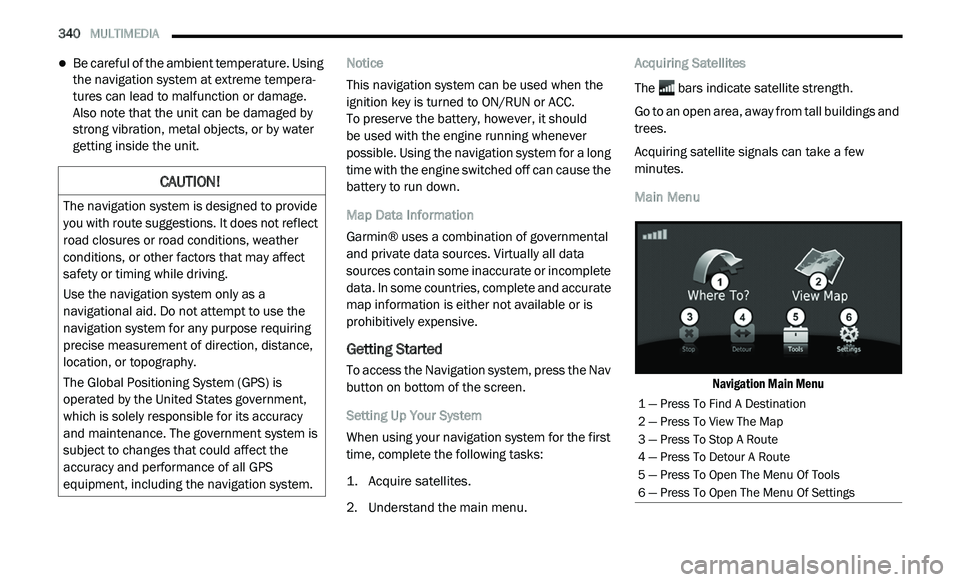
Main Menu
Navigation Main Menu
CAUTION!
The navigation system is designed to provide
you with route suggestions. It does not reflect
road closures or road conditions, weather
conditions, or other factors that may affect
safety or timing while driving.
Use the navigation system only as a
na
vigational aid. Do not attempt to use the
navigation system for any purpose requiring
precise measurement of direction, distance,
location, or topography.
The Global Positioning System (GPS) is
o p
erated by the United States government,
which is solely responsible for its accuracy
and maintenance. The government system is
subject to changes that could affect the
accuracy and performance of all GPS
equipment, including the navigation system.
1 — Press To Find A Destination
2 — Press To View The Map
3 — Press To Stop A Route
4 — Press To Detour A Route
5 — Press To Open The Menu Of Tools
6 — Press To Open The Menu Of Settings
Page 348 of 396
346 MULTIMEDIA
About Icons And Tones
The navigation system sounds two tones
when it enters and exits voice recognition
mode.
A red icon appears in the upper-right
corner of the screen when the navigation
s y
stem is not ready for your command.
Wait until the icon is green to speak your
command.
Tips for Using Voice Commands
Speak in a normal voice directed at the navi -
gation system.
Speak commands as they appear on the
screen.
Respond to voice prompts from the naviga -
tion system as needed.
Speak “Exit” to exit voice command. Navigating To A Popular Location Using Voice
C
o
mmands
You can speak the names of very popular,
w e
ll-known locations.
1. P ress the voice command button.
2
. S peak “Find by Name.”
3
. Li sten for the voice prompt and speak the
n
ame of the location.
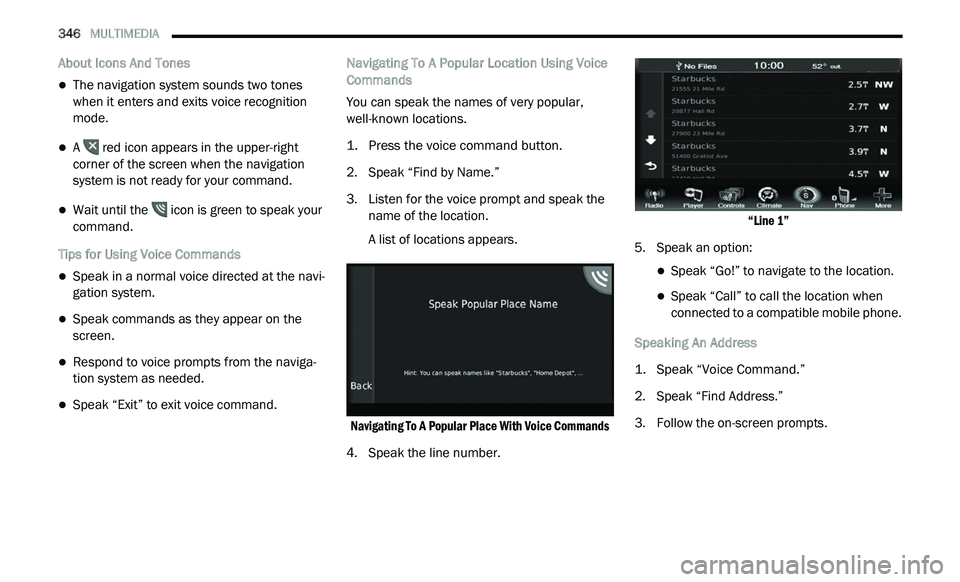
A list of locations appears.
Navigating To A Popular Place With Voice Commands
4. Speak the line number.
“
Line 1”
5. S peak an option:
Speak “Go!” to navigate to the location.
Speak “Call” to call the location when
connected to a compatible mobile phone.
Speaking An Address
1. S peak “Voice Command.”
2
. S peak “Find Address.”
3
. F ollow the on-screen prompts.
Page 352 of 396
350 MULTIMEDIA
8. Repeat steps 5 and 6, if necessary.
9. Enter a value.
1
0. P ress Done .
S
etting Currency Conversion Rates Manually
You can update the currency conversion rates
m a
nually so that you are always using the most
current rates.
1. Fr om the main menu press
T
ools > Unit
Converter
.
2. P ress the box with a currency listed.
3
. S elect C
urrency.
4. P ress Save .
5
. P ress a currency box.
6
. S elect the currency you want to update.
7
. R epeat steps 3-6 to select a currency to
c
onvert to, if necessary.
8. P ress a box under a currency.
9
. E nter a new value for the currency.
1
0. P ress Done .
1
1. R epeat steps 8 and 9, if necessary.
Traffic
Notice
Garmin® is not responsible for the accuracy or
ti
meliness of the traffic information. Your
navigation system may receive traffic content
via Satellite Radio service in North America or
via FM broadcast in other regions.
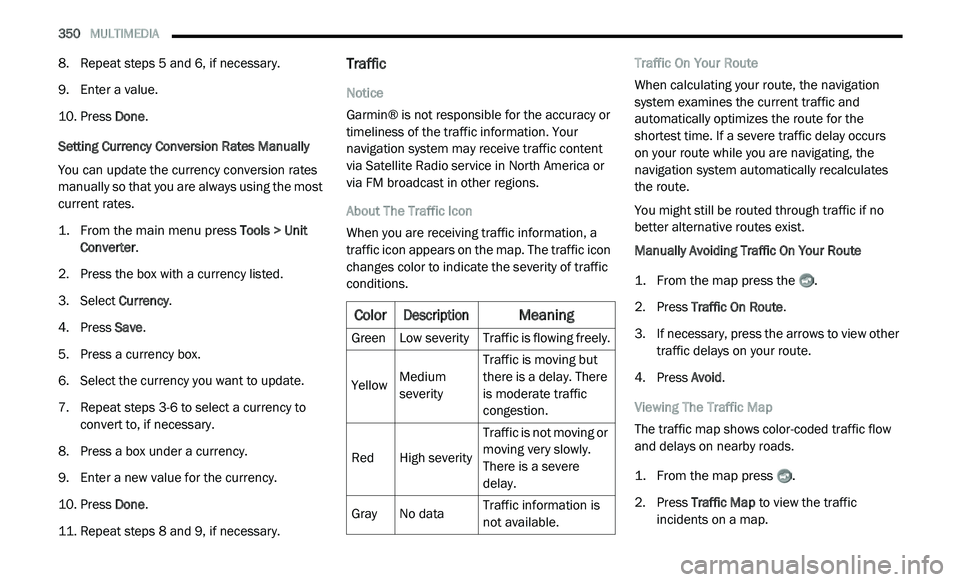
About The Traffic Icon
When you are receiving traffic information, a
t r
affic icon appears on the map. The traffic icon
changes color to indicate the severity of traffic
conditions. Traffic On Your Route
When calculating your route, the navigation
s
y
stem examines the current traffic and
automatically optimizes the route for the
shortest time. If a severe traffic delay occurs
on your route while you are navigating, the
n a
vigation system automatically recalculates
the route.
You might still be routed through traffic if no
b e
tter alternative routes exist.
Manually Avoiding Traffic On Your Route
1. Fr om the map press the .
2
. P ress Traffic On Route .
3
. I f necessary, press the arrows to view other
t
raffic delays on your route.
4. P ress Avoid .
V
iewing The Traffic Map
The traffic map shows color-coded traffic flow
a n
d delays on nearby roads.
1. Fr om the map press .
2
. P ress Traffic Map
to view the traffic
incidents on a map.
Color
Description
Meaning
GreenLow severity Traffic is flowing freely.
Yellow Medium
s
e
verity Traffic is moving but
t
h
ere is a delay. There
is moderate traffic
congestion.
Red High severity Traffic is not moving or
m
o
ving very slowly.
There is a severe
delay.
Gray No data Traffic information is
n
o
t available.
Page 355 of 396
MULTIMEDIA 353
Appendix
About GPS Satellite Signals
The navigation system must acquire satellite
si
gnals in order to navigate.
When the navigation system has acquired
s a
tellite signals, the signal strength bars on the
main menu are full . When it loses satellite
signals, the bars are clear .
For more information about GPS, go to
www.garmin.com/aboutGPS .
Updating The Software
To update the navigation system software, you
m u
st have a USB mass storage device and an
Internet connection.
1. G o to
a
uto-update.garmin.com
.
2. F ind your model and select S
oftware
Updates > Download . 3. R
ead and accept the terms of the Software
Li
cense Agreement.
4. F ollow the instructions on the Web site to
c
omplete the installation of the software
update.
Updating The Map Data
To update the navigation system map, you must
h a
ve a USB mass storage device and an
Internet connection, or visit your local dealer for
assistance. A map update can be purchased
once a year.
1. G o to
a
uto-update.garmin.com
.
2. S elect your vehicle from the drop-down lists.
3
. S elect O
rder Map Updates for your unit.
4. F ollow the Web site instructions to update
y
our map.
CAUTION!
Garmin® and FCA US LLC are not responsible
for the accuracy of, or the consequences of
using, a safety camera database.
Safety camera information is available in some
lo
cations. Go to
http://www.garmin.com
for
availability. For these locations, the navigation
s y
stem includes the locations of hundreds of
safety cameras. Your navigation system alerts you
when you are approaching a safety camera and
can warn you if you are driving too fast. The data
is updated at least weekly, so you always have
access to the most up-to-date information.
You can purchase a new region or extend an
e x
isting subscription at any time. Each region
that you purchase has an expiration date.
9
Page 356 of 396
354 MULTIMEDIA
Custom Points of Interest (POIs)
NOTE:
Custom POI files must be named “poi.gpi”. and
l o
cated on the USB storage device in a folder
named “POI” within a folder named “Garmin®”
(Garmin®/POI/).
You can manually load custom POI databases,
av
ailable from various companies on the
Internet. Some custom POI databases contain
alert information for points such as safety
cameras and school zones. The navigation
system can notify you when you approach one
of these points. You are responsible for
ensuring that your use of safety camera
information is lawful in your area. NOTE:
Each time you load custom POIs to the naviga -
tion system, any other custom POIs already
s a
ved in the system will be overwritten.
Finding Custom POIs
You can view a list of the custom POIs loaded in
y o
ur navigation system.
Press Where To? > Extras > Custom POIs .Deleting Custom POIs
1. P
ress
T
ools > My Data > Delete Custom
POI(s)
.
2. P ress Yes
to confirm.
NOTE:
All custom POIs will be deleted from your navi -
gation system.
Saving Trip Logs
Trip logs are recorded while you navigate a
r o
ute.
SiriusXM® Travel Link (US Market Only)
Now, in addition to delivering over 130 channels
of the best sports, entertainment, talk and
commercial-free music, SiriusXM® now offers
premium infotainment services that work in
conjunction with compatible navigation systems.
To access SiriusXM® Travel Link, press the
ME
NU button then press the Travel Link button.
CAUTION!
Garmin® and FCA US LLC are not responsible
for the consequences of using custom POI
databases, or for the accuracy of custom POI
databases.
After downloading your POI database, use the
Ga
rmin® POI Loader to install the POIs onto a
USB mass storage device. Use the USB mass
storage device to load the POIs. The POI
Loader is available at
garmin.com/products/
poiloader
. Refer to the POI Loader Help file for
more information; click H
e
lp to open the Help
file. The file name can only be POI.gpi. No other
file name or extension should be used.
Page 357 of 396
MULTIMEDIA 355
SiriusXM® Travel Link brings a wealth of useful
information into your vehicle and right to your
fingertips:
Fuel Prices
Check detailed price information for fuel
stations near your current location.
Sort the list of closest fuel stations by price,
distance or alphabetically.
Route to selected fuel station.
Store a favorite fuel station for quick access
to pricing.
Movie Listings
Check which movies are playing at theaters
near your current location.
Sort the list of theaters by distance or alpha -
betically.
Show movie titles, start times, ratings, run
length, and summaries.
Store a favorite theater for quick access to
schedules. Ski Info
View ski and snowboarding conditions at ski
resorts.
Store a favorite location for quick access to
snow conditions.
Sports Scores
View scores and upcoming events for all
major sports.
Store your favorite teams for quick access to
the scores and schedules.
NOTE:
SiriusXM® Travel Link data services subscrip -
tion is separate from your SiriusXM® Satellite
R a
dio (audio) subscription.
SiriusXM® services require subscriptions, sold
s e
parately after the 12-month trial included
with the new vehicle purchase. If you decide to
continue your service at the end of your trial
subscription, the plan you choose will automatically renew and bill at then-current
rates until you call SiriusXM at 866-635-2349
to cancel.
See SiriusXM® Customer Agreement for
c
o
mplete terms for U.S. residents at
www.siriusxm.com , and Canadian residents at
www.siriusxm.ca . All fees and programming
subject to change. Our satellite service is
a v
ailable only to those at least 18 and older in
the 48 contiguous USA and D.C. Our Sirius
satellite service is also available in PR (with
coverage limitations). Our Internet radio service
is available throughout our satellite service area
and in AK and HI. © 2020 Sirius XM Radio Inc.
Sirius, XM and all related marks and logos are
trademarks of SiriusXM® Radio Inc.
Weather
View detailed current conditions at your
current location.
Check extended 12-hour and 5-day fore -
casts.
Store a favorite location for quick access to
weather conditions and forecasts.
CAUTION!
Neither SiriusXM nor FCA US LLC is
responsible for any errors in accuracies in the
SiriusXM data services or its use in vehicles.
9
Page 359 of 396
MULTIMEDIA 357
OR CONTENT INDICATES YOUR
ACKNOWLEDGMENT THAT YOU HAVE READ
THIS LICENSE AGREEMENT AND AGREE TO ITS
TERMS AND CONDITIONS. IF YOU DO NOT
AGREE TO THESE TERMS AND CONDITIONS
FOR YOUR PRODUCT, RETURN THE COMPLETE
DEVICE WITHIN 7 DAYS OF THE DATE YOU
ACQUIRED IT (IF PURCHASED NEW) FOR A FULL
REFUND TO THE DEALER FROM WHICH YOU
PURCHASED THIS DEVICE. IF YOU DO NOT
AGREE TO THESE TERMS AND CONDITIONS
FOR YOUR DOWNLOAD, DO NOT PURCHASE,
INSTALL OR USE THE DOWNLOAD.
License Terms and Conditions
Garmin® (“we” or “us”) provides you with the
s t
orage media containing the Software and the
Content embedded therein, including any
“online” or electronic documentation and printed
materials in the case of a Device, or in the case
of a Download, the Application and the
embedded or accompanying Content, including
any “online” or electronic documentation and
printed materials. Garmin® grants you a limited,
non-exclusive license to use the applicable
Garmin® Product in accordance with the terms
of this Agreement. You agree to use the
applicable Garmin® Product for solely personal
use, or if applicable, for use in your business’ internal operations, and not for service bureau,
time-sharing, resale or other similar purposes.
Accordingly, but subject to the restrictions set
forth in the following paragraphs, you may copy
the applicable Garmin® Product only as
necessary for your use to (i) view it, and (ii) save
it, provided that you do not remove any copyright
notices that appear and do not modify the
Garmin® Product in any way. Your use of the
Application must not violate any usage rules of
the Application Vendor or any other third party
service provider you use to enable the
Application. You agree not to otherwise
reproduce, archive, copy, modify, decompile,
disassemble, reverse engineer or create
derivative works of any portion of the Garmin®
Products, and may not transfer or distribute it in
any form, for any purpose, except to the extent
permitted by mandatory laws. Garmin® also
reserves the right to discontinue offering any
Content supplied by any third party supplier if
such supplier ceases to supply such content or
Garmin’s® contract with such supplier
terminates for any reason.
Restrictions
Except where you have been specifically
l i
censed to do so by Garmin®, and without
limiting the preceding paragraphs, you may not
use the Garmin® Products with any products,
systems, or applications installed or otherwise
connected to or in communication with
vehicles, and which are capable of dispatch,
fleet management or similar applications where
the Content is used by a central control center
in dispatching a fleet of vehicles. In addition,
you are prohibited from renting or leasing the
Garmin® Products to any other person or third
party. Only those rental car companies that are
specifically authorized by Garmin® in writing to
rent Garmin® products containing the Content
to their rental customers are permitted to rent
out such products.
You agree to be fully responsible for your own
c o
nduct and content while using the Software
and for any consequences thereof. You agree to
use the Software only for purposes that are
legal, proper and in accordance with this
9
Page 360 of 396
358 MULTIMEDIA
Agreement and any applicable policies or
guidelines. By way of example, and not as a
limitation, you agree that when using the
Software, You will not:
upload, post, email or transmit or otherwise
make available content that infringes any
patent, trademark, copyright, trade secret or
other proprietary right of any party, unless
you are the owner of the rights or have the
permission of the owner to post such
Content;
use the Software or other content for any
illegal or unauthorized purpose; or
transmit any viruses, worms, defects, Trojan
horses, or any items of a destructive nature.
In the event that you are located outside of the
U n
ited States, you agree to comply with any
laws, rules or regulations in your locale or in the
location of your web server regarding online
conduct and acceptable content, including laws
regulating the export of data to the United
States or your country of residence.
Data Transfer
Certain services in connection with the Application
m a
y result in a transfer of data from your device. In
that case, additional charges for data transfer may
arise, depending on your device data plan. Please
contact your data provider for details about any
additional charges.
No Warranty
The Garmin® Products are provided to you “as is,”
a n
d you agree to use them at your own risk.
Garmin® and its licensors including the licensors,
service providers, channel partners and suppliers,
and affiliated companies of Garmin® and its
licensors, make no guarantees, representations or
warranties of any kind, express or implied, arising by
law or otherwise, including but not limited to,
content, quality, accuracy, completeness,
effectiveness, reliability, merchantability, fitness for
a particular purpose, usefulness, use or results to
be obtained from the Garmin® Products, or that the
Content or server will be uninterrupted or error-free.
The Garmin® Products are intended to be used only
as supplementary travel aids and must not be used
for any purpose requiring precise measurement of
direction, distance, location or topography. GARMIN
MAKES NO WARRANTY AS TO THE ACCURACY OR
COMPLETENESS OF THE MAP DATA OR OTHER
CONTENT. Disclaimer of Warranty
GARMIN AND ITS LICENSORS, INCLUDING THE
L I
CENSORS, SERVICE PROVIDERS, CHANNEL
PARTNERS, SUPPLIERS AND AFFILIATED
COMPANIES OF GARMIN AND ITS LICENSORS,
DISCLAIM ANY WARRANTIES, EXPRESS OR IMPLIED,
OF QUALITY, PERFORMANCE, MERCHANTABILITY,
FITNESS FOR A PARTICULAR PURPOSE OR NON
INFRINGEMENT OF THE GARMIN PRODUCTS.
NO ORAL OR WRITTEN ADVICE OR INFORMATION
P R
OVIDED BY GARMIN OR ITS SUPPLIERS AND
LICENSORS SHALL CREATE A WARRANTY, AND
YOU ARE NOT ENTITLED TO RELY ON ANY SUCH
A D
VICE OR INFORMATION. THIS DISCLAIMER OF
WARRANTIES IS AN ESSENTIAL CONDITION OF THIS
AGREEMENT. Some States, Territories and
Countries do not allow certain warranty exclusions,
so to that extent the above exclusion may not apply
to you.
Disclaimer of Liability
GARMIN AND ITS LICENSORS, INCLUDING THE
L I
CENSORS, SERVICE PROVIDERS, CHANNEL
PARTNERS, SUPPLIERS AND AFFILIATED
COMPANIES OF GARMIN AND ITS LICENSORS,
SHALL NOT BE LIABLE TO YOU: IN RESPECT
OF ANY CLAIM, DEMAND OR ACTION, IRRESPECTIVE
O F
THE NATURE OF THE CAUSE OF THE CLAIM,
DEMAND OR ACTION ALLEGING ANY LOSS, INJURY
Page 361 of 396
MULTIMEDIA 359
OR DAMAGES, DIRECT OR INDIRECT, WHICH MAY
RESULT FROM THE USE OR POSSESSION OF THE
GARMIN PRODUCTS; OR FOR ANY LOSS OF PROFIT,
REVENUE, CONTRACTS OR SAVINGS, OR ANY
OTHER DIRECT, INDIRECT, INCIDENTAL, SPECIAL
OR CONSEQUENTIAL DAMAGES ARISING OUT OF
YOUR USE OF OR INABILITY TO USE THE GARMIN
PRODUCTS, ANY DEFECT IN THE CONTENT OR
INFORMATION, OR THE BREACH OF THESE TERMS
OR CONDITIONS, WHETHER IN AN ACTION IN
CONTRACT OR TORT OR BASED ON A WARRANTY
AND WHETHER RESULTING FROM THE USE,
MISUSE, OR INABILITY TO USE THE GARMIN
PRODUCTS OR FROM DEFECTS OR ERRORS IN THE
APPLICATION, EVEN IF GARMIN OR ITS LICENSORS
HAVE BEEN ADVISED OF THE POSSIBILITY OF SUCH
DAMAGES. GARMIN’S AND ITS LICENSORS’ TOTAL
AGGREGATE LIABILITY WITH RESPECT TO ITS
OBLIGATIONS UNDER THIS LICENSE AGREEMENT
OR OTHERWISE WITH RESPECT TO THE
APPLICATION OR THE CONTENT SHALL NOT EXCEED
$1.00. Some States, Territories and Countries do
not allow certain liability exclusions or damages
limitations, so to that extent the above may not
apply to you. If you purchased your Application from
a third party application vendor, THE SOLE AND
MAXIMUM RESPONSIBILITY OF THE APPLICATION VENDOR IN THE EVENT OF A WARRANTY FAILURE IS
A REFUND OF THE APPLICATION PURCHASE PRICE.
ANY CONTENT OR MATERIAL DOWNLOADED OR
U
P
LOADED OR OTHERWISE OBTAINED
THROUGH THE SOFTWARE IS DONE AT YOUR
OWN DISCRETION AND RISK. YOU WILL BE
SOLELY RESPONSIBLE FOR ANY DAMAGE TO
YOUR ELECTRONIC COMMUNICATION DEVICE
OR ANY LOSS OF DATA THAT MAY RESULT
FROM THE DOWNLOAD OR UPLOAD OF ANY
SUCH CONTENT OR MATERIAL OR THE USE OF
THE SOFTWARE.
Predictive Routing
Your device may have a “predictive routing”
f e
ature called myTrends that identifies your
driving routines. If it does have this feature,
when your device predicts a route, it will display
your estimated time to destination and relevant
traffic information regarding the predicted
route. Information related to your driving
routines would be accessible to any other
person who uses your device. If you do not want
your device to predict your routes or display
information related to predicted routes, you
may turn off myTrends by accessing your
device’s Settings menu. Collection of Information
We may collect information relating to how
o f
ten you use the Garmin® Product or the
frequency with which certain applications and
features of the Garmin® Product are used.
This information would be collected
a n
onymously, in a way that does not personally
identify you. We may use this information to
detect broad user trends and to otherwise
enhance our products or applications. The use
of location-based services on the Garmin®
Product, which may include weather, movie
times, traffic information, fuel prices, or
information regarding local events, will cause
the physical location of your device to be
collected in order to provide you with such
location-based services. This location data is
collected anonymously in a form that does not
personally identify you. If you provide your
consent then Garmin® will collect and upload
information such as your location, speed, and
direction (known as “traffic probe data” or
“floating car data”) in order to enhance the
quality of the traffic data and other content
provided by Garmin® or other Content
providers. If you provide your consent, then
Garmin® may also share this data with or sell
this data to third parties. This data is shared
9