reset DODGE MAGNUM SRT 2007 1.G User Guide
[x] Cancel search | Manufacturer: DODGE, Model Year: 2007, Model line: MAGNUM SRT, Model: DODGE MAGNUM SRT 2007 1.GPages: 380, PDF Size: 6.63 MB
Page 158 of 380
(if equipped) frequencies, pausing for 5 seconds at each
listenable station before continuing to the next. To stop
the search, press SCAN a second time.
PSCAN Button (Radio Mode)
Pressing the PSCAN button causes the tuner to scan
through preset stations in either, AM, FM, or Satellite (if
equipped) frequencies, pausing for 5 seconds at each
preset station before continuing to the next. To stop the
search, press PSCAN a second time.
Time Button
Press the time button and the time of day will display for
5 seconds.
Clock Setting Procedure
1. Press and hold the time button until the hours blink.
2. Adjust the hours by turning the right side Tune/
Audio control.
3. After the hours are adjusted, press the right side
Tune/Audio control to set the minutes. The minutes will
begin to blink.4. Adjust the minutes using the right side Tune/Audio
control.
5. To exit, press any button/knob or wait 5 seconds.
RW/FF (Radio Mode)
Pressing the rewind/fast forward button causes the tuner
to search for the next frequency in the direction of the
arrows. This feature operates in either AM, FM or Satel-
lite (if equipped) frequencies.
TUNE Control (Radio Mode)
Turn the right side rotary control clockwise to increase or
counter-clockwise to decrease the frequency.
AM/FM Button (Radio Mode)
Press the button to select AM or FM Modes.
Setting the Tone, Balance, and Fade
Press the rotary TUNE control and BASS will display.
Turn the TUNE control to the right or left to increase or
decrease the Bass tones.
Press the rotary TUNE control a second time and MID
will display. Turn the TUNE control to the right or left to
increase or decrease the Mid Range tones.
UNDERSTANDING YOUR INSTRUMENT PANEL 157
4
Page 159 of 380
Press the rotary TUNE control a third time and TREB will
display. Turn the TUNE control to the right or left to
increase or decrease the Treble tones.
Press the rotary TUNE control a fourth time and BAL will
display. Turn the TUNE control to the right or left to
adjust the sound level from the right or left side speakers.
Press the rotary TUNE control a fifth time and FADE will
display. Turn the TUNE control to the left or right to
adjust the sound level between the front and rear speak-
ers.
Press the tune control again or wait 5 seconds to exit
setting tone, balance, and fade.
RND/SET Button (Radio Mode) To SET The
Push-Button Memory
When you are receiving a station that you wish to
commit to push-button memory, press the SET button.
The symbol SET 1 will now show in the display window.
Select the button (1-6) you wish to lock onto this station
and press and release that button. If a button is notselected within 5 seconds after pressing the SET button,
the station will continue to play but will not be stored
into push-button memory.
You may add a second station to each push-button by
repeating the above procedure with this exception: Press
the SET button twice and SET 2 will show in the display
window. Each button can be set for SET 1 and SET 2 in
both AM and FM. This allows a total of 12 AM, 12 FM,
and 12 Satellite (if equipped) stations to be stored into
push-button memory. The stations stored in SET 2
memory can be selected by pressing the push-button
twice.
Every time a preset button is used, a corresponding
button number will display.Preset Buttons1-6(Radio Mode)
These buttons tune the Radio to the stations that you
commit to push-button memory {12 AM, 12 FM, and 12
Satellite (if equipped) stations}.
158 UNDERSTANDING YOUR INSTRUMENT PANEL
Page 166 of 380
Soft Rock Soft_Rock
Top 40 Top_40
Country Country
Oldies Oldies
Soft Soft
Nostalgia Nostalgia
Jazz Jazz
Classical Classical
Rhythm and Blues Rhythm_and_Blues
Soft Rhythm and Blues Soft_R_&_B
Foreign Language Foreign_Language
Religious Music Religious_Music
Religious Talk Religious_Talk
Personality Personality
Public Public
College College
Unassigned
Weather Weather
By pressing the SEEK button when the PTY icon is
displayed, the radio will be tuned to the next frequencystation with the same selected PTY name. The PTY
function only operates when in the FM mode.
If a preset button is activated while in the PTY (Program
Type) mode, the PTY mode will be exited and the radio
will tune to the preset station.
NOTE:If you have selected a PTY with the tune knob,
simply pressing the tune button in will go directly to a
ªPTY seekº.
Buttons1-6(Radio Mode)
These buttons tune the Radio to the stations that you
commit to push-button memory {12 AM, 12 FM, and 12
Satellite (if equipped) stations}.
Operating Instructions Ð Tape Player
Insert the cassette with the exposed tape side toward the
left and the mechanical action of the player will gently
pull the cassette into the play position.
NOTE:When subjected to extremely cold temperatures,
the tape mechanism may require a few minutes to warm
up for proper operation. Sometimes poor playback may
be experienced due to a defective cassette tape. Clean and
demagnetize the tape heads at least twice a year.
UNDERSTANDING YOUR INSTRUMENT PANEL 165
4
Page 167 of 380
Seek Button
Press the SEEK button up for the next selection on the
tape and down to return to the beginning of the current
selection.
Press the SEEK button up or down to move the track
number to skip forward or backward 1 to 6 selections.
Press the SEEK button once to move 1 selection, twice to
move 2 selections, etc.
Fast Forward (FF)
Press the FF button up momentarily to advance the tape
in the direction that it is playing. The tape will advance
until the button is pressed again or the end of the tape is
reached. At the end of the tape, the tape will play in the
opposite direction.
Rewind (RW)
Press the RW button momentarily to reverse the tape
direction. The tape will reverse until the button is pressed
again or until the end of the tape is reached. At the end of
the tape, the tape will play in the opposite direction.
Tape Eject
Press this button and the cassette will disen-
gage and eject from the radio.
Scan Button
Press this button to play 10 seconds of each selection.
Press the scan button a second time to cancel the feature.
Changing Tape Direction
If you wish to change the direction of tape travel (side
being played), press Preset 6. The lighted arrow in the
display window will show the new direction.
Metal Tape Selection
If a standard metal tape is inserted into the player, the
player will automatically select the correct equalization.
Pinch Roller Release
If ignition power or the radio ON/OFF switch is turned
off, the pinch roller will automatically retract to protect
the tape from any damage. When power is restored to the
tape player, the pinch roller will automatically reengage
and the tape will resume play.
166 UNDERSTANDING YOUR INSTRUMENT PANEL
Page 168 of 380
Noise Reduction
The Dolby Noise Reduction System* is on whenever the
tape player is on, but may be switched off.
To turn off the Dolby Noise reduction System: Press
Preset 1 after you insert the tape. The NR light in the
display will go off when the Dolby System is off.
* ºDolbyº noise reduction is manufactured under license
from Dolby Laboratories Licensing Corporation. Dolby
and the double-D symbol are trademarks of Dolby Labo-
ratories Licensing Corporation.
Operation Instructions - (CD MODE for CD Audio
Play)
NOTE:
The ignition switch must be in the ON or ACC
position to operate the radio.
NOTE:Note: This Radio is capable of playing compact
discs (CD), recordable compact discs (CD-R), rewritable
compact discs (CD-RW) compact discs with MP3 tracks
and multisession compact discs with CD and MP3 tracks
and WMA.
Inserting Compact Disc(s)
CAUTION!
This CD player will accept 4 3/4 inch (12 cm) discs
only. The use of other sized discs may damage the
CD player mechanism.
You may eject a disc with the radio OFF.
If you insert a disc with the ignition ON and the radio
ON, the unit will switch from radio to CD mode and
begin to play when you insert the disc. The display will
show the disc number, the track number, and index time
in minutes and seconds. Play will begin at the start of
track 1.
SEEK Button (CD MODE for CD Audio Play)
Press the right side of the SEEK button for the next
selection on the CD. Press the left side of the button to
return to the beginning of the current selection, or return
to the beginning of the previous selection if the CD is
within the first 5 seconds of the current selection.
UNDERSTANDING YOUR INSTRUMENT PANEL 167
4
Page 184 of 380
REMOTE SOUND SYSTEM CONTROLS
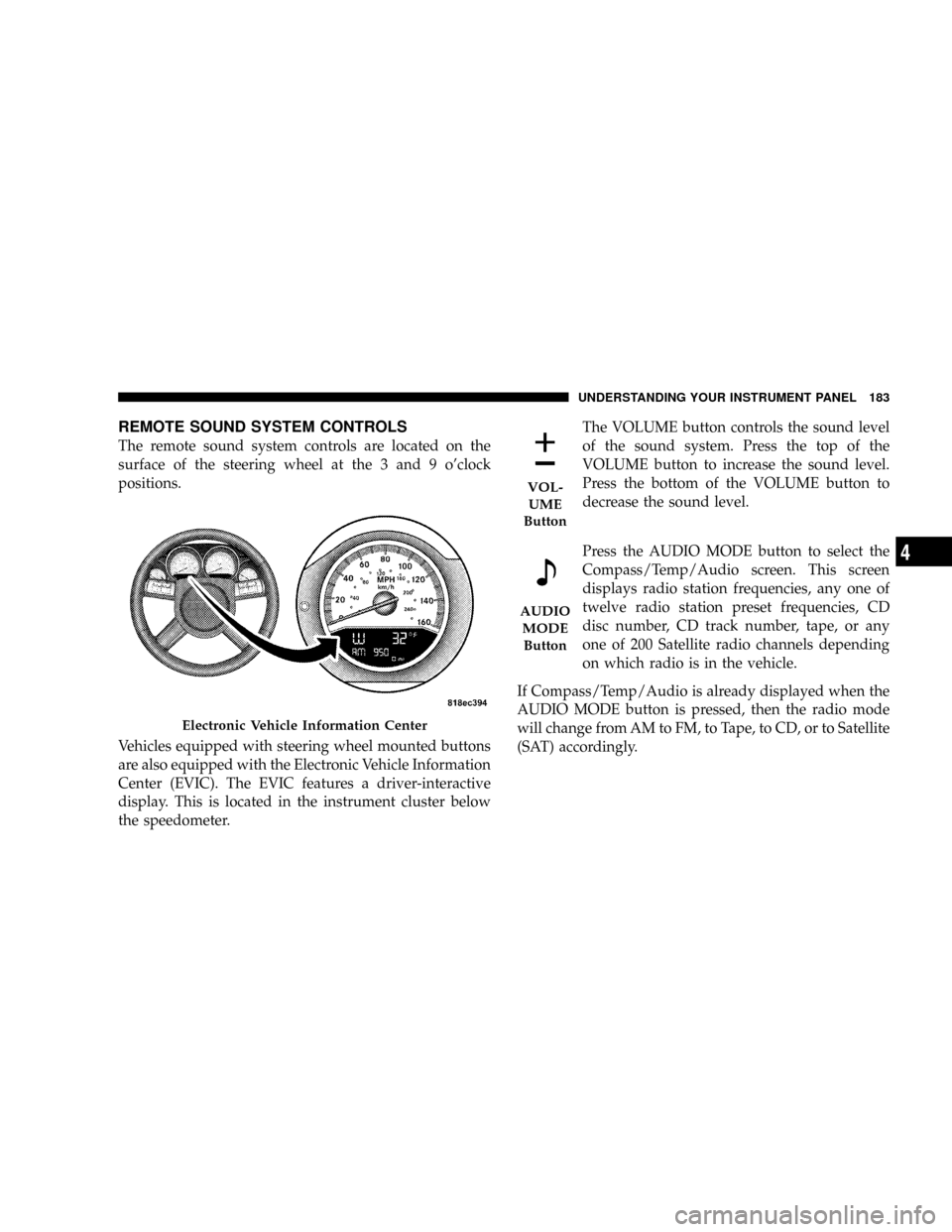
The remote sound system controls are located on the
surface of the steering wheel at the 3 and 9 o'clock
positions.
Vehicles equipped with steering wheel mounted buttons
are also equipped with the Electronic Vehicle Information
Center (EVIC). The EVIC features a driver-interactive
display. This is located in the instrument cluster below
the speedometer.The VOLUME button controls the sound level
of the sound system. Press the top of the
VOLUME button to increase the sound level.
Press the bottom of the VOLUME button to
decrease the sound level.
Press the AUDIO MODE button to select the
Compass/Temp/Audio screen. This screen
displays radio station frequencies, any one of
twelve radio station preset frequencies, CD
disc number, CD track number, tape, or any
one of 200 Satellite radio channels depending
on which radio is in the vehicle.
If Compass/Temp/Audio is already displayed when the
AUDIO MODE button is pressed, then the radio mode
will change from AM to FM, to Tape, to CD, or to Satellite
(SAT) accordingly.
Electronic Vehicle Information Center
VOL-
UME
Button
AUDIO
MODE
Button
UNDERSTANDING YOUR INSTRUMENT PANEL 183
4
Page 185 of 380
When the EVIC is in the Compass/Temp/
Audio screen, press the FUNCTION SELECT
button to advance the radio to the next preset
station, to change the side of the tape being
played (if so equipped), or to change the cur-
rent CD track being played (if so equipped).
when the EVIC is in the Compass/Temp/
Audio screen, press the SCROLL button to seek
up and down the radio stations, CD track
numbers (if so equipped), or satellite radio
channels (if so equipped).
The following describes the operation of the SCROLL
button in each mode:
Radio Operation
Press the top of the SCROLL button once to SEEK the
next listenable station up from the current setting. Press
the bottom of the SCROLL button once to SEEK the next
listenable station down from the current setting.
Tape Player Operation
Press the top of the SCROLL button once to listen to the
next track on the cassette. Press the bottom of the
SCROLL button once either to listen to the beginning of
the current track or to listen to the beginning of the
previous track if it is within 5 seconds after the current
track begins to play.
Press either the top or bottom of the SCROLL button
twice to listen to the second track on the tape, three times
to listen to the third track, and so forth.
Press the FUNCTION SELECT button to change the side
of the tape being played.
CD Player Operation
Press the top of the SCROLL button once to listen to the
next track on the CD. Press the bottom of the SCROLL
button once to either listen to the beginning of the current
track or to listen to the beginning of the previous track if
it is within one second after the current track begins to
play.
FUNC-
TION
SELECT
Button
SCROLL
Button
184 UNDERSTANDING YOUR INSTRUMENT PANEL
Page 215 of 380
Delayed Shifts in Cold Temperatures
During cold temperature operation, you may notice
delayed upshifts depending on engine and transmission
temperature as well as vehicle speed. This feature im-
proves warm up time of the engine and transmission to
achieve maximum efficiency.
Temporary Transmission Limp Home Mode
The transmission is monitored for abnormal conditions.
If a condition is detected that could result in transmission
damage, the transmission will engage Limp Home Mode.
If vehicle acceleration worsens, or the transmission no
longer shifts, the transmission is most likely operating in
the Limp Home Mode. In this mode, the transmission
will remain in the current gear until the vehicle is
brought to a stop. After the vehicle has stopped, P (Park),
R (Reverse), and N (Neutral) will continue to operate.
Second gear will operate in the D (Drive) shifter position.
The Malfunction Indicator Light may be illuminated.
A reset feature is available to allow the vehicle to be
driven to a dealer for service. To reset the transmission,
use the following procedure:
1. Stop the vehicle.2. Move the selector lever to the P (Park) position.
3. Turn off the engine.
4. Wait approximately 10 seconds.
5. Restart the engine.
6. Move the selector lever to the desired range. If the
problem is no longer detected, the transmission will
return to normal operation.
NOTE:Even if the transmission can be reset, we
recommend that you visit a dealer at your earliest
possible convenience. Your dealer has diagnostic equip-
ment to determine if the problem could recur.
Have the transmission checked at your authorized dealer
as soon as possible.
If the problem has been momentary, the transmission can
be reset to regain all forward gears.
Permanent Transmission Limp Home Mode
Permanent Limp Home Mode will be activated if the
transmission enters temporary Limp Home Mode three
214 STARTING AND OPERATING
Page 216 of 380
times. Follow the reset procedure described under ªTem-
porary Transmission Limp Home Modeº in this section.
In Permanent Limp Home Mode, P (Park), R (Reverse),
and N (Neutral) will continue to operate. Second gear
will operate in the D (Drive) shifter position. The mal-
function indicator light may illuminate.
AUTOSTICKT
Autosticktis a driver-interactive transmission that offers
manual gear shifting to provide you with more control of
the vehicle. Autosticktallows you to maximize engine
braking, eliminate undesirable upshifts and downshifts,
and improve overall vehicle performance. This system
can also provide you with more control during passing,
city driving, cold slippery conditions, mountain driving,
trailer towing, and many other situations.
AutostickTOperation
By placing the selector lever in the D (Drive) position, it
can be moved from side to side. This allows the driver to
select a higher or lower range of gears. Moving the
selector lever to the Left (-) triggers a downshift and tothe Right (+) an upshift. The gear position will display in
the instrument cluster on the transmission range indica-
tor.
NOTE:
²
In Autosticktmode, the transmission will only shift
up and down when the driver manually moves the
selector lever Right (D+) or Left (D-).
²An UPSHIFT message will appear in the Electronic
Vehicle Information Center (EVIC) portion of the in-
strument cluster when using Autostickt. This message
appears in order to alert the driver to upshift to the
next gear. The UPSHIFT message will display while
operating the vehicle at higher engine revolutions-per-
minute (RPM).
You can shift in or out of the Autosticktmode at any time
without taking your foot off the accelerator pedal. When
you wish to engage Autostickt, simply move the selector
lever to the Right (D+) or Left (D-) while in the D (Drive)
position. The transmission will remain in the current gear
until an upshift or downshift is chosen. When you wish
to disengage Autostickt, hold the selector lever to the
STARTING AND OPERATING 215
5
Page 260 of 380
Loose Fuel Filler Cap Message
If the vehicle diagnostic system determines that the fuel
filler cap is loose, improperly installed, or damaged, a
ªCheck Gascapº message will display in the Electronic
Vehicle Information Center (EVIC). If this occurs, tighten
the fuel filler cap properly and press the odometer reset
button to turn off the message. If the problem continues,
the message will appear the next time the vehicle is
started.
A loose, improperly installed, or damaged fuel filler cap
may also turn on the Malfunction Indicator Light (MIL).
Refer to ªOnboard Diagnostic Systemº in Section 7 of this
manual for more information.
VEHICLE LOADING
The load carrying capacity of your vehicle is shown on
the ªVehicle Certification Label.º This information
should be used for passenger and luggage loading as
indicated.
If the seatbacks are folded for carrying cargo, do not
exceed the specified GVWR and GAWR.
Vehicle Certification Label
Your vehicle has a certification label attached to the rear
of the driver's door.
The label contains the following information:
²Name of manufacturer
²Month and year of manufacture
²Gross Vehicle Weight Rating (GVWR)
²Gross Axle Weight Rating (GAWR) front
²Gross Axle Weight Rating (GAWR) rear
²Vehicle Identification Number (VIN)
²Type of Vehicle
STARTING AND OPERATING 259
5