service FIAT 500X 2018 Owner handbook (in English)
[x] Cancel search | Manufacturer: FIAT, Model Year: 2018, Model line: 500X, Model: FIAT 500X 2018Pages: 276, PDF Size: 7.08 MB
Page 233 of 276
PRESCRIPTIONS FOR HANDLING THE CAR AT THE END OF ITS
LIFE
(where provided)
FCA has been committed for many years to safeguarding the environment through the constant improvement of its production
processes and manufacturing products that are increasingly "eco-compatible". To grant customers the best possible service in
terms of respecting environmental laws and in response to European Directive 2000/53/EC governing vehicles at the end of
their life, FCA is offering its customers the chance to hand over their vehicle at the end of its life without incurring any additional
costs. The European Directive sets out that when the vehicle is handed over, the last keeper or owner should not incur any
expenses as a result of it having a zero or negative market value.
To hand your vehicle over at the end of its life without extra cost, contact one of our dealerships if you are purchasing another
vehicle or an FCA-authorised collection and scrapping centre. These centres have been carefully chosen to offer high quality
service for the collection, treatment and recycling of vehicles at their end of life, respecting the surrounding environment.
You can find further information on these collection and scrapping centres either from an FCA dealership or by calling the
number in the Warranty Booklet or by consulting the websites of the various FCA brands.
231
Page 249 of 276
SUMMARY TABLE OF DISPLAY BUTTONS
ButtonFunctions Mode
Radio Access
to the Radio mode Press button
Media Source selection: USB, AUX (where provided),
Bluetooth
®Press button
Phone Access to the Phone mode Press button
Uconnect™ Access to the system functions (Audio, Media, Phone,
Radio,
Uconnect
™LIVE services, etc.) Press button
Nav (*) Access to the Navigation menu Press button
Settings Access the settings menu Press button
Trip Access to the Trip function Press button
(*)Uconnect™ HD Nav LIVE versions only
247
Page 257 of 276
A call can be made by:
selecting "Phonebook";
selecting "Recent";
selecting "Dial";
selecting "Redial".
Favourites
You can add a number or a contact (if
already in Contacts) to the favourite list
during a call by pressing one of the 5
"Empty" graphic buttons on the upper
part of the display. The favourites can
also be managed by using the
Phonebook options
Text message reader
The system can read the messages
received by the mobile phone. To use
this function the mobile phone must
support the SMS exchange function
through
Bluetooth® .
If this function is not supported by the
phone, the corresponding "Text" button
is deactivated (greyed out).
When a text message is received, the
display will show a screen where the
options "Read", "Show", "Call" or
"Ignore" can be selected.
Press the "Text Message" graphic
button to access the list of text
messages received by the mobile
phone (the list displays a maximum of
60 messages received). NOTE On some mobile phones, to
make the SMS voice reading function
available, the SMS notification option
on the phone must be enabled; this
option is usually available on the phone,
in the
Bluetooth®
connections menu
for a device registered as Uconnect™.
After enabling this function on the
mobile phone, it must be disconnected
and reconnected with the Uconnect™
system in order to make it effective.
IMPORTANT Some mobile phones may
not take the SMS delivery confirmation
settings into account when interfacing
with Uconnect™. If a text message is
sent via the Uconnect™ system, the
driver could face an additional cost,
without any warning, due to the text
message delivery confirmation request
sent by the phone. For any problems
related to the above, contact your
telephone service provider.
"Do not disturb" function
If supported by the connected phone,
by pressing the "Do not disturb"
graphic button the user will not receive
notifications of incoming calls or text
messages. The user can reply with a
default or customised message by
means of the settings. SMS message options
Default SMS messages are stored in
the system memory and can be sent to
answer a received message or as a
new message.
Ye s
No
Okay
I can't talk right now
Call me
I'll call you later
I'm on my way
Thanks
I'll be late
Stuck in traffic
Start without me
Where are you?
Are you there yet?
I need directions
I'm lost
See you later
I will be 5 (or 10, 15, 20, 25, 30, 45,
60) (*) minutes late
See you in 5 (or 10, 15, 20, 25, 30,
45, 60) (*) minutes
(*) Only use the numbers listed,
otherwise the system will not take the
message. When receiving an SMS, the
systems also allows the same message
to be forwarded.
NOTE For details on how to send an
SMS using the voice commands, refer
to the dedicated paragraph.
255
Page 258 of 276
Browsing text messages
(where provided)
Using the steering wheel commands,
you can view and manage the last
10 SMS messages received on the
instrument panel display. To use this
function the mobile phone must
support the SMS exchange function
through
Bluetooth®.
Select “Phone” on the instrument panel
Setup Menu and then select “SMS
reader” using the steering wheel
controls. The "SMS reader" submenu
allows the last 10 SMS messages to be
displayed.
Browsing favourites
(where provided)
Using the steering wheel commands,
you can view and manage your
favourite phone numbers on the
instrument panel display. To use this
function, the mobile phone must
support SNS exchange via
Bluetooth® and the favourite numbers
must have been saved previously as
such in the Uconnect™ system.
Use the steering wheel controls to
select “Phone” on the instrument panel
Setup Menu. If the phone is connected,
select the "Favourite numbers" option:
the "Favourite numbers" submenu
enables you to view and select the
favourite number. If the "Phone" option is selected with
the phone not connected, the list of
favourite numbers cannot be viewed.
Uconnect™ LIVE
SERVICES
Press the
Uconnect™ button to
access the Uconnect™LIVE
applications.
The application functions are present
according to the vehicle configuration
and to the market.
To use the Uconnect™LIVE services,
you need to download the
Uconnect™LIVE App from Google
Play or Apple Store and register using
the app or on www.driveuconnect.eu
First access to the car
After starting the Uconnect™LIVE
App and entering your credentials, to
access the Uconnect™LIVE App
services in the car you need
Bluetooth® pairing between your
smart phone and the Unconnect
™system as described in the
"Registering your cell phone" chapter.
The list of supported mobile phones is
available on www.driveuconnect.eu
After pairing, press the
Uconnect™LIVE button on the display
to access the connected services. Before using the connected services,
you must complete the activation
procedure following the instructions that
appear in the
Uconnect™LIVE App
once the
Bluetooth® pairing has been
completed
Uconnect™ LIVE services setup
using the Uconnect™ system
Through the Uconnect™ LIVE
services you can access the "Settings"
section by pressing the
icon. You
can then check the system options and
change them according to your
preferences .
System updates
If an update for the Uconnect™LIVE
system is available while the
Uconnect™LIVE services are being
used, the driver will be informed with a
message on the display of the system.
Connected services that can be
accessed on the car
The eco:Drive™applications and
my:Car applications are developed to
improve the customer's driving
experience, and they are therefore
usable in all the markets where the
Uconnect™LIVE services are
accessible.
On Uconnect™ 7” HD Nav LIVE
versions, the access to
Uconnect™LIVE services enables the
use of “LIVE” services.
256
MULTIMEDIA
Page 261 of 276
Setting “AutoShow smartphone
display on connection"
Through theUconnect™ system
settings, the user can decide to view
the smartphone screen on the
Uconnect™ system display as soon as
the smartphone is connected via the
USB port.
When this function is set, each time a
connection is made via USB, the Apple
CarPlay or Android Auto apps will run
automatically on the Uconnect™
system display.
The "AutoShow smartphone display on
connection" item can be found in the
"Display" submenu. The function is
enabled by default.
Exiting the Android Auto and Apple
CarPlay apps
To end the Apple CarPlay or Android
Auto session, physically disconnect the
smartphone from the car's USB port.
SETTINGS
Press the “Settings” button on the
display to show the main “Settings”
menu.
NOTE The menu items displayed vary
according to the versions.
As a guideline, the menu includes the
following items:
Display
Units (where provided)
Voice commands
Time and Date;
Safety/Driving assistance (where
provided)
Lights
Doors & Locks
Engine Off Options
Audio
Telephone/Bluetooth®
Radio Setup
SiriusXM Setup (where provided)
Restore Default Settings
Clear Personal Data
Apps restore (where provided)
NAVIGATION(versions with Uconnect™7" HD Nav
LIVE only)
Press the "Nav" button to show the
navigation map on the display.
NOTE: The navigation system volume
can only be adjusted during navigation
when the system provides voice
indications.
Navigation main menu
In the navigation view, tap the "Main
menu" button to open the menu:
Select the "Search" button to search
for an address, a place or a point of
interest, then plan a route to the
location.
Select the "Current trip" button to
delete or edit the planned route.
Select the "My places" button to
create a collection of useful or preferred
addresses. The following items are
always available in "My places": “Home”
and “Recent destinations”.
Select the "Parking" button to search
for car parks.
Select the "Weather" or "Speed
Camera Warning" button to receive
information on the weather or warnings
about speed camera locations.
NOTE The "Weather" and "Speed
Camera Warnings" functions are only
active if TomTom Services are activated.
Otherwise, the button will appear
greyed out (and the functions will not
be available).
Select the "Petrol Station" button to
search for petrol stations.
Select the "TomTom Services" button
to view the activation state of the
following services (subscription
needed): “Traffic”, “Speed cameras”,
“Weather”, “Online search”.
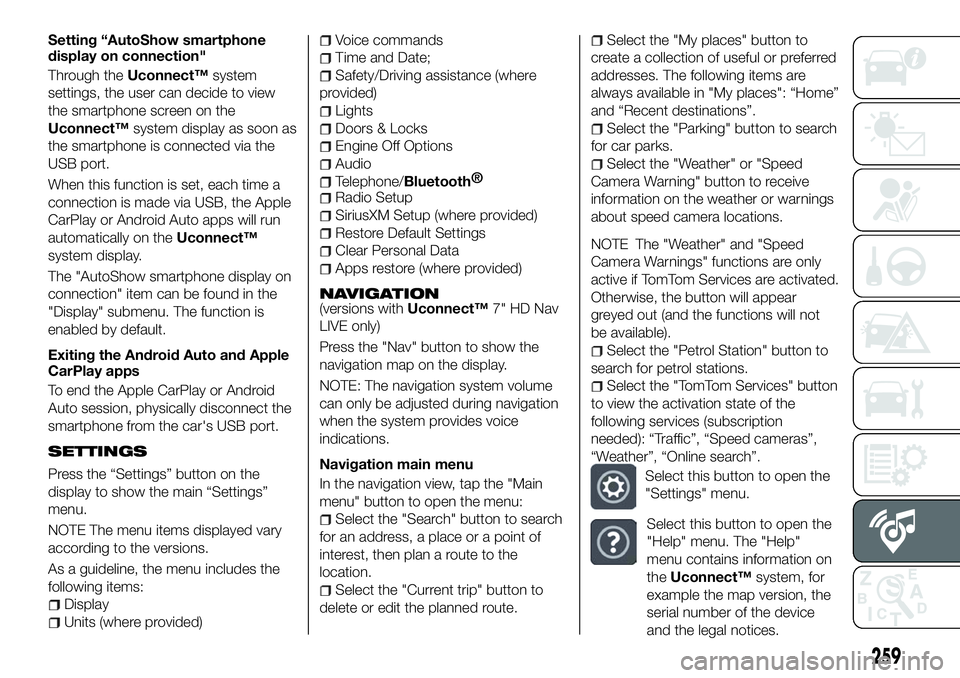
Select this button to open the
"Settings" menu.
Select this button to open the
"Help" menu. The "Help"
menu contains information on
the Uconnect™ system, for
example the map version, the
serial number of the device
and the legal notices.
259
Page 262 of 276

Select this button to return to
the map display or navigation
view.
Select this button to
activate/deactivate voice
instructions. Select off to no
longer hear voice instructions.
You will still receive information
such as traffic information and
warning sounds.Tip: you can
deactivate the warning sounds
by selecting “Settings”, then
“Sounds and warnings”.
Select this button to
increase/decrease the screen
brightness and display the
map in brighter/darker colours.
When driving at night or in unlit
tunnels, watching the screen is
more comfortable and less
distracting for the driver if the
map uses darker colours. Tip:
the device will automatically
switch between day and night
view depending on the time of
day. To deactivate this
function, select “Appearance”
in the “Settings” menu and
deselect the option "Switch to
night colours" when it is dark.
Map update
To ensure optimal performance, the
navigation system must be updated
periodically. For this, the Mopar Map
Care service offers a new map update
every three months.
The updates can be downloaded from
the maps.mopar.eu website and
installed directly on the navigator in your
car. All updates are free of charge for
3 years from the start of the warranty
on the car.
The navigation system can also be
updated at the Fiat Dealership.
NOTE The dealer may charge for
updating the navigation system.
VOICE COMMANDS
Note For languages not supported by
the system, voice commands are not
available.
To use the voice commands, press the
button on the steering wheel (”Voice”
button) and say out loud the command
you want to activate.
Global voice commands
The following voice commands can be
given after pressing the
button on
the steering wheel:
Help
Cancel
Repeat
Voice Prompts Phone voice commands
The following voice commands can be
given after pressing the
button on
the steering wheel:
Call
Dial
Re-dial
Call back
Recent calls
Calls made
Missed calls
Calls received
PhoneBook
Search
Show SMS
Send an SMS
Show messages
Radio voice commands
The following voice commands can be
given after pressing the
button on
the steering wheel:
Tune to FM "frequency"
Tune to AM "frequency"
Tune to "radio name" FM
Media voice commands
The following voice commands can be
given after pressing the
button on
the steering wheel:
Play song...
Play album…
Play artist…
Play genre…
Play playlist…
260
MULTIMEDIA
Page 263 of 276
Play podcast…
Play audiobook…
Select the source...
View...
Navigation voice commands
(versions with Uconnect™7" HD Nav
LIVE only)
The following voice commands can be
given after pressing the
button on
the steering wheel:
Find "POI"
"Go to" “address”
Go to "city name" centre
Drive towards a town centre
Navigate home
Go via home
Cancel Route
Add this position to “My places”
Display “My Places”
Navigate through a saved location
Recent Destinations
Stop at a recent destination
Zoom in
Zoom out
2D view
3D view
Report Speed Camera
Report risk area
MOPAR®CONNECT
(where provided)
These services let you keep your
vehicle under control at all times and
receive assistance in the event of
accident, theft or breakdown.
To have these services, install the
Mopar
®Connect Device on your
vehicle from the country (list
available on the
www.driveuconnect.eu website)
and request activation by following
the instructions received at the
email address given when your
vehicle was handed over to you.
To use the connected services, you
must download the Uconnect™LIVE
App or access the
www.driveuconnect.eu portal.
You can find all the details about the
services in the Mopar
®Connect
section of the
www.driveuconnect.eu portal.
PRIVACY MODE
Privacy mode lets you disable the “Find
car”, “Notify Area” and “Notify Speed”
services, which allow registered
customers to locate their cars, for a
fixed time.
IMPORTANT Vehicle position tracing
remains active for the assistance
services, where provided, in the event
of accident or vehicle theft, but is not
visible to the customer.
PRIVACY MODE activation
procedure
Proceed as follows:
take note of the total odometer
reading;
make sure that the instrument panel
is off;
Send the following text message to
+393424112613: “PRIVACY
PRIVACY
ZFA3340000P123456 12532). You can
find the chassis number in the
registration document;
before starting the engine, wait to
receive the text message confirming
that Privacy mode has been activated
and indicating when it expires.
When you have received the
confirmation, you can start your trip in
the knowledge that the vehicle will not
be traced until the indicated expiry time.
If it expires while you are still travelling,
Privacy mode will be extended until you
turn off the engine (instrument panel
off).
261
Page 270 of 276
 Mopar Vehicle Protectionoffers a series of service contracts that are designed to give all our \
customers the
pleasure of driving their vehicle without any hitch's and concerns.
Our product port")
Mopar Vehicle Protectionoffers a series of service contracts that are designed to give all our \
customers the
pleasure of driving their vehicle without any hitch's and concerns.
Our product portfolio consists of a wide and flexible range of extended warranty and maintenance plans
endorsed by FCA. Each with a series of different coverage tiers, in terms of durability and mileage , built to
accommodate you’re driving needs.
Service contracts are made by experts that know every part of your vehic\
le, and commit themselves to maintain it in tip top conditions. Our knowledge and passion is tailored around designing
products that promises all our drivers “worry-free driving”.
Only with Mopar Vehicle Protection you are ensured that all service oper\
ations are performed
by highly qualified and specialized technicians in authorized FCA repair fa\
cilities, using the right tools,
equipment and only original parts, all over Europe .
Check which Service Contract plans are available on your market today an\
d choose the Service Contract that suits your driving habits best.Ask your local dealer for further information.
MAINTAIN YOUR VEHICLE IN TIP TOP CONDITIONS WITH
Page 273 of 276
SBR (Seat Belt Reminder)system ..................89
Scheduled Servicing ..........175
Scheduled Servicing Plan . . . .176 ,180
Screen wiper/washer ...........29
Seat belts ..................87
Seats .....................19
Service Position (windscreen wiper) ...................31
Servicing procedures ..........198
Side bag ..................110
Side direction indicators (bulb replacement) ..............152
Side lights/daytime running lights (DRL) (bulb replacement) ......151
Smart washing function .........30
Snow chains ...............201 Speed Limiter
...............127
Start&Stop system ...........125
Starting the engine ...........114
Steering lock ................13
Steering wheel ...............23
Supplies ..................218
Symbols ....................4
TC (system) ................75
Technical specifications ........207
The keys ...................11
Third brake light (bulb replacement) ..............153
Tips, controls and general information ...............233
Towing the vehicle ............172
Towing trailers ..............140
Trip Computer ...............51 TSC (system)
................76
Twin clutch automatic transmission ..............122
Tyres (inflation pressure) ........212
Uconnect™ 7” HD LIVE /
Uconnect™ 7” HD Nav LIVE . . . .245
Uconnect™ Radio ............235
Use of the owner handbook .......6
Version with LPG system........43
Warning lights and messages .....52
Weights ..................215
Wheels and tyres .............201
Window bag ...............110
Windows (cleaning) ...........203
Windscreen/rear window wiper ....29
Page 274 of 276
FCA Italy S.p.A. - MOPAR - Technical Services - Service EngineeringLargo Senatore G. Agnelli, 3 - 10040 Volvera - Turin (Italy) Print no. 603.91.552 - 11/
2017 - 1 Edition