reset FIAT FREEMONT 2012 Owner handbook (in English)
[x] Cancel search | Manufacturer: FIAT, Model Year: 2012, Model line: FREEMONT, Model: FIAT FREEMONT 2012Pages: 332, PDF Size: 5.61 MB
Page 110 of 332
To close the window part way, pull the window switch
up to the first detent and release it when you want the
window to stop.
NOTE:
• If the window runs into any obstacle during Auto-
closure, it will reverse direction and then go back
down. Remove the obstacle and use the window switch
again to close the window.
• Any impact due to rough road conditions may trigger
the auto-reverse function unexpectedly during auto-
closure. If this happens, pull the switch lightly to the
first detent and hold to close window manually.
WARNING!
There is no anti-pinch protection when
the window is almost closed. To avoid
personal injury, be sure to clear your arms, hands,
fingers, and objects from the window path before
closing the window. Such entrapment may result
in serious injury.
Reset
It may be necessary at some point in time to reactivate
the Auto-up/Auto-down feature. To do so, perform
the following steps:
1. Pull the window switch up to close the window completely and continue to hold the switch up for an additional two seconds after the window is closed.
2. Push the window switch down firmly to the second detent to open the window completely and con-
tinue to hold the switch down for an additional two
seconds after the window is fully open.
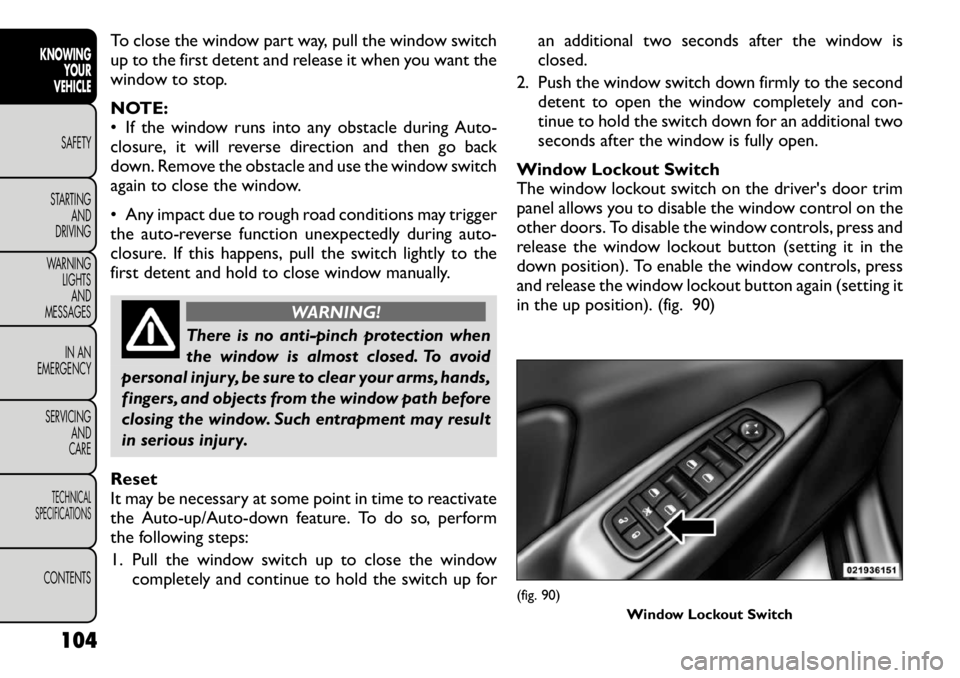
Window Lockout Switch
The window lockout switch on the driver's door trim
panel allows you to disable the window control on the
other doors. To disable the window controls, press and
release the window lockout button (setting it in the
down position). To enable the window controls, press
and release the window lockout button again (setting it
in the up position). (fig. 90)
(fig. 90) Window Lockout Switch
104
KNOWING YOUR
VEHICLE
SAFETY
STARTING AND
DRIVING
WARNING LIGHTSAND
MESSAGES
IN AN
EMERGENCY
SERVICING AND
CARETECHNICAL
SPECIFICATIONSCONTENTS
Page 143 of 332
STEERING WHEEL AUDIO
CONTROLS
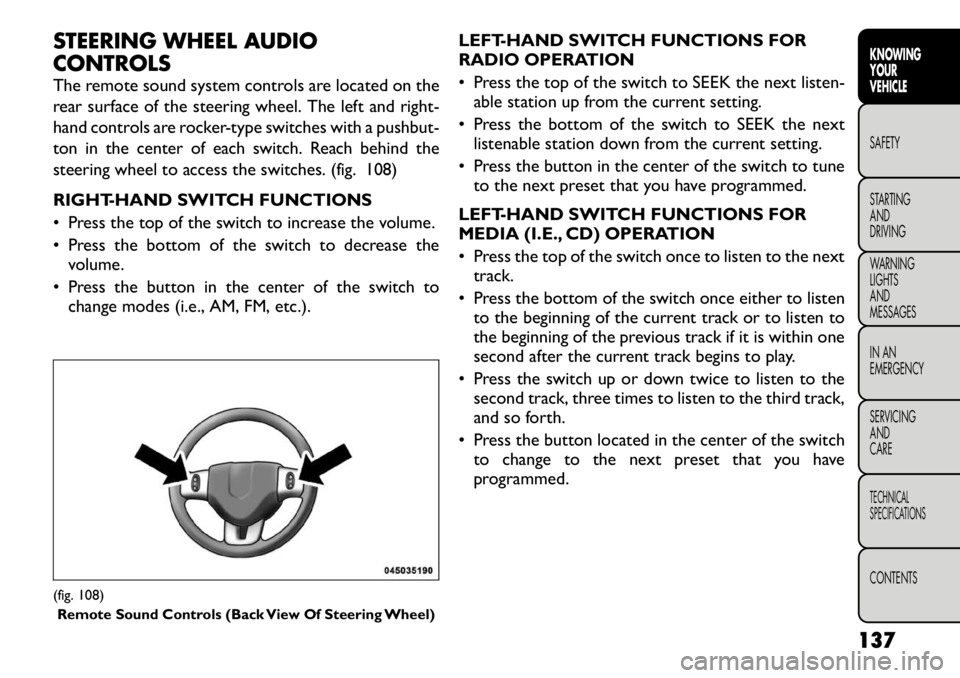
The remote sound system controls are located on the
rear surface of the steering wheel. The left and right-
hand controls are rocker-type switches with a pushbut-
ton in the center of each switch. Reach behind the
steering wheel to access the switches. (fig. 108)
RIGHT-HAND SWITCH FUNCTIONS
• Press the top of the switch to increase the volume.
• Press the bottom of the switch to decrease thevolume.
• Press the button in the center of the switch to change modes (i.e., AM, FM, etc.). LEFT-HAND SWITCH FUNCTIONS FOR
RADIO OPERATION
• Press the top of the switch to SEEK the next listen-
able station up from the current setting.
• Press the bottom of the switch to SEEK the next listenable station down from the current setting.
• Press the button in the center of the switch to tune to the next preset that you have programmed.
LEFT-HAND SWITCH FUNCTIONS FOR
MEDIA (I.E., CD) OPERATION
• Press the top of the switch once to listen to the next track.
• Press the bottom of the switch once either to listen to the beginning of the current track or to listen to
the beginning of the previous track if it is within one
second after the current track begins to play.
• Press the switch up or down twice to listen to the second track, three times to listen to the third track,
and so forth.
• Press the button located in the center of the switch to change to the next preset that you have
programmed.(fig. 108)
Remote Sound Controls (Back View Of Steering Wheel)
137
KNOWING
YOURVEHICLESAFETY
STARTING ANDDRIVING
WARNING LIGHTSAND
MESSAGES
IN AN
EMERGENCY
SERVICING AND
CARETECHNICAL
SPECIFICATIONSCONTENTS
Page 149 of 332
RemoteControl Button Standard Screens Menu Screens
AM/FM/
MW/LW SAT–
Audio HDD–
HardDisc
Drive DISC/
DVD AUX/AUX1/
AUX2 Mode
Select Menu Screen
Setup
Status Not Available Not
AvailableSlow
Mode and
Content
InfoNot
Available
Audio:
Not
AvailableAudio:
Not
Available
Not
Available Not
Available
Video
Play: ShowMode
InfoVideo:
Show
Mode Info
Mode
Show Mode Select Menu Advance
to Next ModeShowModeSelect
Item
Prog Up Next Preset* Next
Preset*Not
AvailableNot
Available Next Disc (if player
is changer) Not
AvailableNot
Available Not
Available
Prog
Down Previous
Preset* Previous
Preset*Not
AvailableNot
Available Previous Disc (if
player is changer) Not
AvailableNot
Available Not
Available
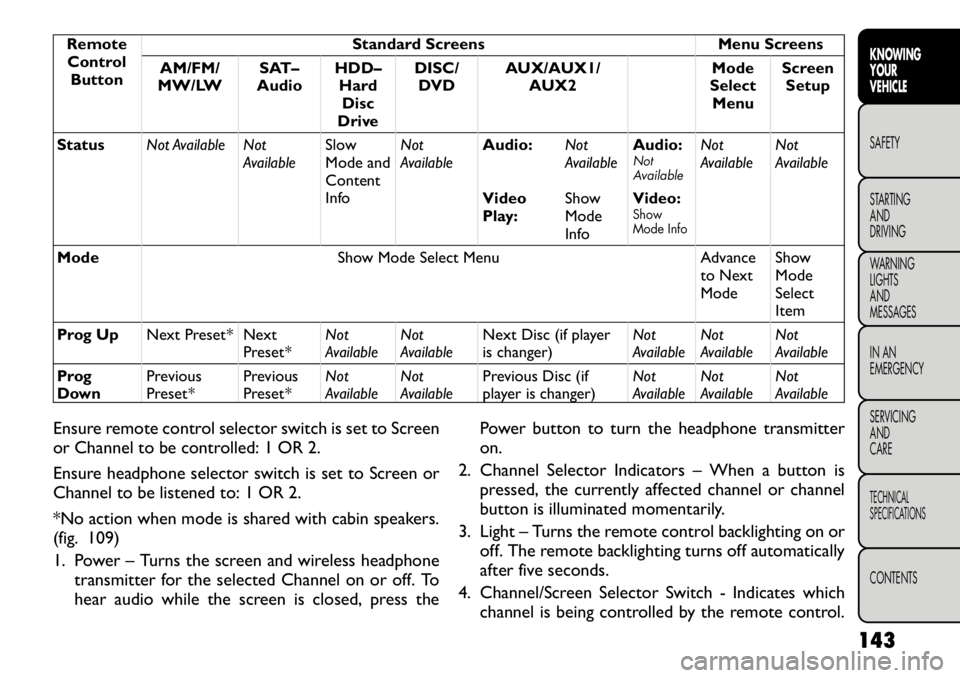
Ensure remote control selector switch is set to Screen
or Channel to be controlled: 1 OR 2.
Ensure headphone selector switch is set to Screen or
Channel to be listened to: 1 OR 2.
*No action when mode is shared with cabin speakers.
(fig. 109)
1. Power – Turns the screen and wireless headphone transmitter for the selected Channel on or off. To
hear audio while the screen is closed, press the Power button to turn the headphone transmitteron.
2. Channel Selector Indicators – When a button is pressed, the currently affected channel or channel
button is illuminated momentarily.
3. Light – Turns the remote control backlighting on or off. The remote backlighting turns off automatically
after five seconds.
4. Channel/Screen Selector Switch - Indicates which channel is being controlled by the remote control.
143
KNOWING
YOURVEHICLESAFETY
STARTING ANDDRIVING
WARNING LIGHTSAND
MESSAGES
IN AN
EMERGENCY
SERVICING AND
CARETECHNICAL
SPECIFICATIONSCONTENTS
Page 150 of 332
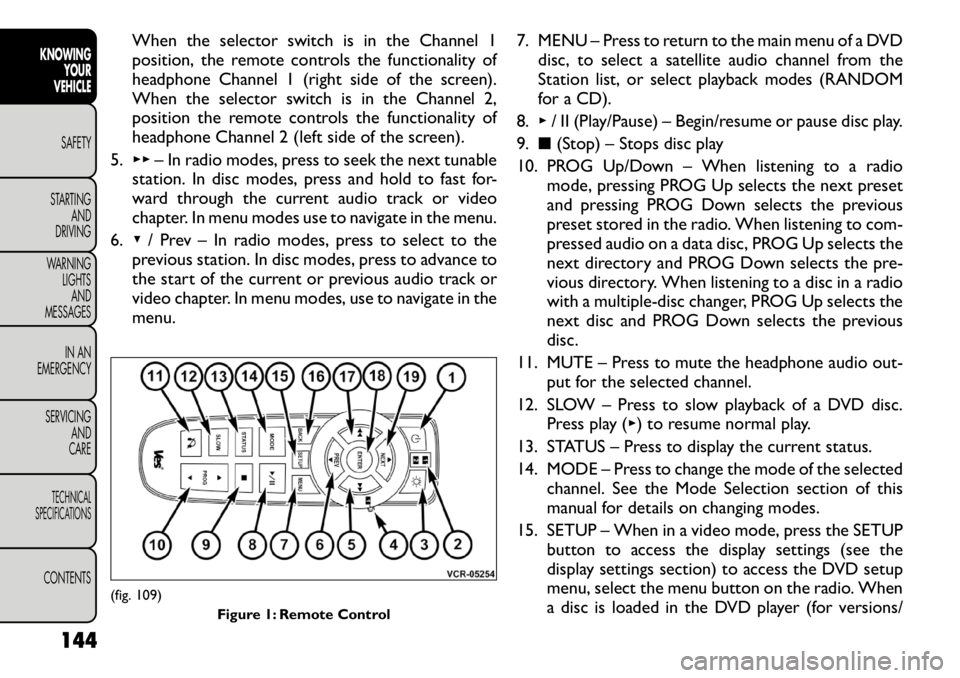
When the selector switch is in the Channel 1
position, the remote controls the functionality of
headphone Channel 1 (right side of the screen).
When the selector switch is in the Channel 2,
position the remote controls the functionality of
headphone Channel 2 (left side of the screen).
5. ▸▸ – In radio modes, press to seek the next tunable
station. In disc modes, press and hold to fast for-
ward through the current audio track or video
chapter. In menu modes use to navigate in the menu.
6. ▾/ Prev – In radio modes, press to select to the
previous station. In disc modes, press to advance to
the start of the current or previous audio track or
video chapter. In menu modes, use to navigate in the
menu. 7. MENU – Press to return to the main menu of a DVD
disc, to select a satellite audio channel from the
Station list, or select playback modes (RANDOM
for a CD).
8. ▸/ II (Play/Pause) – Begin/resume or pause disc play.
9. ■(Stop) – Stops disc play
10. PROG Up/Down – When listening to a radio mode, pressing PROG Up selects the next preset
and pressing PROG Down selects the previous
preset stored in the radio. When listening to com-
pressed audio on a data disc, PROG Up selects the
next directory and PROG Down selects the pre-
vious directory. When listening to a disc in a radio
with a multiple-disc changer, PROG Up selects the
next disc and PROG Down selects the previous
disc.
11. MUTE – Press to mute the headphone audio out- put for the selected channel.
12. SLOW – Press to slow playback of a DVD disc. Press play ( ▸) to resume normal play.
13. STATUS – Press to display the current status.
14. MODE – Press to change the mode of the selected channel. See the Mode Selection section of this
manual for details on changing modes.
15. SETUP – When in a video mode, press the SETUP button to access the display settings (see the
display settings section) to access the DVD setup
menu, select the menu button on the radio. When
a disc is loaded in the DVD player (for versions/
(fig. 109)
Figure 1: Remote Control
144
KNOWING YOUR
VEHICLE
SAFETY
STARTING AND
DRIVING
WARNING LIGHTSAND
MESSAGES
IN AN
EMERGENCY
SERVICING AND
CARETECHNICAL
SPECIFICATIONSCONTENTS
Page 156 of 332
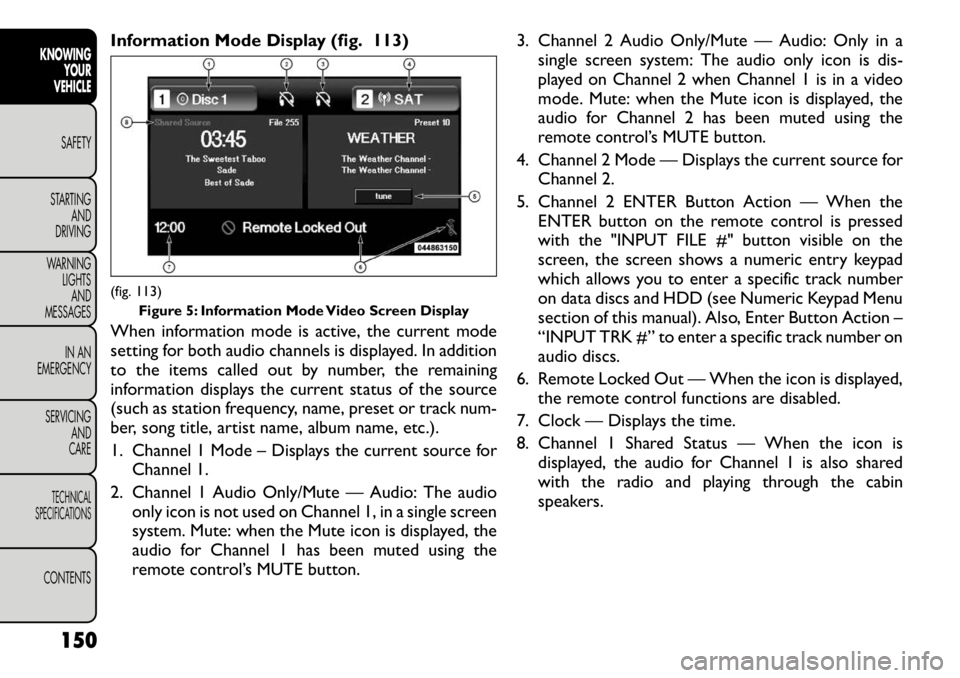
Information Mode Display (fig. 113)
When information mode is active, the current mode
setting for both audio channels is displayed. In addition
to the items called out by number, the remaining
information displays the current status of the source
(such as station frequency, name, preset or track num-
ber, song title, artist name, album name, etc.).
1. Channel 1 Mode – Displays the current source forChannel 1.
2. Channel 1 Audio Only/Mute — Audio: The audio only icon is not used on Channel 1, in a single screen
system. Mute: when the Mute icon is displayed, the
audio for Channel 1 has been muted using the
remote control’s MUTE button. 3. Channel 2 Audio Only/Mute — Audio: Only in a
single screen system: The audio only icon is dis-
played on Channel 2 when Channel 1 is in a video
mode. Mute: when the Mute icon is displayed, the
audio for Channel 2 has been muted using the
remote control’s MUTE button.
4. Channel 2 Mode — Displays the current source for Channel 2.
5. Channel 2 ENTER Button Action — When the ENTER button on the remote control is pressed
with the "INPUT FILE #" button visible on the
screen, the screen shows a numeric entry keypad
which allows you to enter a specific track number
on data discs and HDD (see Numeric Keypad Menu
section of this manual). Also, Enter Button Action –
“INPUT TRK #” to enter a specific track number on
audio discs.
6. Remote Locked Out — When the icon is displayed, the remote control functions are disabled.
7. Clock — Displays the time.
8. Channel 1 Shared Status — When the icon is displayed, the audio for Channel 1 is also shared
with the radio and playing through the cabin
speakers.(fig. 113) Figure 5: Information Mode Video Screen Display
150
KNOWING YOUR
VEHICLE
SAFETY
STARTING AND
DRIVING
WARNING LIGHTSAND
MESSAGES
IN AN
EMERGENCY
SERVICING AND
CARETECHNICAL
SPECIFICATIONSCONTENTS
Page 158 of 332
3. To delete the last digit, navigate to the Del buttonand press the remote control’s ENTER button.
4. After all of the digits are entered, navigate to the Go button and press the remote control’s ENTER
button.
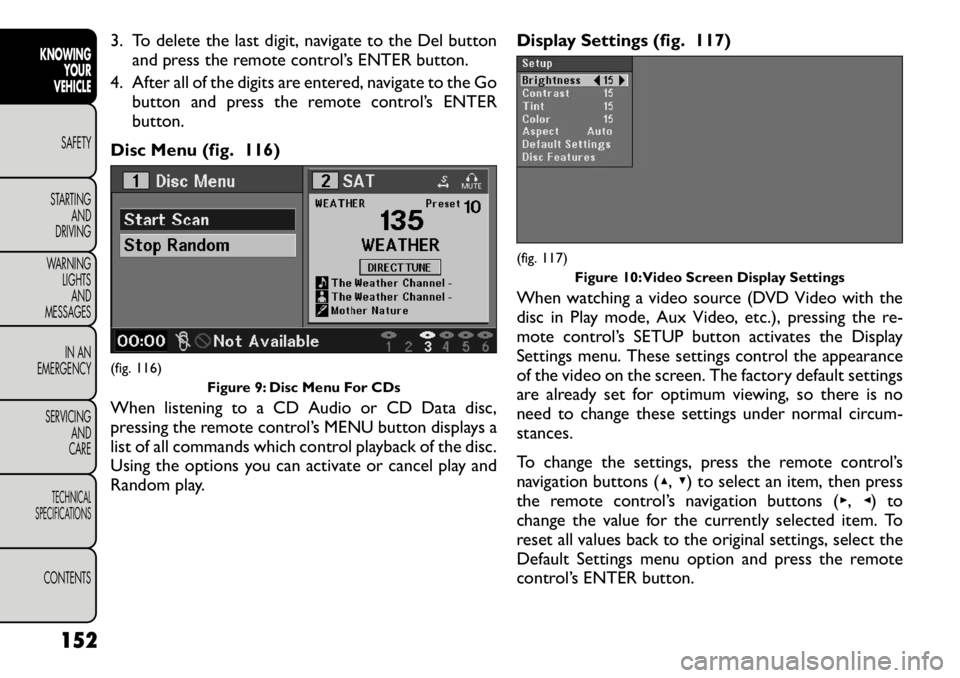
Disc Menu (fig. 116)
When listening to a CD Audio or CD Data disc,
pressing the remote control’s MENU button displays a
list of all commands which control playback of the disc.
Using the options you can activate or cancel play and
Random play. Display Settings (fig. 117)
When watching a video source (DVD Video with the
disc in Play mode, Aux Video, etc.), pressing the re-
mote control’s SETUP button activates the Display
Settings menu. These settings control the appearance
of the video on the screen. The factory default settings
are already set for optimum viewing, so there is no
need to change these settings under normal circum-
stances.
To change the settings, press the remote control’s
navigation buttons (
▴,▾ ) to select an item, then press
the remote control’s navigation buttons ( ▸, ◂) to
change the value for the currently selected item. To
reset all values back to the original settings, select the
Default Settings menu option and press the remote
control’s ENTER button.(fig. 116) Figure 9: Disc Menu For CDs
(fig. 117)Figure 10:Video Screen Display Settings
152
KNOWING YOUR
VEHICLE
SAFETY
STARTING AND
DRIVING
WARNING LIGHTSAND
MESSAGES
IN AN
EMERGENCY
SERVICING AND
CARETECHNICAL
SPECIFICATIONSCONTENTS
Page 171 of 332
All occupants, including the driver, should
not operate a vehicle or sit in a vehicle's
seat until the head restraints are placed
in their proper positions in order to minimize the
risk of neck injury in the event of an accident .
NOTE: For more information on properly adjusting
and positioning the head restraint, refer to “Adjusting
Active Head Restraints” in “Knowing Your Vehicle”. Resetting Active Head Restraints (AHR)
If the Active Head Restraints are triggered in an acci-
dent, you must reset the head restraint on the driver’s
and front passenger seat. You can recognize when the
Active Head Restraint has been triggered by the fact
that they have moved forward (as shown in step three
of the resetting procedure).
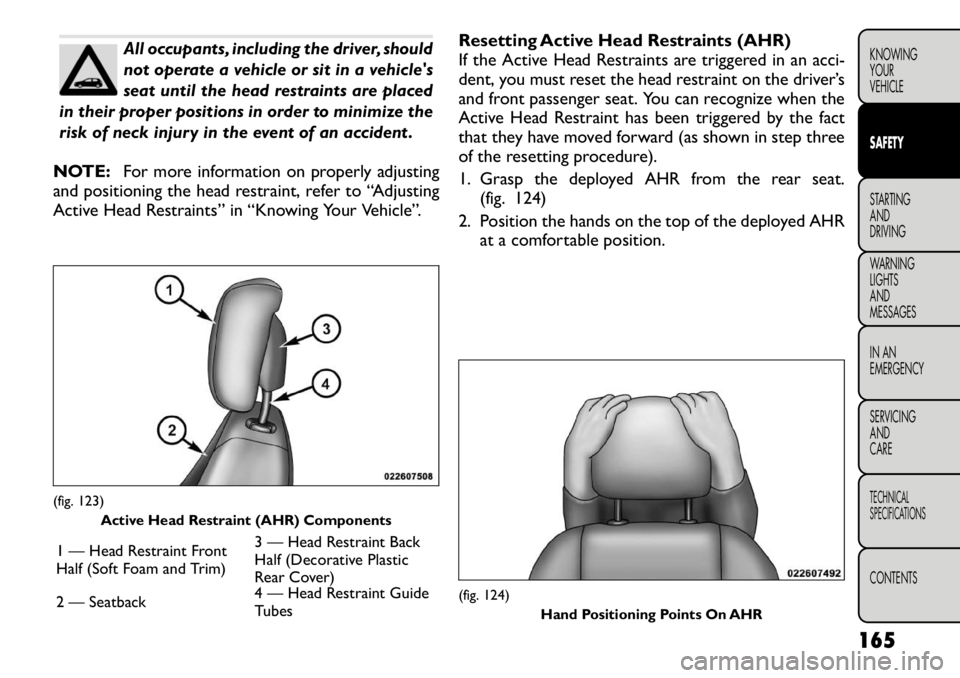
1. Grasp the deployed AHR from the rear seat.
(fig. 124)
2. Position the hands on the top of the deployed AHR at a comfortable position.
(fig. 123) Active Head Restraint (AHR) Components
1 — Head Restraint Front
Half (Soft Foam and Trim) 3 — Head Restraint Back
Half (Decorative Plastic
Rear Cover)
2 — Seatback 4 — Head Restraint Guide
Tubes
(fig. 124)
Hand Positioning Points On AHR
165
KNOWING
YOURVEHICLESAFETYSTARTING ANDDRIVING
WARNING LIGHTSAND
MESSAGES
IN AN
EMERGENCY
SERVICING AND
CARETECHNICAL
SPECIFICATIONSCONTENTS
Page 172 of 332
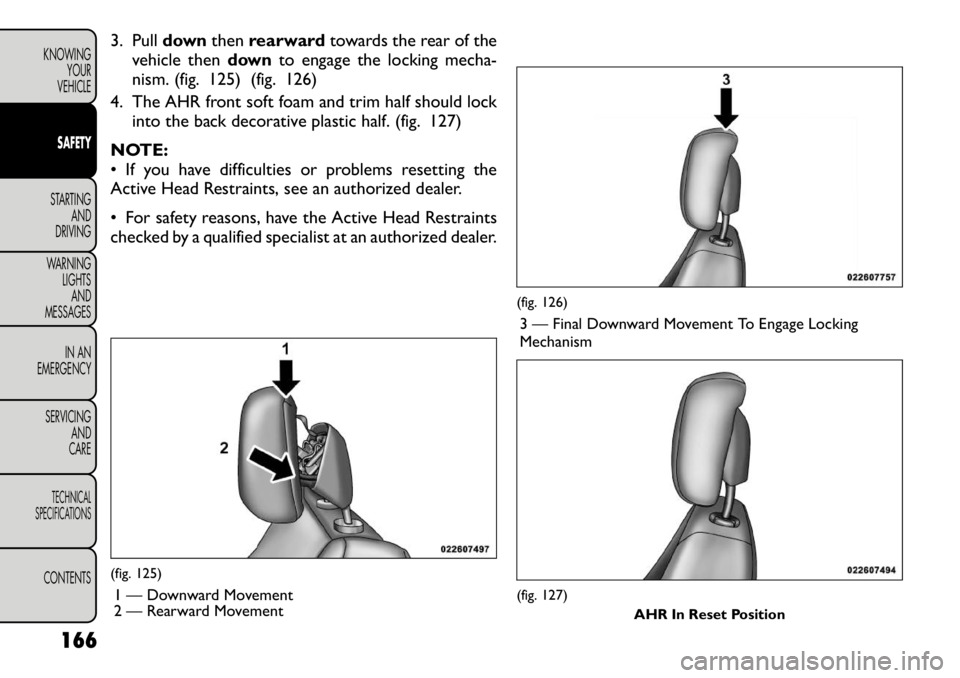
3. Pulldownthenrearward towards the rear of the
vehicle then downto engage the locking mecha-
nism. (fig. 125) (fig. 126)
4. The AHR front soft foam and trim half should lock into the back decorative plastic half. (fig. 127)
NOTE:
• If you have difficulties or problems resetting the
Active Head Restraints, see an authorized dealer.
• For safety reasons, have the Active Head Restraints
checked by a qualified specialist at an authorized dealer.(fig. 125) 1 — Downward Movement
2 — Rearward Movement
(fig. 126)3 — Final Downward Movement To Engage Locking Mechanism(fig. 127) AHR In Reset Position
166
KNOWING YOUR
VEHICLESAFETYSTARTING AND
DRIVING
WARNING LIGHTSAND
MESSAGES
IN AN
EMERGENCY
SERVICING AND
CARETECHNICAL
SPECIFICATIONSCONTENTS
Page 173 of 332
ACTIVE HOOD SYSTEM (for versions/
markets, where provided)
The Active Hood system is intended to enhance pe-
destrian protection by elevating the vehicle’s hood
upon an impact with a pedestrian or other object. The
system is automatically activated when the vehicle is
moving within a specified vehicle speed range. In order
to detect a range of pedestrians, other objects that are
impacted may result in an Active Hood deployment.
Deployment Sensors And Controls
The Electronic Pedestrian Protection Module (EPPM)
determines if deployment of the actuators in a frontal
impact is required. Based on the impact sensors signals,
the EPPM determines when to deploy the actuators.
The impact sensors are located within the front bum-
per area.
The EPPM monitors the readiness of the electronic
parts of the Active Hood system whenever the ignition
switch is in the START or ON/RUN position. If the key
is in the LOCK position, in the ACC position, or not in
the ignition, the Active Hood system is not on and the
Active Hood will not deploy.
The EPPM contains a backup power supply system that
may deploy the actuators even if the battery loses
power or it becomes disconnected prior to
deployment.Service Active Hood System
If the EPPM has deployed the Active Hood, or if it
detects a malfunction in any part of the system, it turns
on the Air Bag Warning Light and it will display the
“SERVICE ACTIVE HOOD” message in the Electronic
Vehicle Information Center (EVIC), for versions/
markets, where provided. A single chime will sound if
the Air Bag Warning Light comes on again after initial
startup. It also includes diagnostics that will illuminate
the Air Bag Warning Light if a malfunction is noted that
could affect the Active Hood system. The diagnostics
also record the nature of the malfunction. If the Air Bag
Warning Light is illuminated, or if “SERVICE ACTIVE
HOOD” appears in the EVIC, see your authorized
dealer.
In the event of an Active Hood deployment, the vehicle
should be serviced by an authorized dealer. The hood
hinges must be serviced and the actuator assemblies
replaced to restore system functionality.
Following an Active Hood deployment, the hood posi-
tion can be temporarily reset by pushing down at the
rear edge over the hood hinges as the internal pressure
of each actuator is relieved. The temporary hood reset
position is intended to improve forward driving visibil-
ity over the hood until the vehicle can be serviced. The
temporary hood reset position will leave the hood
approximately 5 mm above the fender surface.
(fig. 128)
167
KNOWING
YOURVEHICLESAFETYSTARTING ANDDRIVING
WARNING LIGHTSAND
MESSAGES
IN AN
EMERGENCY
SERVICING AND
CARETECHNICAL
SPECIFICATIONSCONTENTS
Page 174 of 332
The front bumper assembly may affect proper opera-
tion of the Active Hood system. The front bumper
components should be inspected for damage and re-
placed if necessary in the event of a frontal impact, even
if it occurs at a low rate of speed.
NOTE:After any Active Hood deployment, the ve-
hicle should be taken to an authorized dealer immedi-
ately.
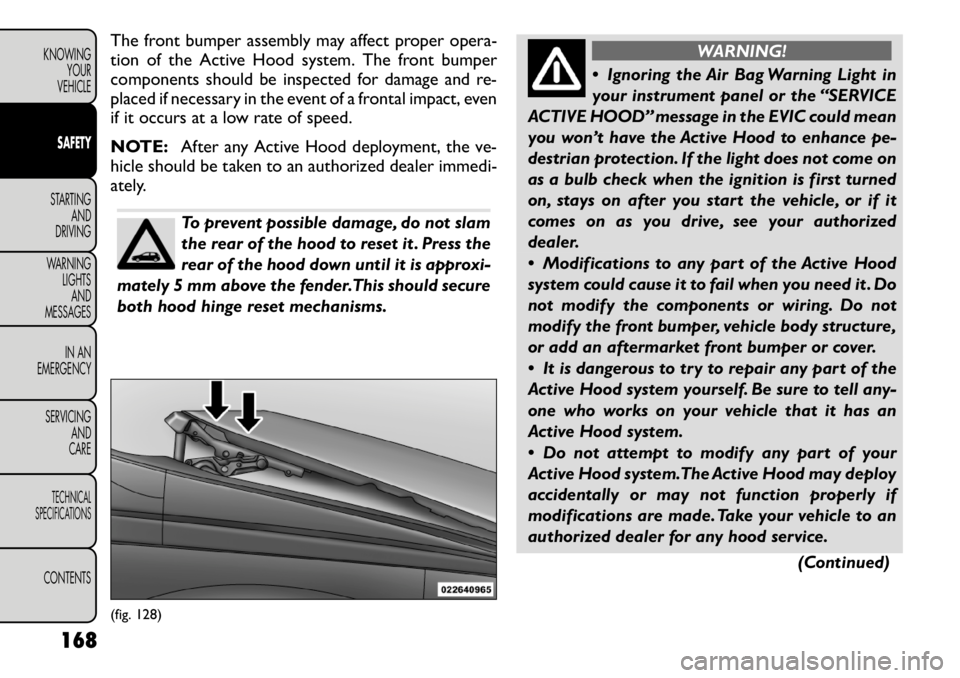
To prevent possible damage, do not slam
the rear of the hood to reset it . Press the
rear of the hood down until it is approxi-
mately 5 mm above the fender.This should secure
both hood hinge reset mechanisms.
WARNING!
Ignoring the Air Bag Warning Light in
your instrument panel or the “SERVICE
ACTIVE HOOD” message in the EVIC could mean
you won’t have the Active Hood to enhance pe-
destrian protection. If the light does not come on
as a bulb check when the ignition is first turned
on, stays on after you start the vehicle, or if it
comes on as you drive, see your authorized
dealer.
Modifications to any part of the Active Hood
system could cause it to fail when you need it . Do
not modify the components or wiring. Do not
modify the front bumper, vehicle body structure,
or add an aftermarket front bumper or cover.
It is dangerous to try to repair any part of the
Active Hood system yourself. Be sure to tell any-
one who works on your vehicle that it has an
Active Hood system.
Do not attempt to modify any part of your
Active Hood system.The Active Hood may deploy
accidentally or may not function properly if
modifications are made. Take your vehicle to an
authorized dealer for any hood service.
(Continued)
(fig. 128)
168
KNOWING YOUR
VEHICLESAFETYSTARTING AND
DRIVING
WARNING LIGHTSAND
MESSAGES
IN AN
EMERGENCY
SERVICING AND
CARETECHNICAL
SPECIFICATIONSCONTENTS