radio FIAT FREEMONT 2014 1.G Owner's Manual
[x] Cancel search | Manufacturer: FIAT, Model Year: 2014, Model line: FREEMONT, Model: FIAT FREEMONT 2014 1.GPages: 388, PDF Size: 4.13 MB
Page 173 of 388
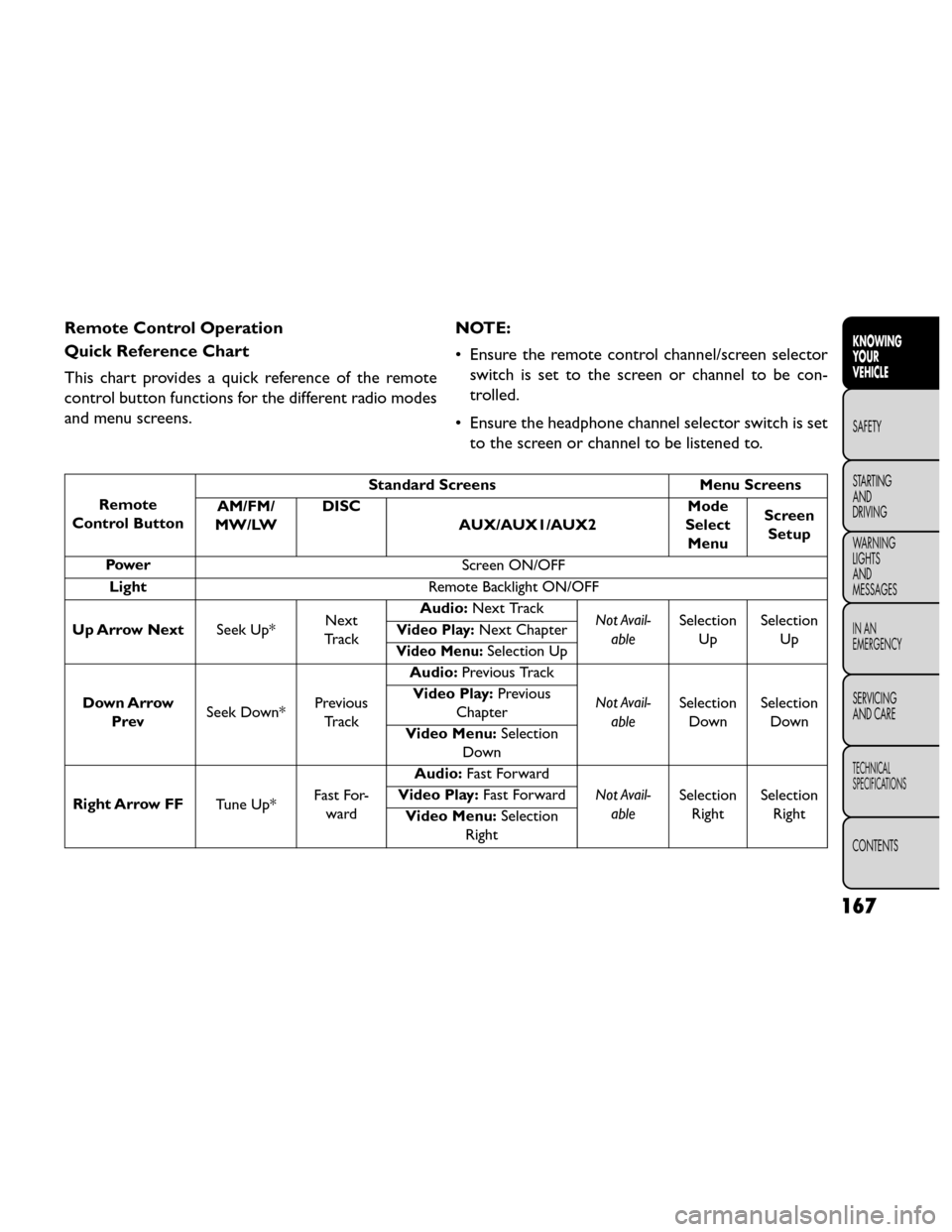
Remote Control Operation
Quick Reference Chart
This chart provides a quick reference of the remote
control button functions for the different radio modes
and menu screens.NOTE:
• Ensure the remote control channel/screen selector
switch is set to the screen or channel to be con-
trolled.
• Ensure the headphone channel selector switch is set to the screen or channel to be listened to.
Remote
Control Button Standard Screens
Menu Screens
AM/FM/
MW/LW DISC
AUX/AUX1/AUX2 Mode
Select Menu Screen
Setup
Power Screen ON/OFF
Light Remote Backlight ON/OFF
Up Arrow Next Seek Up*Next
Tr a c k Audio:
Next Track
Not Avail-
able Selection
Up Selection
Up
Video Play:Next Chapter
Video Menu:Selection Up
Down Arrow Prev Seek Down* Previous
Tr a c k Audio:
Previous Track
Not Avail-able Selection
Down Selection
Down
Video Play:
Previous
Chapter
Video Menu: Selection
Down
Right Arrow FF Tune Up*Fast For-
ward Audio:
Fast Forward
Not Avail-able Selection
Right Selection
Right
Video Play:
Fast Forward
Video Menu: Selection
Right
167
KNOWING
YOUR
VEHICLE
SAFETY
STARTING
AND
DRIVING
W
ARNING
LIGHTS
AND
MESSAGES
IN AN
EMERGENCY
SERVICING
AND CARE
TECHNICAL
SPECIFICATIONS
CONTENTS
Page 177 of 388
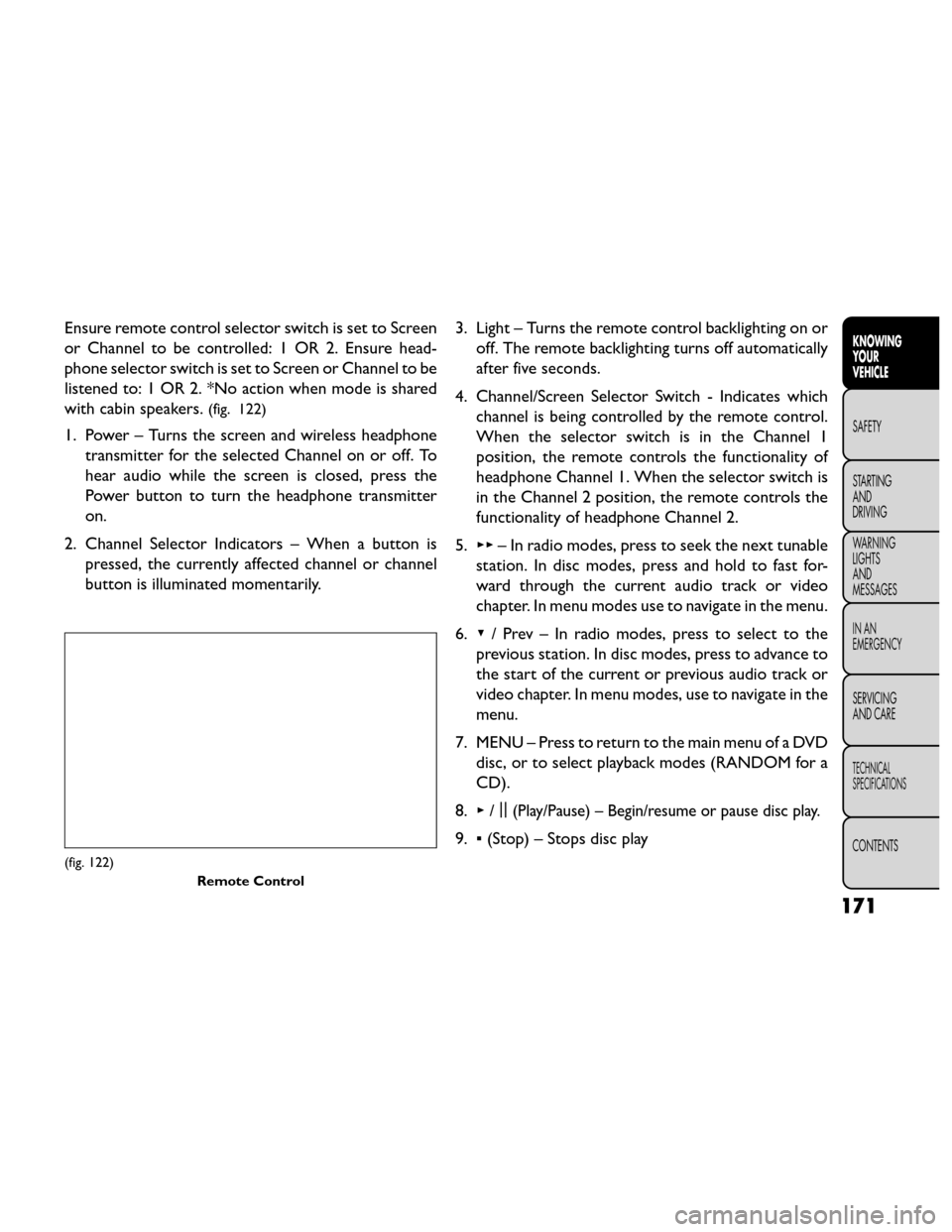
Ensure remote control selector switch is set to Screen
or Channel to be controlled: 1 OR 2. Ensure head-
phone selector switch is set to Screen or Channel to be
listened to: 1 OR 2. *No action when mode is shared
with cabin speakers.
(fig. 122)
1. Power – Turns the screen and wireless headphonetransmitter for the selected Channel on or off. To
hear audio while the screen is closed, press the
Power button to turn the headphone transmitter
on.
2. Channel Selector Indicators – When a button is pressed, the currently affected channel or channel
button is illuminated momentarily. 3. Light – Turns the remote control backlighting on or
off. The remote backlighting turns off automatically
after five seconds.
4. Channel/Screen Selector Switch - Indicates which channel is being controlled by the remote control.
When the selector switch is in the Channel 1
position, the remote controls the functionality of
headphone Channel 1. When the selector switch is
in the Channel 2 position, the remote controls the
functionality of headphone Channel 2.
5. ▸▸ – In radio modes, press to seek the next tunable
station. In disc modes, press and hold to fast for-
ward through the current audio track or video
chapter. In menu modes use to navigate in the menu.
6. ▾/ Prev – In radio modes, press to select to the
previous station. In disc modes, press to advance to
the start of the current or previous audio track or
video chapter. In menu modes, use to navigate in the
menu.
7. MENU – Press to return to the main menu of a DVD disc, or to select playback modes (RANDOM for a
CD).
8. ▸/||
(Play/Pause) – Begin/resume or pause disc play.
9.
▪(Stop) – Stops disc play
(fig. 122)
Remote Control
171
KNOWING
YOUR
VEHICLE
SAFETY
STARTING
AND
DRIVING
W
ARNING
LIGHTS
AND
MESSAGES
IN AN
EMERGENCY
SERVICING
AND CARE
TECHNICAL
SPECIFICATIONS
CONTENTS
Page 178 of 388
10. PROG Up/Down – When listening to a radiomode, pressing PROG Up selects the next preset
and pressing PROG Down selects the previous
preset stored in the radio. When listening to com-
pressed audio on a data disc, PROG Up selects the
next directory and PROG Down selects the pre-
vious directory. When listening to a disc in a radio
with a multiple-disc changer, PROG Up selects the
next disc and PROG Down selects the previous
disc.
11. MUTE – Press to mute the headphone audio out- put for the selected channel.
12. SLOW – Press to slow playback of a DVD disc. Press play (▸) to resume normal play.
13. STATUS – Press to display the current status while in a video mode display.
14. MODE – Press to change the mode of the selected channel. See the Mode Selection section of this
manual for details on changing modes.
15. SETUP – When in a video mode, press the SETUP button to access the display settings (see the
display settings section) to access the DVD setup menu, select the menu button on the radio. When
a disc is loaded in the DVD player (for versions/
markets, where provided) and the VES™ mode is
selected and the disc is stopped, press the SETUP
button to access the DVD Setup menu. (see the
DVD Setup Menu of this manual.)
16. BACK – When navigating in menu mode, press to return to the previous screen. When navigating a
DVDs disc menu, the operation depends on the
disc’s contents.
17. ◂◂– In radio modes, press to seek to the previous
tunable station. In disc modes, press and hold to
fast rewind through the current audio track or
video chapter. In menu modes use to navigate in
the menu.
18. ENTER – Press to select the highlighted option in a menu.
19. ▴/ NEXT – In radio modes, press to select to the
next station. In disc modes, press to advance to
the next audio track or video chapter. In menu
modes, use to navigate in the menu.
172
KNOWING YOUR
VEHICLE
SAFETY
STARTING AND
DRIVING
W
ARNING LIGHTS AND
MESSAGES
IN AN
EMERGENCY
SERVICING AND CARE
TECHNICAL
SPECIFICATIONS
CONTENTS
Page 179 of 388
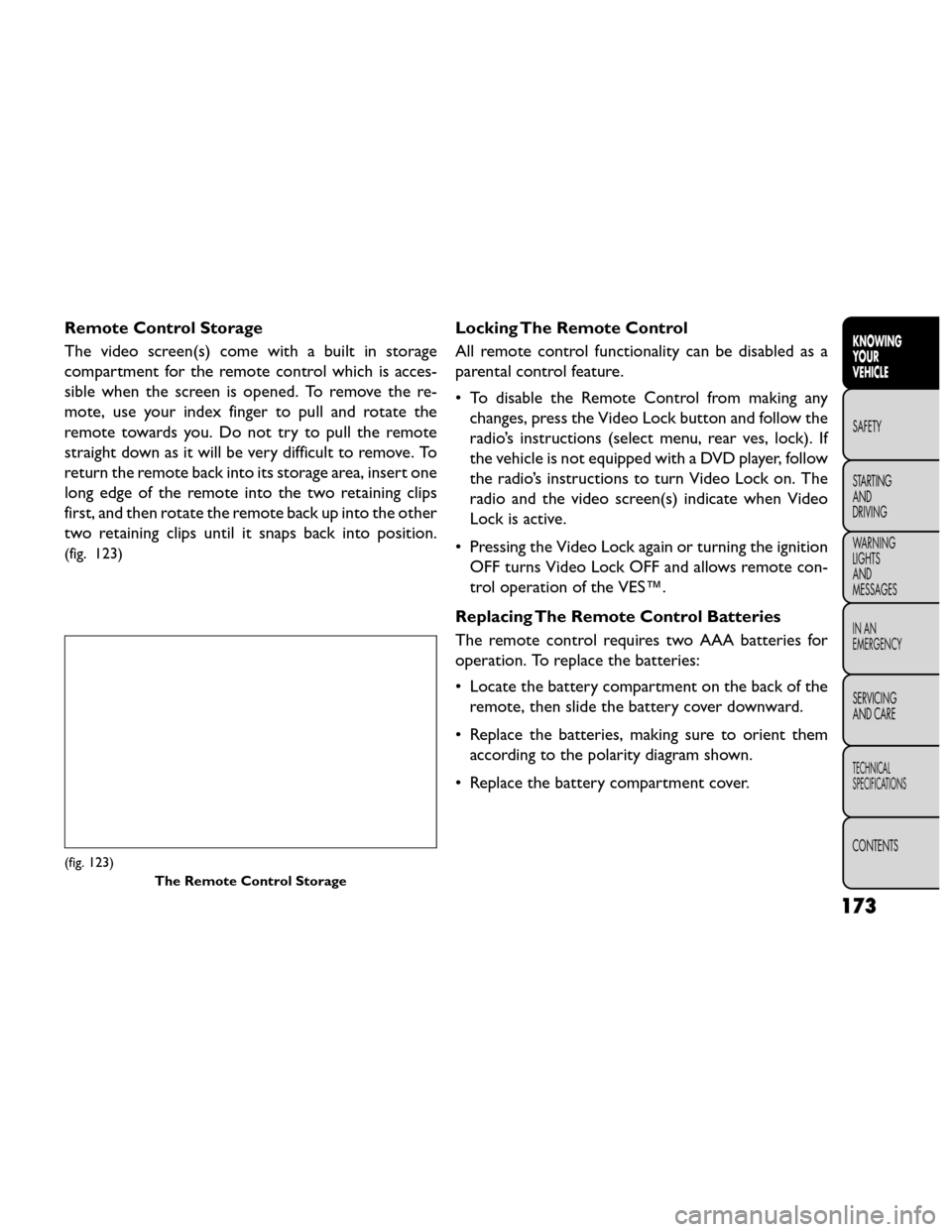
Remote Control Storage
The video screen(s) come with a built in storage
compartment for the remote control which is acces-
sible when the screen is opened. To remove the re-
mote, use your index finger to pull and rotate the
remote towards you. Do not try to pull the remote
straight down as it will be very difficult to remove. To
return the remote back into its storage area, insert one
long edge of the remote into the two retaining clips
first, and then rotate the remote back up into the other
two retaining clips until it snaps back into position.
(fig. 123)
Locking The Remote Control
All remote control functionality can be disabled as a
parental control feature.
• To disable the Remote Control from making anychanges, press the Video Lock button and follow the
radio’s instructions (select menu, rear ves, lock). If
the vehicle is not equipped with a DVD player, follow
the radio’s instructions to turn Video Lock on. The
radio and the video screen(s) indicate when Video
Lock is active.
• Pressing the Video Lock again or turning the ignition OFF turns Video Lock OFF and allows remote con-
trol operation of the VES™.
Replacing The Remote Control Batteries
The remote control requires two AAA batteries for
operation. To replace the batteries:
• Locate the battery compartment on the back of the remote, then slide the battery cover downward.
• Replace the batteries, making sure to orient them according to the polarity diagram shown.
• Replace the battery compartment cover.
(fig. 123) The Remote Control Storage
173
KNOWING
YOUR
VEHICLE
SAFETY
STARTING
AND
DRIVING
W
ARNING
LIGHTS
AND
MESSAGES
IN AN
EMERGENCY
SERVICING
AND CARE
TECHNICAL
SPECIFICATIONS
CONTENTS
Page 184 of 388
• Clock — Displays the time.
• Channel 1 Shared Status — When the icon is dis-played, the audio for Channel 1 is also shared with
the radio and playing through the cabin speakers.
Numeric Keypad Menu
(fig. 126)
When the display for either Channel 1 or Channel 2
shows DIRECT TUNE, pressing the remote control’s
ENTER button activates a numeric keypad menu. This
screen makes it easy to enter a specific tuner frequency
or track number. To enter the desired digit:
1. Press the remote control’s navigation buttons ( ▴,▾,
▸, ◂) to navigate to the desired digit. 2. When the digit is highlighted, press the remote
control’s ENTER button to select the digit. Repeat
these steps until all digits are entered.
3. To delete the last digit, navigate to the Del button and press the remote control’s ENTER button.
4. After all of the digits are entered, navigate to the Go button and press the remote control’s ENTER but-
ton.
Disc Menu
When listening to a CD Audio or CD Data disc,
pressing the remote control’s MENU button displays a
list of all commands which control playback of the disc.
Using the options you can activate or cancel Random
play.
(fig. 126) Numeric Keypad Menu
178
KNOWINGYOUR
VEHICLE
SAFETY
STARTING AND
DRIVING
W
ARNING LIGHTS AND
MESSAGES
IN AN
EMERGENCY
SERVICING AND CARE
TECHNICAL
SPECIFICATIONS
CONTENTS
Page 188 of 388
• If you are creating your own files, the recommendedfixed bit rate for MP3 files is between 96 and
192Kbps and the recommended fixed bit rate for
WMA files is between 64 and 192Kbps. Variable bit
rates are also supported. For both formats, the
recommended sample rate is either 44.1kHz or
48kHz.
• To change the current file, use the remote control’s or DVD player’s ▴button to advance to the next file,
or the ▾button to return to the start of the current
or previous file.
• To change the current directory, use the remote control’s PROG UP and Down buttons or Rewind/
skip back and fast fwd/skip forward. Disc Errors
If the DVD player is unable to read the disc, a "Disc
Error" message is displayed on the Radio display and
the disc is automatically ejected. A dirty, damaged, or
incompatible disc format are all potential causes for a
"Disc Error" message.
If a disc has a damaged track which results in audible or
visible errors that persists for 2.0 seconds, the DVD
player will attempt to continue playing the disc by
skipping forward 1.0 to 3.0 seconds at a time. If the end
of the disc is reached, the DVD player will return to the
beginning of the disc and attempt to play the start of
the first track.
The DVD player may shut down during extremely hot
conditions, such as when the vehicle’s interior tem-
perature is above 120°F. When this occurs, the DVD
player will display "High Temp" and will shut off the
display until a safe temperature is reached. This shut-
down is necessary to protect the optics of the DVD
player.
182
KNOWING
YOUR
VEHICLE
SAFETY
STARTING AND
DRIVING
W
ARNING LIGHTS AND
MESSAGES
IN AN
EMERGENCY
SERVICING AND CARE
TECHNICAL
SPECIFICATIONS
CONTENTS
Page 190 of 388
CD/DVD DISC MAINTENANCE
To keep a CD/DVD in good condition, take the follow-
ing precautions:
1. Handle the disc by its edge; avoid touching thesurface.
2. If the disc is stained, clean the surface with a soft cloth, wiping from center to edge.
3. Do not apply paper or tape to the disc; avoid scratching the disc.
4. Do not use solvents such as benzene, thinner, clean- ers, or anti-static sprays.
5. Store the disc in its case after playing.
6. Do not expose the disc to direct sunlight.
7. Do not store the disc where temperatures may become too high.
NOTE: If you experience difficulty in playing a particu-
lar disc, it may be damaged (i.e., scratched, reflective
coating removed, a hair, moisture or dew on the disc)
oversized, or have protection encoding. Try a known
good disc before considering disc player service.
RADIO OPERATION AND MOBILE
PHONES
Under certain conditions, the mobile phone being on in
your vehicle can cause erratic or noisy performance
from your radio. This condition may be lessened or
eliminated by relocating the mobile phone antenna.
This condition is not harmful to the radio. If your radio
performance does not satisfactorily “clear” by the
repositioning of the antenna, it is recommended that
the radio volume be turned down or off during mobile
phone operation.
184
KNOWING YOUR
VEHICLE
SAFETY
STARTING AND
DRIVING
W
ARNING LIGHTS AND
MESSAGES
IN AN
EMERGENCY
SERVICING AND CARE
TECHNICAL
SPECIFICATIONS
CONTENTS
Page 224 of 388
The first stage inflator is triggered immediately during
an impact that requires air bag deployment. This low
output is used in less severe collisions. A higher energy
output is used for more severe collisions.
WARNING!
• No objects should be placed over or
near t
he air bag on the instrument
panel, because any such objects could cause
harm if the vehicle is in a collision severe enough
to cause the air bag to inflate.
• Do not put anything on or around the air bag
covers or attempt to open them manually. You
may damage the air bags and you could be
injured because the air bags may no longer be
functional. The protective covers for the air bag
cushions are designed to open only when the air
bags are inflating.
• Do not drill, cut or tamper with the knee bol-
ster in any way.
• Do not mount any accessories to the knee
bolster such as alarm lights, stereos, citizen band
radios, etc . Supplemental Seat-Mounted Side Air Bags
(SAB)
SAB may provide enhanced protection to help protect
an occupant during a side impact. The SAB is marked
with an air bag label sewn into the outboard side of the
front seats.
(fig. 149)
When the air bag deploys, it opens the seam between
the front and side of the seat's trim cover. Each air bag
deploys independently; a left side impact deploys the
left air bag only and a right-side impact deploys the
right air bag only.
(fig. 149)
Seat Mounted Side Air Bag Label
218
KNOWINGYOUR
VEHICLE
SAFETY
STARTING AND
DRIVING
WARNING LIGHTSAND
MESSAGES
IN AN
EMERGENCY
SERVICING AND CARE
TECHNICAL
SPECIFICATIONS
CONTENTS
Page 277 of 388
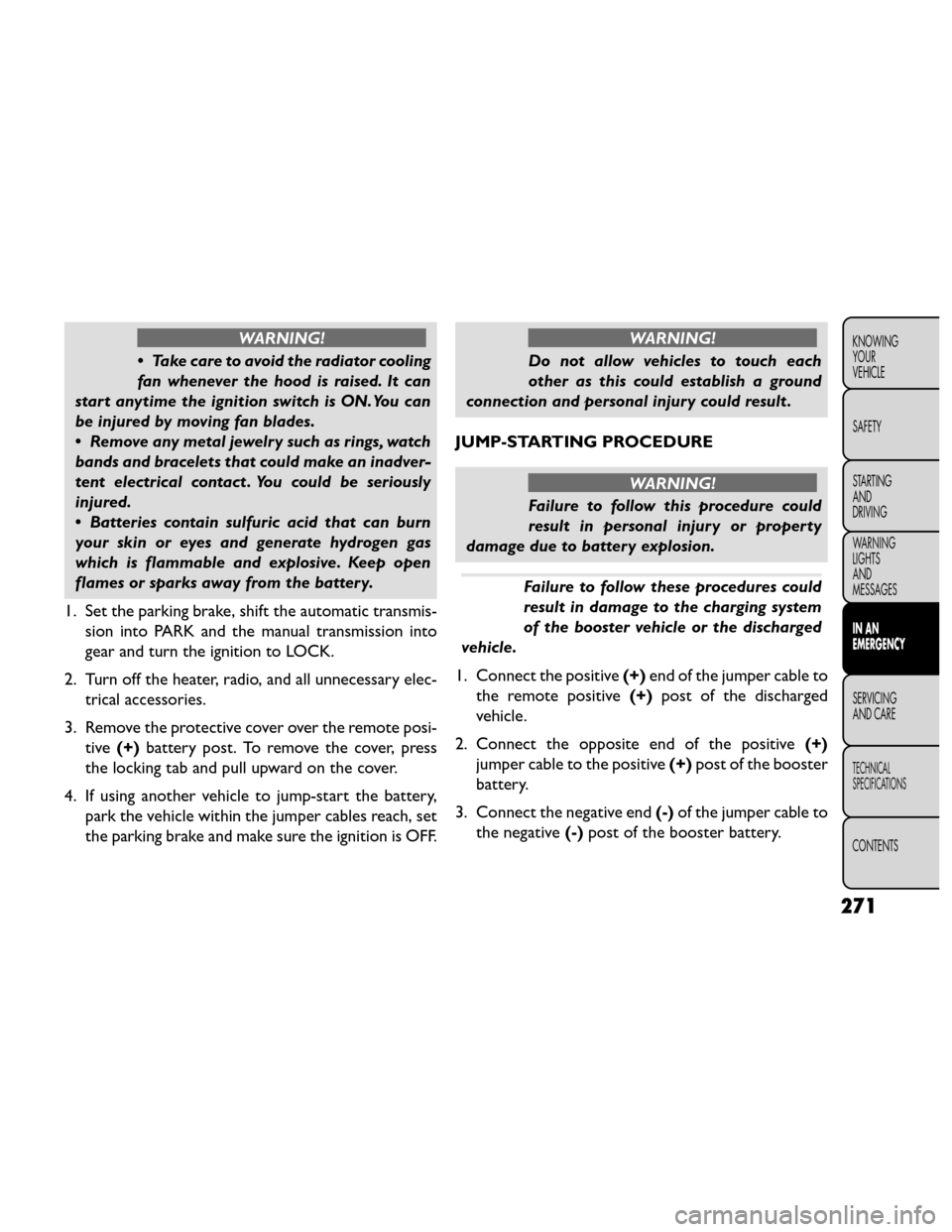
WARNING!
• Take care to avoid the radiator cooling
fan w
henever the hood is raised. It can
start anytime the ignition switch is ON.You can
be injured by moving fan blades.
• Remove any metal jewelry such as rings, watch
bands and bracelets that could make an inadver-
tent electrical contact . You could be seriously
injured.
• Batteries contain sulfuric acid that can burn
your skin or eyes and generate hydrogen gas
which is flammable and explosive. Keep open
flames or sparks away from the battery.
1. Set the parking brake, shift the automatic transmis- sion into PARK and the manual transmission into
gear and turn the ignition to LOCK.
2. Turn off the heater, radio, and all unnecessary elec- trical accessories.
3. Remove the protective cover over the remote posi- tive (+)battery post. To remove the cover, press
the locking tab and pull upward on the cover.
4. If using another vehicle to jump-start the battery, park the vehicle within the jumper cables reach, set
the parking brake and make sure the ignition is OFF.
WARNING!
Do not allow vehicles to touch each
other as
this could establish a ground
connection and personal injury could result .
JUMP-STARTING PROCEDURE
WARNING!
Failure to follow this procedure could
result in per
sonal injury or property
damage due to battery explosion.
Failure to follow these procedures could
result in damage to the charging system
of the booster vehicle or the discharged
vehicle.
1. Connect the positive (+)end of the jumper cable to
the remote positive (+)post of the discharged
vehicle.
2. Connect the opposite end of the positive (+)
jumper cable to the positive (+)post of the booster
battery.
3. Connect the negative end (-)of the jumper cable to
the negative (-)post of the booster battery.
271
KNOWING
YOUR
VEHICLE
SAFETY
STARTING
AND
DRIVING
WARNING
LIGHTS
AND
MESSAGES
IN AN
EMERGENCY
SERVICING
AND CARE
TECHNICAL
SPECIFICATIONS
CONTENTS
Page 305 of 388
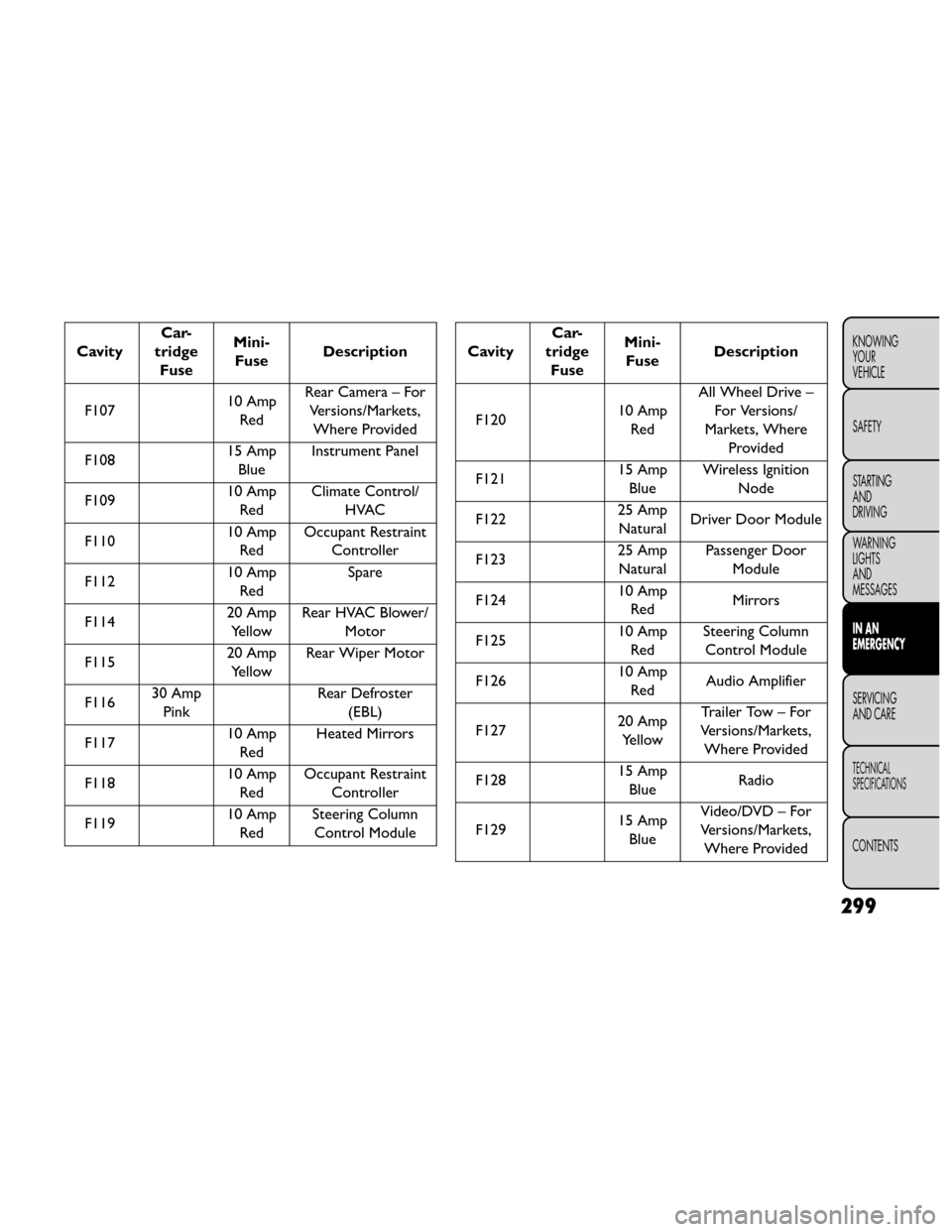
CavityCar-
tridge Fuse Mini-
Fuse Description
F107 10 Amp
Red Rear Camera – For
Versions/Markets,Where Provided
F108 15 Amp
Blue Instrument Panel
F109 10 Amp
Red Climate Control/
HVAC
F110 10 Amp
Red Occupant Restraint
Controller
F112 10 Amp
Red Spare
F114 20 Amp
Yellow Rear HVAC Blower/
Motor
F115 20 Amp
Yellow Rear Wiper Motor
F116 30 Amp
Pink Rear Defroster
(EBL)
F117 10 Amp
Red Heated Mirrors
F118 10 Amp
Red Occupant Restraint
Controller
F119 10 Amp
Red Steering Column
Control ModuleCavity Car-
tridge Fuse Mini-
Fuse Description
F120 10 Amp
Red All Wheel Drive –
For Versions/
Markets, Where Provided
F121 15 Amp
Blue Wireless Ignition
Node
F122 25 Amp
Natural Driver Door Module
F123 25 Amp
Natural Passenger Door
Module
F124 10 Amp
Red Mirrors
F125 10 Amp
Red Steering Column
Control Module
F126 10 Amp
Red Audio Amplifier
F127 20 Amp
Yellow Trailer Tow – For
Versions/Markets, Where Provided
F128 15 Amp
Blue Radio
F129 15 Amp
Blue Video/DVD – For
Versions/Markets, Where Provided
299
KNOWING
YOUR
VEHICLE
SAFETY
STARTING
AND
DRIVING
WARNING
LIGHTS
AND
MESSAGES
IN AN
EMERGENCY
SERVICING
AND CARE
TECHNICAL
SPECIFICATIONS
CONTENTS