key FIAT FREEMONT 2014 1.G Repair Manual
[x] Cancel search | Manufacturer: FIAT, Model Year: 2014, Model line: FREEMONT, Model: FIAT FREEMONT 2014 1.GPages: 388, PDF Size: 4.13 MB
Page 163 of 388
If “CLEAN PARK ASSIST” appears in the Electronic
Vehicle Information Center (EVIC) make sure the
outer surface and the underside of the rear fascia/
bumper is clean and clear of snow, ice, mud, dirt or
other obstruction and then cycle the ignition. If the
message continues to appear see an authorized dealer.
If “SERVICE PARK ASSIST” or “SERVICE PARK ASSIST
SYSTEM” appears in the EVIC, see your authorized
dealer.
CLEANING THE PARK ASSIST SYSTEM
Clean the sensors with water, car wash soap and a soft
cloth. Do not use rough or hard cloths. Do not scratch
or poke the sensors. Otherwise, you could damage the
sensors.
PARK ASSIST SYSTEM USAGE PRECAUTIONS
NOTE:
• Ensure that the rear bumper is free of snow, ice,mud, dirt and debris to keep the Park Assist system
operating properly.
• Jackhammers, large trucks, and other vibrations could affect the performance of Park Assist. • When you turn Park Assist off, the EVIC will display
“PARK ASSIST SYSTEM OFF.” Furthermore, once
you turn Park Assist off, it remains off until you turn
it on again, even if you cycle the ignition key.
• When you move the shift lever to the REVERSE position and Park Assist is turned off, the EVIC will
display the “PARK ASSIST SYSTEM OFF” message
for as long as the vehicle is in REVERSE.
• Clean the Park Assist sensors regularly, taking care not to scratch or damage them. The sensors must
not be covered with ice, snow, slush, mud, dirt or
debris. Failure to do so can result in the system not
working properly. The Park Assist system might not
detect an obstacle behind the fascia/bumper, or it
could provide a false indication that an obstacle is
behind the fascia/bumper.
• Ensure that the Park Assist system is turned OFF if objects such as bicycle carriers, trailer hitches, etc.,
are placed within 30 cm from the rear fascia/bumper
while driving the vehicle. Failure to do so can result in
the system misinterpreting a close object as a sensor
problem, causing the “SERVICE PARK ASSIST” mes-
sage to be displayed in the EVIC.
157
KNOWING
YOUR
VEHICLE
SAFETY
STARTING
AND
DRIVING
W
ARNING
LIGHTS
AND
MESSAGES
IN AN
EMERGENCY
SERVICING
AND CARE
TECHNICAL
SPECIFICATIONS
CONTENTS
Page 166 of 388
•To avoid vehicle damage, ParkView®
should only be used as a parking aid.The
ParkView®cameraisunabletoviewev-
ery obstacle or object in your drive path.
• To avoid vehicle damage, the vehicle must be
driven slowly when using ParkView® to be able to
stop in time when an obstacle is seen. It is recom-
mended that the driver look frequently over his/
her shoulder when using ParkView®.
NOTE: If snow, ice, mud, or any foreign substance
builds up on the camera lens, clean the lens, rinse with
water, and dry with a soft cloth. Do not cover the lens.
TURNING PARKVIEW® ON OR OFF —
WITH TOUCH SCREEN
Perform the following steps on the touch screen to
turn the Parkview® Backup Camera ON or OFF:
1. Press the “More” soft-key.
2. Press the “Settings” soft-key.
3. Press the “Safety & Driving Assistance” soft-key.
4. Press the check box soft key next to “Parkview® Backup Camera” to enable/disable.NAVIGATION SYSTEM
(for versions/markets, where
provided)
Refer to your Uconnect® User Manual.
160
KNOWING YOUR
VEHICLE
SAFETY
STARTING AND
DRIVING
W
ARNING LIGHTS AND
MESSAGES
IN AN
EMERGENCY
SERVICING AND CARE
TECHNICAL
SPECIFICATIONS
CONTENTS
Page 170 of 388
Video Screen
NOTE:Typically there are two different ways to
operate the features of the Video Entertainment Sys-
tem (VES™).
• The Remote Control
• The Touch-Screen Radio (for versions/markets, where provided)
Play Video Games
Connect the video game console to the Auxiliary RCA
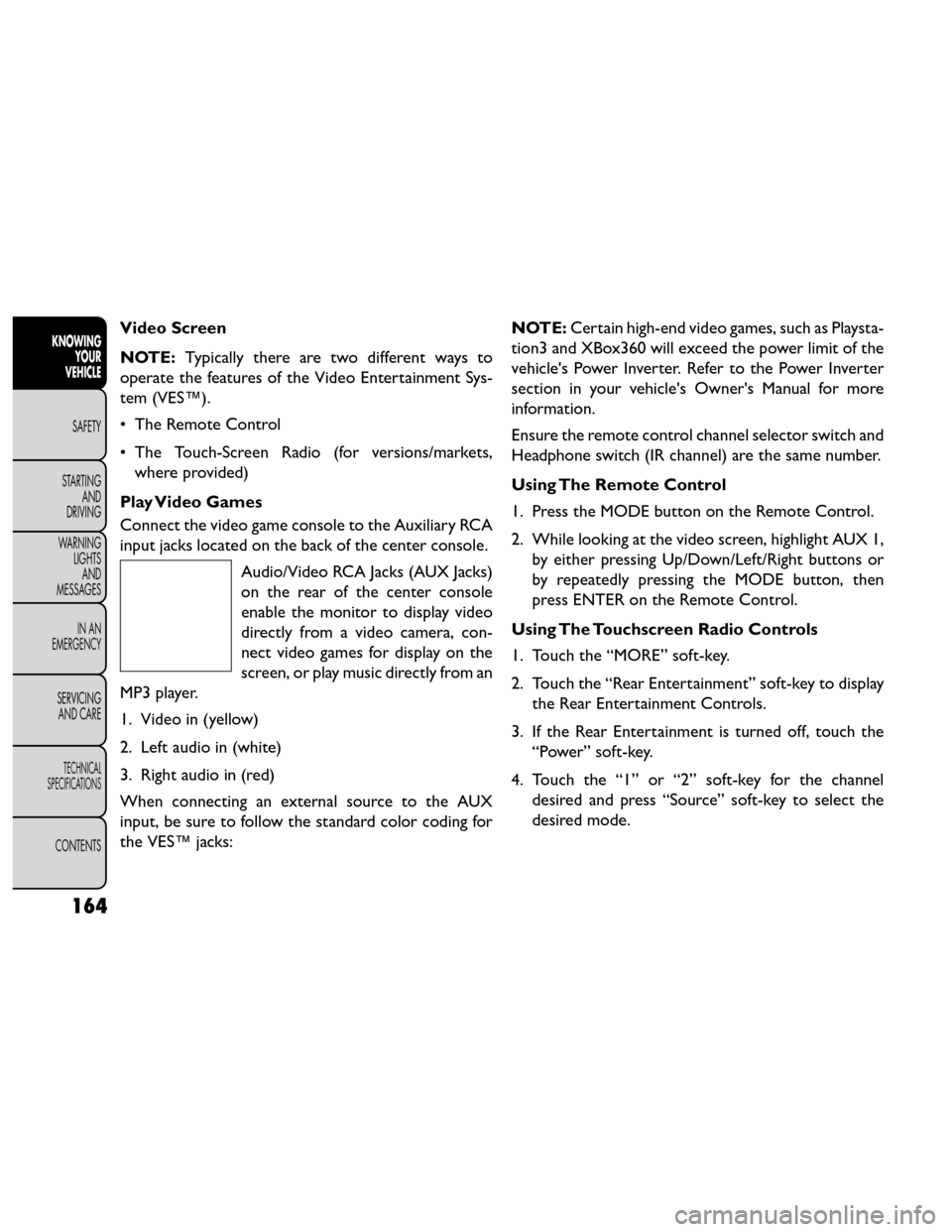
input jacks located on the back of the center console. Audio/Video RCA Jacks (AUX Jacks)
on the rear of the center console
enable the monitor to display video
directly from a video camera, con-
nect video games for display on the
screen, or play music directly from an
MP3 player.
1. Video in (yellow)
2. Left audio in (white)
3. Right audio in (red)
When connecting an external source to the AUX
input, be sure to follow the standard color coding for
the VES™ jacks: NOTE:
Certain high-end video games, such as Playsta-
tion3 and XBox360 will exceed the power limit of the
vehicle's Power Inverter. Refer to the Power Inverter
section in your vehicle's Owner's Manual for more
information.
Ensure the remote control channel selector switch and
Headphone switch (IR channel) are the same number.
Using The Remote Control
1. Press the MODE button on the Remote Control.
2. While looking at the video screen, highlight AUX 1, by either pressing Up/Down/Left/Right buttons or
by repeatedly pressing the MODE button, then
press ENTER on the Remote Control.
Using The Touchscreen Radio Controls
1. Touch the “MORE” soft-key.
2. Touch the “Rear Entertainment” soft-key to display the Rear Entertainment Controls.
3. If the Rear Entertainment is turned off, touch the “Power” soft-key.
4. Touch the “1” or “2” soft-key for the channel desired and press “Source” soft-key to select the
desired mode.
164
KNOWING YOUR
VEHICLE
SAFETY
STARTING AND
DRIVING
W
ARNING LIGHTS AND
MESSAGES
IN AN
EMERGENCY
SERVICING AND CARE
TECHNICAL
SPECIFICATIONS
CONTENTS
Page 171 of 388
Listen To An Audio Source On Channel 2
While A Video Is Playing On Channel 1
Ensure the Remote Control and Headphone switch is
on Channel 2.
Using The Remote Control
1. Press the MODE button on the Remote Controland the Mode Select Screen will display, unless a
video is playing then only a small banner will appear
on the bottom of the screen.
2. While looking at the video screen, either press Up/ Down/Left/Right on the Remote Control to
highlight the desired audio source or repeatedly
press the MODE button on the remote until the
desired audio source appears on the screen.
Using The Touch-Screen Radio Controls
1. Touch the “MORE” soft-key.
2. Touch the “Rear Entertainment” soft-key to display the Rear Entertainment Controls.
3. If the Rear Entertainment is turned off, touch the “Power” soft-key.
4. Touch the “1” or “2” soft-key for the channel desired then press the “SOURCE” soft key to select
the desired mode. Important Notes For Single Video Screen
System
• VES™ is able to transmit two channels of stereo
audio simultaneously.
• In split screen mode the left side equates to Chan- nel 1 and right side equates to Channel 2.
• If a video source is selected on Channel 1, then Channel 2 is for audio only.
• When selecting a video source on Channel 1, the video will display on the screen and the audio will be
heard on Channel 1 in the headphones.
• Audio can be heard through the headphones even when the Video Screen is closed.
Play A DVD Using The Touchscreen Radio
1. Insert the DVD with the label facing up. The radio automatically selects the appropriate mode after
the disc is recognized and displays the menu screen
or starts playing the first track.
165
KNOWING
YOUR
VEHICLE
SAFETY
STARTING
AND
DRIVING
W
ARNING
LIGHTS
AND
MESSAGES
IN AN
EMERGENCY
SERVICING
AND CARE
TECHNICAL
SPECIFICATIONS
CONTENTS
Page 172 of 388
Using The Remote Control
1. Press the MODE button on the Remote Control.
2. While looking at the Video Screen, highlight DISCby either pressing Up/Down/Left/Right buttons or
by repeatedly pressing the MODE button, then
press ENTER.
NOTE:
• The VES™ system will retain the last setting when turned off.
• Viewing a DVD on the Touchscreen radio screen is not available in some regions or locations, the vehicle
must be stopped, and the shift lever must be in the
PARK position for vehicles with automatic transmis-
sion. In vehicles with manual transmission the park-
ing brake must be engaged even when the vehicle is
parked. Refer to local and state laws.
• Touching the screen on a Touchscreen radio while a DVD is playing brings up basic remote control func-
tions for DVD play such as scene selection, Play,
Pause, FF, RW, and Stop. Pressing the X in the upper
corner will turn off the remote control screen func-
tions. Using The Touch-Screen Radio Controls
1. Touch the “MORE” soft-key.
2. Touch the “Rear Entertainment” soft-key to display
the Rear Entertainment Controls.
3. If the Rear Entertainment is turned off, touch the “Power” soft-key.
4. Touch the “1” or “2” Source soft-key based on the channel you want to change and touch the “Disc”
soft-key. To exit touch the “X” at the top right of
the screen.
NOTE: Touching the screen on a Touch-Screen radio
while a DVD is playing full screen brings up basic
control functions for DVD play such as DVD Menu,
Seek Up/Down, Navigating through the menus, Exit.
The basic control functions screen will time out and
disappear from the screen.
166
KNOWING YOUR
VEHICLE
SAFETY
STARTING AND
DRIVING
W
ARNING LIGHTS AND
MESSAGES
IN AN
EMERGENCY
SERVICING AND CARE
TECHNICAL
SPECIFICATIONS
CONTENTS
Page 182 of 388
exclusion or limitation of incidental or consequential
damages, so the above limitation may not apply to you.
This warranty gives you specific legal rights. You may
also have other rights, which vary from jurisdiction to
jurisdiction.
What Will Unwired® Do?Unwired®, at its option,
will repair or replace any defective Product. Unwired®
reserves the right to replace any discontinued Product
with a comparable model. THIS WARRANTY IS THE
SOLE WARRANTY FOR THIS PRODUCT, SETS
FORTH YOUR EXCLUSIVE REMEDY REGARDING
DEFECTIVE PRODUCTS, AND IS IN LIEU OF ALL
OTHER WARRANTIES (EXPRESS OR IMPLIED), IN-
CLUDING ANY WARRANTY OR MERCHANTABIL-
ITY OR FITNESS FOR A PARTICULAR PURPOSE.
Displaying Video
The video screen has two different operating modes, a
video mode (when displaying video such as DVD video,
Aux video, etc.) and an information mode as shown in
Figure 116. Because the VES™ is a dual channel system,
Information Mode is displayed in a split screen format.
When in Information Mode, the left side of the screen
is referred to as Channel 1 and the right side of the
screen is referred to as Channel 2. Only Channel 1 displays video images. When in video
mode the image is displayed on the full screen, however
Channel 2’s functionality is still available. A popup
banner at the bottom of the screen is displayed mo-
mentarily over the video image. While in video mode
and Channel 2 is selected on the remote control
selector switch, the first remote control key press will
activate the popup banner indicating Channel 2’s sta-
tus. While the banner is still visible, any subsequent
remote control key press for Channel 2 shall initiate
the requested remote control command.
(fig. 125)
(fig. 125)
Popup Banner
176
KNOWINGYOUR
VEHICLE
SAFETY
STARTING AND
DRIVING
W
ARNING LIGHTS AND
MESSAGES
IN AN
EMERGENCY
SERVICING AND CARE
TECHNICAL
SPECIFICATIONS
CONTENTS
Page 183 of 388
In a two-screen system, the video for Channel 1 is
displayed on the first rear seat screen and the video for
Channel 2 is displayed on the second rear seat screen.
Information Mode is displayed in split screen, the left
side of the screen (Channel 1) shows the status/mode
of the first rear seat screen and the right side of the
screen (Channel 2) shows the status/mode of the
second rear seat screen.
When Channel 1 is in a video mode, the image is
displayed on the first rear seat screen as a full screen
image. A popup banner at the bottom of the screen is
displayed momentarily over the video image showing
any change in status of Channel 2.
When Channel 2 is in video mode, the image is dis-
played on the second rear seat screen as a full screen
image. A popup banner at the bottom of the screen is
displayed momentarily over the video image showing
any change in status of Channel 1.
System Information
Information Mode Display
When information mode is active, the current mode
setting for both audio channels is displayed. In addition
to the items called out by number, the remaining
information displays the current status of the source
(such as station frequency, name, preset or track num-
ber, song title, artist name, album name, etc.).• Channel 1 Mode – Displays the current source for
Channel 1.
• Channel 1 Audio Only/Mute — Audio: The audio only icon is not used on Channel 1, in a single screen
system. Mute: when the Mute icon is displayed, the
audio for Channel 1 has been muted using the re-
mote control’s MUTE button.
• Channel 2 Audio Only/Mute — Audio: Only in a single screen system: The audio only icon is displayed
on Channel 2 when Channel 1 is in a video mode.
Mute: when the Mute icon is displayed, the audio for
Channel 2 has been muted using the remote con-
trol’s MUTE button.
• Channel 2 Mode — Displays the current source for Channel 2.
• Channel 2 ENTER Button Action — When the ENTER button on the remote control is pressed
with the "INPUT FILE #" button visible on the
screen, the screen shows a numeric entry keypad
which allows you to enter a specific track number on
data discs and HDD (see Numeric Keypad Menu
section of this manual). Also, Enter Button Action –
“INPUT TRK #” to enter a specific track number on
audio discs.
• Remote Locked Out — When the icon is displayed, the remote control functions are disabled.
177
KNOWING
YOUR
VEHICLE
SAFETY
STARTING
AND
DRIVING
W
ARNING
LIGHTS
AND
MESSAGES
IN AN
EMERGENCY
SERVICING
AND CARE
TECHNICAL
SPECIFICATIONS
CONTENTS
Page 184 of 388
• Clock — Displays the time.
• Channel 1 Shared Status — When the icon is dis-played, the audio for Channel 1 is also shared with
the radio and playing through the cabin speakers.
Numeric Keypad Menu
(fig. 126)
When the display for either Channel 1 or Channel 2
shows DIRECT TUNE, pressing the remote control’s
ENTER button activates a numeric keypad menu. This
screen makes it easy to enter a specific tuner frequency
or track number. To enter the desired digit:
1. Press the remote control’s navigation buttons ( ▴,▾,
▸, ◂) to navigate to the desired digit. 2. When the digit is highlighted, press the remote
control’s ENTER button to select the digit. Repeat
these steps until all digits are entered.
3. To delete the last digit, navigate to the Del button and press the remote control’s ENTER button.
4. After all of the digits are entered, navigate to the Go button and press the remote control’s ENTER but-
ton.
Disc Menu
When listening to a CD Audio or CD Data disc,
pressing the remote control’s MENU button displays a
list of all commands which control playback of the disc.
Using the options you can activate or cancel Random
play.
(fig. 126) Numeric Keypad Menu
178
KNOWINGYOUR
VEHICLE
SAFETY
STARTING AND
DRIVING
W
ARNING LIGHTS AND
MESSAGES
IN AN
EMERGENCY
SERVICING AND CARE
TECHNICAL
SPECIFICATIONS
CONTENTS
Page 185 of 388
Options Menu
(fig. 127)
When watching a video source (DVD Video with the
disc in Play mode, Aux Video, etc.), pressing the “Op-
tions” soft-key activates the Options Settings menu.
From this menu you can adjust Audio, Subtitles, Angle
and Title.Display Settings
When watching a video source (DVD Video with the
disc in Play mode, Aux Video, etc.), pressing the re-
mote control’s SETUP button activates the Display
Settings menu. These settings control the appearance
of the video on the screen. The factory default settings
are already set for optimum viewing, so there is no
need to change these settings under normal circum-
stances.
To change the settings, press the remote control’s
navigation buttons to select an item, then press the
remote control’s navigation buttons to change the
value for the currently selected item. To reset all values
back to the original settings, select the Default Settings
menu option and press the remote control’s ENTER
button.
(fig. 127)
179
KNOWING
YOUR
VEHICLE
SAFETY
STARTING
AND
DRIVING
W
ARNING
LIGHTS
AND
MESSAGES
IN AN
EMERGENCY
SERVICING
AND CARE
TECHNICAL
SPECIFICATIONS
CONTENTS
Page 191 of 388
ADDING FUEL
FUEL FILLER CAP (GAS CAP)
(for versions/markets, where provided)
The gas cap is located behind the fuel filler door on the
left side of the vehicle. If the gas cap is lost or damaged,
be sure the replacement cap has been designed for use
with this vehicle.
(fig. 128)
Locking Fuel Filler Cap (for versions/markets,
where provided)
Your vehicle may be equipped with a locking fuel cap.
Use the specific blade key to lock/unlock this fuel cap.
NOTE:When removing the fuel filler cap, lay the cap
tether in the hook, located on the fuel filler door
reinforcement.
•Damage to the fuel system or emis-
sions control system could result from
using an improper fuel tank filler tube
cap (gas cap).
• A poorly fitting gas cap could let impurities into
thefuelsystem.
• A poorly fitting gas cap may cause the “Mal-
function Indicator Light (MIL)” to turn on.
• To avoid fuel spillage and overfilling, do not “top
off ” the fuel tank after filling. When the fuel
nozzle “clicks” or shuts off, the fuel tank is full.
WARNING!
• Never have any smoking materials lit
in or n
ear the vehicle when the gas cap is
removed or the tank is being filled.
(Continued)
(fig. 128)Fuel Filler Cap (Gas Cap)
185
KNOWING
YOUR
VEHICLE
SAFETY
STARTING
AND
DRIVING
W
ARNING
LIGHTS
AND
MESSAGES
IN AN
EMERGENCY
SERVICING
AND CARE
TECHNICAL
SPECIFICATIONS
CONTENTS