briefly FIAT TIPO 4DOORS 2020 Owner handbook (in English)
[x] Cancel search | Manufacturer: FIAT, Model Year: 2020, Model line: TIPO 4DOORS, Model: FIAT TIPO 4DOORS 2020Pages: 252, PDF Size: 7.29 MB
Page 12 of 252
THE KEYS
KEY WITHOUT REMOTE
CONTROL
The metal insert of the key operates:
the ignition device and the driver's side
door lock.
KEY WITH REMOTE
CONTROL
1)
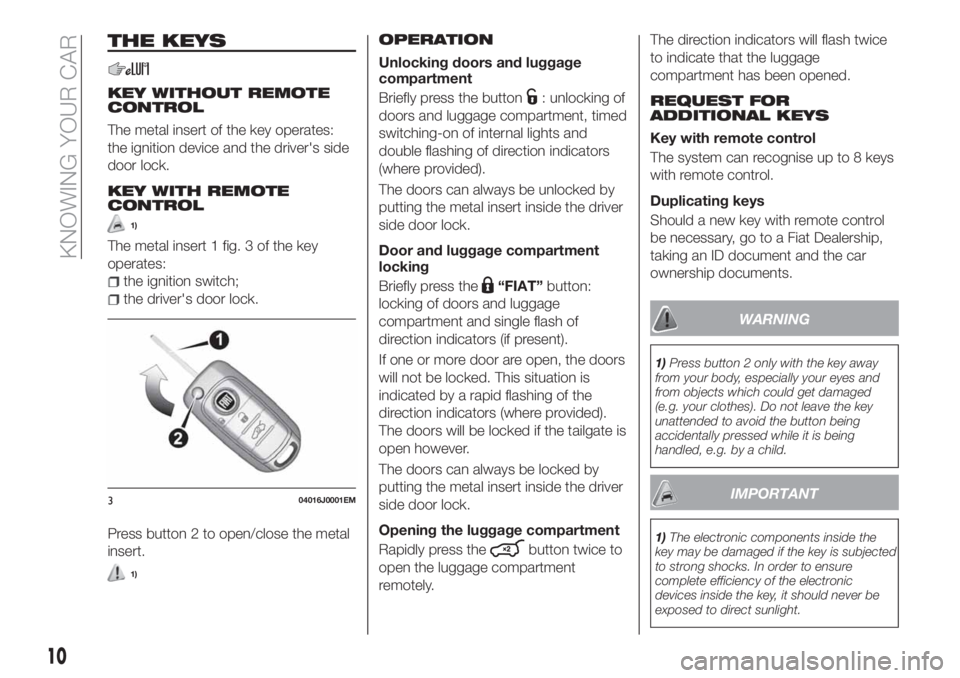
The metal insert 1 fig. 3 of the key
operates:
the ignition switch;
the driver's door lock.
Press button 2 to open/close the metal
insert.
1)
OPERATION
Unlocking doors and luggage
compartment
Briefly press the button
: unlocking of
doors and luggage compartment, timed
switching-on of internal lights and
double flashing of direction indicators
(where provided).
The doors can always be unlocked by
putting the metal insert inside the driver
side door lock.
Door and luggage compartment
locking
Briefly press the
“FIAT”button:
locking of doors and luggage
compartment and single flash of
direction indicators (if present).
If one or more door are open, the doors
will not be locked. This situation is
indicated by a rapid flashing of the
direction indicators (where provided).
The doors will be locked if the tailgate is
open however.
The doors can always be locked by
putting the metal insert inside the driver
side door lock.
Opening the luggage compartment
Rapidly press the
button twice to
open the luggage compartment
remotely.The direction indicators will flash twice
to indicate that the luggage
compartment has been opened.
REQUEST FOR
ADDITIONAL KEYS
Key with remote control
The system can recognise up to 8 keys
with remote control.
Duplicating keys
Should a new key with remote control
be necessary, go to a Fiat Dealership,
taking an ID document and the car
ownership documents.
WARNING
1)Press button 2 only with the key away
from your body, especially your eyes and
from objects which could get damaged
(e.g. your clothes). Do not leave the key
unattended to avoid the button being
accidentally pressed while it is being
handled, e.g. by a child.
IMPORTANT
1)The electronic components inside the
key may be damaged if the key is subjected
to strong shocks. In order to ensure
complete efficiency of the electronic
devices inside the key, it should never be
exposed to direct sunlight.
304016J0001EM
10
KNOWING YOUR CAR
Page 33 of 252
ELECTRIC WINDOWS
23)
Driver side front door controls
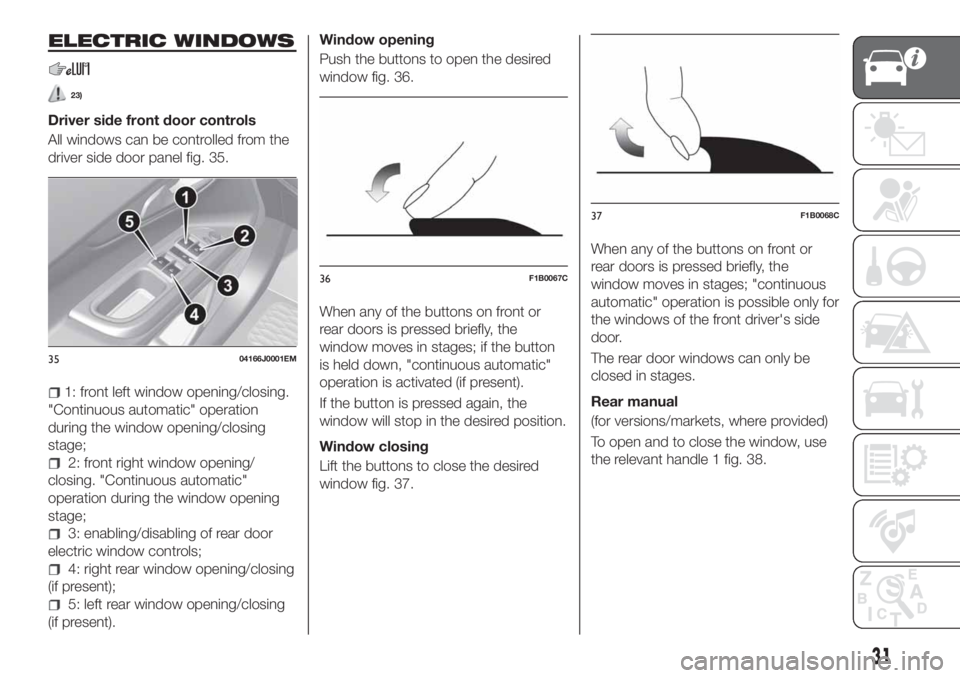
All windows can be controlled from the
driver side door panel fig. 35.
1: front left window opening/closing.
"Continuous automatic" operation
during the window opening/closing
stage;
2: front right window opening/
closing. "Continuous automatic"
operation during the window opening
stage;
3: enabling/disabling of rear door
electric window controls;
4: right rear window opening/closing
(if present);
5: left rear window opening/closing
(if present).Window opening
Push the buttons to open the desired
window fig. 36.
When any of the buttons on front or
rear doors is pressed briefly, the
window moves in stages; if the button
is held down, "continuous automatic"
operation is activated (if present).
If the button is pressed again, the
window will stop in the desired position.
Window closing
Lift the buttons to close the desired
window fig. 37.When any of the buttons on front or
rear doors is pressed briefly, the
window moves in stages; "continuous
automatic" operation is possible only for
the windows of the front driver's side
door.
The rear door windows can only be
closed in stages.
Rear manual
(for versions/markets, where provided)
To open and to close the window, use
the relevant handle 1 fig. 38.
3504166J0001EM
36F1B0067C
37F1B0068C
31
Page 48 of 252
DISPLAY
DESCRIPTION
The vehicle is equipped with a display
that can show useful information to the
driver while driving.
GEAR SHIFT INDICATOR
The Gear Shift Indicator (GSI) system
advises the driver to change gear
through a special indication on the
display.
Through the GSI, the driver is informed
that the gear change will allow a
reduction in fuel consumption.
When the
icon appears on the
display, the GSI suggests switching to a
higher gear, while when the
icon is
displayed, the GSI suggests changing
to a lower gear.
The indication in the display remains
until a gear is shifted or the driving
conditions go back to a situation where
gearshifting is not required to improve
consumption.
MULTIFUNCTION
DISPLAY
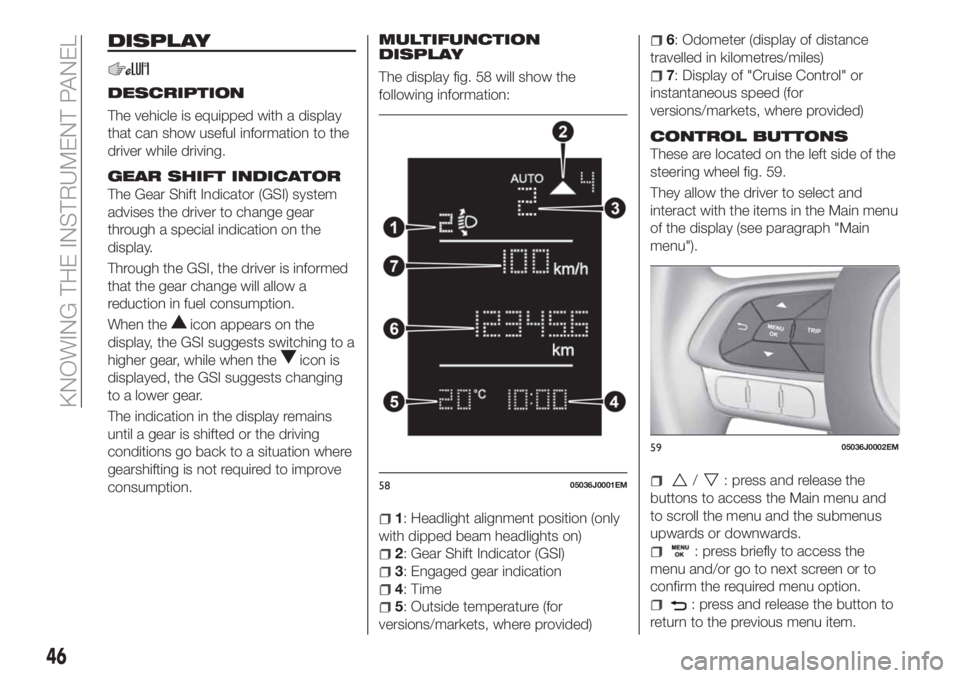
The display fig. 58 will show the
following information:
1: Headlight alignment position (only
with dipped beam headlights on)
2: Gear Shift Indicator (GSI)
3: Engaged gear indication
4: Time
5: Outside temperature (for
versions/markets, where provided)
6: Odometer (display of distance
travelled in kilometres/miles)
7: Display of "Cruise Control" or
instantaneous speed (for
versions/markets, where provided)
CONTROL BUTTONS
These are located on the left side of the
steering wheel fig. 59.
They allow the driver to select and
interact with the items in the Main menu
of the display (see paragraph "Main
menu").
/: press and release the
buttons to access the Main menu and
to scroll the menu and the submenus
upwards or downwards.
: press briefly to access the
menu and/or go to next screen or to
confirm the required menu option.
: press and release the button to
return to the previous menu item.
5805036J0001EM
5905036J0002EM
46
KNOWING THE INSTRUMENT PANEL
Page 49 of 252
: press and release the button
to display the "Trip computer"
information.
MAIN MENU
The Menu includes the following items:
“Dimmer” (lighting)
“Speed”
“Hour” (Set time)
“Buzzer” (Acoustic warning)
“Units” (Units of measure)
“Corner” (Cornering lights)
“Bag P” (Passenger airbag) (where
present)
“DRL” (Daytime running lights) (for
versions/markets where provided)
Bag P (Passenger airbag)
(where provided)
This function is used to activate/
deactivate the front passenger's airbag.
Proceed as follows:
press theMENU OKbutton and,
after the displaying of the message
(Bag pass: Off, to deactivate) or the
message "Bag pass: On, to activate) by
pressing
/, press thebutton;
a confirmation request message will
appear on the display;
press buttons/to select (Yes)
(confirming activation/deactivation) or
(No) (to abort);
press theMENU OKbutton briefly; a
message confirming the selection is
displayed and you can return to the
menu screen.
WithPassenger's protection not
activethe
LED comes on
constantly in the instrument panel
dashboard.
NOTE With theUconnect™system,
some Menu items are shown and
managed on the display of the latter
and not on the instrument panel display
(refer to the dedicated Multimedia
chapter or to the supplement available
online).RECONFIGURABLE
MULTIFUNCTION
DISPLAY
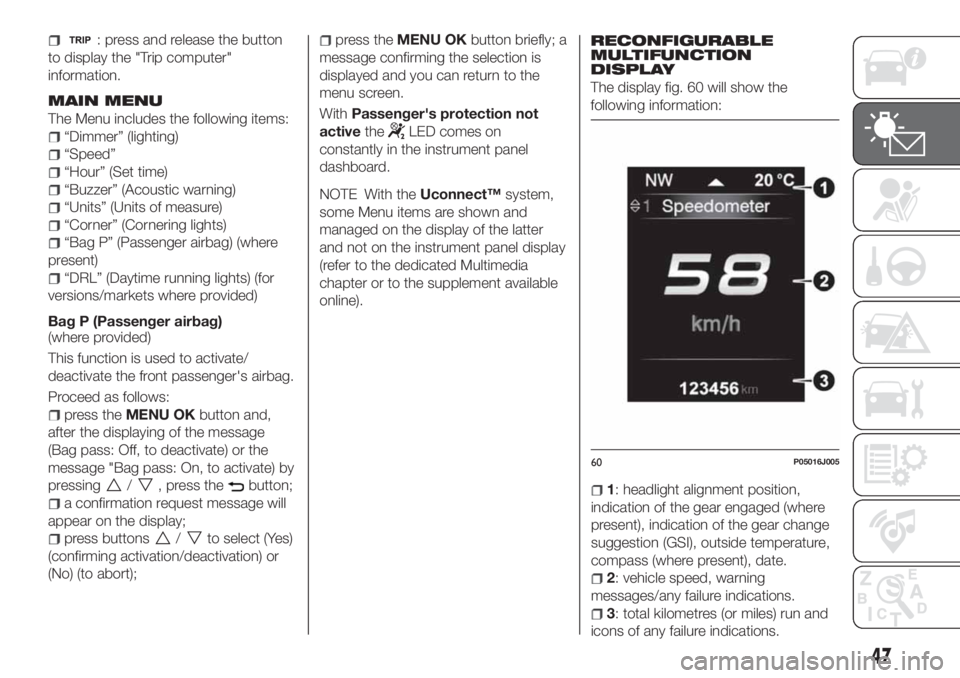
The display fig. 60 will show the
following information:
1: headlight alignment position,
indication of the gear engaged (where
present), indication of the gear change
suggestion (GSI), outside temperature,
compass (where present), date.
2: vehicle speed, warning
messages/any failure indications.
3: total kilometres (or miles) run and
icons of any failure indications.
60P05016J005
47
Page 113 of 252
SPEED LIMITER
(where provided)
DESCRIPTION
This device allows the speed of the
vehicle to be limited to values which
can be set by the driver.
The maximum speed can be set both
with vehicle stationary and in motion.
The minimum speed that can be set is
30 km/h.
When the device is active, the vehicle
speed depends on the pressure at the
accelerator pedal, until the
programmed speed limit is reached
(see "Speed limit programming"
paragraph).
ACTIVATING THE DEVICE
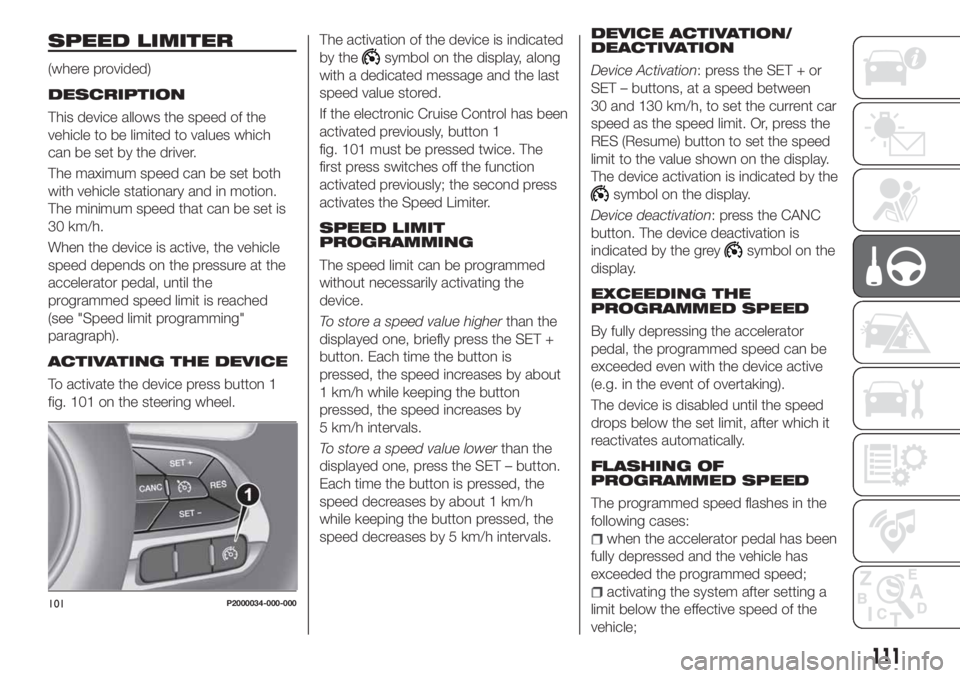
To activate the device press button 1
fig. 101 on the steering wheel.The activation of the device is indicated
by the
symbol on the display, along
with a dedicated message and the last
speed value stored.
If the electronic Cruise Control has been
activated previously, button 1
fig. 101 must be pressed twice. The
first press switches off the function
activated previously; the second press
activates the Speed Limiter.
SPEED LIMIT
PROGRAMMING
The speed limit can be programmed
without necessarily activating the
device.
To store a speed value higherthan the
displayed one, briefly press the SET +
button. Each time the button is
pressed, the speed increases by about
1 km/h while keeping the button
pressed, the speed increases by
5 km/h intervals.
To store a speed value lowerthan the
displayed one, press the SET – button.
Each time the button is pressed, the
speed decreases by about 1 km/h
while keeping the button pressed, the
speed decreases by 5 km/h intervals.
DEVICE ACTIVATION/
DEACTIVATION
Device Activation: press the SET + or
SET – buttons, at a speed between
30 and 130 km/h, to set the current car
speed as the speed limit. Or, press the
RES (Resume) button to set the speed
limit to the value shown on the display.
The device activation is indicated by the
symbol on the display.
Device deactivation: press the CANC
button. The device deactivation is
indicated by the grey
symbol on the
display.
EXCEEDING THE
PROGRAMMED SPEED
By fully depressing the accelerator
pedal, the programmed speed can be
exceeded even with the device active
(e.g. in the event of overtaking).
The device is disabled until the speed
drops below the set limit, after which it
reactivates automatically.
FLASHING OF
PROGRAMMED SPEED
The programmed speed flashes in the
following cases:
when the accelerator pedal has been
fully depressed and the vehicle has
exceeded the programmed speed;
activating the system after setting a
limit below the effective speed of the
vehicle;101P2000034-000-000
111
Page 222 of 252
SWITCHING THE SYSTEM
ON/OFF
The system is switched on/off by
pressing the
button/knob.
Turn the button/knob clockwise to
increase the radio volume or
anticlockwise to decrease it. The
electronic volume adjustment control
rotates continuously (360°) in both
directions, without stop positions.
RADIO (TUNER) MODE
The system is equipped with the
following tuners: AM and FM .
Radio mode selection
Press the RADIO button on the front
panel to activate radio mode.
Selecting a frequency band
The different tuning modes can be
selected by pressing the RADIO button
on the front panel.
Displayed information
After the desired radio station is
selected on the display, the following
information is shown (INFO mode
activated):
In the upper part: the preset station, the
time and the other active radio settings
are highlighted.In the central part: the name of the
current station, the frequency and the
radio text information (if any) are
highlighted.
FM station list
Press the BROWSE ENTER
button/knob to display the complete list
of the FM stations that can be received.
AM/FM radio station storage
The preset stations are available in all
system modes and are selected by
touching one of the presetting buttons
1-2-3-4-5-6on the front panel. If you
are tuned to a radio station that you
wish to store, hold down the button on
the display which corresponds to the
desired preset until an acoustic warning
is emitted.
AM/FM radio station selection
To search for the desired radio station
press the
orbutton or use the
wheel of the steering wheel controls, or
turn the "BROWSE ENTER" knob.
Previous/next radio station search
Briefly press the
orbutton:
when the button is released the
previous or the next radio station is
displayed.Previous/next radio station fast
search
Hold down the
orbutton to
start the fast search: when the button is
released, the first tunable radio is
played.
MEDIA MODE
Interaction modes for AUX (where
provided), USB operation.
Audio source selection
To select the desired audio source
among those available: AUX (where
provided) or USB, press theMEDIA
media.
To select and playback music tracks on
the cell phone CD card (where the
phone allows) press the BROWSE
ENTER button, select Folders then
Card.
IMPORTANT Some multimedia players
may not be compatible with the
Uconnect™.
CHANGE TRACK (next/previous)
Briefly press the
button to play the
next track or briefly press the
button to return to the beginning
of the selected track or to the beginning
of the previous track if this has been
played for less than 3 seconds.
220
MULTIMEDIA