lock FIAT TIPO 5DOORS STATION WAGON 2016 1.G Service Manual
[x] Cancel search | Manufacturer: FIAT, Model Year: 2016, Model line: TIPO 5DOORS STATION WAGON, Model: FIAT TIPO 5DOORS STATION WAGON 2016 1.GPages: 240, PDF Size: 5.43 MB
Page 163 of 240

blades varies according to the usage
frequency. In any case, it is advisable to
replace the blades approximately once
a year. When the blades are worn,
noise, marks on the glass or streaks of
water may be noticed. In the presence
of these conditions, clean the wiper
blades or, if necessary, replace them.
IMPORTANT Driving with worn
windscreen/rear window wiper blades
is a serious hazard, because visibility is
reduced in bad weather.
Raising the windscreen wiper
blades ("Service position" function)
The "Service position" function allows
the driver to replace the windscreen
wiper blades more easily, protecting
them from snow.
Function activation
To activate this function disable the
windscreen wiper (ring nut 1 fig. 159 in
position
) before setting the ignition
device to STOP.
This function can only be activated
within 2 minutes of setting the ignition
device to STOP.
To activate this function, move the lever
upwards (unstable position) for at least
half a second.Each time the function is activated
correctly, the wiper blades move to
signal the correct reception of the
command.
The command can be repeated up to a
maximum of the three times. The fourth
repetition of the command deactivates
the function.
If, after using the function, the ignition
device is set back to MAR with the
blades in a position other than rest
position (at the base of the windscreen),
they will only return to rest position
following a command given using the
stalk (stalk upwards, into unstable
position) or when a speed of 5 km/h is
exceeded.
Function deactivation
The function is deactivated if:
2 minutes have passed since the
ignition device was set to STOP;
the ignition device is set to MAR and
the blades are in rest position;
the command for the function is
repeated four times.
Replacing the windscreen wiper
blades
Proceed as follows:
raise the wiper arm, press button 1
fig. 160 of the attachment spring and
remove the blade from the arm;
fit the new blade, inserting the tab in
the dedicated housing in the arm and
checking that it is locked;
lower the wiper arm onto the
windscreen.
IMPORTANT Do not operate the
windscreen wiper with the blades lifted
from the windscreen.
159P2000063-000-000
16009046J0002EM
161
Page 164 of 240
Replacing the rear window wiper
blade
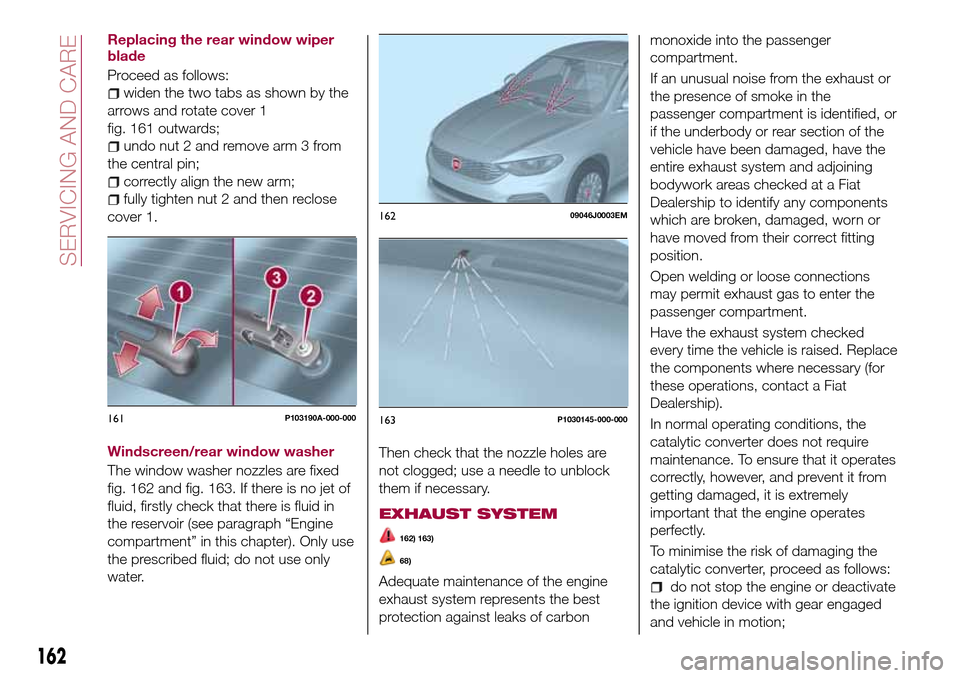
Proceed as follows:
widen the two tabs as shown by the
arrows and rotate cover 1
fig. 161 outwards;
undo nut 2 and remove arm 3 from
the central pin;
correctly align the new arm;
fully tighten nut 2 and then reclose
cover 1.
Windscreen/rear window washer
The window washer nozzles are fixed
fig. 162 and fig. 163. If there is no jet of
fluid, firstly check that there is fluid in
the reservoir (see paragraph “Engine
compartment” in this chapter). Only use
the prescribed fluid; do not use only
water.Then check that the nozzle holes are
not clogged; use a needle to unblock
them if necessary.
EXHAUST SYSTEM
162) 163)
68)
Adequate maintenance of the engine
exhaust system represents the best
protection against leaks of carbonmonoxide into the passenger
compartment.
If an unusual noise from the exhaust or
the presence of smoke in the
passenger compartment is identified, or
if the underbody or rear section of the
vehicle have been damaged, have the
entire exhaust system and adjoining
bodywork areas checked at a Fiat
Dealership to identify any components
which are broken, damaged, worn or
have moved from their correct fitting
position.
Open welding or loose connections
may permit exhaust gas to enter the
passenger compartment.
Have the exhaust system checked
every time the vehicle is raised. Replace
the components where necessary (for
these operations, contact a Fiat
Dealership).
In normal operating conditions, the
catalytic converter does not require
maintenance. To ensure that it operates
correctly, however, and prevent it from
getting damaged, it is extremely
important that the engine operates
perfectly.
To minimise the risk of damaging the
catalytic converter, proceed as follows:do not stop the engine or deactivate
the ignition device with gear engaged
and vehicle in motion;
161P103190A-000-000
16209046J0003EM
163P1030145-000-000
162
SERVICING AND CARE
Page 171 of 240
IDENTIFICATION
DATA
VEHICLE IDENTIFICATION
NUMBER (VIN) PLATE
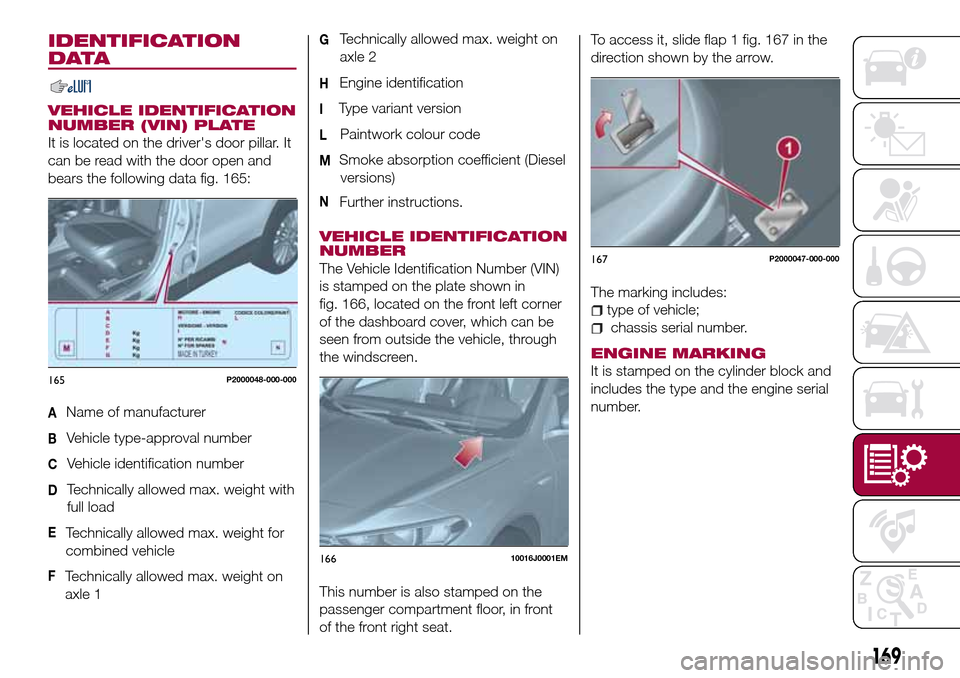
It is located on the driver's door pillar. It
can be read with the door open and
bears the following data fig. 165:
AName of manufacturer
BVehicle type-approval number
CVehicle identification number
DTechnically allowed max. weight with
full load
ETechnically allowed max. weight for
combined vehicle
FTechnically allowed max. weight on
axle 1
GTechnically allowed max. weight on
axle 2
HEngine identification
IType variant version
LPaintwork colour code
MSmoke absorption coefficient (Diesel
versions)
NFurther instructions.
VEHICLE IDENTIFICATION
NUMBER
The Vehicle Identification Number (VIN)
is stamped on the plate shown in
fig. 166, located on the front left corner
of the dashboard cover, which can be
seen from outside the vehicle, through
the windscreen.
This number is also stamped on the
passenger compartment floor, in front
of the front right seat.To access it, slide flap 1 fig. 167 in the
direction shown by the arrow.
The marking includes:
type of vehicle;
chassis serial number.
ENGINE MARKING
It is stamped on the cylinder block and
includes the type and the engine serial
number.165P2000048-000-000
16610016J0001EM
167P2000047-000-000
169
Page 191 of 240
TIPS, CONTROLS
AND GENERAL
INFORMATION
ROAD SAFETY
Learn how to use the various system
functions before setting off.
Read the instructions for the system
carefully before setting off.
175) 176)
RECEPTION CONDITIONS
Reception conditions change
constantly while driving. Reception may
be interfered with by the presence of
mountains, buildings or bridges,
especially when you are far away from
the broadcaster.
IMPORTANT The volume may be
increased when receiving traffic
information and news.
CARE AND
MAINTENANCE
Observe the following precautions to
ensure the system is fully operational:
the display lens should not come into
contact with pointed or rigid objects
which could damage its surface; use a
soft, dry anti-static cloth to clean and
do not press.
never use alcohol, petrols and
derivatives to clean the display lens.
prevent any liquid from entering the
system: this could damage it beyond
repair.
74) 75)
ANTITHEFT PROTECTION
The system is equipped with an
anti-theft protection system based on
the exchange of information with the
electronic control unit (Body Computer)
on the vehicle.
This guarantees maximum safety and
prevents the secret code from being
entered after the power supply has
been disconnected.
If the check has a positive outcome, the
system will start to operate, whereas if
the comparison codes are not the same
or if the electronic control unit (Body
Computer) is replaced, the system will
ask the user to enter the secret code
according to the procedure described
in the paragraph below.
Entering the secret code
When the system is switched on, if the
code is requested, the display will show
"Please enter Anti-Theft Code" followed
by the screen showing a keypad to
enter the secret code.
The secret code is made up of four
digits from 0 to 9.Uconnect™ 3" Radio:
To enter the first digit of the code,
turn the "BROWSE/ENTER" right knob
and press to confirm.
After inserting the fourth digit, move
the cursor to "OK" and press the
"BROWSE ENTER" right knob: the
system will start to operate.
Uconnect™ 5" LIVE and
Uconnect™ 5" Nav LIVE:
Use the graphic buttons on the
display to enter the code digits.
If an incorrect code is entered, the
system displays "Incorrect Code" to
notify the user of the need to enter the
correct code.
After the 3 available attempts to enter
the code, the system displays
"Incorrect Code. Radio locked. Wait for
30 minutes". After the text has
disappeared it is possible to start the
code entering procedure again.
Vehicle radio passport
This document certifies ownership of
the system. The vehicle radio passport
shows the system model, serial number
and secret code.
In case of loss of the car radio
passport, contact the Fiat Dealership,
taking an ID document and the car
ownership documents.
189
Page 194 of 240
FRONT PANEL CONTROL SUMMARY TABLE
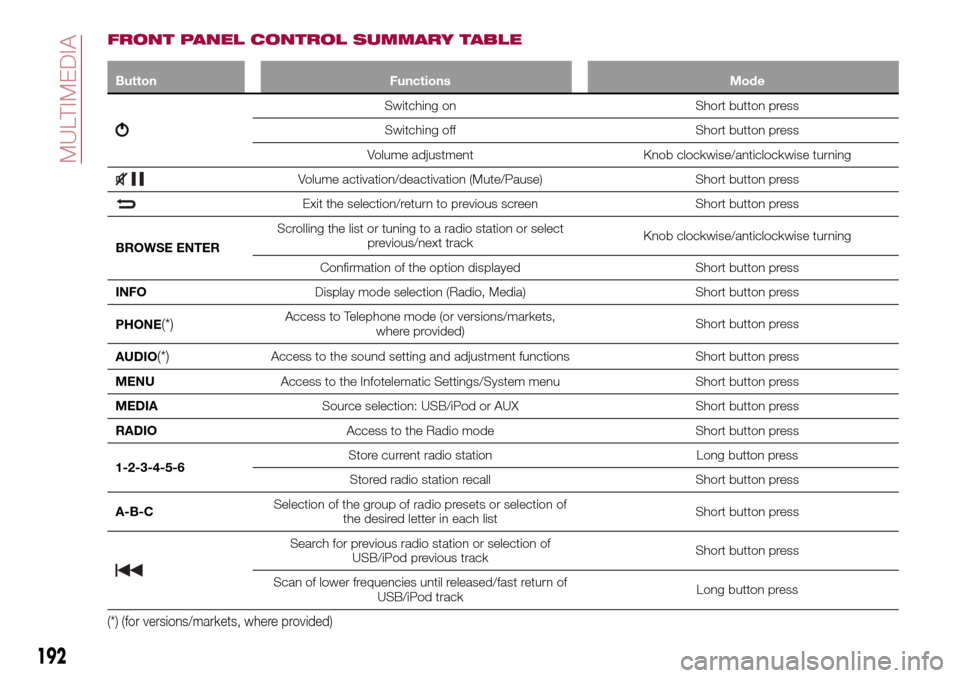
Button Functions Mode
Switching on Short button press
Switching off Short button press
Volume adjustment Knob clockwise/anticlockwise turning
Volume activation/deactivation (Mute/Pause) Short button press
Exit the selection/return to previous screen Short button press
BROWSE ENTERScrolling the list or tuning to a radio station or select
previous/next trackKnob clockwise/anticlockwise turning
Confirmation of the option displayed Short button press
INFODisplay mode selection (Radio, Media) Short button press
PHONE
(*)Access to Telephone mode (or versions/markets,
where provided)Short button press
AUDIO
(*)Access to the sound setting and adjustment functions Short button press
MENUAccess to the Infotelematic Settings/System menu Short button press
MEDIASource selection: USB/iPod or AUX Short button press
RADIOAccess to the Radio mode Short button press
1-2-3-4-5-6Store current radio station Long button press
Stored radio station recall Short button press
A-B-CSelection of the group of radio presets or selection of
the desired letter in each listShort button press
Search for previous radio station or selection of
USB/iPod previous trackShort button press
Scan of lower frequencies until released/fast return of
USB/iPod trackLong button press
(*) (for versions/markets, where provided)
192
MULTIMEDIA
Page 199 of 240
SWITCHING THE SYSTEM
ON/OFF
The system is switched on/off by
pressing the
button/knob.
Turn the button/knob clockwise to
increase the radio volume or
anticlockwise to decrease it. The
electronic volume adjustment control
rotates continuously (360°) in both
directions, without stop positions.
RADIO (TUNER) MODE
The system is equipped with the
following tuners: AM, FM and DAB (for
versions/markets, where provided).
Radio mode selection
Press the RADIO button on the front
panel to activate radio mode.
Selecting a frequency band
The different tuning modes can be
selected by pressing the RADIO button
on the front panel.
Indications on display
After the desired radio station is
selected on the display, the following
information is shown (INFO mode
activated):
In the upper part: the preset station, the
time and the other active radio settings
are highlighted.
In the central part: the name of the
current station, the frequency and theradio text information (if any) are
highlighted.
FM station list
Press the BROWSE ENTER
button/knob to display the complete list
of the FM stations that can be received.
AM/FM radio station storage
The preset stations are available in all
system modes and are selected by
touching one of the presetting buttons
1-2-3-4-5-6on the front panel. If you
are tuned to a radio station that you
wish to store, hold down the button on
the display which corresponds to the
desired preset until an acoustic
confirmation signal is emitted.
AM/FM radio station selection
To search for the desired radio station
press the
orbutton or use the
wheel of the steering wheel controls, or
turn the "BROWSE ENTER" knob.
Previous/next radio station search
Briefly press the
orbutton:
when the button is released the
previous or the next radio station is
displayed.Previous/next radio station fast
search
Hold down the
orbutton to
start the fast search: when the button is
released, the first tunable radio is
played.
MEDIA MODE
Interaction modes for AUX, USB/iPod
operation.
Audio source selection
To select the desired audio source
among those available: AUX o
USB/iPod, press theMEDIAbutton.
WARNING Some multimedia player
devices may not be compatible with the
Uconnect™system.
Track change (next/previous)
Briefly press the
button to play the
next track or briefly press the
button to return to the beginning
of the selected track or to the beginning
of the previous track if this has been
played for less than 3 seconds.
Fast forward/rewind through tracks
Press and hold down the
button to
fast forward the selected track or keep
the
button pressed to fast rewind
the track.
Track selection (browse)
Use this function to scroll through and
select the tracks on the active device.
197
Page 207 of 240
SWITCHING THE SYSTEM
ON/OFF
The system is switched on/off by
pressing the
button/knob.
Turn the button/knob clockwise to
increase the radio volume or
anticlockwise to decrease it. The
electronic volume adjustment control
rotates continuously (360°) in both
directions, without stop positions.
RADIO MODE
To activate Radio mode press the
RADIO button on the front panel and
the following information will appear on
the display:
At the top: the list of radio stations
stored (preset) is displayed; the station
being listened to is highlighted.
In the middle: display of the name of
the current radio station and the
buttons for selecting the previous or
next radio station.
At the bottom: display of the following
buttons:
"Browse": list of the radio stations
available;
"AM/FM", "AM/DAB", "FM/DAB":
selection of the desired frequency band
(button reconfigurable according to the
band selected: AM, FM or DAB);
"Tune" : manual radio station tuning
(not available for DAB radios);
"Info": additional information on the
source being listened to;
"Audio": access to the "Audio
setting" screen.
Audio menu
To access the "Audio" menu press the
Audio" button
on the front panel or
the "Audio" graphic button located at
the bottom of the display.
The following adjustments can be
carried out using the "Audio" menu:
"Equalizer" (for versions/markets,
where provided);
"Balance/Fader" (left/right and
front/rear audio balance adjustment);
"Speed/Volume" (speed-dependent
automatic volume control);
"Loudness" (for versions/markets,
where provided);
"Auto-On Radio";
To exit the "Audio" menu, press the
/Done button.
MEDIA MODE
Press the "Source" button to select the
desired audio source among those
available: AUX, USB, iPod and
Bluetooth®.
Applications used on portable devices
may be not compatible with the
Uconnect™system.Track selection (Browse)
Use this function to scroll through and
select the tracks on the active device.
The choices available depend on the
device connected.
For example, on a USB/iPod device you
can also scroll through the list of artists,
genres and albums available on the
device depending on the information
present on the tracks using the
BROWSE ENTER button/knob.
Within each list, the "ABC" button
allows the user to skip to the desired
letter in the list.
NOTE This button might be disabled for
some
Apple®devices.
NOTE The BROWSE ENTER button
does not allow any operation on an
AUX device.
Press the BROWSE ENTER button to
activate this function on the source
being played.
Turn the BROWSE ENTER button/knob
to select the desired category and then
press the button/knob to confirm the
selection.
Press the
button on the front panel
to cancel the function.
Bluetooth® SOURCE
This mode is activated by pairing a
Bluetooth®device containing music
tracks with the system.
205
Page 211 of 240
expiry of the servicing interval. Press the
"my:Car" button to interact with the
application.
The display will show a screen with the
"care:Index" section, which provides all
the detailed information about the
status of the vehicle. Press the "Active
warnings" button to show (if present)
the details of the vehicle's faults which
caused a warning light to switch on.
SETTINGS
Press thebutton on the front panel
to display the main "Settings" menu.
NOTE The menu items displayed vary
according to the versions.
The menu includes the following items:
Display;
Units;
Voice commands;
Clock & Date;
Safety / Assistance;
Lights;
Doors & Locks;
Vehicle Shutdown Options;
Audio;
Phone / Bluetooth;
Configurat. SiriusXM (where
provided);
Radio Setup;
Restore settings
Safety/Assistance(where provided)
This function can be used to carry out
the following adjustments:
"Rear View camera"(where
provided): this function can be used to
carry out the following adjustments:
- "Active Guidelines" (where provided):
permits the activation of dynamic grids
that indicate the route of the vehicle on
the display.
- "Rit. telec. - "Rear View cam.delay"
(where provided): permits a delay in the
disappearance of images from the
camera when reverse is disengaged.
"Frnt Coll. Warning"(where
provided): this function can be used to
select the Full Brake Control system
intervention mode.
The options available are:
- "Off": the system is deactivated;
- "Only warning": the system intervenes
only by providing the driver with an
acoustic warning (where provided);
- "Only active braking": the system
intervenes by activating automatic
braking (where provided);
- "Warning + active braking": the
system intervenes by providing the
driver with an acoustic warning and
activating automatic braking.
"Fwd Coll. Sensitivity"(where
provided): this function can be used toselect the "readiness" of the system to
intervene, on the basis of distance from
the obstacle.
The options available are "Near",
"Med", "Far".
"Park Assist"(where provided): this
function can be used to select the type
of warning provided by the Park Assist
system.
The options available are:
- "Sound Only": the system warns the
driver that an obstacle is present
through acoustic warnings only, via the
speakers in the vehicle.
- "Sound & Display": the system warns
the driver that an obstacle is present
through acoustic (via the speakers in
the vehicle) and visual (on the
instrument panel) warnings.
"Front Park Assist vol."(where
provided): this function can be used to
select the volume of the acoustic
warnings provided by the front Park
Assist system.
"Rear Park Assist vol."(where
provided): this function can be used to
select the volume of the acoustic
warnings provided by the rear Park
Assist system.
"Park Assist vol."(where provided):
this function can be used to select the
volume of the acoustic warnings
provided by the Park Assist system.
209
Page 220 of 240
SWITCHING THE SYSTEM
ON/OFF
The system is switched on/off by
pressing the
button/knob.
Turn the button/knob clockwise to
increase the radio volume or
anticlockwise to decrease it. The
electronic volume adjustment control
rotates continuously (360°) in both
directions, without stop positions.
RADIO MODE
After the desired radio station is
selected, the following information is
shown on the display:
At the top: the list of radio stations
stored (preset) is displayed; the station
being listened to is highlighted.
In the middle: display of the name of
the current radio station and the
buttons for selecting the previous or
next radio station.
On the left: display of the "AM", "FM”,
“DAB” buttons for selecting the desired
frequency band (reconfigurable button
depending on the selected band: AM,
FM or DAB);
On the right: display of the following
buttons:
"Info": additional information on the
source being listened to;
"Map": navigation map view(Uconnect™7" HD Nav LIVEversions
only).
At the bottom: display of the following
buttons:
“Browse": list of the radio stations
available;
/selection of the
previous/next radio station;
“Tune” : manual radio station tuning;
"Audio": access to the "Audio
setting" screen.
Audio menu
To access the "Audio" menu press the
Audio" button located at the bottom of
the display.
The following adjustments can be
carried out using the "Audio" menu:
“Balance & Fader" (left/right and
front/rear audio balance adjustment);
"Equaliser" (where provided);
“Speed dependent volume"
(speed-dependent automatic volume
control);
"Loudness" (where provided);
"AUX volume compensation" (off in
radio mode, selectable only with AUX
source active);
“Auto run”;
"Auto-On Radio".
MEDIA MODE
Press the "Media" button to select the
desired audio source among those
available: USB/iPod,
Bluetooth®,
AUX.
IMPORTANT Applications used on
portable devices may be not
compatible with theUconnect™
system.
After Media mode is selected, the
following information is shown on the
display:
At the top: information on the track
being played and the following graphic
buttons:
"Repeat": to repeat the track being
played;
"Shuffle": to play the tracks in
random order.
In the middle: information on the track
being played.
On the left: display of the following
buttons:
Selected device or audio source;
"Select device": select the required
audio source.
On the right: display of the following
buttons:
"Info": additional information on the
track being played;
"Tracks": list of available tracks.
"Map": navigation map view
218
MULTIMEDIA
Page 224 of 240
time, in order to help you reach a more
efficient driving style as far as
consumption and emissions are
concerned.
In addition, the data can be saved on a
USB flash drive, and the data analysis
can be made on your personal
computer thanks to theeco:Drive™
desktop application, available on
www.DriveUconnect.eu.
Driving style is evaluated by means of
four indices which monitor the following
parameters: acceleration, deceleration,
gearchange, speed
Display of the eco:Drive™
Press theeco:Drive™button to
interact with the function.
A screen will appear on the radio
showing 4 indices: Acceleration,
Deceleration, Speed and Gear. These
indices are grey until the system has
enough data to evaluate the driving
style. Once sufficient data are available,
the indices will have 5 colours
depending on the evaluation: dark
green (very good), light green, yellow,
orange and red (very bad).
In the event of extended inactivity, the
display will show the average of the
indices until that moment (the "Average
index"), then the indices will be
coloured again in real time as soon as
the vehicle is restarted.Recording and transferring trip data
The trip data can be stored in the
system memory and transferred using a
suitably configured USB memory stick
or byUconnect™LIVEapp. This
allows you to display the history of the
collected data, showing the complete
analysis of the trip data and of your
driving style.
Further information is available at
www.DriveUconnect.eu.
my:Car
my:Carallows you to keep the "health"
of your vehicle always under control.
my:Carcan detect malfunction in real
time and inform the user about the
expiry of the servicing interval. Press the
"my:Car" button to interact with the
application.
The display will show a screen with the
"care:Index" section, which provides all
the detailed information about the
status of the vehicle. Press the "Active
warnings" button to show (if present)
the details of the vehicle's faults which
caused a warning light to switch on.
SETTINGS
Press the “Settings” button on the
display to show the main “Settings”
menu.
NOTE The menu items displayed vary
according to the versions.The menu includes the following items:
Language;
Display;
Units;
Voice commands;
Time and Date;
Safety & Driving Assistance;
Lights;
Doors and Door lock;
Vehicle Shutdown Options;
Audio;
Phone/Bluetooth®;Radio Setup;
Restore default settings;
Clear personal data.
Safety / Driving
Assistance
(where provided)
This function can be used to carry out
the following adjustments:
“Brake Control” (where provided).
This function can be used to select the
Brake Control system intervention
method:
–“Off": the system is deactivated;
–“Only active braking": the system
intervenes by activating automatic
braking (where provided);
–“Warning + active braking": the
system intervenes by providing the
driver with an acoustic warning and
activating automatic braking;
“Brake Control Sensitivity” (where
provided). This function can be used to
222
MULTIMEDIA