phone FORD B MAX 2012 1.G User Guide
[x] Cancel search | Manufacturer: FORD, Model Year: 2012, Model line: B MAX, Model: FORD B MAX 2012 1.GPages: 256, PDF Size: 19.67 MB
Page 199 of 256
Downloaded from www.Manualslib.com manuals search engine Safety Information
WARNING
Driving while distracted can result inloss of vehicle control, collision andinjury. We strongly recommend thatyou use extreme caution when using anydevice that may take your focus off theroad. Your primary responsibility is the safeoperation of your vehicle. We recommendagainst the use of any handheld devicewhile driving, encourage the use ofvoice-operated systems when possibleand that you become aware of applicablecountry and local laws that may affect useof electronic devices while driving.
When using SYNC:
•Do not operate playing devices if thepower cords or cables are broken, splitor damaged. Carefully place cords andcables where they cannot be steppedon or interfere with the operation ofpedals, seats, compartments or safedriving abilities.
•Do not leave playing devices in yourvehicle during extreme conditions as itcould cause them damage. Refer toyour device's user guide for furtherinformation.
•Do not attempt to service or repair thesystem. See an authorised dealer.
Privacy Information
When a mobile phone is connected toSYNC, the system creates a profile withinyour vehicle that is linked to that mobilephone. This profile is created in order tooffer you more mobile features and tooperate more efficiently. Among otherthings, this profile may contain data aboutyour phone book, text messages (read andunread) and call history. Including thehistory of calls when your mobile phonewas not connected to the system. Inaddition, if you connect a media device,the system creates and retains an index ofsupported media content. The system alsorecords a short development log ofapproximately 10 minutes of all recentsystem activity. The log profile and othersystem data may be used to improve thesystem and help diagnose any problemsthat may occur.
The mobile phone profile, media deviceindex, and development log will remain inyour vehicle unless you delete it and aregenerally accessible only in your vehiclewhen the mobile phone or media player isconnected. If you no longer plan to use thesystem or your vehicle, we recommend youperform a master reset to erase all storedinformation.
System data cannot be accessed withoutspecial equipment and access to yourvehicle's SYNC module. We will not accessthe system data for any purpose other thanas described absent consent, a court order,or where required by law enforcement,other government authorities or other thirdparties acting with lawful authority. Otherparties may seek to access the informationindependently of us. For further privacyinformation, see the sections onemergency assistance.
197SYNC
Page 200 of 256
Downloaded from www.Manualslib.com manuals search engine USING VOICE RECOGNITION
This system helps you control manyfeatures using voice commands. Thisallows you to keep your hands on thewheel and focus on what is in front of you.
Helpful Hints
Make sure the interior of your vehicle is asquiet as possible. Wind noise from openwindows and road vibrations may preventthe system from correctly recognisingspoken commands.
Press the voice button and wait until thesystem voice announcement has finishedfollowed by a single beep before giving acommand. Any command spoken prior tothis does not register with the system.
Speak naturally, without long pausesbetween words.
You can interrupt the system at anytimewhile it is speaking by pressing the voiceicon. You can also cancel a voice sessionby pressing and holding the voice icon atany time.
Initiating a Voice Session
Press the voice button and waituntil the system voiceannouncement has finishedfollowed by a single beep. A list ofavailable commands will appear in thedisplay. Say any of the following:
If You Want ToSay
Stream audio from your mobile phone."Bluetooth Audio"
Cancel the requested action."Cancel"
Access the device connected to the auxiliary input jack."Line in"
Make calls."Phone"
Return to the main menu."SYNC"
Access the device connected to your USB port."USB"
Adjust the level of voice interaction and feedback."Voice settings"
Hear a list of voice commands available in the currentmode."Help"
System Interaction and Feedback
The system provides feedback throughaudible tones, prompts, questions andspoken confirmations depending on thesituation and the chosen level ofinteraction (voice settings). You cancustomise the voice recognition system toprovide more or less instruction andfeedback.
The default setting is to a higher level ofinteraction in order to help you learn to usethe system. You can change these settingsat any time.
Adjusting the Interaction Level
Press the voice button. Say"Voice settings" when prompted,then any of the following:
198SYNC
Page 201 of 256
Downloaded from www.Manualslib.com manuals search engine The SystemWhen You Say
Provides less audible interaction and moretone prompts."Interaction Mode Advanced"
Provides more detailed interaction andguidance."Interaction Mode Standard"
The system defaults to the standard interaction mode.
Confirmation prompts are short questionsthe system asks when it is not sure of yourrequest or when there are multiple possibleresponses to your request. For example,the system may ask "Phone, is thatcorrect?".
Press the voice button to change theconfirmation prompts setting. Say "Voicesettings" when prompted, then any of thefollowing:
The SystemWhen You Say
Makes a best guess from the command.You may still occasionally be asked toconfirm settings."Confirmation Prompts Off"
Clarifies your voice command with a shortquestion."Confirmation Prompts On"
The system creates candidate lists whenit has the same confidence level of severaloptions based on your voice command.When turned on, you may be promptedwith as many as four possibilities forclarification.
For example say, "1" after the tone to callJohn Doe at home or "2" after the tone tocall Johnny Doe on mobile or "3" after thetone to call Jane Doe at home.
The same logic applies to media content.For example say: "1" after the tone to playJohn Doe or "2" after the tone to playJohnny Doe or "3" after the tone to playJane Doe.
199SYNC
Page 202 of 256
Downloaded from www.Manualslib.com manuals search engine The SystemWhen You Say
Makes a best guess from the mediacandidate list. You may still occasionallybe asked questions."Media Candidate Lists Off"
Clarifies your voice command for mediacandidates."Media Candidate Lists On"
Makes a best guess from the mobile phonecandidate list. You may still occasionallybe asked questions."Phone Candidate Lists Off"
Clarifies your voice command for mobilephone candidates"Phone Candidate Lists On"
Changing the Voice Settings Using theInformation and Entertainment Display
1.Press the MENU button.
2.Select SYNC-Settings.
3.Select Voice Settings.
USING SYNC® WITH YOUR
PHONE
Hands-free calling is one of the mainfeatures of SYNC. While the systemsupports a variety of features, many aredependent on your mobile phone'sfunctionality. At a minimum, most mobilephones with Bluetooth wireless technologysupport the following functions:
•Answering an incoming call.
•Ending a call.
•Using privacy mode.
•Dialling a number.
•Redialling.
•Call waiting notification.
•Caller ID.
Other features such as text messagingusing Bluetooth and automatic phonebookdownload are mobile phone-dependentfeatures. To check your mobile phone'scompatibility, refer to your mobile phone'suser manual or visit the regional Fordwebsite.
Pairing a Mobile Phone For theFirst Time
Note:You must switch the ignition andradio on.
Note:To scroll through the menus, pressthe up and down arrows on your audiosystem.
Wirelessly pairing your mobile phone withSYNC allows you to make and receivehands-free calls.
1.Press the PHONE button. When thedisplay indicates No phones paired,press the Add button.
2.When Please begin pairing byappears in the display, search for SYNCon your device to start the pairingprocess. Make sure the Bluetoothfeature on your mobile phone isswitched on before starting the search.Refer to your mobile phone's user guideif necessary.
200SYNC
Page 203 of 256
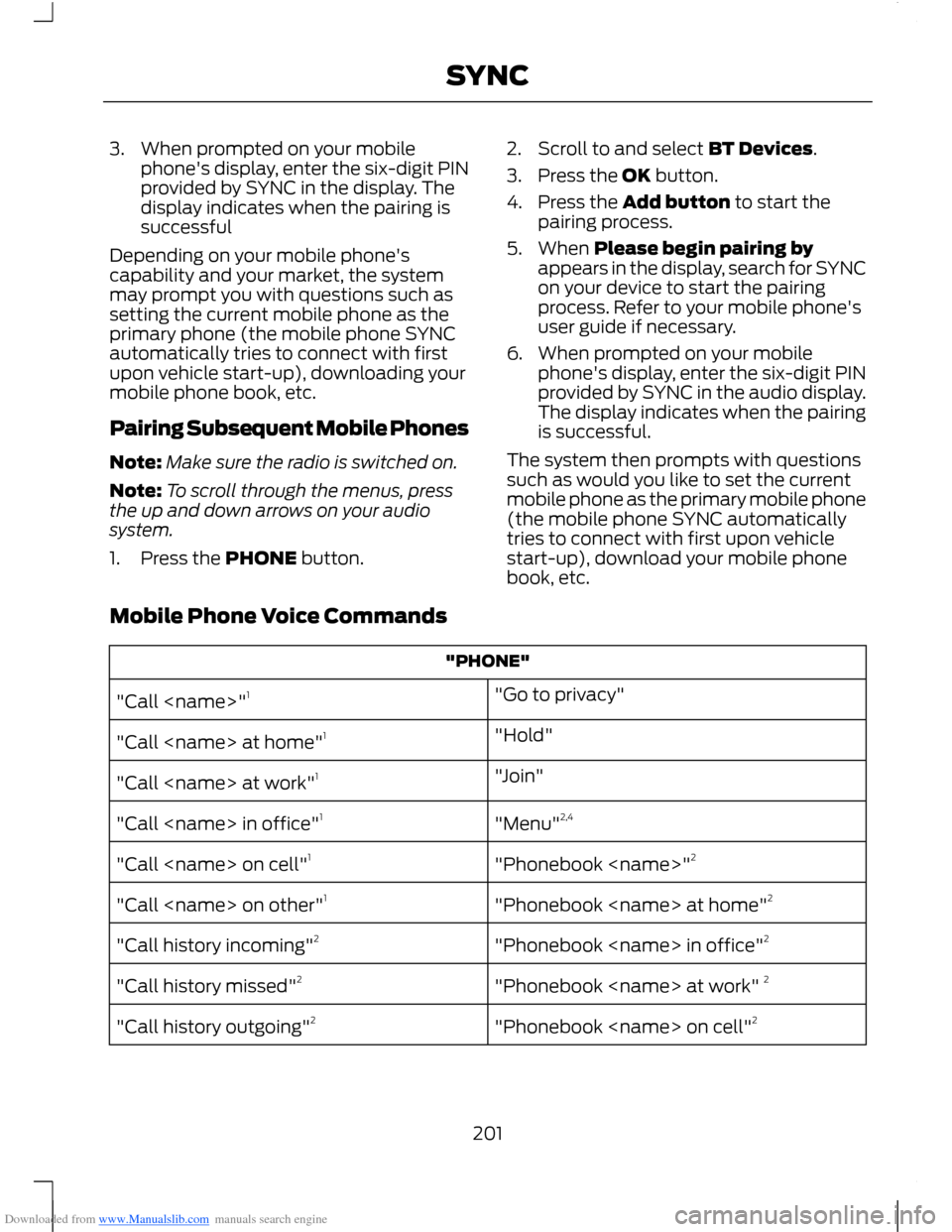
Downloaded from www.Manualslib.com manuals search engine 3.When prompted on your mobilephone's display, enter the six-digit PINprovided by SYNC in the display. Thedisplay indicates when the pairing issuccessful
Depending on your mobile phone'scapability and your market, the systemmay prompt you with questions such assetting the current mobile phone as theprimary phone (the mobile phone SYNCautomatically tries to connect with firstupon vehicle start-up), downloading yourmobile phone book, etc.
Pairing Subsequent Mobile Phones
Note:Make sure the radio is switched on.
Note:To scroll through the menus, pressthe up and down arrows on your audiosystem.
1.Press the PHONE button.
2.Scroll to and select BT Devices.
3.Press the OK button.
4.Press the Add button to start thepairing process.
5.When Please begin pairing byappears in the display, search for SYNCon your device to start the pairingprocess. Refer to your mobile phone'suser guide if necessary.
6.When prompted on your mobilephone's display, enter the six-digit PINprovided by SYNC in the audio display.The display indicates when the pairingis successful.
The system then prompts with questionssuch as would you like to set the currentmobile phone as the primary mobile phone(the mobile phone SYNC automaticallytries to connect with first upon vehiclestart-up), download your mobile phonebook, etc.
Mobile Phone Voice Commands
"PHONE"
"Go to privacy""Call
"Hold""Call
"Join""Call
"Menu"2,4"Call
"Phonebook
"Phonebook
"Phonebook
"Phonebook
"Phonebook
201SYNC
Page 204 of 256
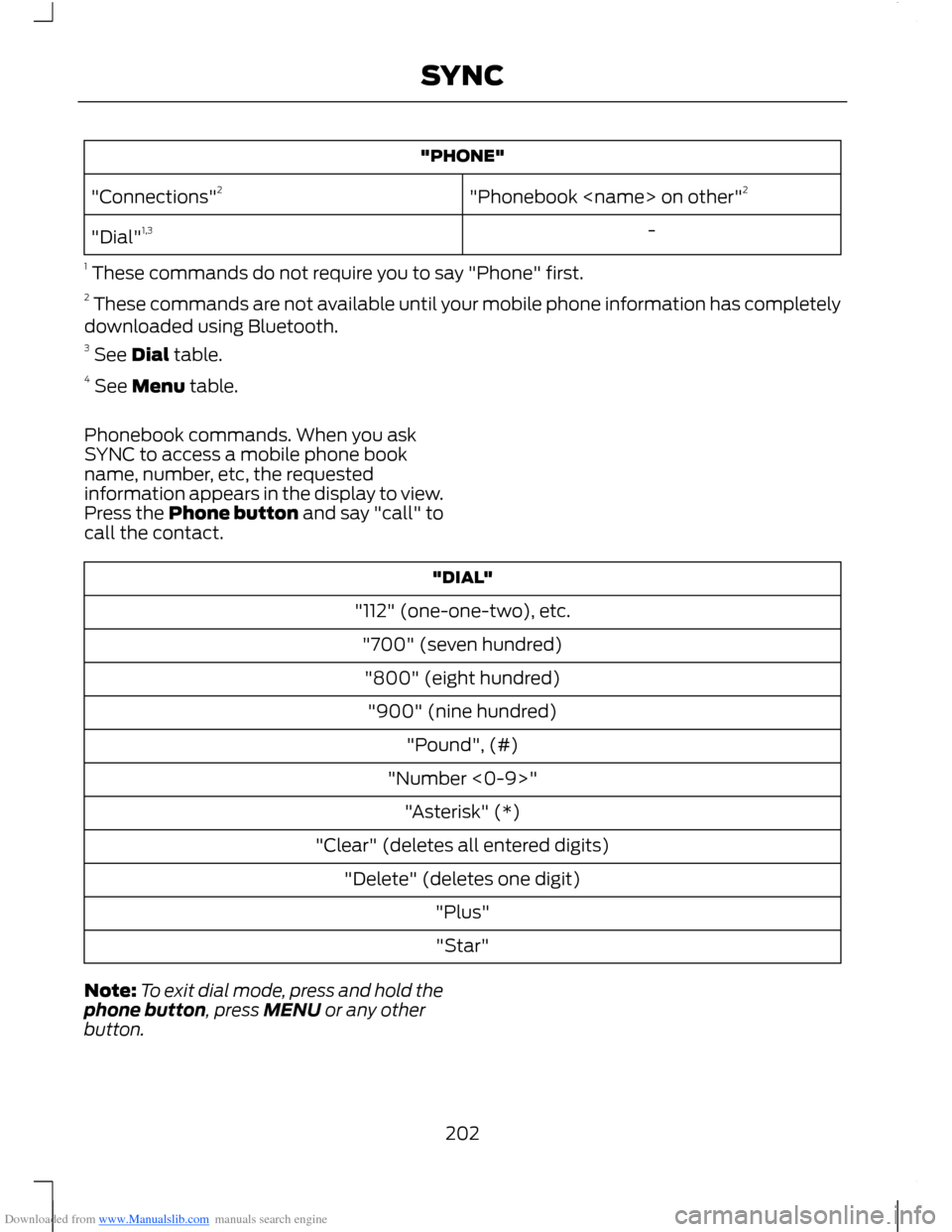
Downloaded from www.Manualslib.com manuals search engine "PHONE"
"Phonebook
-"Dial"1,3
1 These commands do not require you to say "Phone" first.2 These commands are not available until your mobile phone information has completelydownloaded using Bluetooth.3 See Dial table.4 See Menu table.
Phonebook commands. When you askSYNC to access a mobile phone bookname, number, etc, the requestedinformation appears in the display to view.Press the Phone button and say "call" tocall the contact.
"DIAL"
"112" (one-one-two), etc.
"700" (seven hundred)
"800" (eight hundred)
"900" (nine hundred)
"Pound", (#)
"Number <0-9>"
"Asterisk" (*)
"Clear" (deletes all entered digits)
"Delete" (deletes one digit)
"Plus"
"Star"
Note:To exit dial mode, press and hold thephone button, press MENU or any otherbutton.
202SYNC
Page 205 of 256
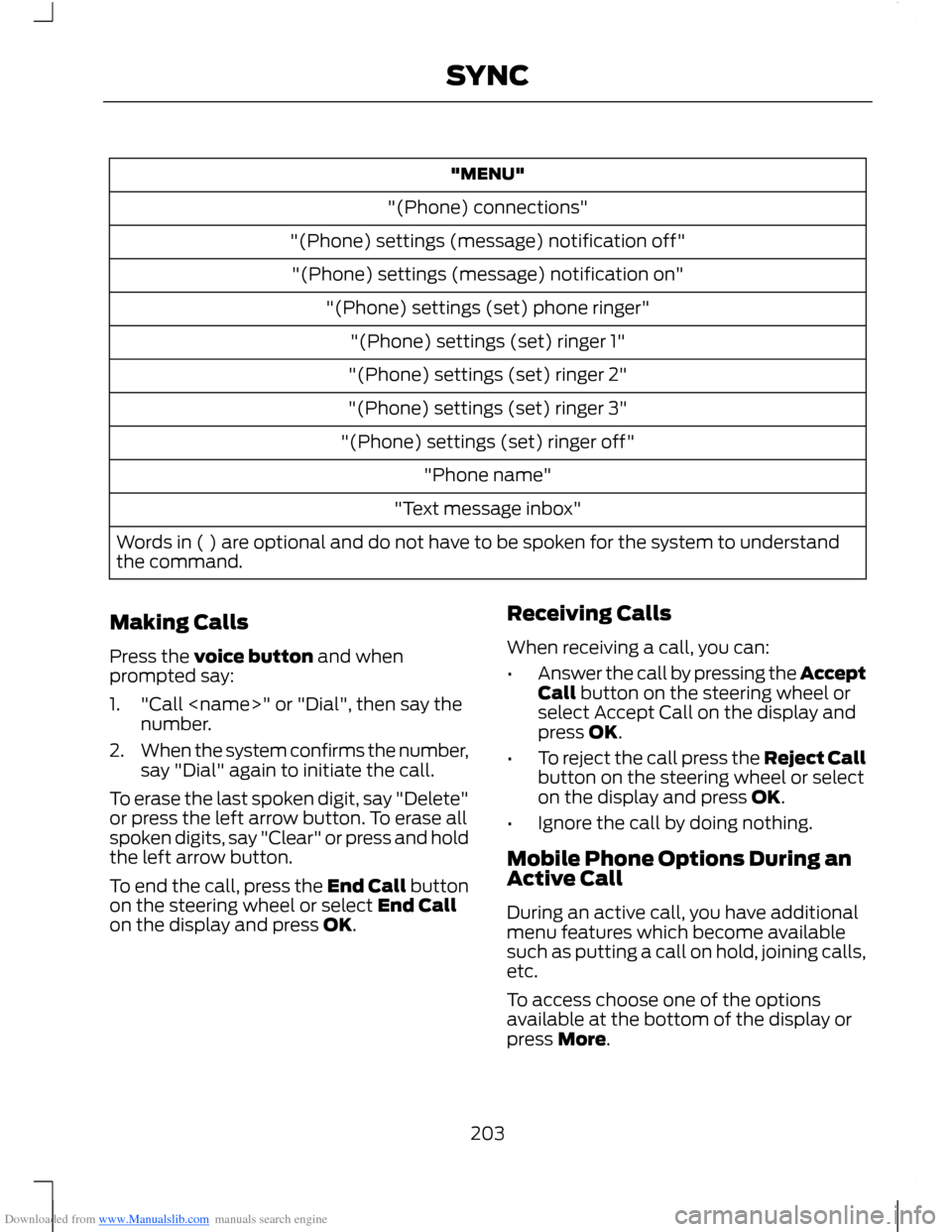
Downloaded from www.Manualslib.com manuals search engine "MENU"
"(Phone) connections"
"(Phone) settings (message) notification off"
"(Phone) settings (message) notification on"
"(Phone) settings (set) phone ringer"
"(Phone) settings (set) ringer 1"
"(Phone) settings (set) ringer 2"
"(Phone) settings (set) ringer 3"
"(Phone) settings (set) ringer off"
"Phone name"
"Text message inbox"
Words in ( ) are optional and do not have to be spoken for the system to understandthe command.
Making Calls
Press the voice button and whenprompted say:
1."Call
2.When the system confirms the number,say "Dial" again to initiate the call.
To erase the last spoken digit, say "Delete"or press the left arrow button. To erase allspoken digits, say "Clear" or press and holdthe left arrow button.
To end the call, press the End Call buttonon the steering wheel or select End Callon the display and press OK.
Receiving Calls
When receiving a call, you can:
•Answer the call by pressing the AcceptCall button on the steering wheel orselect Accept Call on the display andpress OK.
•To reject the call press the Reject Callbutton on the steering wheel or selecton the display and press OK.
•Ignore the call by doing nothing.
Mobile Phone Options During anActive Call
During an active call, you have additionalmenu features which become availablesuch as putting a call on hold, joining calls,etc.
To access choose one of the optionsavailable at the bottom of the display orpress More.
203SYNC
Page 206 of 256
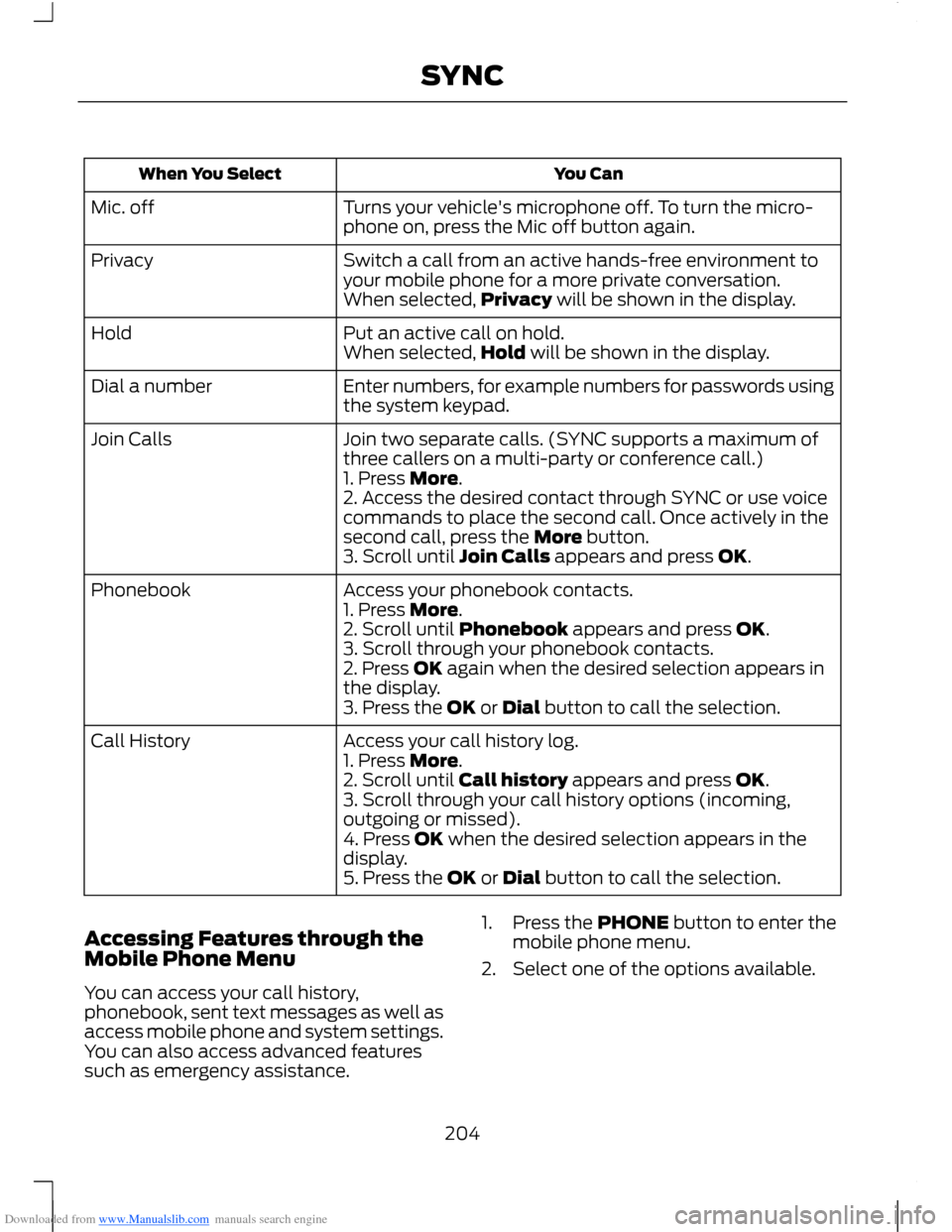
Downloaded from www.Manualslib.com manuals search engine You CanWhen You Select
Turns your vehicle's microphone off. To turn the micro-phone on, press the Mic off button again.Mic. off
Switch a call from an active hands-free environment toyour mobile phone for a more private conversation.Privacy
When selected,Privacy will be shown in the display.
Put an active call on hold.HoldWhen selected,Hold will be shown in the display.
Enter numbers, for example numbers for passwords usingthe system keypad.Dial a number
Join two separate calls. (SYNC supports a maximum ofthree callers on a multi-party or conference call.)Join Calls
1. Press More.2. Access the desired contact through SYNC or use voicecommands to place the second call. Once actively in thesecond call, press the More button.3. Scroll until Join Calls appears and press OK.
Access your phonebook contacts.Phonebook1. Press More.2. Scroll until Phonebook appears and press OK.3. Scroll through your phonebook contacts.2. Press OK again when the desired selection appears inthe display.3. Press the OK or Dial button to call the selection.
Access your call history log.Call History1. Press More.2. Scroll until Call history appears and press OK.3. Scroll through your call history options (incoming,outgoing or missed).4. Press OK when the desired selection appears in thedisplay.5. Press the OK or Dial button to call the selection.
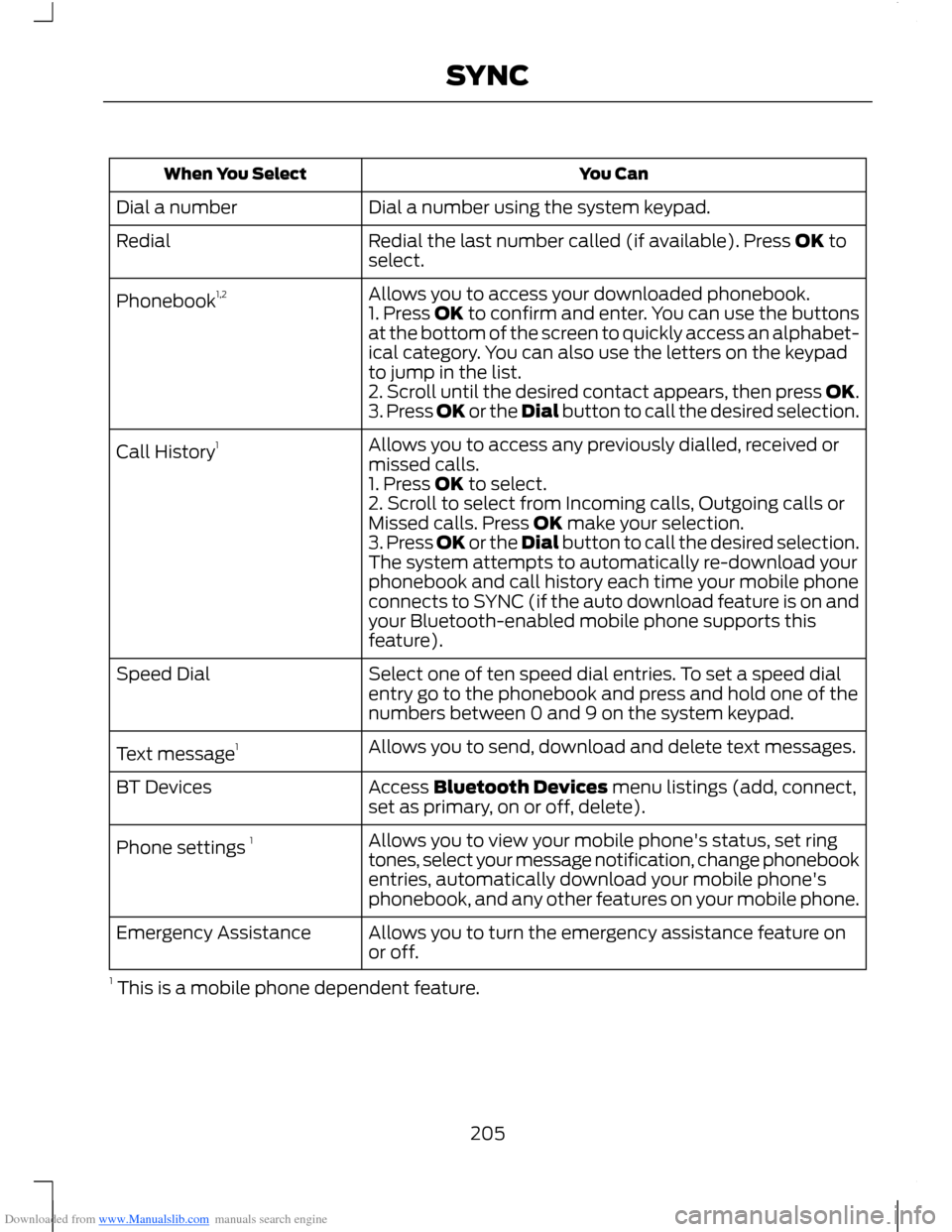
Accessing Features through theMobile Phone Menu
You can access your call history,phonebook, sent text messages as well asaccess mobile phone and system settings.You can also access advanced featuressuch as emergency assistance.
1.Press the PHONE button to enter themobile phone menu.
2.Select one of the options available.
204SYNC
Page 207 of 256
Downloaded from www.Manualslib.com manuals search engine You CanWhen You Select
Dial a number using the system keypad.Dial a number
Redial the last number called (if available). Press OK toselect.Redial
Allows you to access your downloaded phonebook.Phonebook1,21. Press OK to confirm and enter. You can use the buttonsat the bottom of the screen to quickly access an alphabet-ical category. You can also use the letters on the keypadto jump in the list.2. Scroll until the desired contact appears, then press OK.3. Press OK or the Dial button to call the desired selection.
Allows you to access any previously dialled, received ormissed calls.Call History1
1. Press OK to select.2. Scroll to select from Incoming calls, Outgoing calls orMissed calls. Press OK make your selection.3. Press OK or the Dial button to call the desired selection.The system attempts to automatically re-download yourphonebook and call history each time your mobile phoneconnects to SYNC (if the auto download feature is on andyour Bluetooth-enabled mobile phone supports thisfeature).
Select one of ten speed dial entries. To set a speed dialentry go to the phonebook and press and hold one of thenumbers between 0 and 9 on the system keypad.
Speed Dial
Allows you to send, download and delete text messages.Text message1
Access Bluetooth Devices menu listings (add, connect,set as primary, on or off, delete).BT Devices
Allows you to view your mobile phone's status, set ringtones, select your message notification, change phonebookentries, automatically download your mobile phone'sphonebook, and any other features on your mobile phone.
Phone settings 1
Allows you to turn the emergency assistance feature onor off.Emergency Assistance
1 This is a mobile phone dependent feature.
205SYNC
Page 208 of 256
Downloaded from www.Manualslib.com manuals search engine Text Messaging
Note:This is a mobile phone dependentfeature.
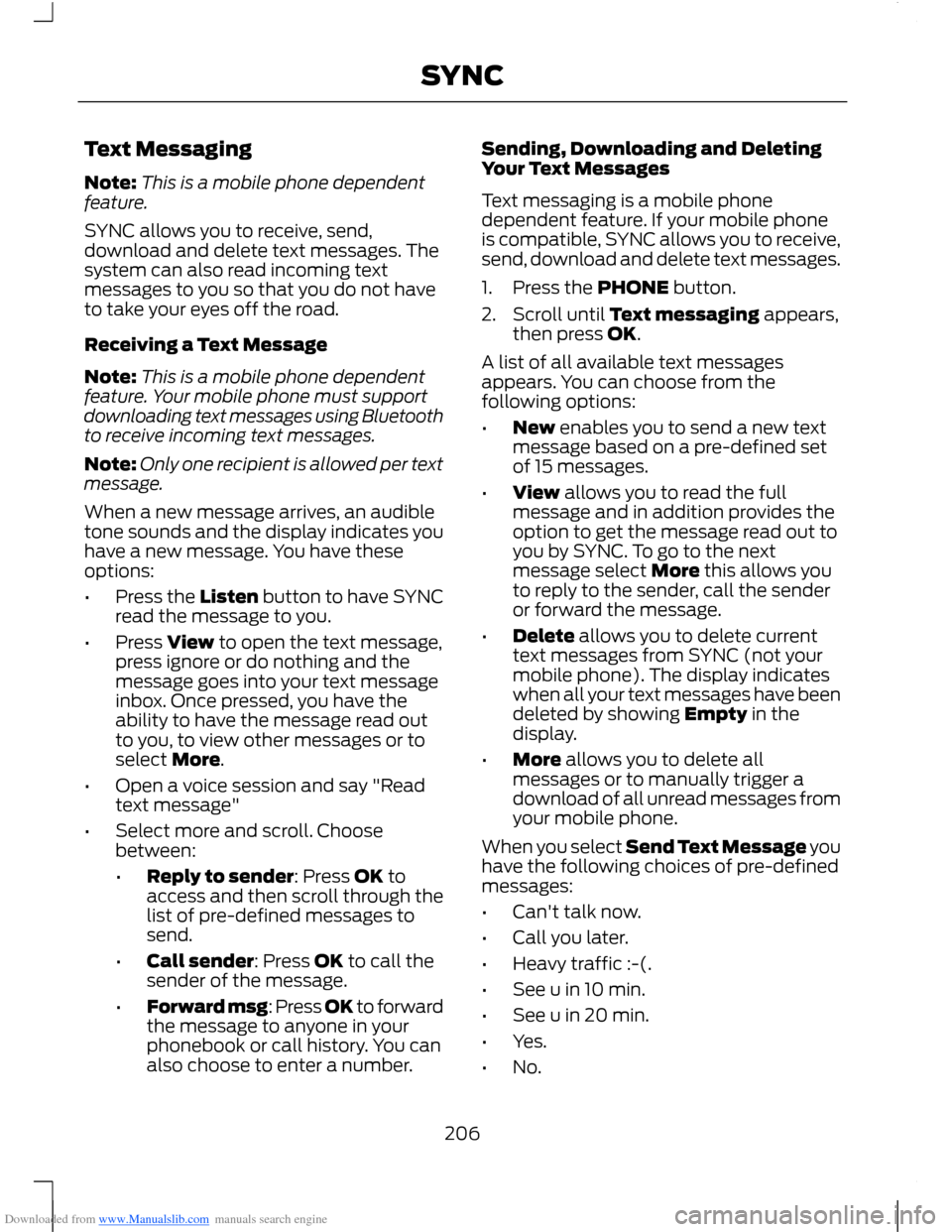
SYNC allows you to receive, send,download and delete text messages. Thesystem can also read incoming textmessages to you so that you do not haveto take your eyes off the road.
Receiving a Text Message
Note:This is a mobile phone dependentfeature. Your mobile phone must supportdownloading text messages using Bluetoothto receive incoming text messages.
Note:Only one recipient is allowed per textmessage.
When a new message arrives, an audibletone sounds and the display indicates youhave a new message. You have theseoptions:
•Press the Listen button to have SYNCread the message to you.
•Press View to open the text message,press ignore or do nothing and themessage goes into your text messageinbox. Once pressed, you have theability to have the message read outto you, to view other messages or toselect More.
•Open a voice session and say "Readtext message"
•Select more and scroll. Choosebetween:
•Reply to sender: Press OK toaccess and then scroll through thelist of pre-defined messages tosend.
•Call sender: Press OK to call thesender of the message.
•Forward msg: Press OK to forwardthe message to anyone in yourphonebook or call history. You canalso choose to enter a number.
Sending, Downloading and DeletingYour Text Messages
Text messaging is a mobile phonedependent feature. If your mobile phoneis compatible, SYNC allows you to receive,send, download and delete text messages.
1.Press the PHONE button.
2.Scroll until Text messaging appears,then press OK.
A list of all available text messagesappears. You can choose from thefollowing options:
•New enables you to send a new textmessage based on a pre-defined setof 15 messages.
•View allows you to read the fullmessage and in addition provides theoption to get the message read out toyou by SYNC. To go to the nextmessage select More this allows youto reply to the sender, call the senderor forward the message.
•Delete allows you to delete currenttext messages from SYNC (not yourmobile phone). The display indicateswhen all your text messages have beendeleted by showing Empty in thedisplay.
•More allows you to delete allmessages or to manually trigger adownload of all unread messages fromyour mobile phone.
When you select Send Text Message youhave the following choices of pre-definedmessages:
•Can't talk now.
•Call you later.
•Heavy traffic :-(.
•See u in 10 min.
•See u in 20 min.
•Yes.
•No.
206SYNC