warning FORD B MAX 2013 1.G Owners Manual
[x] Cancel search | Manufacturer: FORD, Model Year: 2013, Model line: B MAX, Model: FORD B MAX 2013 1.GPages: 298, PDF Size: 20.63 MB
Page 204 of 298
Downloaded from www.Manualslib.com manuals search engine large network may be broken down into anumber of smaller regional networks,typically centered on major towns or cities.When the network is not split into regionalvariants, the whole network caries thesame programming.
Regional mode ON: This prevents randomalternative frequency switches whenneighboring regional networks are notcarrying the same programming.
Regional mode OFF: This allows a largercoverage area if neighboring regionalnetworks are carrying the sameprogramming, but can cause randomalternative frequency switches if they arenot.
1.Press the MENU button.
2.Select AUDIO or AUDIO SETTINGS.
3.Scroll to RDS REGIONAL and turn onor off with the OK button.
4.Press the MENU button to return.
AUDIO UNIT - VEHICLES WITH:
AM/FM/CD/NAVIGATION
SYSTEM
WARNING
Driving while distracted can result inloss of vehicle control, crash andinjury. We strongly recommend thatyou use extreme caution when using anydevice that may take your focus off theroad. Your primary responsibility is the safeoperation of your vehicle. We recommendagainst the use of any hand-held devicewhile driving and encourage the use ofvoice-operated systems when possible.Make sure you are aware of all applicablelocal laws that may affect the use ofelectronic devices while driving.
Note:An integrated multi function displayis situated above the unit. This showsimportant information regarding control ofyour system. Additionally, there are variousicons placed around the display screenwhich light up when a function is active (forexample CD, Radio or Aux.)
202B-MAX (CB2) Vehicles Built From: 25-06-2012, Vehicles Built Up To: 31-12-2013Audio System
Page 210 of 298
Downloaded from www.Manualslib.com manuals search engine AUDIO UNIT - VEHICLES WITH:
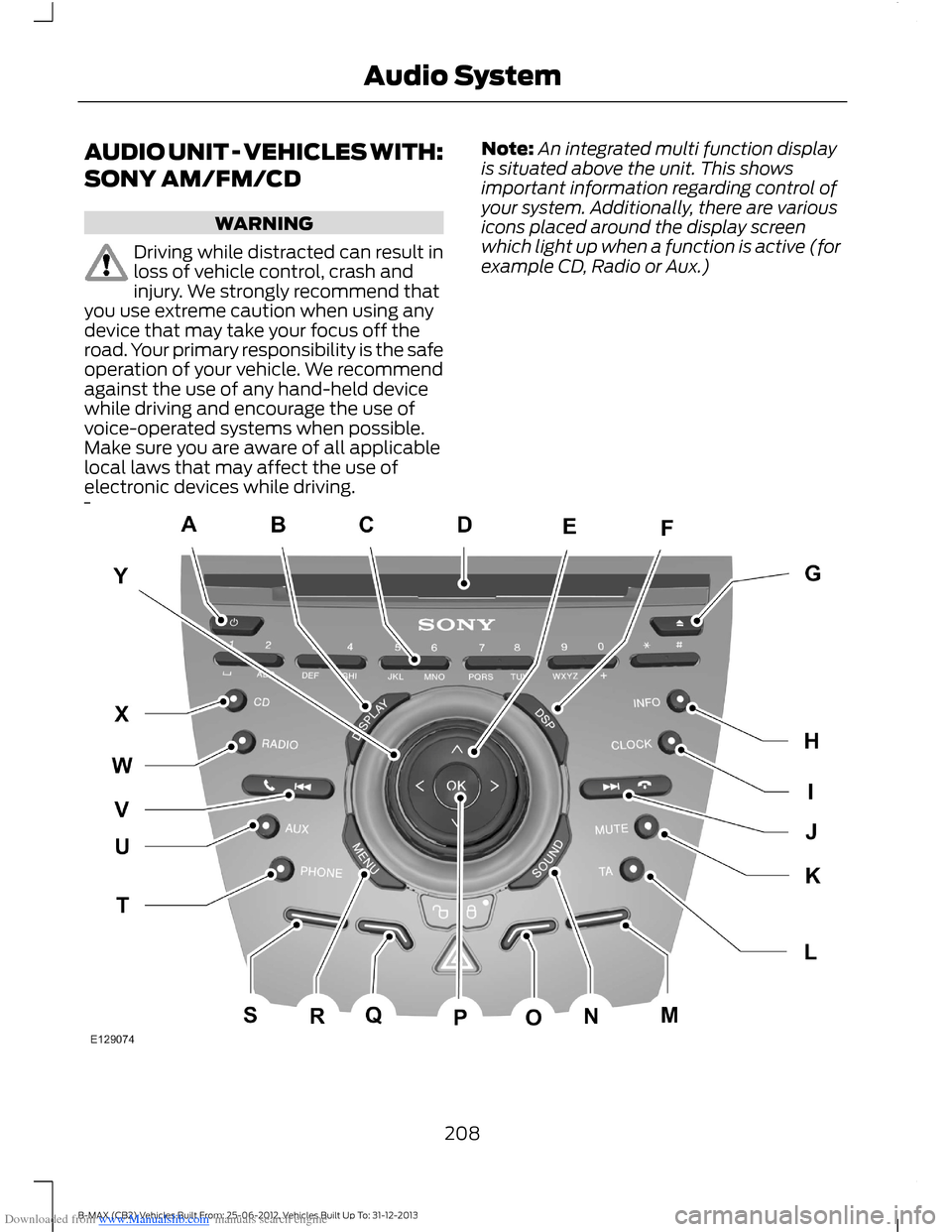
SONY AM/FM/CD
WARNING
Driving while distracted can result inloss of vehicle control, crash andinjury. We strongly recommend thatyou use extreme caution when using anydevice that may take your focus off theroad. Your primary responsibility is the safeoperation of your vehicle. We recommendagainst the use of any hand-held devicewhile driving and encourage the use ofvoice-operated systems when possible.Make sure you are aware of all applicablelocal laws that may affect the use ofelectronic devices while driving.
Note:An integrated multi function displayis situated above the unit. This showsimportant information regarding control ofyour system. Additionally, there are variousicons placed around the display screenwhich light up when a function is active (forexample CD, Radio or Aux.)
208B-MAX (CB2) Vehicles Built From: 25-06-2012, Vehicles Built Up To: 31-12-2013Audio System
Page 216 of 298
Downloaded from www.Manualslib.com manuals search engine AUDIO UNIT - VEHICLES WITH:
NAVIGATION SYSTEM/SONY
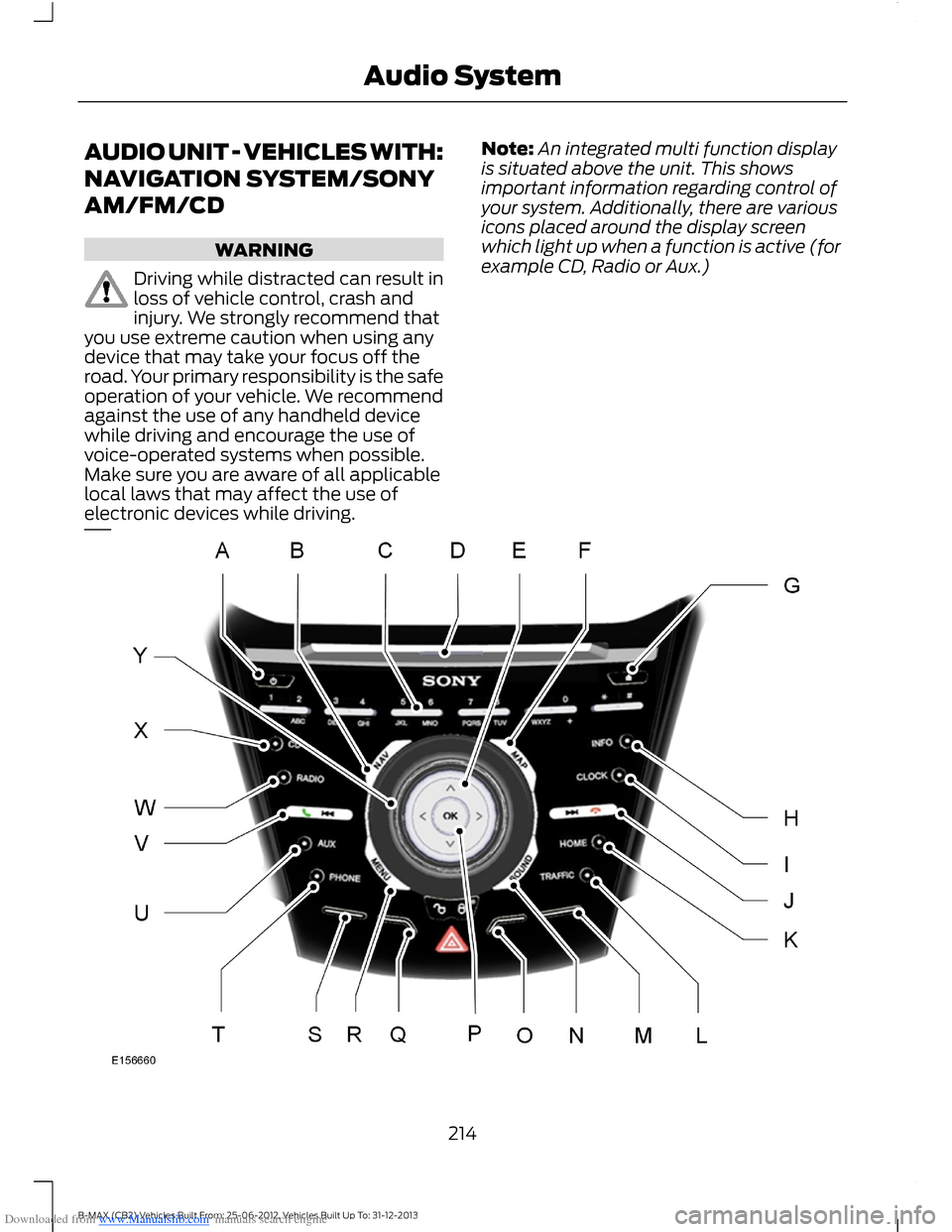
AM/FM/CD
WARNING
Driving while distracted can result inloss of vehicle control, crash andinjury. We strongly recommend thatyou use extreme caution when using anydevice that may take your focus off theroad. Your primary responsibility is the safeoperation of your vehicle. We recommendagainst the use of any handheld devicewhile driving and encourage the use ofvoice-operated systems when possible.Make sure you are aware of all applicablelocal laws that may affect the use ofelectronic devices while driving.
Note:An integrated multi function displayis situated above the unit. This showsimportant information regarding control ofyour system. Additionally, there are variousicons placed around the display screenwhich light up when a function is active (forexample CD, Radio or Aux.)
214B-MAX (CB2) Vehicles Built From: 25-06-2012, Vehicles Built Up To: 31-12-2013Audio System
Page 230 of 298
Downloaded from www.Manualslib.com manuals search engine AUXILIARY INPUT JACK
WARNINGS
Driving while distracted can result inloss of vehicle control, accident andinjury. We strongly recommend thatyou use extreme caution when using anydevice or feature that may take your focusoff the road. Your primary responsibility isthe safe operation of your vehicle. Werecommend against the use of anyhandheld device while driving andencourage the use of voice-operatedsystems when possible. Make sure you areaware of all applicable local laws that mayaffect the use of electronic devices whiledriving.
For safety reasons, do not connector adjust the settings on yourportable music player while yourvehicle is moving.
Store the portable music player in asecure location, such as the centerconsole or the glove box, when yourvehicle is in moving. Hard objects maybecome projectiles in a collision or suddenstop, which may increase the risk of seriousinjury. The audio extension cable must belong enough to allow the portable musicplayer to be safely stored while yourvehicle is moving.
The auxiliary input jack allows you toconnect and play music from your portablemusic player through your vehicle speakers.You can use any portable music playerdesigned for use with headphones. Youraudio extension cable must have maleone-eighth inch (three and one-halfmillimeter) connectors at each end.
1.Make sure your vehicle is stationarywith the radio and portable musicplayers turned off.
2.Plug the extension cable from theportable music player into the auxiliaryinput jack.
3.Switch the radio on. Select either atuned FM station or a CD.
4.Adjust the volume as desired.
5.Switch the portable music player onand adjust its volume to half itsmaximum level.
6.Press AUX until LINE or LINE INappears in the display. You should hearmusic from your device even if it is low.
7.Adjust the volume on your portablemusic player until it reaches the volumelevel of the FM station or CD. Do thisby switching back and forth betweenthe AUX and FM or CD controls.
228B-MAX (CB2) Vehicles Built From: 25-06-2012, Vehicles Built Up To: 31-12-2013Audio System
Page 232 of 298
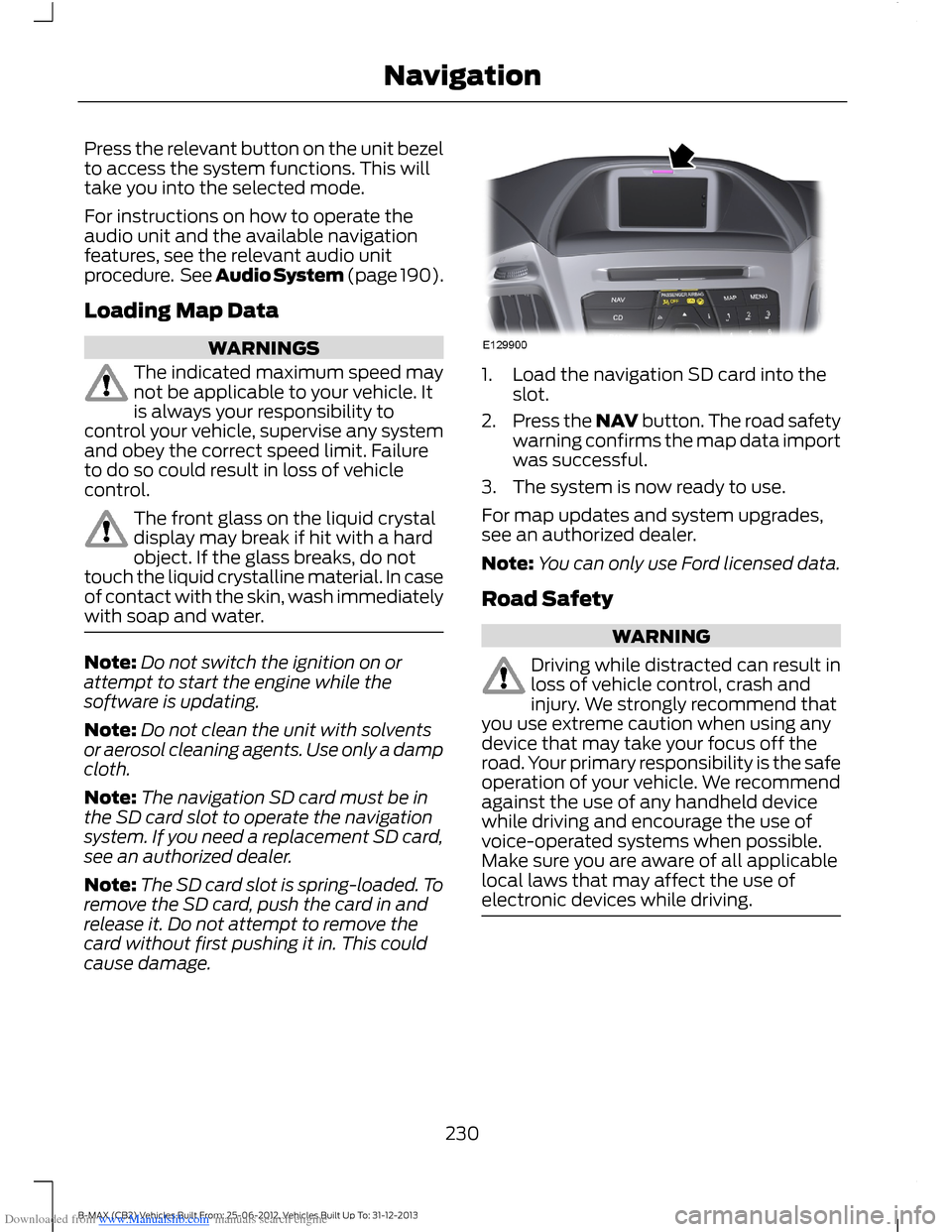
Downloaded from www.Manualslib.com manuals search engine Press the relevant button on the unit bezelto access the system functions. This willtake you into the selected mode.
For instructions on how to operate theaudio unit and the available navigationfeatures, see the relevant audio unitprocedure. See Audio System (page 190).
Loading Map Data
WARNINGS
The indicated maximum speed maynot be applicable to your vehicle. Itis always your responsibility tocontrol your vehicle, supervise any systemand obey the correct speed limit. Failureto do so could result in loss of vehiclecontrol.
The front glass on the liquid crystaldisplay may break if hit with a hardobject. If the glass breaks, do nottouch the liquid crystalline material. In caseof contact with the skin, wash immediatelywith soap and water.
Note:Do not switch the ignition on orattempt to start the engine while thesoftware is updating.
Note:Do not clean the unit with solventsor aerosol cleaning agents. Use only a dampcloth.
Note:The navigation SD card must be inthe SD card slot to operate the navigationsystem. If you need a replacement SD card,see an authorized dealer.
Note:The SD card slot is spring-loaded. Toremove the SD card, push the card in andrelease it. Do not attempt to remove thecard without first pushing it in. This couldcause damage.
1.Load the navigation SD card into theslot.
2.Press the NAV button. The road safetywarning confirms the map data importwas successful.
3.The system is now ready to use.
For map updates and system upgrades,see an authorized dealer.
Note:You can only use Ford licensed data.
Road Safety
WARNING
Driving while distracted can result inloss of vehicle control, crash andinjury. We strongly recommend thatyou use extreme caution when using anydevice that may take your focus off theroad. Your primary responsibility is the safeoperation of your vehicle. We recommendagainst the use of any handheld devicewhile driving and encourage the use ofvoice-operated systems when possible.Make sure you are aware of all applicablelocal laws that may affect the use ofelectronic devices while driving.
230B-MAX (CB2) Vehicles Built From: 25-06-2012, Vehicles Built Up To: 31-12-2013Navigation
Page 238 of 298
Downloaded from www.Manualslib.com manuals search engine Press the MENU button, select the navigation option and choose any of thefollowing options.
You CanWhen You Select
Set your route options.Route options
Customize the map display for your journey (for examplearrows on map, arrival times and map content).Map display
Customize display information for your journey (forexample signs, lanes and speed limits).Assistance options
Turn the hazard warning feature on or off.
Delete personal data (for example your home address).Personal data
Reset the navigation settings.Reset all settings
Storing Your Home Address
1.Press the NAV button.
2.Select the home address option.
3.Enter the required details using thearrow buttons.
4.Press the confirm function button.
Note:You can display the current homeaddress by pressing the information button.
Note:Your last destination willautomatically display if you go to changeyour home address.
Adding a Favorite
1.Press the NAV button.
2.Scroll to the destination input option.
3.Enter the required details using thearrow buttons.
4.Press the store function button.
Note:If you select store position, this willalso save the destination in your favorites.
Selecting a Favorite
1.Press the NAV button.
2.Select the favorites option.
3.Scroll to the required destination usingthe arrow buttons.
4.Press the OK button to startnavigation.
Adjusting the Navigation Voice Level
You can adjust the voice prompt levelduring an active voice prompt by using thevolume control.
Note:During active route guidance pressingthe information button will repeat the lastnavigation instruction.
Nav Audio Mixing
This feature allows you to adjust thevolume mix between the audio unit andnavigation voice level. See GeneralInformation (page 63).
Tolerant Destination Input
This function will search a number ofdestinations with a similar spelling to whatyou have entered. This is helpful if you areunsure on how to spell a destination.
1.Press the NAV button.
2.Scroll to the destination input option.
236B-MAX (CB2) Vehicles Built From: 25-06-2012, Vehicles Built Up To: 31-12-2013Navigation
Page 239 of 298
Downloaded from www.Manualslib.com manuals search engine 3.Before entering your destination detailsselect Tolerant and then begin toinput your destination.
4.Press the OK button. The system willsearch for destinations with similarspellings.
5.Use the arrow buttons to select adestination from the list and press theOK button to confirm your destination.
Route Displays
Map Display
Press the MAP button to view map mode.This view will show your current locationwith your vehicle in the center shown asan arrow surrounded by a circle. The arrowwill face in the direction of travel.
The information on the top line gives thename of the current road, or the next roadto take if a turn is approaching.
You can change the way the map isdisplayed by altering the zoom andorientation settings. Press function buttonone. The current map scale is shown onthe display.
Map scale settings may be set between0.05 miles to 500 miles or 50 meters to500 kilometers, with an auto setting onthe top. The auto setting continuouslychanges the map scale according tovehicle speed and the road type beingdriven.
You can use the arrow buttons to changethe view to 2D, turn-by-turn, 3D or a cleanview.
Zoom
This feature will automatically increasethe zoom on the map display at timeswhen you are required to make a turn, orperform more complex maneuvers. Shortlyafter the zoom scale will return to theprevious level when in auto mode.
Manual: Press function button one andadjust the setting using the left or rightarrow buttons. Press OK to confirm yoursetting.
Auto: Press function button one and usingthe up or down arrow key select the autooption. Press OK to confirm your setting.
Move
When you are in map mode, press functionbutton two. You can now use the arrowbuttons on the audio unit to move aroundthe map.
Press function button two again to returnto the original view.
Navigation Display
After commencing a navigation route, thedefault screen is the main navigationscreen.
Once an active route is underway, guidancewill be given by on-screen information andvoice prompts. Whichever audio sourceyou wish to leave the unit in, basic turn byturn and distance information will remainon the screen in the form of a graphic inset.You do not need to leave the unit on themain navigation screen when you arenavigating a route. Press the MAP buttonat any time to return to the main navigationscreen. Slightly more detailed informationon your route may be available using themain navigation screen if required.
Hazard Spot Warning
The system supports a hazard spotwarning feature which informs you withvisible and audible feedback abouthazardous traffic areas. You can switchthe system on and off using theinformation and entertainment displaymenu. See Assistance options in thenavigation menu.
Note:This feature is only available incertain countries.
237B-MAX (CB2) Vehicles Built From: 25-06-2012, Vehicles Built Up To: 31-12-2013Navigation
Page 242 of 298
Downloaded from www.Manualslib.com manuals search engine Safety Information
WARNING
Driving while distracted can result inloss of vehicle control, crash andinjury. We strongly recommend thatyou use extreme caution when using anydevice that may take your focus off theroad. Your primary responsibility is the safeoperation of your vehicle. We recommendagainst the use of any hand-held devicewhile driving and encourage the use ofvoice-operated systems when possible.Make sure you are aware of all applicablelocal laws that may affect the use ofelectronic devices while driving.
When using SYNC:
•Do not operate playing devices if thepower cords or cables are broken, splitor damaged. Carefully place cords andcables where you cannot step on themor they do not interfere with theoperation of pedals, seats,compartments or safe driving abilities.
•Do not leave playing devices in yourvehicle during extreme conditions as itcould cause them damage. Refer toyour device's manual for furtherinformation.
•Do not attempt to service or repair thesystem. See an authorized dealer.
Privacy Information
When a cell phone is connected to SYNC,the system creates a profile that is linkedto that cell phone. The system creates theprofile to offer you more mobile featuresand to operate more efficiently. Amongother things, this profile may contain dataabout your phonebook, text messages(read and unread) and call history. Thiswill include the history of calls when yourcell phone was not connected to thesystem. If you connect a media player, thesystem creates and retains an index of
supported media content. The system alsorecords a short development log ofapproximately 10 minutes of all recentsystem activity. The log profile and othersystem data may be used to improve thesystem and help diagnose any problemsthat may occur.
The cell phone profile, media player indexand development log will remain in thesystem unless deleted. They are generallyaccessible in your vehicle only when youconnect your cell phone or media player.If you no longer plan to use the system oryour vehicle, we recommend you completea master reset to erase all storedinformation. See Information Displays(page 63).
Special equipment is required to accesssystem data. Access to your vehicle'sSYNC module is also required. We will notaccess the system data for any purposeother than as described without consent.Examples where system data can beaccessed are for a court order, whererequired by law enforcement, othergovernment authorities or other thirdparties acting with lawful authority. Otherparties may seek to access the informationindependently of us. Further privacyinformation is available. See SYNC™Applications and Services (page 253).
USING VOICE RECOGNITION
This system helps you control manyfeatures using voice commands. Thisallows you to keep your hands on thesteering wheel and focus on what is aroundyou.
Helpful Hints
Make sure the interior of your vehicle is asquiet as possible. Wind noise from openwindows and road vibrations may preventthe system from correctly recognizingspoken commands.
240B-MAX (CB2) Vehicles Built From: 25-06-2012, Vehicles Built Up To: 31-12-2013SYNC™
Page 255 of 298
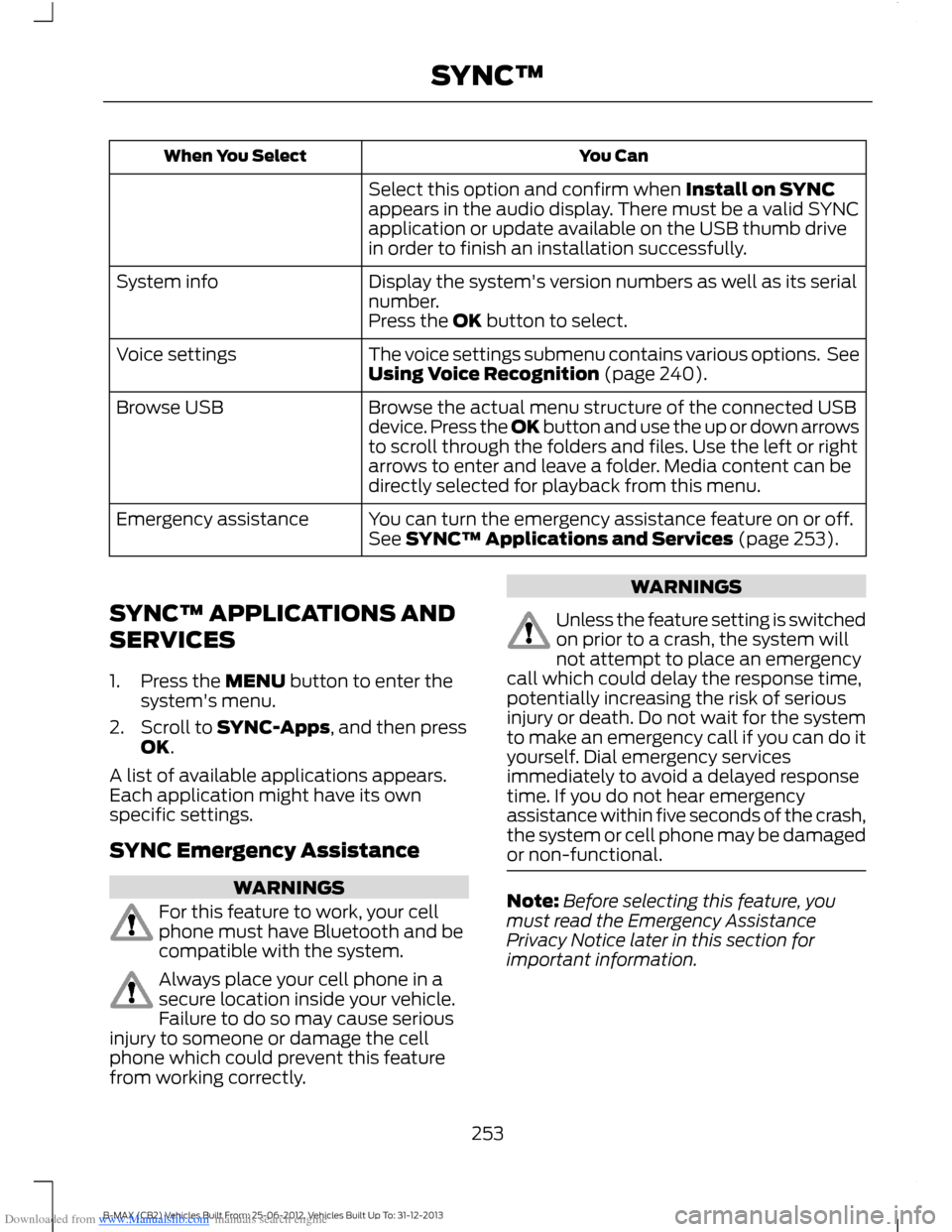
Downloaded from www.Manualslib.com manuals search engine You CanWhen You Select
Select this option and confirm when Install on SYNCappears in the audio display. There must be a valid SYNCapplication or update available on the USB thumb drivein order to finish an installation successfully.
Display the system's version numbers as well as its serialnumber.System info
Press the OK button to select.
The voice settings submenu contains various options. SeeUsing Voice Recognition (page 240).Voice settings
Browse the actual menu structure of the connected USBdevice. Press the OK button and use the up or down arrowsto scroll through the folders and files. Use the left or rightarrows to enter and leave a folder. Media content can bedirectly selected for playback from this menu.
Browse USB
You can turn the emergency assistance feature on or off.See SYNC™ Applications and Services (page 253).Emergency assistance
SYNC™ APPLICATIONS AND
SERVICES
1.Press the MENU button to enter thesystem's menu.
2.Scroll to SYNC-Apps, and then pressOK.
A list of available applications appears.Each application might have its ownspecific settings.
SYNC Emergency Assistance
WARNINGS
For this feature to work, your cellphone must have Bluetooth and becompatible with the system.
Always place your cell phone in asecure location inside your vehicle.Failure to do so may cause seriousinjury to someone or damage the cellphone which could prevent this featurefrom working correctly.
WARNINGS
Unless the feature setting is switchedon prior to a crash, the system willnot attempt to place an emergencycall which could delay the response time,potentially increasing the risk of seriousinjury or death. Do not wait for the systemto make an emergency call if you can do ityourself. Dial emergency servicesimmediately to avoid a delayed responsetime. If you do not hear emergencyassistance within five seconds of the crash,the system or cell phone may be damagedor non-functional.
Note:Before selecting this feature, youmust read the Emergency AssistancePrivacy Notice later in this section forimportant information.
253B-MAX (CB2) Vehicles Built From: 25-06-2012, Vehicles Built Up To: 31-12-2013SYNC™
Page 270 of 298
Downloaded from www.Manualslib.com manuals search engine ELECTROMAGNETIC
COMPATIBILITY
WARNINGS
Your vehicle has been tested andcertified to legislations relating toelectromagnetic compatibility(72/245/EEC, UN ECE Regulation 10 orother applicable local requirements). It isyour responsibility to make sure that anyequipment you have fitted complies withapplicable local legislations. Have anyequipment fitted by an authorized dealer.
WARNINGS
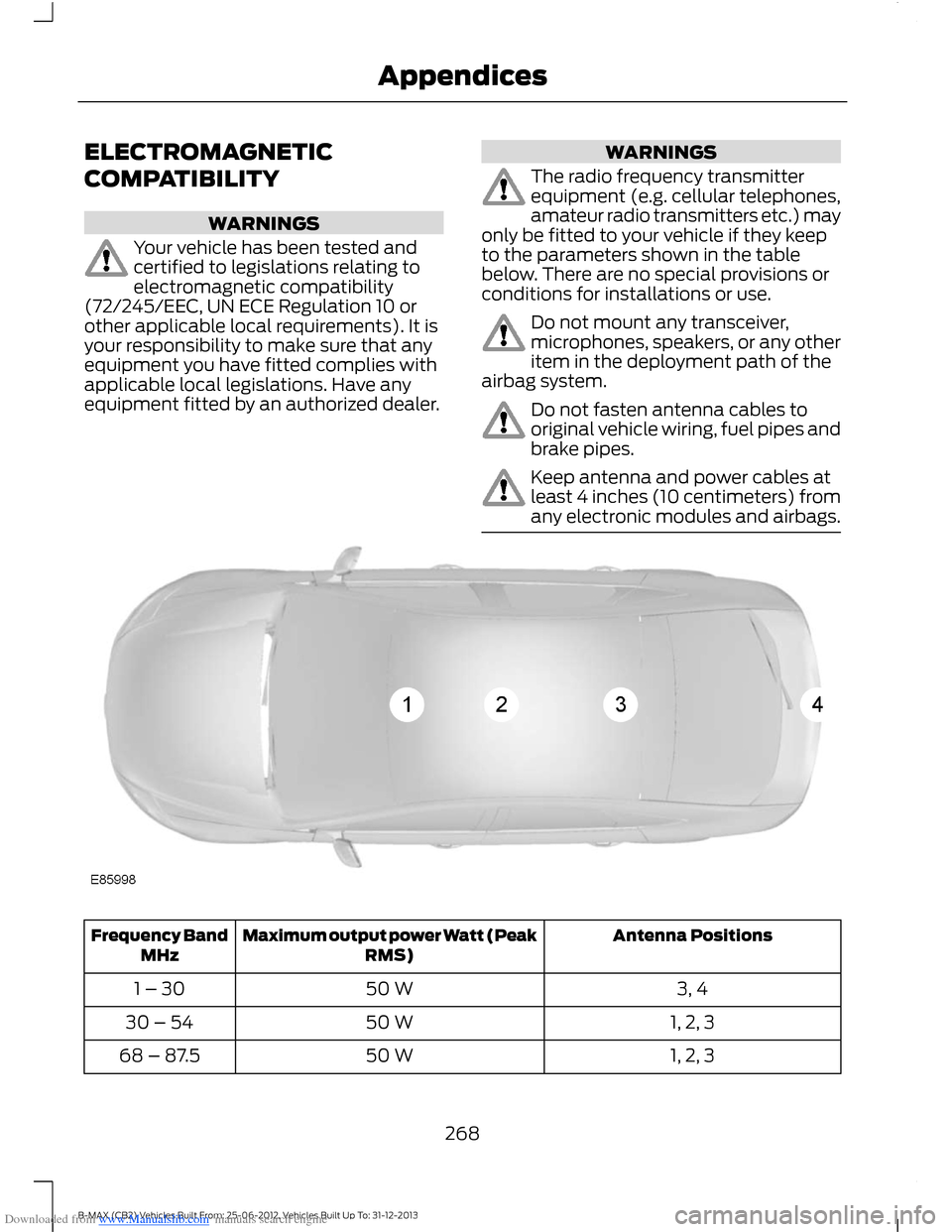
The radio frequency transmitterequipment (e.g. cellular telephones,amateur radio transmitters etc.) mayonly be fitted to your vehicle if they keepto the parameters shown in the tablebelow. There are no special provisions orconditions for installations or use.
Do not mount any transceiver,microphones, speakers, or any otheritem in the deployment path of theairbag system.
Do not fasten antenna cables tooriginal vehicle wiring, fuel pipes andbrake pipes.
Keep antenna and power cables atleast 4 inches (10 centimeters) fromany electronic modules and airbags.
Antenna PositionsMaximum output power Watt (PeakRMS)Frequency BandMHz
3, 450 W1 – 30
1, 2, 350 W30 – 54
1, 2, 350 W68 – 87.5
268B-MAX (CB2) Vehicles Built From: 25-06-2012, Vehicles Built Up To: 31-12-2013Appendices