low 4L FORD BRONCO 2023 Owners Manual
[x] Cancel search | Manufacturer: FORD, Model Year: 2023, Model line: BRONCO, Model: FORD BRONCO 2023Pages: 642, PDF Size: 14.71 MB
Page 499 of 642
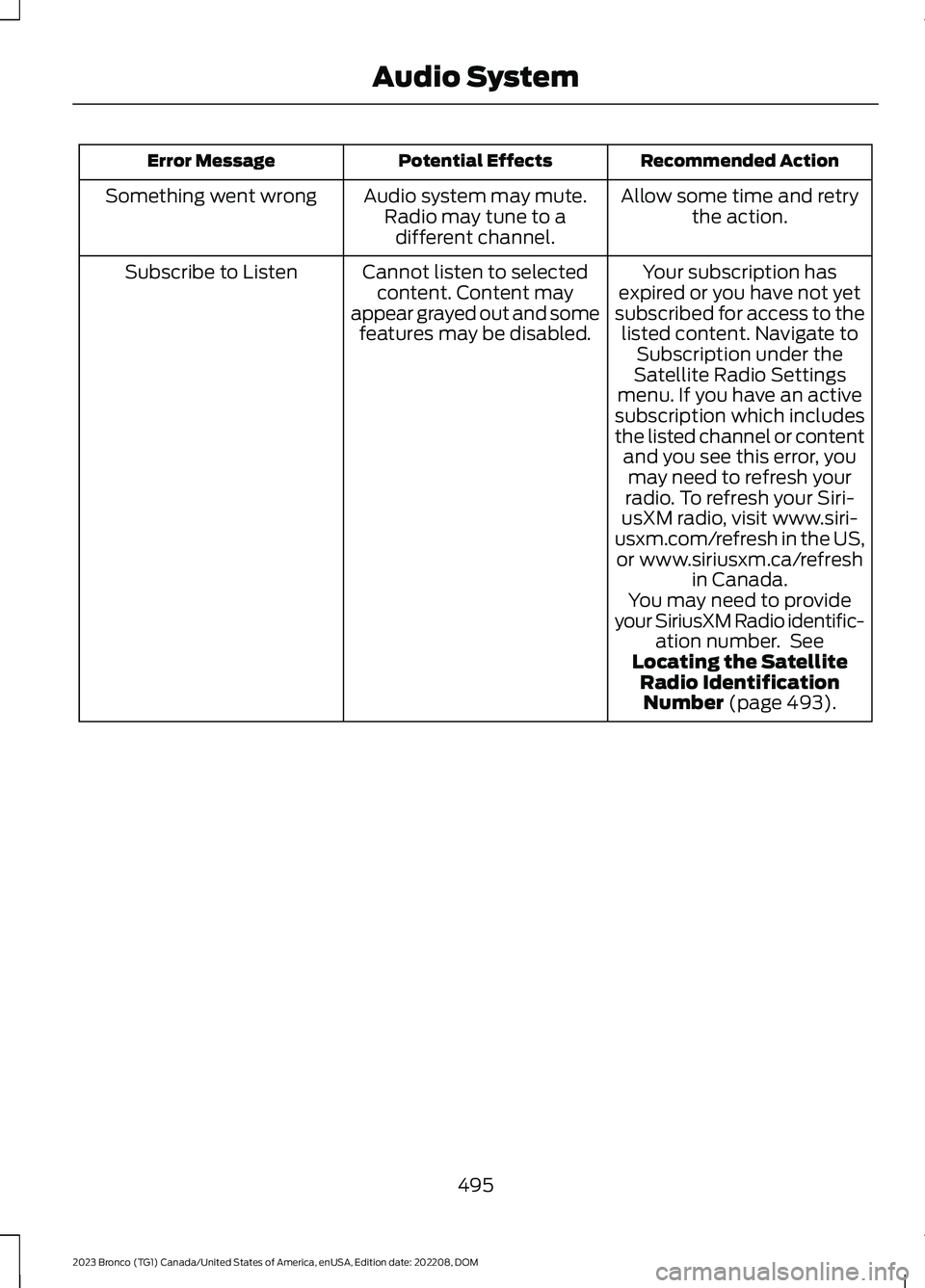
Recommended ActionPotential EffectsError Message
Allow some time and retrythe action.Audio system may mute.Radio may tune to adifferent channel.
Something went wrong
Your subscription hasexpired or you have not yetsubscribed for access to thelisted content. Navigate toSubscription under theSatellite Radio Settingsmenu. If you have an activesubscription which includesthe listed channel or contentand you see this error, youmay need to refresh yourradio. To refresh your Siri-usXM radio, visit www.siri-usxm.com/refresh in the US,or www.siriusxm.ca/refreshin Canada.You may need to provideyour SiriusXM Radio identific-ation number. SeeLocating the SatelliteRadio IdentificationNumber (page 493).
Cannot listen to selectedcontent. Content mayappear grayed out and somefeatures may be disabled.
Subscribe to Listen
495
2023 Bronco (TG1) Canada/United States of America, enUSA, Edition date: 202208, DOMAudio System
Page 501 of 642
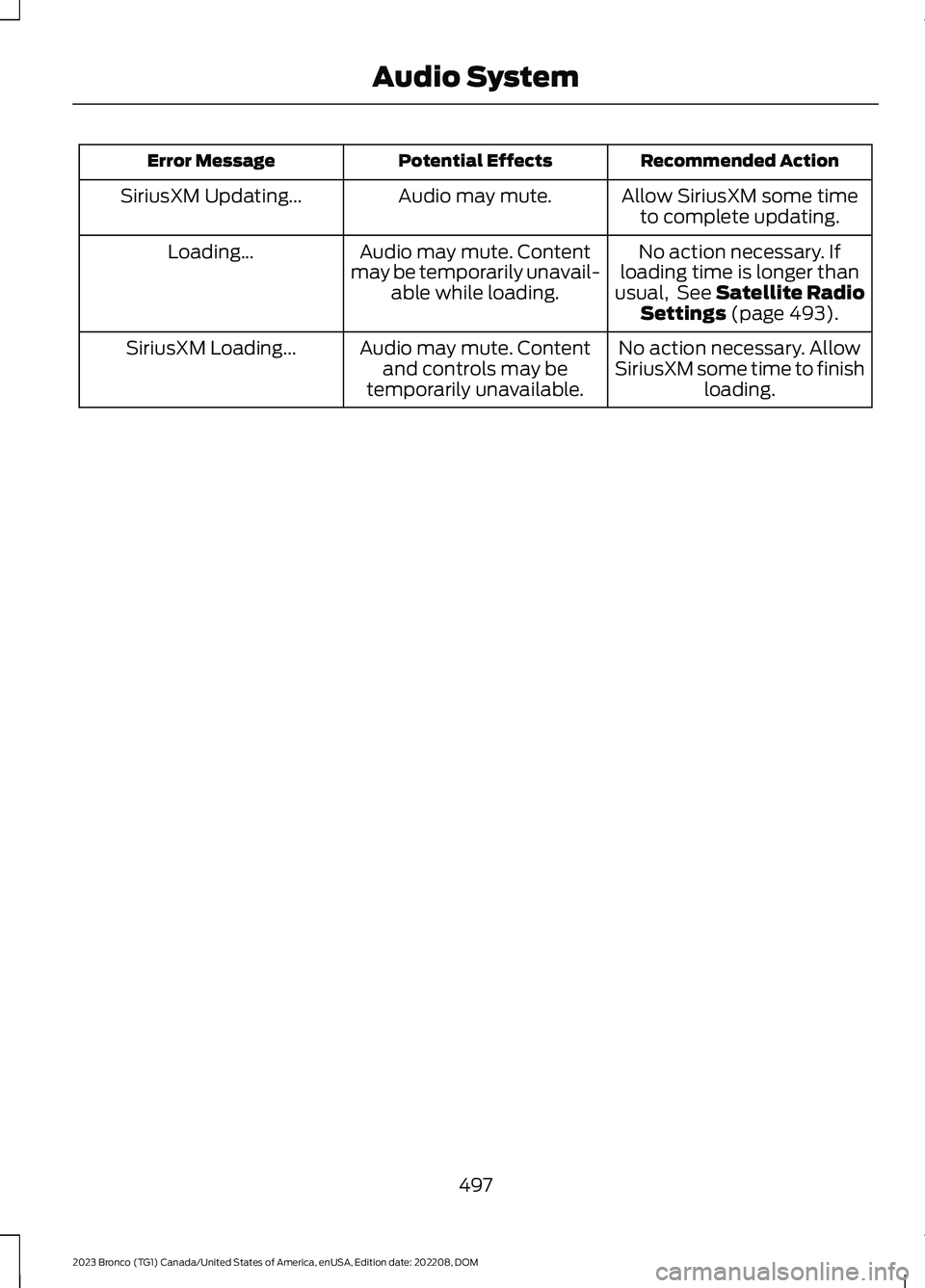
Recommended ActionPotential EffectsError Message
Allow SiriusXM some timeto complete updating.Audio may mute.SiriusXM Updating...
No action necessary. Ifloading time is longer thanusual, See Satellite RadioSettings (page 493).
Audio may mute. Contentmay be temporarily unavail-able while loading.
Loading...
No action necessary. AllowSiriusXM some time to finishloading.
Audio may mute. Contentand controls may betemporarily unavailable.
SiriusXM Loading...
497
2023 Bronco (TG1) Canada/United States of America, enUSA, Edition date: 202208, DOMAudio System
Page 503 of 642
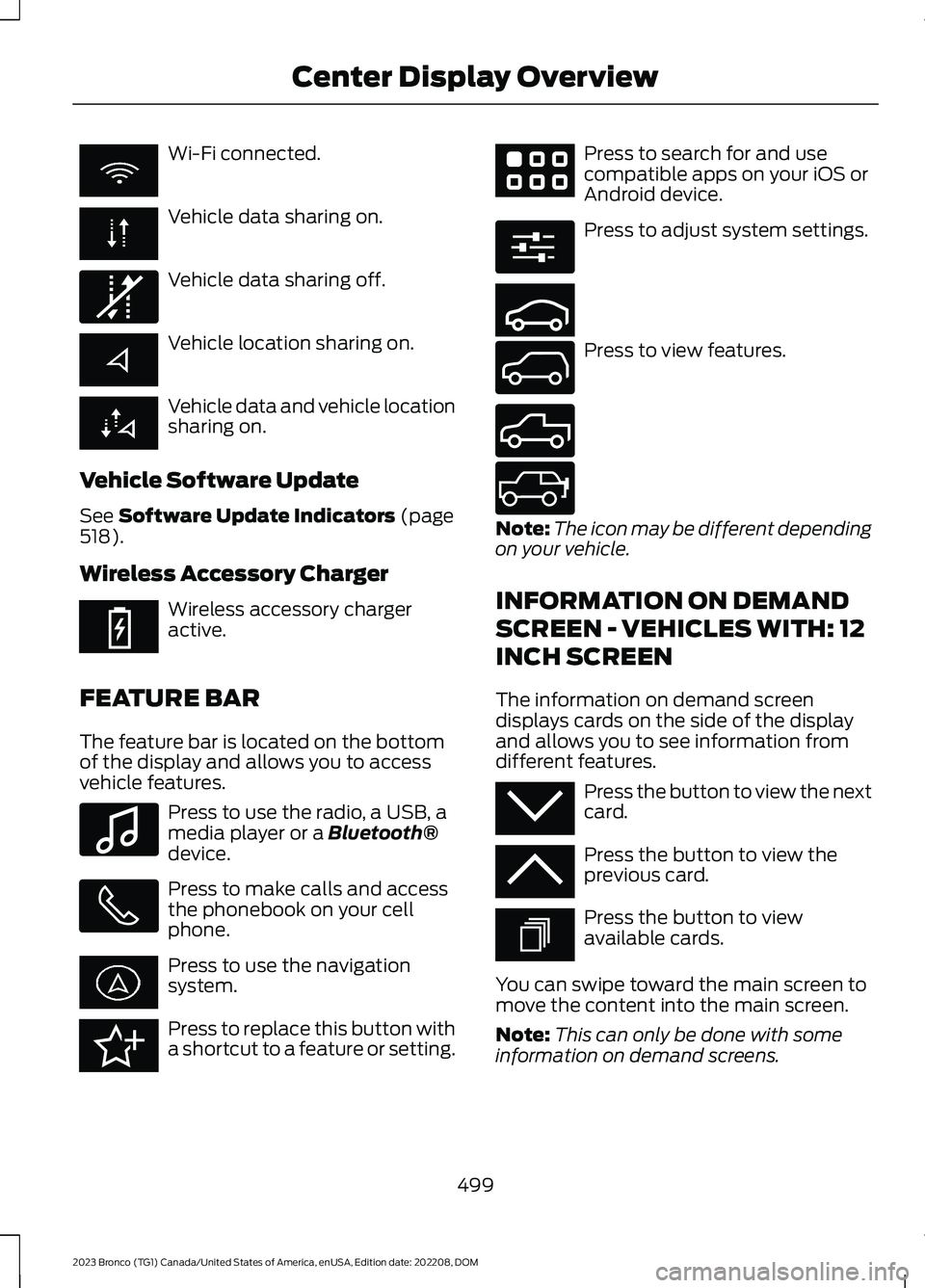
Wi-Fi connected.
Vehicle data sharing on.
Vehicle data sharing off.
Vehicle location sharing on.
Vehicle data and vehicle locationsharing on.
Vehicle Software Update
See Software Update Indicators (page518).
Wireless Accessory Charger
Wireless accessory chargeractive.
FEATURE BAR
The feature bar is located on the bottomof the display and allows you to accessvehicle features.
Press to use the radio, a USB, amedia player or a Bluetooth®device.
Press to make calls and accessthe phonebook on your cellphone.
Press to use the navigationsystem.
Press to replace this button witha shortcut to a feature or setting.
Press to search for and usecompatible apps on your iOS orAndroid device.
Press to adjust system settings.
Press to view features.
Note:The icon may be different dependingon your vehicle.
INFORMATION ON DEMAND
SCREEN - VEHICLES WITH: 12
INCH SCREEN
The information on demand screendisplays cards on the side of the displayand allows you to see information fromdifferent features.
Press the button to view the nextcard.
Press the button to view theprevious card.
Press the button to viewavailable cards.
You can swipe toward the main screen tomove the content into the main screen.
Note:This can only be done with someinformation on demand screens.
499
2023 Bronco (TG1) Canada/United States of America, enUSA, Edition date: 202208, DOMCenter Display Overview E335292 E353214 E100027 E358432 E353220 E280315 E353210 E335299 E335300 E347104 E353212 E353211 E353209
Page 505 of 642
FORD ASSISTANT
USING FORD ASSISTANT
The digital assistant allows you to controlvehicle features using conversationalrequests.
To begin a voice interaction using the wakeword, say the selected wake word, thensay your command.
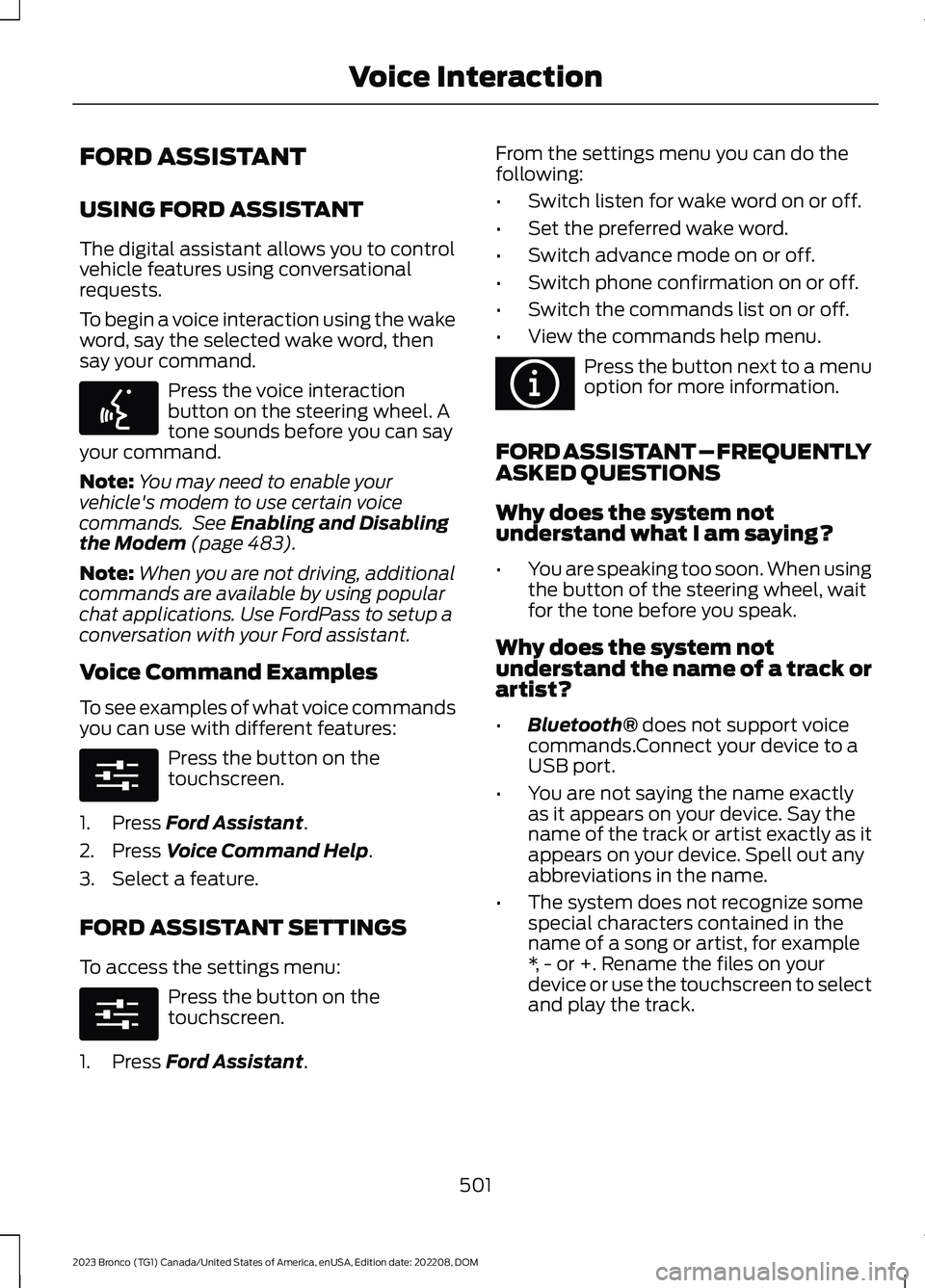
Press the voice interactionbutton on the steering wheel. Atone sounds before you can sayyour command.
Note:You may need to enable yourvehicle's modem to use certain voicecommands. See Enabling and Disablingthe Modem (page 483).
Note:When you are not driving, additionalcommands are available by using popularchat applications. Use FordPass to setup aconversation with your Ford assistant.
Voice Command Examples
To see examples of what voice commandsyou can use with different features:
Press the button on thetouchscreen.
1.Press Ford Assistant.
2.Press Voice Command Help.
3.Select a feature.
FORD ASSISTANT SETTINGS
To access the settings menu:
Press the button on thetouchscreen.
1.Press Ford Assistant.
From the settings menu you can do thefollowing:
•Switch listen for wake word on or off.
•Set the preferred wake word.
•Switch advance mode on or off.
•Switch phone confirmation on or off.
•Switch the commands list on or off.
•View the commands help menu.
Press the button next to a menuoption for more information.
FORD ASSISTANT – FREQUENTLYASKED QUESTIONS
Why does the system notunderstand what I am saying?
•You are speaking too soon. When usingthe button of the steering wheel, waitfor the tone before you speak.
Why does the system notunderstand the name of a track orartist?
•Bluetooth® does not support voicecommands.Connect your device to aUSB port.
•You are not saying the name exactlyas it appears on your device. Say thename of the track or artist exactly as itappears on your device. Spell out anyabbreviations in the name.
•The system does not recognize somespecial characters contained in thename of a song or artist, for example*, - or +. Rename the files on yourdevice or use the touchscreen to selectand play the track.
501
2023 Bronco (TG1) Canada/United States of America, enUSA, Edition date: 202208, DOMVoice InteractionE142599 E280315 E280315 E366956
Page 507 of 642
WHAT IS ALEXA BUILT-IN
Allows you to use Alexa in your vehicle forauto specific use cases on the road andgives you access to an ever evolvingnumber of skills that help to make your lifemore productive, entertaining, andconnected while using your vehicle.
ALEXA BUILT-IN
REQUIREMENTS
To use Alexa, all of the following mustoccur:
•Your vehicle modem is enabled.
•You are logged into an existing Amazonaccount.
•Vehicle location services are enabled.
•Vehicle connectivity and vehicle datasharing is enabled.
SIGNING INTO YOUR
ACCOUNT
Press the button in the statusbar and follow the on-screenprompts.
To sign in using the settings menu:
1.Press Settings on the touchscreen.
2.Press Amazon Alexa.
3.Press Get Started.
4.Sign into your account by eitherscanning the QR code or entering theon-screen code into the Amazonwebsite.
5.Once logged in, follow the on-screenprompts.
6.When complete, the vehicle informsyou that Alexa is ready to be used inthe vehicle.
Signing Out of Your Account
1.Press Settings on the touchscreen.
2.Press Amazon Alexa.
3.Press Sign Out.
USING ALEXA BUILT-IN
To use Alexa, say “Alexa” or press the voiceinteraction button on the steering wheeland then say “Alexa” to invoke Alexa tostart listening.
Note:If the wake word is not enabled, youcan only use the voice interaction button.
You can use Alexa for the following andmore:
•Entertainment.
•Hands-free calling.
•Traffic and navigation.
•Vehicle controls.
•Smart home device control.
•Weather and news information.
ALEXA BUILT-IN SETTINGS
Enabling the Wake Word
1.Press Settings on the touchscreen.
2.Press Amazon Alexa.
3.Switch Listen for Wake Word on or off.
Note:If the wake word is not enabled, youcan only use the voice interaction button.
Contact List
Displays a list of connected phones andcontact sharing status for each phone.
To change the contact sharing status:
1.Press Settings on the touchscreen.
2.Press Amazon Alexa.
3.Press Contact List.
503
2023 Bronco (TG1) Canada/United States of America, enUSA, Edition date: 202208, DOMAlexa Built-InE368039
Page 511 of 642
MAKING AND RECEIVING A
PHONE CALL
Making Calls
To call a number in your contacts,select:
Action and DescriptionMenu Item
You can then select thename of the contact youwant to call. Any numbersstored for that contactdisplay along with anystored contact photos. Youcan then select thenumber that you want tocall. The system begins thecall.
Contacts
To call a number from your recent calls,select:
Action and DescriptionMenu Item
You can then select anentry that you want to call.The system begins the call.
Recent CallList
To call a number from your favorites,select:
Action and DescriptionMenu Item
You can then select anentry that you want to call.The system begins the call.
Favorites
To call a number that is not stored inyour phone, select:
Action and DescriptionMenu Item
Select the digits of thenumber you wish to call.PhoneKeypad
The system begins the call.Call
Pressing the backspace button deletes thelast digit you typed.
Receiving Calls
During an incoming call, an audible tonesounds. Caller information appears in thedisplay if it is available.
To accept the call, select:
Menu Item
Accept
Note:You can also accept the call bypressing the phone button on the steeringwheel.
To reject the call, select:
Menu Item
Reject
Ignore the call by doing nothing. Thesystem logs it as a missed call.
During a Phone Call
During a phone call, the contacts nameand number display on the screen alongwith the call duration.
The phone status items are also visible:
•Signal Strength.
•Battery.
You can select any of the following duringan active phone call:
507
2023 Bronco (TG1) Canada/United States of America, enUSA, Edition date: 202208, DOMPhone
Page 515 of 642
APP PRECAUTIONS
WARNING: Driving while distractedcan result in loss of vehicle control, crashand injury. We strongly recommend thatyou use extreme caution when using anydevice that may take your focus off theroad. Your primary responsibility is thesafe operation of your vehicle. Werecommend against the use of anyhand-held device while driving andencourage the use of voice-operatedsystems when possible. Make sure youare aware of all applicable local lawsthat may affect the use of electronicdevices while driving.
APP REQUIREMENTS
When you start an app through the systemfor the first time, you could be asked togrant certain permissions. You can reviewand change the permissions that you havegranted at any time when your vehicle isnot moving. We recommend that youcheck your data plan before using yourapps through the system. Using themcould result in additional charges. We alsorecommend that you check the appprovider's terms and conditions andprivacy policy before using their app. Makesure that you have an active account forapps that you want to use through thesystem. Some apps will work with nosetup. Others require you to configuresome personal settings before you can usethem.
ACCESSING APPS
Select the apps option on thefeature bar.
ENABLING APPS ON AN IOS
DEVICE
Select the apps option on thefeature bar.
1.Select Mobile Apps Help.
2.Follow the instructions to pair andconnect your device via Bluetooth® orwith a USB cable.
3.Start the apps on your device that youwant to use.
4.Select the app that you want to use onthe touchscreen.
Note:Some apps may run through AppleCarPlay if it is enabled.
Note:Closing an app on your device willclose it on the touchscreen.
Note:For troubleshooting assistance selectCompatible Apps List or My App Isn't Listedunder Mobile Apps Help.
ENABLING APPS ON AN
ANDROID DEVICE
Select the apps option on thefeature bar.
1.Select Mobile Apps Help.
2.Follow the instructions to pair andconnect your device via Bluetooth® orwith a USB cable.
3.Start the apps on your device that youwant to use.
4.Select Find Mobile Apps.
5.Select the app that you want to use onthe touchscreen.
Note:To enable apps when pairing with aUSB cable, switch on Android Apps via USBin Settings.
511
2023 Bronco (TG1) Canada/United States of America, enUSA, Edition date: 202208, DOMApps
Page 516 of 642
Note:Some devices may lose the ability toplay music over USB when Mobile Apps areenabled.
Note:Some apps may run through AndroidAuto if it is enabled.
Note:Closing an app on your device closesit on the touchscreen.
Note:For troubleshooting assistance selectCompatible Apps List or My App Isn't Listedunder Mobile Apps Help.
SWITCHING APPLE CARPLAY
ON AND OFF
Enabling Apple CarPlay with USB
1.Connect your device to a USB port.
2.Follow the instructions on your deviceand the touchscreen.
Note:Selecting "Enable Wireless CarPlay"on your device prepares the device forwireless CarPlay when you re-enter thevehicle.
Enabling Apple CarPlay withWireless
1.Pair your device to Bluetooth®.
2.Follow the instructions on your deviceand the touchscreen.
Disabling Apple CarPlay
Select the settings option on thefeature bar.
1.Press Phone List.
2.Select your device from the list.
3.Press Disable.
Re-Enabling Apple CarPlay
Select the settings option on thefeature bar.
1.Press Phone List.
2.Select your device from the list.
3.Press Connect to Apple CarPlay.
SWITCHING ANDROID AUTO
ON AND OFF
Enabling Android Auto with USB
(If Equipped)
1.Connect your device to a USB port.
2.Follow the instructions on thetouchscreen.
Note:Certain features of the system arenot available when you are using AndroidAuto.
Enabling Android Auto withWireless
1.Pair your device to Bluetooth®.
2.Follow the instructions on your deviceand the touchscreen.
Note:Certain Android Devices do notsupport Android Auto Wireless. Pleasecheck your Android OS version forcompatibility.
Disabling Android Auto
Select the settings option on thefeature bar.
1.Press Phone List.
2.Select your device from the list.
3.Press Disable.
Re-Enabling Android Auto
Select the settings option on thefeature bar.
1.Press Phone List.
2.Select your device from the list.
512
2023 Bronco (TG1) Canada/United States of America, enUSA, Edition date: 202208, DOMAppsE280315 E280315 E280315 E280315
Page 520 of 642
ROUTE GUIDANCE
ADJUSTING THE GUIDANCEPROMPT VOLUME
Turn the volume control when a guidanceprompt plays to adjust the volume.
REPEATING AN INSTRUCTION
Press the turn indicator to hear the lastvoice instruction.
ROUTE GUIDANCE SETTINGS
Avoid 4x4 Roads
Before Starting a Navigation Session
Before starting a navigation session youcan enable and disable 4x4 roads usingthe controls on the point of interest detailpage. When enabled the system willinclude 4x4 roads when determining thebest route. When disabled the system willavoid 4x4 roads.
During a Navigation Session
If you do not wish to have your route takeyou on 4x4 roads you can remove the turnonto the 4x4 road using the turn list.
1.Tap the chevron below the turn panel.
2.Swipe to the left on the 4x4 road onthe turn list that appears.
3.Press the delete button to remove thatroad from your route.
The system will then re-route you to yourdestination.
CANCELING ROUTE GUIDANCE
Press the button to cancel routeguidance to the selectedlocation.
516
2023 Bronco (TG1) Canada/United States of America, enUSA, Edition date: 202208, DOMNavigation (If Equipped)E280804
Page 521 of 642
This introduces new features and providesupdates to the vehicle's software systems.Make sure to switch Automatic Updateson, set a recurring update schedule andconnect your vehicle to Wi-Fi. Updatescould take longer when not connected toWi-Fi or could not download at all. SeeConnecting the Vehicle to a Wi-FiNetwork (page 483). See Connecting theVehicle to a Wi-Fi Network (page 483).
Your vehicle may be able to receivedrivable software updates, non-drivablesoftware updates or both. Drivablesoftware updates happen during normalvehicle usage and require limited inputfrom you. You are notified on yourtouchscreen and connected device priorto a non-drivable update.
Most updates complete in less than 30minutes, although some updates couldtake up to a few hours. Check yourtouchscreen or connected device for themost accurate estimated update time.
You are notified of the status of the vehiclesoftware update in the touchscreen andon your connected device. See SoftwareUpdate Indicators (page 518).
Vehicle Software UpdateRequirements
Non-drivable software updates do notinstall if any of the following occur:
•Your vehicle is running.
•Your vehicle is switched on.
•Your vehicle is not parked.
•The 12 V battery charge is too low.
•The hazard indicators are switched on.
•The alarm is sounding.
•The doors are open.
•The parking lamps are switched on.
•You are pressing the brake pedal.
•An emergency call is in process.
•Your vehicle is in limp home mode.
Vehicle Software UpdateLimitations
Once you begin a non-drivable softwareupdate, you cannot:
•Cancel the update.
•Lock, unlock or enter your vehicleunless you have a key blade.
•You can open the doors using themechanical latch if child locks arenot on.
•Drive your vehicle.
•Start your vehicle.
•Use the remote control to lock, unlockor start your vehicle.
•Use the alarm, central locks or doortones.
•Use the electronic door locks.
•Charge your vehicle.
•Charging resumes once the updatecompletes.
SOFTWARE UPDATE
SETTINGS
To access the Software Updates menu:
1.Press Settings on the touchscreen.
2.Press Software Updates.
You can do the following in the SoftwareUpdates menu:
•Switch Automatic Updates on and off.
•Schedule and install software updates.
•View software update details.
Press the button next to a menuoption for more information.
517
2023 Bronco (TG1) Canada/United States of America, enUSA, Edition date: 202208, DOMVehicle Software UpdatesE366956