settings FORD BRONCO SPORT 2021 Service Manual
[x] Cancel search | Manufacturer: FORD, Model Year: 2021, Model line: BRONCO SPORT, Model: FORD BRONCO SPORT 2021Pages: 471, PDF Size: 7 MB
Page 224 of 471
After you turn the steering wheel, the
system applies additional steering torque
to help you steer around the vehicle. After
you pass the vehicle, the system applies
steering torque in the opposite direction to
encourage you to steer back into the lane.
The system deactivates after you fully pass
the vehicle.
Note:
The system does not automatically
steer around a vehicle. If you do not turn the
steering wheel, the system does not
activate.
Note: The system does not activate if the
distance to the vehicle ahead is too small
and a crash cannot be avoided.
Adjusting the Pre-Collision Assist
Settings
Depending on your vehicle options, the
pre-collision assist settings may be in the
following:
• Information display. See General
Information (page 99).
• Touchscreen. See Settings (page 378).
You can adjust the following settings:
• Change alert and distance alert
sensitivity to one of three possible
settings.
• Switch distance indication and alert on
or off.
• If required, switch active braking on or
off.
• If required, switch evasive steering
assist on or off.
Note: Active braking and evasive steering
assist turn on every time you switch the
ignition on. Note:
If you switch active braking off,
evasive steering assist turns off.
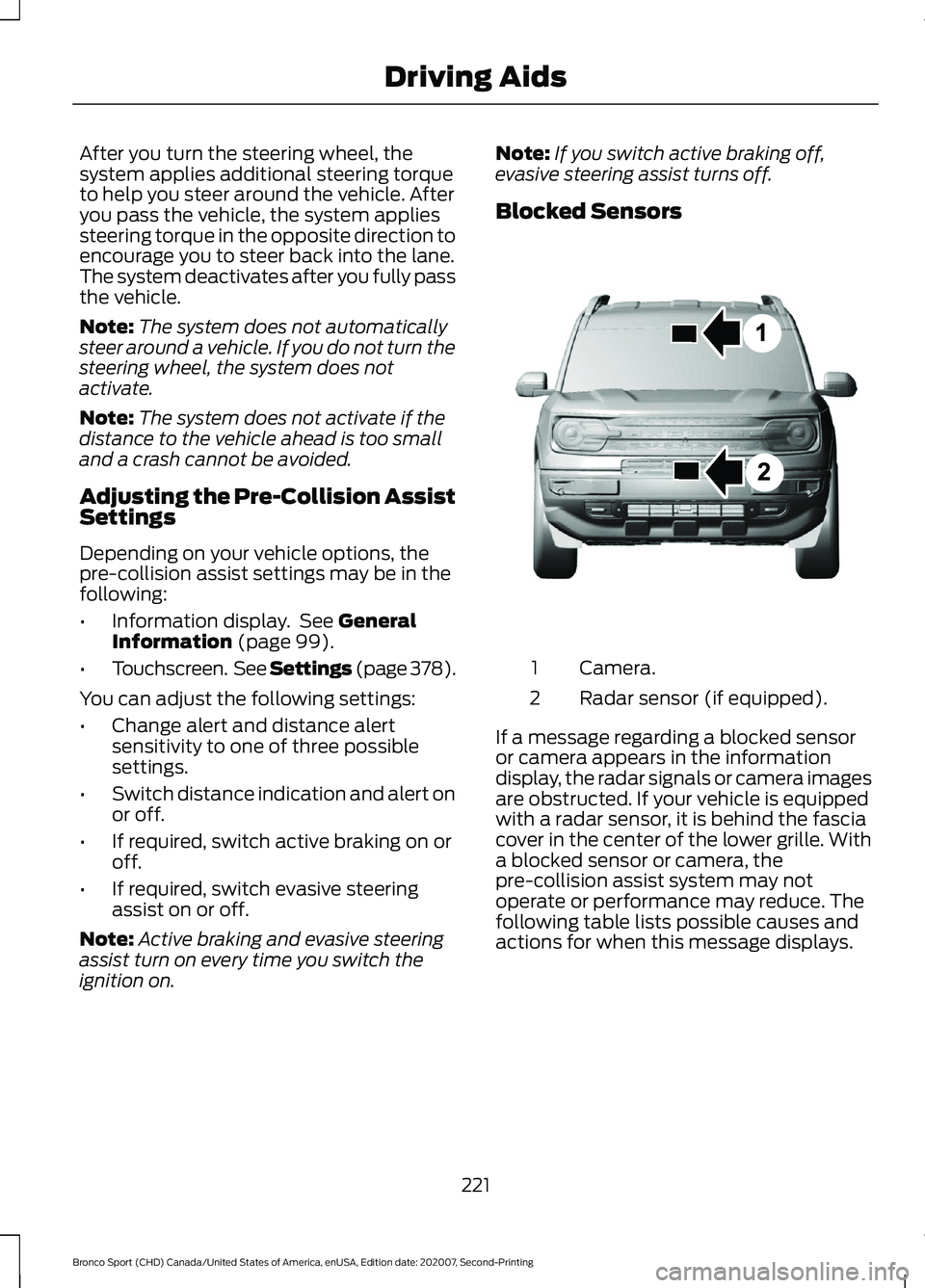
Blocked Sensors Camera.
1
Radar sensor (if equipped).
2
If a message regarding a blocked sensor
or camera appears in the information
display, the radar signals or camera images
are obstructed. If your vehicle is equipped
with a radar sensor, it is behind the fascia
cover in the center of the lower grille. With
a blocked sensor or camera, the
pre-collision assist system may not
operate or performance may reduce. The
following table lists possible causes and
actions for when this message displays.
221
Bronco Sport (CHD) Canada/United States of America, enUSA, Edition date: 202007, Second-Printing Driving AidsE325781
Page 226 of 471
WHAT IS DRIVE MODE
CONTROL
Drive mode control delivers a driving
experience through a suite of sophisticated
electronic vehicle systems. These systems
optimize steering, handling and powertrain
response in the selected mode. The drive
mode control provides a single location to
control performance settings for multiple
systems.
Note:
Drive modes are selected by using
the Goes Over Any-type of Terrain G.O.A.T.
MODES controller.
Changing the drive mode changes the
functionality of the following:
• Electric power-assisted steering
adjusts steering effort and feel based
on the mode you select. See Steering
(page
218).
• Electronic stability control and traction
control assist your vehicle control in
adverse conditions or high performance
driving. See
Stability Control (page
182).
• Electronic throttle control enhances
the powertrain response to your driving
inputs.
• Engine sounds change based on each
mode.
• Transmission controls become
optimized with shift schedules tuned
to each mode.
• Four-wheel drive settings are optimized
and tuned to each mode.
The system tailors your vehicle
configuration for each mode you select.
Note: Not all settings may be available.
Note: The system has diagnostic checks
that continuously monitor the system for
proper operation. If a mode is unavailable
due to a system fault, the mode defaults to
Normal. SELECTING A DRIVE MODE -
1.5L ECOBOOST™
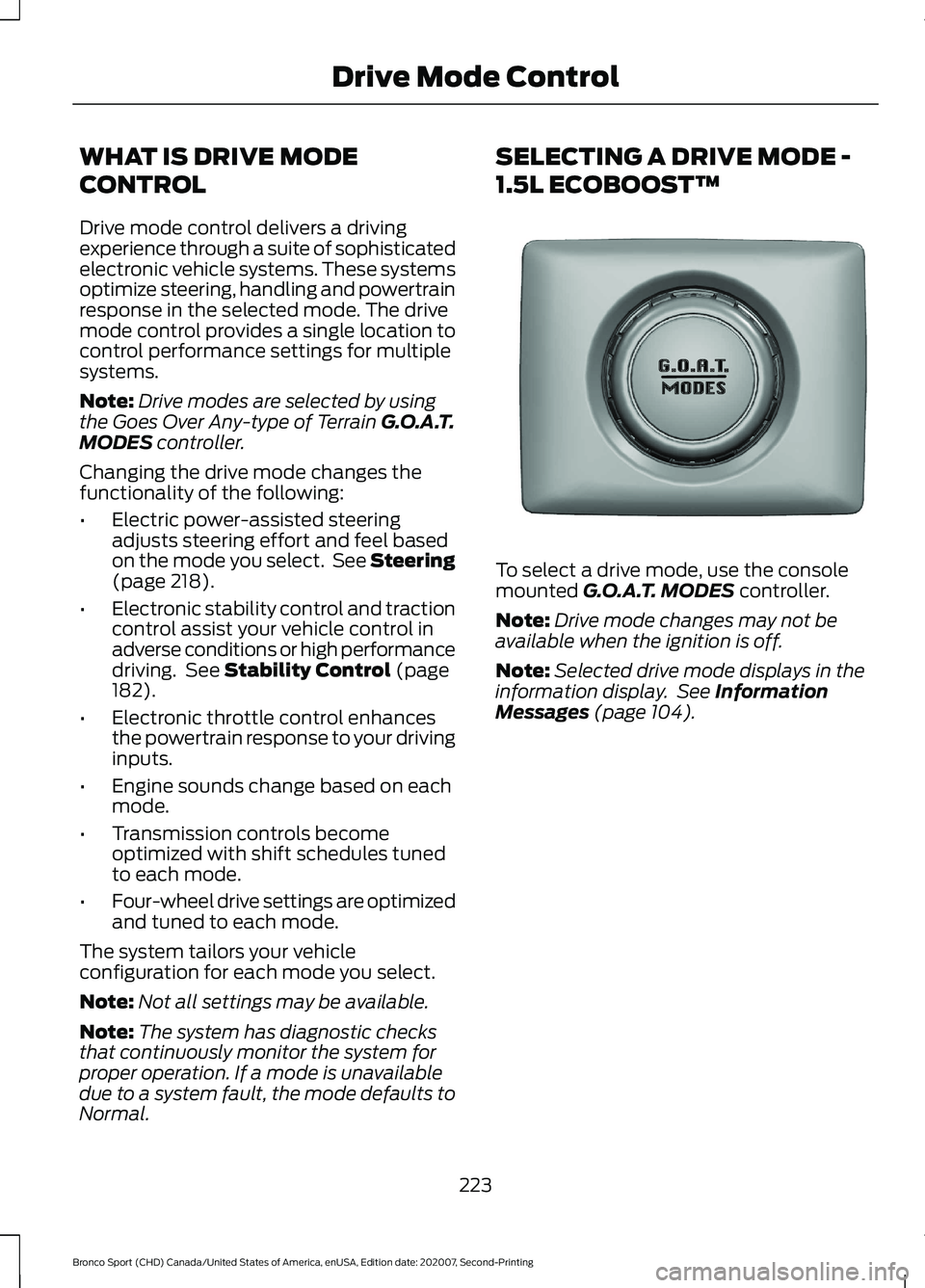
To select a drive mode, use the console
mounted
G.O.A.T. MODES controller.
Note: Drive mode changes may not be
available when the ignition is off.
Note: Selected drive mode displays in the
information display. See
Information
Messages (page 104).
223
Bronco Sport (CHD) Canada/United States of America, enUSA, Edition date: 202007, Second-Printing Drive Mode ControlE339228
Page 278 of 471
Only use oils certified for gasoline engines
by the American Petroleum Institute (API).
An oil with this trademark symbol
conforms to the current engine and
emission system protection standards and
fuel economy requirements of the
International Lubricants Specification
Advisory Committee (ILSAC).
To top up the engine oil level do the
following:
1. Clean the area surrounding the engine
oil filler cap before you remove it.
2. Remove the engine oil filler cap. See Under Hood Overview (page 272).
Turn it counterclockwise and remove
it.
3. Add engine oil that meets our specifications. See
Engine Oil
Capacity and Specification (page
329). You may have to use a funnel to
pour the engine oil into the opening.
4. Recheck the oil level.
5. If the oil level is correct, replace the dipstick and make sure it is fully seated.
6. Replace the engine oil filler cap. Turn it clockwise until you feel a strong
resistance.
Note: Do not add oil further than the
maximum mark. Oil levels above the
maximum mark may cause engine damage.
Note: Make sure you install the oil filler cap
correctly.
Note: Soak up any spillage with an
absorbent cloth immediately.
OIL CHANGE INDICATOR
RESET
Use the information display controls on
the steering wheel to reset the oil change
indicator. From the main menu scroll to: Action and description
Message
Press the right arrow button,
then from this menu scroll
to the following message.
Settings
Press the right arrow button,
then from this menu scroll
to the following message.
Vehicle
Press the right arrow button,
then from this menu scroll
to the following message.
Oil Life
Press and hold the
OK
button until the instrument
cluster displays the
following message.
Hold OK to
Reset
Reset Successful
When the oil change indic-
ator resets the instrument
cluster displays 100%.
Remaining Life
{00}%
If the instrument cluster
displays one of the following
messages, repeat the
process.
Not Reset
Reset Cancelled
275
Bronco Sport (CHD) Canada/United States of America, enUSA, Edition date: 202007, Second-Printing Maintenance
Page 287 of 471
If you disconnect or replace the vehicle
battery, you must reset the following
features:
•
Window bounce-back.
• Clock Settings.
• Pre-set radio stations.
• Steering Angle Sensor.
Note: To calibrate the steering angle
sensor, drive the vehicle above 30 mph
(50 km/h) for a minimum of 1.2 mi (2 km).
Make sure to drive straight ahead for a
minimum of 30 seconds. Several vehicle
functions are disabled and a warning light
could appear until the sensor is calibrated.
Note: For flexible fuel vehicles, if you are
operating on E85, you could experience poor
starts or an inability to start the engine, and
driveability problems until the fuel trim and
ethanol content have been relearned. Drive
the vehicle at least
10 mi (16 km) to
completely relearn the idle trim and fuel
trim strategy.
Battery Disposal Make sure that you dispose of
old batteries in an
environmentally friendly way.
Seek advice from your local authority
about recycling old batteries.
ADJUSTING THE HEADLAMPS
Vertical Aim Adjustment
The headlamps on your vehicle are
properly aimed at the assembly plant. If
your vehicle has been in an accident, have
the alignment of your headlamps checked
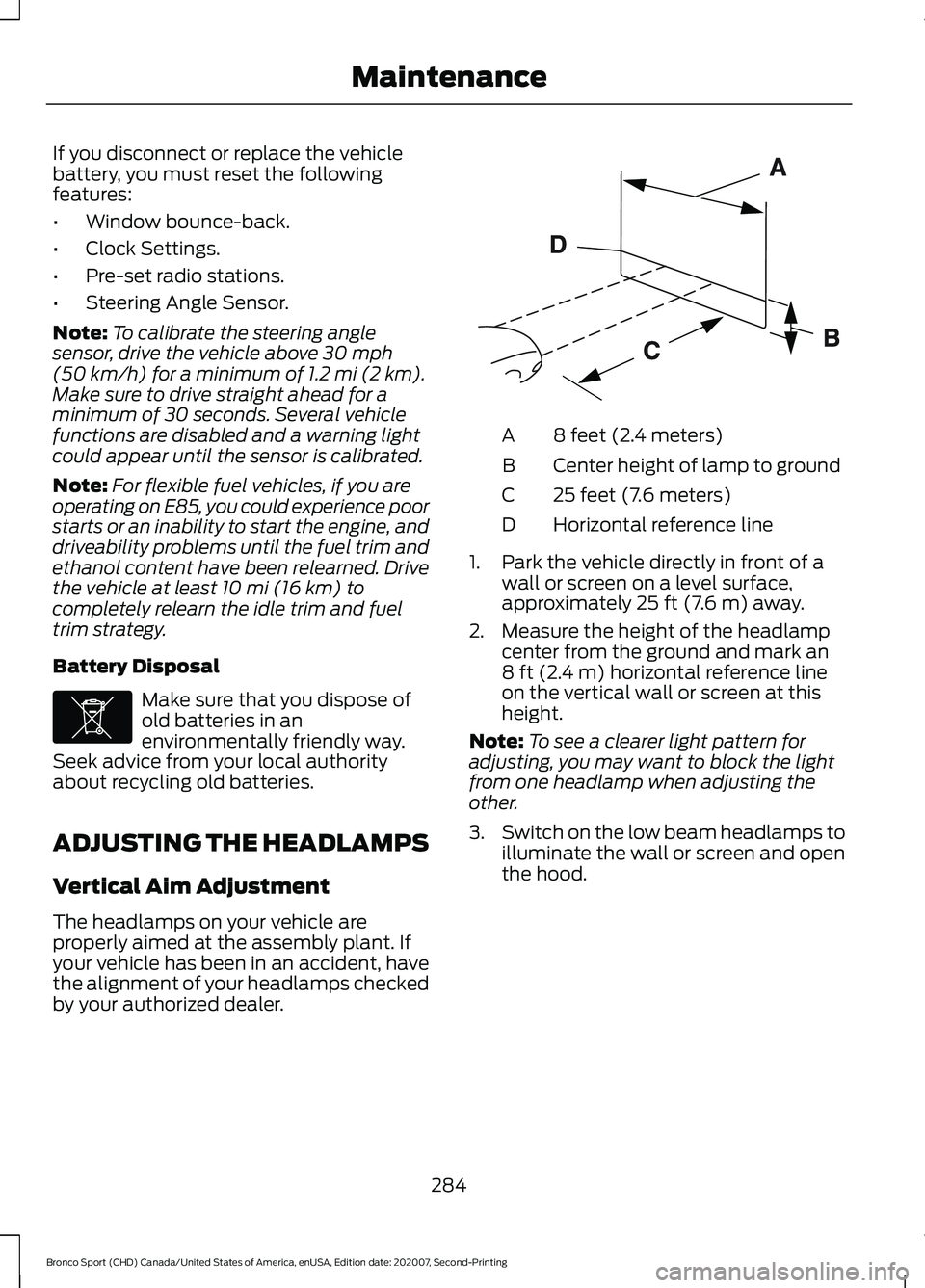
by your authorized dealer. 8 feet (2.4 meters)
A
Center height of lamp to ground
B
25 feet (7.6 meters)
C
Horizontal reference line
D
1. Park the vehicle directly in front of a wall or screen on a level surface,
approximately 25 ft (7.6 m) away.
2. Measure the height of the headlamp center from the ground and mark an
8 ft (2.4 m)
horizontal reference line
on the vertical wall or screen at this
height.
Note: To see a clearer light pattern for
adjusting, you may want to block the light
from one headlamp when adjusting the
other.
3. Switch on the low beam headlamps to
illuminate the wall or screen and open
the hood.
284
Bronco Sport (CHD) Canada/United States of America, enUSA, Edition date: 202007, Second-Printing MaintenanceE107998 E142592
Page 340 of 471
WHAT IS A CONNECTED
VEHICLE
A connected vehicle has technology that
allows your vehicle to connect to a mobile
network and for you to access a range of
features. When used in conjunction with
the FordPass app, it could allow you to
monitor and control your vehicle further,
for example checking the tire pressures,
the fuel level and the vehicle location. For
additional information, refer to the local
Ford website.
CONNECTED VEHICLE
REQUIREMENTS
Connected service and related feature
functionality requires a compatible vehicle
network.
Some remote features require additional
service activation. Log in to your Ford
account for details. Some restrictions, third
party terms and message or data rates
may apply.
CONNECTED VEHICLE
LIMITATIONS
Evolving technology, cellular networks, or
regulations could affect functionality and
availability, or continued provision of some
features. These changes could even stop
some features from functioning.
CONNECTING THE VEHICLE TO
A MOBILE NETWORK -
VEHICLES WITH: MODEM
What Is the Modem The modem allows access to a
range of features built into your
vehicle.
Enabling and Disabling the Modem
1. Press Settings.
2. Press
FordPass Connect.
3. Press
Connectivity Settings.
4. Switch connectivity features on or off.
Connecting FordPass to the
Modem
1. Make sure that the modem is enabled using the vehicle settings menu.
2. Open the FordPass app on your device
and log in.
3. Add your vehicle or select your vehicle if already added.
4. Select the option for vehicle details.
5. Select the option to activate your vehicle.
6. Make sure that the name on the screen
matches the name shown in your
FordPass account.
7. Confirm that FordPass account is connected to the modem.
CONNECTING THE VEHICLE TO
A WI-FI NETWORK - VEHICLES
WITH: SYNC 3
1. Press
Settings.
337
Bronco Sport (CHD) Canada/United States of America, enUSA, Edition date: 202007, Second-Printing Connected Vehicle
Page 344 of 471
CREATING A VEHICLE WI-FI
HOTSPOT
You can create a Wi-Fi hotspot in your
vehicle and allow devices to connect to it
for access to the Internet.
Select the settings option on the
feature bar.
1. Press FordPass Connect.
2. Press
Vehicle Hotspot.
Note: The vehicle hotspot default setting
is on.
3. Press
Settings.
4. Press
Wi-Fi visibility.
Note: The Wi-Fi Visibility default setting is
on.
Finding the Wi-Fi Hotspot Name
and Password Select the settings option on the
feature bar.
1. Press
FordPass Connect.
2. Press
Vehicle Hotspot.
3. Press
Settings.
Note: The SSID is the hotspot name.
4. Press
View Password.
Connecting a Device to the Wi-Fi
Hotspot
1. On your device, switch Wi-Fi on and select the hotspot from the list of
available Wi-Fi networks.
2. When prompted, enter the password.
Purchasing a Data Plan
1. Connect a device to the hotspot.
Note: The vehicle network carrier ’s portal
opens on your device. 2. If the portal does not open on your
device, open a website and it redirects
to the vehicle network carrier ’s portal.
Note: Secure websites do not redirect.
3. Follow the instructions on the carrier portal to purchase a plan.
Note: If you have an active plan, the system
does not redirect to the vehicle network
carrier ’s portal when you connect a device.
Visit the vehicle network carrier ’s website
to purchase more data.
Note: If data usage information is available
in the vehicle hotspot menu, it is
approximate.
Note: If you carry out a master reset, the
system does not remove your vehicle from
your vehicle network carrier ’s account. To
remove your vehicle from the account,
contact your vehicle network carrier.
Note: The vehicle network carrier provides
Vehicle Hotspot services, subject to your
vehicle network carrier agreement, coverage
and availability.
CHANGING THE VEHICLE WI-
FI HOTSPOT NAME OR
PASSWORD Select the settings option on the
feature bar.
1. Press
FordPass Connect.
2. Press
Vehicle Hotspot.
3. Press
Settings.
4. Press
Edit.
5. Press
Change SSID Name.
6. Enter your required SSID.
7. Press
Done.
8. Press
Change Password.
9. Enter your required password.
10. Press
Done.
341
Bronco Sport (CHD) Canada/United States of America, enUSA, Edition date: 202007, Second-Printing Vehicle Wi-Fi HotspotE280315 E280315 E280315
Page 351 of 471
Locating Your ESN
With satellite radio as the source, use the
touchscreen to select the following:
1. Select Settings. See Settings (page
378).
2. Select
SiriusXM.
3. Select
SiriusXM information.
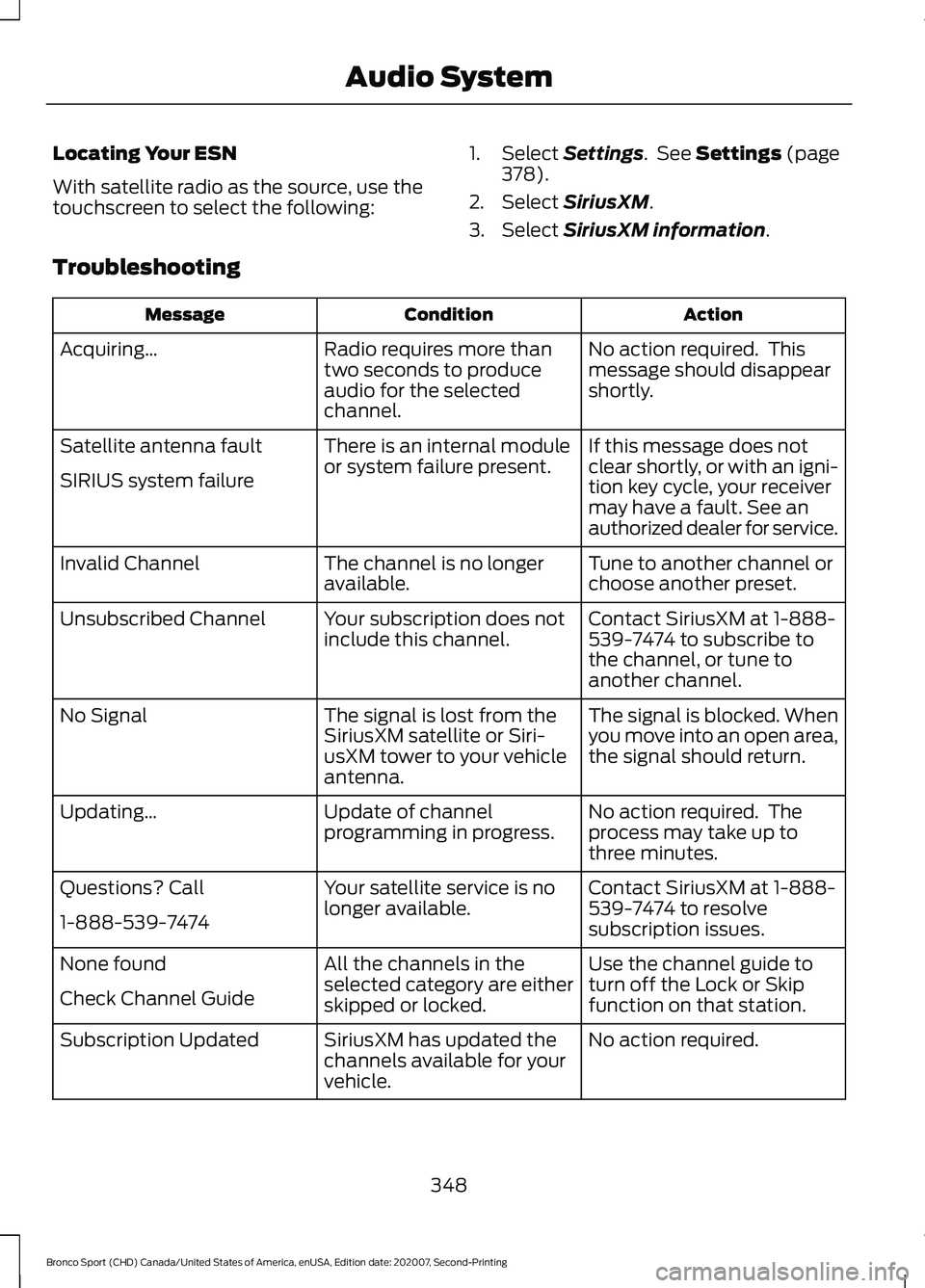
Troubleshooting Action
Condition
Message
No action required. This
message should disappear
shortly.
Radio requires more than
two seconds to produce
audio for the selected
channel.
Acquiring…
If this message does not
clear shortly, or with an igni-
tion key cycle, your receiver
may have a fault. See an
authorized dealer for service.
There is an internal module
or system failure present.
Satellite antenna fault
SIRIUS system failure
Tune to another channel or
choose another preset.
The channel is no longer
available.
Invalid Channel
Contact SiriusXM at 1-888-
539-7474 to subscribe to
the channel, or tune to
another channel.
Your subscription does not
include this channel.
Unsubscribed Channel
The signal is blocked. When
you move into an open area,
the signal should return.
The signal is lost from the
SiriusXM satellite or Siri-
usXM tower to your vehicle
antenna.
No Signal
No action required. The
process may take up to
three minutes.
Update of channel
programming in progress.
Updating…
Contact SiriusXM at 1-888-
539-7474 to resolve
subscription issues.
Your satellite service is no
longer available.
Questions? Call
1-888-539-7474
Use the channel guide to
turn off the Lock or Skip
function on that station.
All the channels in the
selected category are either
skipped or locked.
None found
Check Channel Guide
No action required.
SiriusXM has updated the
channels available for your
vehicle.
Subscription Updated
348
Bronco Sport (CHD) Canada/United States of America, enUSA, Edition date: 202007, Second-Printing Audio System
Page 353 of 471
GENERAL INFORMATION
WARNING: Driving while distracted
can result in loss of vehicle control, crash
and injury. We strongly recommend that
you use extreme caution when using any
device that may take your focus off the
road. Your primary responsibility is the
safe operation of your vehicle. We
recommend against the use of any
hand-held device while driving and
encourage the use of voice-operated
systems when possible. Make sure you
are aware of all applicable local laws
that may affect the use of electronic
devices while driving.
About SYNC
The system allows you to interact with the
entertainment, information and
communication systems on your vehicle
using voice commands and a touchscreen.
The system provides easy interaction with
audio, phone, navigation, mobile apps and
settings.
Note: You can switch the system on and
use it for up to an hour without switching
the ignition on.
Note: You can use the system after you
switch the ignition off for up to 10 minutes
or until you open a door.
Note: For your safety, some features are
speed-dependent. Their use is limited to
when your vehicle speed is less than 3 mph
(5 km/h). Using the Touchscreen
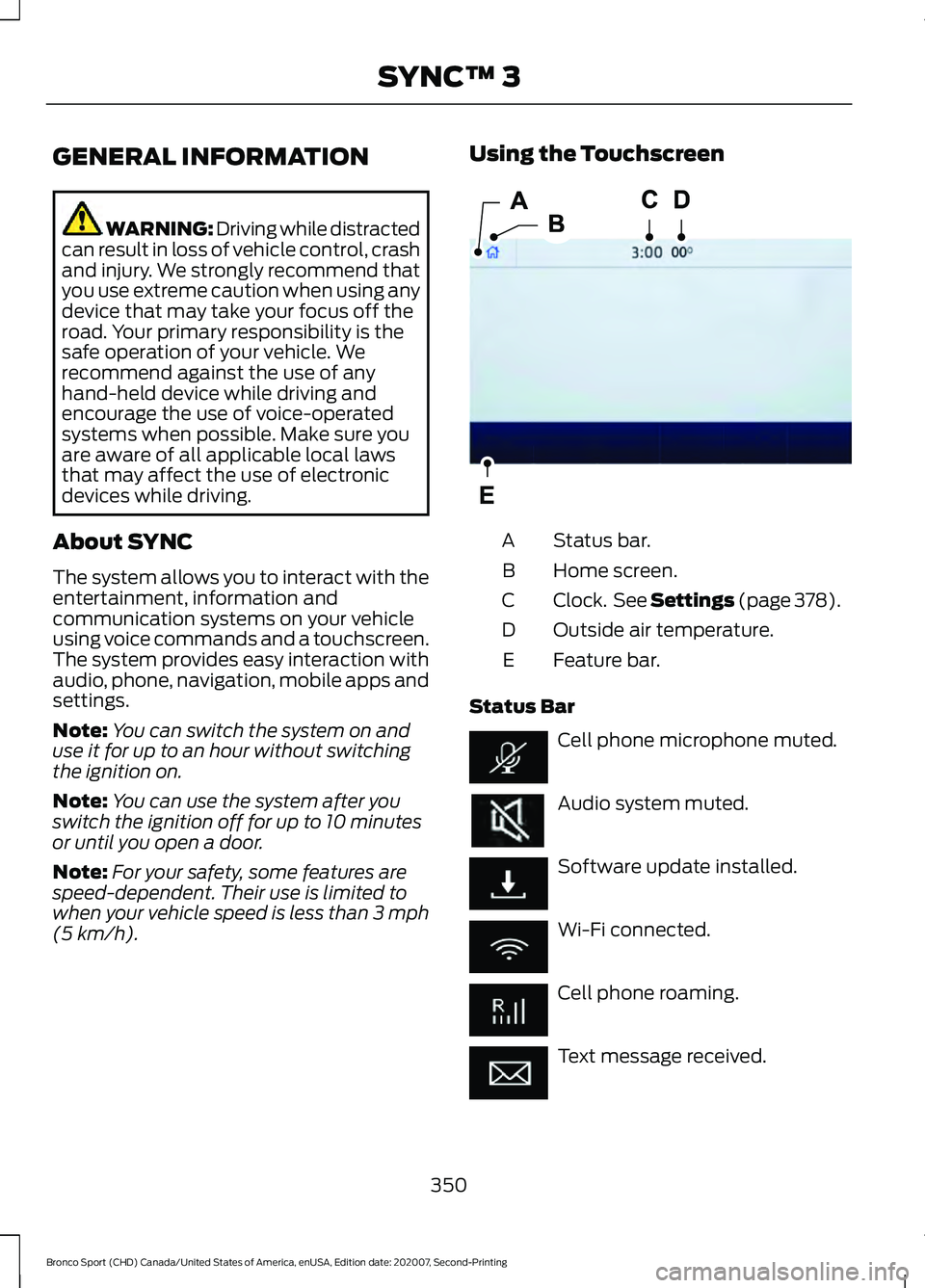
Status bar.
A
Home screen.
B
Clock. See Settings (page 378).
C
Outside air temperature.
D
Feature bar.
E
Status Bar Cell phone microphone muted.
Audio system muted.
Software update installed.
Wi-Fi connected.
Cell phone roaming.
Text message received.
350
Bronco Sport (CHD) Canada/United States of America, enUSA, Edition date: 202007, Second-Printing SYNC™ 3E293823
Page 354 of 471
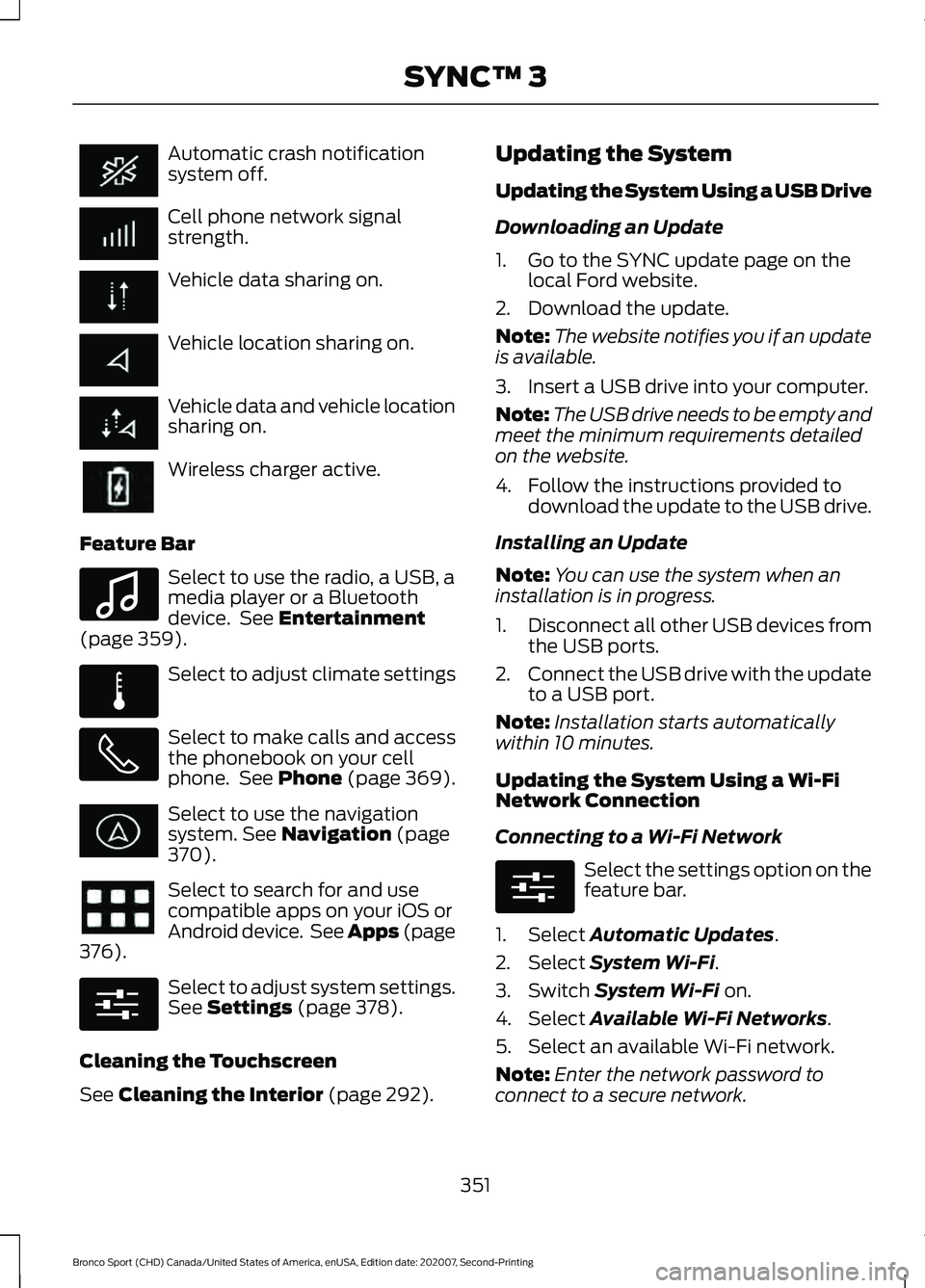
Automatic crash notification
system off.
Cell phone network signal
strength.
Vehicle data sharing on.
Vehicle location sharing on.
Vehicle data and vehicle location
sharing on.
Wireless charger active.
Feature Bar Select to use the radio, a USB, a
media player or a Bluetooth
device. See Entertainment
(page 359). Select to adjust climate settings
Select to make calls and access
the phonebook on your cell
phone. See
Phone (page 369).
Select to use the navigation
system.
See Navigation (page
370). Select to search for and use
compatible apps on your iOS or
Android device. See Apps (page
376
). Select to adjust system settings.
See
Settings (page 378).
Cleaning the Touchscreen
See
Cleaning the Interior (page 292). Updating the System
Updating the System Using a USB Drive
Downloading an Update
1. Go to the SYNC update page on the
local Ford website.
2. Download the update.
Note: The website notifies you if an update
is available.
3. Insert a USB drive into your computer.
Note: The USB drive needs to be empty and
meet the minimum requirements detailed
on the website.
4. Follow the instructions provided to download the update to the USB drive.
Installing an Update
Note: You can use the system when an
installation is in progress.
1. Disconnect all other USB devices from
the USB ports.
2. Connect the USB drive with the update
to a USB port.
Note: Installation starts automatically
within 10 minutes.
Updating the System Using a Wi-Fi
Network Connection
Connecting to a Wi-Fi Network Select the settings option on the
feature bar.
1. Select
Automatic Updates.
2. Select
System Wi-Fi.
3. Switch
System Wi-Fi on.
4. Select
Available Wi-Fi Networks.
5. Select an available Wi-Fi network.
Note: Enter the network password to
connect to a secure network.
351
Bronco Sport (CHD) Canada/United States of America, enUSA, Edition date: 202007, Second-Printing SYNC™ 3 E100027 E283811 E280315 E280315
Page 355 of 471
Switching Automatic System Updates
On
Select the settings option on the
feature bar.
1. Select Automatic Updates.
2. Switch
Automatic System Updates
on.
The system is now set to check for and
receive system updates when it is
connected to a Wi-Fi network.
Note: You can use the system when a
download is in progress.
Note: If the system is disconnected from
the Wi-Fi network when a download is in
progress, the download continues the next
time the system is connected to a Wi-Fi
network.
Additional Information and
Assistance
For additional information and assistance,
we recommend that you contact an
authorized dealer or refer to the local Ford
website. USING VOICE RECOGNITION
The SYNC 3 system allows you to use voice
commands, to control features like audio
and climate controls. By using voice
commands, you can keep your hands on
the wheel and your eyes on the road.
You can access each feature controlled by
SYNC 3 through a variety of commands. To activate the SYNC 3 voice
commands push the voice
button on the steering wheel and
wait for the prompt.
___ is a dynamic listing, meaning that it can
be the name of anything, such as artist, the
name of contact or number. The context
and the description of the command tell
you what to say for this dynamic option.
There are some commands that work for
every feature, these commands are: Action and Description
Voice Command
Brings you to the main menu.
Main Menu
Returns you to the previous screen.
Go back
Ends the voice session.
Cancel
Gives you a list of possible voice commands.
List of Commands
You can name any feature and the system gives a list of
commands available for the feature. For example, you could
say:
___ List of Commands
Phone List of Commands
Navigation List of Commands
352
Bronco Sport (CHD) Canada/United States of America, enUSA, Edition date: 202007, Second-Printing SYNC™ 3E280315 E142599