Rack FORD C MAX 2011 2.G Owner's Manual
[x] Cancel search | Manufacturer: FORD, Model Year: 2011, Model line: C MAX, Model: FORD C MAX 2011 2.GPages: 296, PDF Size: 7.87 MB
Page 249 of 296
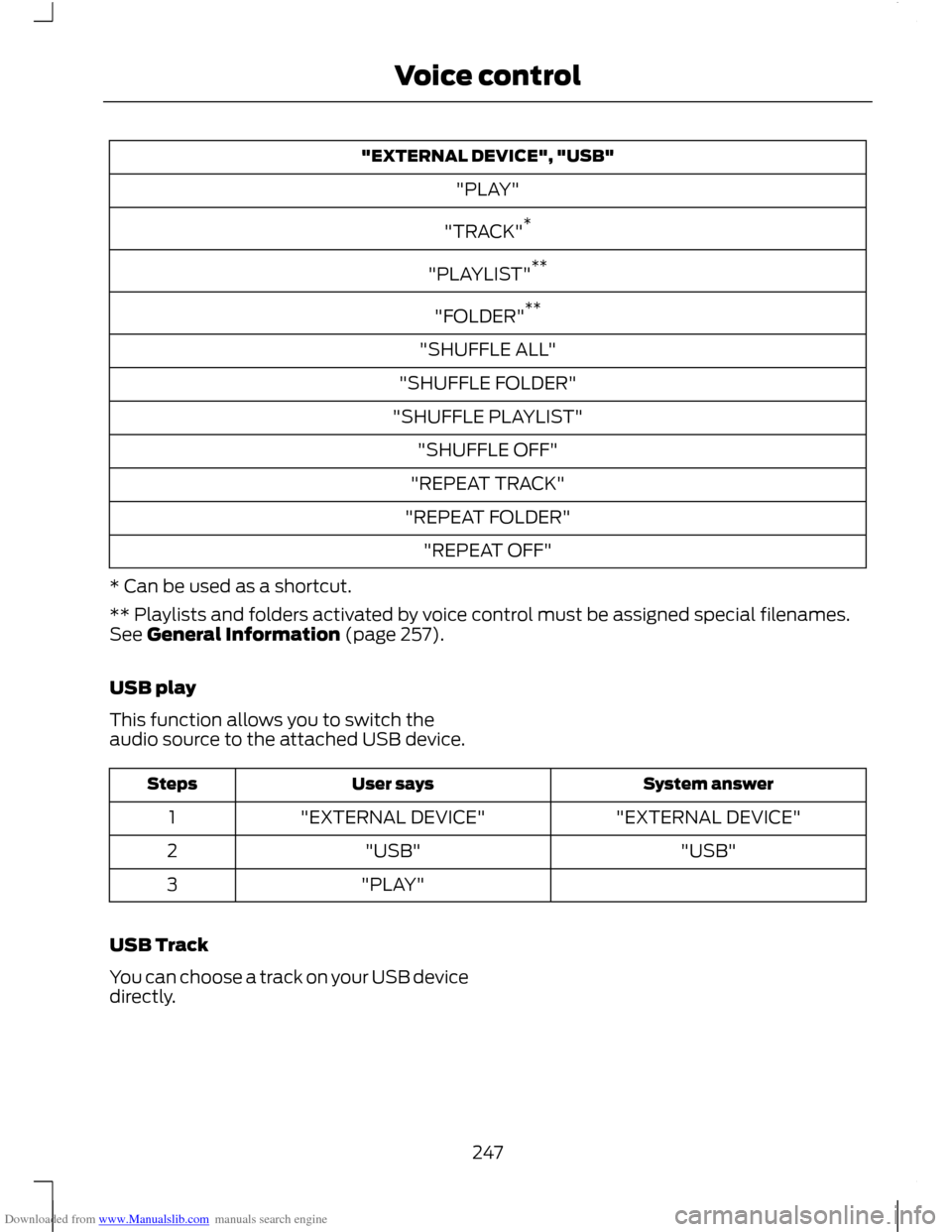
Downloaded from www.Manualslib.com manuals search engine "EXTERNAL DEVICE", "USB"
"PLAY"
"TRACK" *
"PLAYLIST" **
"FOLDER" **
"SHUFFLE ALL"
"SHUFFLE FOLDER"
"SHUFFLE PLAYLIST" "SHUFFLE OFF"
"REPEAT TRACK"
"REPEAT FOLDER" "REPEAT OFF"
* Can be used as a shortcut.
** Playlists and folders activated by voice control must be assigned special filenames.
See General Information (page 257).
USB play
This function allows you to switch the
audio source to the attached USB device. System answer
User says
Steps
"EXTERNAL DEVICE"
"EXTERNAL DEVICE"
1
"USB"
"USB"
2
"PLAY"
3
USB Track
You can choose a track on your USB device
directly.
247
Voice control
Page 250 of 296
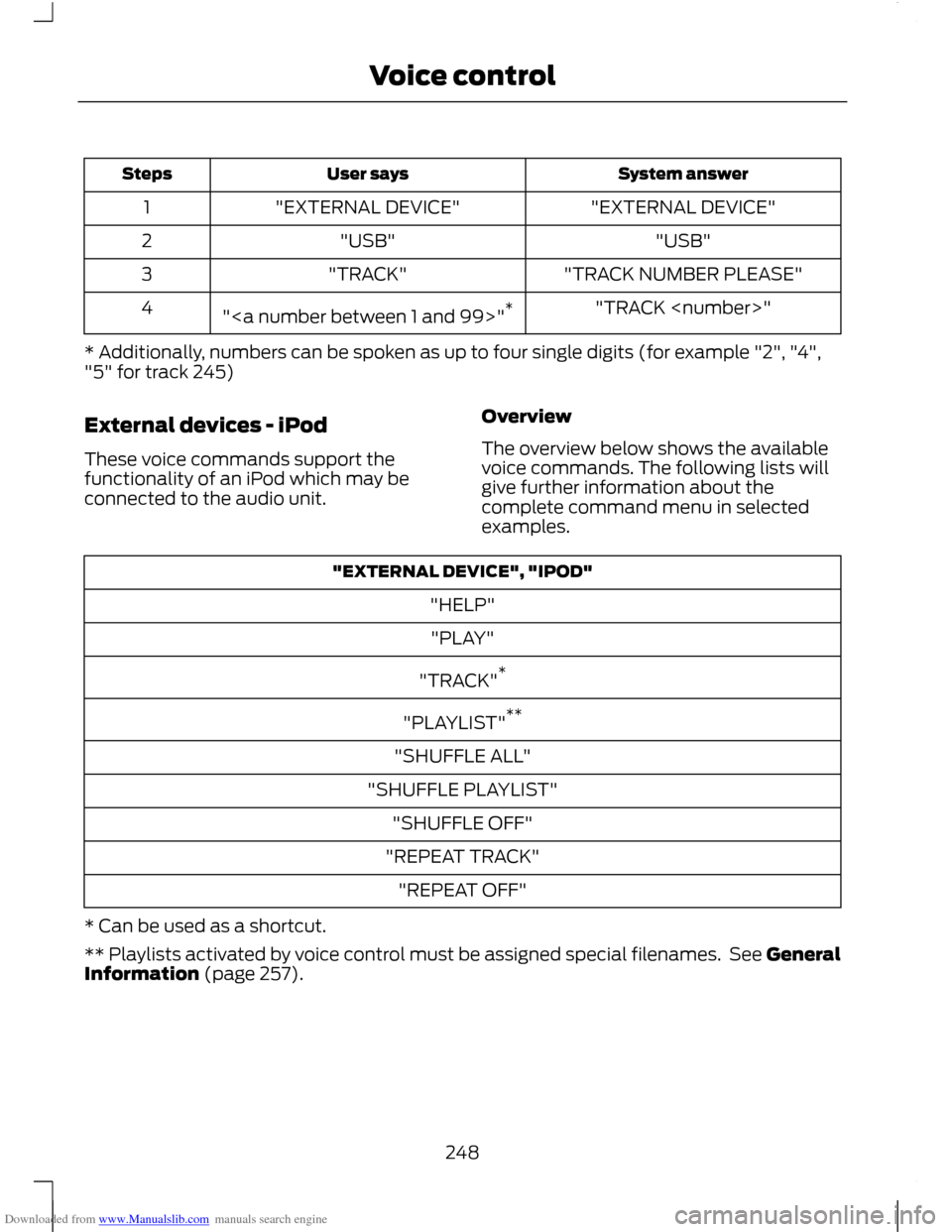
Downloaded from www.Manualslib.com manuals search engine System answer
User says
Steps
"EXTERNAL DEVICE"
"EXTERNAL DEVICE"
1
"USB"
"USB"
2
"TRACK NUMBER PLEASE"
"TRACK"
3
"TRACK
"" *
4
* Additionally, numbers can be spoken as up to four single digits (for example "2", "4",
"5" for track 245)
External devices - iPod
These voice commands support the
functionality of an iPod which may be
connected to the audio unit. Overview
The overview below shows the available
voice commands. The following lists will
give further information about the
complete command menu in selected
examples."EXTERNAL DEVICE", "IPOD"
"HELP""PLAY"
"TRACK" *
"PLAYLIST" **
"SHUFFLE ALL"
"SHUFFLE PLAYLIST" "SHUFFLE OFF"
"REPEAT TRACK" "REPEAT OFF"
* Can be used as a shortcut.
** Playlists activated by voice control must be assigned special filenames. See General
Information (page 257).
248
Voice control
Page 251 of 296
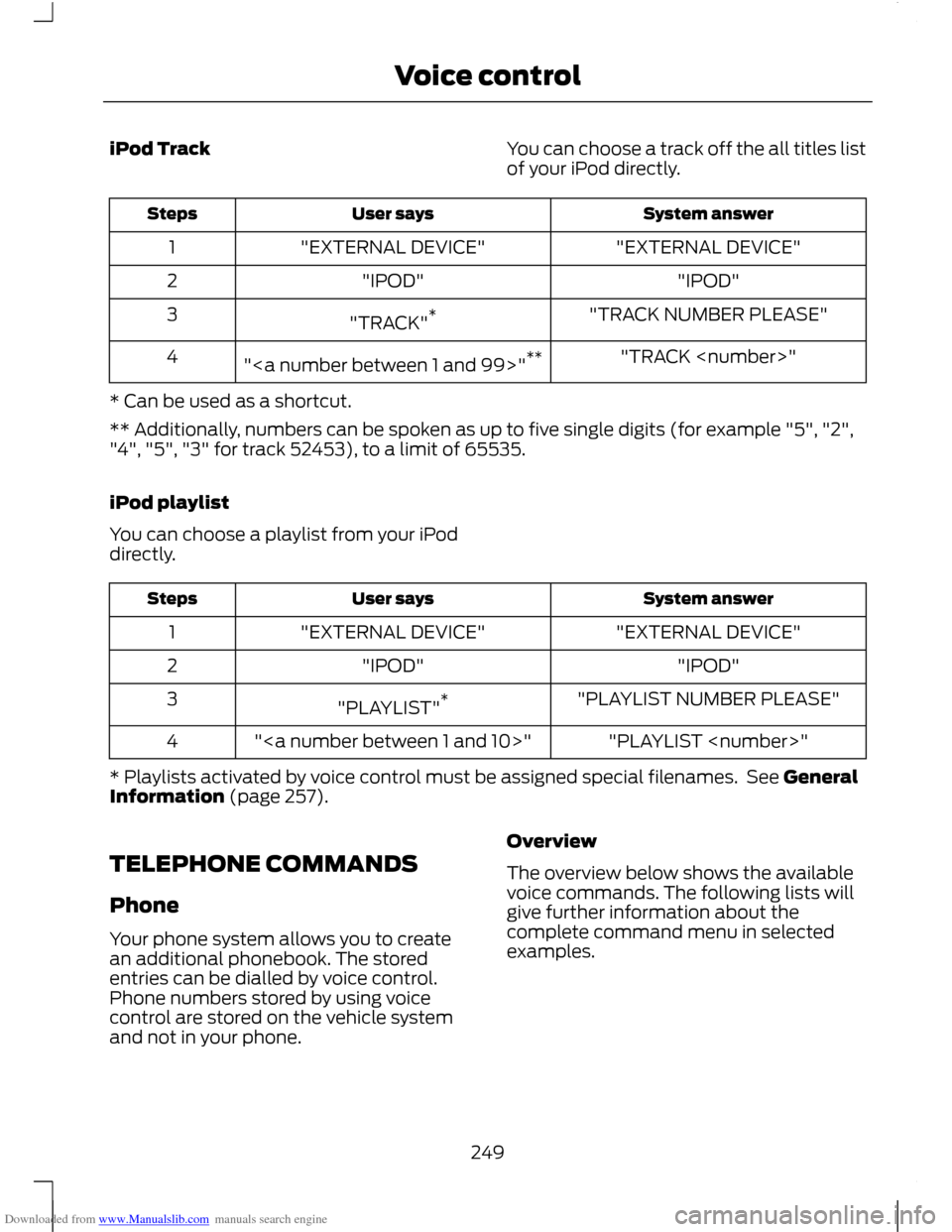
Downloaded from www.Manualslib.com manuals search engine iPod Track
You can choose a track off the all titles list
of your iPod directly. System answer
User says
Steps
"EXTERNAL DEVICE"
"EXTERNAL DEVICE"
1
"IPOD"
"IPOD"
2
"TRACK NUMBER PLEASE"
"TRACK" *
3
"TRACK
"" **
4
* Can be used as a shortcut.
** Additionally, numbers can be spoken as up to five single digits (for example "5", "2",
"4", "5", "3" for track 52453), to a limit of 65535.
iPod playlist
You can choose a playlist from your iPod
directly. System answer
User says
Steps
"EXTERNAL DEVICE"
"EXTERNAL DEVICE"
1
"IPOD"
"IPOD"
2
"PLAYLIST NUMBER PLEASE"
"PLAYLIST" *
3
"PLAYLIST
""
4
* Playlists activated by voice control must be assigned special filenames. See General
Information (page 257).
TELEPHONE COMMANDS
Phone
Your phone system allows you to create
an additional phonebook. The stored
entries can be dialled by voice control.
Phone numbers stored by using voice
control are stored on the vehicle system
and not in your phone. Overview
The overview below shows the available
voice commands. The following lists will
give further information about the
complete command menu in selected
examples.
249
Voice control
Page 261 of 296
Downloaded from www.Manualslib.com manuals search engine Bonding the device
To connect the device to the system follow
the same procedure as for Bluetooth hands
free phones. See Bluetooth setup (page
237).
Operating the device
Note:
The seek buttons and file information
will only work on certain phones and
devices.
Select Bluetooth audio as the active
source.
1. Select AUX.
2. Press the up and down arrow buttons to select the desired function.
3. Press the OK button.
Tracks can be accessed by skipping
forwards and backwards using the steering
wheel controls, or directly from the audio
unit controls.
Audio control
Press the seek up and down keys to skip
backwards and forwards through tracks.
Press and hold the seek keys to enable fast
rewind/fast forward through track content.
Press the INFO button or function button
4 to display the following:
• Title.
• Artist.
• Album.
• File name.
USING A USB DEVICE
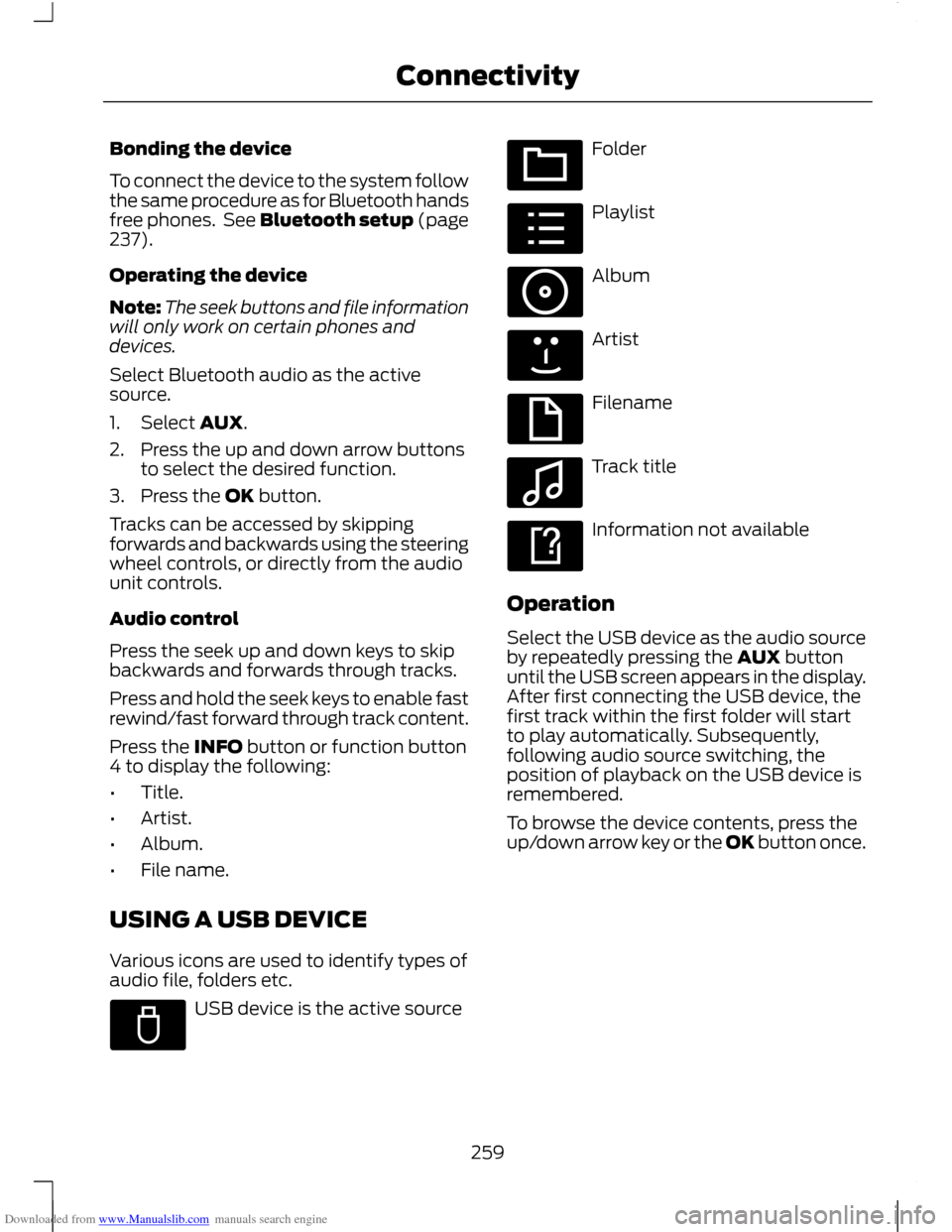
Various icons are used to identify types of
audio file, folders etc. USB device is the active source Folder
Playlist
Album
Artist
Filename
Track title
Information not available
Operation
Select the USB device as the audio source
by repeatedly pressing the AUX button
until the USB screen appears in the display.
After first connecting the USB device, the
first track within the first folder will start
to play automatically. Subsequently,
following audio source switching, the
position of playback on the USB device is
remembered.
To browse the device contents, press the
up/down arrow key or the OK button once.
259
ConnectivityE100029 E100022 E100023 E100024 E100025 E100026 E100027 E100028
Page 262 of 296
Downloaded from www.Manualslib.com manuals search engine The display will show the track
information, together with other important
information described below:
•
A vertical scroll bar on the right side of
the display shows the current position
of the folder view.
• ">" after an entry indicates a further
level down is readable (for example a
folder named after an album, with
individual album tracks within that
folder).
• "<" before the list indicates that a
further level up is readable.
• Icons to the left of track/folder text
indicate the type of file/folder. Refer
to the list for an explanation of these
icons.
To navigate the USB device contents, use
the up/down arrow keys to scroll through
lists, and the left/right keys to move up or
down within the folder hierarchy. Once your
desired track, playlist or folder is
highlighted, press the OK button to select
playback.
Note: If you wish to jump to the top level
of the USB device contents, press and hold
the left arrow key.
Audio control
Press the seek up and down keys to skip
backwards and forwards through tracks.
Press and hold the seek keys to enable fast
rewind/fast forward through track content.
Use the function buttons to enable shuffle,
repeat and scan with respect to the whole
device, folders and playlists.
Press the INFO button or function button
4 to display the following:
• title
• artist
• album •
folder name
• file name.
USING AN IPOD
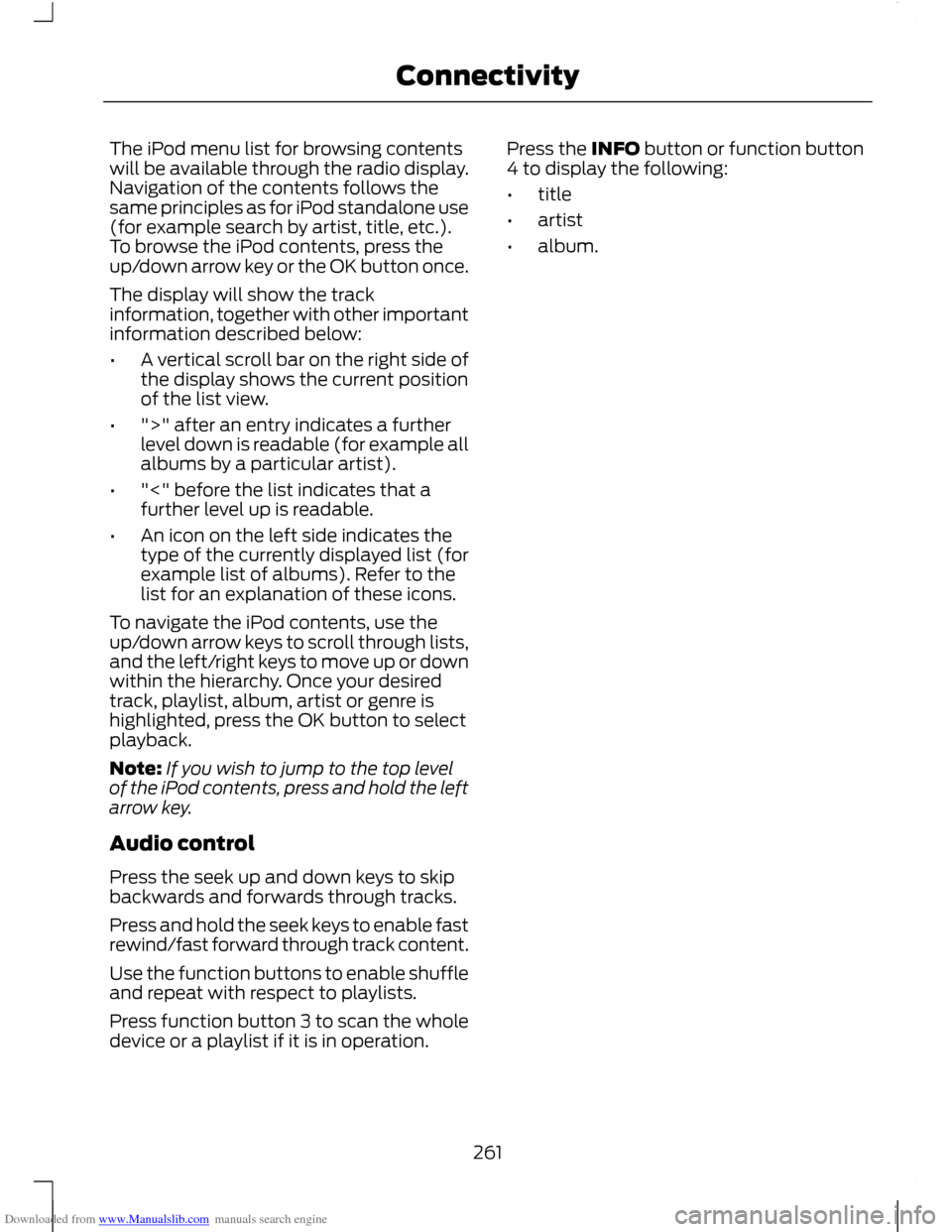
Various icons are used to identify types of
audio file, folders etc. iPod is the active source
iPod playlist
iPod artist
iPod album
iPod genre
iPod song
iPod generic category
iPod generic media file
Operation
Connect the iPod. See Connecting an
external device (page 258).
Select the iPod as the audio source by
repeatedly pressing the AUX button until
the iPod screen appears in the display.
260
ConnectivityE100030 E100031 E100032 E100033 E100034 E100035 E100036 E100037
Page 263 of 296
Downloaded from www.Manualslib.com manuals search engine The iPod menu list for browsing contents
will be available through the radio display.
Navigation of the contents follows the
same principles as for iPod standalone use
(for example search by artist, title, etc.).
To browse the iPod contents, press the
up/down arrow key or the OK button once.
The display will show the track
information, together with other important
information described below:
•
A vertical scroll bar on the right side of
the display shows the current position
of the list view.
• ">" after an entry indicates a further
level down is readable (for example all
albums by a particular artist).
• "<" before the list indicates that a
further level up is readable.
• An icon on the left side indicates the
type of the currently displayed list (for
example list of albums). Refer to the
list for an explanation of these icons.
To navigate the iPod contents, use the
up/down arrow keys to scroll through lists,
and the left/right keys to move up or down
within the hierarchy. Once your desired
track, playlist, album, artist or genre is
highlighted, press the OK button to select
playback.
Note: If you wish to jump to the top level
of the iPod contents, press and hold the left
arrow key.
Audio control
Press the seek up and down keys to skip
backwards and forwards through tracks.
Press and hold the seek keys to enable fast
rewind/fast forward through track content.
Use the function buttons to enable shuffle
and repeat with respect to playlists.
Press function button 3 to scan the whole
device or a playlist if it is in operation. Press the INFO button or function button
4 to display the following:
•
title
• artist
• album.
261
Connectivity
Page 271 of 296
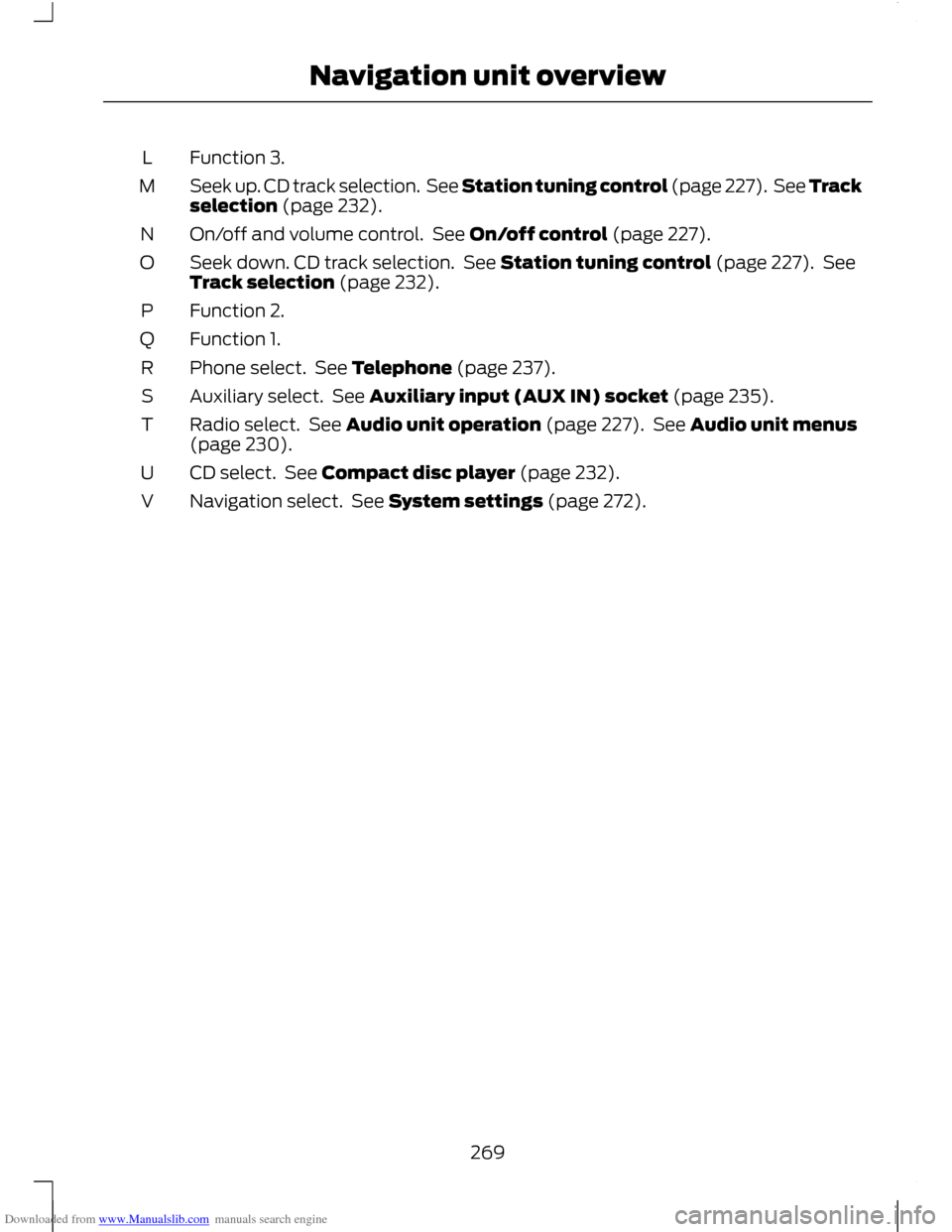
Downloaded from www.Manualslib.com manuals search engine Function 3.
L
Seek up. CD track selection. See Station tuning control (page 227). See Track
selection (page 232).
M
On/off and volume control. See On/off control (page 227).
N
Seek down. CD track selection. See Station tuning control (page 227). See
Track selection (page 232).
O
Function 2.
P
Function 1.
Q
Phone select. See Telephone (page 237).
R
Auxiliary select. See Auxiliary input (AUX IN) socket (page 235).
S
Radio select. See Audio unit operation (page 227). See Audio unit menus
(page 230).
T
CD select. See Compact disc player (page 232).
U
Navigation select. See System settings (page 272).
V
269
Navigation unit overview
Page 272 of 296
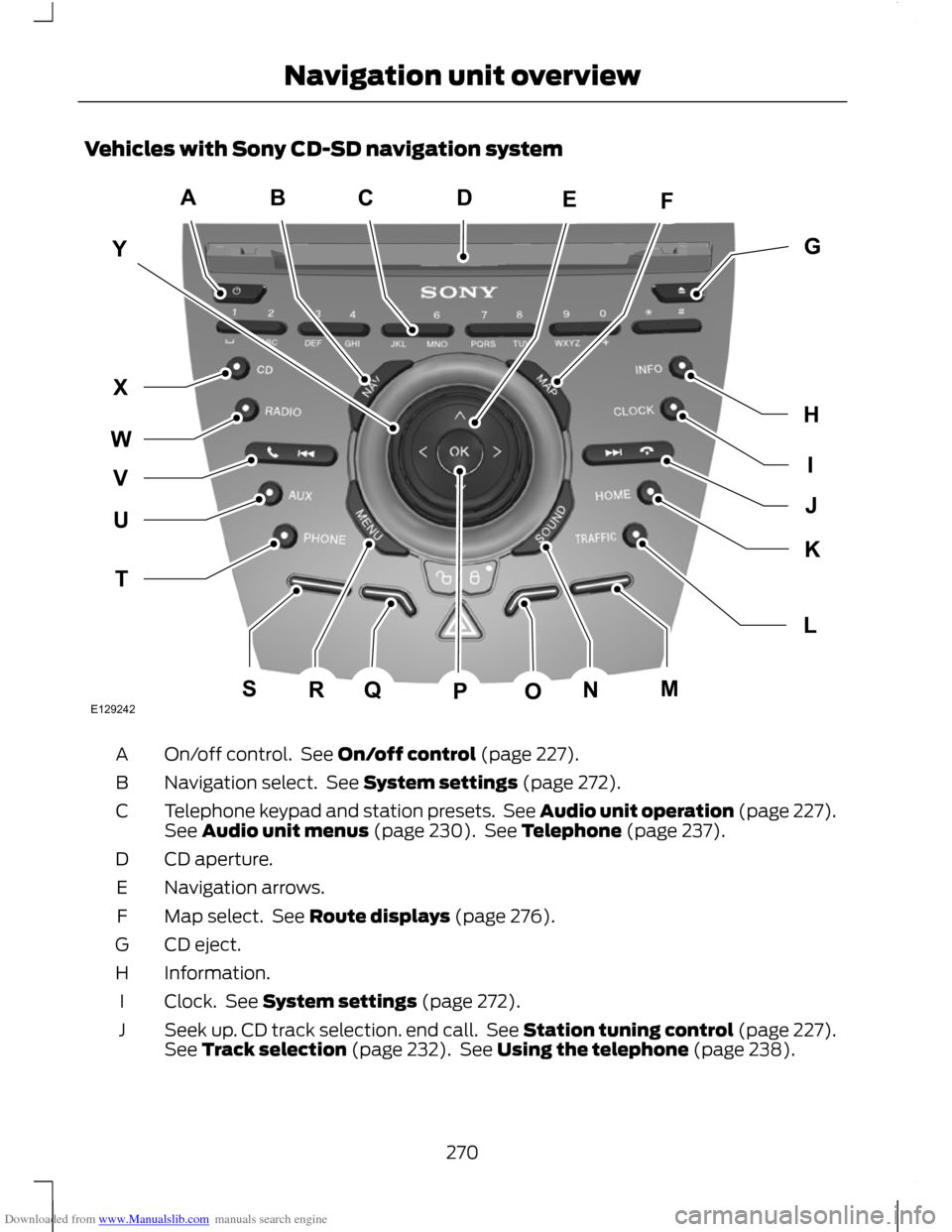
Downloaded from www.Manualslib.com manuals search engine Vehicles with Sony CD-SD navigation system
On/off control. See On/off control (page 227).
A
Navigation select. See System settings (page 272).
B
Telephone keypad and station presets. See Audio unit operation (page 227).
See Audio unit menus (page 230). See Telephone (page 237).
C
CD aperture.
D
Navigation arrows.
E
Map select. See Route displays (page 276).
F
CD eject.
G
Information.
H
Clock. See System settings (page 272).
I
Seek up. CD track selection. end call. See Station tuning control (page 227).
See Track selection (page 232). See Using the telephone (page 238).
J
270
Navigation unit overviewACBFEYIGHJLKTUWXVQSRNMOPDE129242
Page 273 of 296
Downloaded from www.Manualslib.com manuals search engine Home select. See System settings (page 272).
K
Traffic announcement. See Traffic Message Channel (page 277).
L
Function 4.
M
Sound select. See Sound button (page 227).
N
Function 3.
O
OK.P
Function 2.
Q
Menu select. See System settings (page 272).
R
Function 1.
S
Phone select. See Telephone (page 237).
T
Auxiliary select. See Auxiliary input (AUX IN) socket (page 235).
U
Seek down. CD track selection. accept call. See Station tuning control (page
227). See Track selection (page 232). See Using the telephone (page 238).
V
Radio select. See Audio unit operation (page 227). See Audio unit menus
(page 230).
W
CD select. See Compact disc player (page 232).
X
Volume control.
Y
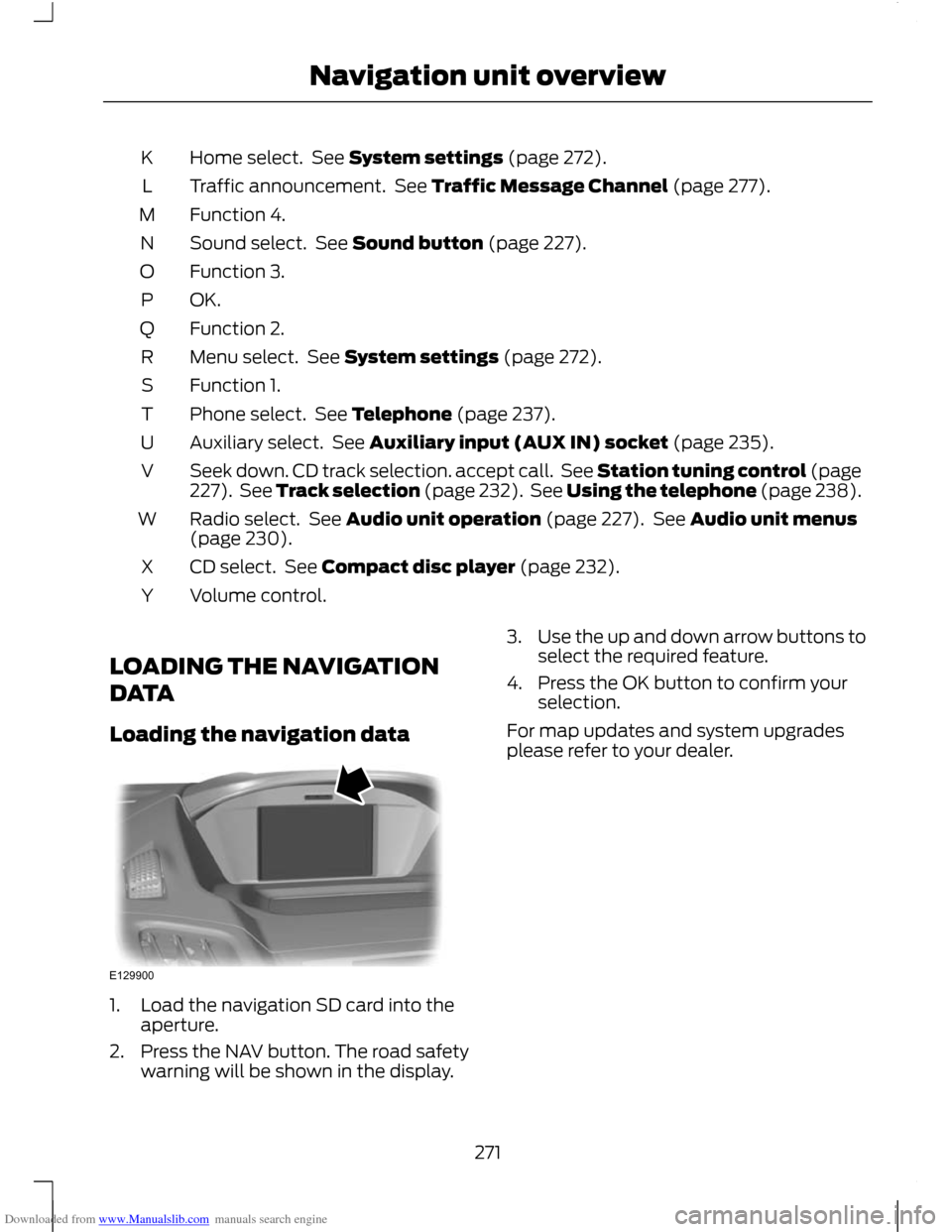
LOADING THE NAVIGATION
DATA
Loading the navigation data 1. Load the navigation SD card into the
aperture.
2. Press the NAV button. The road safety warning will be shown in the display. 3.
Use the up and down arrow buttons to
select the required feature.
4. Press the OK button to confirm your selection.
For map updates and system upgrades
please refer to your dealer.
271
Navigation unit overviewE129900
Page 287 of 296
Downloaded from www.Manualslib.com manuals search engine Changing a Road Wheel............................199
Assembling the wheel brace......................... 201
Installing a road wheel.................................... 203
Jacking and lifting points............................... 200
Locking wheel nuts............................................ 199
Removing a road wheel.................................. 202
Removing the wheel trim............................... 202
Vehicle jack........................................................... 199
Vehicles with a spare wheel........................... 199
Changing the remote control battery.............................................................36
Remote control with a folding key blade.................................................................... 36
Remote control without a folding key blade..................................................................... 37
Changing the Vehicle Battery..................198
Changing the Wiper Blades.......................54 Rear window wiper blade................................. 55
Windscreen wiper blades................................. 54
Checking the Wiper Blades........................54
Childminder Mirror........................................125
Child Safety.......................................................19
Child Safety Locks..........................................25
Child Seat Positioning...................................21
Child Seats.........................................................19 Child restraints for different mass
groups................................................................... 19
Cigar Lighter....................................................122
Cleaning the Exterior...................................195 Body paintwork preservation......................... 195
Cleaning the chrome trim............................... 195
Cleaning the headlamps................................. 195
Cleaning the rear window............................... 195
Cleaning the Interior....................................195 Instrument cluster screens, LCD screens,
radio screens................................................... 196
Rear windows...................................................... 196
Seat belts.............................................................. 195
Climate Control............................................100 Principle of Operation...................................... 100
Climate control commands....................254 Climate.................................................................. 254
Clock..................................................................122
Coded keys........................................................47
Cold Weather Precautions.........................172
Compact disc playback.............................232
Compact disc player...................................232 Compact disc track scanning..................233
Type 1...................................................................... 233
Type 2 and 3......................................................... 233
Connecting an external device...............258 Connection........................................................... 258
Connecting an external device - Vehicles With: Bluetooth.........................................258
Connecting a Bluetooth audio device................................................................ 258
Connectivity...................................................257 General Information.......................................... 257
Convenience features..................................121
Coolant Check See: Engine Coolant Check.............................. 191
Cornering Lamps...........................................60
Cruise Control................................................158 Principle of Operation....................................... 158
Cruise control See: Using Cruise Control................................ 158
Cup Holders....................................................123 Seat back trays.................................................... 124
D
Diesel Particulate Filter..............................130 Regeneration......................................................... 131
Digital signal processing (DSP).............230 Changing the DSP settings............................ 230
DSP equaliser..................................................... 230
DSP occupancy.................................................. 230
Direction Indicators.......................................60
Disabling the passenger airbag................34 Disabling the passenger airbag...................... 34
Enabling the passenger airbag....................... 35
Fitting the passenger airbag deactivation switch.................................................................. 34
Disarming the alarm.....................................49 Vehicles with keyless entry.............................. 49
Vehicles without keyless entry........................ 49
Disarming the engine immobiliser...........47
DPF See: Diesel Particulate Filter.......................... 130
Driving Hints....................................................172
Driving Through Water................................172 Driving through water ....................................... 172
285
Index