USB port FORD C MAX ENERGI 2017 User Guide
[x] Cancel search | Manufacturer: FORD, Model Year: 2017, Model line: C MAX ENERGI, Model: FORD C MAX ENERGI 2017Pages: 497, PDF Size: 7.64 MB
Page 335 of 497
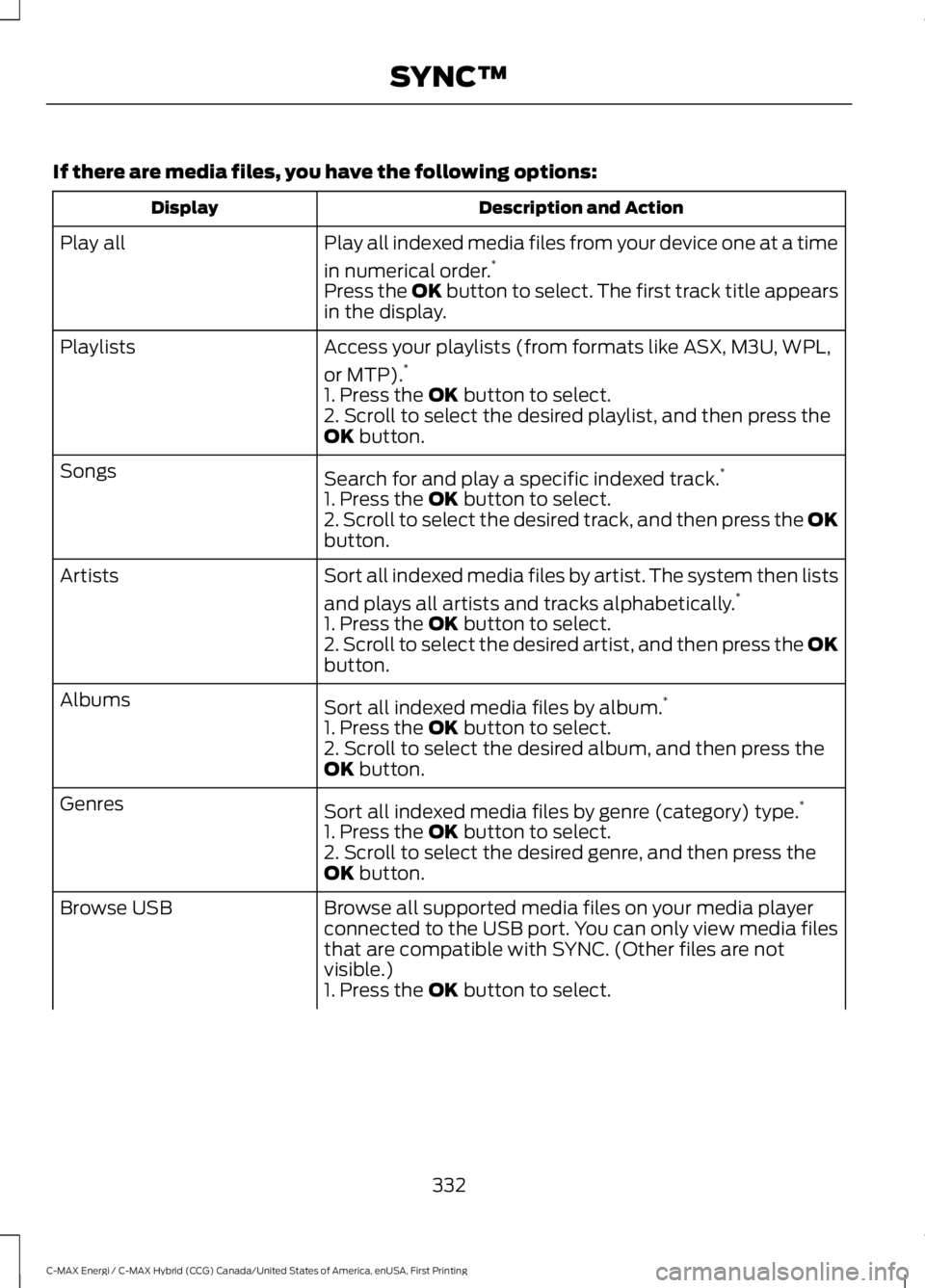
If there are media files, you have the following options:
Description and ActionDisplay
Play all indexed media files from your device one at a time
in numerical order.*Play all
Press the OK button to select. The first track title appearsin the display.
Access your playlists (from formats like ASX, M3U, WPL,
or MTP).*Playlists
1. Press the OK button to select.2. Scroll to select the desired playlist, and then press theOK button.
Search for and play a specific indexed track.*Songs
1. Press the OK button to select.2. Scroll to select the desired track, and then press the OKbutton.
Sort all indexed media files by artist. The system then lists
and plays all artists and tracks alphabetically.*Artists
1. Press the OK button to select.2. Scroll to select the desired artist, and then press the OKbutton.
Sort all indexed media files by album.*Albums
1. Press the OK button to select.2. Scroll to select the desired album, and then press theOK button.
Sort all indexed media files by genre (category) type.*Genres
1. Press the OK button to select.2. Scroll to select the desired genre, and then press theOK button.
Browse all supported media files on your media playerconnected to the USB port. You can only view media filesthat are compatible with SYNC. (Other files are notvisible.)
Browse USB
1. Press the OK button to select.
332
C-MAX Energi / C-MAX Hybrid (CCG) Canada/United States of America, enUSA, First Printing
SYNC™
Page 336 of 497
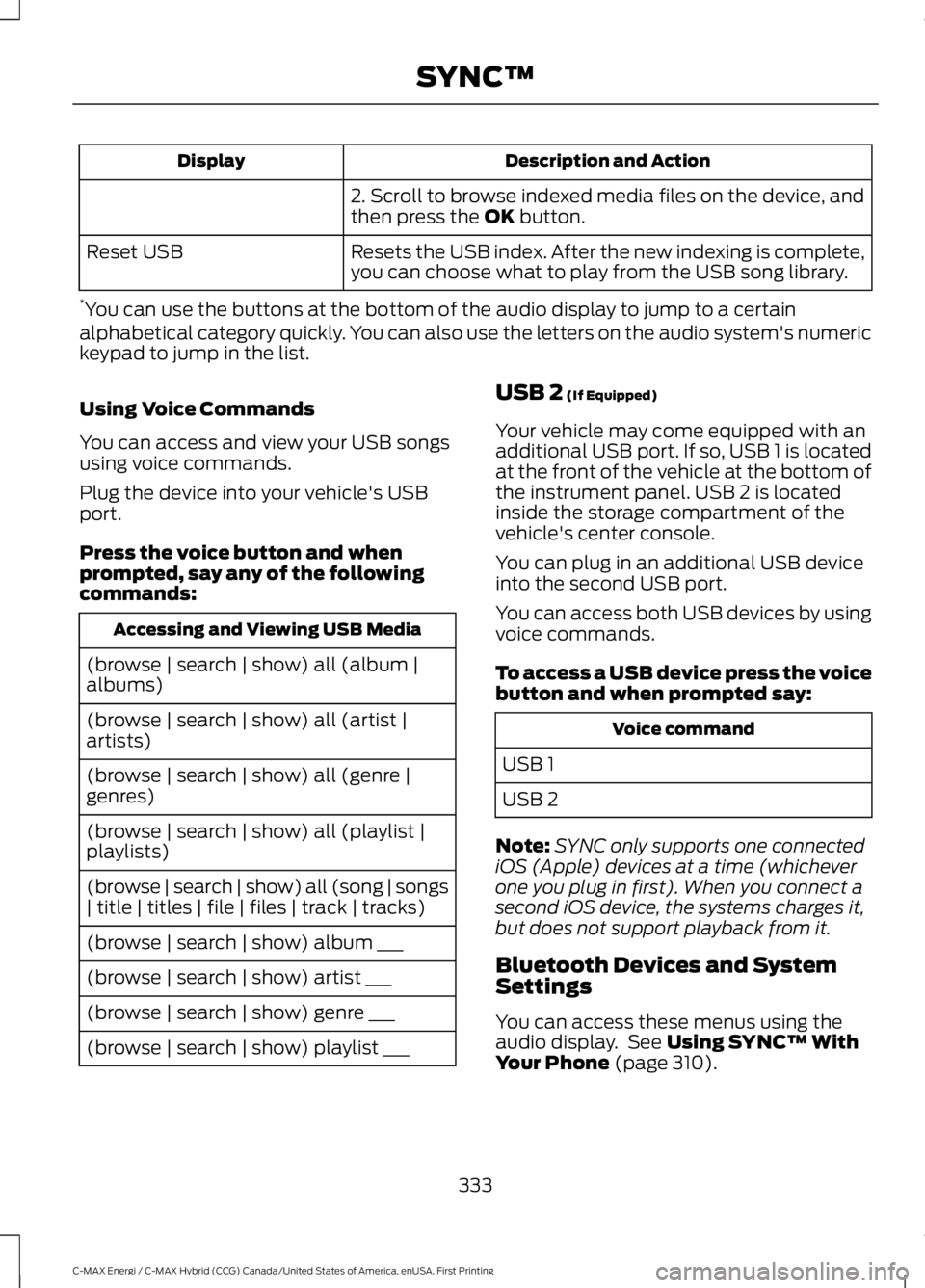
Description and ActionDisplay
2. Scroll to browse indexed media files on the device, andthen press the OK button.
Resets the USB index. After the new indexing is complete,you can choose what to play from the USB song library.Reset USB
*You can use the buttons at the bottom of the audio display to jump to a certainalphabetical category quickly. You can also use the letters on the audio system's numerickeypad to jump in the list.
Using Voice Commands
You can access and view your USB songsusing voice commands.
Plug the device into your vehicle's USBport.
Press the voice button and whenprompted, say any of the followingcommands:
Accessing and Viewing USB Media
(browse | search | show) all (album |albums)
(browse | search | show) all (artist |artists)
(browse | search | show) all (genre |genres)
(browse | search | show) all (playlist |playlists)
(browse | search | show) all (song | songs| title | titles | file | files | track | tracks)
(browse | search | show) album ___
(browse | search | show) artist ___
(browse | search | show) genre ___
(browse | search | show) playlist ___
USB 2 (If Equipped)
Your vehicle may come equipped with anadditional USB port. If so, USB 1 is locatedat the front of the vehicle at the bottom ofthe instrument panel. USB 2 is locatedinside the storage compartment of thevehicle's center console.
You can plug in an additional USB deviceinto the second USB port.
You can access both USB devices by usingvoice commands.
To access a USB device press the voicebutton and when prompted say:
Voice command
USB 1
USB 2
Note:SYNC only supports one connectediOS (Apple) devices at a time (whicheverone you plug in first). When you connect asecond iOS device, the systems charges it,but does not support playback from it.
Bluetooth Devices and SystemSettings
You can access these menus using theaudio display. See Using SYNC™ WithYour Phone (page 310).
333
C-MAX Energi / C-MAX Hybrid (CCG) Canada/United States of America, enUSA, First Printing
SYNC™
Page 341 of 497
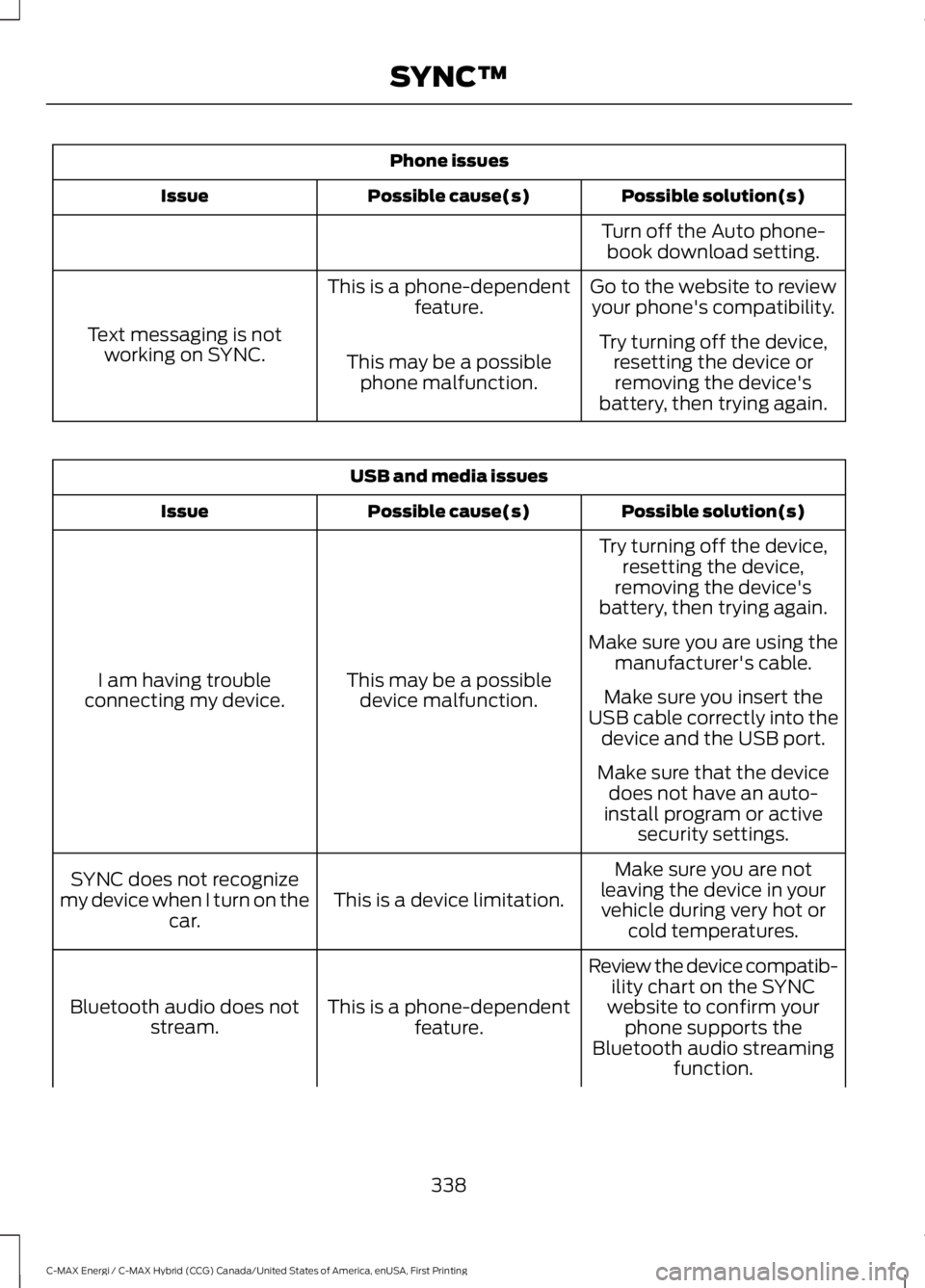
Phone issues
Possible solution(s)Possible cause(s)Issue
Turn off the Auto phone-book download setting.
Go to the website to reviewyour phone's compatibility.This is a phone-dependentfeature.
Text messaging is notworking on SYNC.Try turning off the device,resetting the device orremoving the device'sbattery, then trying again.
This may be a possiblephone malfunction.
USB and media issues
Possible solution(s)Possible cause(s)Issue
Try turning off the device,resetting the device,removing the device'sbattery, then trying again.
This may be a possibledevice malfunction.I am having troubleconnecting my device.
Make sure you are using themanufacturer's cable.
Make sure you insert theUSB cable correctly into thedevice and the USB port.
Make sure that the devicedoes not have an auto-install program or activesecurity settings.
Make sure you are notleaving the device in yourvehicle during very hot orcold temperatures.
This is a device limitation.SYNC does not recognizemy device when I turn on thecar.
Review the device compatib-ility chart on the SYNCwebsite to confirm yourphone supports theBluetooth audio streamingfunction.
This is a phone-dependentfeature.Bluetooth audio does notstream.
338
C-MAX Energi / C-MAX Hybrid (CCG) Canada/United States of America, enUSA, First Printing
SYNC™
Page 344 of 497
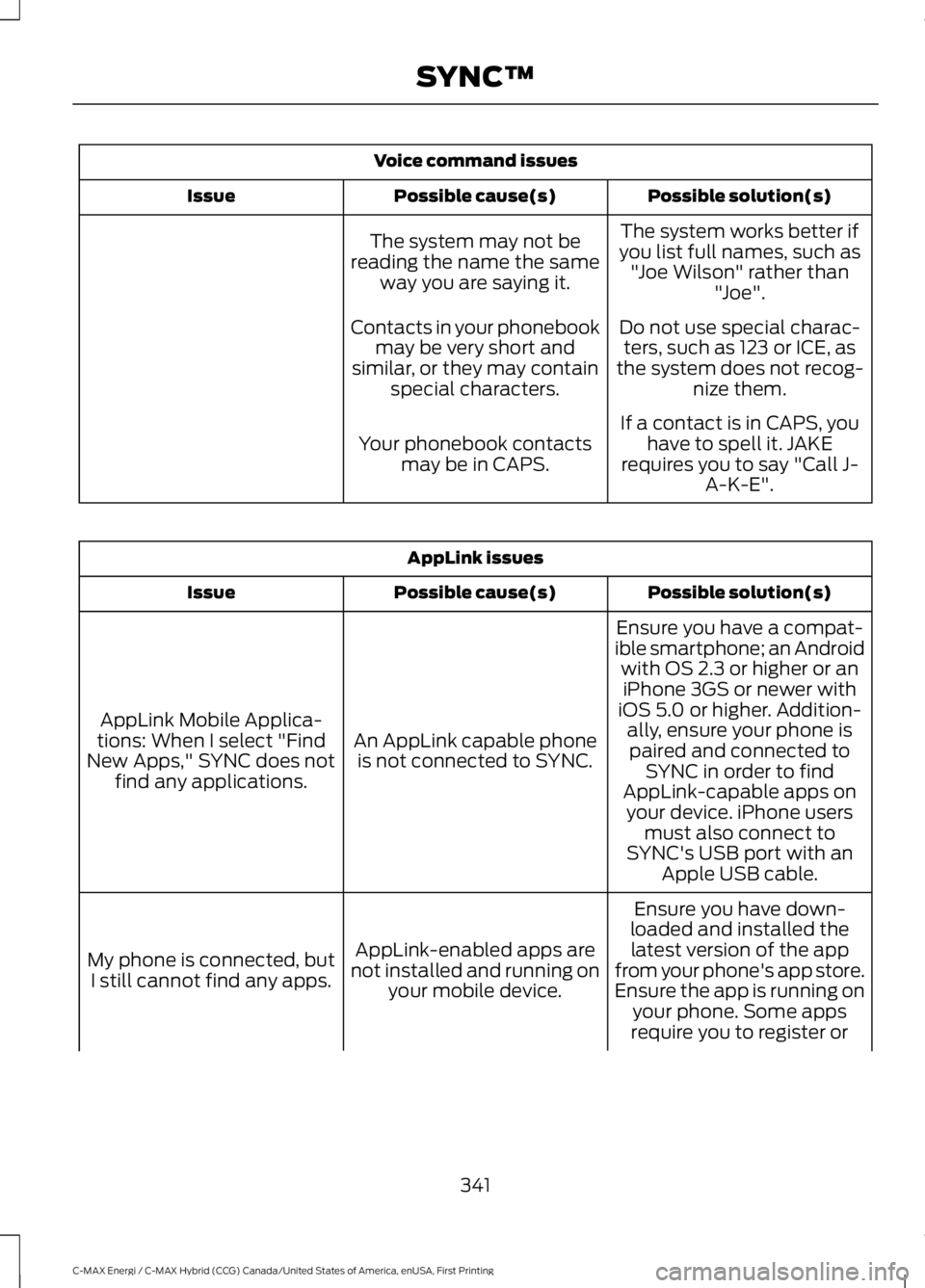
Voice command issues
Possible solution(s)Possible cause(s)Issue
The system works better ifyou list full names, such as"Joe Wilson" rather than"Joe".
The system may not bereading the name the sameway you are saying it.
Do not use special charac-ters, such as 123 or ICE, asthe system does not recog-nize them.
Contacts in your phonebookmay be very short andsimilar, or they may containspecial characters.
If a contact is in CAPS, youhave to spell it. JAKErequires you to say "Call J-A-K-E".
Your phonebook contactsmay be in CAPS.
AppLink issues
Possible solution(s)Possible cause(s)Issue
Ensure you have a compat-ible smartphone; an Androidwith OS 2.3 or higher or aniPhone 3GS or newer withiOS 5.0 or higher. Addition-ally, ensure your phone isAn AppLink capable phoneis not connected to SYNC.
AppLink Mobile Applica-tions: When I select "FindNew Apps," SYNC does notfind any applications.
paired and connected toSYNC in order to findAppLink-capable apps onyour device. iPhone usersmust also connect toSYNC's USB port with anApple USB cable.
Ensure you have down-loaded and installed thelatest version of the appfrom your phone's app store.Ensure the app is running onyour phone. Some apps
AppLink-enabled apps arenot installed and running onyour mobile device.
My phone is connected, butI still cannot find any apps.
require you to register or
341
C-MAX Energi / C-MAX Hybrid (CCG) Canada/United States of America, enUSA, First Printing
SYNC™
Page 346 of 497
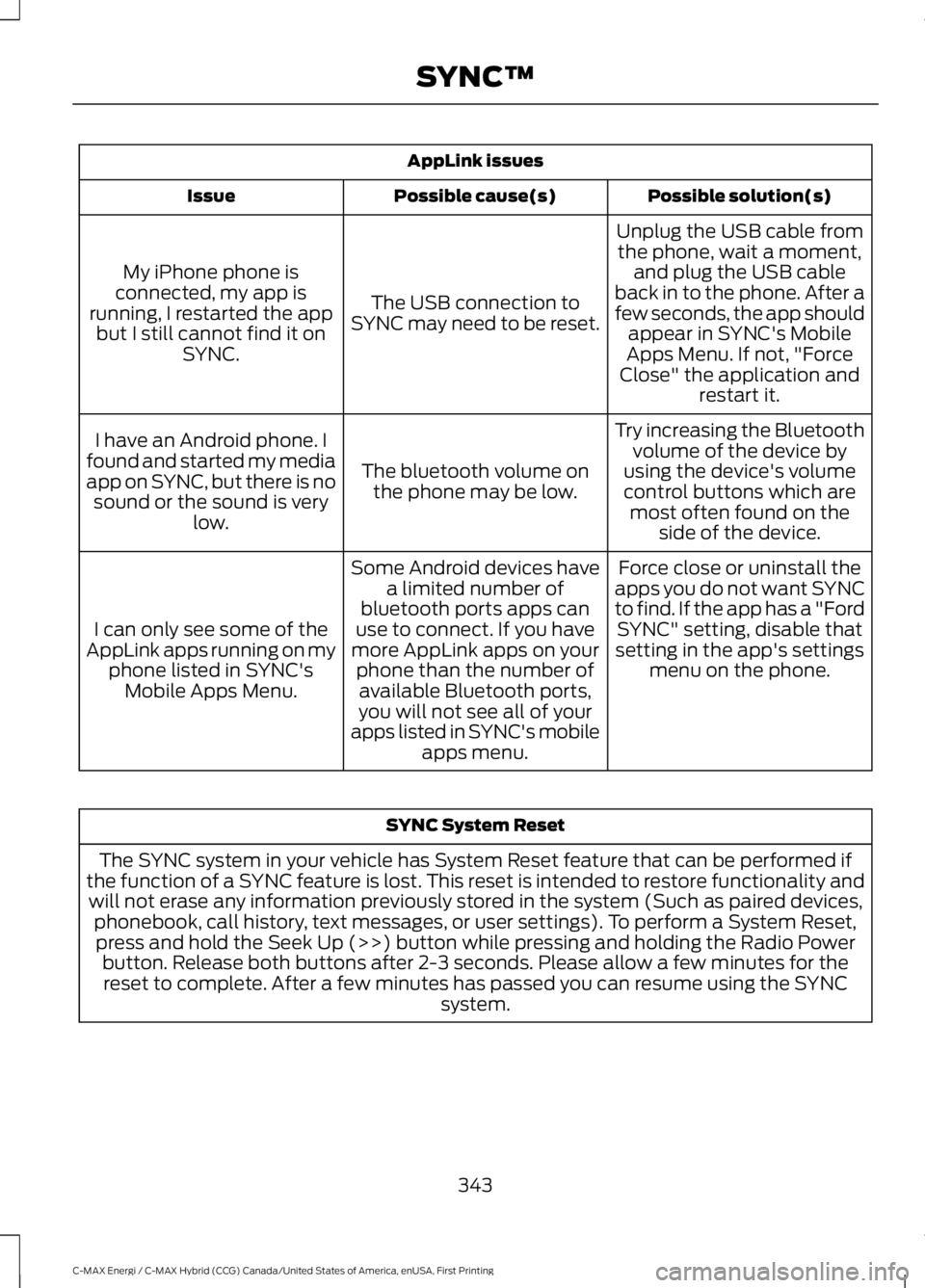
AppLink issues
Possible solution(s)Possible cause(s)Issue
Unplug the USB cable fromthe phone, wait a moment,and plug the USB cableback in to the phone. After afew seconds, the app shouldappear in SYNC's MobileApps Menu. If not, "ForceClose" the application andrestart it.
The USB connection toSYNC may need to be reset.
My iPhone phone isconnected, my app isrunning, I restarted the appbut I still cannot find it onSYNC.
Try increasing the Bluetoothvolume of the device byusing the device's volumecontrol buttons which aremost often found on theside of the device.
The bluetooth volume onthe phone may be low.
I have an Android phone. Ifound and started my mediaapp on SYNC, but there is nosound or the sound is verylow.
Force close or uninstall theapps you do not want SYNCto find. If the app has a "FordSYNC" setting, disable thatsetting in the app's settingsmenu on the phone.
Some Android devices havea limited number ofbluetooth ports apps canuse to connect. If you havemore AppLink apps on yourphone than the number ofavailable Bluetooth ports,you will not see all of yourapps listed in SYNC's mobileapps menu.
I can only see some of theAppLink apps running on myphone listed in SYNC'sMobile Apps Menu.
SYNC System Reset
The SYNC system in your vehicle has System Reset feature that can be performed ifthe function of a SYNC feature is lost. This reset is intended to restore functionality andwill not erase any information previously stored in the system (Such as paired devices,phonebook, call history, text messages, or user settings). To perform a System Reset,press and hold the Seek Up (>>) button while pressing and holding the Radio Powerbutton. Release both buttons after 2-3 seconds. Please allow a few minutes for thereset to complete. After a few minutes has passed you can resume using the SYNCsystem.
343
C-MAX Energi / C-MAX Hybrid (CCG) Canada/United States of America, enUSA, First Printing
SYNC™
Page 358 of 497
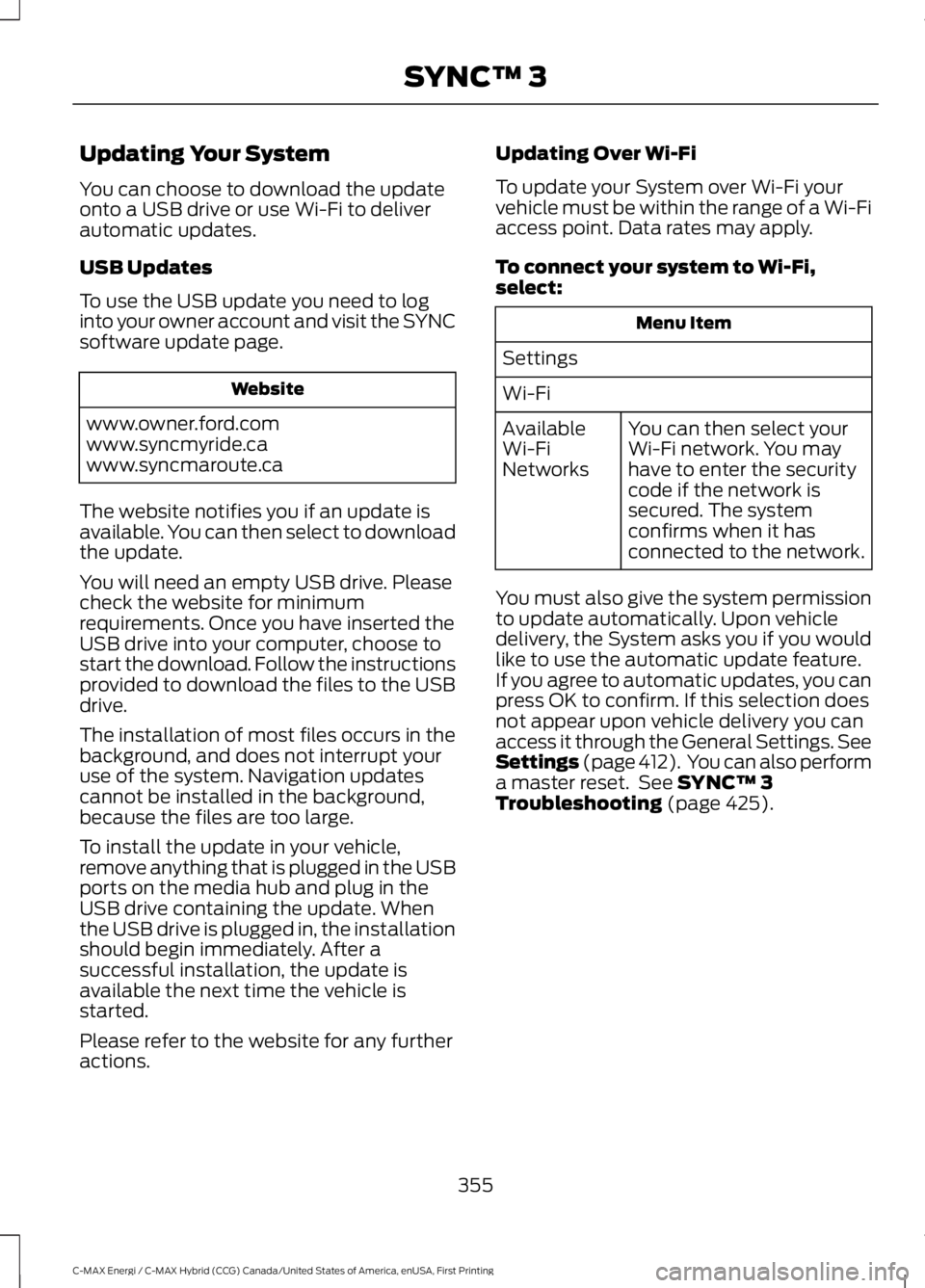
Updating Your System
You can choose to download the updateonto a USB drive or use Wi-Fi to deliverautomatic updates.
USB Updates
To use the USB update you need to loginto your owner account and visit the SYNCsoftware update page.
Website
www.owner.ford.comwww.syncmyride.cawww.syncmaroute.ca
The website notifies you if an update isavailable. You can then select to downloadthe update.
You will need an empty USB drive. Pleasecheck the website for minimumrequirements. Once you have inserted theUSB drive into your computer, choose tostart the download. Follow the instructionsprovided to download the files to the USBdrive.
The installation of most files occurs in thebackground, and does not interrupt youruse of the system. Navigation updatescannot be installed in the background,because the files are too large.
To install the update in your vehicle,remove anything that is plugged in the USBports on the media hub and plug in theUSB drive containing the update. Whenthe USB drive is plugged in, the installationshould begin immediately. After asuccessful installation, the update isavailable the next time the vehicle isstarted.
Please refer to the website for any furtheractions.
Updating Over Wi-Fi
To update your System over Wi-Fi yourvehicle must be within the range of a Wi-Fiaccess point. Data rates may apply.
To connect your system to Wi-Fi,select:
Menu Item
Settings
Wi-Fi
You can then select yourWi-Fi network. You mayhave to enter the securitycode if the network issecured. The systemconfirms when it hasconnected to the network.
AvailableWi-FiNetworks
You must also give the system permissionto update automatically. Upon vehicledelivery, the System asks you if you wouldlike to use the automatic update feature.If you agree to automatic updates, you canpress OK to confirm. If this selection doesnot appear upon vehicle delivery you canaccess it through the General Settings. SeeSettings (page 412). You can also performa master reset. See SYNC™ 3Troubleshooting (page 425).
355
C-MAX Energi / C-MAX Hybrid (CCG) Canada/United States of America, enUSA, First Printing
SYNC™ 3
Page 377 of 497
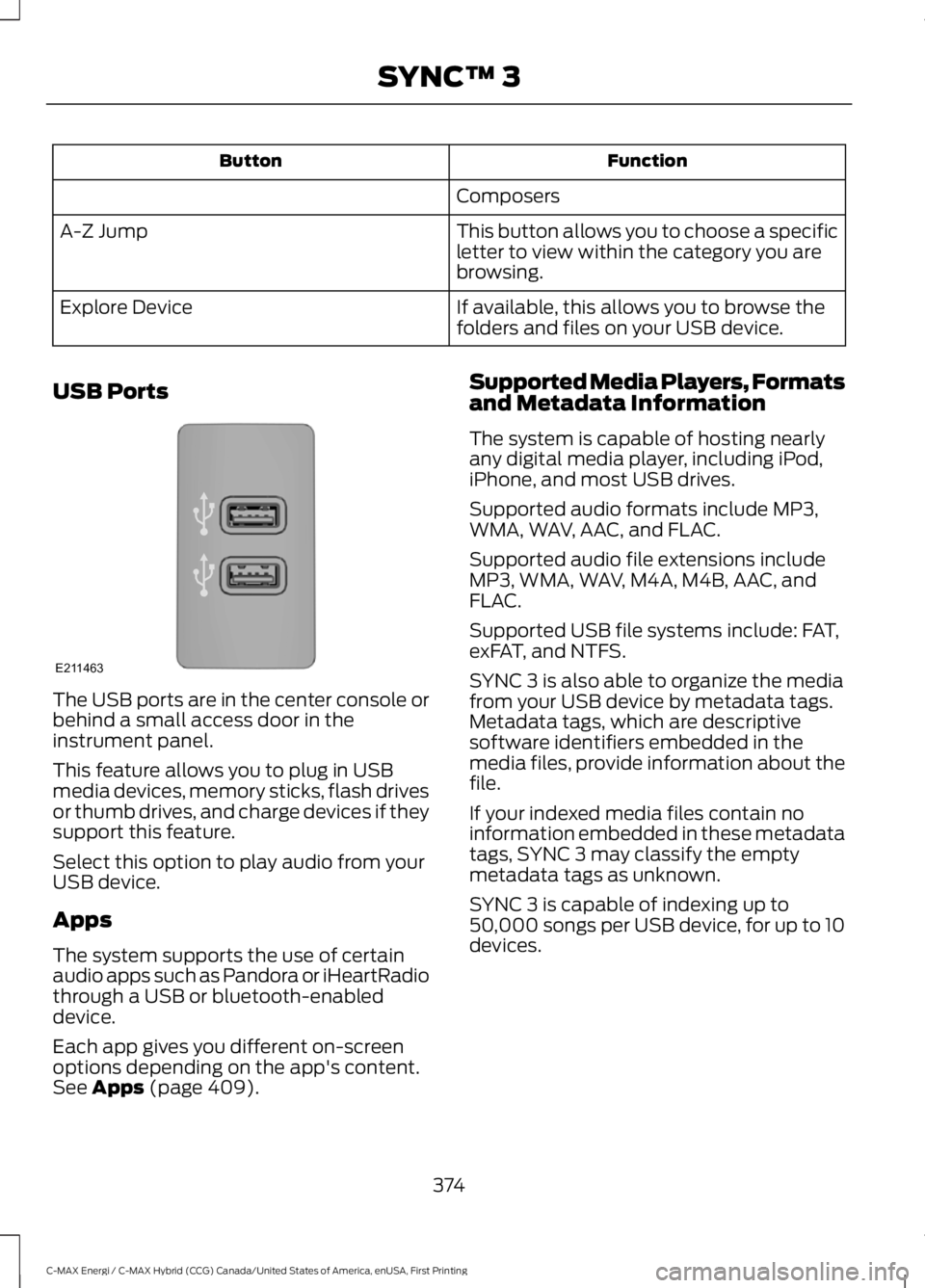
FunctionButton
Composers
This button allows you to choose a specificletter to view within the category you arebrowsing.
A-Z Jump
If available, this allows you to browse thefolders and files on your USB device.Explore Device
USB Ports
The USB ports are in the center console orbehind a small access door in theinstrument panel.
This feature allows you to plug in USBmedia devices, memory sticks, flash drivesor thumb drives, and charge devices if theysupport this feature.
Select this option to play audio from yourUSB device.
Apps
The system supports the use of certainaudio apps such as Pandora or iHeartRadiothrough a USB or bluetooth-enableddevice.
Each app gives you different on-screenoptions depending on the app's content.See Apps (page 409).
Supported Media Players, Formatsand Metadata Information
The system is capable of hosting nearlyany digital media player, including iPod,iPhone, and most USB drives.
Supported audio formats include MP3,WMA, WAV, AAC, and FLAC.
Supported audio file extensions includeMP3, WMA, WAV, M4A, M4B, AAC, andFLAC.
Supported USB file systems include: FAT,exFAT, and NTFS.
SYNC 3 is also able to organize the mediafrom your USB device by metadata tags.Metadata tags, which are descriptivesoftware identifiers embedded in themedia files, provide information about thefile.
If your indexed media files contain noinformation embedded in these metadatatags, SYNC 3 may classify the emptymetadata tags as unknown.
SYNC 3 is capable of indexing up to50,000 songs per USB device, for up to 10devices.
374
C-MAX Energi / C-MAX Hybrid (CCG) Canada/United States of America, enUSA, First Printing
SYNC™ 3E211463
Page 382 of 497
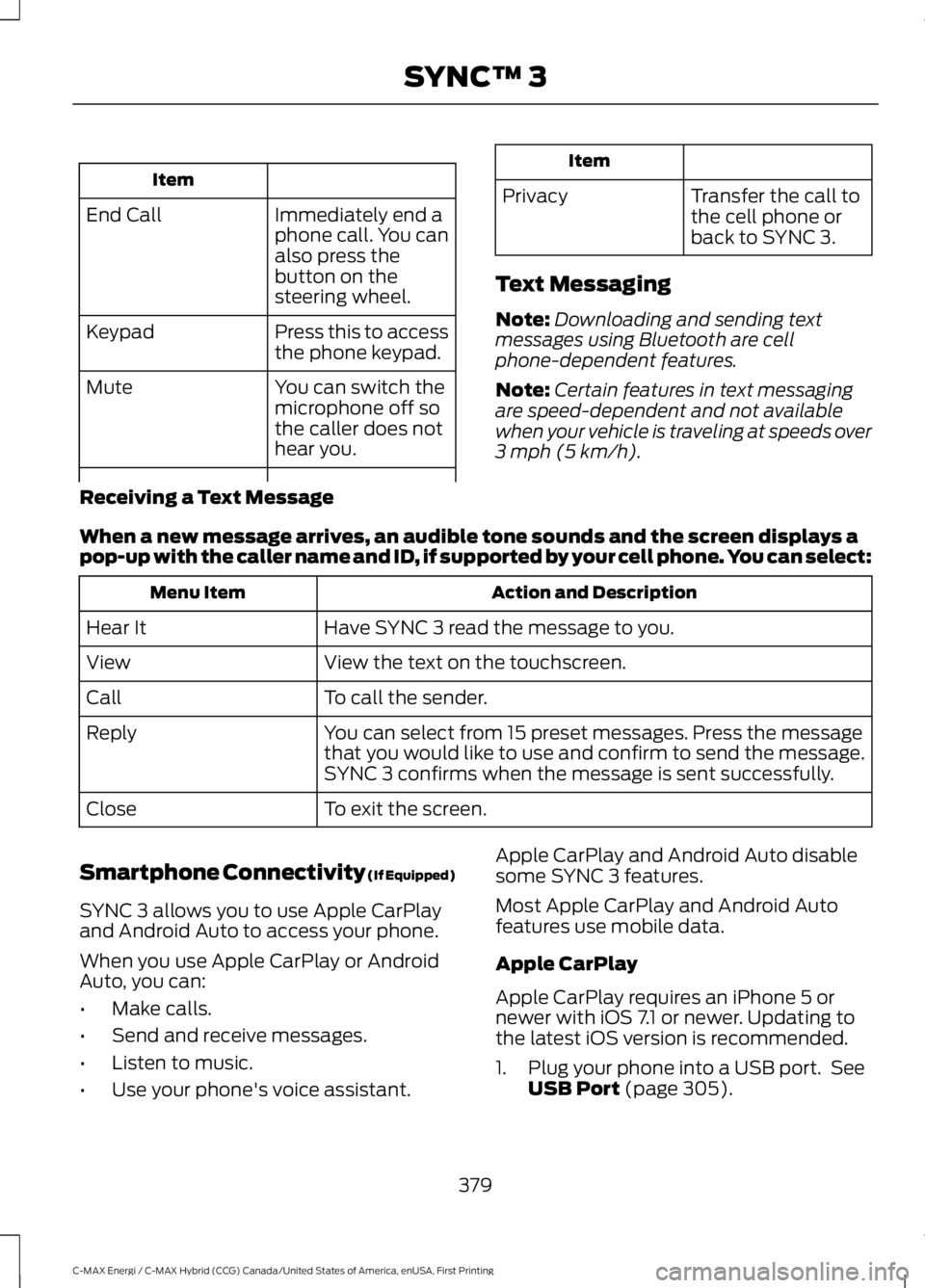
Item
Immediately end aphone call. You canalso press thebutton on thesteering wheel.
End Call
Press this to accessthe phone keypad.Keypad
You can switch themicrophone off sothe caller does nothear you.
Mute
Item
PrivacyTransfer the call tothe cell phone orback to SYNC 3.
Text Messaging
Note:Downloading and sending textmessages using Bluetooth are cellphone-dependent features.
Note:Certain features in text messagingare speed-dependent and not availablewhen your vehicle is traveling at speeds over3 mph (5 km/h).
Receiving a Text Message
When a new message arrives, an audible tone sounds and the screen displays apop-up with the caller name and ID, if supported by your cell phone. You can select:
Action and DescriptionMenu Item
Have SYNC 3 read the message to you.Hear It
View the text on the touchscreen.View
To call the sender.Call
You can select from 15 preset messages. Press the messagethat you would like to use and confirm to send the message.SYNC 3 confirms when the message is sent successfully.
Reply
To exit the screen.Close
Smartphone Connectivity (If Equipped)
SYNC 3 allows you to use Apple CarPlayand Android Auto to access your phone.
When you use Apple CarPlay or AndroidAuto, you can:
•Make calls.
•Send and receive messages.
•Listen to music.
•Use your phone's voice assistant.
Apple CarPlay and Android Auto disablesome SYNC 3 features.
Most Apple CarPlay and Android Autofeatures use mobile data.
Apple CarPlay
Apple CarPlay requires an iPhone 5 ornewer with iOS 7.1 or newer. Updating tothe latest iOS version is recommended.
1. Plug your phone into a USB port. SeeUSB Port (page 305).
379
C-MAX Energi / C-MAX Hybrid (CCG) Canada/United States of America, enUSA, First Printing
SYNC™ 3
Page 383 of 497
2. Select Apple CarPlay on thetouchscreen.
To disable this feature from theSettings screen, select:
Menu Item
Apple CarPlay Preferences
Your device is listed if SYNC detectsApple CarPlay. Select the name of yourdevice and select:
Disable
To return to SYNC 3, go to the AppleCarPlay home screen and select the SYNCapp.
Note:Contact Apple for Apple CarPlaysupport.
Android Auto
Android Auto is compatible with mostdevices with Android 5.0 or newer.
1. Download the Android Auto app toyour device from Google Play toprepare your device (this may requiremobile data usage).
Note:The Android Auto App may not beavailable within your current market.
2. To switch this feature on from theSettings screen, scroll left on thescreen and select:
Menu Item
Android Auto Preferences
Enable Android Auto
Note:Android Auto must be switched onprior to plugging your device.
You can then plug your device into a USBport. See USB Port (page 305).
To disable this feature from theSettings screen, select:
Menu Item
Android Auto Preferences
Your device is listed if SYNC detectsAndroid Auto. Select the name of yourdevice and select:
Disable
Note:You may need to slide your Settingsscreen to the left to select Apple CarPlayPreferences or Android Auto Preferences.
To return to SYNC 3, select thespeedometer icon in the Android Automenu bar at the bottom of thetouchscreen, and then touch the option toreturn to SYNC.
Note:Contact Google for Android Autosupport.
NAVIGATION (If Equipped)
Your navigation system is comprised oftwo main features, destination mode andmap mode.
Map Mode
Map mode shows advanced viewingcomprised of 2D city maps, 3D landmarksand 3D city models (when available). 2Dcity maps show detailed outlines ofbuildings, visible land use, landscapefeatures, and detailed railroadinfrastructure for the most essential citiesaround the globe.
3D landmarks appear as clear, visibleobjects that are typically recognizable andhave a certain tourism value.
380
C-MAX Energi / C-MAX Hybrid (CCG) Canada/United States of America, enUSA, First Printing
SYNC™ 3
Page 413 of 497
Note:You must pair and connect yoursmartphone via Bluetooth to SYNC 3 toaccess AppLink.
Note:iPhone users need to connect thephone to the USB port.
Note:For information on available apps,supported smartphone devices andtroubleshooting tips please visit:
Websites
owner.ford.comwww.syncmyride.cawww.syncmaroute.ca
Note:Make sure you have an active accountfor the app that you have downloaded.Some apps will work automatically with nosetup. Other apps will want you to configureyour personal settings and personalize yourexperience by creating stations or favorites.We recommend you do this at home oroutside of your vehicle.
Note:We encourage you to review thesmartphone app’s terms of service andprivacy policies because Ford is notresponsible for your app or its use of data.
Note:AppLink is a native SYNC systemfeature. Accessing mobile apps throughAppLink is only possible when Android Autoor Apple CarPlay are disabled. Some appsmay only be accessible in the car throughApplink and others only through AndroidAuto or Apple CarPlay. Please refer to theSmartphone Connectivity information todisable Android Auto or Apple CarPlay.
Note:In order to use an app with SYNC 3,the App needs to be running in thebackground of your phone. If you shut downthe app on your phone, it shuts down theapp on SYNC 3 as well.
Note:If a SYNC 3 AppLink compatible appis not shown in the Apps Domain, make surethe required app is running on the mobiledevice.
Action and Descrip-tionMenu Item
SYNC 3 will searchand connect tocompatible app(s)running on yourmobile device.
Connect MobileApps
Enabling SYNC 3 Mobile Apps
In order to enable mobile apps, SYNC 3requires user consent to send and receiveapp authorization information and updatesusing the data plan associated with theconnected device.
The connected device sends data to Fordin the United States. The information isencrypted and includes your VIN, SYNC 3module number, odometer, usagestatistics and debugging information. Weretain this data for only as long asnecessary to provide this service,troubleshoot, and improve products andservices and to offer you products andservices that may interest you whereallowed by law.
Note:You must enable mobile apps foreach connected device the first time youselect a mobile app using the system.
Note:Ford reserves the right to limitfunctionality or deactivate mobile apps atany time.
Note:Standard data rates apply. Ford isnot responsible for any additional chargesyou may receive from your service provider,when your vehicle sends or receives datathrough the connected device. This includesany additional charges incurred due todriving in areas when roaming out of a homenetwork.
You can enable and disable apps throughsettings. See Settings (page 412).
410
C-MAX Energi / C-MAX Hybrid (CCG) Canada/United States of America, enUSA, First Printing
SYNC™ 3