fuel FORD C MAX ENERGI 2017 Repair Manual
[x] Cancel search | Manufacturer: FORD, Model Year: 2017, Model line: C MAX ENERGI, Model: FORD C MAX ENERGI 2017Pages: 497, PDF Size: 7.64 MB
Page 355 of 497
![FORD C MAX ENERGI 2017 Repair Manual If a crash deploys an airbag (excludingknee airbags and rear inflatable safetybelts [if equipped]) or activates the fuelpump shut-off, your SYNC-equippedvehicle may be able to contact emergencyservice](/img/11/58728/w960_58728-354.png "FORD C MAX ENERGI 2017 Repair Manual If a crash deploys an airbag (excludingknee airbags and rear inflatable safetybelts [if equipped]) or activates the fuelpump shut-off, your SYNC-equippedvehicle may be able to contact emergencyservice")
If a crash deploys an airbag (excludingknee airbags and rear inflatable safetybelts [if equipped]) or activates the fuelpump shut-off, your SYNC-equippedvehicle may be able to contact emergencyservices by dialing 911 through a paired andconnected Bluetooth-enabled phone. Youcan learn more about the 911 Assistfeature, by visiting:
Website
www.owner.ford.comwww.syncmyride.cawww.syncmaroute.ca
For important information about airbagdeployment and the fuel pump shut-offplease see the Supplementary Restrainsand Roadside Emergencies sections ofyour owner manual.
To switch 911 Assist on and off please viewthe settings information. See Settings(page 412).
To make sure that 911 Assist workscorrectly:
•SYNC must be powered and workingproperly at the time of the incident andthroughout feature activation and use.
•The 911 Assist feature must be set onbefore the incident.
•You must pair and connect aBluetooth-enabled and compatiblecell phone to SYNC.
•A connected Bluetooth-enabled phonemust have the ability to make andmaintain an outgoing call at the timeof the incident.
•A connected Bluetooth-enabled phonemust have adequate network coverage,battery power and signal strength.
•The vehicle must have battery powerand be located in the U.S., Canada orin a territory in which 911 is theemergency number.
In the Event of a Crash
Not all crashes will deploy an airbag oractivate the fuel pump shut-off (thetriggers for 911 Assist). If a connected cellphone sustains damage or loses itsconnection to SYNC during a crash, SYNCwill search for and try to connect to apreviously paired cell phone; SYNC willthen attempt to call the emergencyservices.
Before making the call:
•SYNC provides a short window of time(about 10 seconds) to cancel the call.If you fail to cancel the call, SYNCattempts to dial 911.
•SYNC says the following, or a similarmessage: "SYNC will attempt to call911, to cancel the call, press Cancel onyour screen or press and hold thephone button on your steering wheel."
If you do not cancel the call, and SYNCmakes a successful call, a pre-recordedmessage plays for the 911 operator, andthen the occupant(s) in your vehicle is ableto talk with the operator. Be prepared toprovide your name, phone number andlocation immediately, because not all 911systems are capable of receiving thisinformation electronically.
911 Assist May Not Work If
•Your cellular phone or 911 Assisthardware sustains damage in a crash.
•The vehicle's battery or the SYNCsystem has no power.
•The phone(s) thrown from your vehicleare the ones paired and connected tothe system.
352
C-MAX Energi / C-MAX Hybrid (CCG) Canada/United States of America, enUSA, First Printing
SYNC™ 3
Page 356 of 497
911 Assist Privacy Notice
When you switch on 911 Assist, it maydisclose to emergency services that yourvehicle has been in a crash involving thedeployment of an airbag or activation ofthe fuel pump shut-off. Certain versions orupdates to 911 Assist may also be capableof electronically or verbally disclosing to911 operators your vehicle location or otherdetails about your vehicle or crash to assist911 operators to provide the mostappropriate emergency services. If you donot want to disclose this information, donot switch the feature on.
Safety Information
WARNING
Driving while distracted can result inloss of vehicle control, crash andinjury. We strongly recommend thatyou use extreme caution when using anydevice that may take your focus off theroad. Your primary responsibility is the safeoperation of your vehicle. We recommendagainst the use of any hand-held devicewhile driving and encourage the use ofvoice-operated systems when possible.Make sure you are aware of all applicablelocal laws that may affect the use ofelectronic devices while driving.
•Do not attempt to service or repair thesystem. Have an authorized dealercheck your vehicle.
•Do not operate playing devices if thepower cords or cables are broken, splitor damaged. Place cords and cablesout of the way, so they do not interferewith the operation of pedals, seats,compartments or safe driving abilities.
•Do not leave playing devices in yourvehicle during extreme conditions as itcould cause them damage. See yourdevice's user guide for furtherinformation.
•For your safety, some SYNC 3 functionsare speed-dependent. Their use islimited to when your vehicle is travelingat speeds under 3 mph (5 km/h). Makesure that you review your device'smanual before using it with SYNC 3.
Speed-restricted Features
Some features of this system may be toodifficult to use while your vehicle is movingso they are restricted from use unless yourvehicle is stationary.
•Screens crowded with information,such as Point of Interest reviews andratings, SiriusXM Traffic and Travel Linksports scores, movie times or skiconditions.
•Any action that requires you to use akeyboard is restricted, such as enteringa navigation destination or editinginformation.
•All lists are limited so the user can viewfewer entries (such as phone contactsor recent phone call entries).
See the following chart for more specificexamples.
353
C-MAX Energi / C-MAX Hybrid (CCG) Canada/United States of America, enUSA, First Printing
SYNC™ 3
Page 366 of 497
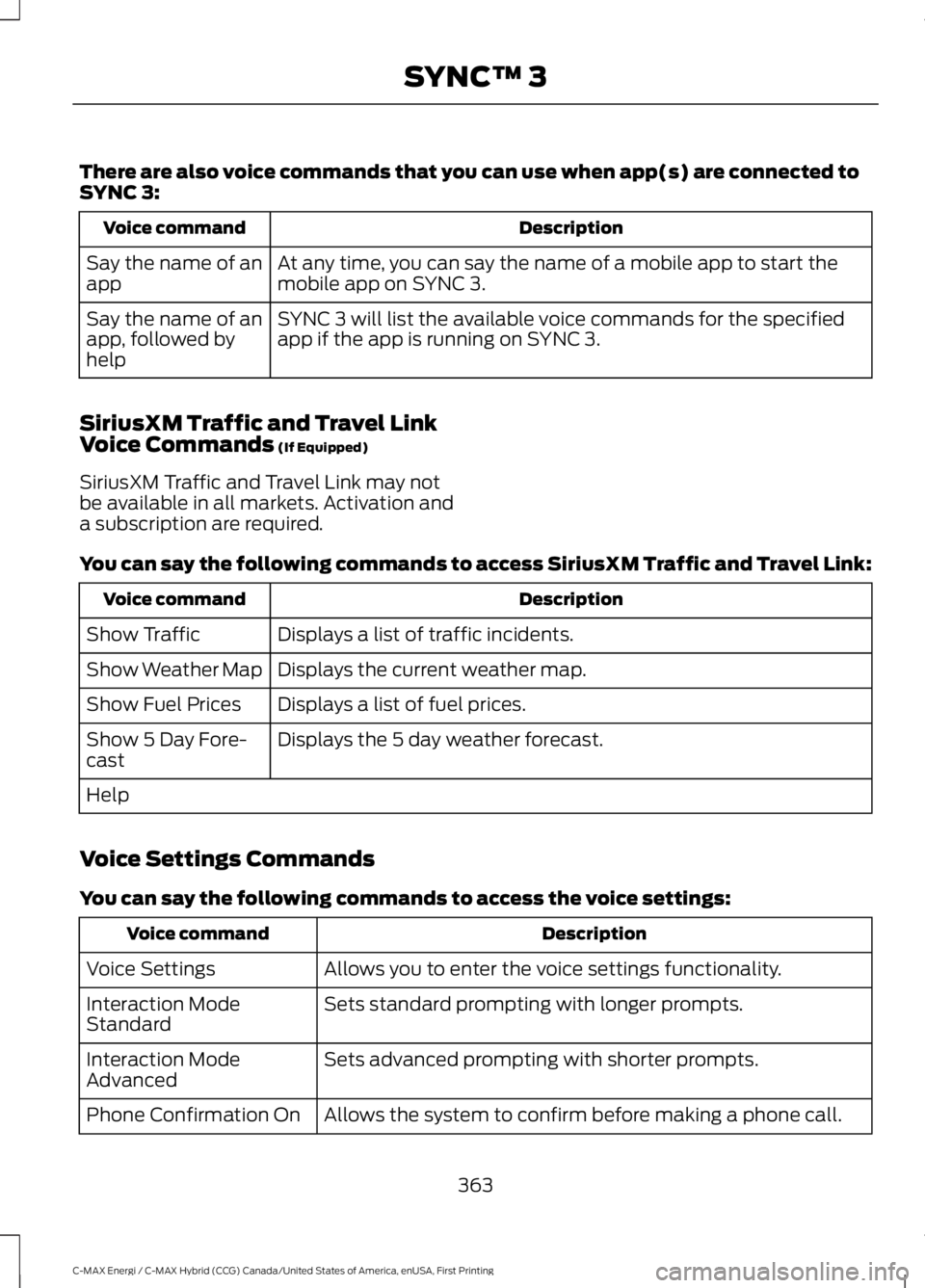
There are also voice commands that you can use when app(s) are connected toSYNC 3:
DescriptionVoice command
At any time, you can say the name of a mobile app to start themobile app on SYNC 3.Say the name of anapp
SYNC 3 will list the available voice commands for the specifiedapp if the app is running on SYNC 3.Say the name of anapp, followed byhelp
SiriusXM Traffic and Travel LinkVoice Commands (If Equipped)
SiriusXM Traffic and Travel Link may notbe available in all markets. Activation anda subscription are required.
You can say the following commands to access SiriusXM Traffic and Travel Link:
DescriptionVoice command
Displays a list of traffic incidents.Show Traffic
Displays the current weather map.Show Weather Map
Displays a list of fuel prices.Show Fuel Prices
Displays the 5 day weather forecast.Show 5 Day Fore-cast
Help
Voice Settings Commands
You can say the following commands to access the voice settings:
DescriptionVoice command
Allows you to enter the voice settings functionality.Voice Settings
Sets standard prompting with longer prompts.Interaction ModeStandard
Sets advanced prompting with shorter prompts.Interaction ModeAdvanced
Allows the system to confirm before making a phone call.Phone Confirmation On
363
C-MAX Energi / C-MAX Hybrid (CCG) Canada/United States of America, enUSA, First Printing
SYNC™ 3
Page 384 of 497
3D city models are complete 3D modelsof entire city areas including navigableroads, parks, rivers and rendered buildings.3D landmarks and city models appear in3D map mode only. Coverage of thesevaries and improves with updated mapreleases.
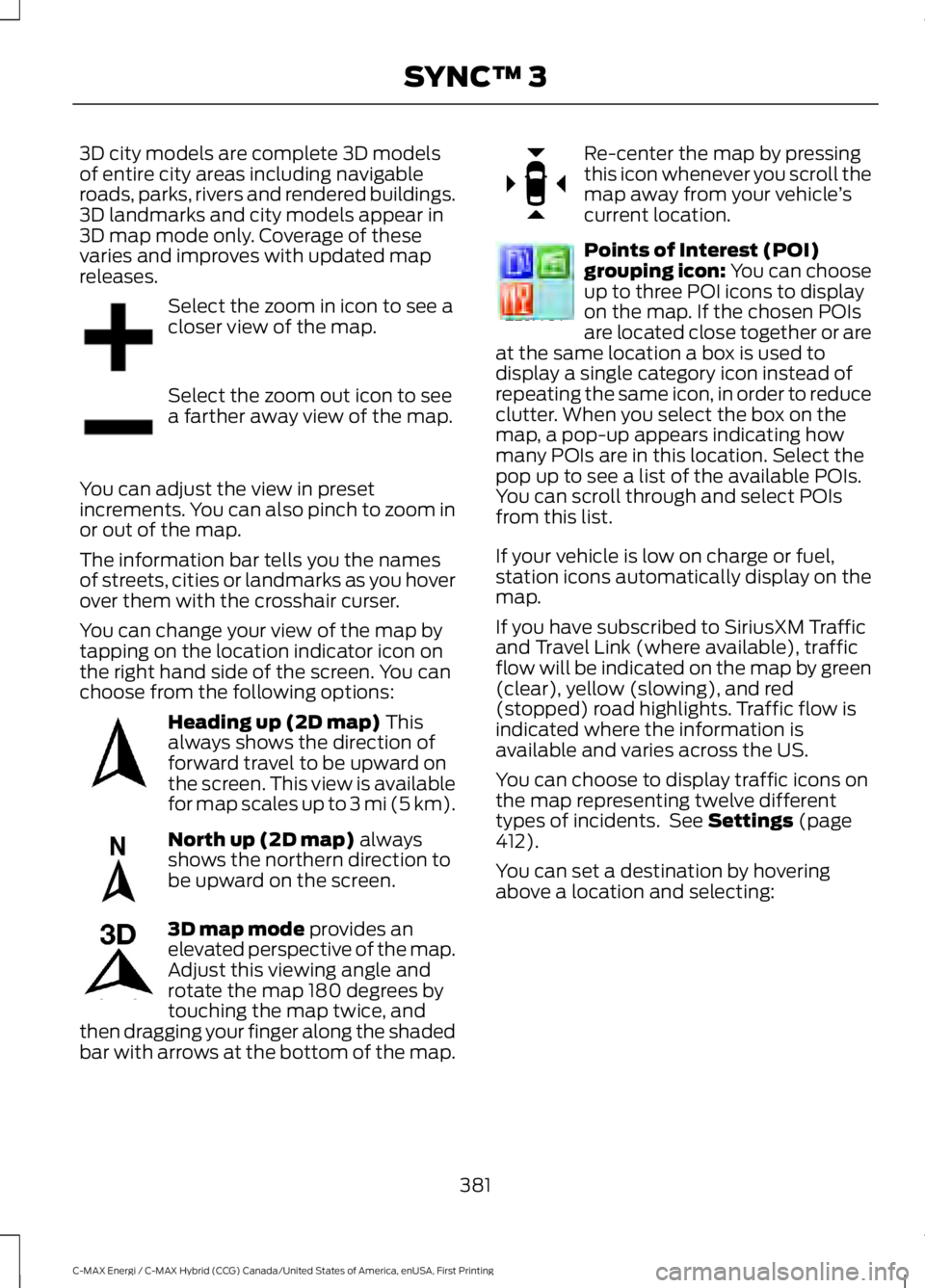
Select the zoom in icon to see acloser view of the map.
Select the zoom out icon to seea farther away view of the map.
You can adjust the view in presetincrements. You can also pinch to zoom inor out of the map.
The information bar tells you the namesof streets, cities or landmarks as you hoverover them with the crosshair curser.
You can change your view of the map bytapping on the location indicator icon onthe right hand side of the screen. You canchoose from the following options:
Heading up (2D map) Thisalways shows the direction offorward travel to be upward onthe screen. This view is availablefor map scales up to 3 mi (5 km).
North up (2D map) alwaysshows the northern direction tobe upward on the screen.
3D map mode provides anelevated perspective of the map.Adjust this viewing angle androtate the map 180 degrees bytouching the map twice, andthen dragging your finger along the shadedbar with arrows at the bottom of the map.
Re-center the map by pressingthis icon whenever you scroll themap away from your vehicle’scurrent location.
Points of Interest (POI)grouping icon: You can chooseup to three POI icons to displayon the map. If the chosen POIsare located close together or areat the same location a box is used todisplay a single category icon instead ofrepeating the same icon, in order to reduceclutter. When you select the box on themap, a pop-up appears indicating howmany POIs are in this location. Select thepop up to see a list of the available POIs.You can scroll through and select POIsfrom this list.
If your vehicle is low on charge or fuel,station icons automatically display on themap.
If you have subscribed to SiriusXM Trafficand Travel Link (where available), trafficflow will be indicated on the map by green(clear), yellow (slowing), and red(stopped) road highlights. Traffic flow isindicated where the information isavailable and varies across the US.
You can choose to display traffic icons onthe map representing twelve differenttypes of incidents. See Settings (page412).
You can set a destination by hoveringabove a location and selecting:
381
C-MAX Energi / C-MAX Hybrid (CCG) Canada/United States of America, enUSA, First Printing
SYNC™ 3E207752 E207753 E207750 E207749 E207748 E207751 E207754
Page 387 of 497
DescriptionMenu Item
These locations cannot be deleted individually. To delete them,preform a master reset. See SYNC™ 3 Troubleshooting (page 425).
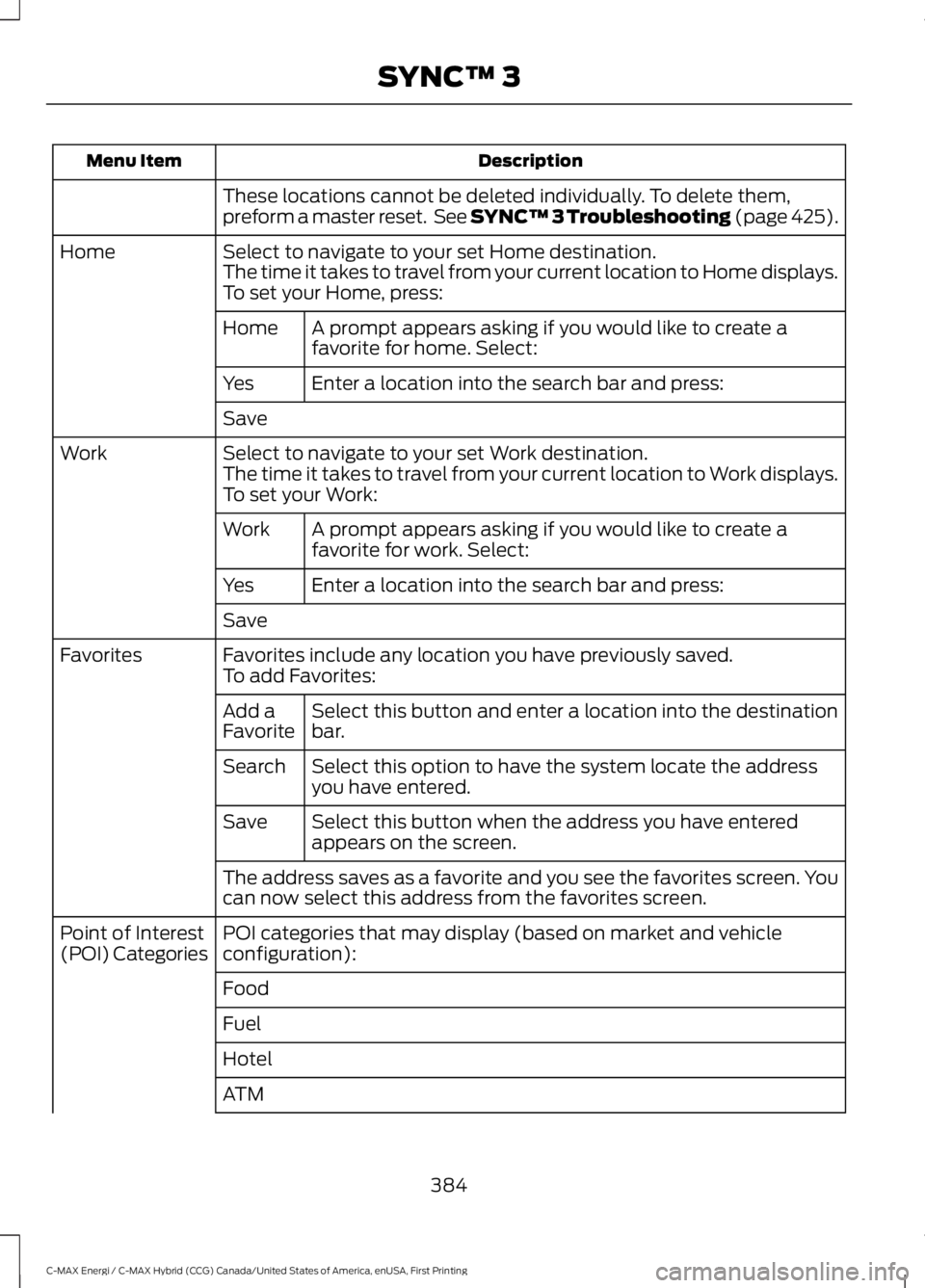
Select to navigate to your set Home destination.HomeThe time it takes to travel from your current location to Home displays.To set your Home, press:
A prompt appears asking if you would like to create afavorite for home. Select:Home
Enter a location into the search bar and press:Yes
Save
Select to navigate to your set Work destination.WorkThe time it takes to travel from your current location to Work displays.To set your Work:
A prompt appears asking if you would like to create afavorite for work. Select:Work
Enter a location into the search bar and press:Yes
Save
Favorites include any location you have previously saved.FavoritesTo add Favorites:
Select this button and enter a location into the destinationbar.Add aFavorite
Select this option to have the system locate the addressyou have entered.Search
Select this button when the address you have enteredappears on the screen.Save
The address saves as a favorite and you see the favorites screen. Youcan now select this address from the favorites screen.
POI categories that may display (based on market and vehicleconfiguration):Point of Interest(POI) Categories
Food
Fuel
Hotel
ATM
384
C-MAX Energi / C-MAX Hybrid (CCG) Canada/United States of America, enUSA, First Printing
SYNC™ 3
Page 388 of 497
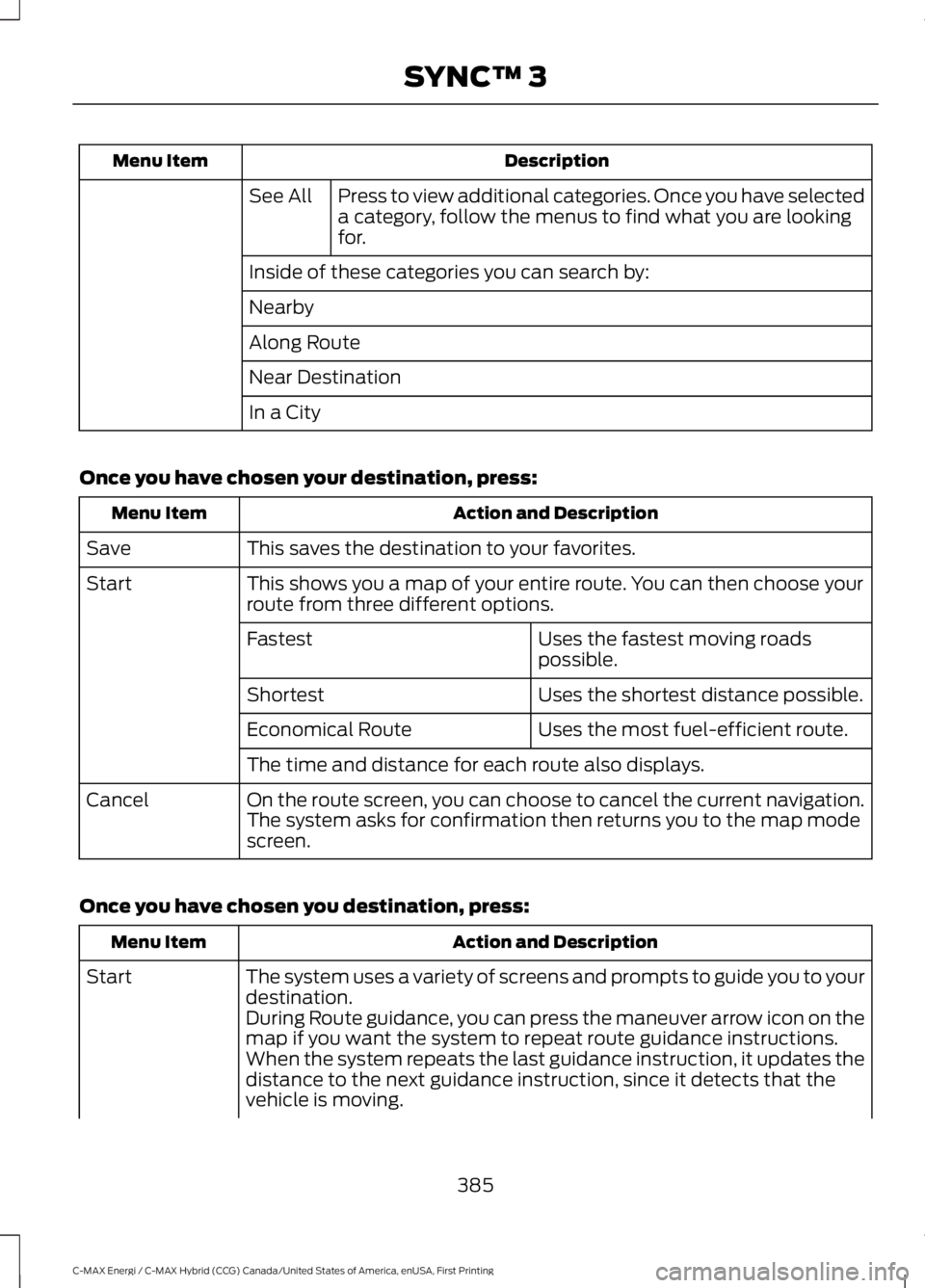
DescriptionMenu Item
Press to view additional categories. Once you have selecteda category, follow the menus to find what you are lookingfor.
See All
Inside of these categories you can search by:
Nearby
Along Route
Near Destination
In a City
Once you have chosen your destination, press:
Action and DescriptionMenu Item
This saves the destination to your favorites.Save
This shows you a map of your entire route. You can then choose yourroute from three different options.Start
Uses the fastest moving roadspossible.Fastest
Uses the shortest distance possible.Shortest
Uses the most fuel-efficient route.Economical Route
The time and distance for each route also displays.
On the route screen, you can choose to cancel the current navigation.The system asks for confirmation then returns you to the map modescreen.
Cancel
Once you have chosen you destination, press:
Action and DescriptionMenu Item
The system uses a variety of screens and prompts to guide you to yourdestination.Start
During Route guidance, you can press the maneuver arrow icon on themap if you want the system to repeat route guidance instructions.When the system repeats the last guidance instruction, it updates thedistance to the next guidance instruction, since it detects that thevehicle is moving.
385
C-MAX Energi / C-MAX Hybrid (CCG) Canada/United States of America, enUSA, First Printing
SYNC™ 3
Page 389 of 497
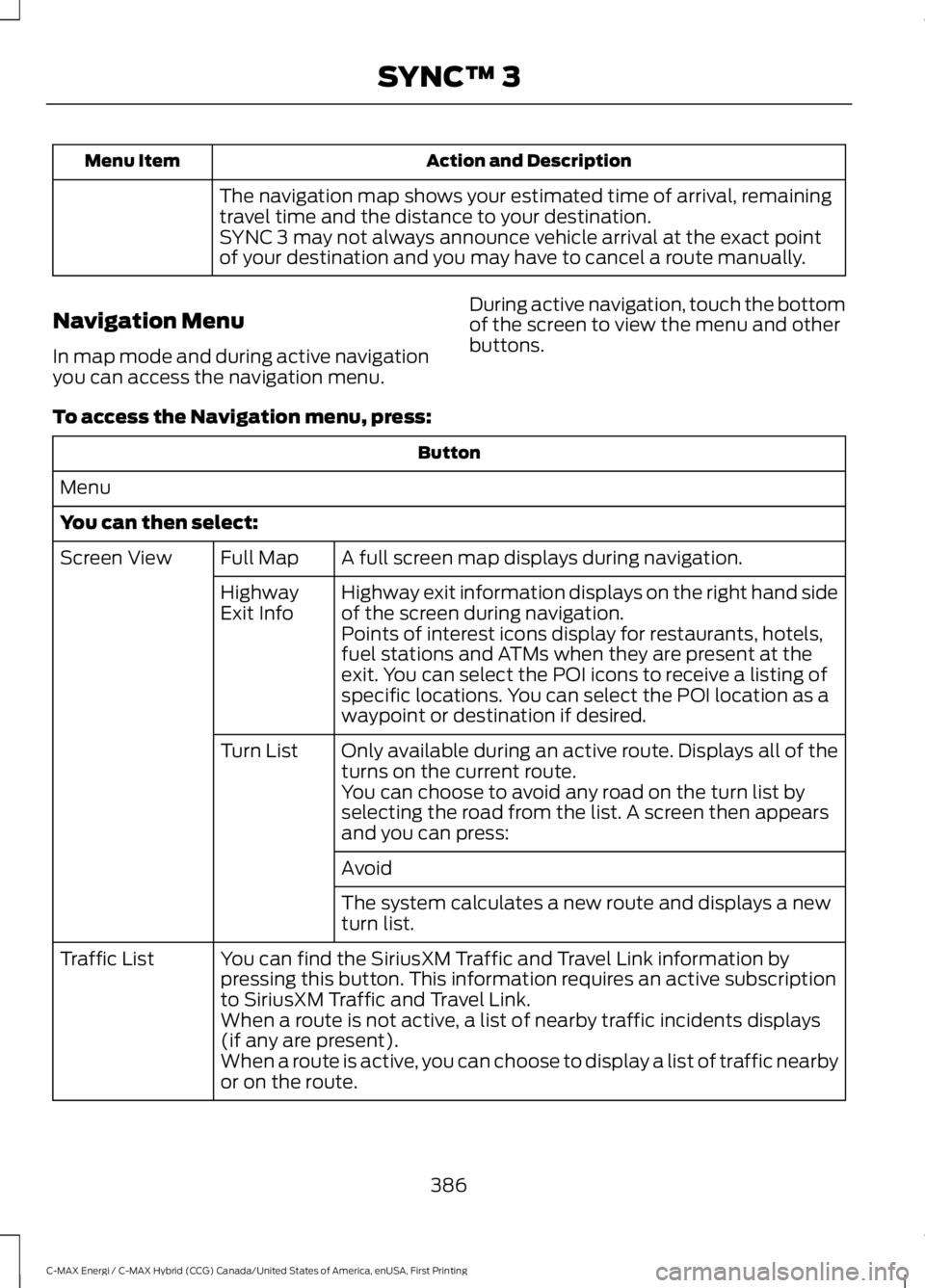
Action and DescriptionMenu Item
The navigation map shows your estimated time of arrival, remainingtravel time and the distance to your destination.SYNC 3 may not always announce vehicle arrival at the exact pointof your destination and you may have to cancel a route manually.
Navigation Menu
In map mode and during active navigationyou can access the navigation menu.
During active navigation, touch the bottomof the screen to view the menu and otherbuttons.
To access the Navigation menu, press:
Button
Menu
You can then select:
A full screen map displays during navigation.Full MapScreen View
Highway exit information displays on the right hand sideof the screen during navigation.HighwayExit InfoPoints of interest icons display for restaurants, hotels,fuel stations and ATMs when they are present at theexit. You can select the POI icons to receive a listing ofspecific locations. You can select the POI location as awaypoint or destination if desired.
Only available during an active route. Displays all of theturns on the current route.Turn List
You can choose to avoid any road on the turn list byselecting the road from the list. A screen then appearsand you can press:
Avoid
The system calculates a new route and displays a newturn list.
You can find the SiriusXM Traffic and Travel Link information bypressing this button. This information requires an active subscriptionto SiriusXM Traffic and Travel Link.
Traffic List
When a route is not active, a list of nearby traffic incidents displays(if any are present).When a route is active, you can choose to display a list of traffic nearbyor on the route.
386
C-MAX Energi / C-MAX Hybrid (CCG) Canada/United States of America, enUSA, First Printing
SYNC™ 3
Page 410 of 497
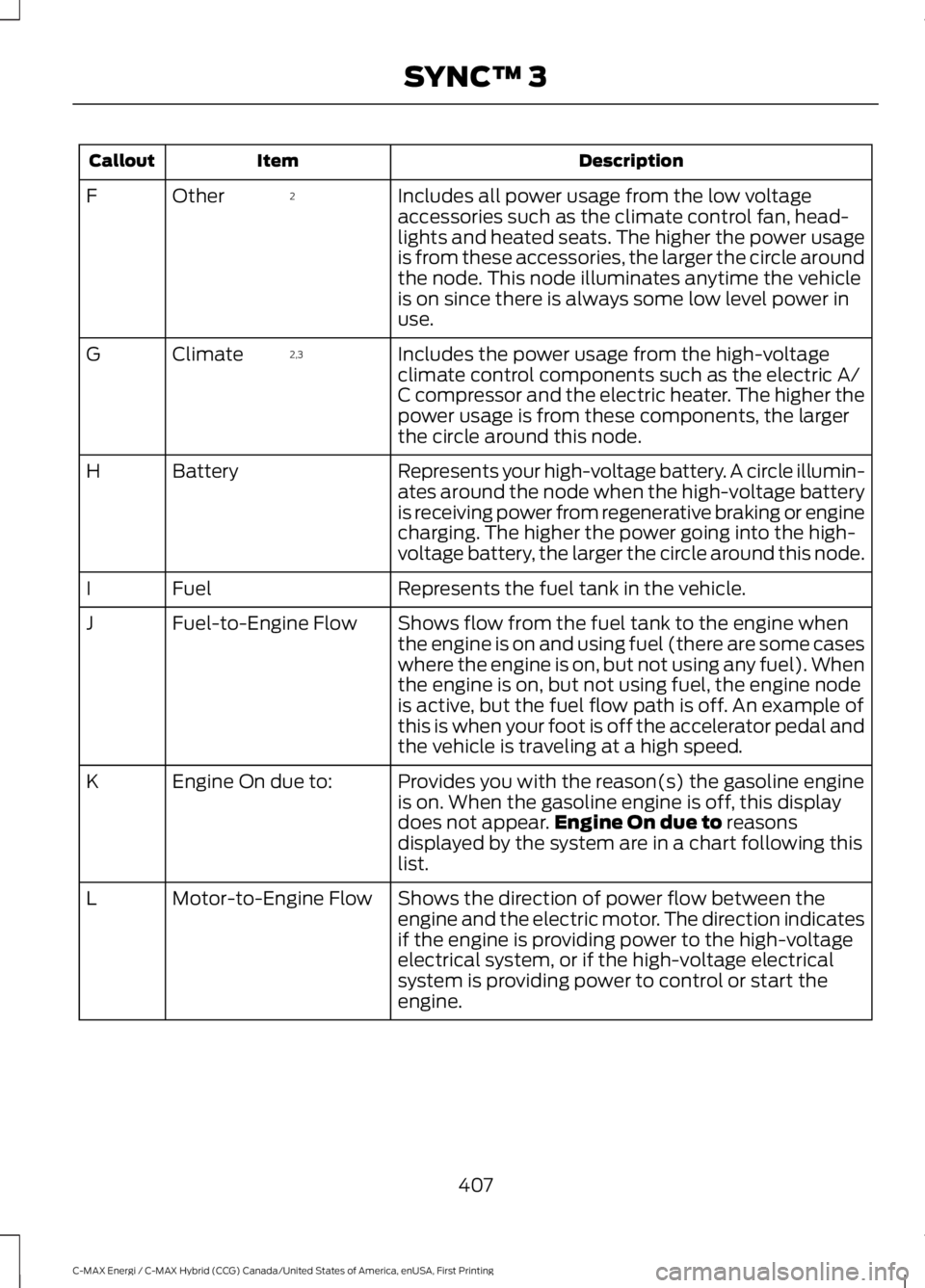
DescriptionItemCallout
Includes all power usage from the low voltageaccessories such as the climate control fan, head-lights and heated seats. The higher the power usageis from these accessories, the larger the circle aroundthe node. This node illuminates anytime the vehicleis on since there is always some low level power inuse.
2OtherF
Includes the power usage from the high-voltageclimate control components such as the electric A/C compressor and the electric heater. The higher thepower usage is from these components, the largerthe circle around this node.
2,3ClimateG
Represents your high-voltage battery. A circle illumin-ates around the node when the high-voltage batteryis receiving power from regenerative braking or enginecharging. The higher the power going into the high-voltage battery, the larger the circle around this node.
BatteryH
Represents the fuel tank in the vehicle.FuelI
Shows flow from the fuel tank to the engine whenthe engine is on and using fuel (there are some caseswhere the engine is on, but not using any fuel). Whenthe engine is on, but not using fuel, the engine nodeis active, but the fuel flow path is off. An example ofthis is when your foot is off the accelerator pedal andthe vehicle is traveling at a high speed.
Fuel-to-Engine FlowJ
Provides you with the reason(s) the gasoline engineis on. When the gasoline engine is off, this displaydoes not appear.Engine On due to reasonsdisplayed by the system are in a chart following thislist.
Engine On due to:K
Shows the direction of power flow between theengine and the electric motor. The direction indicatesif the engine is providing power to the high-voltageelectrical system, or if the high-voltage electricalsystem is providing power to control or start theengine.
Motor-to-Engine FlowL
407
C-MAX Energi / C-MAX Hybrid (CCG) Canada/United States of America, enUSA, First Printing
SYNC™ 3
Page 415 of 497
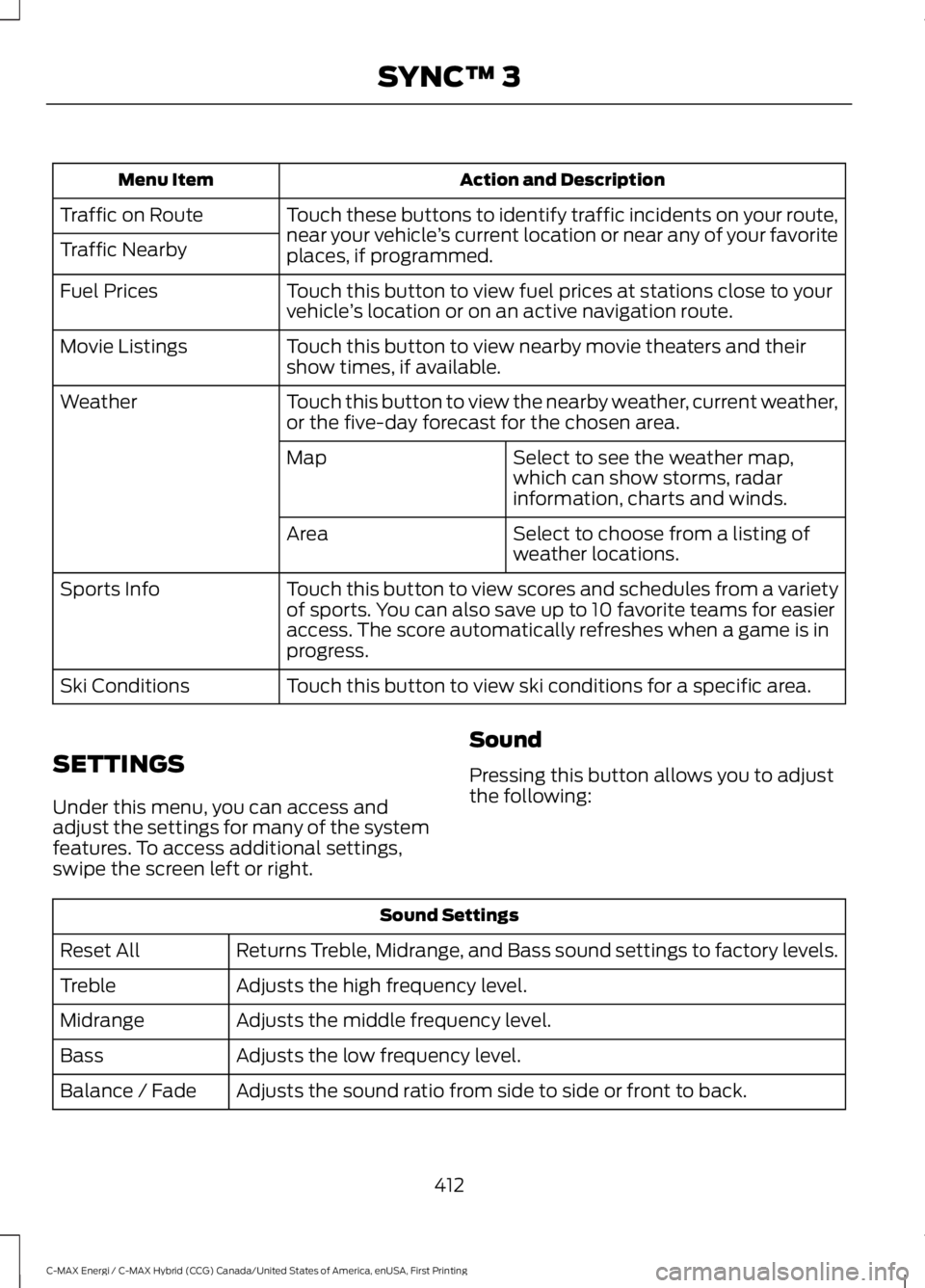
Action and DescriptionMenu Item
Touch these buttons to identify traffic incidents on your route,near your vehicle’s current location or near any of your favoriteplaces, if programmed.
Traffic on Route
Traffic Nearby
Touch this button to view fuel prices at stations close to yourvehicle’s location or on an active navigation route.Fuel Prices
Touch this button to view nearby movie theaters and theirshow times, if available.Movie Listings
Touch this button to view the nearby weather, current weather,or the five-day forecast for the chosen area.Weather
Select to see the weather map,which can show storms, radarinformation, charts and winds.
Map
Select to choose from a listing ofweather locations.Area
Touch this button to view scores and schedules from a varietyof sports. You can also save up to 10 favorite teams for easieraccess. The score automatically refreshes when a game is inprogress.
Sports Info
Touch this button to view ski conditions for a specific area.Ski Conditions
SETTINGS
Under this menu, you can access andadjust the settings for many of the systemfeatures. To access additional settings,swipe the screen left or right.
Sound
Pressing this button allows you to adjustthe following:
Sound Settings
Returns Treble, Midrange, and Bass sound settings to factory levels.Reset All
Adjusts the high frequency level.Treble
Adjusts the middle frequency level.Midrange
Adjusts the low frequency level.Bass
Adjusts the sound ratio from side to side or front to back.Balance / Fade
412
C-MAX Energi / C-MAX Hybrid (CCG) Canada/United States of America, enUSA, First Printing
SYNC™ 3
Page 442 of 497
PROTECT YOURSELF FROM THE RISINGCOST OF VEHICLE REPAIRS WITH A FORDPROTECT EXTENDED SERVICE PLAN.
Ford Protect Extended ServicePlans (U.S. Only)
Ford Protect Extended Service Plan meanspeace of mind. It’s the extended serviceplan backed by Ford Motor Company, andprovides more protection beyond the NewVehicle Limited Warranty coverage. Whenyou visit your Ford Dealer, Insist on FordProtect Extended Service Plans!
Ford Protect Can Quickly Pay for Itself
One trip to the Service Center could easilyexceed the price of your Ford ProtectExtended Service Plan. With Ford Protectyou minimize your risk for unexpectedrepair bills and rising repair costs.
Up to 1,000+ Covered VehicleComponents
There are four mechanical Ford ProtectExtended Service Plans with differentlevels of coverage. Ask your authorizeddealer for details.
1. PremiumCARE - Our mostcomprehensive coverage. With over1,000 covered components, this planis so complete it’s probably easier tolist what’s not covered.
2. ExtraCARE - Covers 113 components,and includes many high-tech items.
3. BaseCARE - Covers 84 components.
4. PowertrainCARE - Covers 29 criticalcomponents.
Ford Protect Extended Service Plans arehonored by all authorized Ford dealers inthe U.S., Canada and Mexico.
That means you get:
•Reliable, quality service at any Ford orLincoln dealership.
•Repairs performed by factory trainedtechnicians, using genuine parts.
Rental Car Reimbursement
1st day Rental Benefit
If you bring your car into your dealer forservice, we’ll give you a loaner to use forthe day.
Extended Rental Benefits
If your vehicle is kept overnight for coveredrepairs, you are eligible for rental carcoverage, including warranty repairs, andField Service Actions.
Roadside Assistance
Exclusive 24/7 roadside assistance,including:
•Towing, flat-tire change and batteryjump starts.
•Out of fuel and lock-out assistance.
•Travel expense reimbursement forlodging, meals and rental car.
•Assistance for taxi, shuttle, rental carcoverage or other transportation.
Transferable Coverage
If you sell your vehicle before your FordProtect Extended Service plan coverageexpires, you can transfer any remainingcoverage to the new owner. Which shouldgive you and your potential buyer a littlemore peace of mind.
439
C-MAX Energi / C-MAX Hybrid (CCG) Canada/United States of America, enUSA, First Printing
Ford Protect