lock FORD C-MAY HYBRID 2018 Manual Online
[x] Cancel search | Manufacturer: FORD, Model Year: 2018, Model line: C-MAY HYBRID, Model: FORD C-MAY HYBRID 2018Pages: 475, PDF Size: 8.09 MB
Page 288 of 475
Radio
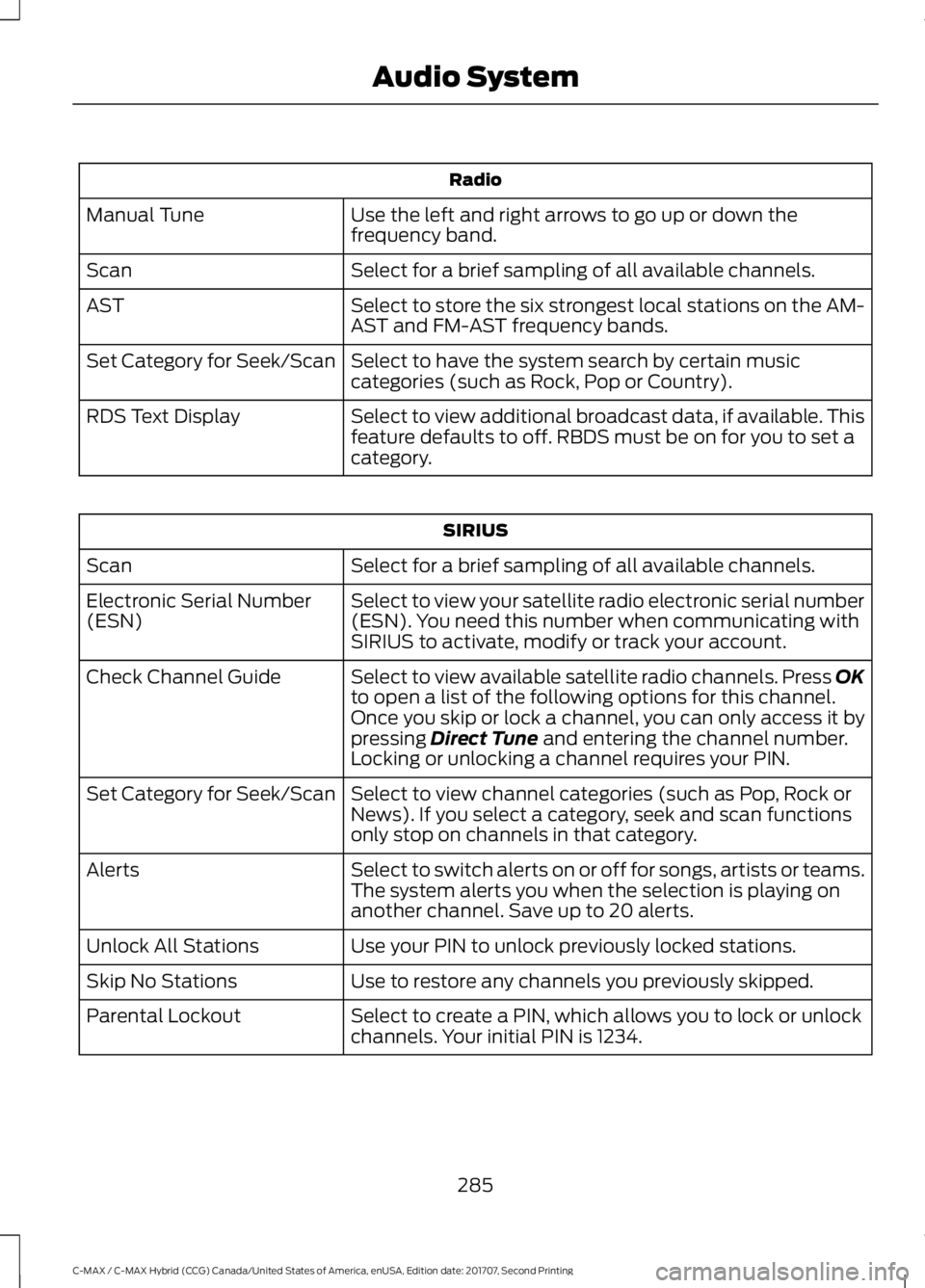
Use the left and right arrows to go up or down the
frequency band.
Manual Tune
Select for a brief sampling of all available channels.
Scan
Select to store the six strongest local stations on the AM-
AST and FM-AST frequency bands.
AST
Select to have the system search by certain music
categories (such as Rock, Pop or Country).
Set Category for Seek/Scan
Select to view additional broadcast data, if available. This
feature defaults to off. RBDS must be on for you to set a
category.
RDS Text Display SIRIUS
Select for a brief sampling of all available channels.
Scan
Select to view your satellite radio electronic serial number
(ESN). You need this number when communicating with
SIRIUS to activate, modify or track your account.
Electronic Serial Number
(ESN)
Select to view available satellite radio channels. Press OK
to open a list of the following options for this channel.
Once you skip or lock a channel, you can only access it by
pressing Direct Tune and entering the channel number.
Locking or unlocking a channel requires your PIN.
Check Channel Guide
Select to view channel categories (such as Pop, Rock or
News). If you select a category, seek and scan functions
only stop on channels in that category.
Set Category for Seek/Scan
Select to switch alerts on or off for songs, artists or teams.
The system alerts you when the selection is playing on
another channel. Save up to 20 alerts.
Alerts
Use your PIN to unlock previously locked stations.
Unlock All Stations
Use to restore any channels you previously skipped.
Skip No Stations
Select to create a PIN, which allows you to lock or unlock
channels. Your initial PIN is 1234.
Parental Lockout
285
C-MAX / C-MAX Hybrid (CCG) Canada/United States of America, enUSA, Edition date: 201707, Second Printing Audio System
Page 289 of 475
Audio Settings
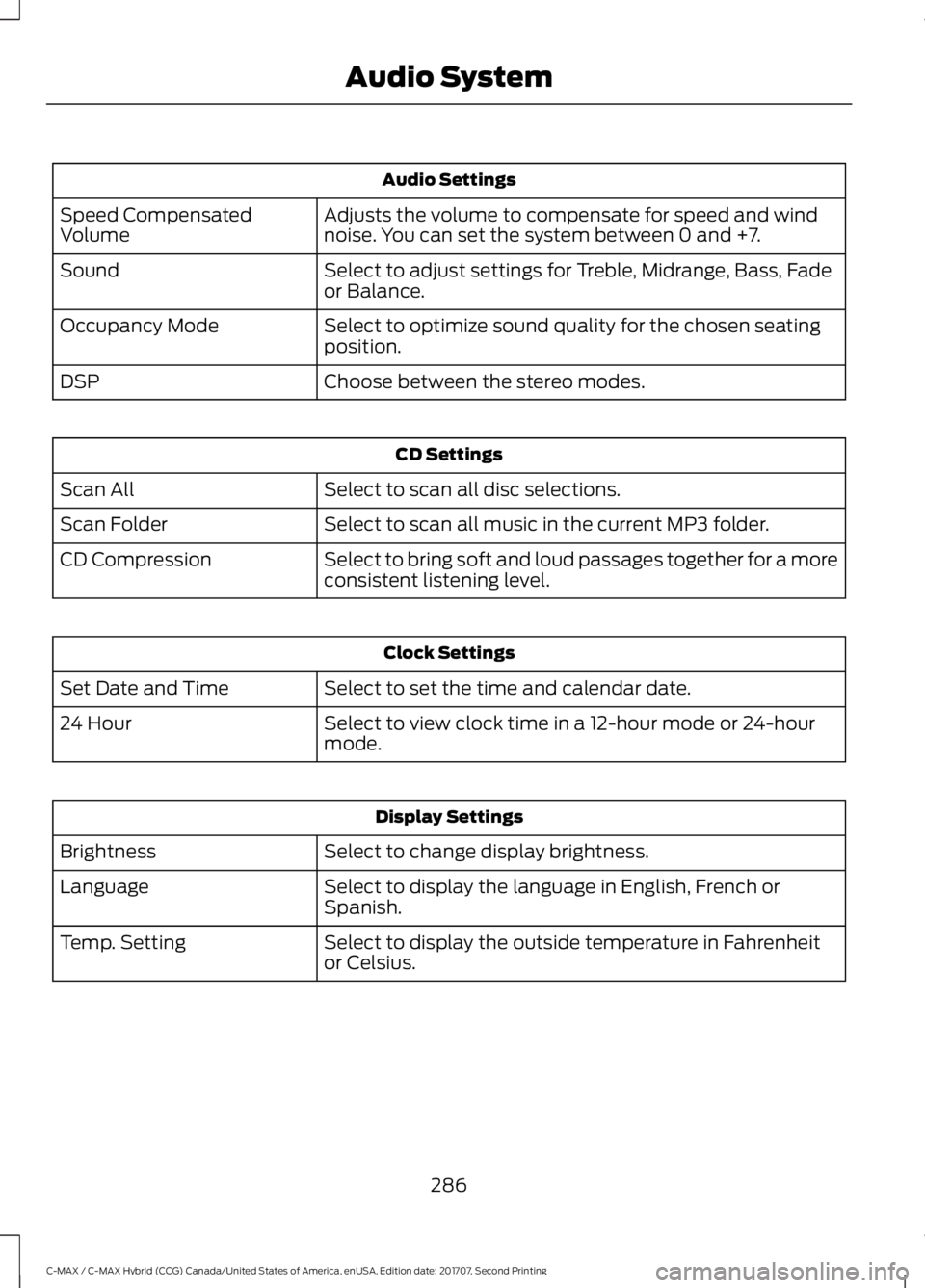
Adjusts the volume to compensate for speed and wind
noise. You can set the system between 0 and +7.
Speed Compensated
Volume
Select to adjust settings for Treble, Midrange, Bass, Fade
or Balance.
Sound
Select to optimize sound quality for the chosen seating
position.
Occupancy Mode
Choose between the stereo modes.
DSP CD Settings
Select to scan all disc selections.
Scan All
Select to scan all music in the current MP3 folder.
Scan Folder
Select to bring soft and loud passages together for a more
consistent listening level.
CD Compression Clock Settings
Select to set the time and calendar date.
Set Date and Time
Select to view clock time in a 12-hour mode or 24-hour
mode.
24 Hour Display Settings
Select to change display brightness.
Brightness
Select to display the language in English, French or
Spanish.
Language
Select to display the outside temperature in Fahrenheit
or Celsius.
Temp. Setting
286
C-MAX / C-MAX Hybrid (CCG) Canada/United States of America, enUSA, Edition date: 201707, Second Printing Audio System
Page 295 of 475
Troubleshooting
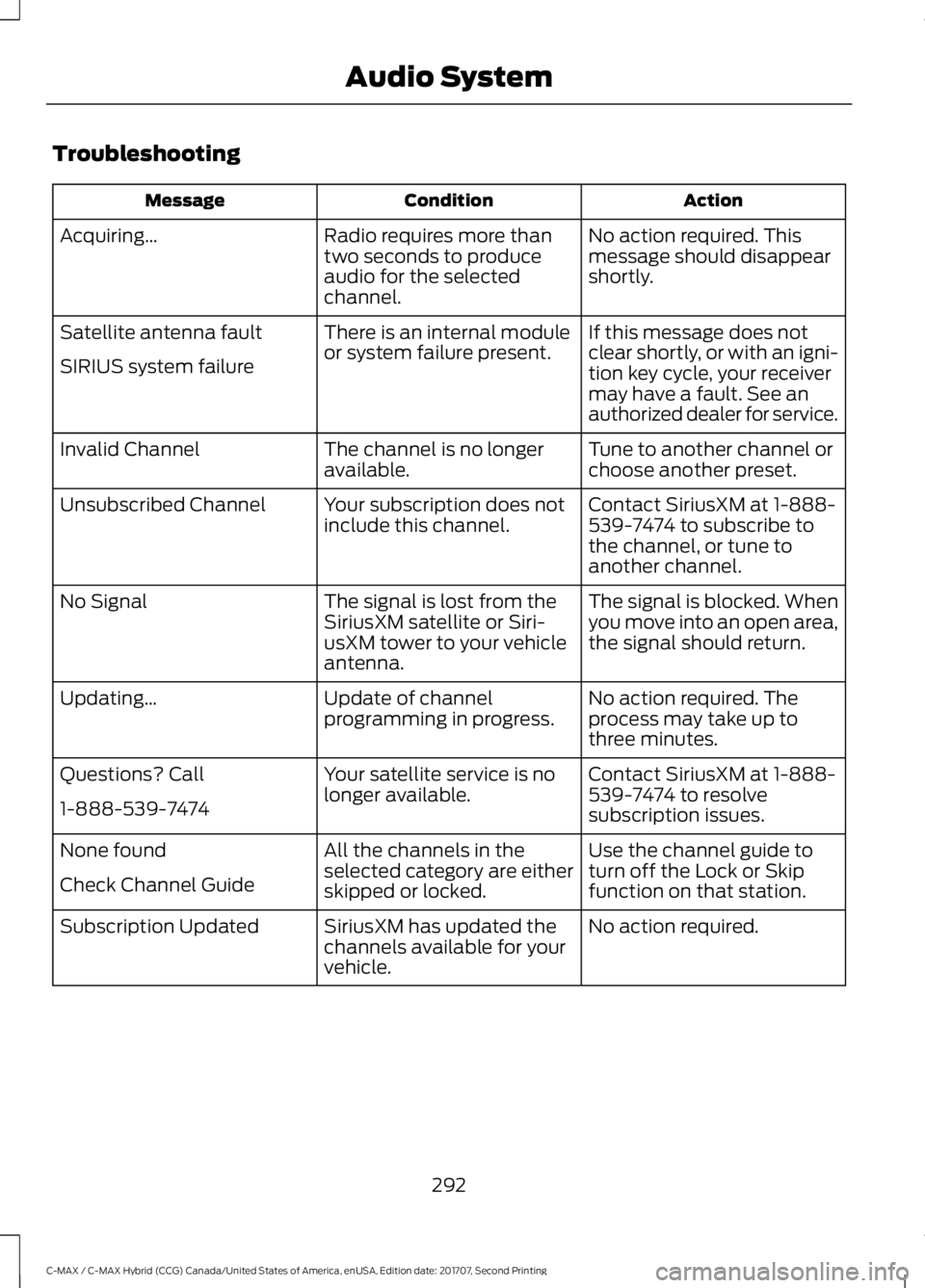
Action
Condition
Message
No action required. This
message should disappear
shortly.
Radio requires more than
two seconds to produce
audio for the selected
channel.
Acquiring…
If this message does not
clear shortly, or with an igni-
tion key cycle, your receiver
may have a fault. See an
authorized dealer for service.
There is an internal module
or system failure present.
Satellite antenna fault
SIRIUS system failure
Tune to another channel or
choose another preset.
The channel is no longer
available.
Invalid Channel
Contact SiriusXM at 1-888-
539-7474 to subscribe to
the channel, or tune to
another channel.
Your subscription does not
include this channel.
Unsubscribed Channel
The signal is blocked. When
you move into an open area,
the signal should return.
The signal is lost from the
SiriusXM satellite or Siri-
usXM tower to your vehicle
antenna.
No Signal
No action required. The
process may take up to
three minutes.
Update of channel
programming in progress.
Updating…
Contact SiriusXM at 1-888-
539-7474 to resolve
subscription issues.
Your satellite service is no
longer available.
Questions? Call
1-888-539-7474
Use the channel guide to
turn off the Lock or Skip
function on that station.
All the channels in the
selected category are either
skipped or locked.
None found
Check Channel Guide
No action required.
SiriusXM has updated the
channels available for your
vehicle.
Subscription Updated
292
C-MAX / C-MAX Hybrid (CCG) Canada/United States of America, enUSA, Edition date: 201707, Second Printing Audio System
Page 336 of 475
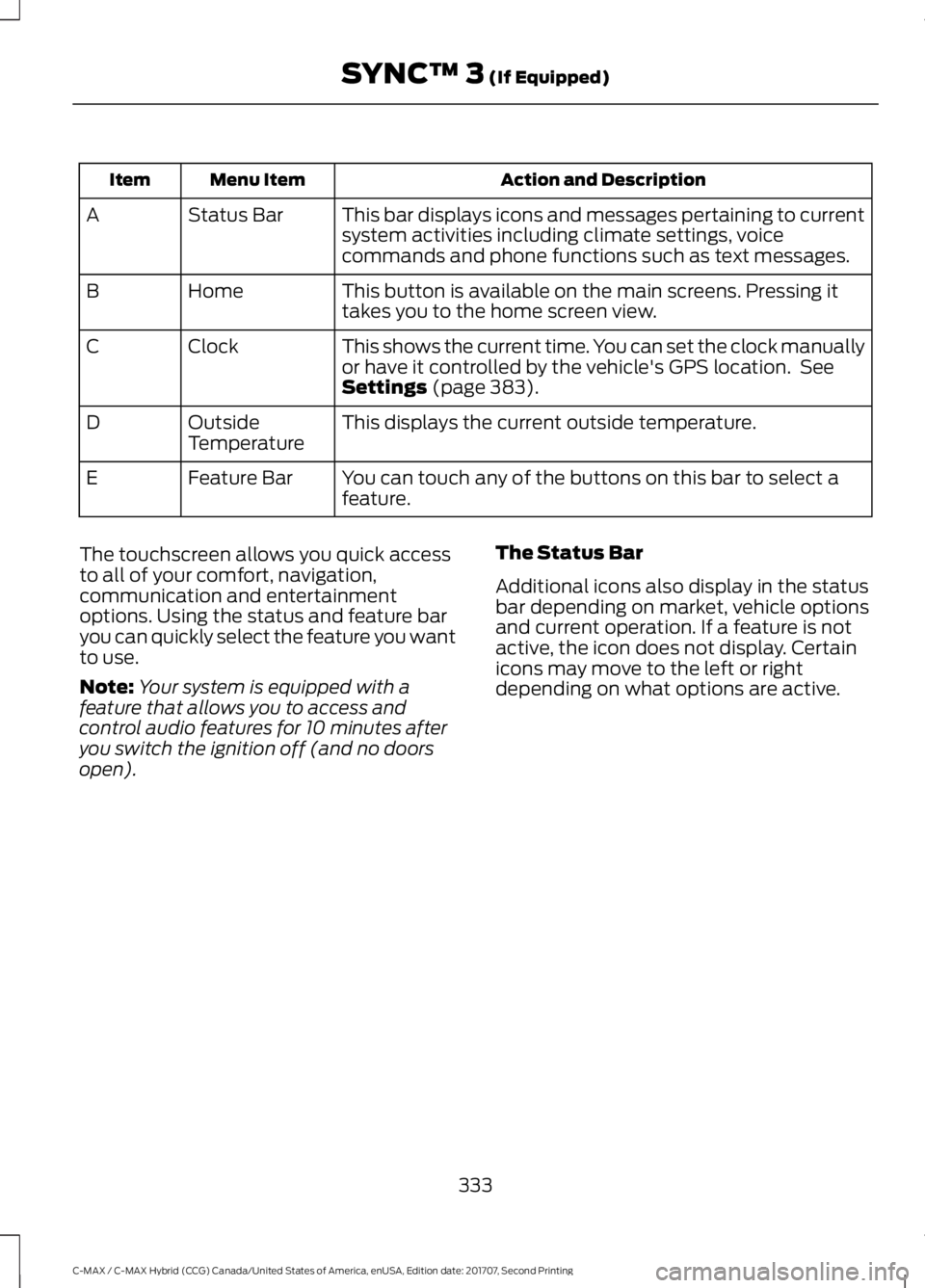
Action and Description
Menu Item
Item
This bar displays icons and messages pertaining to current
system activities including climate settings, voice
commands and phone functions such as text messages.
Status Bar
A
This button is available on the main screens. Pressing it
takes you to the home screen view.
Home
B
This shows the current time. You can set the clock manually
or have it controlled by the vehicle's GPS location. See
Settings (page 383).
Clock
C
This displays the current outside temperature.
Outside
Temperature
D
You can touch any of the buttons on this bar to select a
feature.
Feature Bar
E
The touchscreen allows you quick access
to all of your comfort, navigation,
communication and entertainment
options. Using the status and feature bar
you can quickly select the feature you want
to use.
Note: Your system is equipped with a
feature that allows you to access and
control audio features for 10 minutes after
you switch the ignition off (and no doors
open). The Status Bar
Additional icons also display in the status
bar depending on market, vehicle options
and current operation. If a feature is not
active, the icon does not display. Certain
icons may move to the left or right
depending on what options are active.
333
C-MAX / C-MAX Hybrid (CCG) Canada/United States of America, enUSA, Edition date: 201707, Second Printing SYNC™ 3
(If Equipped)
Page 345 of 475
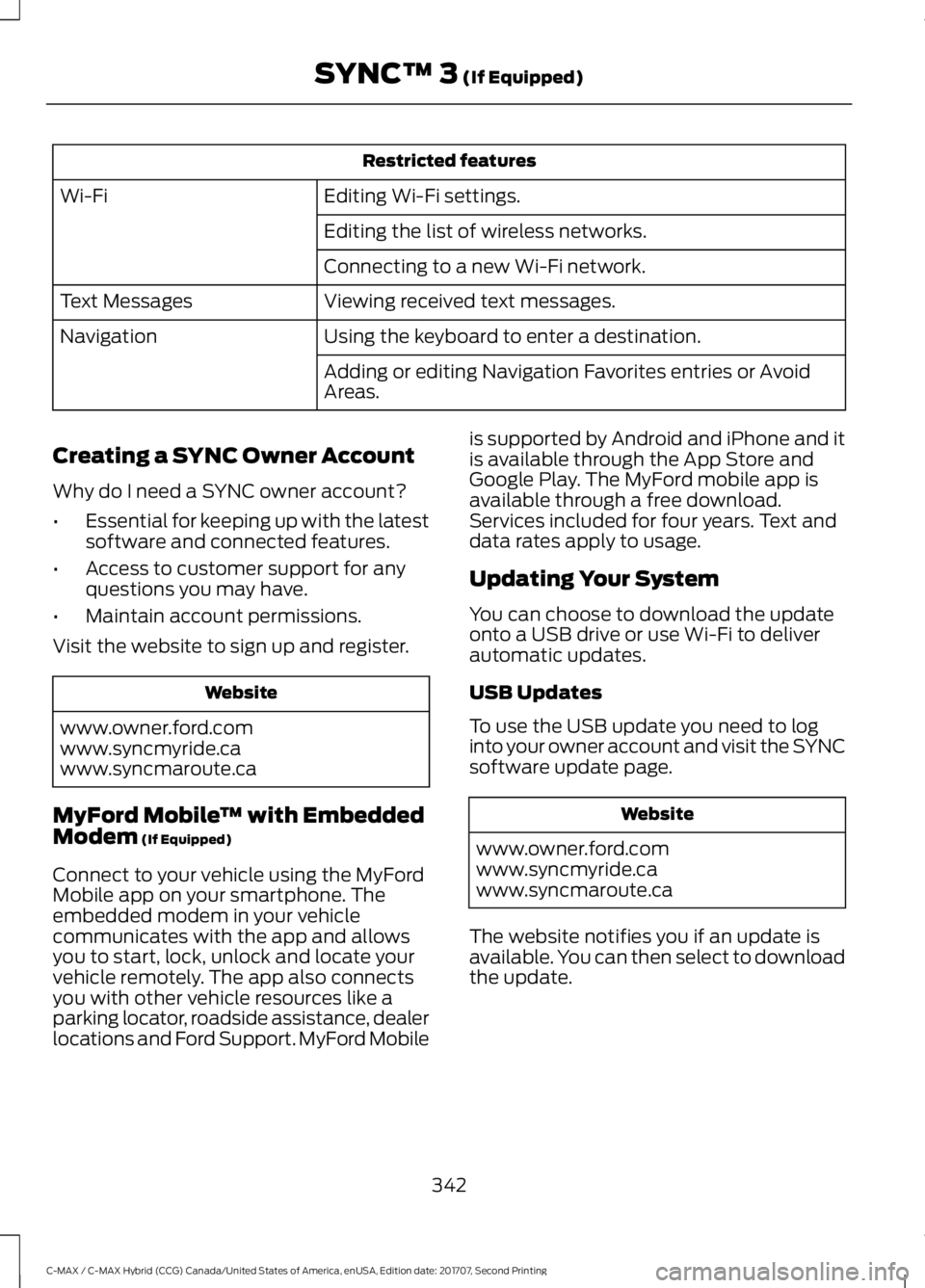
Restricted features
Editing Wi-Fi settings.
Wi-Fi
Editing the list of wireless networks.
Connecting to a new Wi-Fi network.
Viewing received text messages.
Text Messages
Using the keyboard to enter a destination.
Navigation
Adding or editing Navigation Favorites entries or Avoid
Areas.
Creating a SYNC Owner Account
Why do I need a SYNC owner account?
• Essential for keeping up with the latest
software and connected features.
• Access to customer support for any
questions you may have.
• Maintain account permissions.
Visit the website to sign up and register. Website
www.owner.ford.com
www.syncmyride.ca
www.syncmaroute.ca
MyFord Mobile ™ with Embedded
Modem (If Equipped)
Connect to your vehicle using the MyFord
Mobile app on your smartphone. The
embedded modem in your vehicle
communicates with the app and allows
you to start, lock, unlock and locate your
vehicle remotely. The app also connects
you with other vehicle resources like a
parking locator, roadside assistance, dealer
locations and Ford Support. MyFord Mobile is supported by Android and iPhone and it
is available through the App Store and
Google Play. The MyFord mobile app is
available through a free download.
Services included for four years. Text and
data rates apply to usage.
Updating Your System
You can choose to download the update
onto a USB drive or use Wi-Fi to deliver
automatic updates.
USB Updates
To use the USB update you need to log
into your owner account and visit the SYNC
software update page.
Website
www.owner.ford.com
www.syncmyride.ca
www.syncmaroute.ca
The website notifies you if an update is
available. You can then select to download
the update.
342
C-MAX / C-MAX Hybrid (CCG) Canada/United States of America, enUSA, Edition date: 201707, Second Printing SYNC™ 3
(If Equipped)
Page 352 of 475
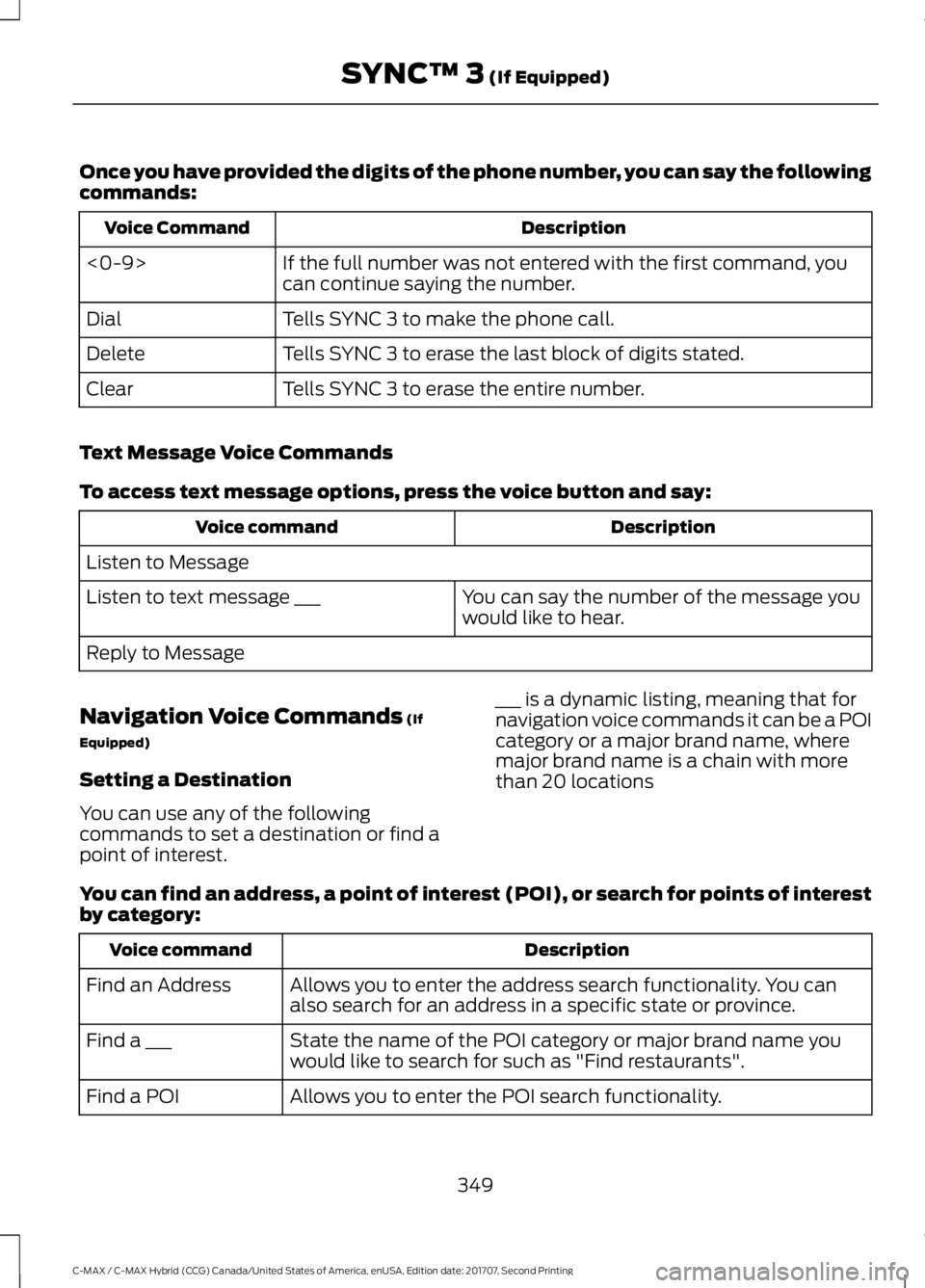
Once you have provided the digits of the phone number, you can say the following
commands:
Description
Voice Command
If the full number was not entered with the first command, you
can continue saying the number.
<0-9>
Tells SYNC 3 to make the phone call.
Dial
Tells SYNC 3 to erase the last block of digits stated.
Delete
Tells SYNC 3 to erase the entire number.
Clear
Text Message Voice Commands
To access text message options, press the voice button and say: Description
Voice command
Listen to Message You can say the number of the message you
would like to hear.
Listen to text message ___
Reply to Message
Navigation Voice Commands (If
Equipped)
Setting a Destination
You can use any of the following
commands to set a destination or find a
point of interest. ___ is a dynamic listing, meaning that for
navigation voice commands it can be a POI
category or a major brand name, where
major brand name is a chain with more
than 20 locations
You can find an address, a point of interest (POI), or search for points of interest
by category: Description
Voice command
Allows you to enter the address search functionality. You can
also search for an address in a specific state or province.
Find an Address
State the name of the POI category or major brand name you
would like to search for such as "Find restaurants".
Find a ___
Allows you to enter the POI search functionality.
Find a POI
349
C-MAX / C-MAX Hybrid (CCG) Canada/United States of America, enUSA, Edition date: 201707, Second Printing SYNC™ 3
(If Equipped)
Page 360 of 475
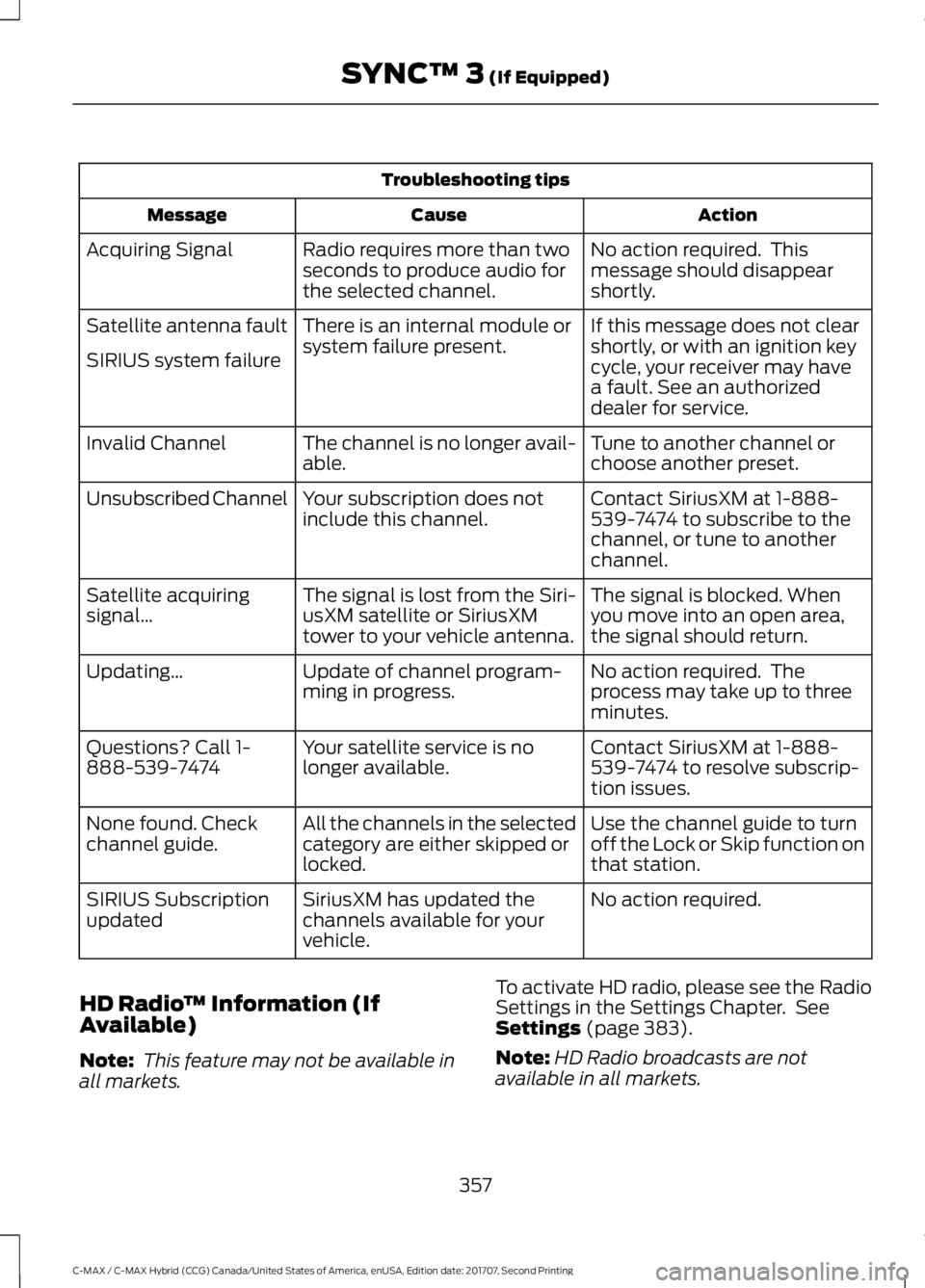
Troubleshooting tips
Action
Cause
Message
No action required. This
message should disappear
shortly.
Radio requires more than two
seconds to produce audio for
the selected channel.
Acquiring Signal
If this message does not clear
shortly, or with an ignition key
cycle, your receiver may have
a fault. See an authorized
dealer for service.
There is an internal module or
system failure present.
Satellite antenna fault
SIRIUS system failure
Tune to another channel or
choose another preset.
The channel is no longer avail-
able.
Invalid Channel
Contact SiriusXM at 1-888-
539-7474 to subscribe to the
channel, or tune to another
channel.
Your subscription does not
include this channel.
Unsubscribed Channel
The signal is blocked. When
you move into an open area,
the signal should return.
The signal is lost from the Siri-
usXM satellite or SiriusXM
tower to your vehicle antenna.
Satellite acquiring
signal…
No action required. The
process may take up to three
minutes.
Update of channel program-
ming in progress.
Updating…
Contact SiriusXM at 1-888-
539-7474 to resolve subscrip-
tion issues.
Your satellite service is no
longer available.
Questions? Call 1-
888-539-7474
Use the channel guide to turn
off the Lock or Skip function on
that station.
All the channels in the selected
category are either skipped or
locked.
None found. Check
channel guide.
No action required.
SiriusXM has updated the
channels available for your
vehicle.
SIRIUS Subscription
updated
HD Radio ™ Information (If
Available)
Note: This feature may not be available in
all markets. To activate HD radio, please see the Radio
Settings in the Settings Chapter. See
Settings (page 383).
Note: HD Radio broadcasts are not
available in all markets.
357
C-MAX / C-MAX Hybrid (CCG) Canada/United States of America, enUSA, Edition date: 201707, Second Printing SYNC™ 3
(If Equipped)
Page 388 of 475
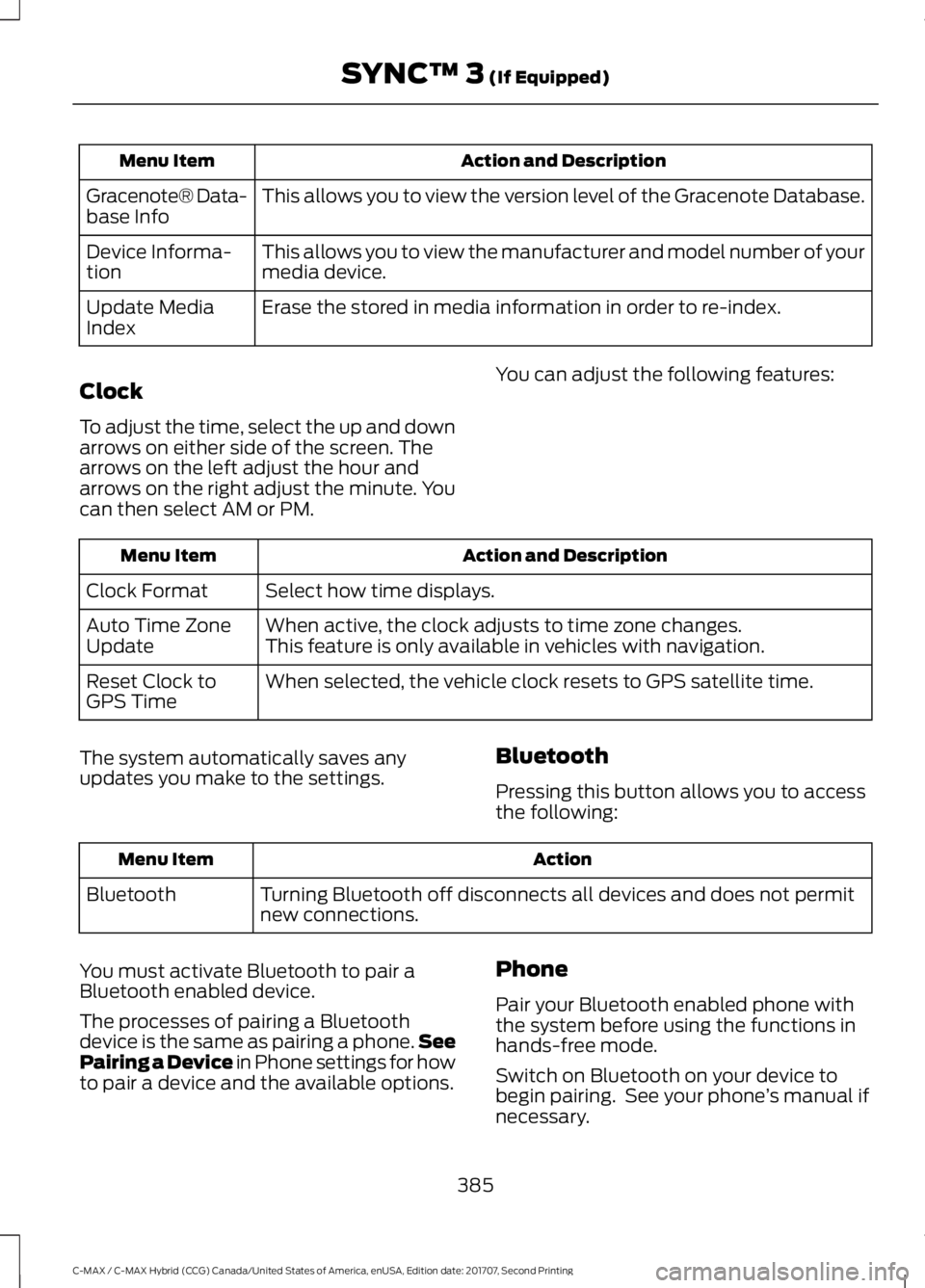
Action and Description
Menu Item
This allows you to view the version level of the Gracenote Database.
Gracenote® Data-
base Info
This allows you to view the manufacturer and model number of your
media device.
Device Informa-
tion
Erase the stored in media information in order to re-index.
Update Media
Index
Clock
To adjust the time, select the up and down
arrows on either side of the screen. The
arrows on the left adjust the hour and
arrows on the right adjust the minute. You
can then select AM or PM. You can adjust the following features: Action and Description
Menu Item
Select how time displays.
Clock Format
When active, the clock adjusts to time zone changes.
Auto Time Zone
Update This feature is only available in vehicles with navigation.
When selected, the vehicle clock resets to GPS satellite time.
Reset Clock to
GPS Time
The system automatically saves any
updates you make to the settings. Bluetooth
Pressing this button allows you to access
the following: Action
Menu Item
Turning Bluetooth off disconnects all devices and does not permit
new connections.
Bluetooth
You must activate Bluetooth to pair a
Bluetooth enabled device.
The processes of pairing a Bluetooth
device is the same as pairing a phone. See
Pairing a Device in Phone settings for how
to pair a device and the available options. Phone
Pair your Bluetooth enabled phone with
the system before using the functions in
hands-free mode.
Switch on Bluetooth on your device to
begin pairing. See your phone
’s manual if
necessary.
385
C-MAX / C-MAX Hybrid (CCG) Canada/United States of America, enUSA, Edition date: 201707, Second Printing SYNC™ 3 (If Equipped)
Page 392 of 475
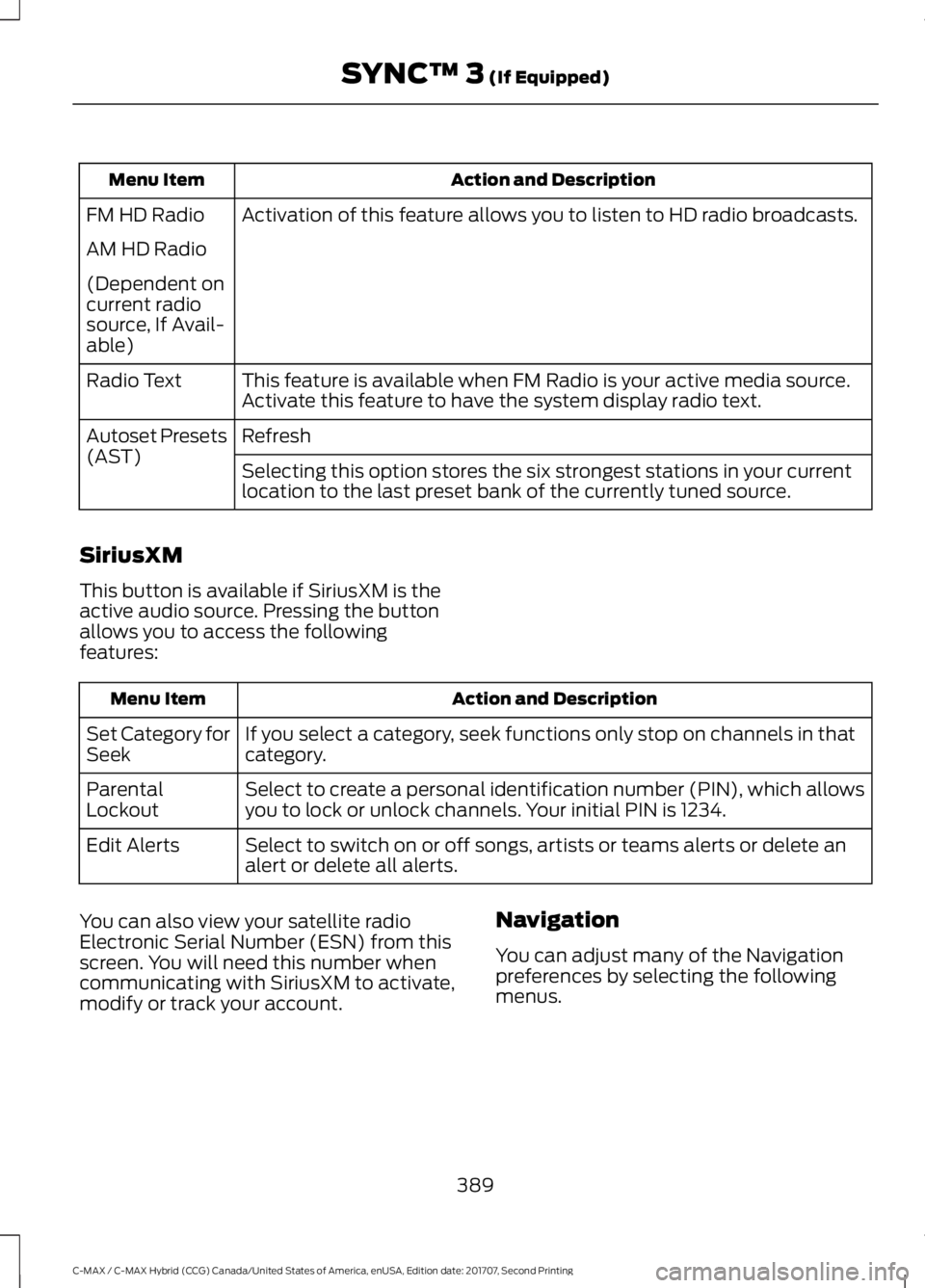
Action and Description
Menu Item
Activation of this feature allows you to listen to HD radio broadcasts.
FM HD Radio
AM HD Radio
(Dependent on
current radio
source, If Avail-
able)
This feature is available when FM Radio is your active media source.
Activate this feature to have the system display radio text.
Radio Text
Refresh
Autoset Presets
(AST)
Selecting this option stores the six strongest stations in your current
location to the last preset bank of the currently tuned source.
SiriusXM
This button is available if SiriusXM is the
active audio source. Pressing the button
allows you to access the following
features: Action and Description
Menu Item
If you select a category, seek functions only stop on channels in that
category.
Set Category for
Seek
Select to create a personal identification number (PIN), which allows
you to lock or unlock channels. Your initial PIN is 1234.
Parental
Lockout
Select to switch on or off songs, artists or teams alerts or delete an
alert or delete all alerts.
Edit Alerts
You can also view your satellite radio
Electronic Serial Number (ESN) from this
screen. You will need this number when
communicating with SiriusXM to activate,
modify or track your account. Navigation
You can adjust many of the Navigation
preferences by selecting the following
menus.
389
C-MAX / C-MAX Hybrid (CCG) Canada/United States of America, enUSA, Edition date: 201707, Second Printing SYNC™ 3 (If Equipped)
Page 400 of 475
Valet Mode
Valet mode allows you to lock the system.
No information is accessible until the
system is unlocked with the correct PIN.
When you select valet mode a pop up
appears informing you that a four digit
code must be entered to enable and
disable valet mode. You can use any PIN
you chose but you must use the same PIN
to disable valet mode. The system asks
you to input the code.
Note:
If the system is locked and you
cannot remember the PIN, please contact
the Customer Relationship Center.
United States: 1-800-392-3673
Canada: 1-800-565-3673 To enable valet mode, enter your chosen
PIN. The system then asks to confirm your
PIN by reentering it. The system then locks.
To unlock the system, enter the same pin
number. The system reconnects to your
phone and all of your options are available
again.
SYNC™ 3 TROUBLESHOOTING
Your SYNC 3 system is easy to use.
However, should questions arise, please
refer to the tables below.
To check your cell phone's compatibility,
refer to the regional Ford or Lincoln
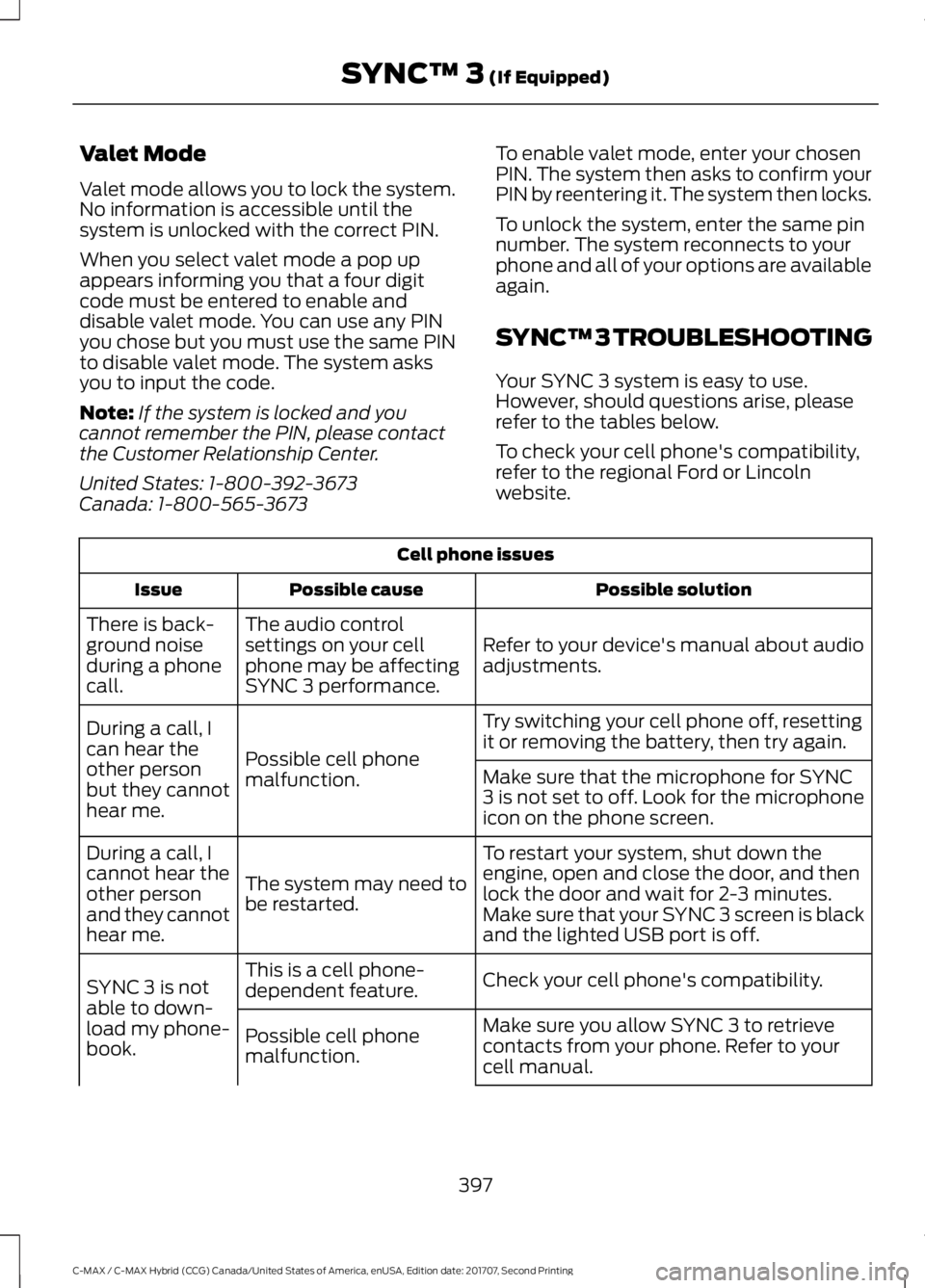
website.Cell phone issues
Possible solution
Possible cause
Issue
Refer to your device's manual about audio
adjustments.
The audio control
settings on your cell
phone may be affecting
SYNC 3 performance.
There is back-
ground noise
during a phone
call.
Try switching your cell phone off, resetting
it or removing the battery, then try again.
Possible cell phone
malfunction.
During a call, I
can hear the
other person
but they cannot
hear me.
Make sure that the microphone for SYNC
3 is not set to off. Look for the microphone
icon on the phone screen.
To restart your system, shut down the
engine, open and close the door, and then
lock the door and wait for 2-3 minutes.
Make sure that your SYNC 3 screen is black
and the lighted USB port is off.
The system may need to
be restarted.
During a call, I
cannot hear the
other person
and they cannot
hear me.
Check your cell phone's compatibility.
This is a cell phone-
dependent feature.
SYNC 3 is not
able to down-
load my phone-
book. Make sure you allow SYNC 3 to retrieve
contacts from your phone. Refer to your
cell manual.
Possible cell phone
malfunction.
397
C-MAX / C-MAX Hybrid (CCG) Canada/United States of America, enUSA, Edition date: 201707, Second Printing SYNC™ 3 (If Equipped)