ECU FORD EDGE 2014 1.G Service Manual
[x] Cancel search | Manufacturer: FORD, Model Year: 2014, Model line: EDGE, Model: FORD EDGE 2014 1.GPages: 540, PDF Size: 7.52 MB
Page 335 of 540
TECHNICAL SPECIFICATIONS
Wheel Lug Nut Torque Specifications
WARNING:When a wheel is installed, always remove any
corrosion, dirt or foreign materials present on the mounting
surfaces of the wheel or the surface of the wheel hub, brake drum or
brake disc that contacts the wheel. Make sure that any fasteners that
attach the rotor to the hub are secured so they do not interfere with
the mounting surfaces of the wheel. Installing wheels without correct
metal-to-metal contact at the wheel mounting surfaces can cause the
wheel nuts to loosen and the wheel to come off while your vehicle is in
motion, resulting in loss of control.
Retighten the lug nuts to the specified torque within 100 miles
(160 kilometers) after any wheel disturbance (such as rotation, flat tire,
wheel removal).
Lug nut socket
size/Bolt sizeWheel lug nut torque*
ft-lb N•m
12x 20 100 135
* Torque specifications are for nut and bolt threads free of dirt and
rust. Use only Ford recommended replacement fasteners.
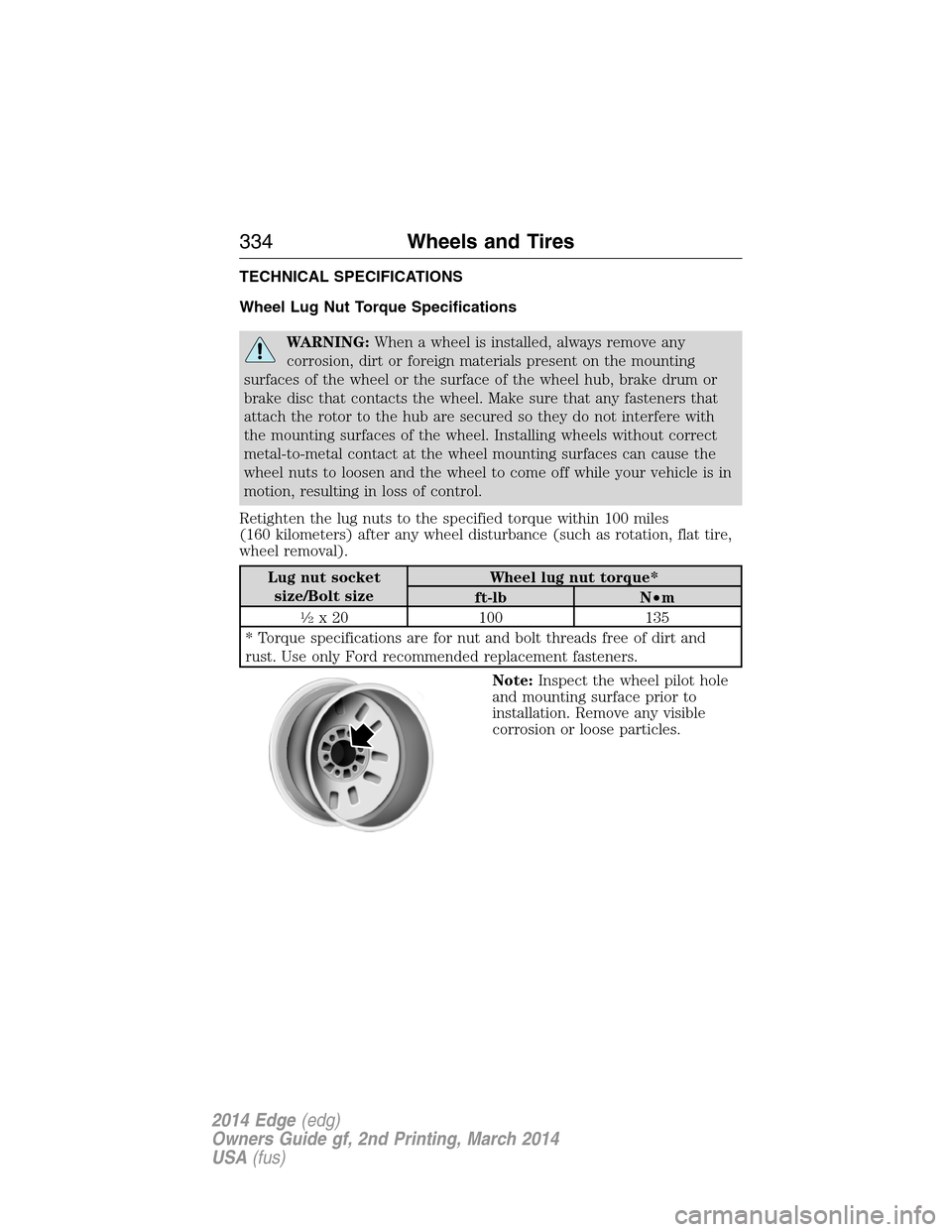
Note:Inspect the wheel pilot hole
and mounting surface prior to
installation. Remove any visible
corrosion or loose particles.
334Wheels and Tires
2014 Edge(edg)
Owners Guide gf, 2nd Printing, March 2014
USA(fus)
Page 345 of 540
Lifestyle
•Ash cup / coin holder
•Cross bars and roof rails
•Trailer hitches, wiring harnesses and accessories
•Cargo organization and management
•Roof rack and carriers*
•SUV camping tent*
Peace of mind
•Remote start
•Keyless entry keypad
•Cargo security shade
•Vehicle security
•Bumper protector
•Wheel locks
•Locking fuel plug
•Cargo area protector
•Bumper and hitch mounted parking sensors*
•Car cover*
*The accessory manufacturer designs, develops and therefore warrants
Ford Licensed Accessories, and does not design or test these accessories
to Ford Motor Company engineering requirements. Contact an
authorized Ford dealer for the manufacturer’s limited warranty details,
and request a copy of the Ford Licensed Accessories product limited
warranty from the accessory manufacturer.
344Accessories
2014 Edge(edg)
Owners Guide gf, 2nd Printing, March 2014
USA(fus)
Page 349 of 540
Interest Free Finance Options Available
Take advantage of our interest free installment payment plan. Just a 10%
down payment will provide you with an affordable, no interest, no fee
payment program allowing you all the security and benefits Ford ESP
has to offer while paying over time. You are pre-approved with no credit
checks, no hassles! To learn more, call our Ford ESP specialists at
800-367-3377.
Ford ESP
PO Box 8072
Royal Oak Michigan 48068-0039
SERVICE PLANS (CANADA ONLY)
You can get more protection for your vehicle by purchasing a Ford
Extended Service Plan. Ford Extended Service Plan is the only service
contract backed by Ford Motor Company of Canada, Limited. Depending
on the plan you purchase, Ford Extended Service Plan provides benefits
such as:
•Rental reimbursement.
•Coverage for certain maintenance and wear items.
•Protection against repair costs after your New Vehicle Limited
Warranty Coverage expires.
•Roadside Assistance benefits.
There are several Ford Extended Service Plans available in various time,
distance and deductible combinations. Each plan is tailored to fit your
own driving needs, including reimbursement for towing and rental. When
you purchase Ford Extended Service Plan, you receive added
peace-of-mind protection throughout Canada and the United States,
provided by a network of participating Ford Motor Company dealers.
Note:Repairs performed outside of Canada and the United States are
not eligible for Ford Extended Service Plan coverage.
This information is subject to change. For more information, visit your
local Ford of Canada dealer or www.ford.ca to find the Ford Extended
Service Plan that is right for you.
348Extended Service Plan
2014 Edge(edg)
Owners Guide gf, 2nd Printing, March 2014
USA(fus)
Page 366 of 540
AUXILIARY INPUT JACK (IF EQUIPPED)
WARNING:Driving while distracted can result in loss of vehicle
control, crash and injury. We strongly recommend that you use
extreme caution when using any device that may take your focus off
the road. Your primary responsibility is the safe operation of your
vehicle. We recommend against the use of any hand-held device while
driving and encourage the use of voice-operated systems when possible.
Make sure you are aware of all applicable local laws that may affect the
use of electronic devices while driving.
WARNING:For safety reasons, do not connect or adjust the
settings on your portable music player while your vehicle is moving.
WARNING:Store the portable music player in a secure location,
such as the center console or the glove box, when your vehicle is
moving. Hard objects may become projectiles in a crash or sudden stop,
which may increase the risk of serious injury. The audio extension cable
must be long enough to allow the portable music player to be safely
stored while your vehicle is moving.
The auxiliary input jack allows you to connect and play music from your
portable music player through your vehicle speakers. You can use any
portable music player designed for use with headphones. Your audio
extension cable must have male
18-inch (3.5 millimeter) connectors at
each end.
1. Switch off the engine, radio and portable music player. Set the
parking brake and put the transmission in positionP.
2. Plug the extension cable from the portable music player into the
auxiliary input jack.
3. Switch the radio on. Select either a tuned FM station or a CD.
4. Adjust the volume as desired.
5. Switch your portable music player on and adjust its volume to half its
maximum level.
6. PressAUXuntilLINEorLINE INappears in the display. You
should hear music from your device even if it is low.
7. Adjust the volume on your portable music player until it reaches the
volume level of the FM station or CD. Do this by switching back and
forth between the AUX and FM or CD controls.
Audio System365
2014 Edge(edg)
Owners Guide gf, 2nd Printing, March 2014
USA(fus)
Page 389 of 540
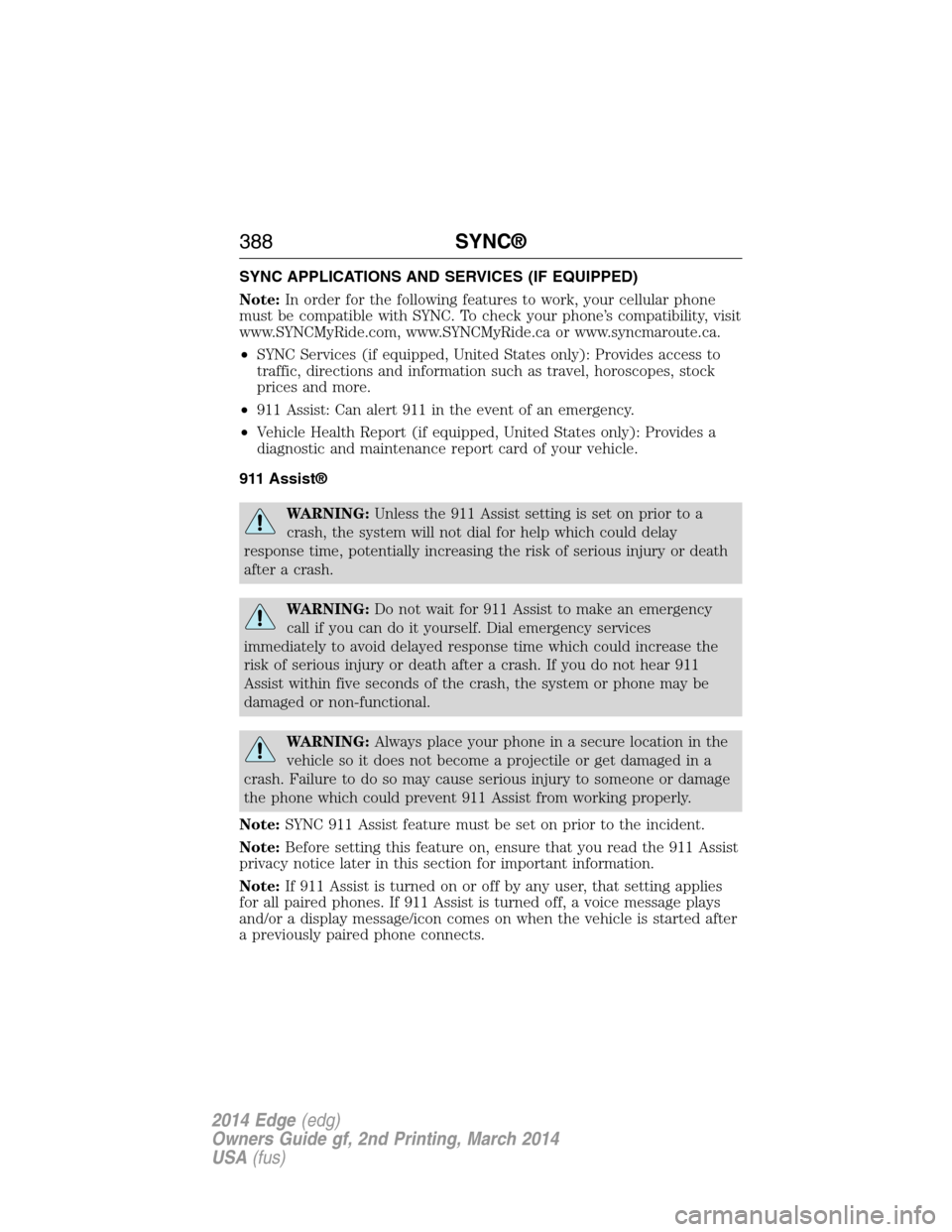
SYNC APPLICATIONS AND SERVICES (IF EQUIPPED)
Note:In order for the following features to work, your cellular phone
must be compatible with SYNC. To check your phone’s compatibility, visit
www.SYNCMyRide.com, www.SYNCMyRide.ca or www.syncmaroute.ca.
•SYNC Services (if equipped, United States only): Provides access to
traffic, directions and information such as travel, horoscopes, stock
prices and more.
•911 Assist: Can alert 911 in the event of an emergency.
•Vehicle Health Report (if equipped, United States only): Provides a
diagnostic and maintenance report card of your vehicle.
911 Assist®
WARNING:Unless the 911 Assist setting is set on prior to a
crash, the system will not dial for help which could delay
response time, potentially increasing the risk of serious injury or death
after a crash.
WARNING:Do not wait for 911 Assist to make an emergency
call if you can do it yourself. Dial emergency services
immediately to avoid delayed response time which could increase the
risk of serious injury or death after a crash. If you do not hear 911
Assist within five seconds of the crash, the system or phone may be
damaged or non-functional.
WARNING:Always place your phone in a secure location in the
vehicle so it does not become a projectile or get damaged in a
crash. Failure to do so may cause serious injury to someone or damage
the phone which could prevent 911 Assist from working properly.
Note:SYNC 911 Assist feature must be set on prior to the incident.
Note:Before setting this feature on, ensure that you read the 911 Assist
privacy notice later in this section for important information.
Note:If 911 Assist is turned on or off by any user, that setting applies
for all paired phones. If 911 Assist is turned off, a voice message plays
and/or a display message/icon comes on when the vehicle is started after
a previously paired phone connects.
388SYNC®
2014 Edge(edg)
Owners Guide gf, 2nd Printing, March 2014
USA(fus)
Page 412 of 540
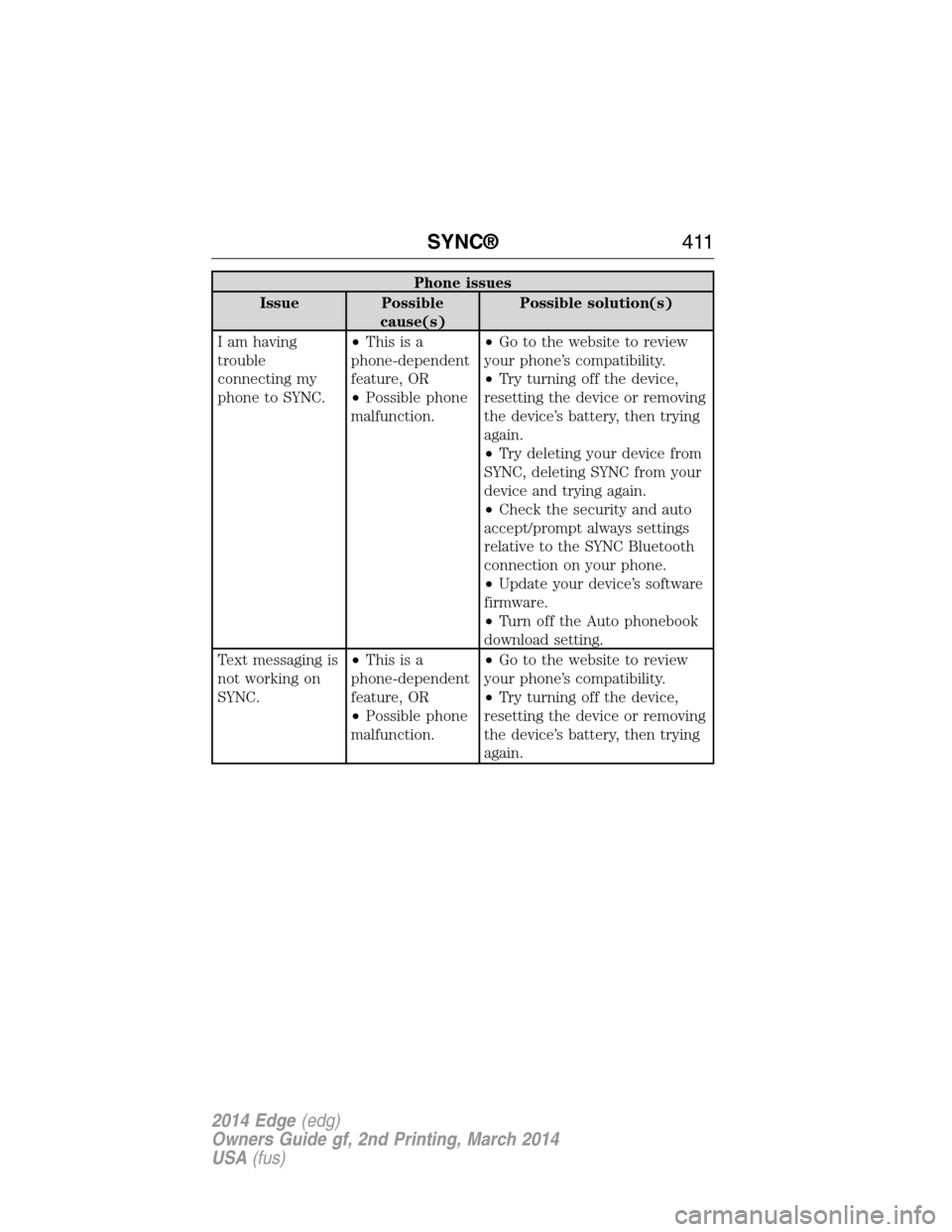
Phone issues
Issue Possible
cause(s)Possible solution(s)
I am having
trouble
connecting my
phone to SYNC.•Thisisa
phone-dependent
feature, OR
•Possible phone
malfunction.•Go to the website to review
your phone’s compatibility.
•Try turning off the device,
resetting the device or removing
the device’s battery, then trying
again.
•Try deleting your device from
SYNC, deleting SYNC from your
device and trying again.
•Check the security and auto
accept/prompt always settings
relative to the SYNC Bluetooth
connection on your phone.
•Update your device’s software
firmware.
•Turn off the Auto phonebook
download setting.
Text messaging is
not working on
SYNC.•Thisisa
phone-dependent
feature, OR
•Possible phone
malfunction.•Go to the website to review
your phone’s compatibility.
•Try turning off the device,
resetting the device or removing
the device’s battery, then trying
again.
SYNC®411
2014 Edge(edg)
Owners Guide gf, 2nd Printing, March 2014
USA(fus)
Page 413 of 540
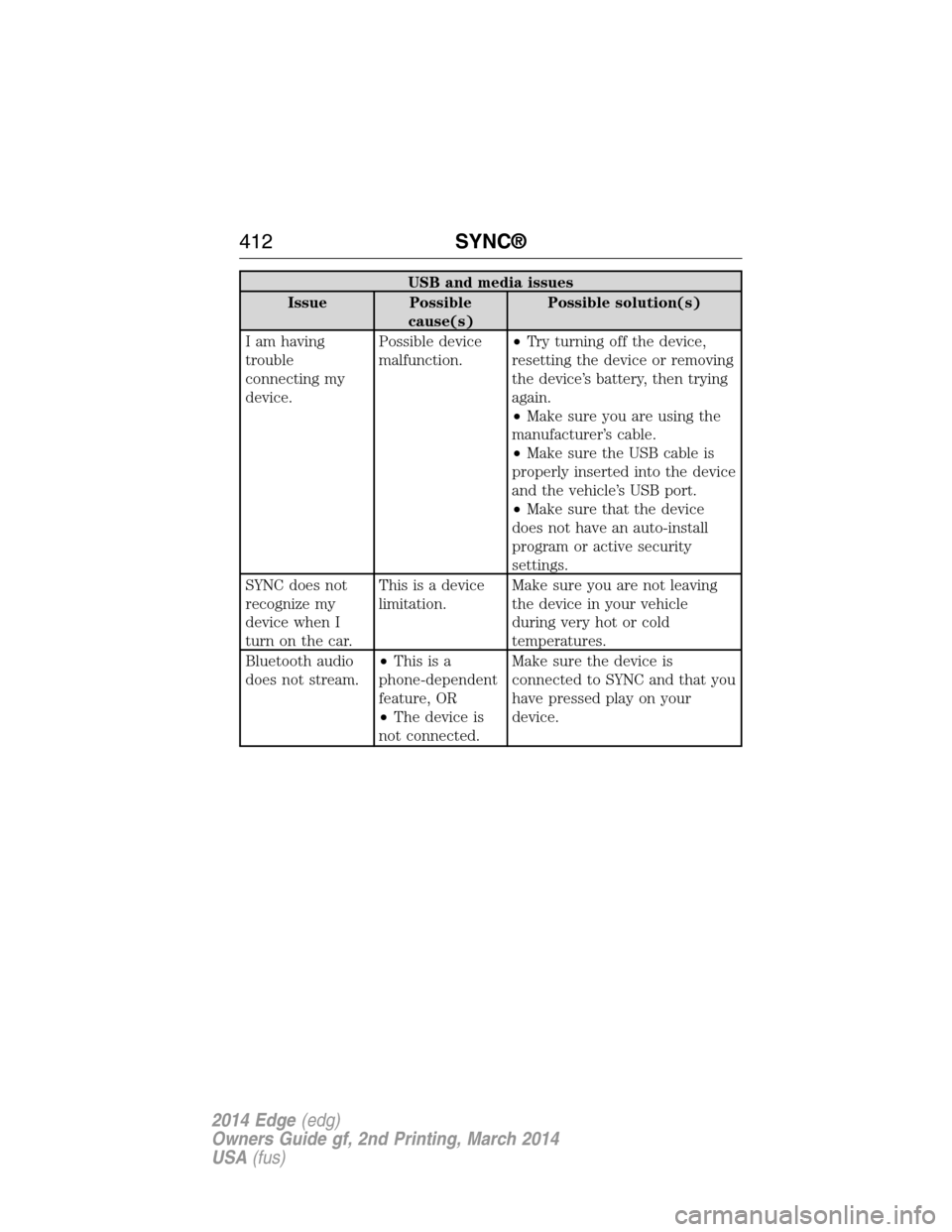
USB and media issues
Issue Possible
cause(s)Possible solution(s)
I am having
trouble
connecting my
device.Possible device
malfunction.•Try turning off the device,
resetting the device or removing
the device’s battery, then trying
again.
•Make sure you are using the
manufacturer’s cable.
•Make sure the USB cable is
properly inserted into the device
and the vehicle’s USB port.
•Make sure that the device
does not have an auto-install
program or active security
settings.
SYNC does not
recognize my
device when I
turn on the car.This is a device
limitation.Make sure you are not leaving
the device in your vehicle
during very hot or cold
temperatures.
Bluetooth audio
does not stream.•Thisisa
phone-dependent
feature, OR
•The device is
not connected.Make sure the device is
connected to SYNC and that you
have pressed play on your
device.
412SYNC®
2014 Edge(edg)
Owners Guide gf, 2nd Printing, March 2014
USA(fus)
Page 450 of 540
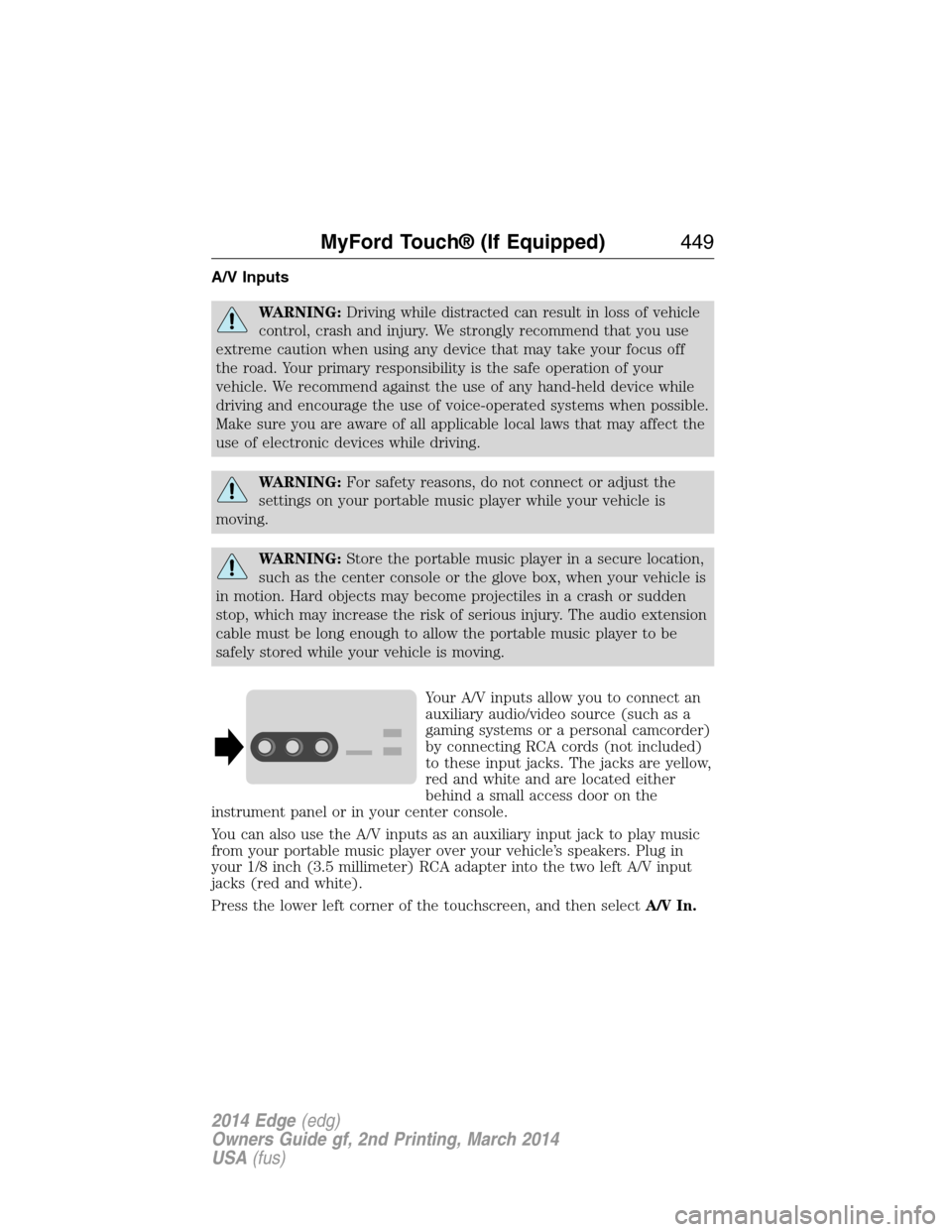
A/V Inputs
WARNING:Driving while distracted can result in loss of vehicle
control, crash and injury. We strongly recommend that you use
extreme caution when using any device that may take your focus off
the road. Your primary responsibility is the safe operation of your
vehicle. We recommend against the use of any hand-held device while
driving and encourage the use of voice-operated systems when possible.
Make sure you are aware of all applicable local laws that may affect the
use of electronic devices while driving.
WARNING:For safety reasons, do not connect or adjust the
settings on your portable music player while your vehicle is
moving.
WARNING:Store the portable music player in a secure location,
such as the center console or the glove box, when your vehicle is
in motion. Hard objects may become projectiles in a crash or sudden
stop, which may increase the risk of serious injury. The audio extension
cable must be long enough to allow the portable music player to be
safely stored while your vehicle is moving.
Your A/V inputs allow you to connect an
auxiliary audio/video source (such as a
gaming systems or a personal camcorder)
by connecting RCA cords (not included)
to these input jacks. The jacks are yellow,
red and white and are located either
behind a small access door on the
instrument panel or in your center console.
You can also use the A/V inputs as an auxiliary input jack to play music
from your portable music player over your vehicle’s speakers. Plug in
your 1/8 inch (3.5 millimeter) RCA adapter into the two left A/V input
jacks (red and white).
Press the lower left corner of the touchscreen, and then selectA/V In.
MyFord Touch® (If Equipped)449
2014 Edge(edg)
Owners Guide gf, 2nd Printing, March 2014
USA(fus)
Page 453 of 540
Pairing Your Phone for the First Time
WARNING:Driving while distracted can result in loss of vehicle
control, crash and injury. We strongly recommend that you use
extreme caution when using any device that may take your focus off
the road. Your primary responsibility is the safe operation of your
vehicle. We recommend against the use of any hand-held device while
driving and encourage the use of voice-operated systems when possible.
Make sure you are aware of all applicable local laws that may affect the
use of electronic devices while driving.
The first thing you must do to use the phone features of SYNC is to pair
your Bluetooth-enabled cellular phone with SYNC. This allows you to use
your phone in a hands-free manner.
Note:Put the transmission in positionP.Turn on your vehicle ignition
and the radio.
1. TouchAdd Phonein the upper left corner of the touchscreen.Find
SYNCappears on the screen and instructs you to begin the pairing
process from your device.
2. Make sure that Bluetooth is set toOnand that your cellular phone is
in the proper mode. See your phone’s manual if necessary.
•SelectSYNC,and a six-digit PIN appears on your device.
3. If you are prompted to enter a PIN on your device, it does not
support Secure Simple Pairing. To pair, enter the PIN displayed on
the touchscreen. Skip the next step.
4. When prompted on your phone’s display, confirm that the PIN
provided by SYNC matches the PIN displayed on your cellular phone.
5. The display indicates when the pairing is successful.
SYNC may prompt you with more phone options. For more information on
your phone’s capability, see your phone’s manual and visit the website.
Pairing Subsequent Phones
Note:Put the transmission in positionP.Turn on your vehicle ignition
and the radio.
1. Press thePhonecorner of the touchscreen >Settings>BT
Devices>Add Device.
2. Make sure that Bluetooth is set toOnand that your cellular phone is
in the proper mode. See your phone’s manual if necessary.
•SelectSYNC,and a six-digit PIN appears on your device.
452MyFord Touch® (If Equipped)
2014 Edge(edg)
Owners Guide gf, 2nd Printing, March 2014
USA(fus)
Page 454 of 540
3. If you are prompted to enter a PIN on your device, it does not
support Secure Simple Pairing. To pair, enter the PIN displayed on
the touchscreen. Skip the next step.
4. When prompted on your phone’s display, confirm that the PIN
provided by SYNC matches the PIN displayed on your cellular phone.
5. The display indicates when the pairing is successful.
SYNC may prompt you with more phone options. For more information
on your phone’s capability, see your phone’s user guide and visit the
website.
Making Calls
Press the voice button on your steering wheel controls. When
prompted, say, “Call
number.
To end the call or exit phone mode, press this phone button.
Receiving Calls
During an incoming call, an audible tone sounds. Call information
appears in the display if it is available.
Accept the call by pressingAccepton the touchscreen or by
pressing this phone button on your steering wheel controls.
Reject the call by pressingRejecton the touchscreen or by pressing this
phone button on your steering wheel controls.
Ignore the call by doing nothing. SYNC logs it as a missed call.
Phone Menu Options
Press the top left corner on your touchscreen to select from the
following options:
Phone
Touch this button to access the on-screen numerical pad to enter a
number and place a call. During an active call, you can also choose to:
•Mute the call
•Put it on hold
•Turn on privacy (returns the call to your cellular phone)
•Join two calls
•End the call.
MyFord Touch® (If Equipped)453
2014 Edge(edg)
Owners Guide gf, 2nd Printing, March 2014
USA(fus)