radio controls FORD EDGE 2015 2.G User Guide
[x] Cancel search | Manufacturer: FORD, Model Year: 2015, Model line: EDGE, Model: FORD EDGE 2015 2.GPages: 508, PDF Size: 6.2 MB
Page 415 of 508
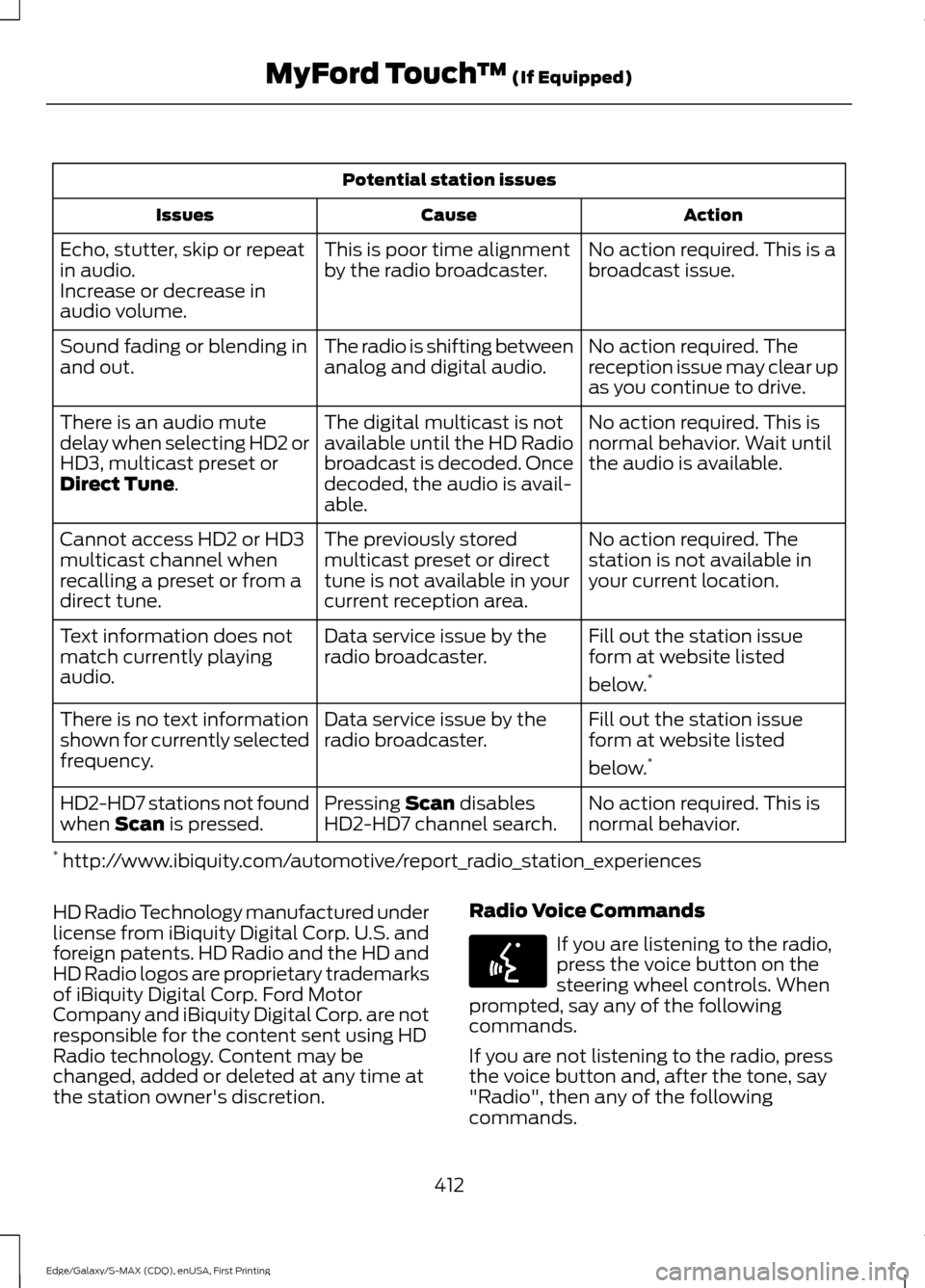
Potential station issues
Action
Cause
Issues
No action required. This is a
broadcast issue.
This is poor time alignment
by the radio broadcaster.
Echo, stutter, skip or repeat
in audio.
Increase or decrease in
audio volume.
No action required. The
reception issue may clear up
as you continue to drive.
The radio is shifting between
analog and digital audio.
Sound fading or blending in
and out.
No action required. This is
normal behavior. Wait until
the audio is available.
The digital multicast is not
available until the HD Radio
broadcast is decoded. Once
decoded, the audio is avail-
able.
There is an audio mute
delay when selecting HD2 or
HD3, multicast preset or
Direct Tune.
No action required. The
station is not available in
your current location.
The previously stored
multicast preset or direct
tune is not available in your
current reception area.
Cannot access HD2 or HD3
multicast channel when
recalling a preset or from a
direct tune.
Fill out the station issue
form at website listed
below.*
Data service issue by the
radio broadcaster.
Text information does not
match currently playing
audio.
Fill out the station issue
form at website listed
below.*
Data service issue by the
radio broadcaster.
There is no text information
shown for currently selected
frequency.
No action required. This is
normal behavior.
Pressing
Scan disables
HD2-HD7 channel search.
HD2-HD7 stations not found
when Scan is pressed.
* http://www.ibiquity.com/automotive/report_radio_station_experiences
HD Radio Technology manufactured under
license from iBiquity Digital Corp. U.S. and
foreign patents. HD Radio and the HD and
HD Radio logos are proprietary trademarks
of iBiquity Digital Corp. Ford Motor
Company and iBiquity Digital Corp. are not
responsible for the content sent using HD
Radio technology. Content may be
changed, added or deleted at any time at
the station owner's discretion. Radio Voice Commands If you are listening to the radio,
press the voice button on the
steering wheel controls. When
prompted, say any of the following
commands.
If you are not listening to the radio, press
the voice button and, after the tone, say
"Radio", then any of the following
commands.
412
Edge/Galaxy/S-MAX (CDQ), enUSA, First Printing MyFord Touch
™
(If Equipped)E142599
Page 420 of 508
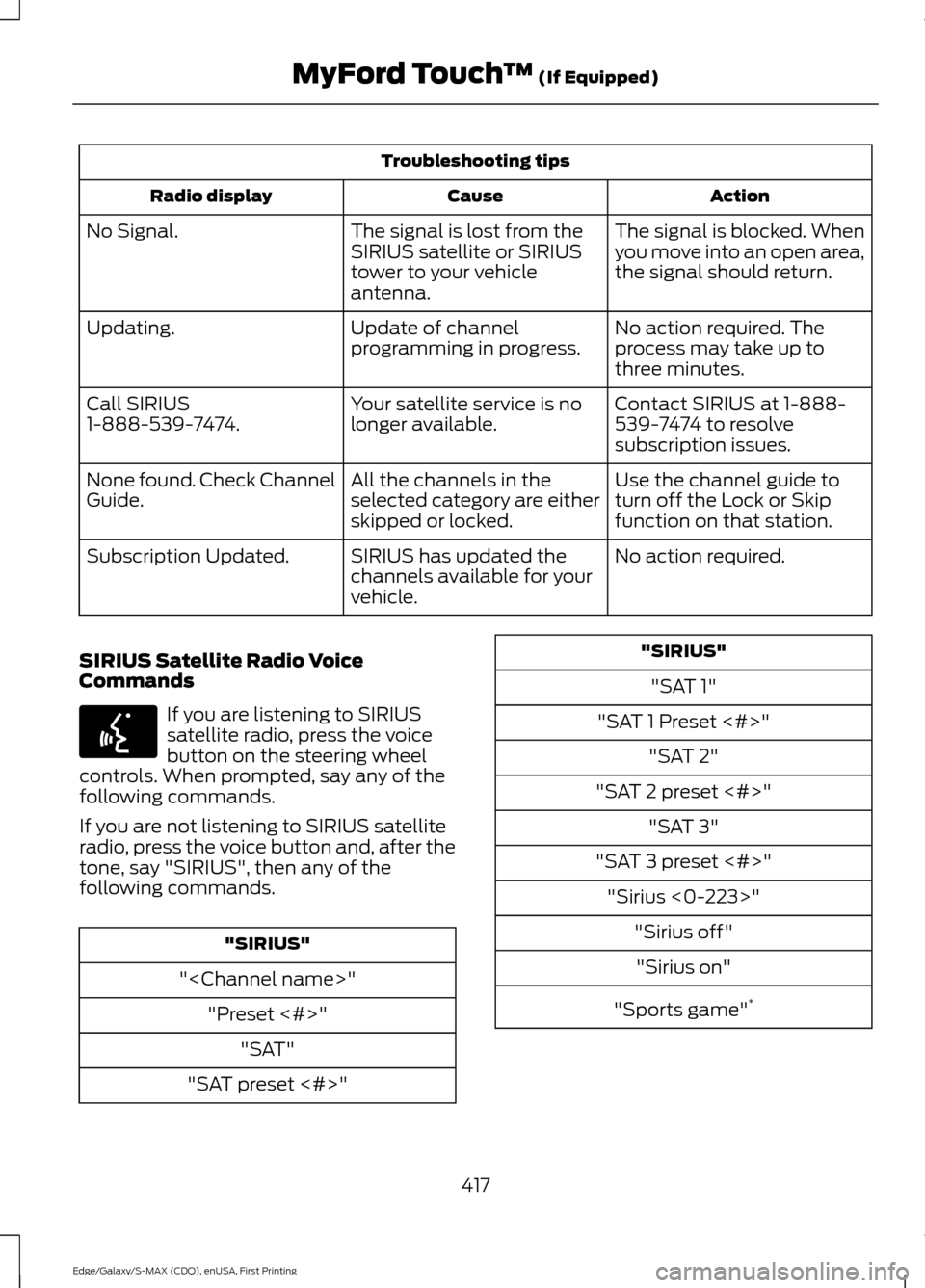
Troubleshooting tips
Action
Cause
Radio display
The signal is blocked. When
you move into an open area,
the signal should return.
The signal is lost from the
SIRIUS satellite or SIRIUS
tower to your vehicle
antenna.
No Signal.
No action required. The
process may take up to
three minutes.
Update of channel
programming in progress.
Updating.
Contact SIRIUS at 1-888-
539-7474 to resolve
subscription issues.
Your satellite service is no
longer available.
Call SIRIUS
1-888-539-7474.
Use the channel guide to
turn off the Lock or Skip
function on that station.
All the channels in the
selected category are either
skipped or locked.
None found. Check Channel
Guide.
No action required.
SIRIUS has updated the
channels available for your
vehicle.
Subscription Updated.
SIRIUS Satellite Radio Voice
Commands If you are listening to SIRIUS
satellite radio, press the voice
button on the steering wheel
controls. When prompted, say any of the
following commands.
If you are not listening to SIRIUS satellite
radio, press the voice button and, after the
tone, say "SIRIUS", then any of the
following commands. "SIRIUS"
"
"SAT preset <#>" "SIRIUS"
"SAT 1"
"SAT 1 Preset <#>" "SAT 2"
"SAT 2 preset <#>" "SAT 3"
"SAT 3 preset <#>" "Sirius <0-223>" "Sirius off""Sirius on"
"Sports game" *
417
Edge/Galaxy/S-MAX (CDQ), enUSA, First Printing MyFord Touch
™ (If Equipped)E142599
Page 426 of 508
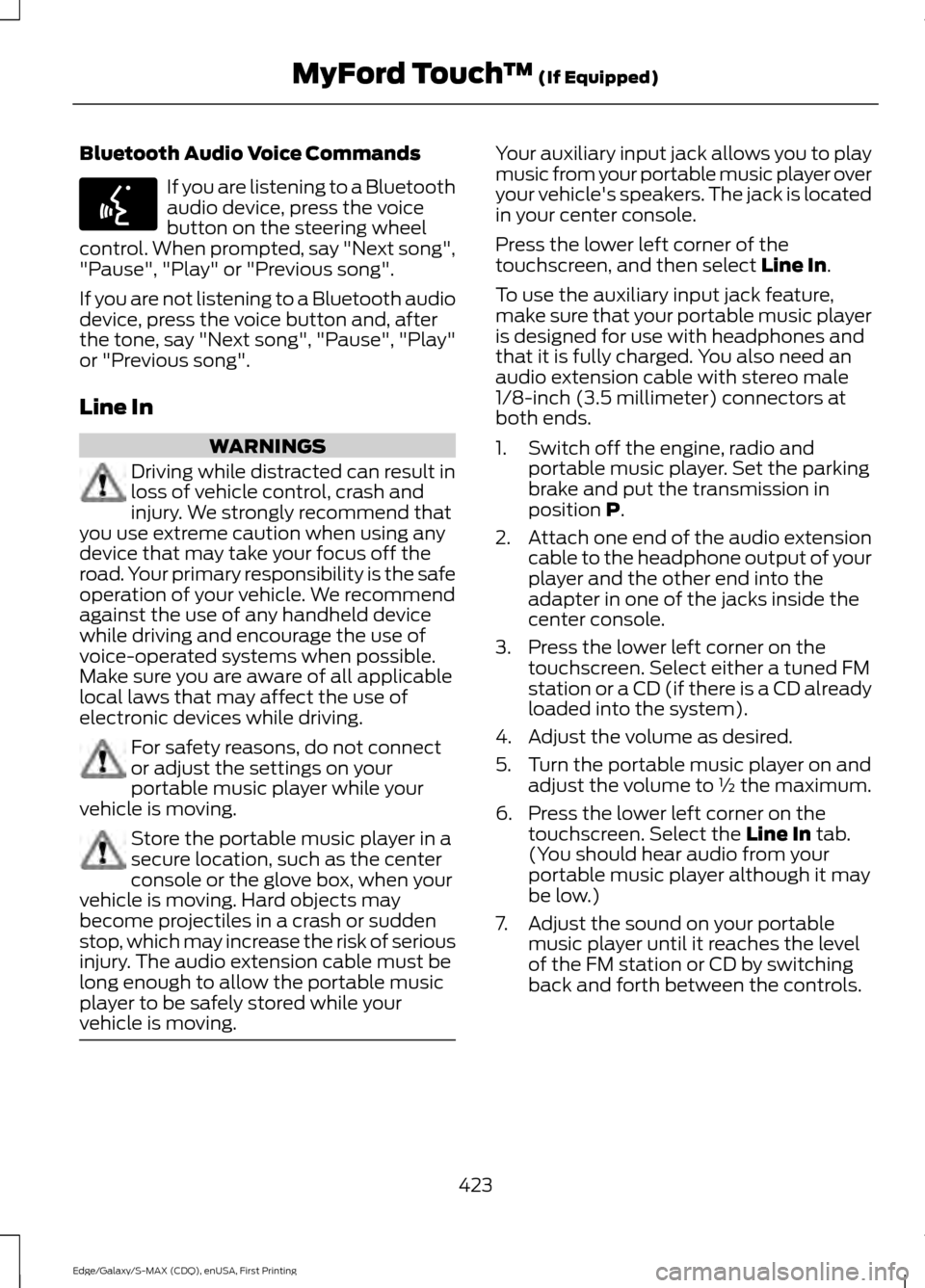
Bluetooth Audio Voice Commands
If you are listening to a Bluetooth
audio device, press the voice
button on the steering wheel
control. When prompted, say "Next song",
"Pause", "Play" or "Previous song".
If you are not listening to a Bluetooth audio
device, press the voice button and, after
the tone, say "Next song", "Pause", "Play"
or "Previous song".
Line In WARNINGS
Driving while distracted can result in
loss of vehicle control, crash and
injury. We strongly recommend that
you use extreme caution when using any
device that may take your focus off the
road. Your primary responsibility is the safe
operation of your vehicle. We recommend
against the use of any handheld device
while driving and encourage the use of
voice-operated systems when possible.
Make sure you are aware of all applicable
local laws that may affect the use of
electronic devices while driving. For safety reasons, do not connect
or adjust the settings on your
portable music player while your
vehicle is moving. Store the portable music player in a
secure location, such as the center
console or the glove box, when your
vehicle is moving. Hard objects may
become projectiles in a crash or sudden
stop, which may increase the risk of serious
injury. The audio extension cable must be
long enough to allow the portable music
player to be safely stored while your
vehicle is moving. Your auxiliary input jack allows you to play
music from your portable music player over
your vehicle's speakers. The jack is located
in your center console.
Press the lower left corner of the
touchscreen, and then select Line In.
To use the auxiliary input jack feature,
make sure that your portable music player
is designed for use with headphones and
that it is fully charged. You also need an
audio extension cable with stereo male
1/8-inch (3.5 millimeter) connectors at
both ends.
1. Switch off the engine, radio and portable music player. Set the parking
brake and put the transmission in
position
P.
2. Attach one end of the audio extension
cable to the headphone output of your
player and the other end into the
adapter in one of the jacks inside the
center console.
3. Press the lower left corner on the touchscreen. Select either a tuned FM
station or a CD (if there is a CD already
loaded into the system).
4. Adjust the volume as desired.
5. Turn the portable music player on and adjust the volume to ½ the maximum.
6. Press the lower left corner on the touchscreen. Select the
Line In tab.
(You should hear audio from your
portable music player although it may
be low.)
7. Adjust the sound on your portable music player until it reaches the level
of the FM station or CD by switching
back and forth between the controls.
423
Edge/Galaxy/S-MAX (CDQ), enUSA, First Printing MyFord Touch
™
(If Equipped)E142599