radio FORD EDGE 2015 2.G Owner's Guide
[x] Cancel search | Manufacturer: FORD, Model Year: 2015, Model line: EDGE, Model: FORD EDGE 2015 2.GPages: 508, PDF Size: 6.2 MB
Page 369 of 508
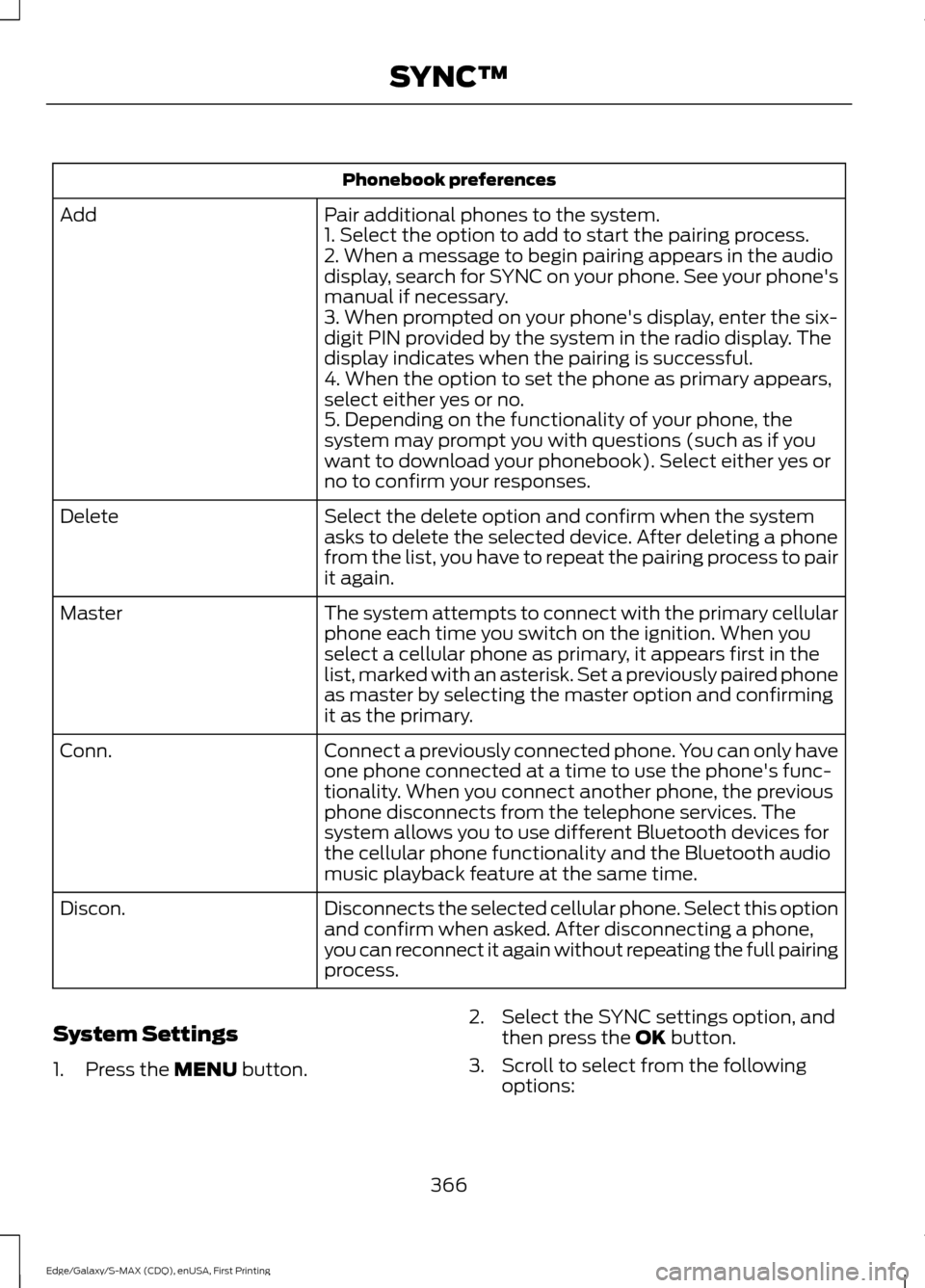
Phonebook preferences
Pair additional phones to the system.
Add
1. Select the option to add to start the pairing process.
2. When a message to begin pairing appears in the audio
display, search for SYNC on your phone. See your phone's
manual if necessary.
3. When prompted on your phone's display, enter the six-
digit PIN provided by the system in the radio display. The
display indicates when the pairing is successful.
4. When the option to set the phone as primary appears,
select either yes or no.
5. Depending on the functionality of your phone, the
system may prompt you with questions (such as if you
want to download your phonebook). Select either yes or
no to confirm your responses.
Select the delete option and confirm when the system
asks to delete the selected device. After deleting a phone
from the list, you have to repeat the pairing process to pair
it again.
Delete
The system attempts to connect with the primary cellular
phone each time you switch on the ignition. When you
select a cellular phone as primary, it appears first in the
list, marked with an asterisk. Set a previously paired phone
as master by selecting the master option and confirming
it as the primary.
Master
Connect a previously connected phone. You can only have
one phone connected at a time to use the phone's func-
tionality. When you connect another phone, the previous
phone disconnects from the telephone services. The
system allows you to use different Bluetooth devices for
the cellular phone functionality and the Bluetooth audio
music playback feature at the same time.
Conn.
Disconnects the selected cellular phone. Select this option
and confirm when asked. After disconnecting a phone,
you can reconnect it again without repeating the full pairing
process.
Discon.
System Settings
1. Press the MENU button. 2. Select the SYNC settings option, and
then press the
OK button.
3. Scroll to select from the following options:
366
Edge/Galaxy/S-MAX (CDQ), enUSA, First Printing SYNC™
Page 372 of 508
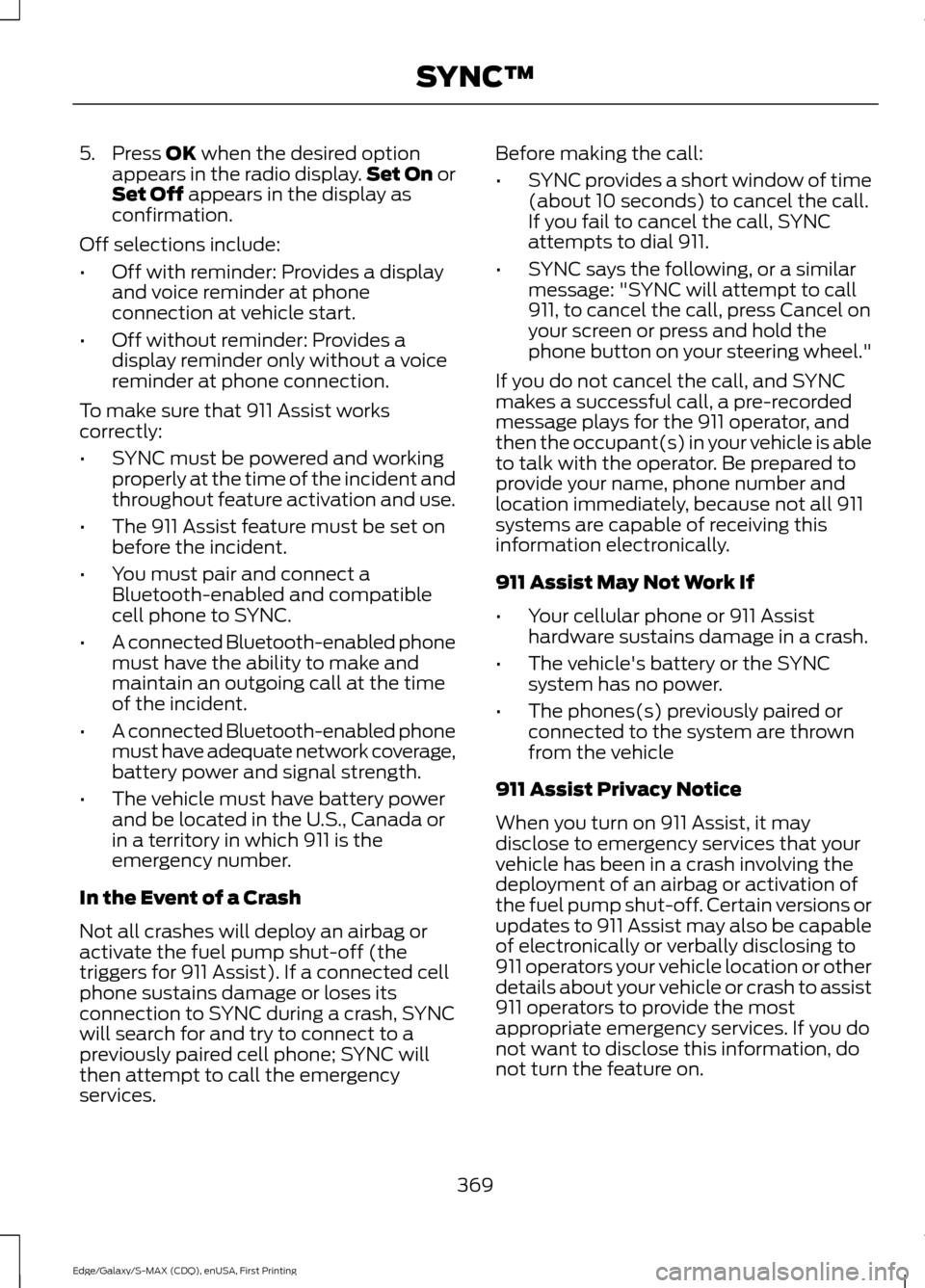
5. Press OK when the desired option
appears in the radio display. Set On or
Set Off
appears in the display as
confirmation.
Off selections include:
• Off with reminder: Provides a display
and voice reminder at phone
connection at vehicle start.
• Off without reminder: Provides a
display reminder only without a voice
reminder at phone connection.
To make sure that 911 Assist works
correctly:
• SYNC must be powered and working
properly at the time of the incident and
throughout feature activation and use.
• The 911 Assist feature must be set on
before the incident.
• You must pair and connect a
Bluetooth-enabled and compatible
cell phone to SYNC.
• A connected Bluetooth-enabled phone
must have the ability to make and
maintain an outgoing call at the time
of the incident.
• A connected Bluetooth-enabled phone
must have adequate network coverage,
battery power and signal strength.
• The vehicle must have battery power
and be located in the U.S., Canada or
in a territory in which 911 is the
emergency number.
In the Event of a Crash
Not all crashes will deploy an airbag or
activate the fuel pump shut-off (the
triggers for 911 Assist). If a connected cell
phone sustains damage or loses its
connection to SYNC during a crash, SYNC
will search for and try to connect to a
previously paired cell phone; SYNC will
then attempt to call the emergency
services. Before making the call:
•
SYNC provides a short window of time
(about 10 seconds) to cancel the call.
If you fail to cancel the call, SYNC
attempts to dial 911.
• SYNC says the following, or a similar
message: "SYNC will attempt to call
911, to cancel the call, press Cancel on
your screen or press and hold the
phone button on your steering wheel."
If you do not cancel the call, and SYNC
makes a successful call, a pre-recorded
message plays for the 911 operator, and
then the occupant(s) in your vehicle is able
to talk with the operator. Be prepared to
provide your name, phone number and
location immediately, because not all 911
systems are capable of receiving this
information electronically.
911 Assist May Not Work If
• Your cellular phone or 911 Assist
hardware sustains damage in a crash.
• The vehicle's battery or the SYNC
system has no power.
• The phones(s) previously paired or
connected to the system are thrown
from the vehicle
911 Assist Privacy Notice
When you turn on 911 Assist, it may
disclose to emergency services that your
vehicle has been in a crash involving the
deployment of an airbag or activation of
the fuel pump shut-off. Certain versions or
updates to 911 Assist may also be capable
of electronically or verbally disclosing to
911 operators your vehicle location or other
details about your vehicle or crash to assist
911 operators to provide the most
appropriate emergency services. If you do
not want to disclose this information, do
not turn the feature on.
369
Edge/Galaxy/S-MAX (CDQ), enUSA, First Printing SYNC™
Page 380 of 508
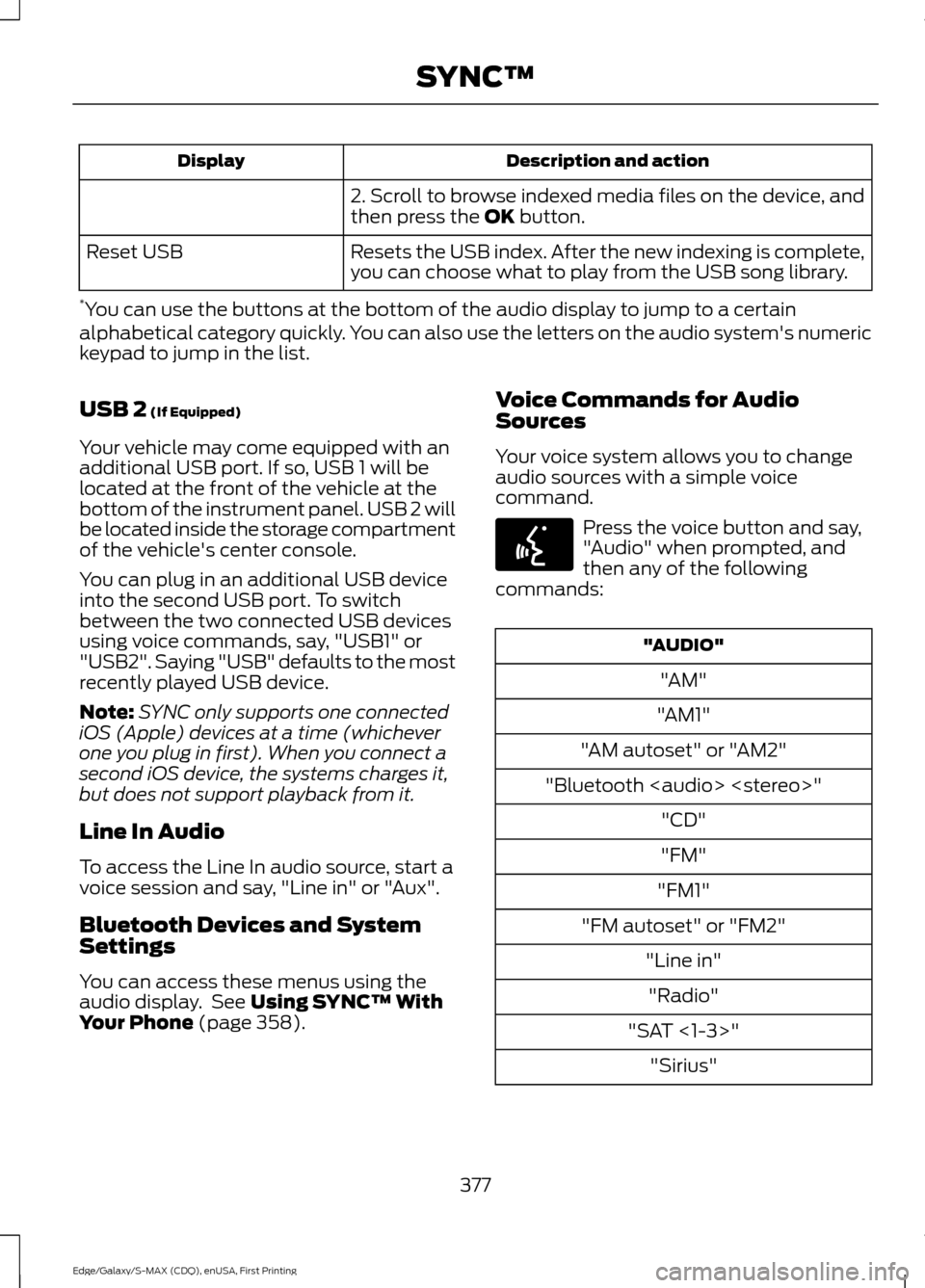
Description and action
Display
2. Scroll to browse indexed media files on the device, and
then press the OK button.
Resets the USB index. After the new indexing is complete,
you can choose what to play from the USB song library.
Reset USB
* You can use the buttons at the bottom of the audio display to jump to a certain
alphabetical category quickly. You can also use the letters on the audio system's numeric
keypad to jump in the list.
USB 2
(If Equipped)
Your vehicle may come equipped with an
additional USB port. If so, USB 1 will be
located at the front of the vehicle at the
bottom of the instrument panel. USB 2 will
be located inside the storage compartment
of the vehicle's center console.
You can plug in an additional USB device
into the second USB port. To switch
between the two connected USB devices
using voice commands, say, "USB1" or
"USB2". Saying "USB" defaults to the most
recently played USB device.
Note: SYNC only supports one connected
iOS (Apple) devices at a time (whichever
one you plug in first). When you connect a
second iOS device, the systems charges it,
but does not support playback from it.
Line In Audio
To access the Line In audio source, start a
voice session and say, "Line in" or "Aux".
Bluetooth Devices and System
Settings
You can access these menus using the
audio display. See
Using SYNC™ With
Your Phone (page 358). Voice Commands for Audio
Sources
Your voice system allows you to change
audio sources with a simple voice
command. Press the voice button and say,
"Audio" when prompted, and
then any of the following
commands: "AUDIO"
"AM"
"AM1"
"AM autoset" or "AM2"
"Bluetooth
Page 381 of 508
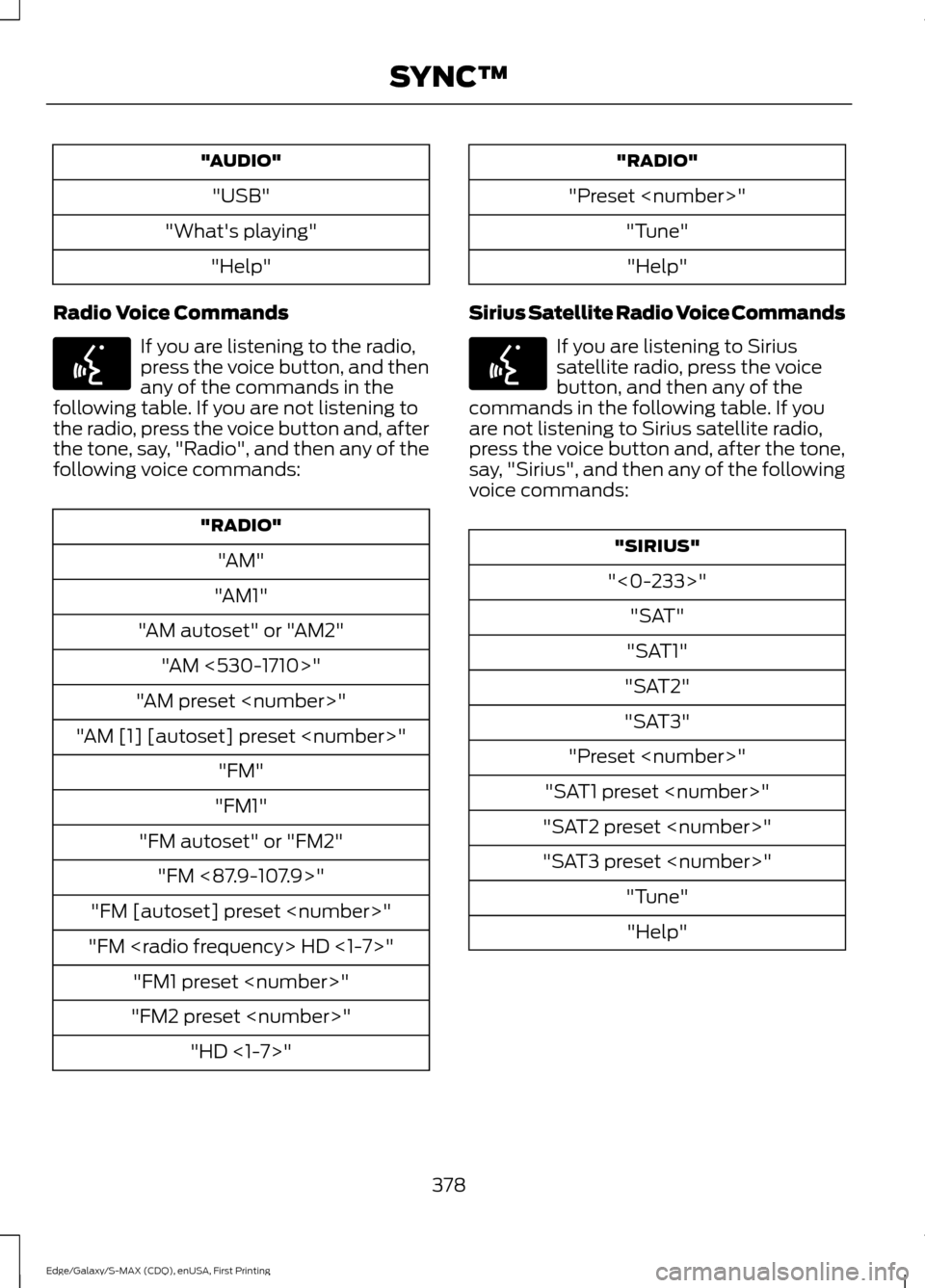
"AUDIO"
"USB"
"What's playing" "Help"
Radio Voice Commands If you are listening to the radio,
press the voice button, and then
any of the commands in the
following table. If you are not listening to
the radio, press the voice button and, after
the tone, say, "Radio", and then any of the
following voice commands: "RADIO"
"AM"
"AM1"
"AM autoset" or "AM2" "AM <530-1710>"
"AM preset
"AM [1] [autoset] preset
"FM1"
"FM autoset" or "FM2" "FM <87.9-107.9>"
"FM [autoset] preset
"FM
"FM2 preset
"Preset
Sirius Satellite Radio Voice Commands If you are listening to Sirius
satellite radio, press the voice
button, and then any of the
commands in the following table. If you
are not listening to Sirius satellite radio,
press the voice button and, after the tone,
say, "Sirius", and then any of the following
voice commands: "SIRIUS"
"<0-233>" "SAT"
"SAT1"
"SAT2"
"SAT3"
"Preset
"SAT1 preset
"SAT2 preset
"SAT3 preset
378
Edge/Galaxy/S-MAX (CDQ), enUSA, First Printing SYNC™E142599 E142599
Page 390 of 508
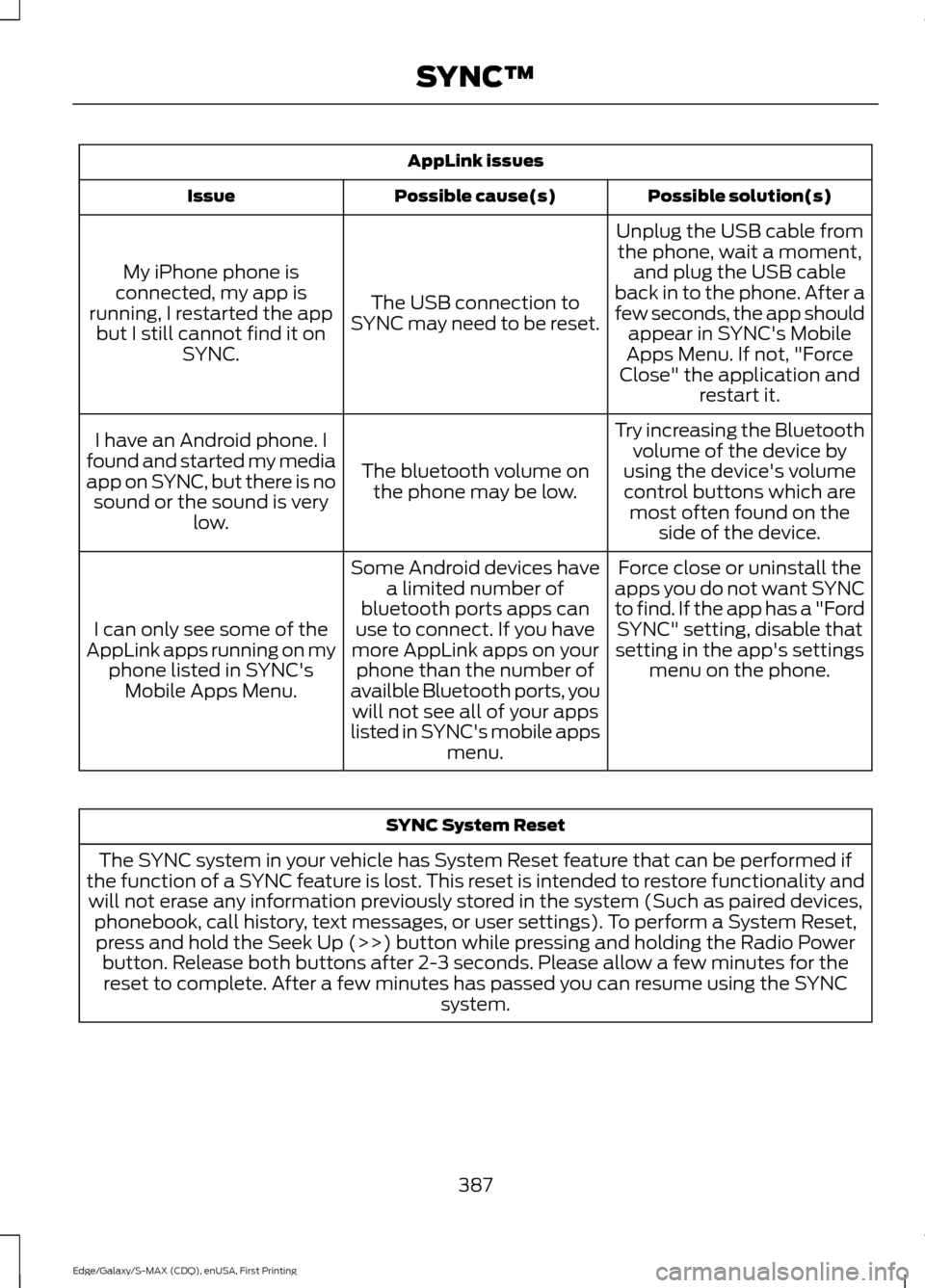
AppLink issues
Possible solution(s)
Possible cause(s)
Issue
Unplug the USB cable fromthe phone, wait a moment, and plug the USB cable
back in to the phone. After a
few seconds, the app should appear in SYNC's Mobile
Apps Menu. If not, "Force
Close" the application and restart it.
The USB connection to
SYNC may need to be reset.
My iPhone phone is
connected, my app is
running, I restarted the app but I still cannot find it on SYNC.
Try increasing the Bluetoothvolume of the device by
using the device's volume control buttons which are most often found on the side of the device.
The bluetooth volume on
the phone may be low.
I have an Android phone. I
found and started my media
app on SYNC, but there is no sound or the sound is very low.
Force close or uninstall the
apps you do not want SYNC
to find. If the app has a "Ford SYNC" setting, disable that
setting in the app's settings menu on the phone.
Some Android devices have
a limited number of
bluetooth ports apps can
use to connect. If you have
more AppLink apps on your phone than the number of
availble Bluetooth ports, you will not see all of your apps
listed in SYNC's mobile apps menu.
I can only see some of the
AppLink apps running on my phone listed in SYNC'sMobile Apps Menu. SYNC System Reset
The SYNC system in your vehicle has System Reset feature that can be performed if
the function of a SYNC feature is lost. This reset is intended to restore functionality and will not erase any information previously stored in the system (Such as paired devices, phonebook, call history, text messages, or user settings). To perform a System Reset,press and hold the Seek Up (>>) button while pressing and holding the Radio Power button. Release both buttons after 2-3 seconds. Please allow a few minutes for thereset to complete. After a few minutes has passed you can resume using the SYNC system.
387
Edge/Galaxy/S-MAX (CDQ), enUSA, First Printing SYNC™
Page 393 of 508
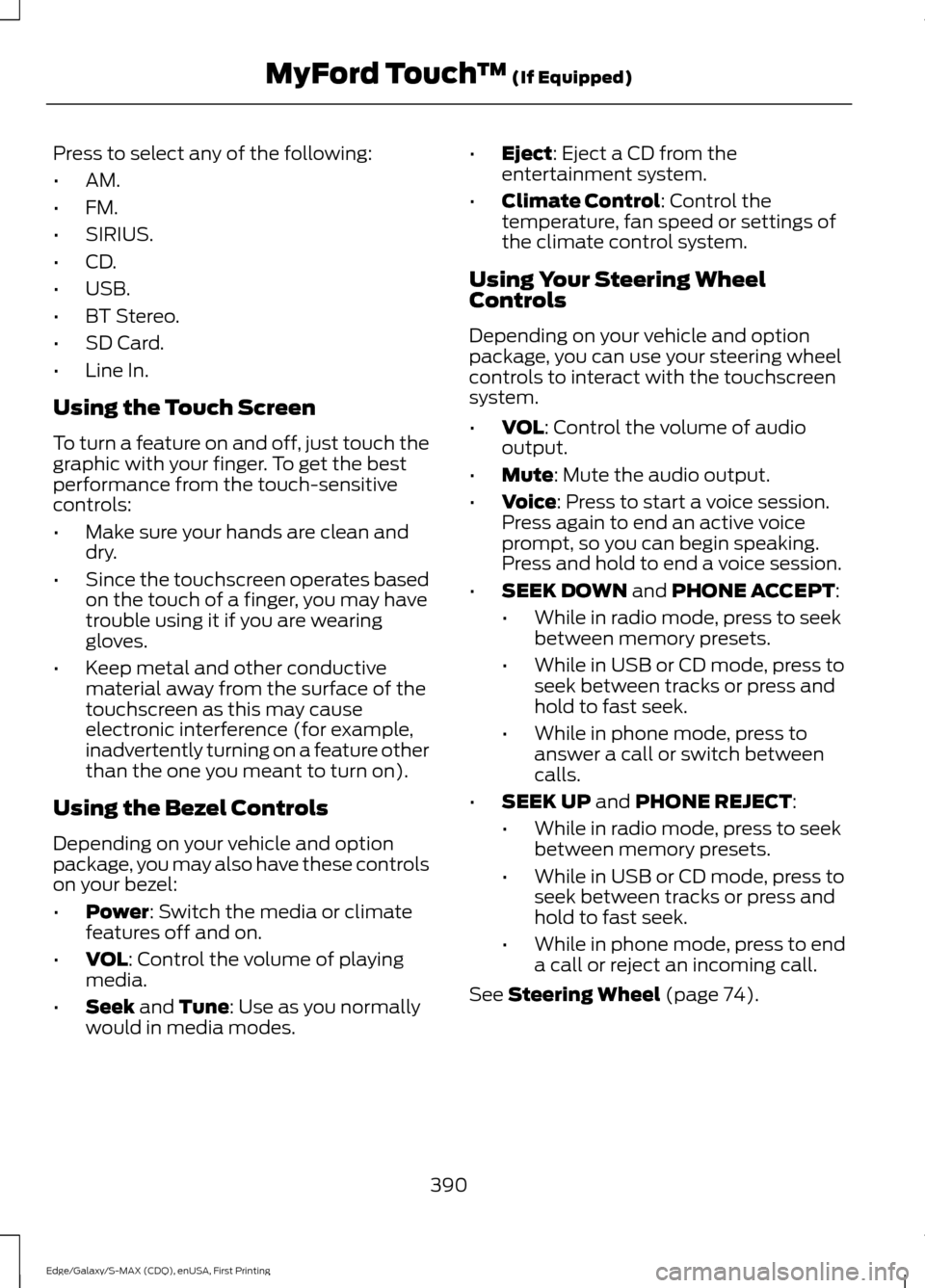
Press to select any of the following:
•
AM.
• FM.
• SIRIUS.
• CD.
• USB.
• BT Stereo.
• SD Card.
• Line In.
Using the Touch Screen
To turn a feature on and off, just touch the
graphic with your finger. To get the best
performance from the touch-sensitive
controls:
• Make sure your hands are clean and
dry.
• Since the touchscreen operates based
on the touch of a finger, you may have
trouble using it if you are wearing
gloves.
• Keep metal and other conductive
material away from the surface of the
touchscreen as this may cause
electronic interference (for example,
inadvertently turning on a feature other
than the one you meant to turn on).
Using the Bezel Controls
Depending on your vehicle and option
package, you may also have these controls
on your bezel:
• Power: Switch the media or climate
features off and on.
• VOL
: Control the volume of playing
media.
• Seek
and Tune: Use as you normally
would in media modes. •
Eject
: Eject a CD from the
entertainment system.
• Climate Control
: Control the
temperature, fan speed or settings of
the climate control system.
Using Your Steering Wheel
Controls
Depending on your vehicle and option
package, you can use your steering wheel
controls to interact with the touchscreen
system.
• VOL
: Control the volume of audio
output.
• Mute
: Mute the audio output.
• Voice
: Press to start a voice session.
Press again to end an active voice
prompt, so you can begin speaking.
Press and hold to end a voice session.
• SEEK DOWN
and PHONE ACCEPT:
• While in radio mode, press to seek
between memory presets.
• While in USB or CD mode, press to
seek between tracks or press and
hold to fast seek.
• While in phone mode, press to
answer a call or switch between
calls.
• SEEK UP
and PHONE REJECT:
• While in radio mode, press to seek
between memory presets.
• While in USB or CD mode, press to
seek between tracks or press and
hold to fast seek.
• While in phone mode, press to end
a call or reject an incoming call.
See
Steering Wheel (page 74).
390
Edge/Galaxy/S-MAX (CDQ), enUSA, First Printing MyFord Touch
™
(If Equipped)
Page 398 of 508
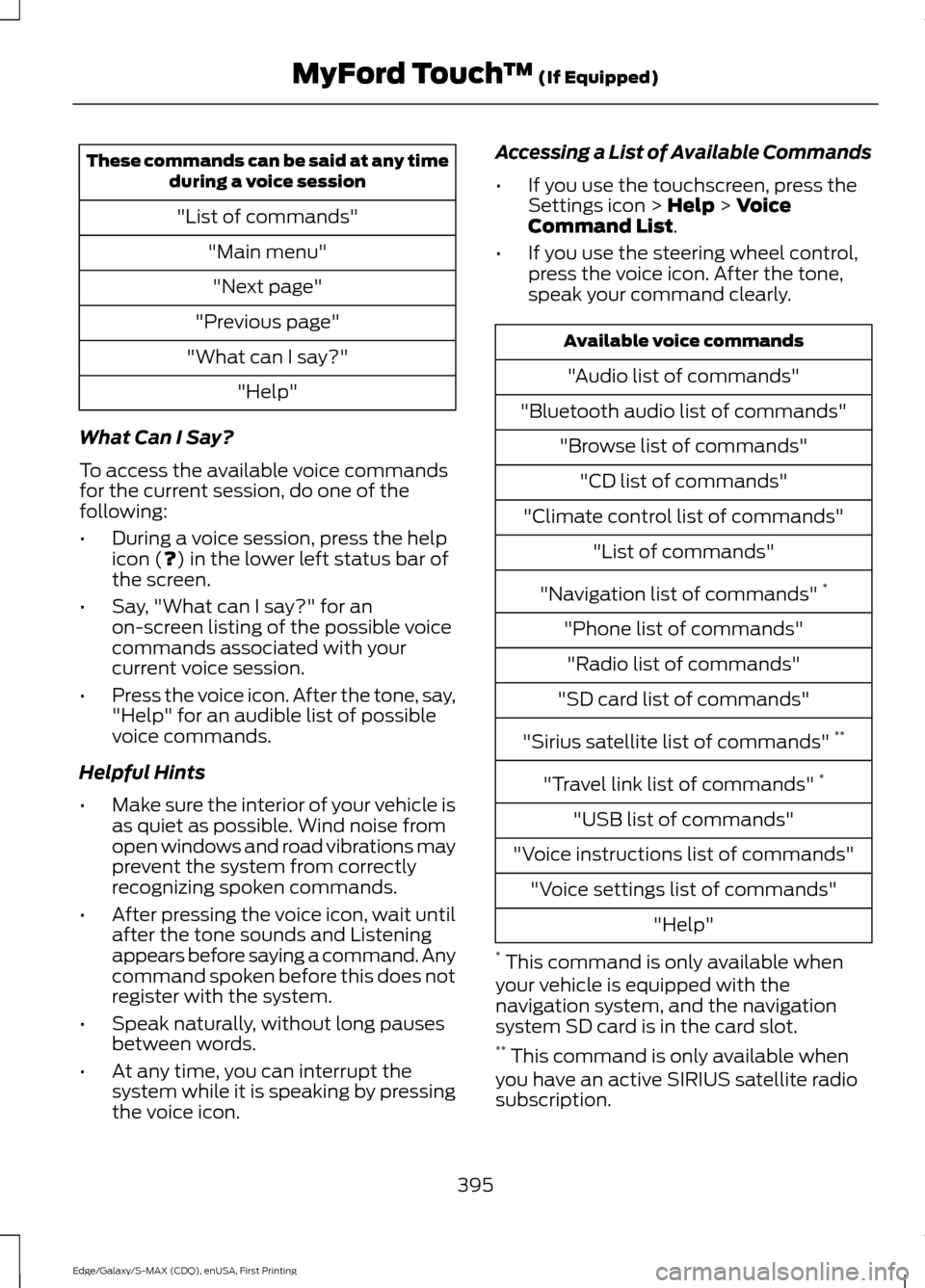
These commands can be said at any time
during a voice session
"List of commands" "Main menu""Next page"
"Previous page"
"What can I say?" "Help"
What Can I Say?
To access the available voice commands
for the current session, do one of the
following:
• During a voice session, press the help
icon (?) in the lower left status bar of
the screen.
• Say, "What can I say?" for an
on-screen listing of the possible voice
commands associated with your
current voice session.
• Press the voice icon. After the tone, say,
"Help" for an audible list of possible
voice commands.
Helpful Hints
• Make sure the interior of your vehicle is
as quiet as possible. Wind noise from
open windows and road vibrations may
prevent the system from correctly
recognizing spoken commands.
• After pressing the voice icon, wait until
after the tone sounds and Listening
appears before saying a command. Any
command spoken before this does not
register with the system.
• Speak naturally, without long pauses
between words.
• At any time, you can interrupt the
system while it is speaking by pressing
the voice icon. Accessing a List of Available Commands
•
If you use the touchscreen, press the
Settings icon >
Help > Voice
Command List.
• If you use the steering wheel control,
press the voice icon. After the tone,
speak your command clearly. Available voice commands
"Audio list of commands"
"Bluetooth audio list of commands" "Browse list of commands""CD list of commands"
"Climate control list of commands" "List of commands"
"Navigation list of commands" *
"Phone list of commands" "Radio list of commands"
"SD card list of commands"
"Sirius satellite list of commands" **
"Travel link list of commands" *
"USB list of commands"
"Voice instructions list of commands" "Voice settings list of commands" "Help"
* This command is only available when
your vehicle is equipped with the
navigation system, and the navigation
system SD card is in the card slot.
** This command is only available when
you have an active SIRIUS satellite radio
subscription.
395
Edge/Galaxy/S-MAX (CDQ), enUSA, First Printing MyFord Touch
™
(If Equipped)
Page 406 of 508
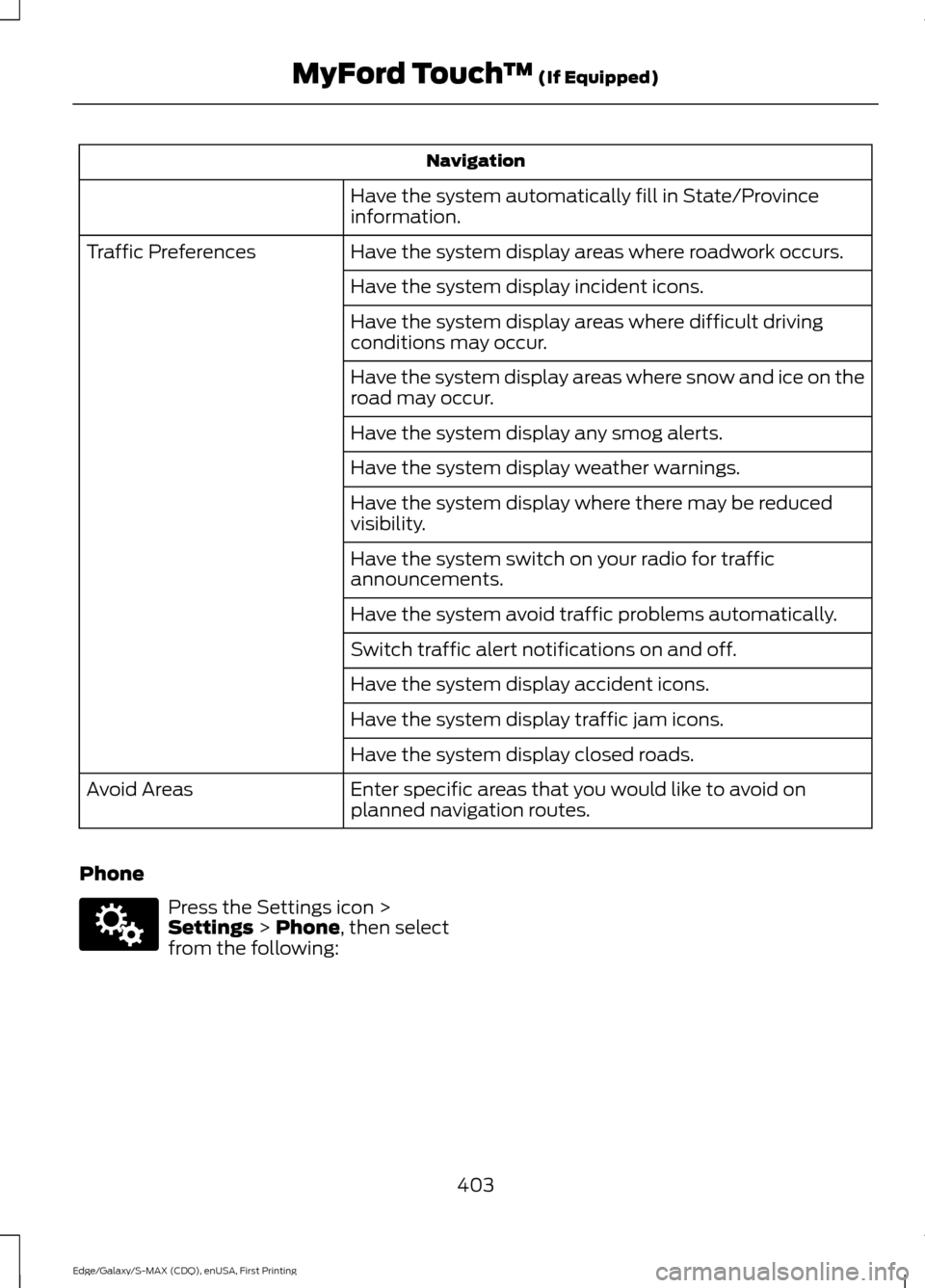
Navigation
Have the system automatically fill in State/Province
information.
Have the system display areas where roadwork occurs.
Traffic Preferences
Have the system display incident icons.
Have the system display areas where difficult driving
conditions may occur.
Have the system display areas where snow and ice on the
road may occur.
Have the system display any smog alerts.
Have the system display weather warnings.
Have the system display where there may be reduced
visibility.
Have the system switch on your radio for traffic
announcements.
Have the system avoid traffic problems automatically.
Switch traffic alert notifications on and off.
Have the system display accident icons.
Have the system display traffic jam icons.
Have the system display closed roads.
Enter specific areas that you would like to avoid on
planned navigation routes.
Avoid Areas
Phone Press the Settings icon >
Settings > Phone, then select
from the following:
403
Edge/Galaxy/S-MAX (CDQ), enUSA, First Printing MyFord Touch
™
(If Equipped)E142607
Page 409 of 508
The Wi-Fi CERTIFIED Logo is a certification
mark of the Wi-Fi Alliance.
Help
Press the Settings icon > Help,
then select from the following: Help
Touchscreen system serial number
System Information
Your vehicle identification number (VIN)
Touchscreen system software version
Navigation system version
Map database version
Sirius satellite radio ESN
Gracenote Database Information and Library version
View the licenses for any software and applications
installed on your system.
Software Licenses
Certain features are not accessible when your vehicle is
moving.
Driving Restrictions
Turn on and turn off the 911 Assist feature. See
Informa-
tion (page 430).
911 Assist
In Case of Emergency (ICE) Quick Dial:
allows you to
save up to two numbers as ICE contacts for quick access
if there is an emergency. Select
Edit to access your
phonebook and then select the desired contacts. The
numbers then appear as options on this screen for the ICE
1 and ICE 2 buttons. The ICE contacts you select appear
at the end of the 911 Assist call process.
View categorized lists of voice commands.
Voice Command List
To access Help using the voice commands,
press the voice button, then, after the tone,
say "Help". The system provides allowable
voice commands for the current mode.
406
Edge/Galaxy/S-MAX (CDQ), enUSA, First Printing MyFord Touch
™
(If Equipped)E142626 E142607
Page 410 of 508
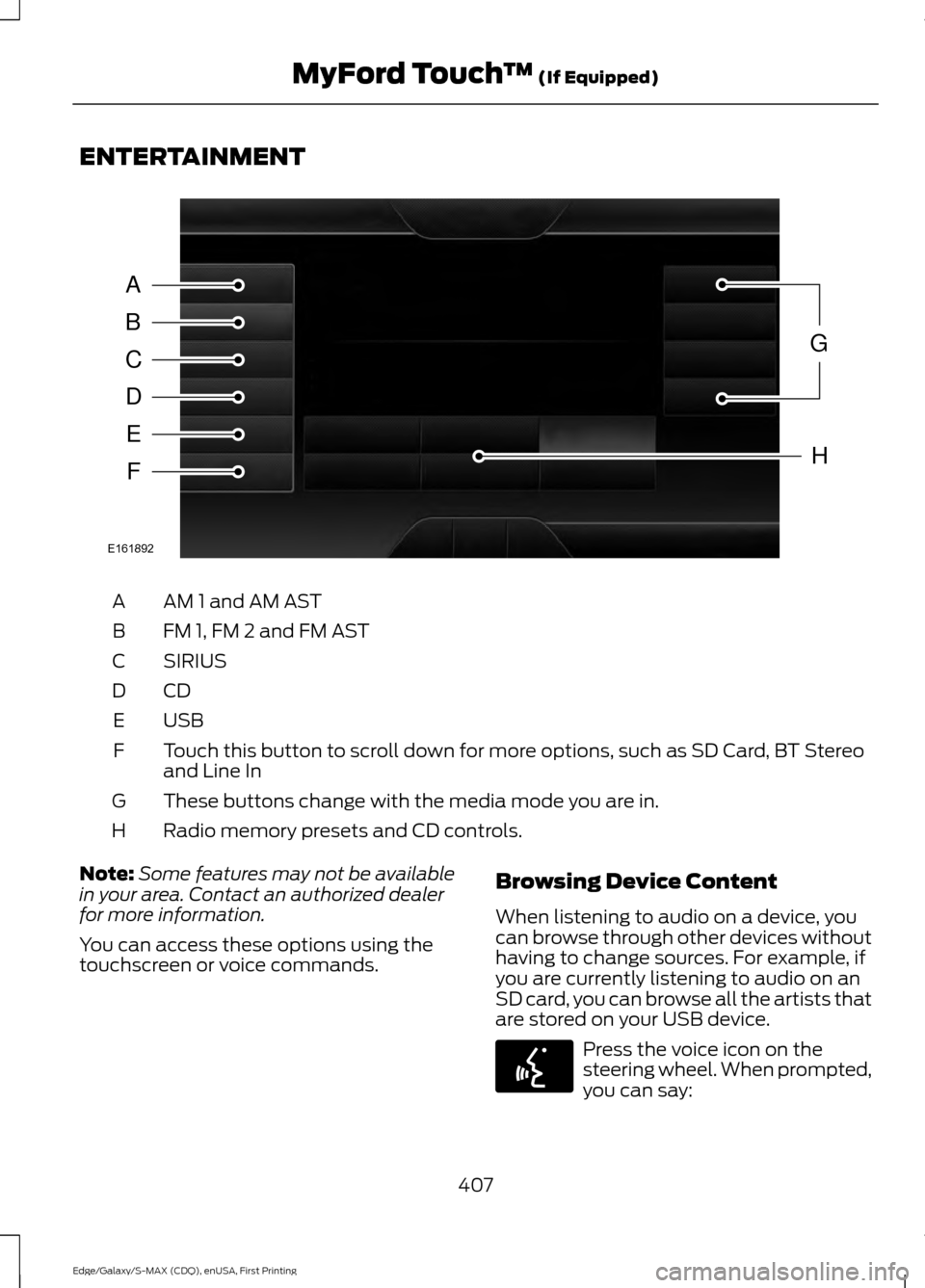
ENTERTAINMENT
AM 1 and AM AST
A
FM 1, FM 2 and FM AST
B
SIRIUS
C
CDD
USBE
Touch this button to scroll down for more options, such as SD Card, BT Stereo
and Line In
F
These buttons change with the media mode you are in.
G
Radio memory presets and CD controls.
H
Note: Some features may not be available
in your area. Contact an authorized dealer
for more information.
You can access these options using the
touchscreen or voice commands. Browsing Device Content
When listening to audio on a device, you
can browse through other devices without
having to change sources. For example, if
you are currently listening to audio on an
SD card, you can browse all the artists that
are stored on your USB device. Press the voice icon on the
steering wheel. When prompted,
you can say:
407
Edge/Galaxy/S-MAX (CDQ), enUSA, First Printing MyFord Touch
™ (If Equipped)A
B
C
D
E
F
G
H
E161892 E142599