steering FORD EDGE 2019 User Guide
[x] Cancel search | Manufacturer: FORD, Model Year: 2019, Model line: EDGE, Model: FORD EDGE 2019Pages: 547, PDF Size: 40.86 MB
Page 77 of 547
End of Travel Position
The steering column sets a stopping
position just short of the end of the column
position to prevent damage to the steering
column. A new stopping position sets if
the steering column encounters an object
when tilting or telescoping.
To reset the steering column to its normal
stopping position:
1. Confirm there is nothing obstructing
the motion of the steering column.
2. Press and hold the steering column control until the steering column stops
moving.
3. Press the steering column control again.
Note: The steering column may begin to
move again.
4. When the steering column stops, continue holding the control for a few
seconds.
5. Repeat for each direction as necessary.
A new stopping position sets. The next
time you tilt or telescope the steering
column, it stops just short of the end of the
column position.
Memory Feature (If Equipped)
You can save and recall the steering
column position with the memory
function. See
Memory Function (page
140).
Pressing the adjustment control during a
memory recall cancels the operation.
Easy Entry and Exit Feature
The column moves up when you switch
the ignition off. Switch the ignition on to
return the system to its previous settings.
You can switch this feature on or off in the
information display. See Steering Wheel
(page
73). Note:
If you press any adjustment or
memory button when in easy exit mode, the
system cancels the operation.
Note: Depending on your vehicle, the
column may move up and in.
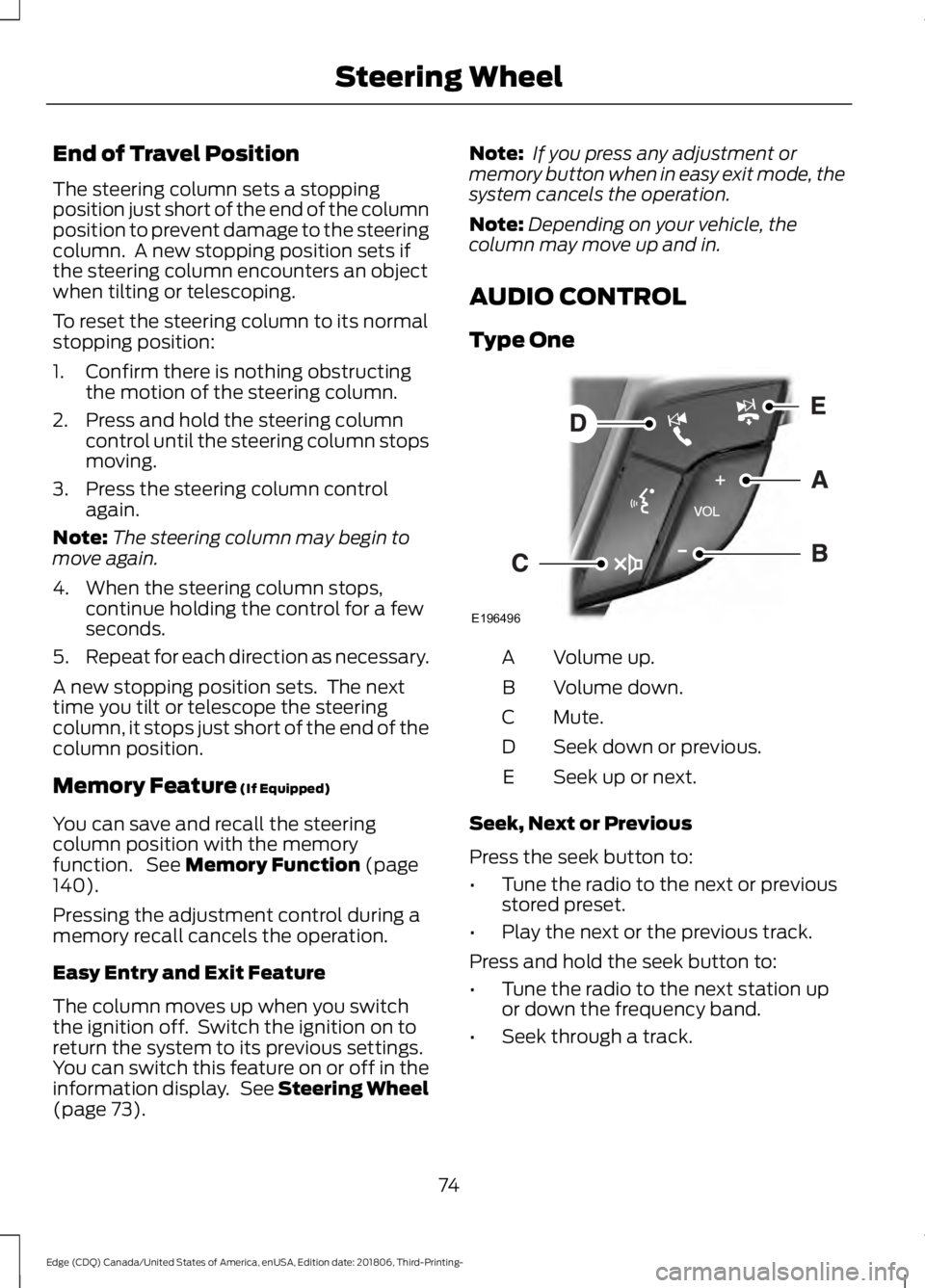
AUDIO CONTROL
Type One Volume up.
A
Volume down.
B
Mute.
C
Seek down or previous.
D
Seek up or next.
E
Seek, Next or Previous
Press the seek button to:
• Tune the radio to the next or previous
stored preset.
• Play the next or the previous track.
Press and hold the seek button to:
• Tune the radio to the next station up
or down the frequency band.
• Seek through a track.
74
Edge (CDQ) Canada/United States of America, enUSA, Edition date: 201806, Third-Printing- Steering WheelE196496
Page 78 of 547
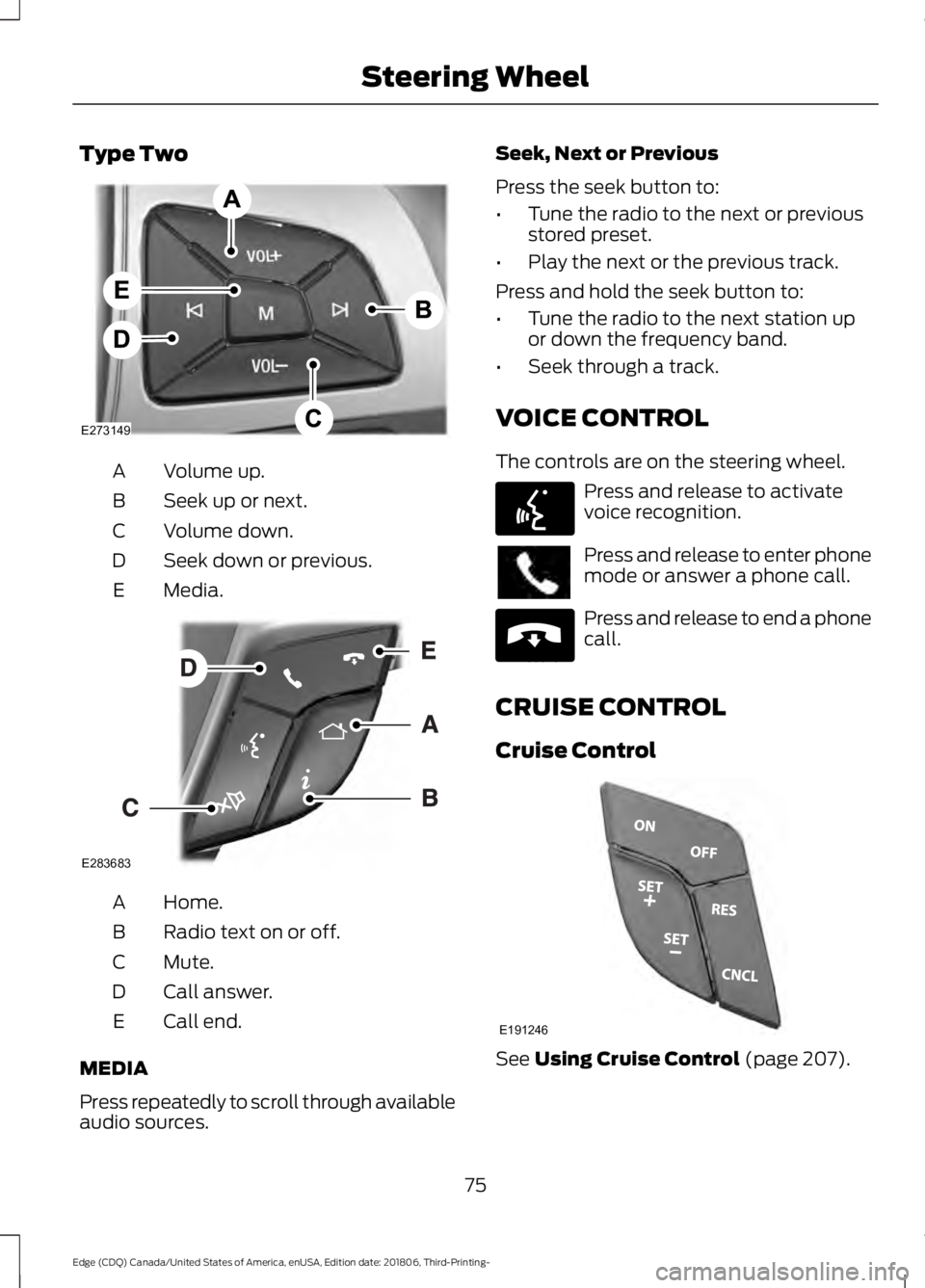
Type Two
Volume up.
A
Seek up or next.
B
Volume down.
C
Seek down or previous.
D
Media.
E Home.
A
Radio text on or off.
B
Mute.
C
Call answer.
D
Call end.
E
MEDIA
Press repeatedly to scroll through available
audio sources. Seek, Next or Previous
Press the seek button to:
•
Tune the radio to the next or previous
stored preset.
• Play the next or the previous track.
Press and hold the seek button to:
• Tune the radio to the next station up
or down the frequency band.
• Seek through a track.
VOICE CONTROL
The controls are on the steering wheel. Press and release to activate
voice recognition.
Press and release to enter phone
mode or answer a phone call.
Press and release to end a phone
call.
CRUISE CONTROL
Cruise Control See Using Cruise Control (page 207).
75
Edge (CDQ) Canada/United States of America, enUSA, Edition date: 201806, Third-Printing- Steering WheelE273149 E283683 E142599 E265040 E191246
Page 79 of 547
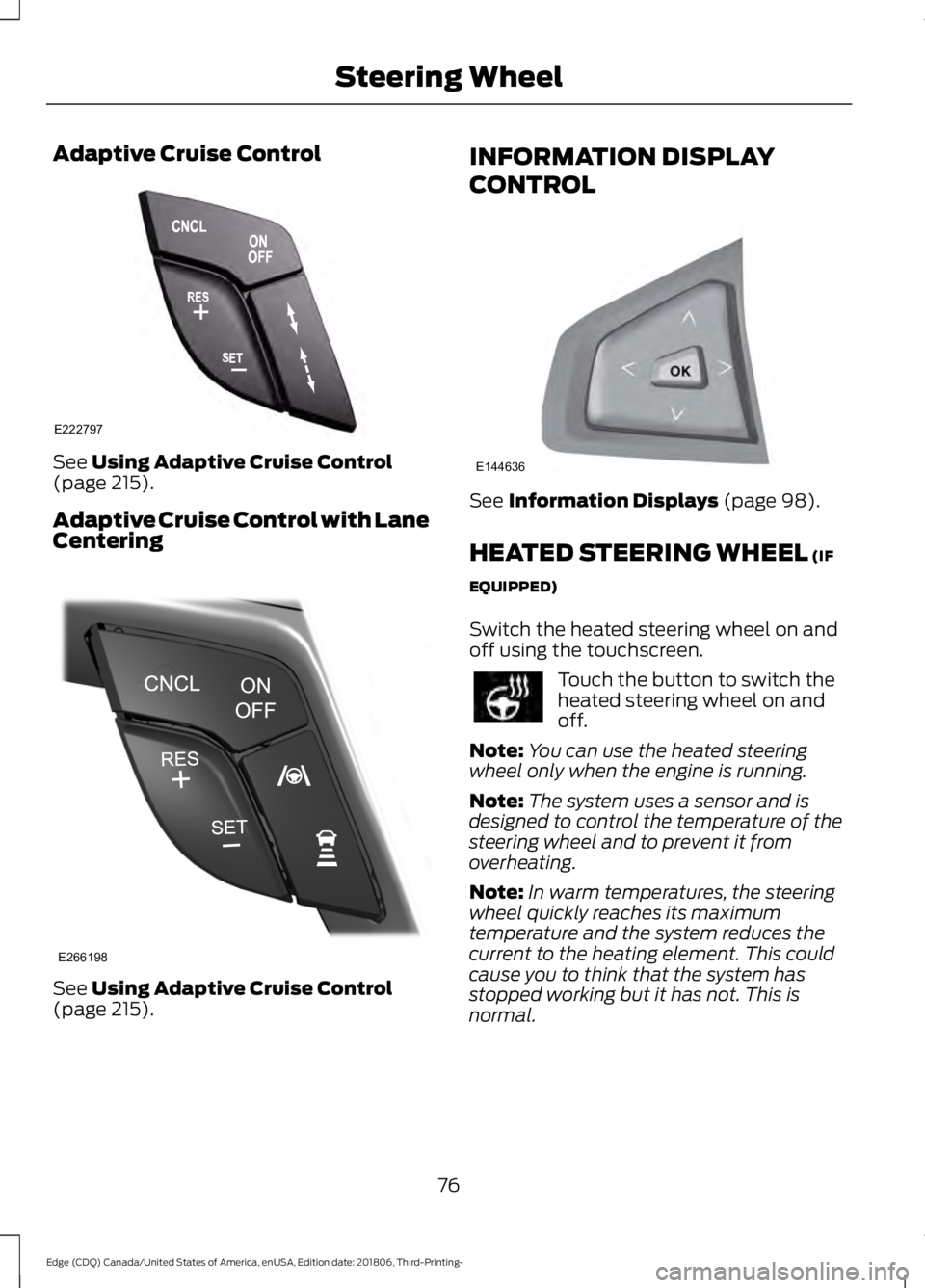
Adaptive Cruise Control
See Using Adaptive Cruise Control
(page 215).
Adaptive Cruise Control with Lane
Centering See
Using Adaptive Cruise Control
(page 215). INFORMATION DISPLAY
CONTROL
See
Information Displays (page 98).
HEATED STEERING WHEEL
(IF
EQUIPPED)
Switch the heated steering wheel on and
off using the touchscreen. Touch the button to switch the
heated steering wheel on and
off.
Note: You can use the heated steering
wheel only when the engine is running.
Note: The system uses a sensor and is
designed to control the temperature of the
steering wheel and to prevent it from
overheating.
Note: In warm temperatures, the steering
wheel quickly reaches its maximum
temperature and the system reduces the
current to the heating element. This could
cause you to think that the system has
stopped working but it has not. This is
normal.
76
Edge (CDQ) Canada/United States of America, enUSA, Edition date: 201806, Third-Printing- Steering WheelE222797 E266198 E144636
Page 86 of 547
Switch the lighting control to the
autolamps position. See Autolamps
(page 80).
Overriding the System
Push the lever away from you to switch
between high beam and low beam.
Automatic High Beam Indicator The indicator illuminates to
confirm when the system is
ready to assist.
FRONT FOG LAMPS
(IF EQUIPPED) Press the control to switch the fog lamps
on or off. You can switch the fog lamps on when the
lighting control is in any position except
Off and the high beams are not on.
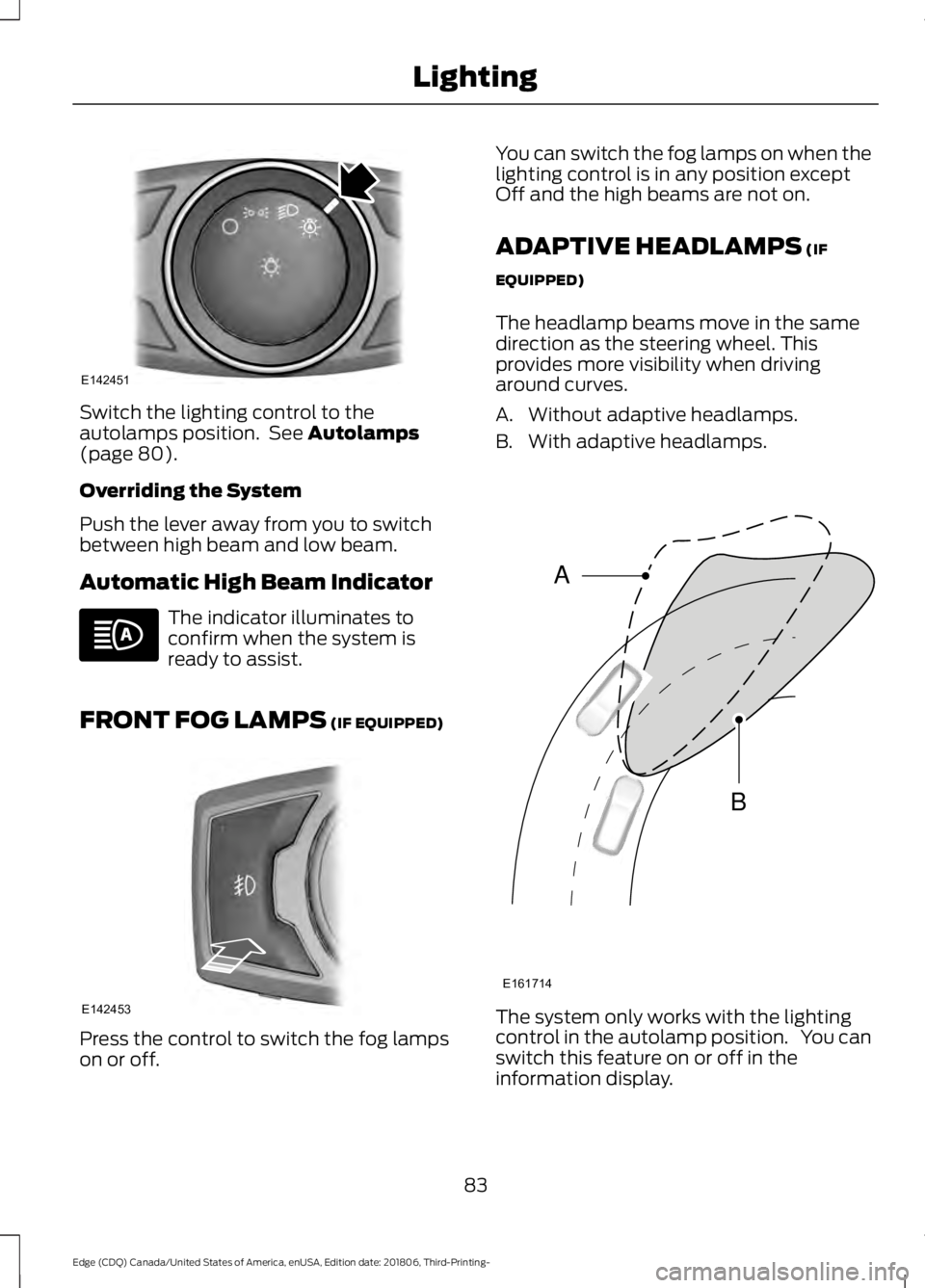
ADAPTIVE HEADLAMPS
(IF
EQUIPPED)
The headlamp beams move in the same
direction as the steering wheel. This
provides more visibility when driving
around curves.
A. Without adaptive headlamps.
B. With adaptive headlamps. The system only works with the lighting
control in the autolamp position. You can
switch this feature on or off in the
information display.
83
Edge (CDQ) Canada/United States of America, enUSA, Edition date: 201806, Third-Printing- LightingE142451 E142453 E161714
B
A
Page 101 of 547
GENERAL INFORMATION
WARNING: Driving while
distracted can result in loss of vehicle
control, crash and injury. We strongly
recommend that you use extreme
caution when using any device that may
take your focus off the road. Your
primary responsibility is the safe
operation of your vehicle. We
recommend against the use of any
hand-held device while driving and
encourage the use of voice-operated
systems when possible. Make sure you
are aware of all applicable local laws
that may affect the use of electronic
devices while driving.
Note: Your vehicle may or may not be
equipped with all the messages listed in this
chapter. Your vehicle will not display
messages of systems it is not equipped with.
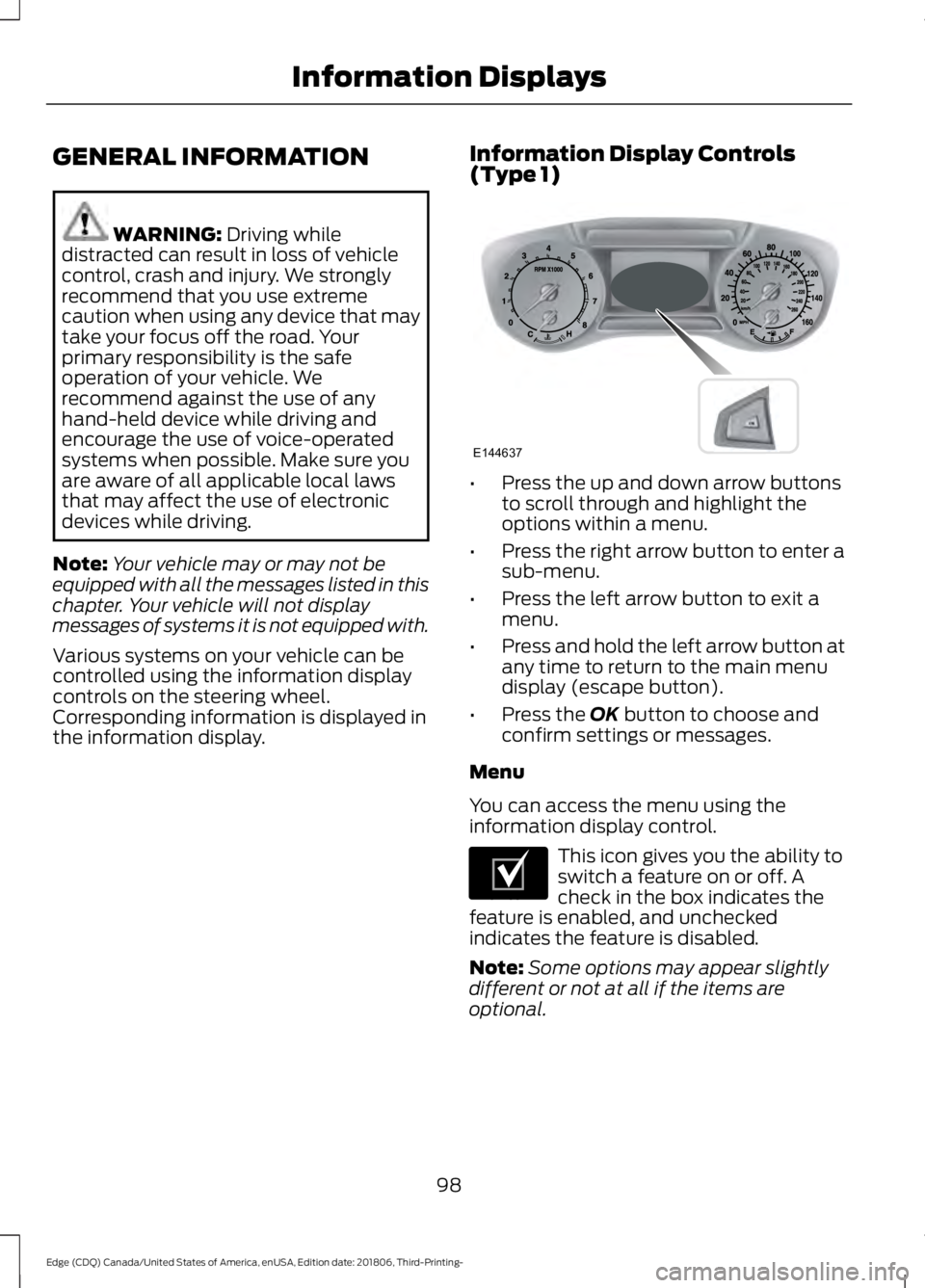
Various systems on your vehicle can be
controlled using the information display
controls on the steering wheel.
Corresponding information is displayed in
the information display. Information Display Controls
(Type 1) •
Press the up and down arrow buttons
to scroll through and highlight the
options within a menu.
• Press the right arrow button to enter a
sub-menu.
• Press the left arrow button to exit a
menu.
• Press and hold the left arrow button at
any time to return to the main menu
display (escape button).
• Press the
OK button to choose and
confirm settings or messages.
Menu
You can access the menu using the
information display control. This icon gives you the ability to
switch a feature on or off. A
check in the box indicates the
feature is enabled, and unchecked
indicates the feature is disabled.
Note: Some options may appear slightly
different or not at all if the items are
optional.
98
Edge (CDQ) Canada/United States of America, enUSA, Edition date: 201806, Third-Printing- Information DisplaysE144637 E204495
Page 103 of 547
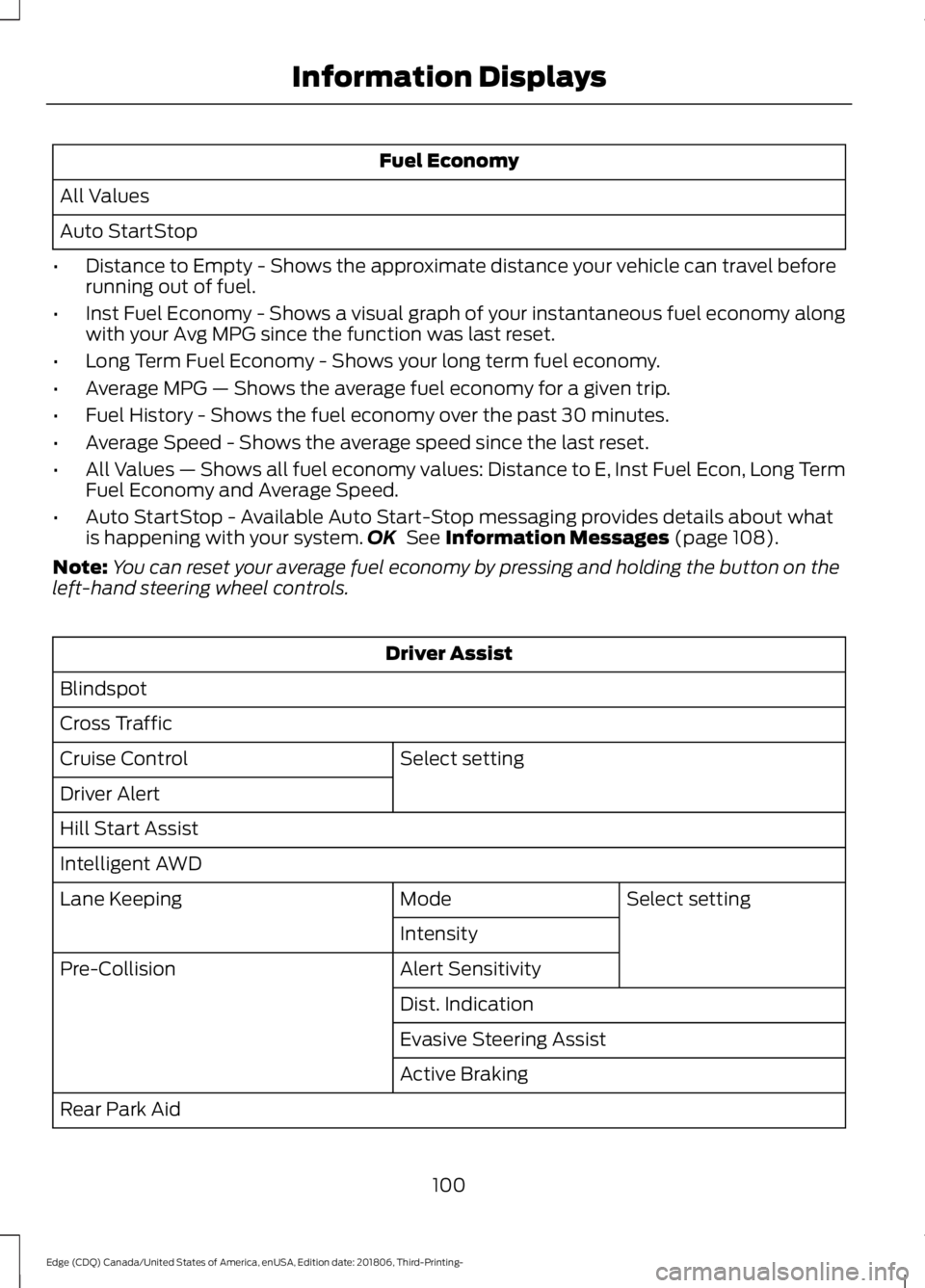
Fuel Economy
All Values
Auto StartStop
• Distance to Empty - Shows the approximate distance your vehicle can travel before
running out of fuel.
• Inst Fuel Economy - Shows a visual graph of your instantaneous fuel economy along
with your Avg MPG since the function was last reset.
• Long Term Fuel Economy - Shows your long term fuel economy.
• Average MPG — Shows the average fuel economy for a given trip.
• Fuel History - Shows the fuel economy over the past 30 minutes.
• Average Speed - Shows the average speed since the last reset.
• All Values — Shows all fuel economy values: Distance to E, Inst Fuel Econ, Long Term
Fuel Economy and Average Speed.
• Auto StartStop - Available Auto Start-Stop messaging provides details about what
is happening with your system. OK See Information Messages (page 108).
Note: You can reset your average fuel economy by pressing and holding the button on the
left-hand steering wheel controls. Driver Assist
Blindspot
Cross Traffic Select setting
Cruise Control
Driver Alert
Hill Start Assist
Intelligent AWD
Select setting
Mode
Lane Keeping
Intensity
Alert Sensitivity
Pre-Collision
Dist. Indication
Evasive Steering Assist
Active Braking
Rear Park Aid
100
Edge (CDQ) Canada/United States of America, enUSA, Edition date: 201806, Third-Printing- Information Displays
Page 107 of 547
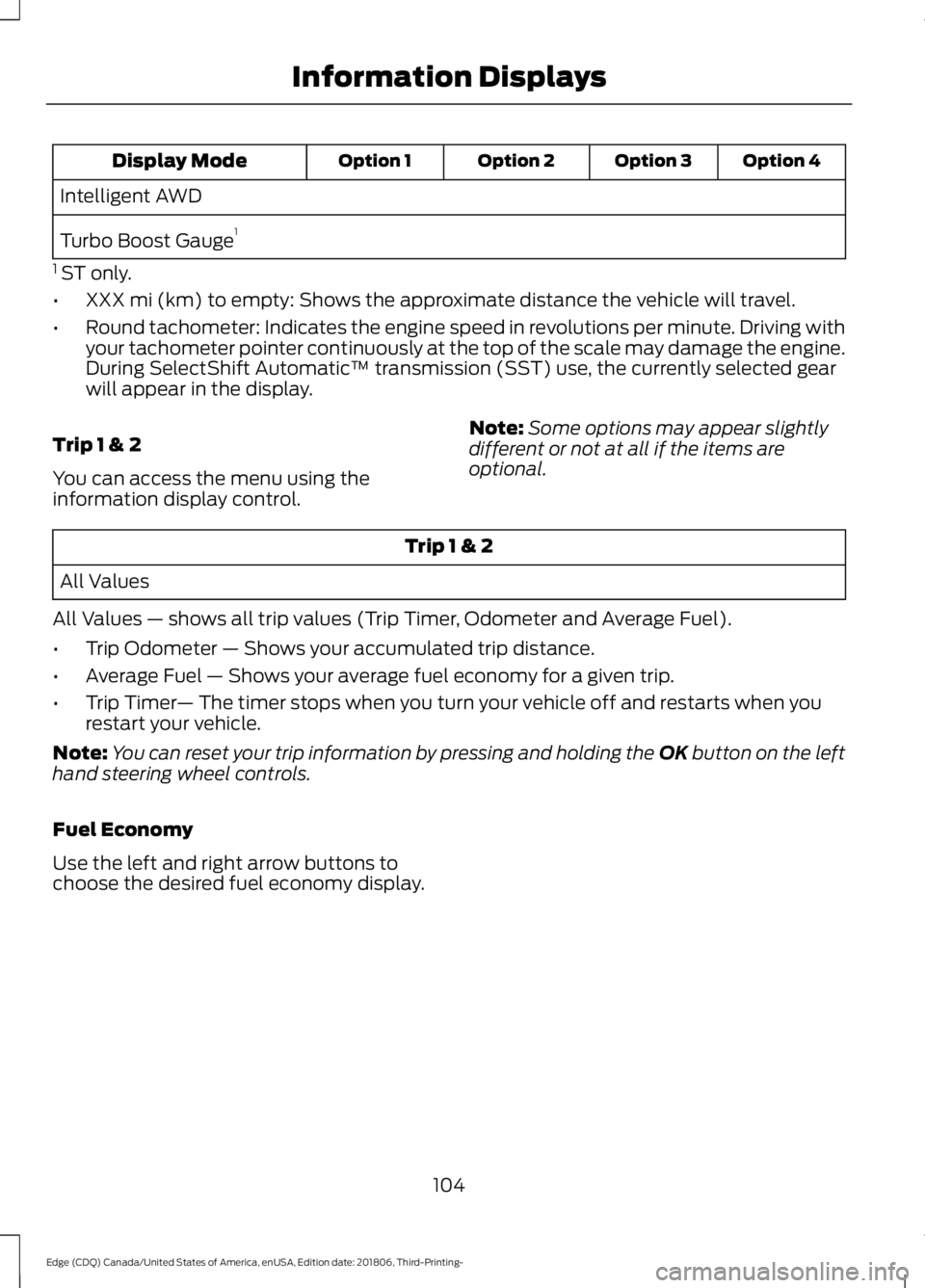
Option 4
Option 3
Option 2
Option 1
Display Mode
Intelligent AWD
Turbo Boost Gauge 1
1 ST only.
• XXX mi (km) to empty: Shows the approximate distance the vehicle will travel.
• Round tachometer: Indicates the engine speed in revolutions per minute. Driving with
your tachometer pointer continuously at the top of the scale may damage the engine.
During SelectShift Automatic ™ transmission (SST) use, the currently selected gear
will appear in the display.
Trip 1 & 2
You can access the menu using the
information display control. Note:
Some options may appear slightly
different or not at all if the items are
optional. Trip 1 & 2
All Values
All Values — shows all trip values (Trip Timer, Odometer and Average Fuel).
• Trip Odometer — Shows your accumulated trip distance.
• Average Fuel — Shows your average fuel economy for a given trip.
• Trip Timer — The timer stops when you turn your vehicle off and restarts when you
restart your vehicle.
Note: You can reset your trip information by pressing and holding the OK button on the left
hand steering wheel controls.
Fuel Economy
Use the left and right arrow buttons to
choose the desired fuel economy display.
104
Edge (CDQ) Canada/United States of America, enUSA, Edition date: 201806, Third-Printing- Information Displays
Page 108 of 547
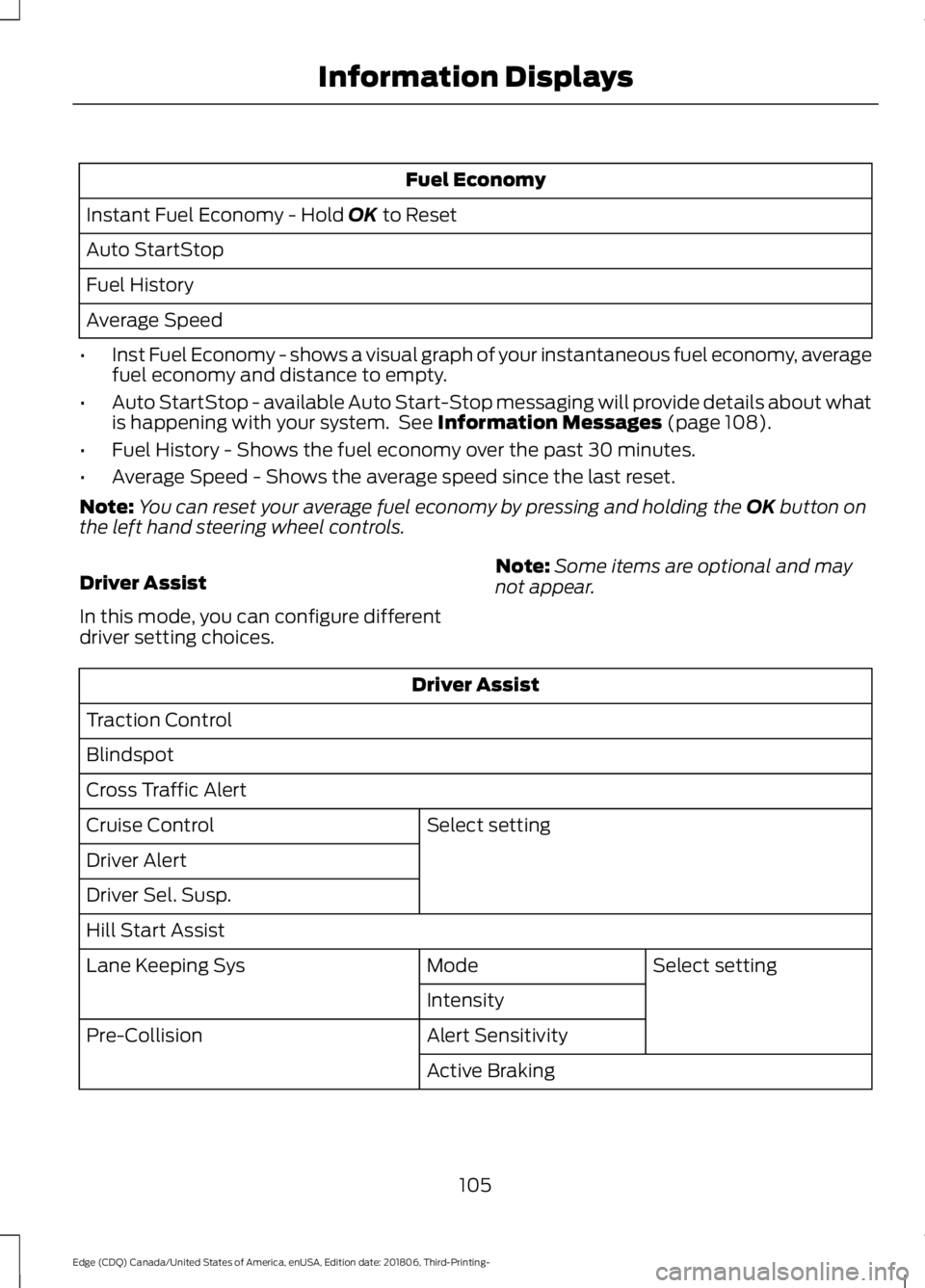
Fuel Economy
Instant Fuel Economy - Hold OK to Reset
Auto StartStop
Fuel History
Average Speed
• Inst Fuel Economy - shows a visual graph of your instantaneous fuel economy, average
fuel economy and distance to empty.
• Auto StartStop - available Auto Start-Stop messaging will provide details about what
is happening with your system. See
Information Messages (page 108).
• Fuel History - Shows the fuel economy over the past 30 minutes.
• Average Speed - Shows the average speed since the last reset.
Note: You can reset your average fuel economy by pressing and holding the
OK button on
the left hand steering wheel controls.
Driver Assist
In this mode, you can configure different
driver setting choices. Note:
Some items are optional and may
not appear. Driver Assist
Traction Control
Blindspot
Cross Traffic Alert Select setting
Cruise Control
Driver Alert
Driver Sel. Susp.
Hill Start Assist
Select setting
Mode
Lane Keeping Sys
Intensity
Alert Sensitivity
Pre-Collision
Active Braking
105
Edge (CDQ) Canada/United States of America, enUSA, Edition date: 201806, Third-Printing- Information Displays
Page 113 of 547
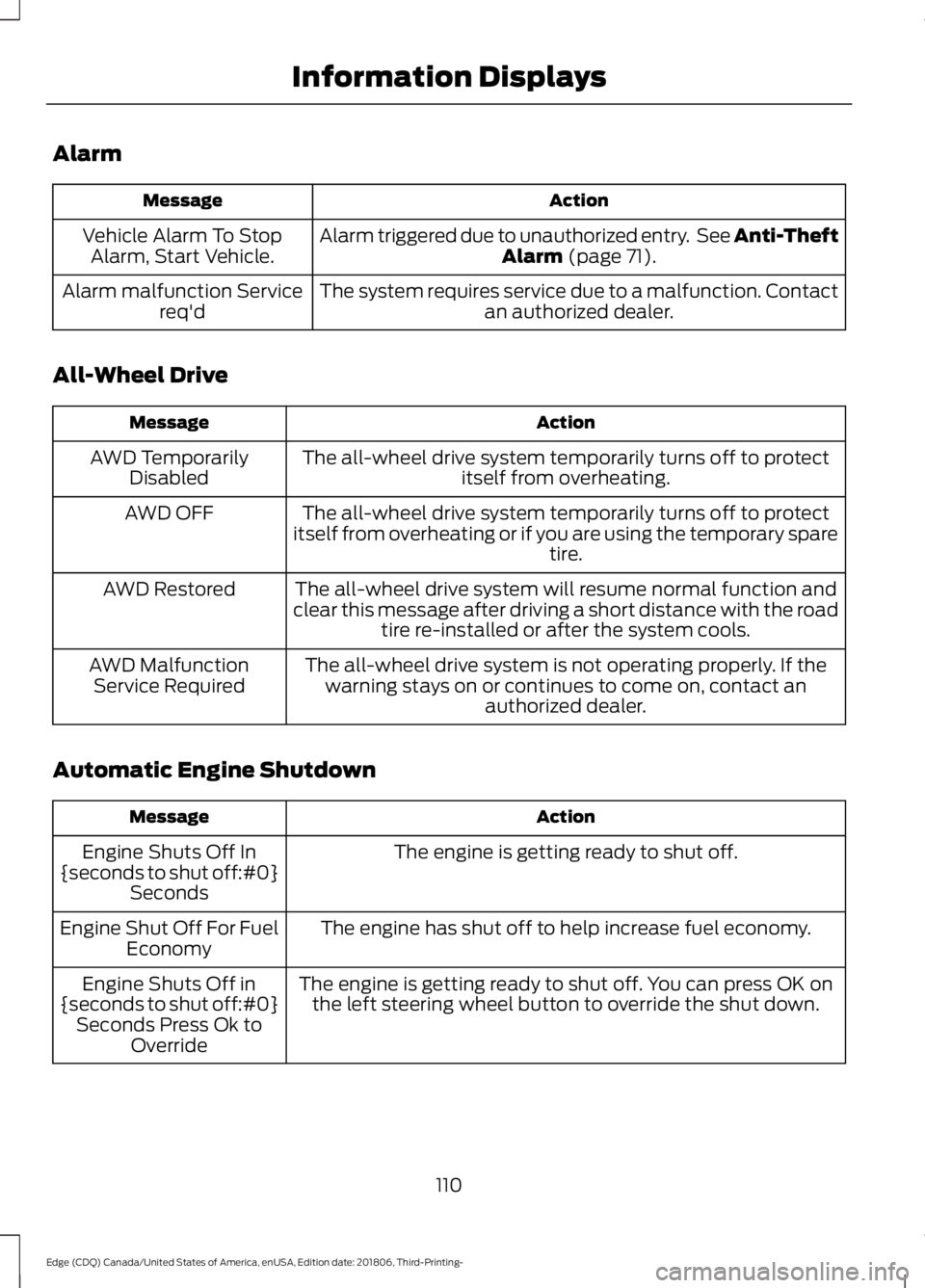
Alarm
Action
Message
Alarm triggered due to unauthorized entry. See Anti-Theft Alarm (page 71).
Vehicle Alarm To Stop
Alarm, Start Vehicle.
The system requires service due to a malfunction. Contactan authorized dealer.
Alarm malfunction Service
req'd
All-Wheel Drive Action
Message
The all-wheel drive system temporarily turns off to protectitself from overheating.
AWD Temporarily
Disabled
The all-wheel drive system temporarily turns off to protect
itself from overheating or if you are using the temporary spare tire.
AWD OFF
The all-wheel drive system will resume normal function and
clear this message after driving a short distance with the road tire re-installed or after the system cools.
AWD Restored
The all-wheel drive system is not operating properly. If thewarning stays on or continues to come on, contact an authorized dealer.
AWD Malfunction
Service Required
Automatic Engine Shutdown Action
Message
The engine is getting ready to shut off.
Engine Shuts Off In
{seconds to shut off:#0} Seconds
The engine has shut off to help increase fuel economy.
Engine Shut Off For Fuel
Economy
The engine is getting ready to shut off. You can press OK onthe left steering wheel button to override the shut down.
Engine Shuts Off in
{seconds to shut off:#0} Seconds Press Ok to Override
110
Edge (CDQ) Canada/United States of America, enUSA, Edition date: 201806, Third-Printing- Information Displays
Page 119 of 547
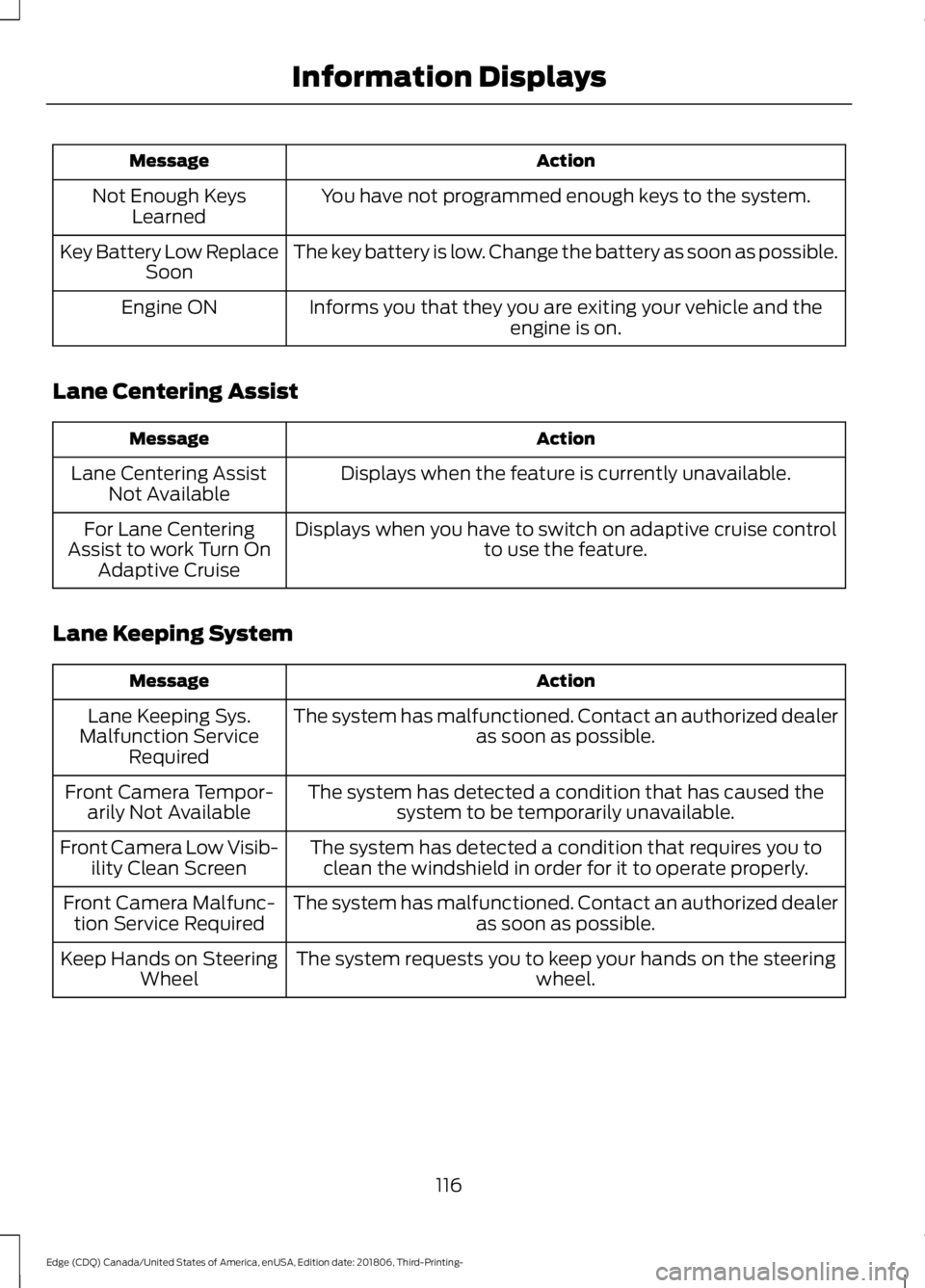
Action
Message
You have not programmed enough keys to the system.
Not Enough Keys
Learned
The key battery is low. Change the battery as soon as possible.
Key Battery Low Replace
Soon
Informs you that they you are exiting your vehicle and the engine is on.
Engine ON
Lane Centering Assist Action
Message
Displays when the feature is currently unavailable.
Lane Centering Assist
Not Available
Displays when you have to switch on adaptive cruise control to use the feature.
For Lane Centering
Assist to work Turn On Adaptive Cruise
Lane Keeping System Action
Message
The system has malfunctioned. Contact an authorized dealer as soon as possible.
Lane Keeping Sys.
Malfunction Service Required
The system has detected a condition that has caused thesystem to be temporarily unavailable.
Front Camera Tempor-
arily Not Available
The system has detected a condition that requires you toclean the windshield in order for it to operate properly.
Front Camera Low Visib-
ility Clean Screen
The system has malfunctioned. Contact an authorized dealeras soon as possible.
Front Camera Malfunc-
tion Service Required
The system requests you to keep your hands on the steering wheel.
Keep Hands on Steering
Wheel
116
Edge (CDQ) Canada/United States of America, enUSA, Edition date: 201806, Third-Printing- Information Displays