display FORD ESCAPE 2013 3.G Owners Manual
[x] Cancel search | Manufacturer: FORD, Model Year: 2013, Model line: ESCAPE, Model: FORD ESCAPE 2013 3.GPages: 423, PDF Size: 4.59 MB
Page 360 of 423
with a live operator. You may also be
prompted to speak with an operator.
The live operator can assist you by
searching for businesses by name or
by category, residential addresses by
street address or by name or specific
street intersections. Operator Assist is
a feature of your SYNC Services
subscription. For more information on
Operator Assist visit
www.SYNCMyRide.com/support.
2. Follow the voice prompts to select your
destination. After the route download
is complete, the phone call is
automatically ended.
If your vehicle is not equipped with the
navigation feature:
• Turn-by-turn directions appear in the
infotainment display, in the status bar
of your touchscreen system and also
on the SYNC Services screen. You also
receive driving instructions from
audible prompts.
• When on an active route, you can
select Route Summary or Route
Status using the touchscreen controls
or voice commands to view the Route
Summary Turn List or the Route
Status ETA. You can also turn voice
guidance on or off, cancel the route or
update the route. If you miss a turn, SYNC automatically asks
if you want the route updated. When
prompted, say "yes" and a new route is
delivered to your vehicle.
If your vehicle is equipped with the
navigation feature, SYNC Services
downloads your requested destination to
the navigation system. The navigation
system then calculates the route and
provides driving instructions. See
Navigation (page 371).
Disconnecting from SYNC Services
1. Press and hold the hang-up phone
button on the steering wheel.
2. Say "Good-bye" from the SYNC Services main menu.
360
MyFord Touch®
Page 364 of 423
Sports-related Commands*
"WNBA" "Help"
* If you want to hear headlines, schedules or scores from a particular sport, or your
favorite team(s), say the sport (or team), then "headlines", "schedules" or "scores".
Additional Sports-related Voice Commands
"NBA scores"
"MLS headlines"
"Baseball headlines"
"NFL headlines"
"MLS schedule"
"Baseball schedule"
"NFL schedule"
"MLS scores"
"Baseball scores"
"NFL scores"
"Motor sports headlines"
"College basketball
schedule"
"NHL headlines"
"Motor sports order"
"College basketball scores"
"NHL schedule"
"Motor sports schedule"
"College football headlines"
"NHL scores"
"My team headlines"
"College football schedule"
"WNBA headlines"
"My teams schedule"
"College football scores"
"WNBA schedule"
"My teams scores"
"Golf headlines"
"WNBA scores"
"NBA headlines"
"Golf leaderboard"
"Help"
"NBA schedule"
"Golf schedule"
Notifications
Press the information button, then select
Notifications.
You can select a message and choose to:
• View the complete message
• Delete the message
• Delete All messages
This screen displays any system messages
(i.e. SD card fault). Note:
The system alerts you to any
messages by turning the information icon
yellow. When the messages are read or
deleted, the icon returns to white.
Calendar
Press the information button, then select
Calendar.
364
MyFord Touch®
Page 365 of 423
911 Assist® (If Equipped)
WARNINGS
Unless the 911 Assist setting is set on
prior to a crash, the system will not
dial for help which could delay
response time, potentially increasing the
risk of serious injury or death after a crash.
Do not wait for 911 Assist to make an
emergency call if you can do it
yourself. Dial emergency services
immediately to avoid delayed response
time which could increase the risk of
serious injury or death after a crash. If you
do not hear 911 Assist within five seconds
of the crash, the system or phone may be
damaged or non-functional.
Always place your phone in a secure
location in the vehicle so it does not
become a projectile or get damaged
in a collision. Failure to do so may cause
serious injury to someone or damage the
phone which could prevent 911 Assist from
working properly.
Note: The SYNC 911 Assist feature must be
set on prior to the incident.
Note: Before setting this feature on, ensure
that you read the 911 Assist privacy notice
later in this section for important
information.
Note: If 911 Assist is turned on or off by any
user, that setting applies for all paired
phones. If 911 Assist is turned off, either a
voice message plays or a display
message/icon comes on (or both) when the
vehicle is started after a previously paired
phone connects.
Note: Every phone operates differently.
While SYNC 911 Assist works with most
mobile phones, some may have trouble
using this feature. If a crash deploys an airbag or activates
the fuel pump shut-off, your
SYNC-equipped vehicle may be able to
contact emergency services by dialing 911
through a paired and connected
Bluetooth-enabled phone. For more
information about 911 Assist, visit
www.SYNCMyRide.com or
www.syncmaroute.ca.
See Supplementary Restraints System
(page 35). Important information
regarding airbag deployment is in this
chapter.
See Roadside Emergencies (page 197).
Important information regarding the fuel
pump shut-off is in this chapter.
Setting 911 Assist On
Press the Information button, Apps, 911
Assist, then On.
You can also access 911 Assist by:
•
Pressing the Menu icon, Settings,
Phone, then 911 Assist
• Pressing the Menu icon, Help, 911 Assist
To make sure that 911 Assist works
properly:
• SYNC must be powered and working
properly at the time of the incident and
throughout feature activation and use.
• The 911 Assist feature must be set on
prior to the incident.
• A Bluetooth-enabled and compatible
phone has to be paired and connected
to SYNC.
• A connected Bluetooth-enabled phone
must have the ability to make and
maintain an outgoing call at the time
of the incident.
365
MyFord Touch®
Page 373 of 423
To expand these listings, press the + in
front of the POI listing.
The system also allows you to sort the
POIs alphabetically, by distance or by
cityseekr listings (if available).
cityseekr
Note:cityseekr point of interest (POI)
information is limited to approximately 154
cities (132 in the U.S., 13 in Canada and 9 in
Mexico).
cityseekr, when available, is a service which
provides additional information about
certain POIs such as restaurants, hotels
and attractions.
When you have selected a POI, the
location and information appear, such as
address and phone number. If the POI is
listed with cityseekr, you also see
information such as a brief description,
check-in and check-out times, when the
restaurant is open, etc.
Press More Information for a longer review,
a list of services and facilities, the average
room or meal price as well as the website.
This screen displays the POI icon such as:
Hotel
Coffeehouse
Food & Drink
Nightlife
Attraction
This icon appears when your
selection exists in multiple
categories within the system.
When you are viewing additional
information for hotels, cityseekr will also
tell you if the hotel has certain services and
facilities using icons.
For restaurants, cityseekr can provide
information such as star rating, average
cost, review, handicap access, hours of
operation, and website address.
For hotels, cityseekr can provide
information such as star rating, price
category, review, check in/out times, hotel
service icons and website address.
Setting Your Navigation
Preferences
Select settings for the system to take into
account when planning your route.
Press the icon at the bottom of
the Home screen, then select
Settings, then Navigation.
373
MyFord Touch®
E142634
E143884
E142636
E142637
E142638
E142639
E142640
E142607
Page 374 of 423
You Can
When You Select
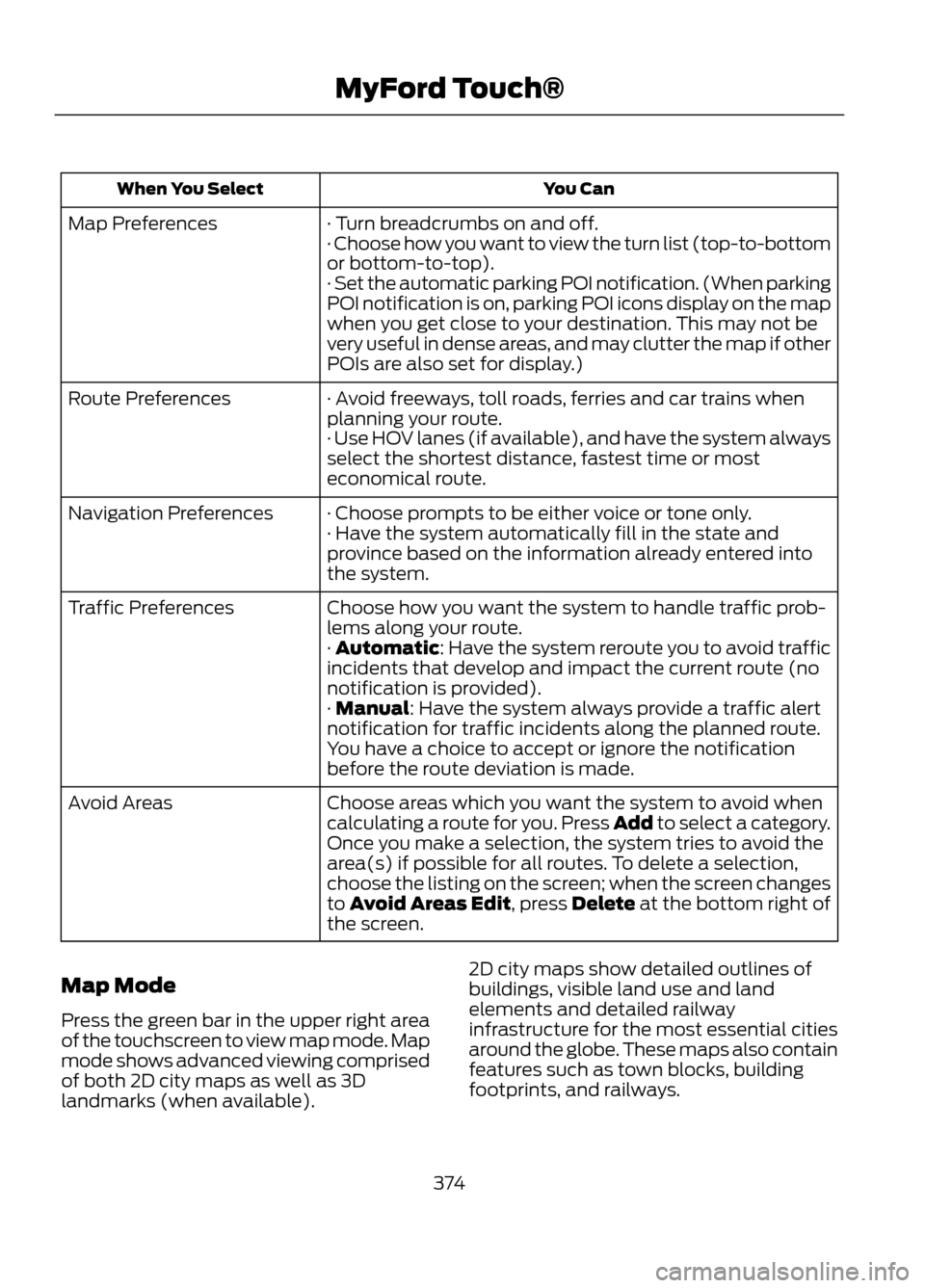
· Turn breadcrumbs on and off.
Map Preferences
· Choose how you want to view the turn list (top-to-bottom
or bottom-to-top).
· Set the automatic parking POI notification. (When parking
POI notification is on, parking POI icons display on the map
when you get close to your destination. This may not be
very useful in dense areas, and may clutter the map if other
POIs are also set for display.)
· Avoid freeways, toll roads, ferries and car trains when
planning your route.
Route Preferences
· Use HOV lanes (if available), and have the system always
select the shortest distance, fastest time or most
economical route.
· Choose prompts to be either voice or tone only.
Navigation Preferences
· Have the system automatically fill in the state and
province based on the information already entered into
the system.
Choose how you want the system to handle traffic prob-
lems along your route.
Traffic Preferences
· Automatic: Have the system reroute you to avoid traffic
incidents that develop and impact the current route (no
notification is provided).
· Manual: Have the system always provide a traffic alert
notification for traffic incidents along the planned route.
You have a choice to accept or ignore the notification
before the route deviation is made.
Choose areas which you want the system to avoid when
calculating a route for you. Press Add to select a category.
Avoid Areas
Once you make a selection, the system tries to avoid the
area(s) if possible for all routes. To delete a selection,
choose the listing on the screen; when the screen changes
to Avoid Areas Edit, press Delete at the bottom right of
the screen.
Map Mode
Press the green bar in the upper right area
of the touchscreen to view map mode. Map
mode shows advanced viewing comprised
of both 2D city maps as well as 3D
landmarks (when available). 2D city maps show detailed outlines of
buildings, visible land use and land
elements and detailed railway
infrastructure for the most essential cities
around the globe. These maps also contain
features such as town blocks, building
footprints, and railways.
374
MyFord Touch®
Page 375 of 423
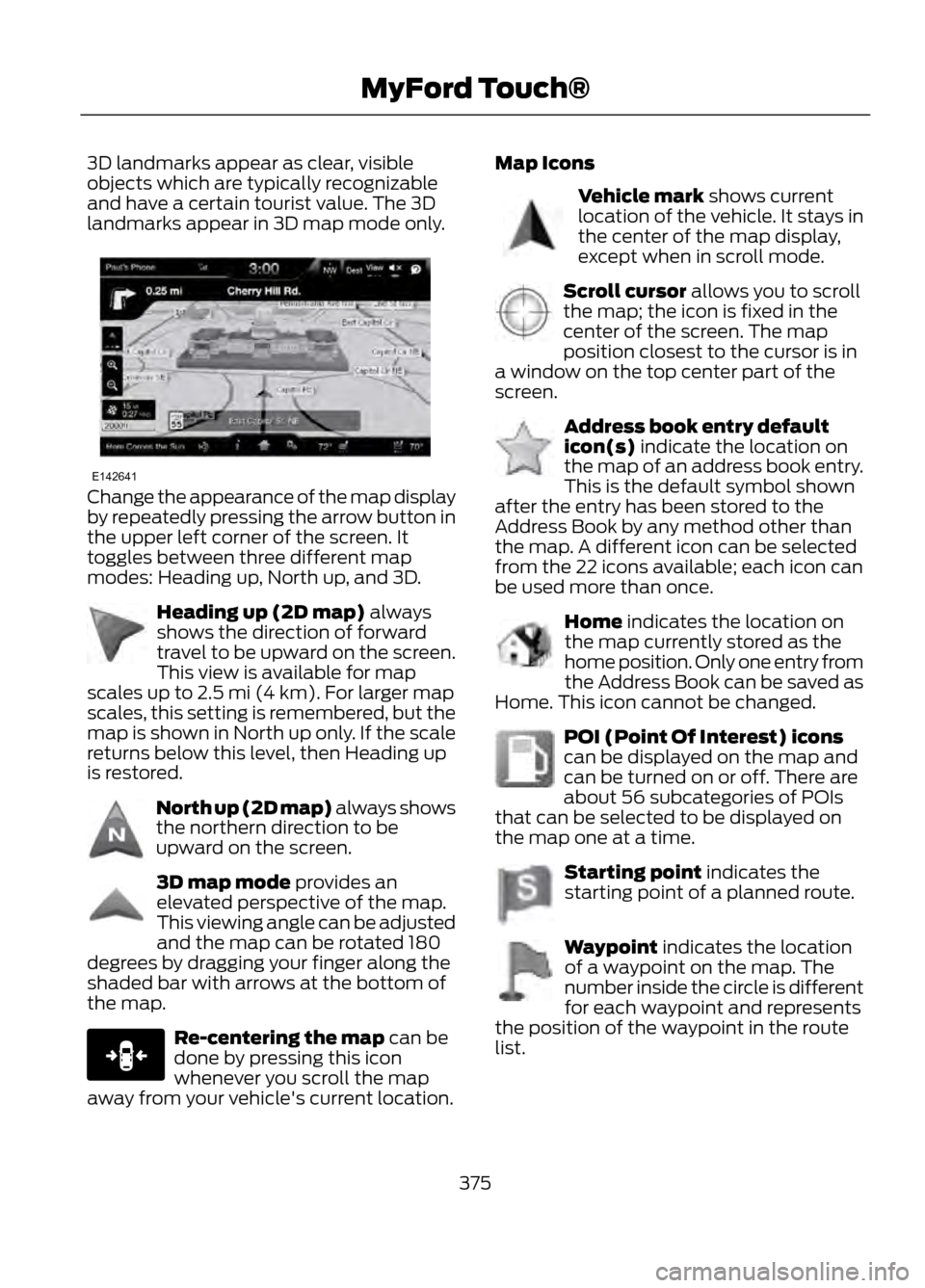
3D landmarks appear as clear, visible
objects which are typically recognizable
and have a certain tourist value. The 3D
landmarks appear in 3D map mode only.
Change the appearance of the map display
by repeatedly pressing the arrow button in
the upper left corner of the screen. It
toggles between three different map
modes: Heading up, North up, and 3D.
Heading up (2D map) always
shows the direction of forward
travel to be upward on the screen.
This view is available for map
scales up to 2.5 mi (4 km). For larger map
scales, this setting is remembered, but the
map is shown in North up only. If the scale
returns below this level, then Heading up
is restored.
North up (2D map) always shows
the northern direction to be
upward on the screen.
3D map mode provides an
elevated perspective of the map.
This viewing angle can be adjusted
and the map can be rotated 180
degrees by dragging your finger along the
shaded bar with arrows at the bottom of
the map.
Re-centering the map can be
done by pressing this icon
whenever you scroll the map
away from your vehicle's current location. Map Icons
Vehicle mark shows current
location of the vehicle. It stays in
the center of the map display,
except when in scroll mode.
Scroll cursor allows you to scroll
the map; the icon is fixed in the
center of the screen. The map
position closest to the cursor is in
a window on the top center part of the
screen.
Address book entry default
icon(s) indicate the location on
the map of an address book entry.
This is the default symbol shown
after the entry has been stored to the
Address Book by any method other than
the map. A different icon can be selected
from the 22 icons available; each icon can
be used more than once.
Home indicates the location on
the map currently stored as the
home position. Only one entry from
the Address Book can be saved as
Home. This icon cannot be changed.
POI (Point Of Interest) icons
can be displayed on the map and
can be turned on or off. There are
about 56 subcategories of POIs
that can be selected to be displayed on
the map one at a time.
Starting point indicates the
starting point of a planned route.
Waypoint indicates the location
of a waypoint on the map. The
number inside the circle is different
for each waypoint and represents
the position of the waypoint in the route
list.
375
MyFord Touch®
E142641
E142642
E142643
E142644
E146188
E142646
E142647
E142648
E142649
E142650
E142651
E142652
Page 376 of 423
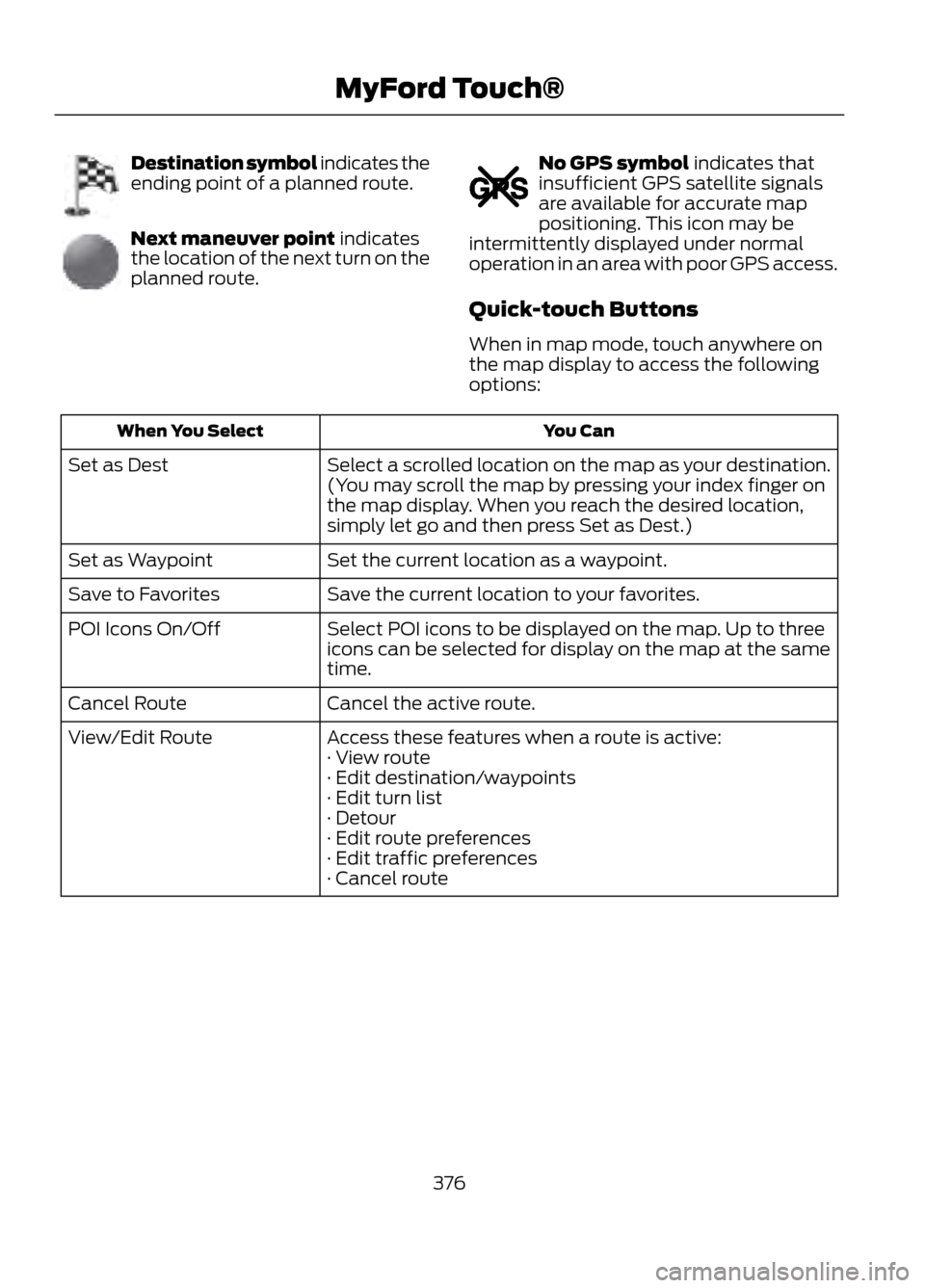
Destination symbol indicates the
ending point of a planned route.
Next maneuver point indicates
the location of the next turn on the
planned route.
No GPS symbol indicates that
insufficient GPS satellite signals
are available for accurate map
positioning. This icon may be
intermittently displayed under normal
operation in an area with poor GPS access.
Quick-touch Buttons
When in map mode, touch anywhere on
the map display to access the following
options:
You Can
When You Select
Select a scrolled location on the map as your destination.
(You may scroll the map by pressing your index finger on
the map display. When you reach the desired location,
simply let go and then press Set as Dest.)
Set as Dest
Set the current location as a waypoint.
Set as Waypoint
Save the current location to your favorites.
Save to Favorites
Select POI icons to be displayed on the map. Up to three
icons can be selected for display on the map at the same
time.
POI Icons On/Off
Cancel the active route.
Cancel Route
Access these features when a route is active:
View/Edit Route
· View route
· Edit destination/waypoints
· Edit turn list
· Detour
· Edit route preferences
· Edit traffic preferences
· Cancel route
376
MyFord Touch®
E142653
E142654
E142655
Page 379 of 423
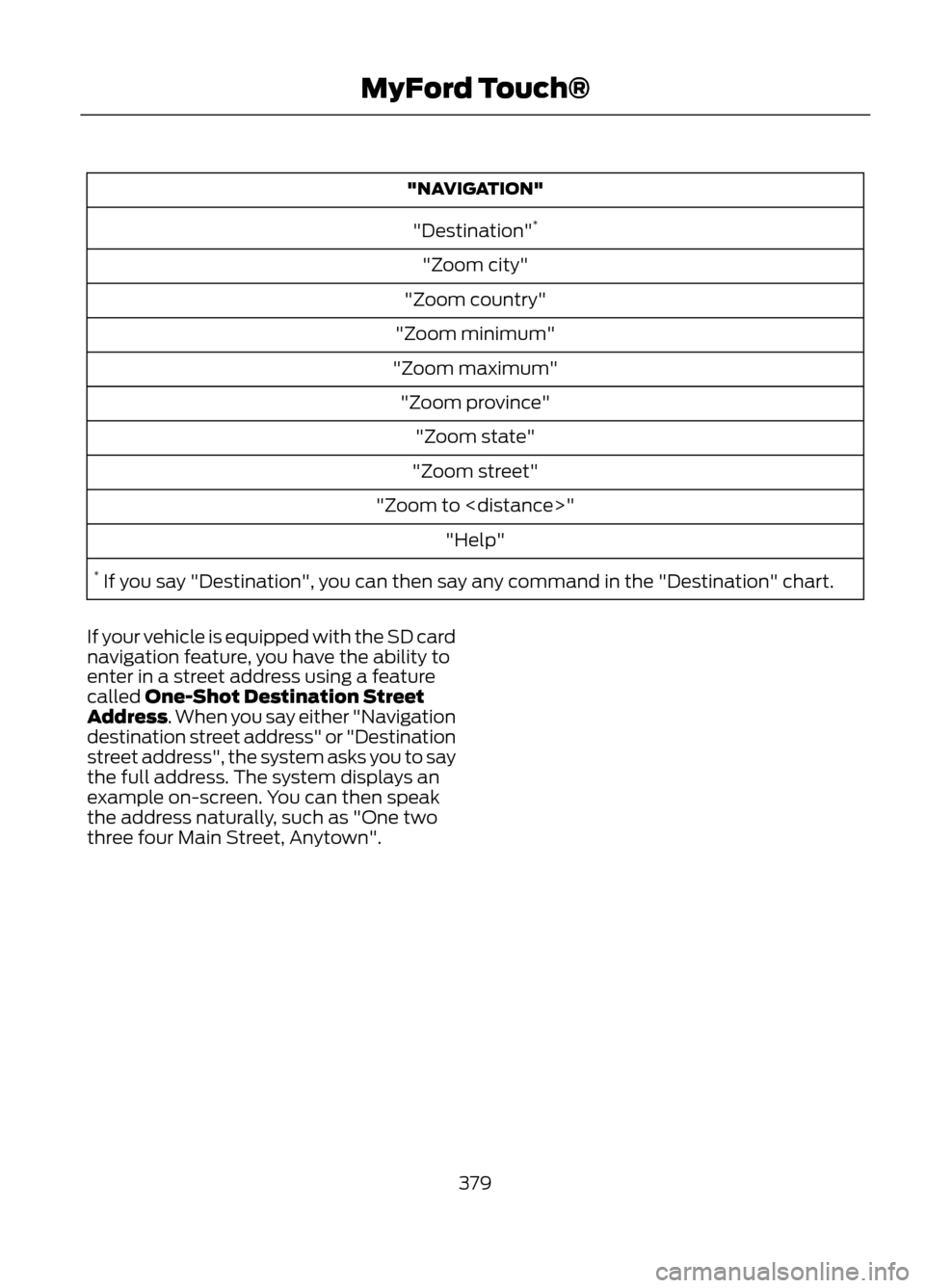
"NAVIGATION""Destination" *
"Zoom city"
"Zoom country"
"Zoom minimum"
"Zoom maximum" "Zoom province" "Zoom state"
"Zoom street"
"Zoom to
* If you say "Destination", you can then say any command in the "Destination" chart.
If your vehicle is equipped with the SD card
navigation feature, you have the ability to
enter in a street address using a feature
called One-Shot Destination Street
Address. When you say either "Navigation
destination street address" or "Destination
street address", the system asks you to say
the full address. The system displays an
example on-screen. You can then speak
the address naturally, such as "One two
three four Main Street, Anytown".
379
MyFord Touch®
Page 397 of 423
Your vehicle is equipped with the
Intelligent Oil Life Monitor® system which
displays a message in the message center
at the proper oil change service interval.
This interval may be up to one year or
10000 miles (16000 kilometers).
When ENGINE OIL CHANGE DUE or OIL
CHANGE REQUIRED appears in the
message center display, it is time for an oil
change. The oil change must be done
within two weeks or 500 miles (800
kilometers) of the ENGINE OIL CHANGE
DUE or OIL CHANGE REQUIRED message
appearing. The Intelligent Oil Life Monitor®
must be reset after each oil change. See
Engine Oil Check (page 221).
If your message center is prematurely reset
or becomes inoperative, you should
perform the oil change interval at six
months or 5000 miles (8000 km) from
your last oil change. Never exceed one year
or 10000 miles (16000 kilometers)
between oil change intervals.
Your vehicle is very sophisticated and built
with multiple complex performance
systems. Every manufacturer develops
these systems using different
specifications and performance features.
That is why it is important to rely upon your
dealership to properly diagnose and repair
your vehicle.
We recommend maintenance intervals for
various parts and component systems
based upon engineering testing. We rely
upon this testing to determine the most
appropriate mileage for replacement of
oils and fluids to protect your vehicle at
the lowest overall cost to you and
recommend against maintenance
schedules that deviate from the scheduled
maintenance information.
We strongly recommend the using only
genuine Ford, Motorcraft or
Ford-authorized re-manufactured
replacement for parts because they are
engineered for your vehicle.Additives and Chemicals
Recommended additives and chemicals
are listed in this Owner's Manual and in the
Workshop Manual. Additional chemicals
or additives not approved by Ford Motor
Company are not recommended as part
of normal maintenance. Please consult
your Warranty Manual for complete
warranty information.
Oils, Fluids and Flushing
In many cases, fluid discoloration is a
normal operating characteristic and, by
itself, does not necessarily indicate a
concern or that the fluid needs to be
changed. However, discolored fluids that
also show signs of overheating or foreign
material contamination should be
inspected immediately by a qualified
expert such as the factory-trained
technicians at your dealership.
Your vehicle
’s oils and fluids should be
changed at the specified intervals or in
conjunction with a repair. Flushing is a
viable way to change fluid for many vehicle
sub-systems during scheduled
maintenance. It is critical that systems are
flushed only with new fluid that is the same
as that required to fill and operate the
system or using a Ford-approved flushing
chemical.
Owner Checks and Services
Certain basic maintenance checks and
inspections should be performed every
month or at six months intervals.
Check Every Month
• Engine oil level.
• Function of all interior and exterior
lights.
• Tires for wear and proper pressure,
including the spare tire.
• Windshield washer fluid level.
397
Scheduled Maintenance
Page 399 of 423
Be sure to ask your dealership service
advisor or technician about the multi-point
vehicle inspection. It is a comprehensive
way to perform a thorough inspection of
your vehicle. It is your checklist that gives
you immediate feedback on the overall
condition of your vehicle. You know what
has been checked, what is okay as well as
those things that may require future or
immediate attention. The multi-point
vehicle inspection is one more way to keep
your vehicle running great.
Normal Scheduled Maintenance
Intelligent Oil Life Monitor®
Your vehicle is equipped with an Intelligent
Oil Life Monitor that determines when the
engine oil should be changed based on
how your vehicle is used. By using several
important factors in its calculations, the
monitor helps reduce the cost of owning
your vehicle and reduce environmental
waste at the same time.This means you won
’t have to remember
to change the oil on a mileage-based
schedule; the vehicle lets you know when
an oil change is due by displaying ENGINE
OIL CHANGE DUE or OIL CHANGE
REQUIRED in the message center.
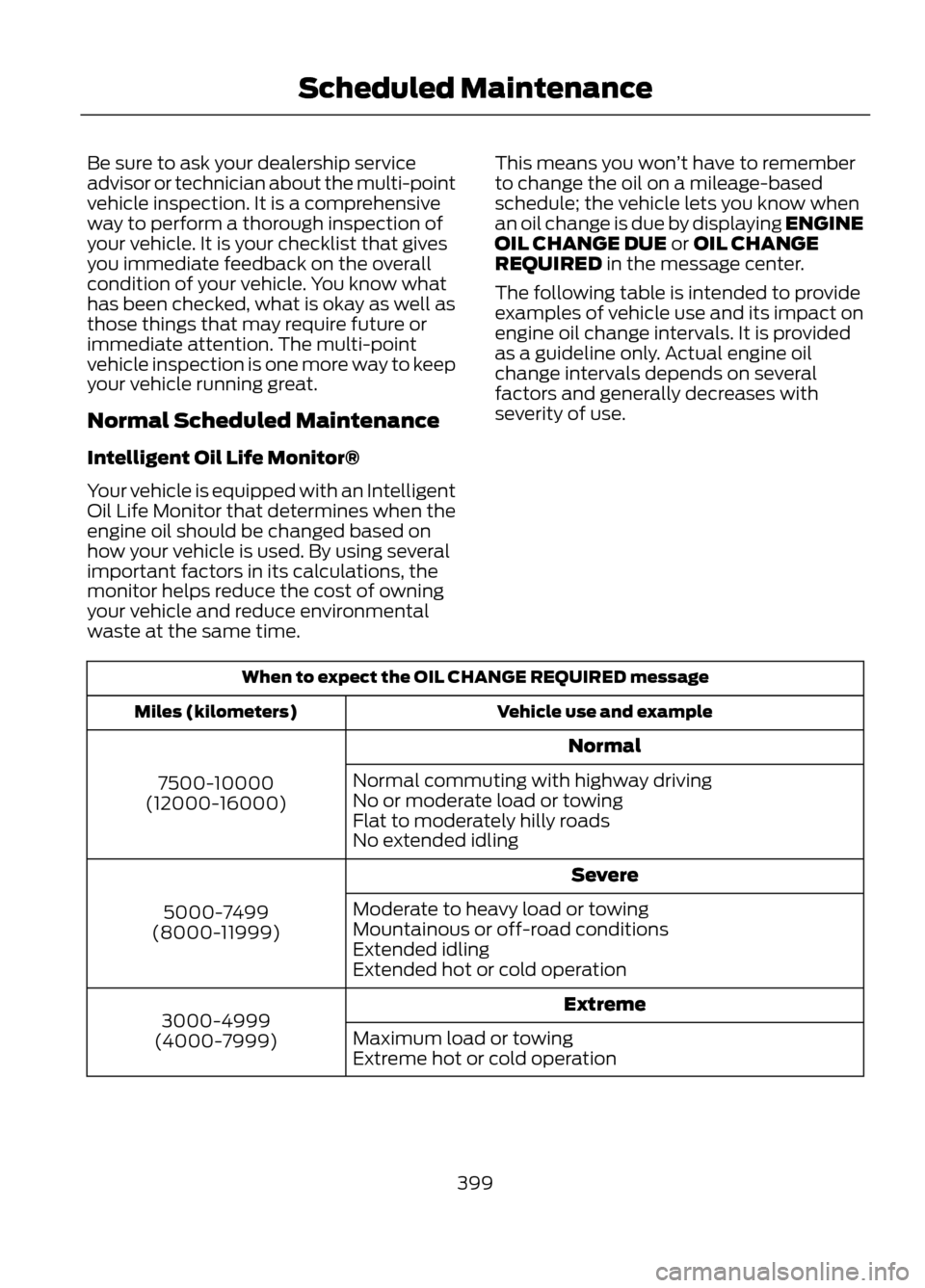
The following table is intended to provide
examples of vehicle use and its impact on
engine oil change intervals. It is provided
as a guideline only. Actual engine oil
change intervals depends on several
factors and generally decreases with
severity of use.
When to expect the OIL CHANGE REQUIRED message
Vehicle use and example
Miles (kilometers)
Normal
7500-10000
(12000-16000) Normal commuting with highway driving
No or moderate load or towing
Flat to moderately hilly roads
No extended idling
Severe
5000-7499
(8000-11999) Moderate to heavy load or towing
Mountainous or off-road conditions
Extended idling
Extended hot or cold operation
Extreme
3000-4999
(4000-7999) Maximum load or towing
Extreme hot or cold operation
399
Scheduled Maintenance