USB FORD ESCAPE 2013 3.G Owner's Manual
[x] Cancel search | Manufacturer: FORD, Model Year: 2013, Model line: ESCAPE, Model: FORD ESCAPE 2013 3.GPages: 423, PDF Size: 4.59 MB
Page 329 of 423
Select from the following:
•Map Preferences
• Route Preferences
• Navigation Preferences
• Traffic Preferences
• Avoid Areas Phone Settings
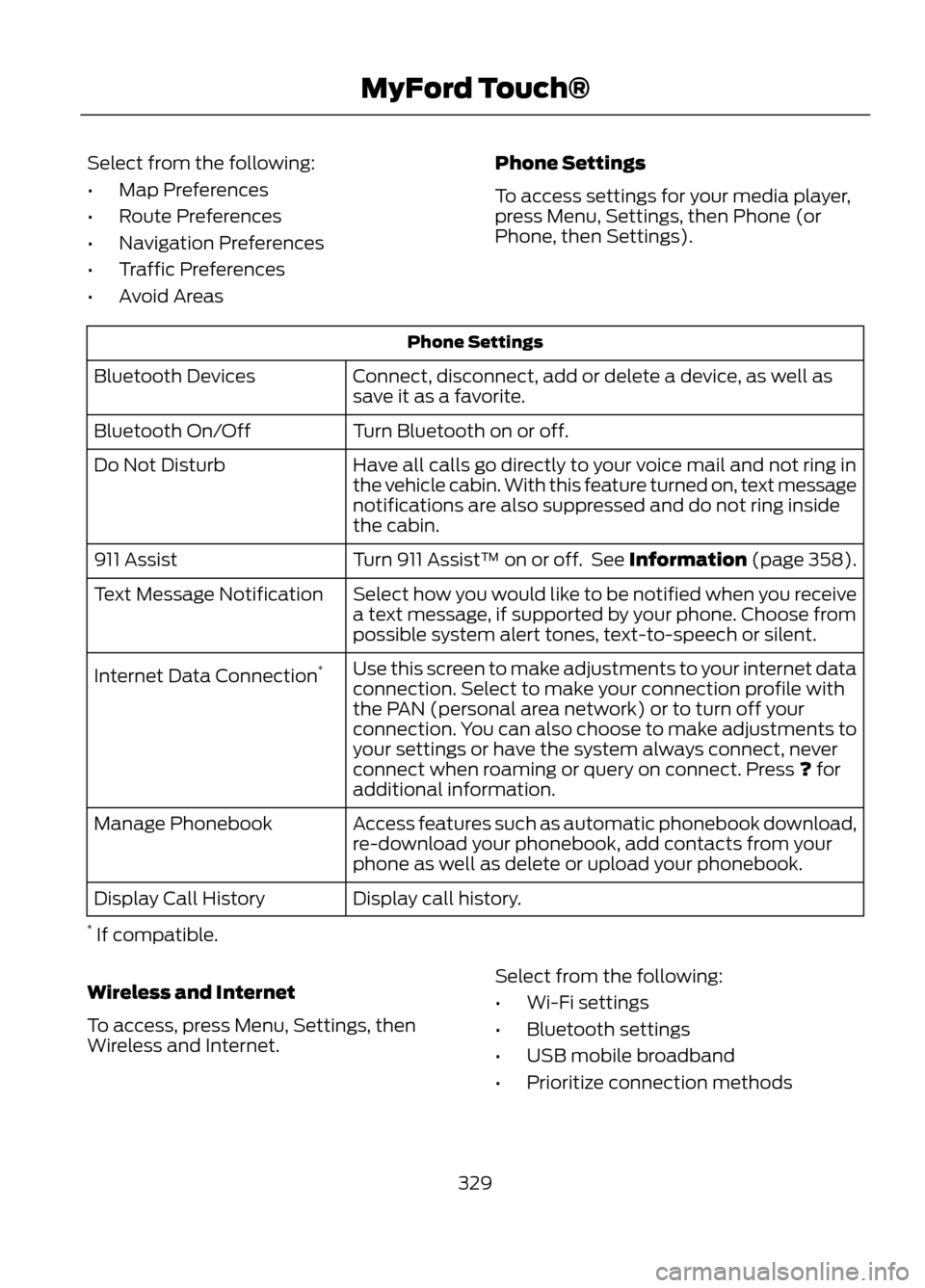
To access settings for your media player,
press Menu, Settings, then Phone (or
Phone, then Settings).
Phone Settings
Connect, disconnect, add or delete a device, as well as
save it as a favorite.
Bluetooth Devices
Turn Bluetooth on or off.
Bluetooth On/Off
Have all calls go directly to your voice mail and not ring in
the vehicle cabin. With this feature turned on, text message
notifications are also suppressed and do not ring inside
the cabin.
Do Not Disturb
Turn 911 Assist™ on or off. See Information (page 358).
911 Assist
Select how you would like to be notified when you receive
a text message, if supported by your phone. Choose from
possible system alert tones, text-to-speech or silent.
Text Message Notification
Use this screen to make adjustments to your internet data
connection. Select to make your connection profile with
the PAN (personal area network) or to turn off your
connection. You can also choose to make adjustments to
your settings or have the system always connect, never
connect when roaming or query on connect. Press ? for
additional information.
Internet Data Connection
*
Access features such as automatic phonebook download,
re-download your phonebook, add contacts from your
phone as well as delete or upload your phonebook.
Manage Phonebook
Display call history.
Display Call History
* If compatible.
Wireless and Internet
To access, press Menu, Settings, then
Wireless and Internet. Select from the following:
•
Wi-Fi settings
• Bluetooth settings
• USB mobile broadband
• Prioritize connection methods
329
MyFord Touch®
Page 330 of 423
Wi-Fi
Your system has a Wi-Fi feature which
creates a wireless network within your
vehicle, thereby allowing other devices (i.e.
personal computers or phones) in your
vehicle to speak to each other, share files,
play games, etc.Using this feature, everyone in your vehicle
can also gain access the internet if:
•
You have a USB mobile broadband
connection inside the vehicle
• Your phone supports PAN (personal
area networking)
• You are parked outside of a wireless
hotspot
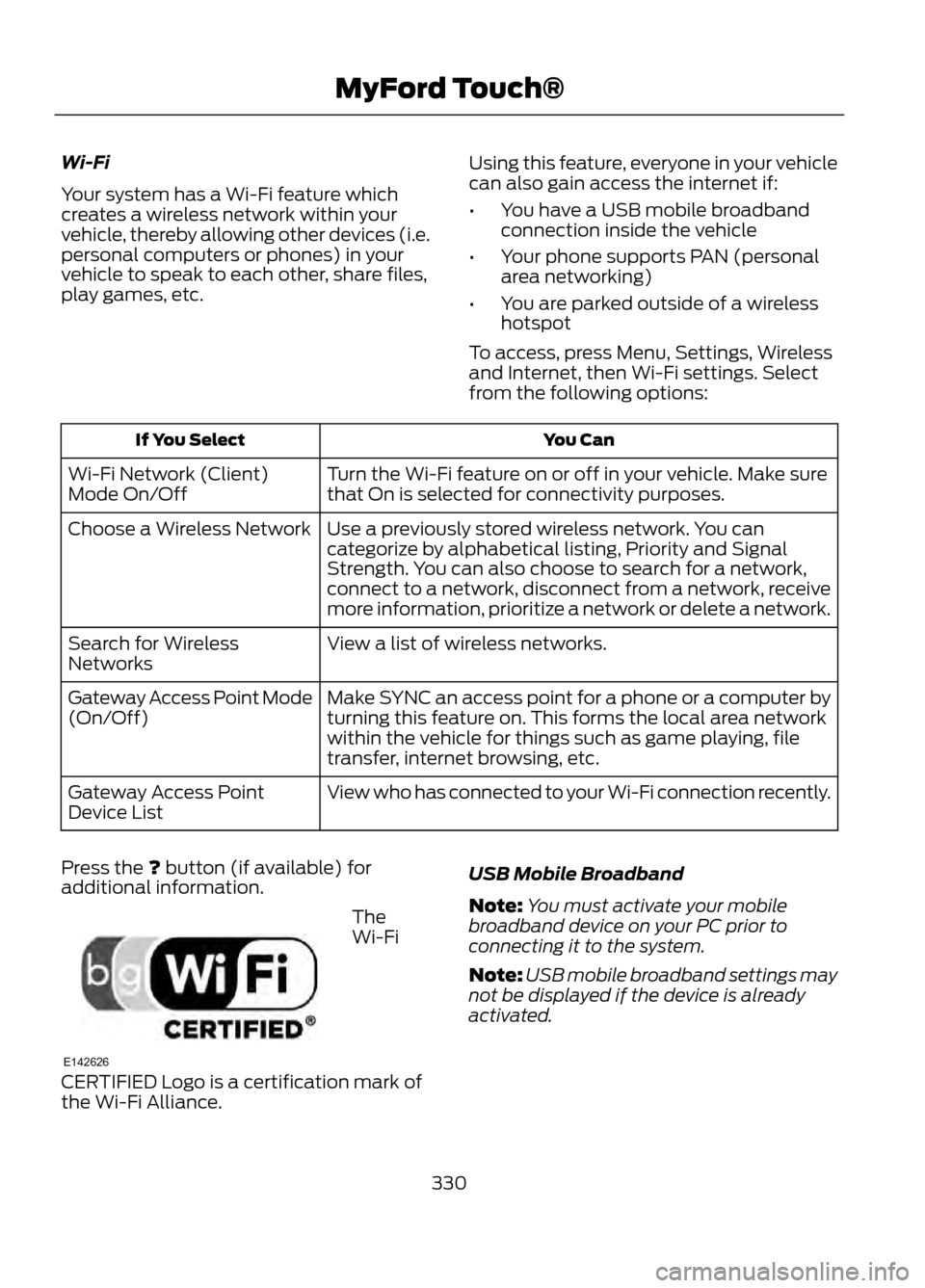
To access, press Menu, Settings, Wireless
and Internet, then Wi-Fi settings. Select
from the following options:
You Can
If You Select
Turn the Wi-Fi feature on or off in your vehicle. Make sure
that On is selected for connectivity purposes.
Wi-Fi Network (Client)
Mode On/Off
Use a previously stored wireless network. You can
categorize by alphabetical listing, Priority and Signal
Strength. You can also choose to search for a network,
connect to a network, disconnect from a network, receive
more information, prioritize a network or delete a network.
Choose a Wireless Network
View a list of wireless networks.
Search for Wireless
Networks
Make SYNC an access point for a phone or a computer by
turning this feature on. This forms the local area network
within the vehicle for things such as game playing, file
transfer, internet browsing, etc.
Gateway Access Point Mode
(On/Off)
View who has connected to your Wi-Fi connection recently.
Gateway Access Point
Device List
Press the ? button (if available) for
additional information.
The
Wi-Fi
CERTIFIED Logo is a certification mark of
the Wi-Fi Alliance. USB Mobile Broadband
Note:
You must activate your mobile
broadband device on your PC prior to
connecting it to the system.
Note: USB mobile broadband settings may
not be displayed if the device is already
activated.
330
MyFord Touch®
E142626
Page 331 of 423
Instead of using Wi-Fi, your system can
also use a USB mobile broadband
connection to access the internet. This
screen allows you to set up what is your
typical area for your USB mobile
broadband connection.
You can select the following:
•Country
• Carrier
• Phone Number
• User Name
• Password
Prioritize Connection Methods
This screen allows you to choose your
connection methods and change them as
needed. You can select to Change Order
and have the system either always attempt
to connecting using a USB mobile
broadband or using Wi-Fi. Bluetooth Settings
This screen shows you what device is
currently paired with the system as well as
giving you your typical Bluetooth options
to connect, disconnect, set as favorite,
delete and add device.
Bluetooth is a registered trademark of the
Bluetooth SIG.
Help
Your touchscreen system has a help
feature which you can access at any time.
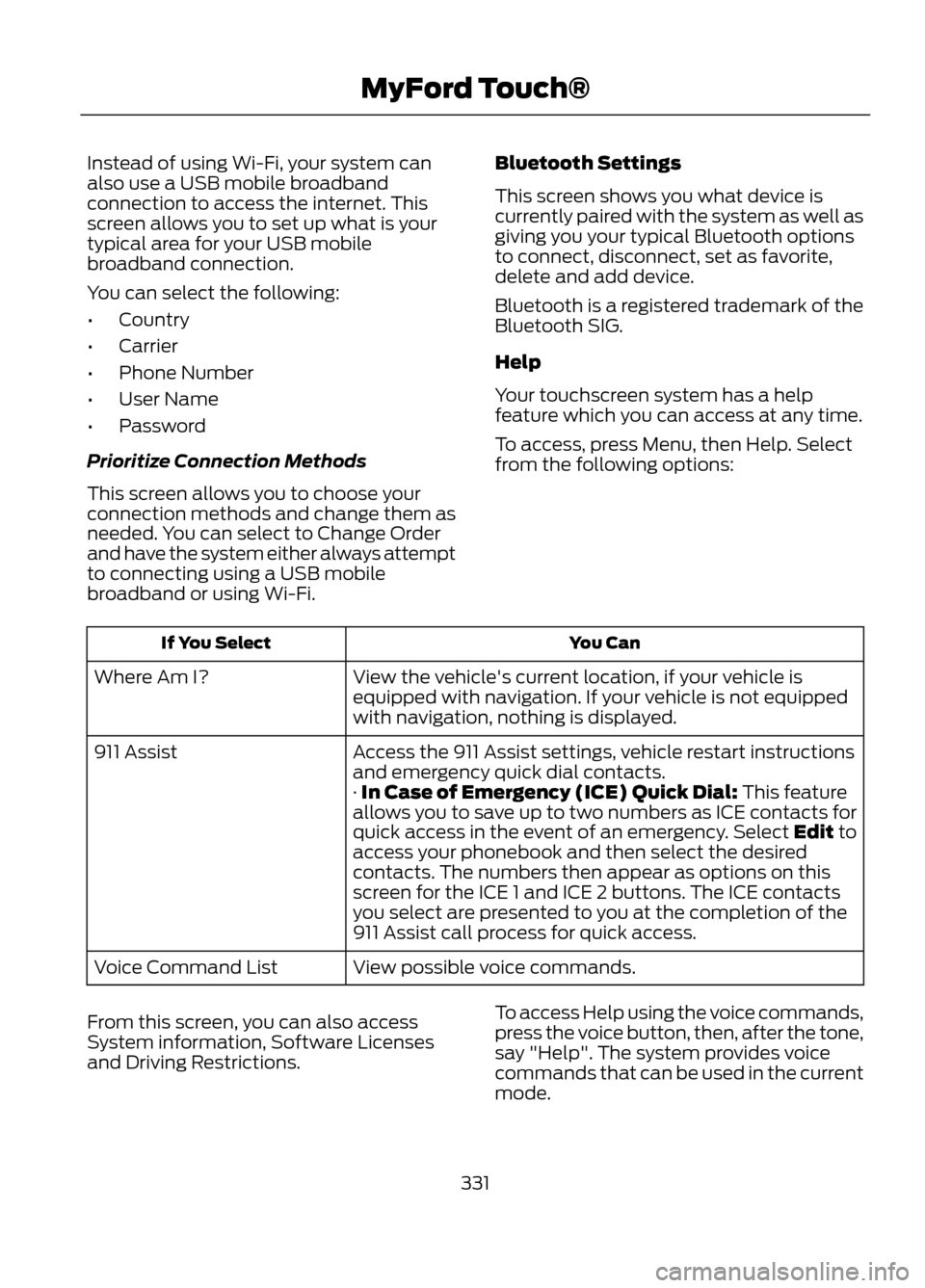
To access, press Menu, then Help. Select
from the following options:
You Can
If You Select
View the vehicle's current location, if your vehicle is
equipped with navigation. If your vehicle is not equipped
with navigation, nothing is displayed.
Where Am I?
Access the 911 Assist settings, vehicle restart instructions
and emergency quick dial contacts.
911 Assist
· In Case of Emergency (ICE) Quick Dial: This feature
allows you to save up to two numbers as ICE contacts for
quick access in the event of an emergency. Select Edit to
access your phonebook and then select the desired
contacts. The numbers then appear as options on this
screen for the ICE 1 and ICE 2 buttons. The ICE contacts
you select are presented to you at the completion of the
911 Assist call process for quick access.
View possible voice commands.
Voice Command List
From this screen, you can also access
System information, Software Licenses
and Driving Restrictions. To access Help using the voice commands,
press the voice button, then, after the tone,
say "Help". The system provides voice
commands that can be used in the current
mode.
331
MyFord Touch®
Page 332 of 423
ENTERTAINMENT
Your system offers many media options.
You can access these options using the
touchscreen or voice commands.Browsing Device Content
When listening to any type of audio, you
can browse through other devices without
having to change sources. For example, if
you are currently listening to the radio, you
can browse all the artists that are stored
on your USB device.
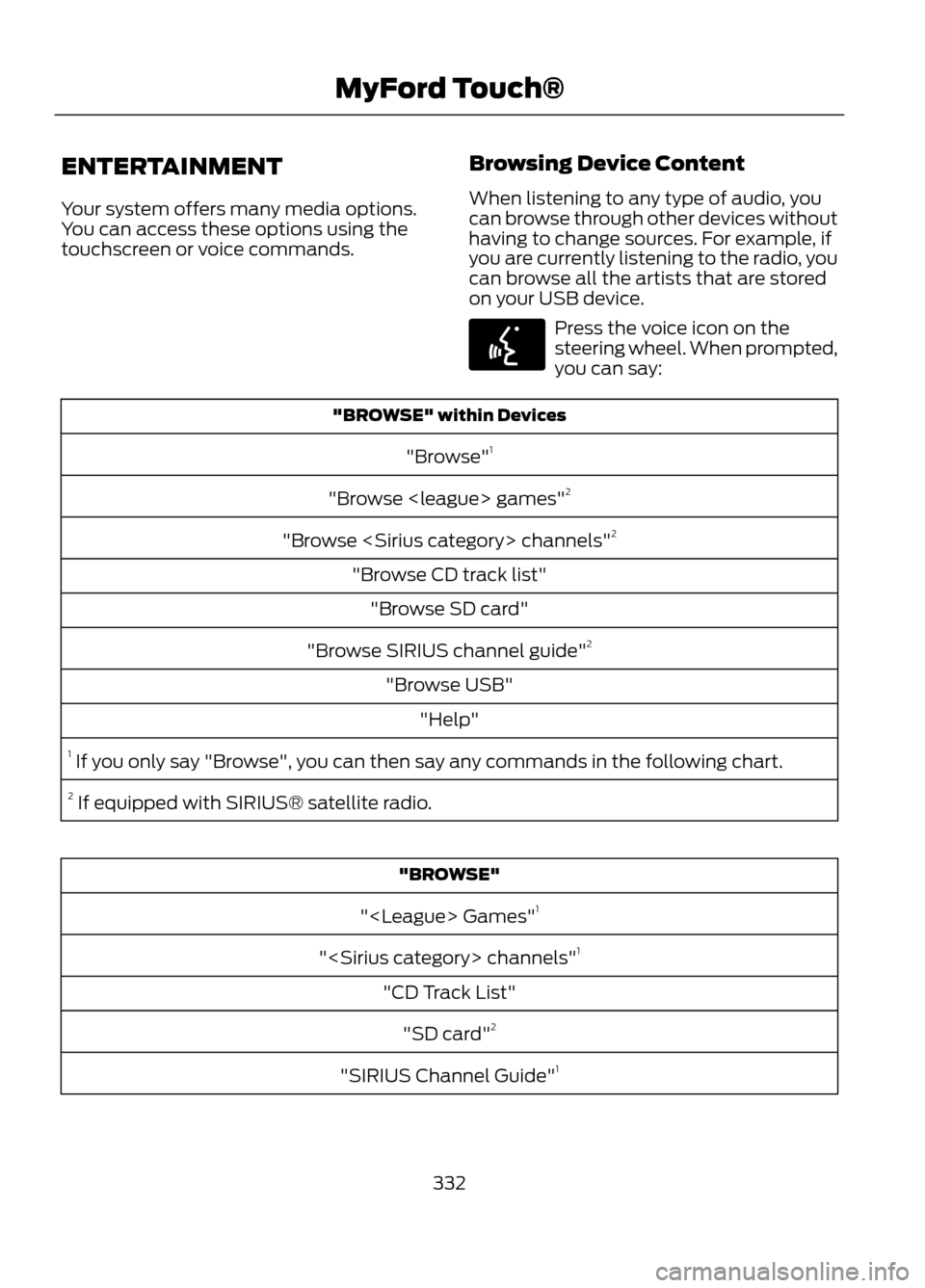
Press the voice icon on the
steering wheel. When prompted,
you can say:
"BROWSE" within Devices
"Browse" 1
"Browse
"Browse
"Browse CD track list" "Browse SD card"
"Browse SIRIUS channel guide" 2
"Browse USB" "Help"
1 If you only say "Browse", you can then say any commands in the following chart.
2 If equipped with SIRIUS® satellite radio.
"BROWSE"
"
"
"CD Track List" "SD card" 2
"SIRIUS Channel Guide" 1
332
MyFord Touch®
E142599
Page 333 of 423
"BROWSE""USB" 2
"Help"
1 If equipped with SIRIUS® satellite radio.
2 For more commands in SD card or USB mode, see the "SD Card and USB Port" section
of this chapter.
AM/FM Radio
Press the lower left corner of the
touchscreen and then select the
AM or FM tab. To change between AM and FM presets,
just touch the AM or FM tab.
You Can
When You Select
Save a station by pressing and holding one of the memory
preset areas. There is a brief mute while the station is being
saved, then sound returns when it's done.
Preset
Enter the desired station number when prompted. Press
Enter.
Direct Tune
Allows you to receive radio broadcasts digitally (where
available), providing free, crystal clear sound.
HD Radio
Go to the next strong AM or FM radio station.
Scan
Adjust more audio system settings:
Options
· Sound Settings adjusts Bass, Treble, Midrange, Balance
and Fade, THX Deep Note Demo (if equipped), DSP (if
equipped), Occupancy Mode (if equipped), and Speed
Compensated Volume settings.
· Set PTY for Seek/Scan allows you to select a category
of music you would like to search for and then choose to
either seek or scan for the stations.
· RDS Text Display allows you to always view the
information broadcast by FM stations by selecting On.
· Auto Presets (AST) allows you to have the system
automatically store the six strongest stations in your
current location.
333
MyFord Touch®
E142611
Page 346 of 423
SD Card Slot and USB Port
SD Card
Note:Your SD card slot is spring-loaded.
To remove the SD card, press the card in
and the system ejects it. Do not attempt to
pull the card to remove it as this could cause
damage.
The card slot can also be used for your
navigation system (if equipped). See
Navigation (page 371).
The SD card slot is located either in the
center console or behind a small access
door in the instrument panel. To access
and play music from your device, press the
lower left corner of the touchscreen.
SD logo is a trademark of SD-3C, LLC. USB Port
The USB ports are located either in the
center console or behind a small access
door in the instrument panel. To access
and play music from your device, press the
lower left corner of the touchscreen.
This feature allows you to plug in media
playing devices, memory sticks, flash drives
or thumb drives, and also charge devices
if they support this feature.
Playing Music from Your Device
Insert your device and select the
USB or SD Card tab once the
system recognizes it. You can
choose from the following options:
346
MyFord Touch®
E142619
E142620
E142621
E142611
Page 348 of 423

To view song information such as Title,
Artist, File, Folder, Album, and Genre, touch
the on-screen album art. You can also
press What's Playing? to hear how the
system pronounces the current band and
song. This can be helpful when using voice
commands to make sure the system
correctly plays your request.USB and SD Card Voice Commands
If you are listening to a USB
device or an SD card, press the
voice button on the steering
wheel controls. When prompted, say any
of the following commands.
If you are not listening to a USB device or
an SD card, press the voice button and,
after the tone, say "USB" or "SD card",
then any of the following commands.
"USB" or "SD CARD"
"Play podcast episode
"Browse" 1
"Play similar music"
"Next"
"Play song
"Pause"
"Play TV show episode
"Play"
"Play video
"Play album
"Play video podcast episode
"Play all"
"Play video playlist
"Play artist
"Previous"
"Play audiobook
"Repeat all"
"Play author
"Repeat off"
"Play composer
"Repeat one"
"Play folder
"Shuffle"
"Play genre
"Shuffle off"
"Play movie
"What's this?"
"Play playlist
"Help"
"Play podcast
1 If you have said you would like to browse your USB or SD card, the system prompts you
to specify what you would like to browse. When prompted, refer to the following "Browse"
chart.
2 These commands are only available in USB mode and are device-dependent.
348
MyFord Touch®
E142599
Page 349 of 423

"BROWSE""All video podcasts" *
"Album
"All videos"*
"All albums"
"Artist
"All artists"
"Audiobook
"All audiobooks"
"Author
"All authors"
"Composer
"All composers"
"Folder
"All folders"
"Genre
"All genres"
"Playlist
"All movies" *
"Podcast
"All music videos" *
"TV show
"All playlists"
"Video
"All podcasts"
"Video playlist
"All songs"
"Video podcast
"All TV shows" *
"Help"
"All video playlists" *
* These commands are only available in USB mode and are device-dependent.
Supported Media Players, Formats
and Metadata Information
SYNC is capable of hosting nearly any
digital media player, including iPod®,
Zune ™, "plays from device" players, and
most USB drives. Supported audio formats
include MP3, WMA, WAV and AAC. It is also able to organize your indexed
media from your playing device by
metadata tags. Metadata tags are
descriptive software identifiers embedded
in the media files which provide
information about the file.
If your indexed media files contain no
information embedded in these metadata
tags, SYNC may classify the empty
metadata tags as Unknown.
349
MyFord Touch®
Page 350 of 423

In order to playback video from your iPod®
or iPhone®, (if compatible), you MUST
have a special combination USB/RCA
composite video cable (available for
purchase from Apple® ). When the cable
is connected to your iPod® or iPhone®,
plug the other end into both the RCA jacks
and the USB port.
Bluetooth Audio
Your system allows you to stream audio
over your vehicle's speakers from your
connected, Bluetooth-enabled mobile
phone.
To access, press the lower left
corner on the touchscreen, then
select the BT tab.Bluetooth Audio Voice Commands
Note:
If your Bluetooth device supports
streaming metadata, all the commands
below are available. If your device does not,
only "Next song", "Pause", "Play" and
"Previous song" are available.
If you are listening to a Bluetooth
audio device, press the voice
button on the steering wheel
controls. When prompted, say any of the
commands in the following chart.
If you are not listening to a Bluetooth audio
device, press the voice button and, after
the tone, say “Bluetooth Audio ”, then any
of the commands in the following chart.
"BLUETOOTH AUDIO"
"Play genre
"Browse composer
"Browse album
"Play playlist
"Browse folder
"Browse all albums"
"Play podcast episode
"Browse genre
"Browse all artists"
"Play similar music"
"Browse playlist
"Browse all audiobooks"
"Play song
"Browse podcast
"Browse all authors"
"Previous"
"Next"
"Browse all composers"
"Repeat all"
"Pause"
"Browse all folders"
"Repeat off"
"Play"
"Browse all genres"
"Repeat one"
"Play album
"Browse all playlists"
"Shuffle"
"Play artist
"Browse all podcasts"
"Shuffle album"
"Play audiobook
"Browse all songs"
"Shuffle off"
"Play author
"Browse artist
"What’s this?"
"Play composer
"Browse audiobook
"Help"
"Play folder
"Browse author
350
MyFord Touch®
E142611
E142599
Page 351 of 423
A/V Inputs
Note:For safety reasons, connecting or
adjusting the settings on your portable
music player should not be attempted while
the vehicle is moving. Also, the portable
music player should be stored in a secure
location, such as the center console or the
glove box, when the vehicle is in motion. The
audio extension cable must be long enough
to allow the portable music player to be
safely stored while the vehicle is in motion.
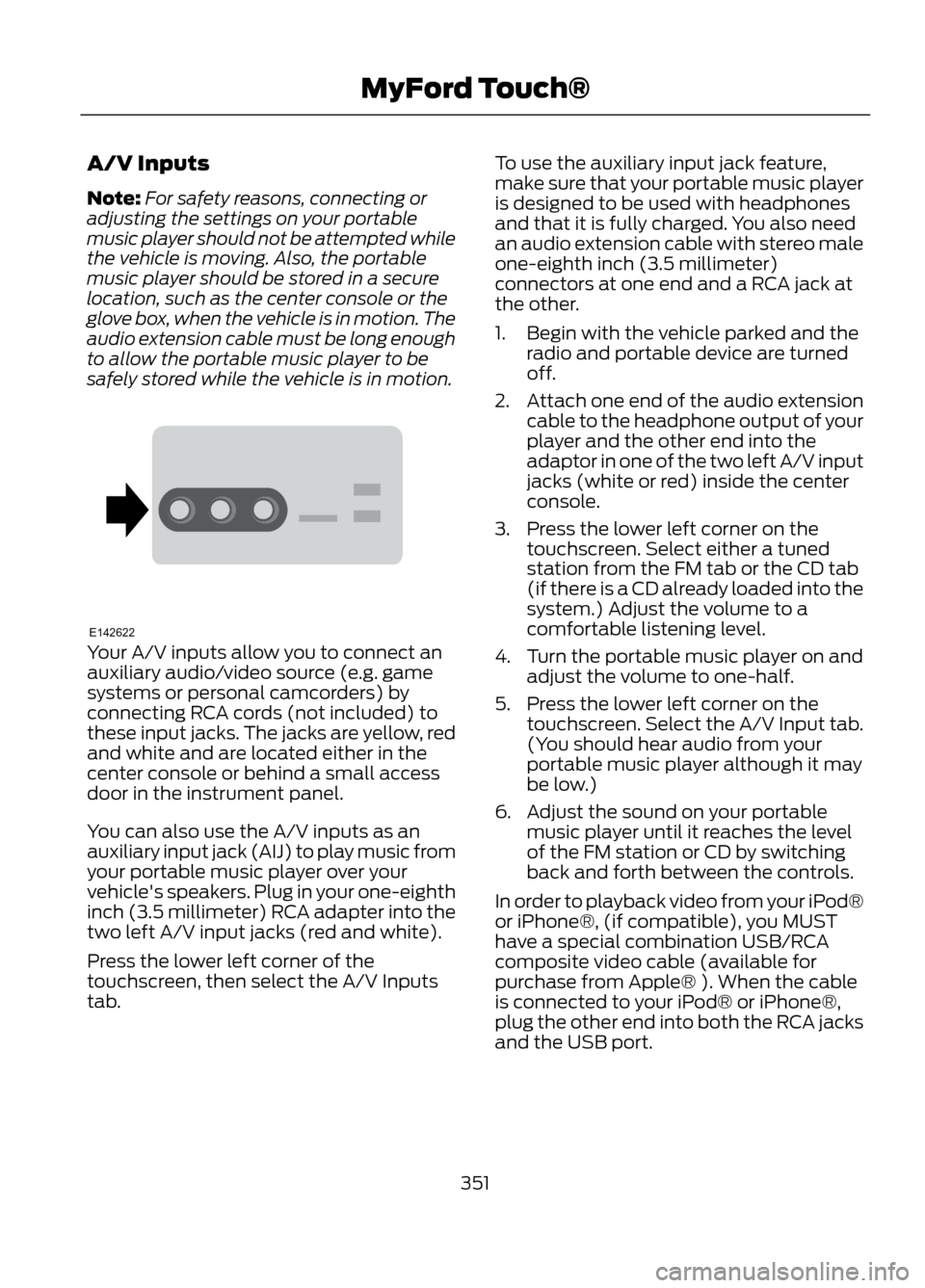
Your A/V inputs allow you to connect an
auxiliary audio/video source (e.g. game
systems or personal camcorders) by
connecting RCA cords (not included) to
these input jacks. The jacks are yellow, red
and white and are located either in the
center console or behind a small access
door in the instrument panel.
You can also use the A/V inputs as an
auxiliary input jack (AIJ) to play music from
your portable music player over your
vehicle's speakers. Plug in your one-eighth
inch (3.5 millimeter) RCA adapter into the
two left A/V input jacks (red and white).
Press the lower left corner of the
touchscreen, then select the A/V Inputs
tab. To use the auxiliary input jack feature,
make sure that your portable music player
is designed to be used with headphones
and that it is fully charged. You also need
an audio extension cable with stereo male
one-eighth inch (3.5 millimeter)
connectors at one end and a RCA jack at
the other.
1. Begin with the vehicle parked and the
radio and portable device are turned
off.
2. Attach one end of the audio extension
cable to the headphone output of your
player and the other end into the
adaptor in one of the two left A/V input
jacks (white or red) inside the center
console.
3. Press the lower left corner on the touchscreen. Select either a tuned
station from the FM tab or the CD tab
(if there is a CD already loaded into the
system.) Adjust the volume to a
comfortable listening level.
4. Turn the portable music player on and adjust the volume to one-half.
5. Press the lower left corner on the touchscreen. Select the A/V Input tab.
(You should hear audio from your
portable music player although it may
be low.)
6. Adjust the sound on your portable music player until it reaches the level
of the FM station or CD by switching
back and forth between the controls.
In order to playback video from your iPod®
or iPhone®, (if compatible), you MUST
have a special combination USB/RCA
composite video cable (available for
purchase from Apple® ). When the cable
is connected to your iPod® or iPhone®,
plug the other end into both the RCA jacks
and the USB port.
351
MyFord Touch®
E142622