change time FORD ESCAPE 2013 3.G Owners Manual
[x] Cancel search | Manufacturer: FORD, Model Year: 2013, Model line: ESCAPE, Model: FORD ESCAPE 2013 3.GPages: 423, PDF Size: 4.59 MB
Page 5 of 423
Accessories
Accessories....................................................274
Ford Extended Service Plan(ESP)
Ford Extended Service Plan (ESP).......276
SYNC®
General Information...................................279
Using Voice Recognition............................281
Using SYNC® With Your Phone.............283
SYNC® Applications and Services.......295
Using SYNC® With Your Media Player............................................................301
SYNC® Troubleshooting..........................308
MyFord Touch®
General Information....................................315
Menu.................................................................326
Entertainment...............................................332
Phone...............................................................352
Information....................................................358
Climate............................................................367
Navigation........................................................371
Appendices
End User License Agreement.................380
Scheduled Maintenance
Scheduled Maintenance..........................396
5
Table of Contents
The information contained in this publication was correct at the time of going to print. In the interest of
continuous development, we reserve the right to change specifications, design or equipment at any time
without notice or obligation. No part of this publication may be reproduced, transmitted, stored in a
retrieval system or translated into any language in any form by any means without our written permission.
Errors and omissions excepted.
© Ford Motor Company 2012
All rights reserved.
Part Number: 20120308005357
Page 49 of 423
PRINCIPLE OF OPERATION
MyKey allows you to program keys with
restricted driving modes to promote good
driving habits. All but one of the keys
programmed to the vehicle can be
activated with these restricted modes. Any
keys that have not been programmed are
referred to as an "administrator key" or
"admin key" which can be used to:
•create a restricted key
• program optional MyKey settings
• clear all MyKey features altogether.
Once a key has been programmed you can
access the following information using the
information display control:
• How many admin keys and MyKeys are
programmed to the vehicle.
• The total distance the vehicle has been
driven with a MyKey.
For vehicles equipped with intelligent
access key (push button start), when both
a MyKey and an admin intelligent access
key (fob) are present, the admin fob will
be recognized by the vehicle to start the
engine.
Standard Settings
These settings cannot be changed.
• Belt-Minder®. This cannot be disabled
and the five-minute timer does not
expire. The audio system is muted
when MyKey Belt-Minder® is activated.
• Early low fuel. Warnings are displayed
in the information display control
followed by an audible tone when the
fuel tank is at one-eighth tank or less.
• Driver assist features, if equipped on
your vehicle, are forced on: Parking aid,
blind spot information system (BLIS®)
with cross traffic alert and the collision
warning system. Optional Settings
These settings can be configured right after
a MyKey is first created or changed
afterword with an Admin key.
•
Vehicle speed limit of 80 mph (130
km/h). Visual warnings are displayed
followed by an audible tone when
vehicle speed has reached 80 mph
(130 km/h).
• Vehicle speed warning of 45, 55 or 65
mph (75, 90, or 105 km/h). Visual
warnings are displayed followed by an
audible tone when the preselected
vehicle speed is exceeded.
• Audio system maximum volume of
45%. A message in the audio system
is displayed when attempting to
exceed the limited volume.
• AdvanceTrac®. The system cannot be
turned off when Always-on has been
set.
CREATING A MYKEY
Use the information display control to
create a MyKey:
1. Insert the key you want to program into
the ignition or, if the vehicle is equipped
with push button start, put the
intelligent access key in the backup
slot. Backup slot information is located
in a different chapter. See Starting
and Stopping the Engine (page 135).
2. Turn the ignition on.
3. Access the main menu on the information display controls and select
Settings, then MyKey by pressing OK
or the > button.
4. Press OK to select Create.
5. When prompted, hold the OK button until you see a message informing you
to label this key as a MyKey. The key
will be restricted at the next start.
49
MyKey®
Page 54 of 423

LOCKING AND UNLOCKING
You can use the power door lock control
or the remote control to lock and unlock
the vehicle.
Power Door Locks
Unlock
A
Lock
B
Remote Control
The remote control can be used any time
the vehicle is not running.
Unlocking the Doors (Two-Stage
Unlock)
Press the button to unlock the
driver ’s door.
Press the button again within
three seconds to unlock all doors. The turn
signals will flash.
Press and hold both the lock and unlock
buttons on the remote control for four
seconds to disable or enable two-stage
unlocking. Disabling two-stage unlocking
allows all vehicle doors to unlock with one
press of the button. The turn signals will
flash twice to indicate the unlocking mode
was changed. The unlocking mode will be
applied to the remote control, keyless entry
keypad and intelligent access. Intelligent access at the driver
’s door will
unlock all doors when two-stage unlocking
is disabled.
Locking the Doors
Press the button to lock all the
doors. The turn signals will
illuminate.
Press the button again within three
seconds to confirm that all the doors are
closed. The doors will lock again, the horn
will chirp and the turn signals will
illuminate if all the doors and the luggage
compartment are closed.
Note: If locking was not successful or any
door or the liftgate is not closed, or if the
hood is not closed on vehicles equipped
with a perimeter alarm or remote start, the
horn will chirp twice and the lamps will not
flash.
Power Liftgate (if equipped)
WARNINGS
Make sure all persons are clear of the
liftgate area before using power
liftgate control.
Make sure the liftgate is closed to
prevent exhaust fumes from being
drawn into the vehicle. This will also
prevent passengers and cargo from falling
out. If you must drive with the liftgate open,
keep the vents open so outside air comes
into the vehicle.
Note: Be careful when opening or closing
the liftgate in a garage or other enclosed
area to avoid damaging the liftgate.
Press twice within three seconds
to open or close the liftgate, or
to reverse the movement. See
Power Liftgate (page 57).
54
Locks
E138628
E138629
E138623
E138630
Page 69 of 423
REAR WINDOW WIPER AND
WASHERS
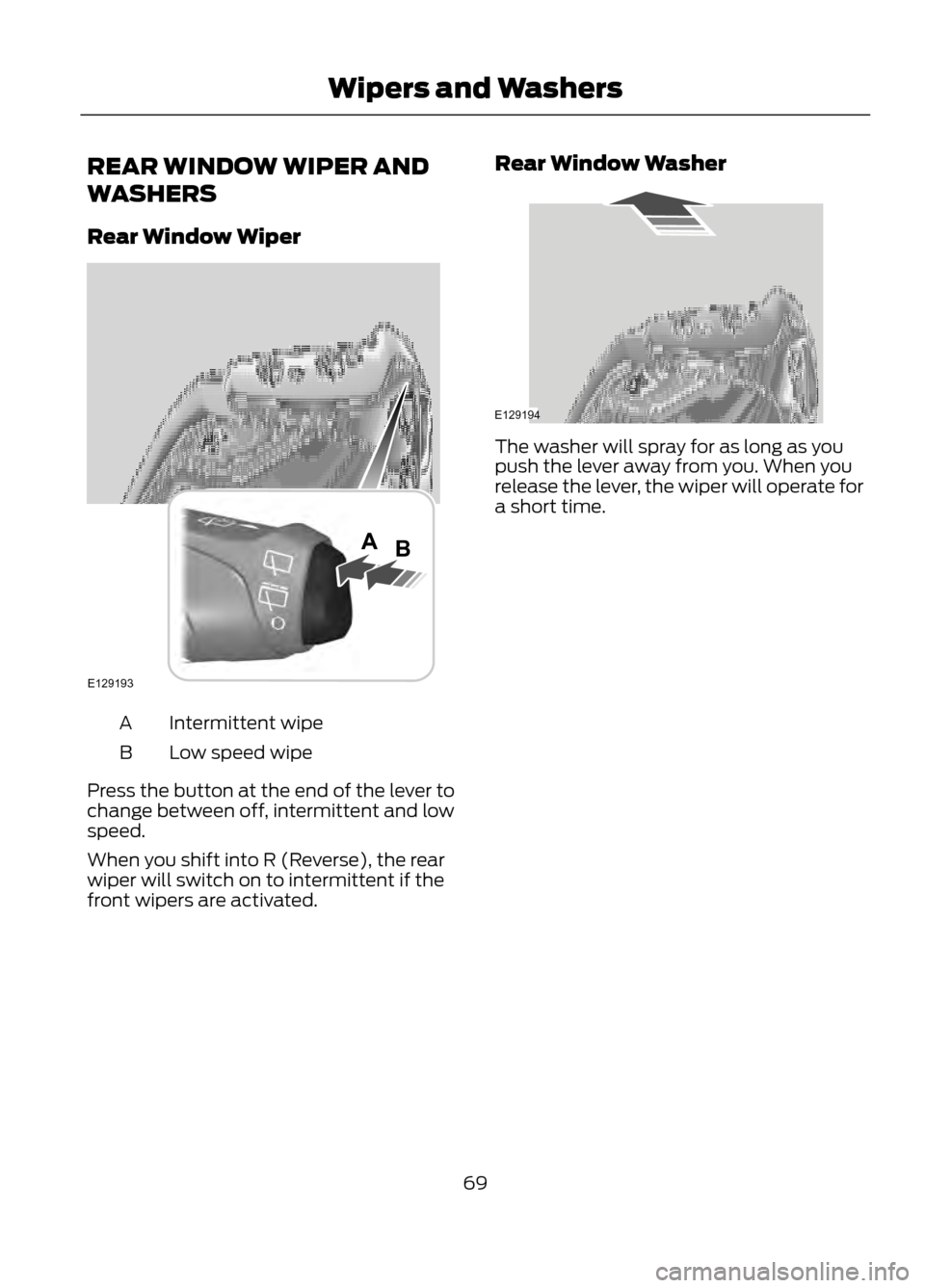
Rear Window Wiper
Intermittent wipe
A
Low speed wipe
B
Press the button at the end of the lever to
change between off, intermittent and low
speed.
When you shift into R (Reverse), the rear
wiper will switch on to intermittent if the
front wipers are activated. Rear Window Washer
The washer will spray for as long as you
push the lever away from you. When you
release the lever, the wiper will operate for
a short time.
69
Wipers and Washers
E129193
AB
E129194
Page 72 of 423
If equipped with halogen headlamps, the
system switches the low beam headlamps
on at a reduced intensity in day light
conditions.
If equipped with high intensity discharge
(HID) headlamps, the system switches the
fog lamps on in day light conditions.
To switch the system on, switch the
ignition on, and switch the lighting control
to the off, autolamp, or parking lamp
position.
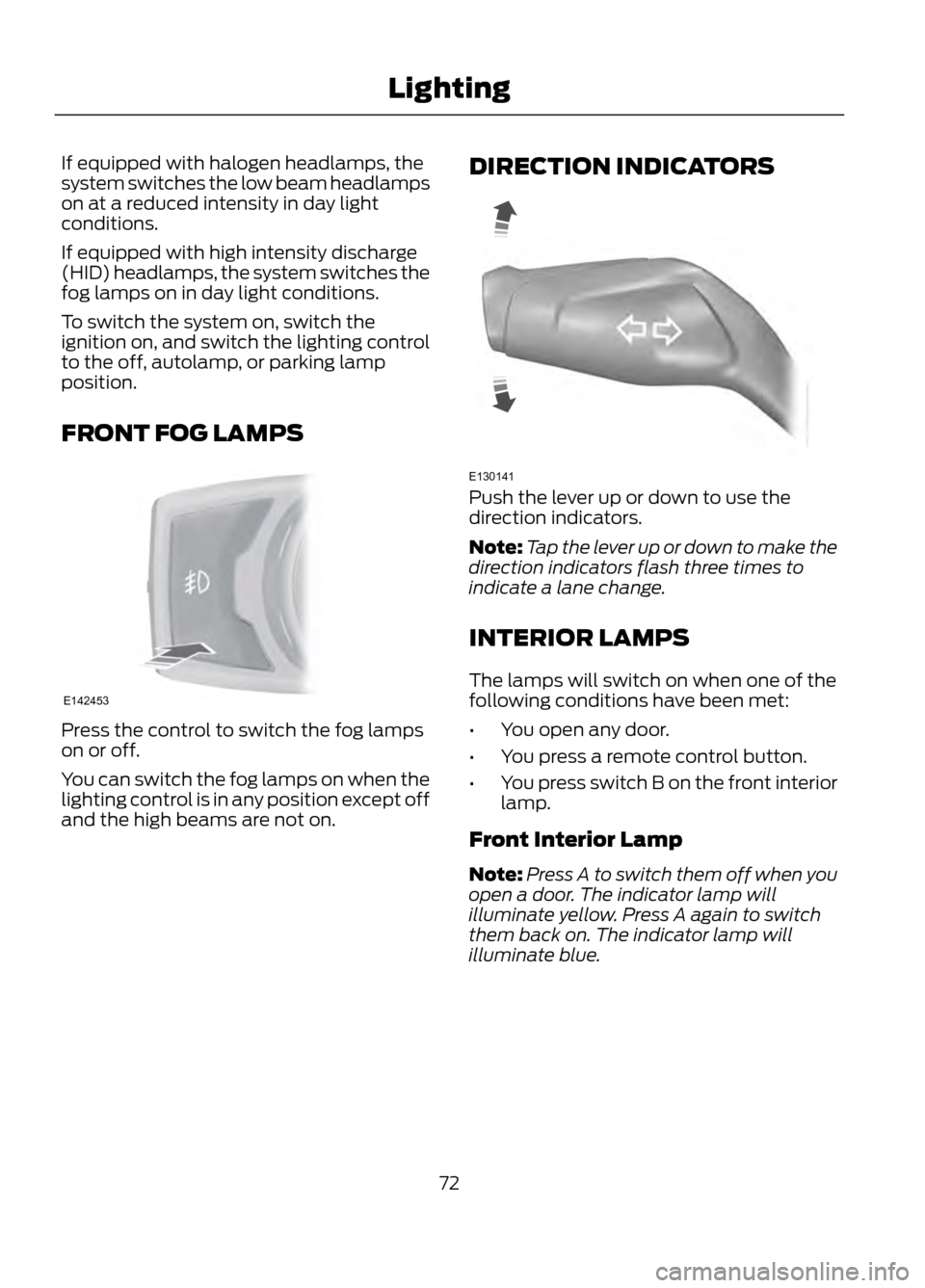
FRONT FOG LAMPS
Press the control to switch the fog lamps
on or off.
You can switch the fog lamps on when the
lighting control is in any position except off
and the high beams are not on.DIRECTION INDICATORS
Push the lever up or down to use the
direction indicators.
Note:
Tap the lever up or down to make the
direction indicators flash three times to
indicate a lane change.
INTERIOR LAMPS
The lamps will switch on when one of the
following conditions have been met:
• You open any door.
• You press a remote control button.
• You press switch B on the front interior
lamp.
Front Interior Lamp
Note: Press A to switch them off when you
open a door. The indicator lamp will
illuminate yellow. Press A again to switch
them back on. The indicator lamp will
illuminate blue.
72
Lighting
E142453
E130141
Page 87 of 423
Fuel Used
Indicates the approximate distance the
vehicle will travel on the fuel remaining in
the tank. Changes in driving pattern may
cause the value to vary.
Average Fuel
Indicates the average fuel consumption
since the function was last reset.
All Value
Indicates all the respective trip, distance,
time and average fuel information.
INFORMATION MESSAGES
Note:Depending on the vehicle options
equipped with your vehicle, not all of the
messages will display or be available.
Certain messages may be abbreviated or
shortened depending upon which cluster
type you have.
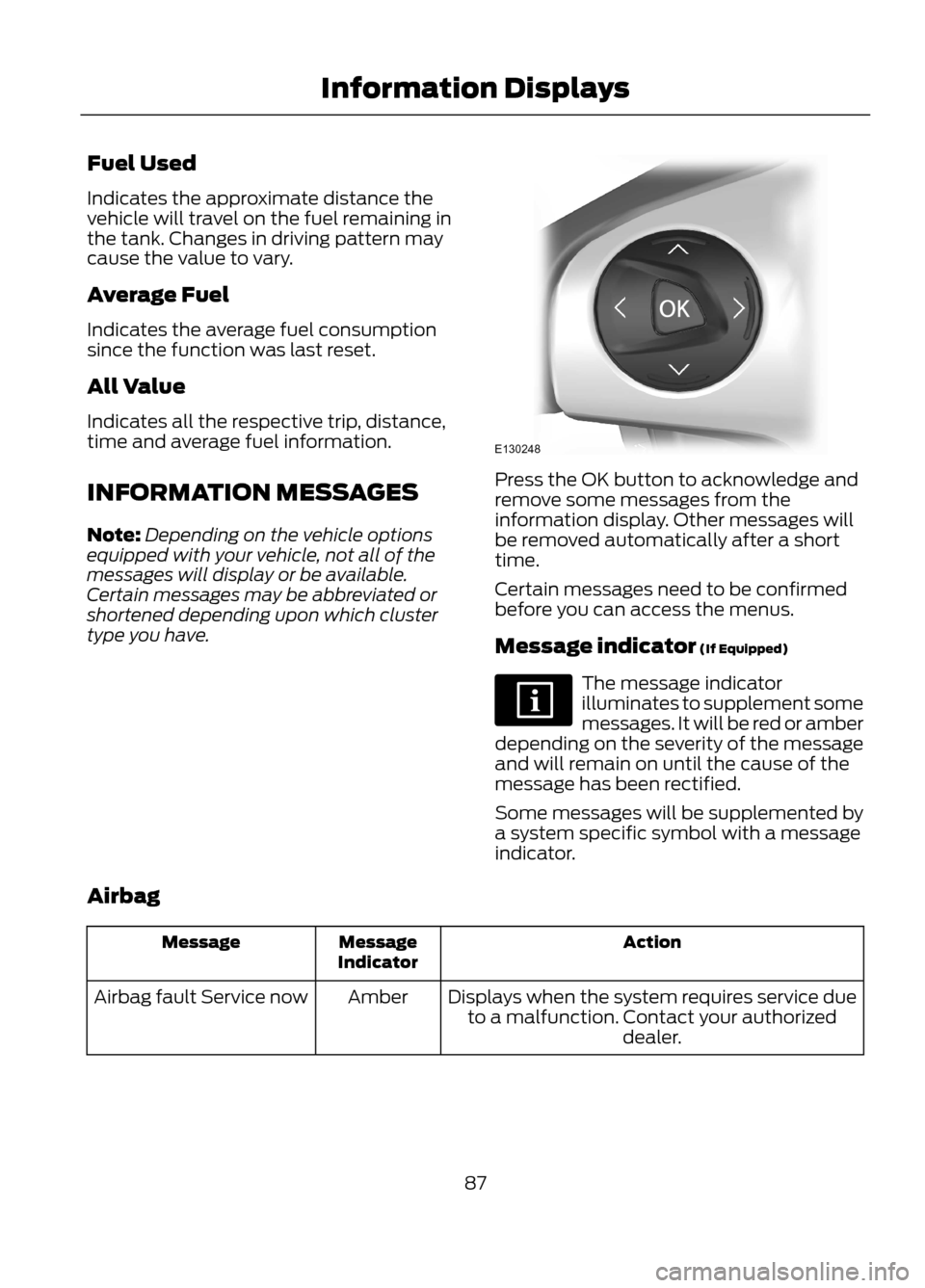
Press the OK button to acknowledge and
remove some messages from the
information display. Other messages will
be removed automatically after a short
time.
Certain messages need to be confirmed
before you can access the menus.
Message indicator (If Equipped)
The message indicator
illuminates to supplement some
messages. It will be red or amber
depending on the severity of the message
and will remain on until the cause of the
message has been rectified.
Some messages will be supplemented by
a system specific symbol with a message
indicator.
Airbag
Action
Message
Indicator
Message
Displays when the system requires service dueto a malfunction. Contact your authorized dealer.
Amber
Airbag fault Service now
87
Information Displays
E130248
Page 109 of 423
Display Settings
Select to change display brightness.
Dimming
Select to display the language in English, French or
Spanish.
Language
Select to display the outside temperature in Fahrenheit
or Celsius.
Temp setting
Clock Settings
Select to set the time.
Set time
Select to set the calendar date.
Set date
Select to view clock time in a 12-hour mode or 24-hour
mode.
12/24 hour
AUXILIARY INPUT JACK
WARNINGS
Driving while distracted can result in
loss of vehicle control, accident and
injury. Ford strongly recommends
that you use extreme caution when using
any device or feature that may take your
focus off the road. Your primary
responsibility is the safe operation of the
vehicle. We recommend against the use
of any handheld device while driving,
encourage the use of voice-operated
systems when possible and that you
become aware of applicable state and
local laws that may affect use of electronic
devices while driving.
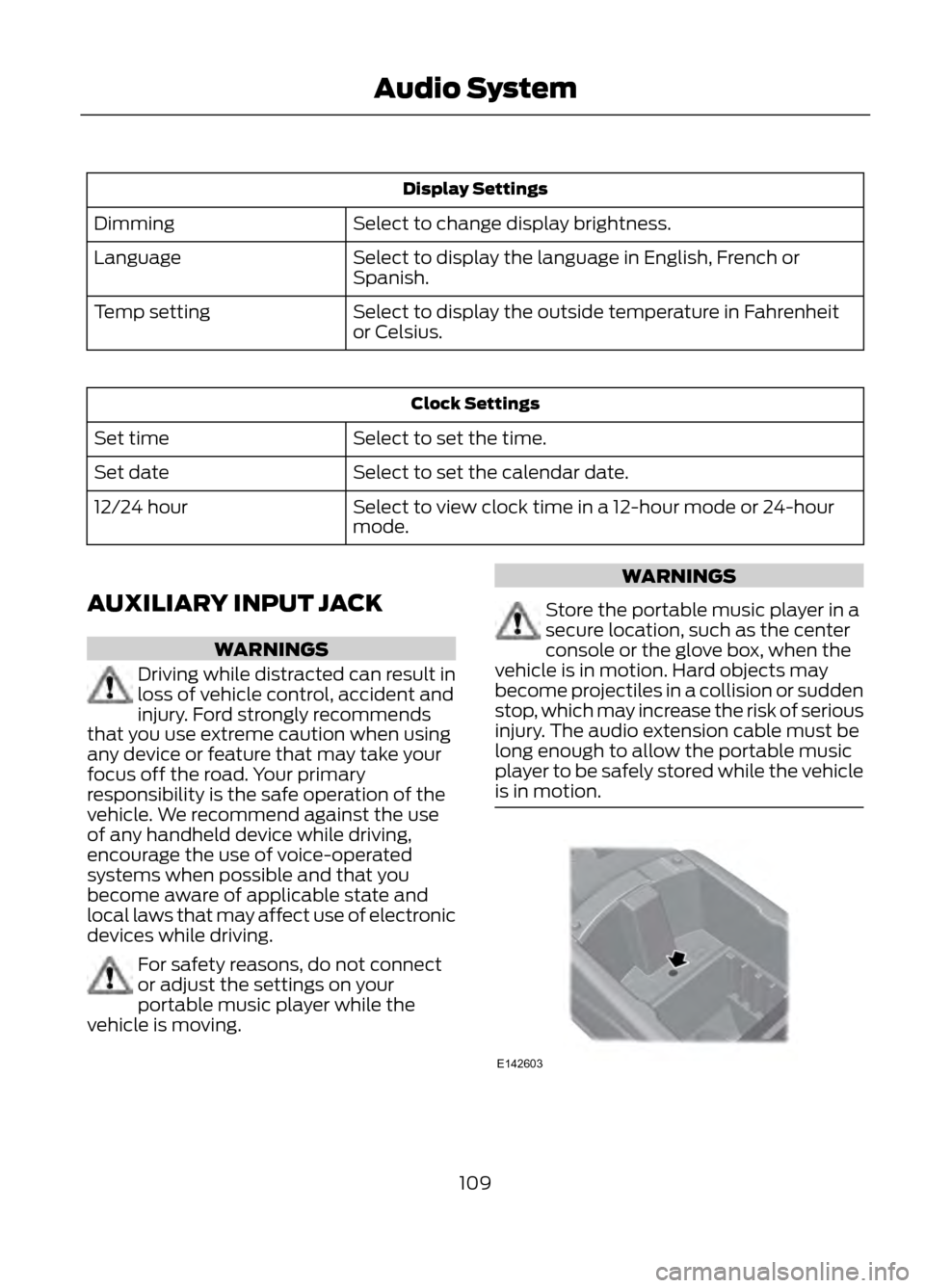
For safety reasons, do not connect
or adjust the settings on your
portable music player while the
vehicle is moving.
WARNINGS
Store the portable music player in a
secure location, such as the center
console or the glove box, when the
vehicle is in motion. Hard objects may
become projectiles in a collision or sudden
stop, which may increase the risk of serious
injury. The audio extension cable must be
long enough to allow the portable music
player to be safely stored while the vehicle
is in motion.
109
Audio System
E142603
Page 111 of 423
Satellite Radio Reception Factors
Potential Satellite Radio Reception IssuesFor optimal reception performance, keep the antenna
clear of snow and ice build-up and keep luggage and other
material as far away from the antenna as possible.
Antenna obstructions
Hills, mountains, tall buildings, bridges, tunnels, freeway
overpasses, parking garages, dense tree foliage and
thunderstorms can interfere with your reception.
Terrain
When you pass a ground-based broadcast repeating
tower, a stronger signal may overtake a weaker one and
the audio system may mute.
Station overload
Your display may show ACQUIRING...to indicate the
interference and the audio system may mute.
Satellite radio signal interfer-
ence
SIRIUS® Satellite Radio Service
Note: SIRIUS reserves the unrestricted right
to change, rearrange, add or delete
programming including canceling, moving
or adding particular channels, and its prices,
at any time, with or without notice to you.
Ford Motor Company shall not be
responsible for any such programming
changes.
SIRIUS satellite radio is a
subscription-based satellite radio service
that broadcasts a variety of music, sports,
news, weather, traffic and entertainment
programming. Your factory-installed
SIRIUS satellite radio system includes
hardware and a limited subscription term
which begins on the date of sale or lease
of the vehicle. Refer to your authorized
dealer for availability.
For more information on extended
subscription terms (a service fee is
required), the online media player and a
complete list of SIRIUS satellite radio
channels, and other features, please visit
www.siriusxm.com in the United States,
www.sirius.ca in Canada, or call SIRIUS at
1-888-539-7474.
Satellite Radio Electronic Serial
Number (ESN)
You need your ESN to activate, modify or
track your satellite radio account. When in
satellite radio mode, you can view this
number by pressing SIRIUS and memory
preset 1 at the same time.
111
Audio System
E142593
Page 129 of 423
3. Press and hold both the button on thevisor you want to program and the
hand-held transmitter button until the
indicator light on the visor changes
from flashing slowly to rapidly, then
release.
4. Press and hold the function button you
programmed for 5 seconds, then
release. You may need to do this twice
to activate the door. If your garage door
does not operate, observe the indicator
light.
If the indicator light stays on, programming
is complete. Press and release the
programmed button to activate the door.
If the indicator light on the visor flashes
rapidly for two seconds then turns to a
constant light, follow the steps below.
Note: You may need a ladder to reach the
unit and you may need to remove the cover
or lamp lens.
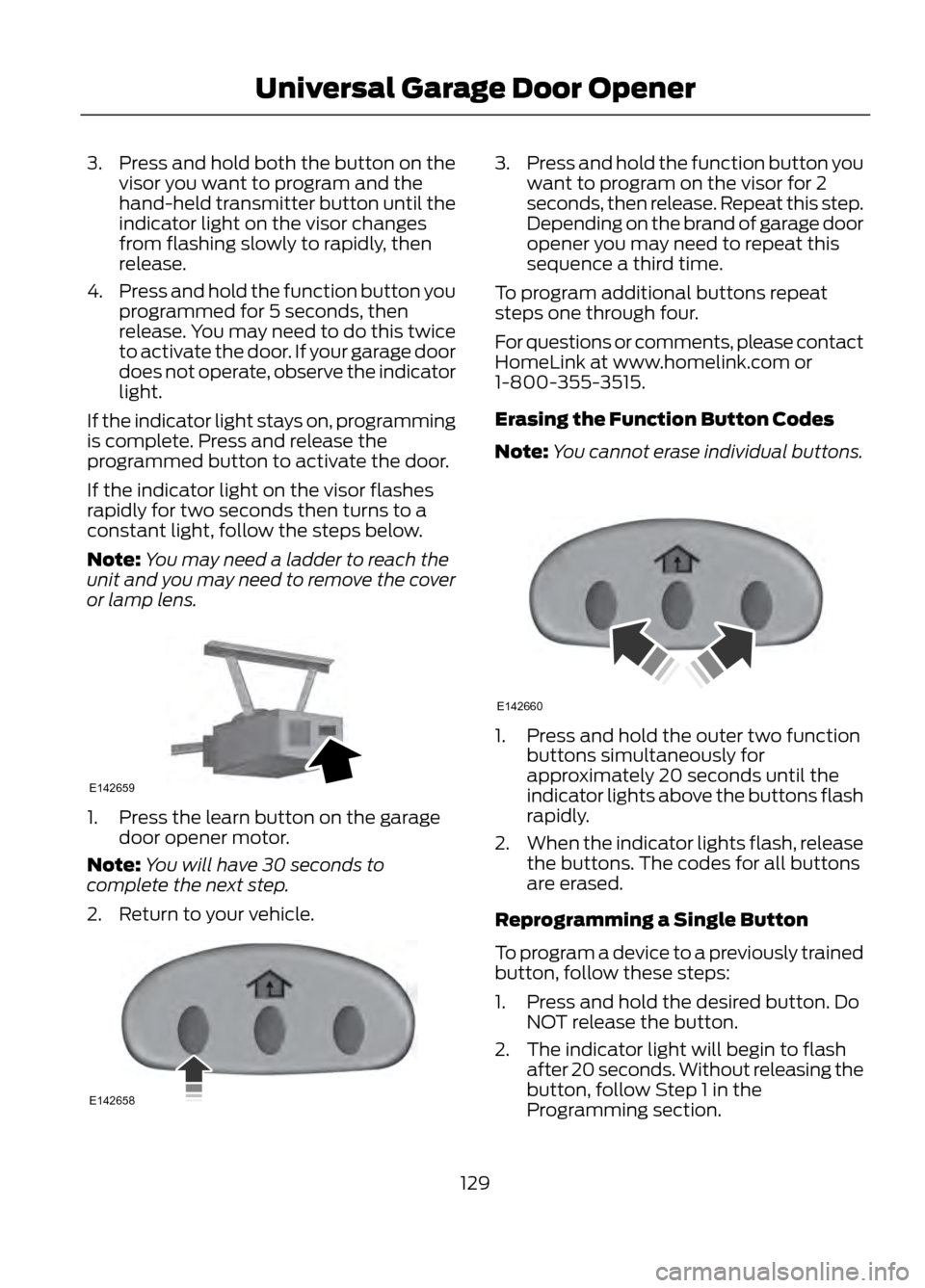
1. Press the learn button on the garage door opener motor.
Note: You will have 30 seconds to
complete the next step.
2. Return to your vehicle.
3. Press and hold the function button you
want to program on the visor for 2
seconds, then release. Repeat this step.
Depending on the brand of garage door
opener you may need to repeat this
sequence a third time.
To program additional buttons repeat
steps one through four.
For questions or comments, please contact
HomeLink at www.homelink.com or
1-800-355-3515.
Erasing the Function Button Codes
Note: You cannot erase individual buttons.
1. Press and hold the outer two function
buttons simultaneously for
approximately 20 seconds until the
indicator lights above the buttons flash
rapidly.
2. When the indicator lights flash, release
the buttons. The codes for all buttons
are erased.
Reprogramming a Single Button
To program a device to a previously trained
button, follow these steps:
1. Press and hold the desired button. Do NOT release the button.
2. The indicator light will begin to flash after 20 seconds. Without releasing the
button, follow Step 1 in the
Programming section.
129
Universal Garage Door Opener
E142659
E142658
E142660
Page 131 of 423
3.Press and release the program button.
The larger purple indicator light will
flash.
Note: The next two steps must be
completed in 30 seconds.
4. Press and release the Genie Intellicode
2 hand-held transmitter ’s previously
programmed button. Both indicator
lights on the garage door opener motor
unit should now flash purple.
5. Press and hold the previously programmed button on the visor for 2
seconds. Repeat this step up to 3 times
until the garage door moves.
Programming is now complete.
Clearing a HomeLink Device
To erase programming from the three
HomeLink buttons press and hold the two
outer HomeLink buttons until the indicator
light begins to flash. The indicator light will
begin flashing in 10 to 20 seconds, at which
time both buttons should be released.
Programming has now been erased, and
the indicator light should blink slowly to
indicate the device is in train mode when
any of the three HomeLink buttons are
pressed.
FCC and RSS-210 Industry Canada
Compliance
This device complies with Part 15 of the
FCC Rules and with RSS-210 of Industry
Canada. Operation is subject to the
following two conditions: (1) this device
may not cause harmful interference, and
(2) this device must accept any
interference received, including
interference that may cause undesired
operation.
Changes or modifications to your device
not expressly approved by the party
responsible for compliance can void the
user ’s authority to operate the equipment.
131
Universal Garage Door Opener