audio FORD ESCAPE 2013 3.G Owner's Guide
[x] Cancel search | Manufacturer: FORD, Model Year: 2013, Model line: ESCAPE, Model: FORD ESCAPE 2013 3.GPages: 423, PDF Size: 4.59 MB
Page 309 of 423
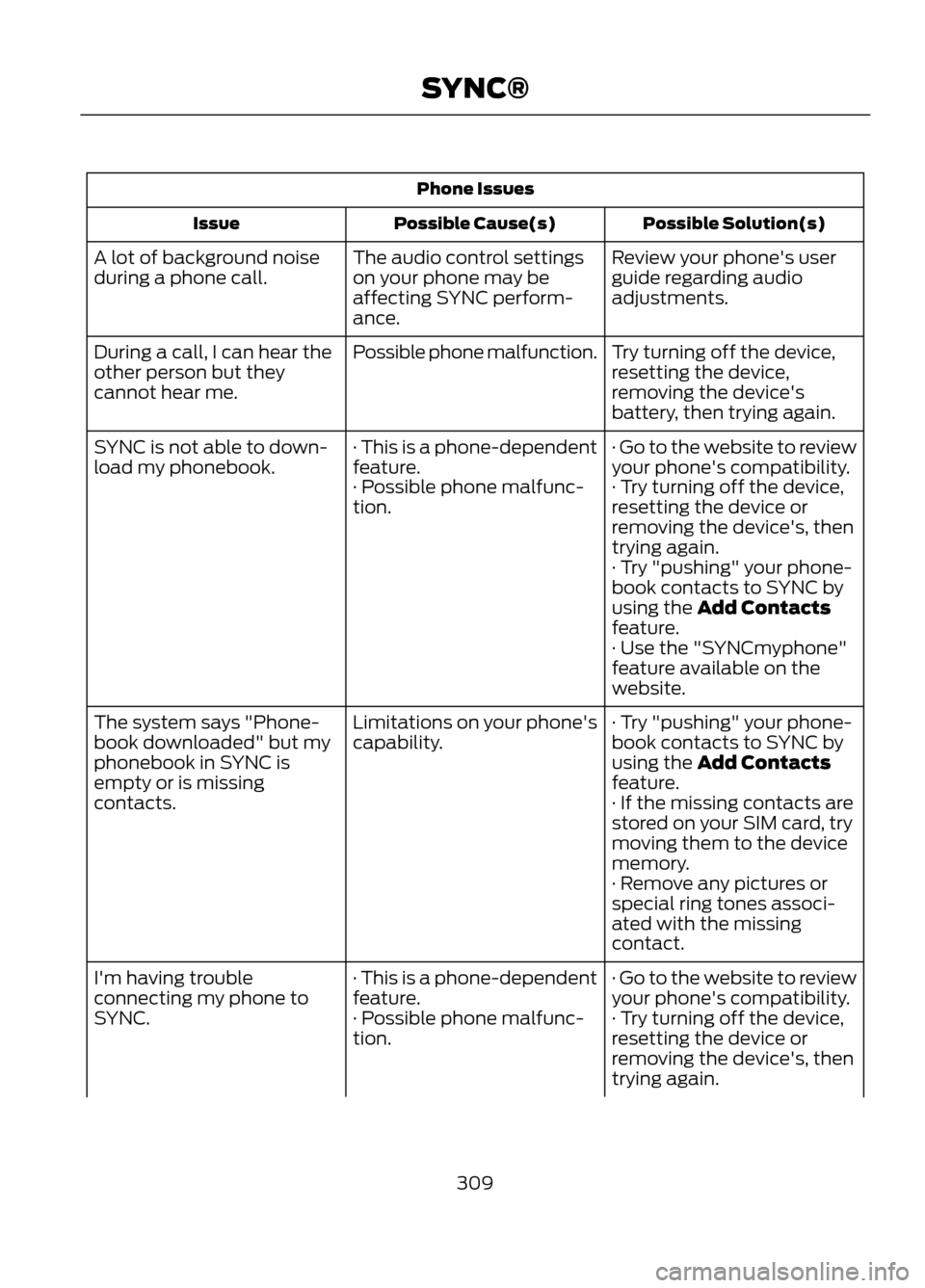
Phone IssuesPossible Solution(s)
Possible Cause(s)
Issue
Review your phone's user
guide regarding audio
adjustments.
The audio control settings
on your phone may be
affecting SYNC perform-
ance.
A lot of background noise
during a phone call.
Try turning off the device,
resetting the device,
removing the device's
battery, then trying again.
Possible phone malfunction.
During a call, I can hear the
other person but they
cannot hear me.
· Go to the website to review
your phone's compatibility.
· This is a phone-dependent
feature.
SYNC is not able to down-
load my phonebook.
· Try turning off the device,
resetting the device or
removing the device's, then
trying again.
· Possible phone malfunc-
tion.
· Try "pushing" your phone-
book contacts to SYNC by
using the Add Contacts
feature.
· Use the "SYNCmyphone"
feature available on the
website.
· Try "pushing" your phone-
book contacts to SYNC by
using the Add Contacts
feature.
Limitations on your phone's
capability.
The system says "Phone-
book downloaded" but my
phonebook in SYNC is
empty or is missing
contacts.
· If the missing contacts are
stored on your SIM card, try
moving them to the device
memory.
· Remove any pictures or
special ring tones associ-
ated with the missing
contact.
· Go to the website to review
your phone's compatibility.
· This is a phone-dependent
feature.
I'm having trouble
connecting my phone to
SYNC.
· Try turning off the device,
resetting the device or
removing the device's, then
trying again.
· Possible phone malfunc-
tion.
309
SYNC®
Page 311 of 423
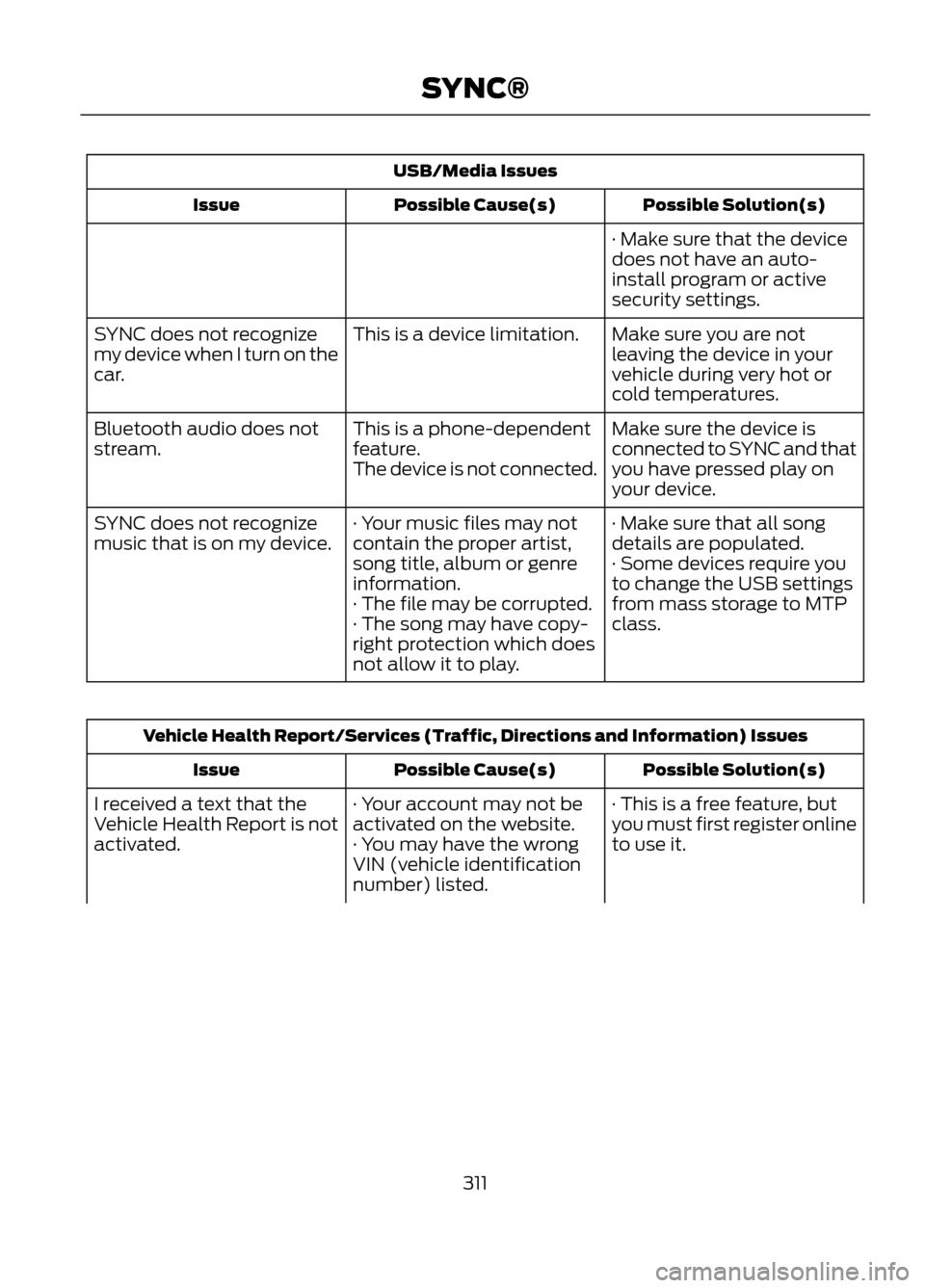
USB/Media IssuesPossible Solution(s)
Possible Cause(s)
Issue
· Make sure that the device
does not have an auto-
install program or active
security settings.
Make sure you are not
leaving the device in your
vehicle during very hot or
cold temperatures.
This is a device limitation.
SYNC does not recognize
my device when I turn on the
car.
Make sure the device is
connected to SYNC and that
you have pressed play on
your device.
This is a phone-dependent
feature.
The device is not connected.
Bluetooth audio does not
stream.
· Make sure that all song
details are populated.
· Your music files may not
contain the proper artist,
song title, album or genre
information.
SYNC does not recognize
music that is on my device.
· Some devices require you
to change the USB settings
from mass storage to MTP
class.
· The file may be corrupted.
· The song may have copy-
right protection which does
not allow it to play.
Vehicle Health Report/Services (Traffic, Directions and Information) Issues
Possible Solution(s)
Possible Cause(s)
Issue
· This is a free feature, but
you must first register online
to use it.
· Your account may not be
activated on the website.
· You may have the wrong
VIN (vehicle identification
number) listed.
I received a text that the
Vehicle Health Report is not
activated.
311
SYNC®
Page 321 of 423
Helpful Hints
•Make sure the interior of the vehicle is
as quiet as possible. Wind noise from
open windows and road vibrations may
prevent the system from correctly
recognizing spoken commands. •
After pressing the voice icon, wait until
after the tone sounds and "Listening"
appears before saying a command. Any
command spoken before this does not
register with the system.
• Speak naturally, without long pauses
between words.
• At any time you can interrupt the
system while it is speaking by pressing
the voice icon.
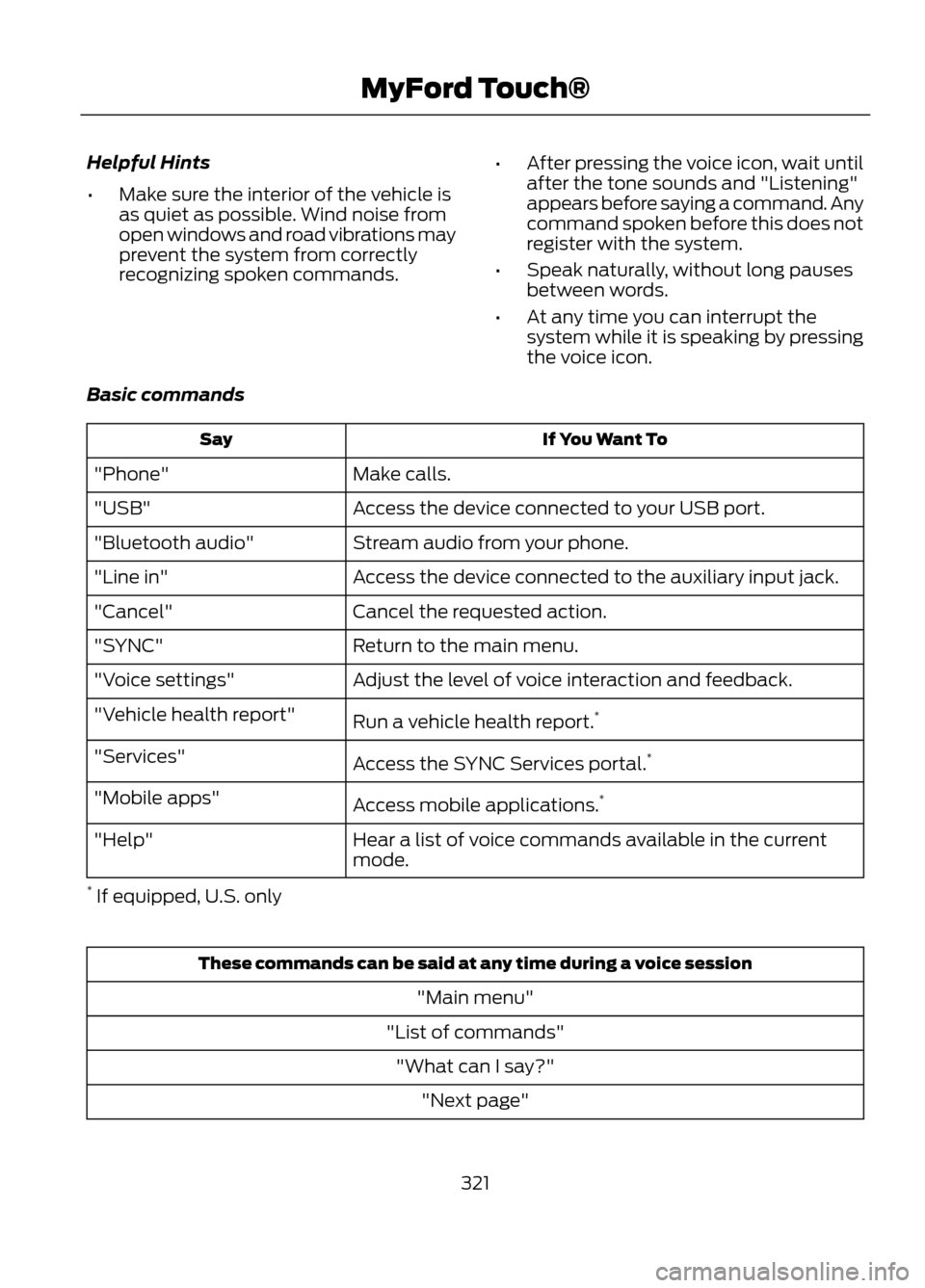
Basic commands
If You Want To
Say
Make calls.
"Phone"
Access the device connected to your USB port.
"USB"
Stream audio from your phone.
"Bluetooth audio"
Access the device connected to the auxiliary input jack.
"Line in"
Cancel the requested action.
"Cancel"
Return to the main menu.
"SYNC"
Adjust the level of voice interaction and feedback.
"Voice settings"
Run a vehicle health report.*
"Vehicle health report"
Access the SYNC Services portal. *
"Services"
Access mobile applications.*
"Mobile apps"
Hear a list of voice commands available in the current
mode.
"Help"
* If equipped, U.S. only
These commands can be said at any time during a voice session
"Main menu"
"List of commands" "What can I say?" "Next page"
321
MyFord Touch®
Page 322 of 423
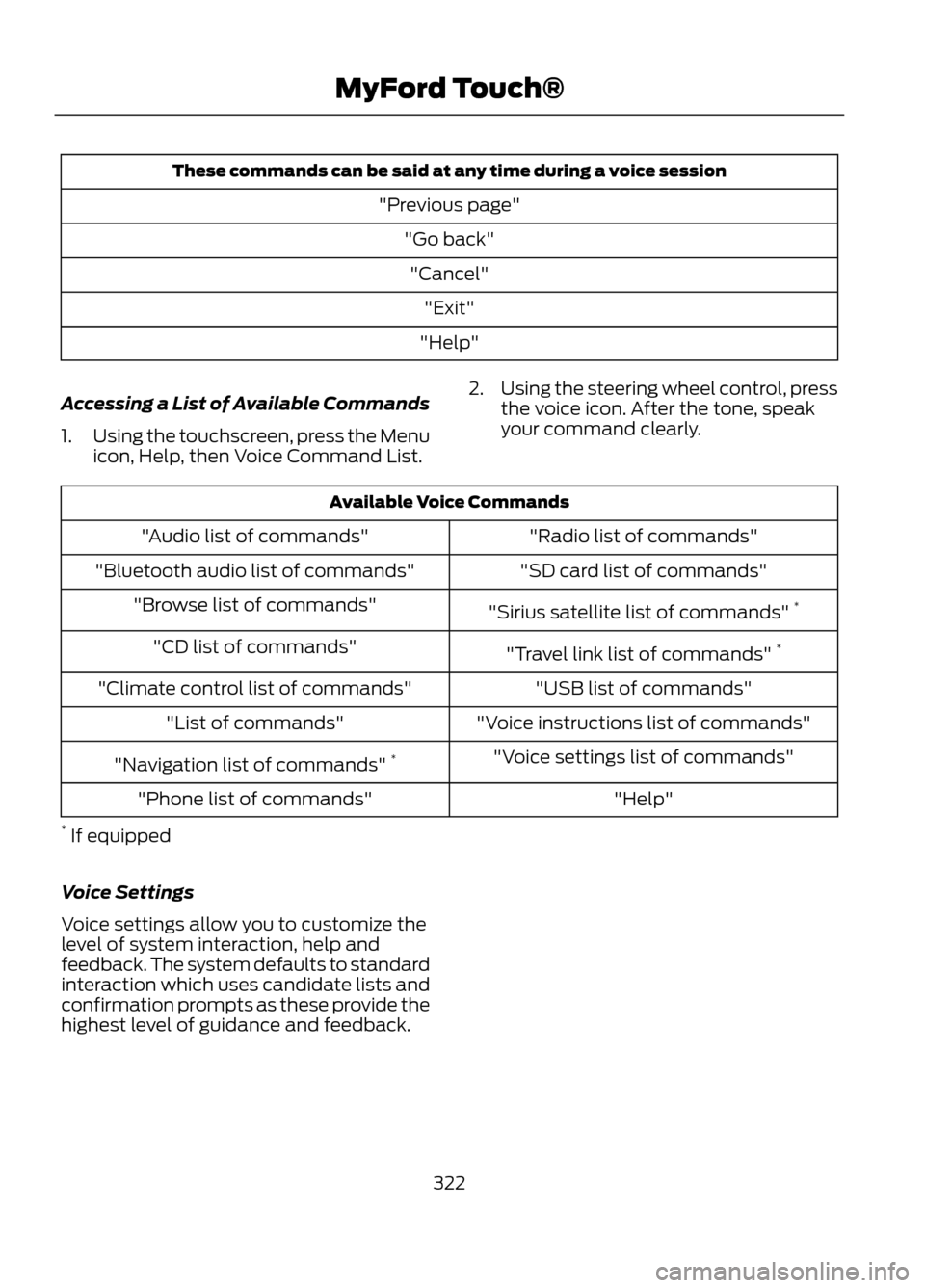
These commands can be said at any time during a voice session"Previous page""Go back""Cancel" "Exit"
"Help"
Accessing a List of Available Commands
1. Using the touchscreen, press the Menu
icon, Help, then Voice Command List. 2.
Using the steering wheel control, press
the voice icon. After the tone, speak
your command clearly.
Available Voice Commands
"Radio list of commands"
"Audio list of commands"
"SD card list of commands"
"Bluetooth audio list of commands"
"Sirius satellite list of commands" *
"Browse list of commands"
"Travel link list of commands" *
"CD list of commands"
"USB list of commands"
"Climate control list of commands"
"Voice instructions list of commands"
"List of commands"
"Voice settings list of commands"
"Navigation list of commands" *
"Help"
"Phone list of commands"
* If equipped
Voice Settings
Voice settings allow you to customize the
level of system interaction, help and
feedback. The system defaults to standard
interaction which uses candidate lists and
confirmation prompts as these provide the
highest level of guidance and feedback.
322
MyFord Touch®
Page 332 of 423
ENTERTAINMENT
Your system offers many media options.
You can access these options using the
touchscreen or voice commands.Browsing Device Content
When listening to any type of audio, you
can browse through other devices without
having to change sources. For example, if
you are currently listening to the radio, you
can browse all the artists that are stored
on your USB device.
Press the voice icon on the
steering wheel. When prompted,
you can say:
"BROWSE" within Devices
"Browse" 1
"Browse
"Browse
"Browse CD track list" "Browse SD card"
"Browse SIRIUS channel guide" 2
"Browse USB" "Help"
1 If you only say "Browse", you can then say any commands in the following chart.
2 If equipped with SIRIUS® satellite radio.
"BROWSE"
"
"
"CD Track List" "SD card" 2
"SIRIUS Channel Guide" 1
332
MyFord Touch®
E142599
Page 333 of 423
"BROWSE""USB" 2
"Help"
1 If equipped with SIRIUS® satellite radio.
2 For more commands in SD card or USB mode, see the "SD Card and USB Port" section
of this chapter.
AM/FM Radio
Press the lower left corner of the
touchscreen and then select the
AM or FM tab. To change between AM and FM presets,
just touch the AM or FM tab.
You Can
When You Select
Save a station by pressing and holding one of the memory
preset areas. There is a brief mute while the station is being
saved, then sound returns when it's done.
Preset
Enter the desired station number when prompted. Press
Enter.
Direct Tune
Allows you to receive radio broadcasts digitally (where
available), providing free, crystal clear sound.
HD Radio
Go to the next strong AM or FM radio station.
Scan
Adjust more audio system settings:
Options
· Sound Settings adjusts Bass, Treble, Midrange, Balance
and Fade, THX Deep Note Demo (if equipped), DSP (if
equipped), Occupancy Mode (if equipped), and Speed
Compensated Volume settings.
· Set PTY for Seek/Scan allows you to select a category
of music you would like to search for and then choose to
either seek or scan for the stations.
· RDS Text Display allows you to always view the
information broadcast by FM stations by selecting On.
· Auto Presets (AST) allows you to have the system
automatically store the six strongest stations in your
current location.
333
MyFord Touch®
E142611
Page 334 of 423
You Can
When You Select
· TAG (if available) allows you to tag a song to download
later. When you select On, TAG appears on-screen when
HD radio is active. You can press TAG to save the inform-
ation of the song that is playing. When you plug in your
portable music player, the information is transferred (if
supported by your device). When you are connected to
iTunes®, the tags appear to remind you of the songs you’ d
like to download.
HD Radio ™ Information (If Available)
Note: HD Radio broadcasts are not
available in all markets.
HD Radio technology is the digital
evolution of analog AM/FM radio. Your
system has a special receiver which allows
it to receive digital broadcasts (where
available) in addition to the analog
broadcasts it already receives. Digital
broadcasts provide a better sound quality
than analog broadcasts with free, crystal
clear audio and no static or distortion. For
more information, and a guide to available
stations and programming, please visit
www.hdradio.com.
When this feature is enabled and you are
tuned to a station broadcasting HD Radio
technology, you may notice the following
indicators on your screen:
The HD Radio logo blinks when a digital
station is being acquired and is solid when
digital audio is playing. When this logo is
available, you may also see Title and Artist
fields on-screen . The multicast indicator appears in FM
mode (only) if the current station is
broadcasting multiple digital broadcasts.
The numbers that are highlighted signify
available digital channels where new or
different content is available. HD1 signifies
the main programming status and is
available in analog and digital broadcasts.
Any additional multicast stations (HD2
through HD7) are only broadcast digitally.
TAG allows you to save a song to
download later. When you are on an
acquired HD Radio station, the TAG button
is available (provided the feature has been
turned on). To use the tag feature:
1.
Press AM or FM, Options, then TAG On
2. When you hear a song you like, touch TAG.
3. The system automatically saves the song's information and transfers it to
your portable music player (if
supported) when it is connected to the
system. If your music player is
connected at the time, the system
automatically transfers the tag to your
player and a pop-up confirms the
transfer.
334
MyFord Touch®
E142616
Page 335 of 423
4. When you access iTunes® with yourportable music player, the tags appear
to you to be reminded of the song. The
system allows you to tag up to
approximately 100 songs. For a list of devices that support tagging, refer to
www.SYNCMyRide.com or
www.syncmaroute.ca.
When HD Radio broadcasts are active, you
can access the following functions:
You Can
When You Select
Hear a brief sampling of all available stations.
Scan
This feature still works when HD Radio reception is activ-
ated, although it does not scan for HD2-HD7 channels.
You may see the HD logo appear if the station has a digital
broadcast.
Hear the next strong radio station.
Seek
If the current station has multiple digital broadcasts, the
multicast indicator appears. Press Seek repeatedly to
advance through all available broadcasts. If you are on
the last multicast channel, press Seek to advance to the
next strong station.
Go up and down the frequency in individual increments.
Tune
If the current station has multiple digital broadcasts, the
multicast indicator appears. Press Tune repeatedly to
advance through all available broadcasts. If you are on
the last broadcast channel, turn to advance to the next
frequency on the band.
When the channel is active on-screen, press and hold a
memory preset slot until the sound returns. There is a brief
mute, then the sound returns signifying it was saved. When
recalling a HD2 or HD3 memory preset, there is a mute
before the digital audio is played as the system must once
again acquire the digital signal. As with any saved radio
station, you cannot access the saved station if your vehicle
is outside the station's reception area.
To save a multicast station
as a preset
335
MyFord Touch®
Page 336 of 423
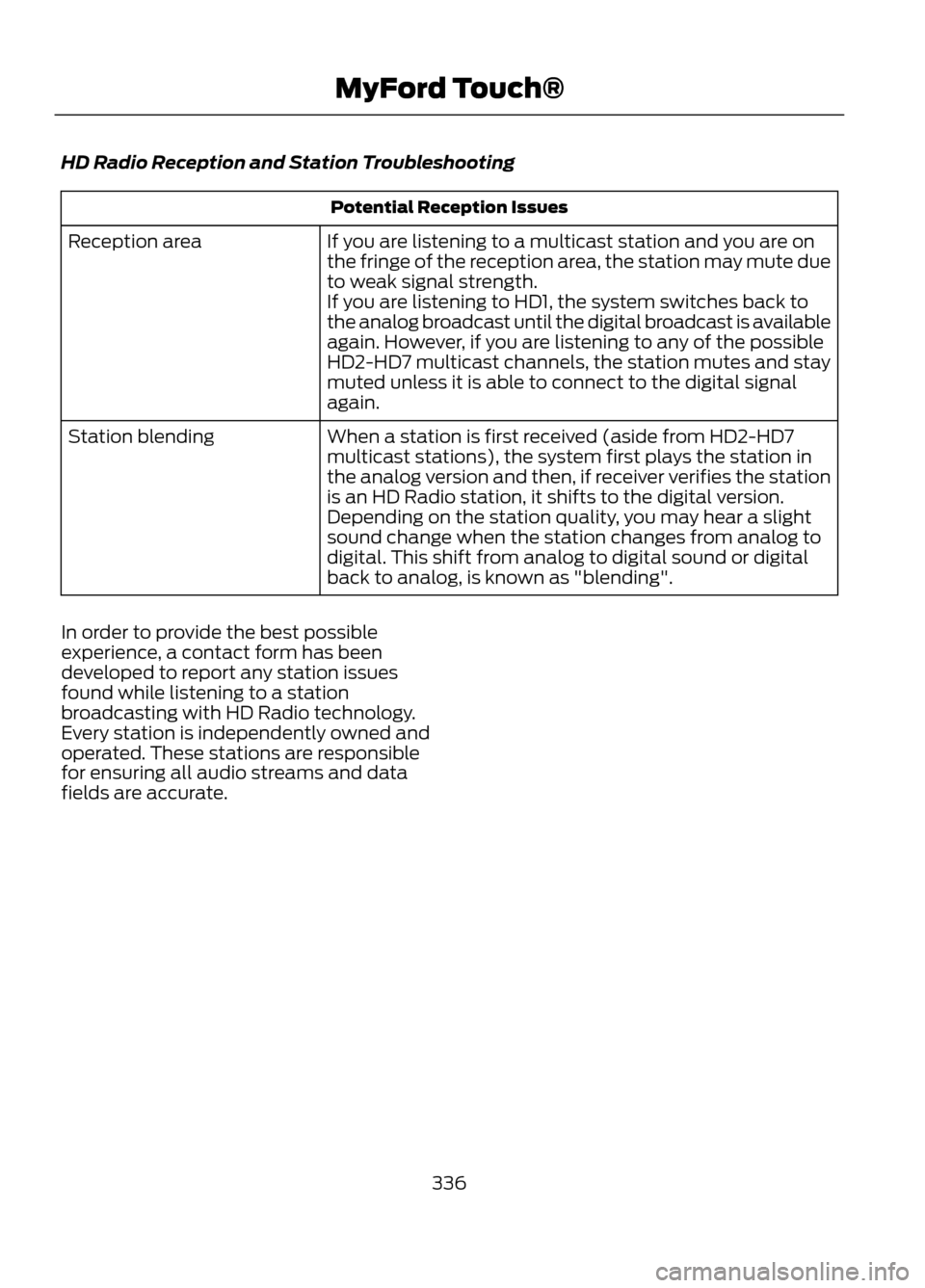
HD Radio Reception and Station Troubleshooting
Potential Reception Issues
If you are listening to a multicast station and you are on
the fringe of the reception area, the station may mute due
to weak signal strength.
If you are listening to HD1, the system switches back to
the analog broadcast until the digital broadcast is available
again. However, if you are listening to any of the possible
HD2-HD7 multicast channels, the station mutes and stay
muted unless it is able to connect to the digital signal
again.
Reception area
When a station is first received (aside from HD2-HD7
multicast stations), the system first plays the station in
the analog version and then, if receiver verifies the station
is an HD Radio station, it shifts to the digital version.
Depending on the station quality, you may hear a slight
sound change when the station changes from analog to
digital. This shift from analog to digital sound or digital
back to analog, is known as "blending".
Station blending
In order to provide the best possible
experience, a contact form has been
developed to report any station issues
found while listening to a station
broadcasting with HD Radio technology.
Every station is independently owned and
operated. These stations are responsible
for ensuring all audio streams and data
fields are accurate.
336
MyFord Touch®
Page 337 of 423
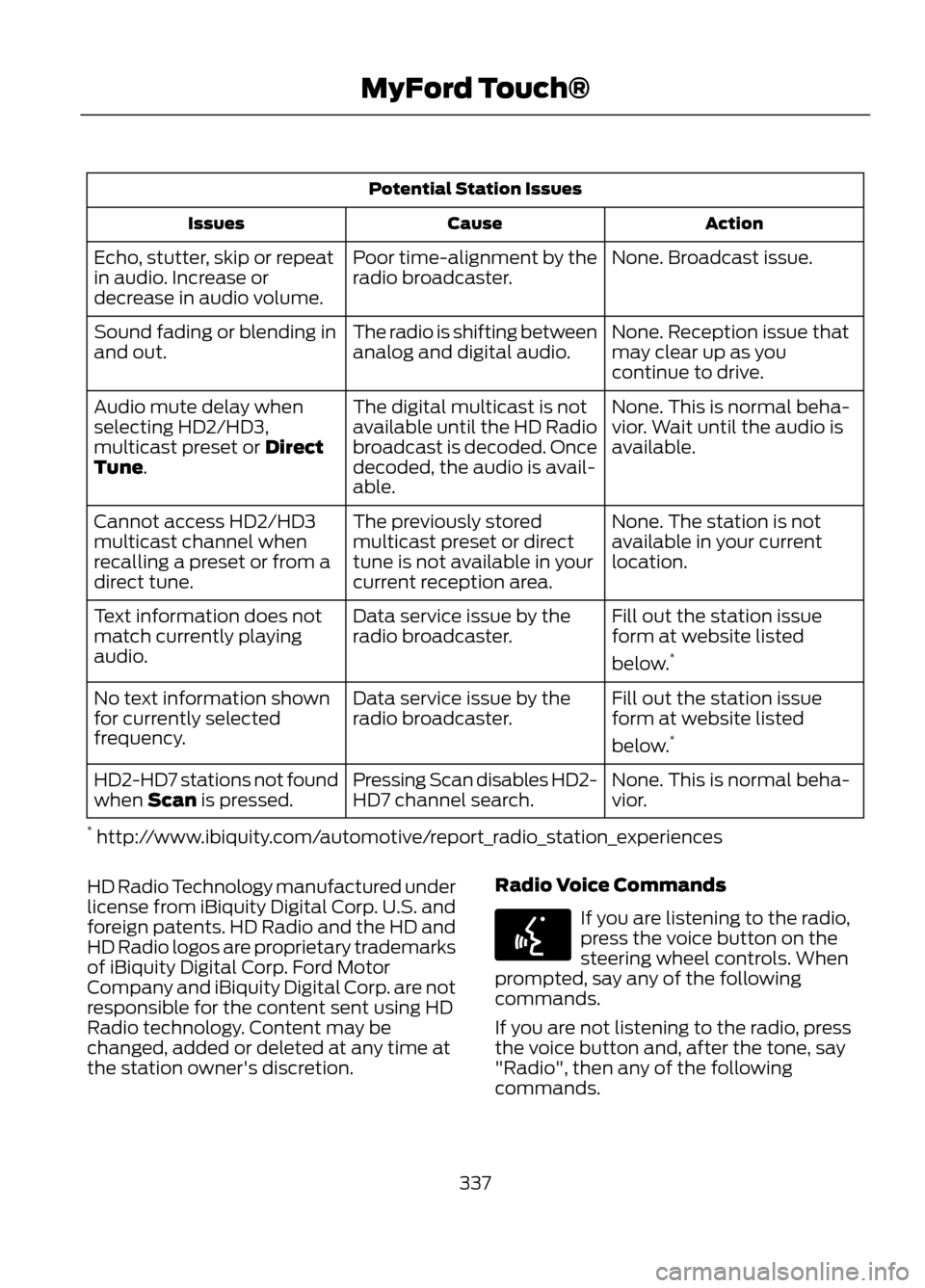
Potential Station IssuesAction
Cause
Issues
None. Broadcast issue.
Poor time-alignment by the
radio broadcaster.
Echo, stutter, skip or repeat
in audio. Increase or
decrease in audio volume.
None. Reception issue that
may clear up as you
continue to drive.
The radio is shifting between
analog and digital audio.
Sound fading or blending in
and out.
None. This is normal beha-
vior. Wait until the audio is
available.
The digital multicast is not
available until the HD Radio
broadcast is decoded. Once
decoded, the audio is avail-
able.
Audio mute delay when
selecting HD2/HD3,
multicast preset or Direct
Tune.
None. The station is not
available in your current
location.
The previously stored
multicast preset or direct
tune is not available in your
current reception area.
Cannot access HD2/HD3
multicast channel when
recalling a preset or from a
direct tune.
Fill out the station issue
form at website listed
below.*
Data service issue by the
radio broadcaster.
Text information does not
match currently playing
audio.
Fill out the station issue
form at website listed
below.*
Data service issue by the
radio broadcaster.
No text information shown
for currently selected
frequency.
None. This is normal beha-
vior.
Pressing Scan disables HD2-
HD7 channel search.
HD2-HD7 stations not found
when Scan is pressed.
* http://www.ibiquity.com/automotive/report_radio_station_experiences
HD Radio Technology manufactured under
license from iBiquity Digital Corp. U.S. and
foreign patents. HD Radio and the HD and
HD Radio logos are proprietary trademarks
of iBiquity Digital Corp. Ford Motor
Company and iBiquity Digital Corp. are not
responsible for the content sent using HD
Radio technology. Content may be
changed, added or deleted at any time at
the station owner's discretion. Radio Voice Commands
If you are listening to the radio,
press the voice button on the
steering wheel controls. When
prompted, say any of the following
commands.
If you are not listening to the radio, press
the voice button and, after the tone, say
"Radio", then any of the following
commands.
337
MyFord Touch®
E142599