reset FORD ESCAPE 2013 3.G Owner's Guide
[x] Cancel search | Manufacturer: FORD, Model Year: 2013, Model line: ESCAPE, Model: FORD ESCAPE 2013 3.GPages: 423, PDF Size: 4.59 MB
Page 310 of 423
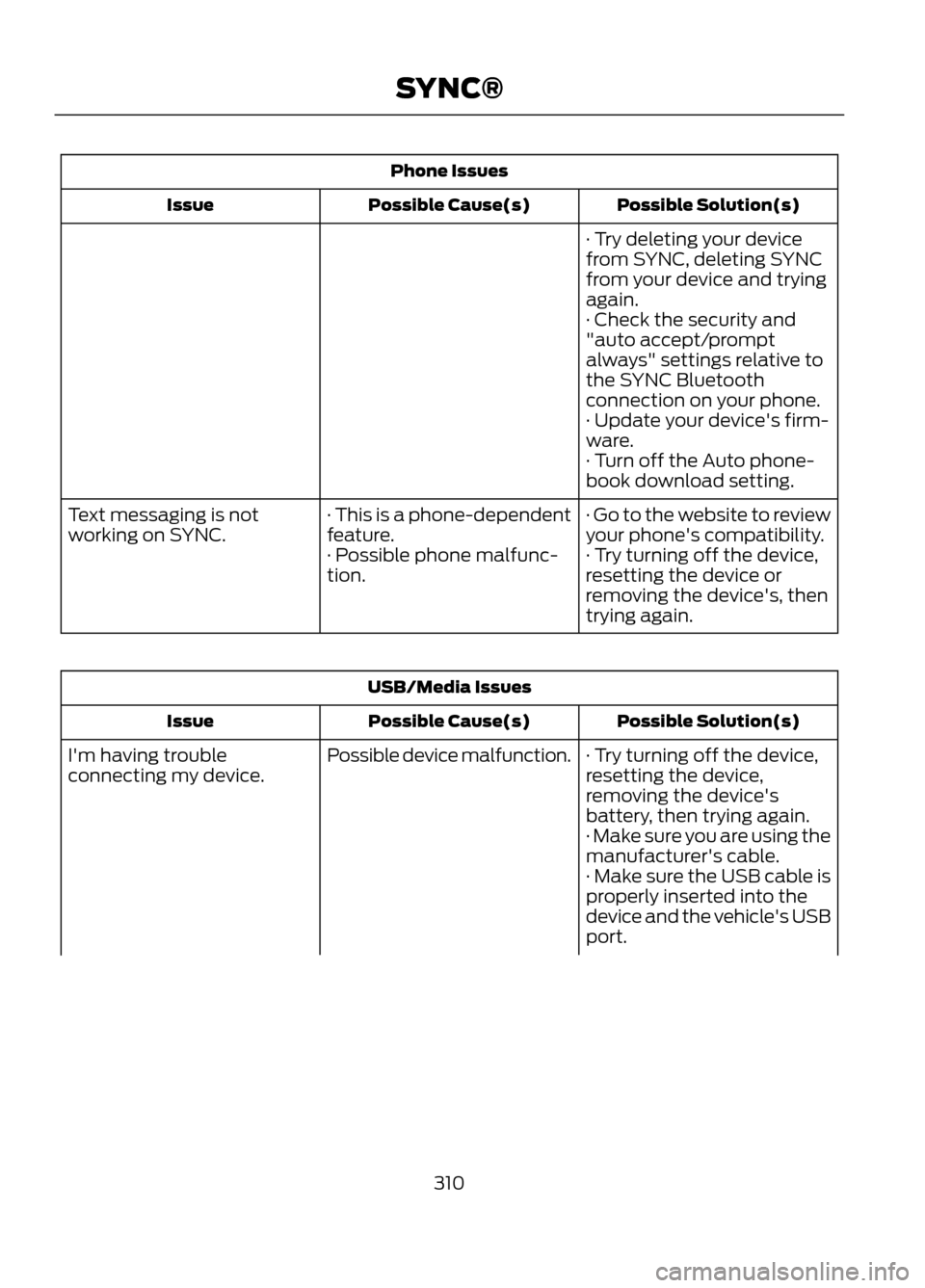
Phone IssuesPossible Solution(s)
Possible Cause(s)
Issue
· Try deleting your device
from SYNC, deleting SYNC
from your device and trying
again.
· Check the security and
"auto accept/prompt
always" settings relative to
the SYNC Bluetooth
connection on your phone.
· Update your device's firm-
ware.
· Turn off the Auto phone-
book download setting.
· Go to the website to review
your phone's compatibility.
· This is a phone-dependent
feature.
Text messaging is not
working on SYNC.
· Try turning off the device,
resetting the device or
removing the device's, then
trying again.
· Possible phone malfunc-
tion.
USB/Media Issues
Possible Solution(s)
Possible Cause(s)
Issue
· Try turning off the device,
resetting the device,
removing the device's
battery, then trying again.
Possible device malfunction.
I'm having trouble
connecting my device.
· Make sure you are using the
manufacturer's cable.
· Make sure the USB cable is
properly inserted into the
device and the vehicle's USB
port.
310
SYNC®
Page 318 of 423
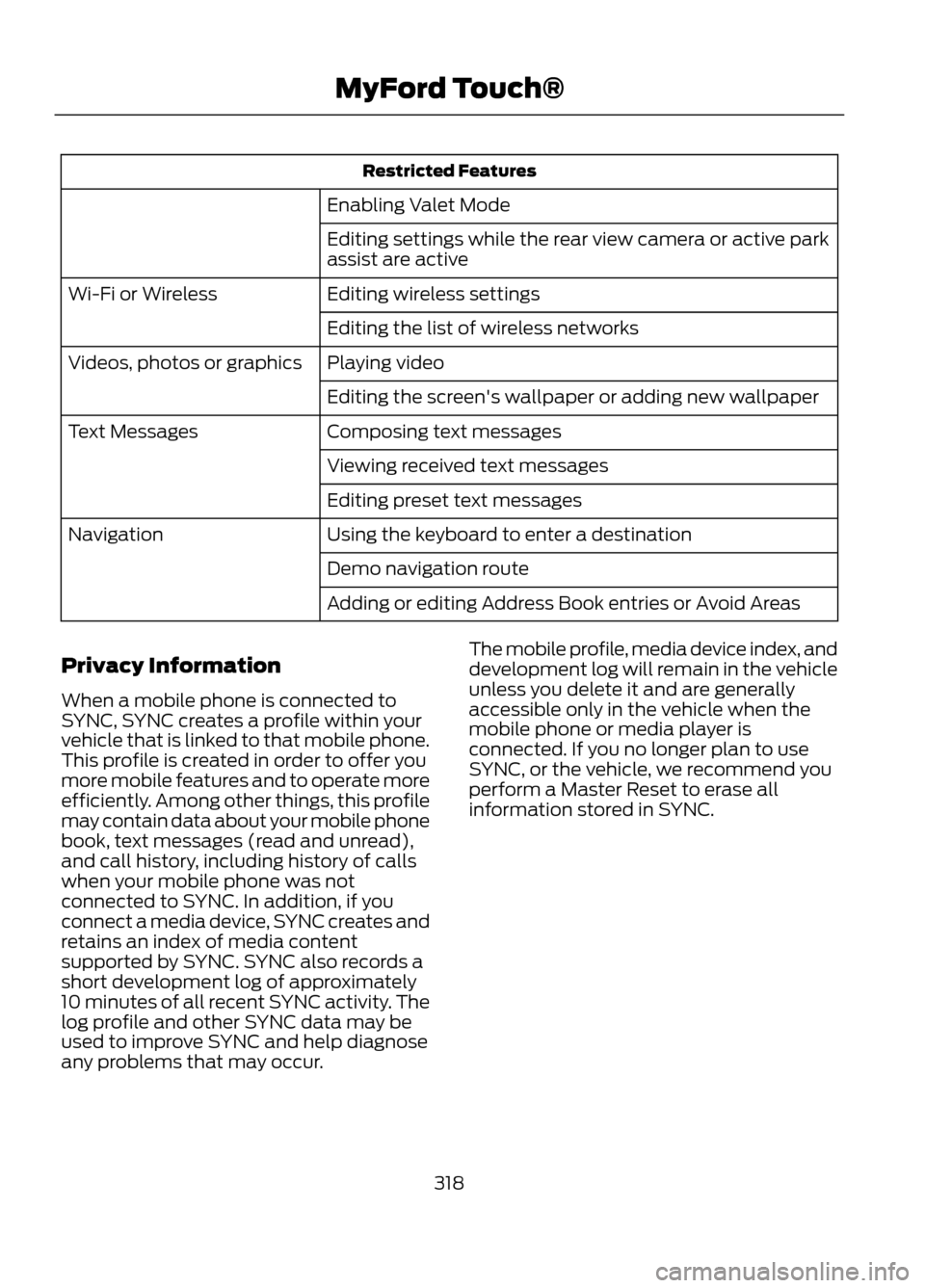
Restricted Features
Enabling Valet Mode
Editing settings while the rear view camera or active park
assist are active
Editing wireless settings
Wi-Fi or Wireless
Editing the list of wireless networks
Playing video
Videos, photos or graphics
Editing the screen's wallpaper or adding new wallpaper
Composing text messages
Text Messages
Viewing received text messages
Editing preset text messages
Using the keyboard to enter a destination
Navigation
Demo navigation route
Adding or editing Address Book entries or Avoid Areas
Privacy Information
When a mobile phone is connected to
SYNC, SYNC creates a profile within your
vehicle that is linked to that mobile phone.
This profile is created in order to offer you
more mobile features and to operate more
efficiently. Among other things, this profile
may contain data about your mobile phone
book, text messages (read and unread),
and call history, including history of calls
when your mobile phone was not
connected to SYNC. In addition, if you
connect a media device, SYNC creates and
retains an index of media content
supported by SYNC. SYNC also records a
short development log of approximately
10 minutes of all recent SYNC activity. The
log profile and other SYNC data may be
used to improve SYNC and help diagnose
any problems that may occur. The mobile profile, media device index, and
development log will remain in the vehicle
unless you delete it and are generally
accessible only in the vehicle when the
mobile phone or media player is
connected. If you no longer plan to use
SYNC, or the vehicle, we recommend you
perform a Master Reset to erase all
information stored in SYNC.
318
MyFord Touch®
Page 327 of 423
Only the photograph(s) which meet the
following conditions are displayed:
•Compatible file formats are as follows:
.jpg, .gif, .png, .bmp
• Each file must be 1.5 MB or less. •
Recommended dimensions: 800 x 384
Sound
Press Menu, then Sound to access settings
for:
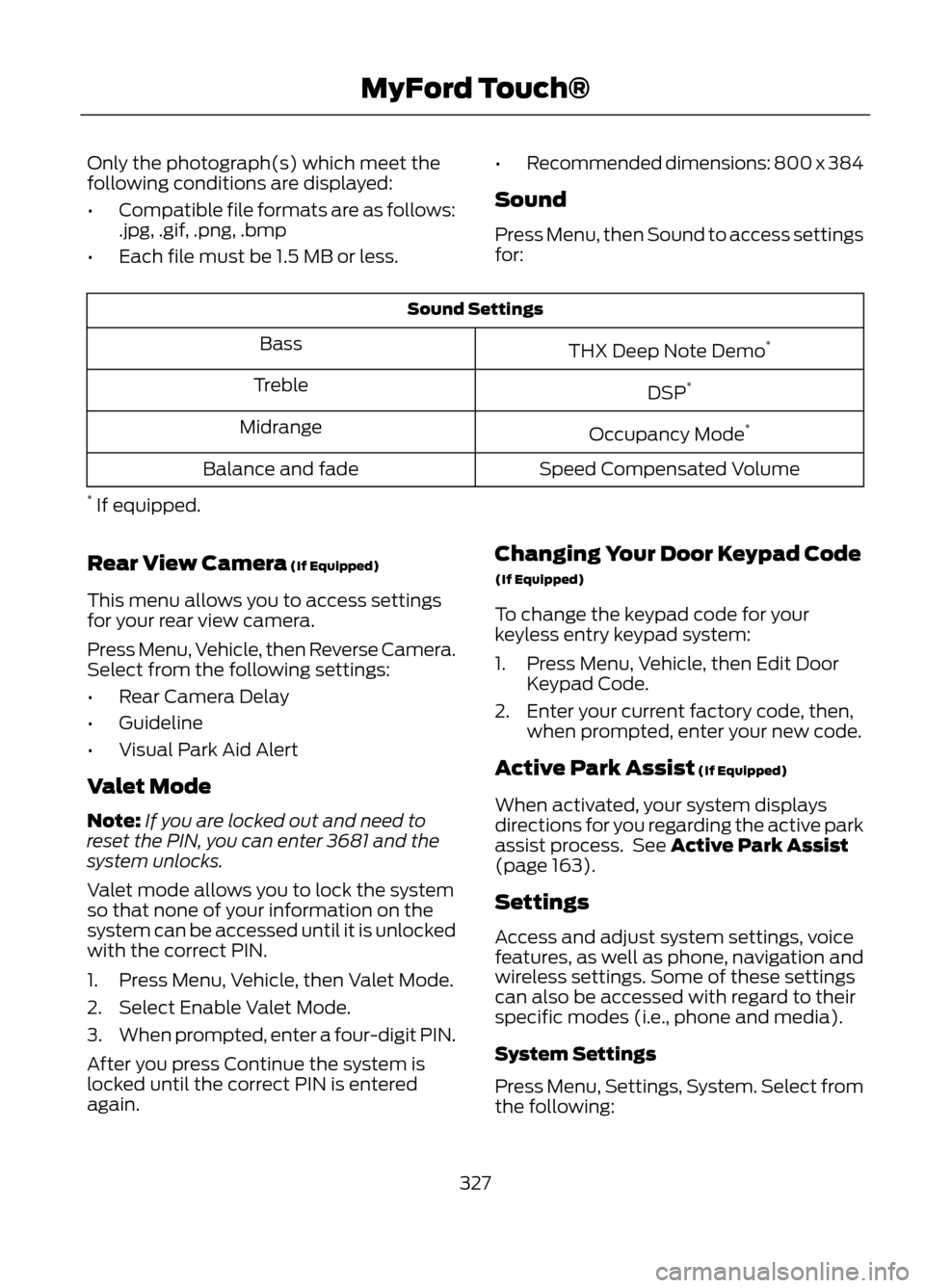
Sound Settings
THX Deep Note Demo *
Bass
DSP*
Treble
Occupancy Mode*
Midrange
Speed Compensated Volume
Balance and fade
* If equipped.
Rear View Camera (If Equipped)
This menu allows you to access settings
for your rear view camera.
Press Menu, Vehicle, then Reverse Camera.
Select from the following settings:
• Rear Camera Delay
• Guideline
• Visual Park Aid Alert
Valet Mode
Note: If you are locked out and need to
reset the PIN, you can enter 3681 and the
system unlocks.
Valet mode allows you to lock the system
so that none of your information on the
system can be accessed until it is unlocked
with the correct PIN.
1. Press Menu, Vehicle, then Valet Mode.
2. Select Enable Valet Mode.
3. When prompted, enter a four-digit PIN.
After you press Continue the system is
locked until the correct PIN is entered
again. Changing Your Door Keypad Code
(If Equipped)
To change the keypad code for your
keyless entry keypad system:
1. Press Menu, Vehicle, then Edit Door
Keypad Code.
2. Enter your current factory code, then, when prompted, enter your new code.
Active Park Assist (If Equipped)
When activated, your system displays
directions for you regarding the active park
assist process. See Active Park Assist
(page 163).
Settings
Access and adjust system settings, voice
features, as well as phone, navigation and
wireless settings. Some of these settings
can also be accessed with regard to their
specific modes (i.e., phone and media).
System Settings
Press Menu, Settings, System. Select from
the following:
327
MyFord Touch®
Page 328 of 423
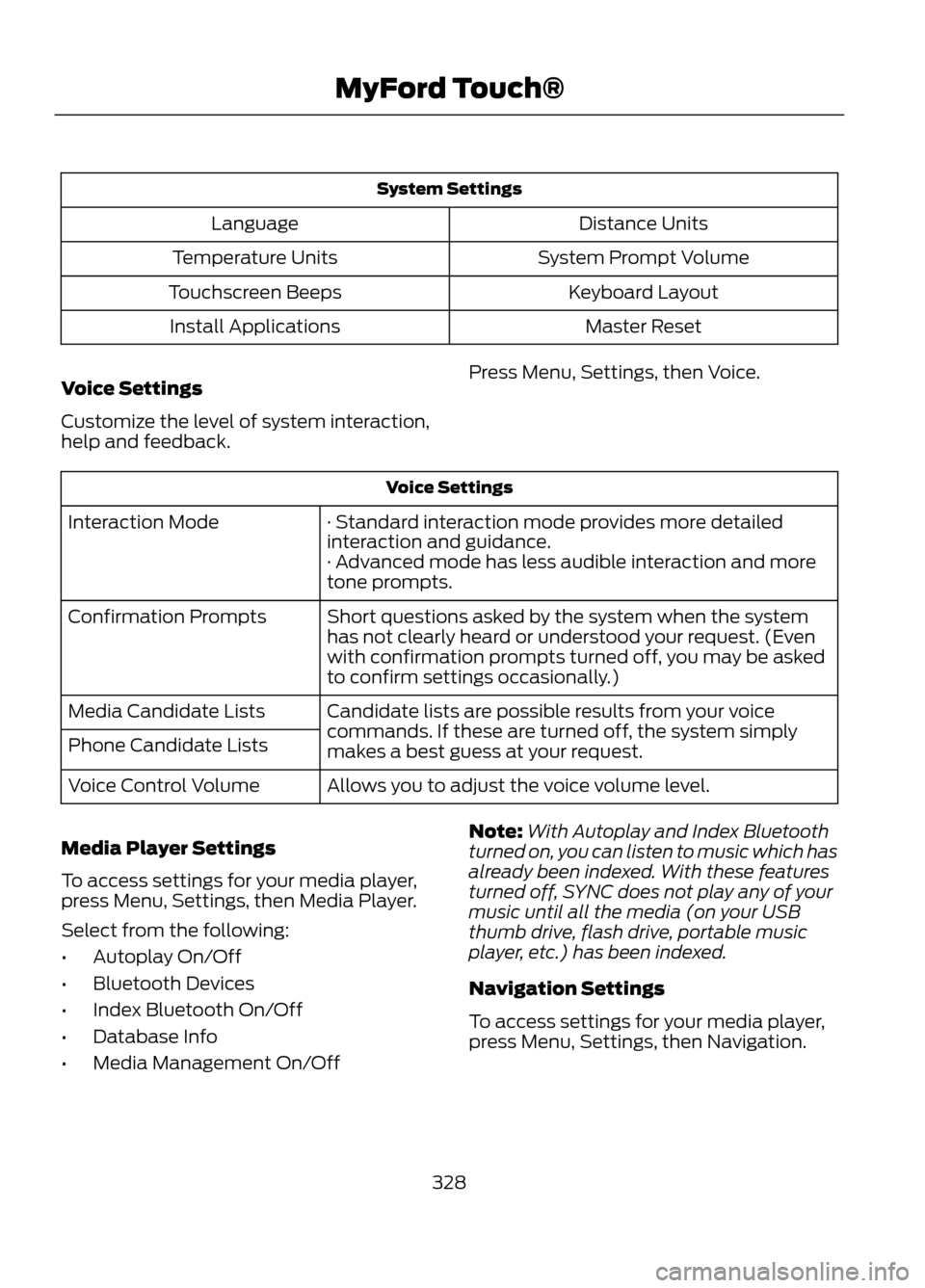
System SettingsDistance Units
Language
System Prompt Volume
Temperature Units
Keyboard Layout
Touchscreen Beeps
Master Reset
Install Applications
Voice Settings
Customize the level of system interaction,
help and feedback. Press Menu, Settings, then Voice.
Voice Settings
· Standard interaction mode provides more detailed
interaction and guidance.
Interaction Mode
· Advanced mode has less audible interaction and more
tone prompts.
Short questions asked by the system when the system
has not clearly heard or understood your request. (Even
with confirmation prompts turned off, you may be asked
to confirm settings occasionally.)
Confirmation Prompts
Candidate lists are possible results from your voice
commands. If these are turned off, the system simply
makes a best guess at your request.
Media Candidate Lists
Phone Candidate Lists
Allows you to adjust the voice volume level.
Voice Control Volume
Media Player Settings
To access settings for your media player,
press Menu, Settings, then Media Player.
Select from the following:
• Autoplay On/Off
• Bluetooth Devices
• Index Bluetooth On/Off
• Database Info
• Media Management On/Off Note:
With Autoplay and Index Bluetooth
turned on, you can listen to music which has
already been indexed. With these features
turned off, SYNC does not play any of your
music until all the media (on your USB
thumb drive, flash drive, portable music
player, etc.) has been indexed.
Navigation Settings
To access settings for your media player,
press Menu, Settings, then Navigation.
328
MyFord Touch®
Page 333 of 423
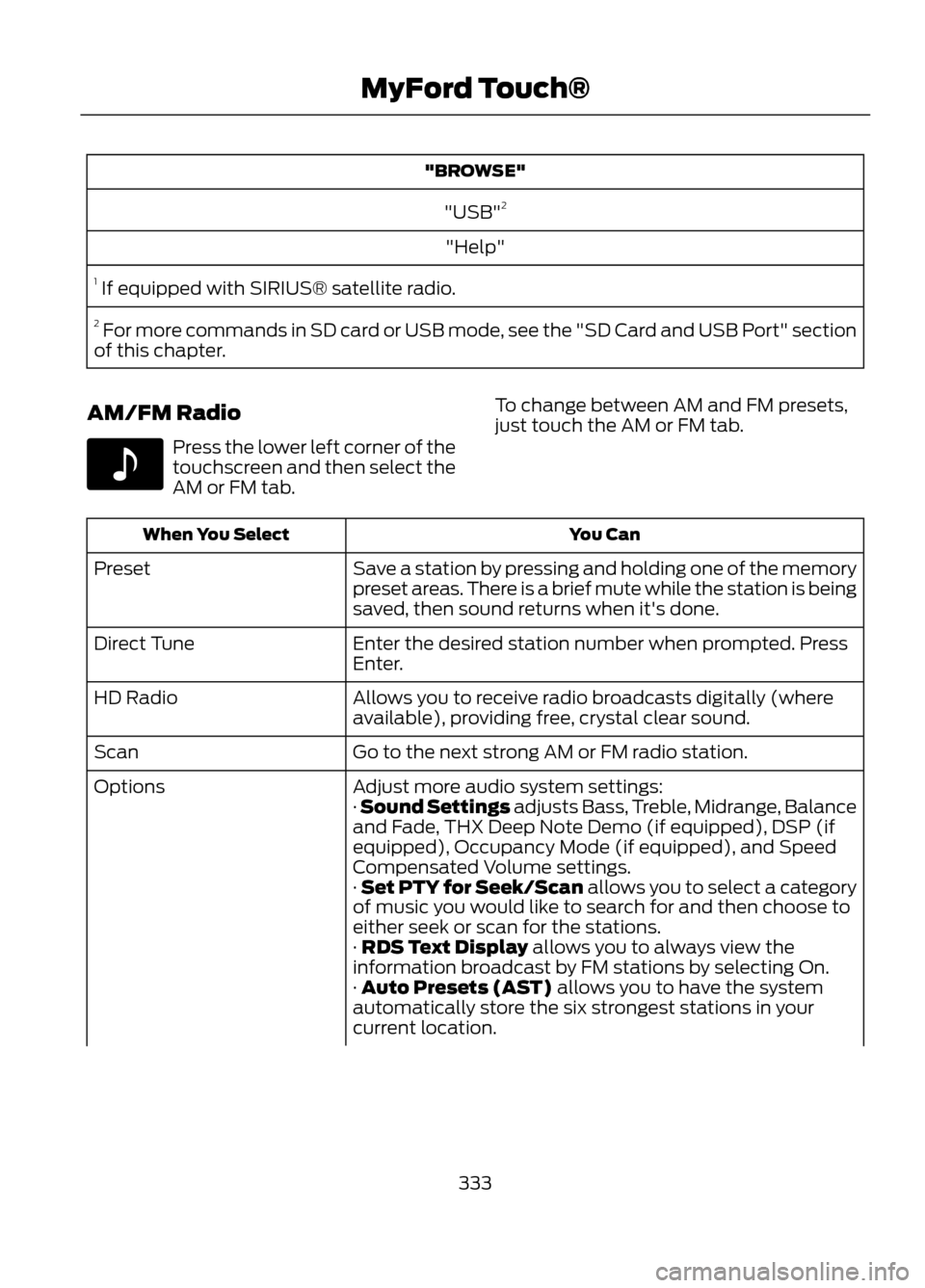
"BROWSE""USB" 2
"Help"
1 If equipped with SIRIUS® satellite radio.
2 For more commands in SD card or USB mode, see the "SD Card and USB Port" section
of this chapter.
AM/FM Radio
Press the lower left corner of the
touchscreen and then select the
AM or FM tab. To change between AM and FM presets,
just touch the AM or FM tab.
You Can
When You Select
Save a station by pressing and holding one of the memory
preset areas. There is a brief mute while the station is being
saved, then sound returns when it's done.
Preset
Enter the desired station number when prompted. Press
Enter.
Direct Tune
Allows you to receive radio broadcasts digitally (where
available), providing free, crystal clear sound.
HD Radio
Go to the next strong AM or FM radio station.
Scan
Adjust more audio system settings:
Options
· Sound Settings adjusts Bass, Treble, Midrange, Balance
and Fade, THX Deep Note Demo (if equipped), DSP (if
equipped), Occupancy Mode (if equipped), and Speed
Compensated Volume settings.
· Set PTY for Seek/Scan allows you to select a category
of music you would like to search for and then choose to
either seek or scan for the stations.
· RDS Text Display allows you to always view the
information broadcast by FM stations by selecting On.
· Auto Presets (AST) allows you to have the system
automatically store the six strongest stations in your
current location.
333
MyFord Touch®
E142611
Page 335 of 423
4. When you access iTunes® with yourportable music player, the tags appear
to you to be reminded of the song. The
system allows you to tag up to
approximately 100 songs. For a list of devices that support tagging, refer to
www.SYNCMyRide.com or
www.syncmaroute.ca.
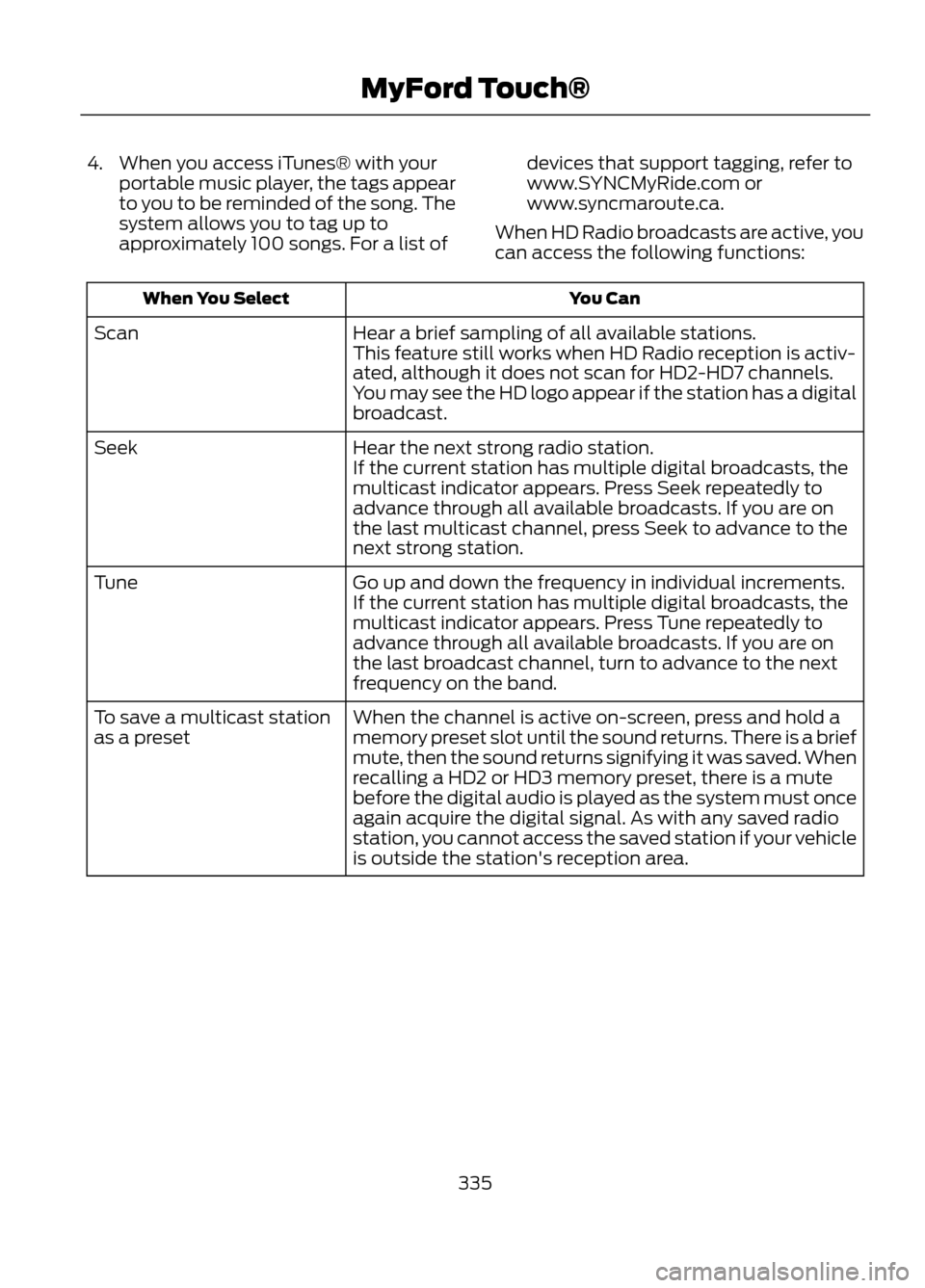
When HD Radio broadcasts are active, you
can access the following functions:
You Can
When You Select
Hear a brief sampling of all available stations.
Scan
This feature still works when HD Radio reception is activ-
ated, although it does not scan for HD2-HD7 channels.
You may see the HD logo appear if the station has a digital
broadcast.
Hear the next strong radio station.
Seek
If the current station has multiple digital broadcasts, the
multicast indicator appears. Press Seek repeatedly to
advance through all available broadcasts. If you are on
the last multicast channel, press Seek to advance to the
next strong station.
Go up and down the frequency in individual increments.
Tune
If the current station has multiple digital broadcasts, the
multicast indicator appears. Press Tune repeatedly to
advance through all available broadcasts. If you are on
the last broadcast channel, turn to advance to the next
frequency on the band.
When the channel is active on-screen, press and hold a
memory preset slot until the sound returns. There is a brief
mute, then the sound returns signifying it was saved. When
recalling a HD2 or HD3 memory preset, there is a mute
before the digital audio is played as the system must once
again acquire the digital signal. As with any saved radio
station, you cannot access the saved station if your vehicle
is outside the station's reception area.
To save a multicast station
as a preset
335
MyFord Touch®
Page 337 of 423
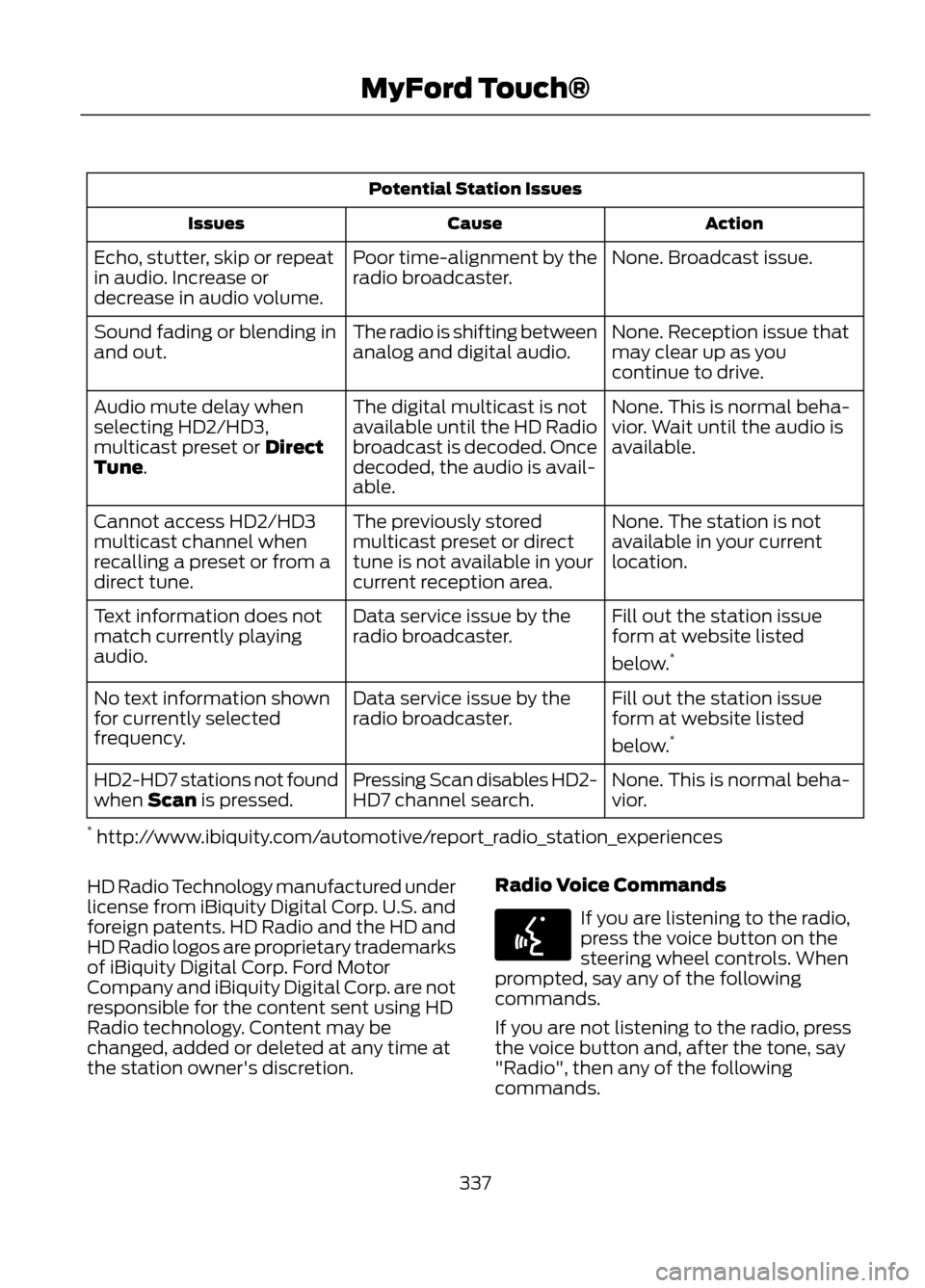
Potential Station IssuesAction
Cause
Issues
None. Broadcast issue.
Poor time-alignment by the
radio broadcaster.
Echo, stutter, skip or repeat
in audio. Increase or
decrease in audio volume.
None. Reception issue that
may clear up as you
continue to drive.
The radio is shifting between
analog and digital audio.
Sound fading or blending in
and out.
None. This is normal beha-
vior. Wait until the audio is
available.
The digital multicast is not
available until the HD Radio
broadcast is decoded. Once
decoded, the audio is avail-
able.
Audio mute delay when
selecting HD2/HD3,
multicast preset or Direct
Tune.
None. The station is not
available in your current
location.
The previously stored
multicast preset or direct
tune is not available in your
current reception area.
Cannot access HD2/HD3
multicast channel when
recalling a preset or from a
direct tune.
Fill out the station issue
form at website listed
below.*
Data service issue by the
radio broadcaster.
Text information does not
match currently playing
audio.
Fill out the station issue
form at website listed
below.*
Data service issue by the
radio broadcaster.
No text information shown
for currently selected
frequency.
None. This is normal beha-
vior.
Pressing Scan disables HD2-
HD7 channel search.
HD2-HD7 stations not found
when Scan is pressed.
* http://www.ibiquity.com/automotive/report_radio_station_experiences
HD Radio Technology manufactured under
license from iBiquity Digital Corp. U.S. and
foreign patents. HD Radio and the HD and
HD Radio logos are proprietary trademarks
of iBiquity Digital Corp. Ford Motor
Company and iBiquity Digital Corp. are not
responsible for the content sent using HD
Radio technology. Content may be
changed, added or deleted at any time at
the station owner's discretion. Radio Voice Commands
If you are listening to the radio,
press the voice button on the
steering wheel controls. When
prompted, say any of the following
commands.
If you are not listening to the radio, press
the voice button and, after the tone, say
"Radio", then any of the following
commands.
337
MyFord Touch®
E142599
Page 338 of 423
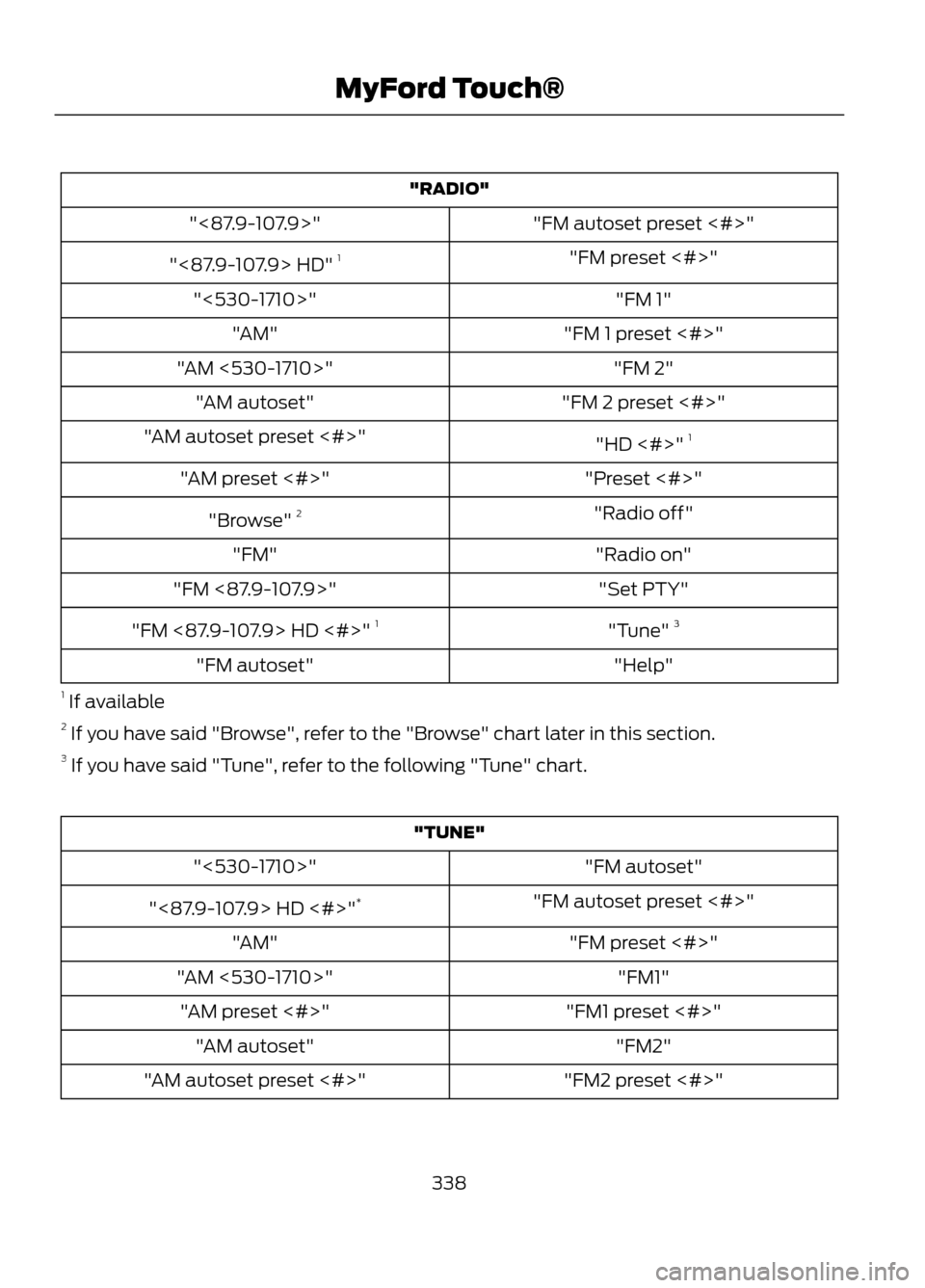
"RADIO""FM autoset preset <#>"
"<87.9-107.9>"
"FM preset <#>"
"<87.9-107.9> HD" 1
"FM 1"
"<530-1710>"
"FM 1 preset <#>"
"AM"
"FM 2"
"AM <530-1710>"
"FM 2 preset <#>"
"AM autoset"
"HD <#>" 1
"AM autoset preset <#>"
"Preset <#>"
"AM preset <#>"
"Radio off"
"Browse" 2
"Radio on"
"FM"
"Set PTY"
"FM <87.9-107.9>"
"Tune" 3
"FM <87.9-107.9> HD <#>" 1
"Help"
"FM autoset"
1 If available
2 If you have said "Browse", refer to the "Browse" chart later in this section.
3 If you have said "Tune", refer to the following "Tune" chart.
"TUNE"
"FM autoset"
"<530-1710>"
"FM autoset preset <#>"
"<87.9-107.9> HD <#>" *
"FM preset <#>"
"AM"
"FM1"
"AM <530-1710>"
"FM1 preset <#>"
"AM preset <#>"
"FM2"
"AM autoset"
"FM2 preset <#>"
"AM autoset preset <#>"
338
MyFord Touch®
Page 339 of 423
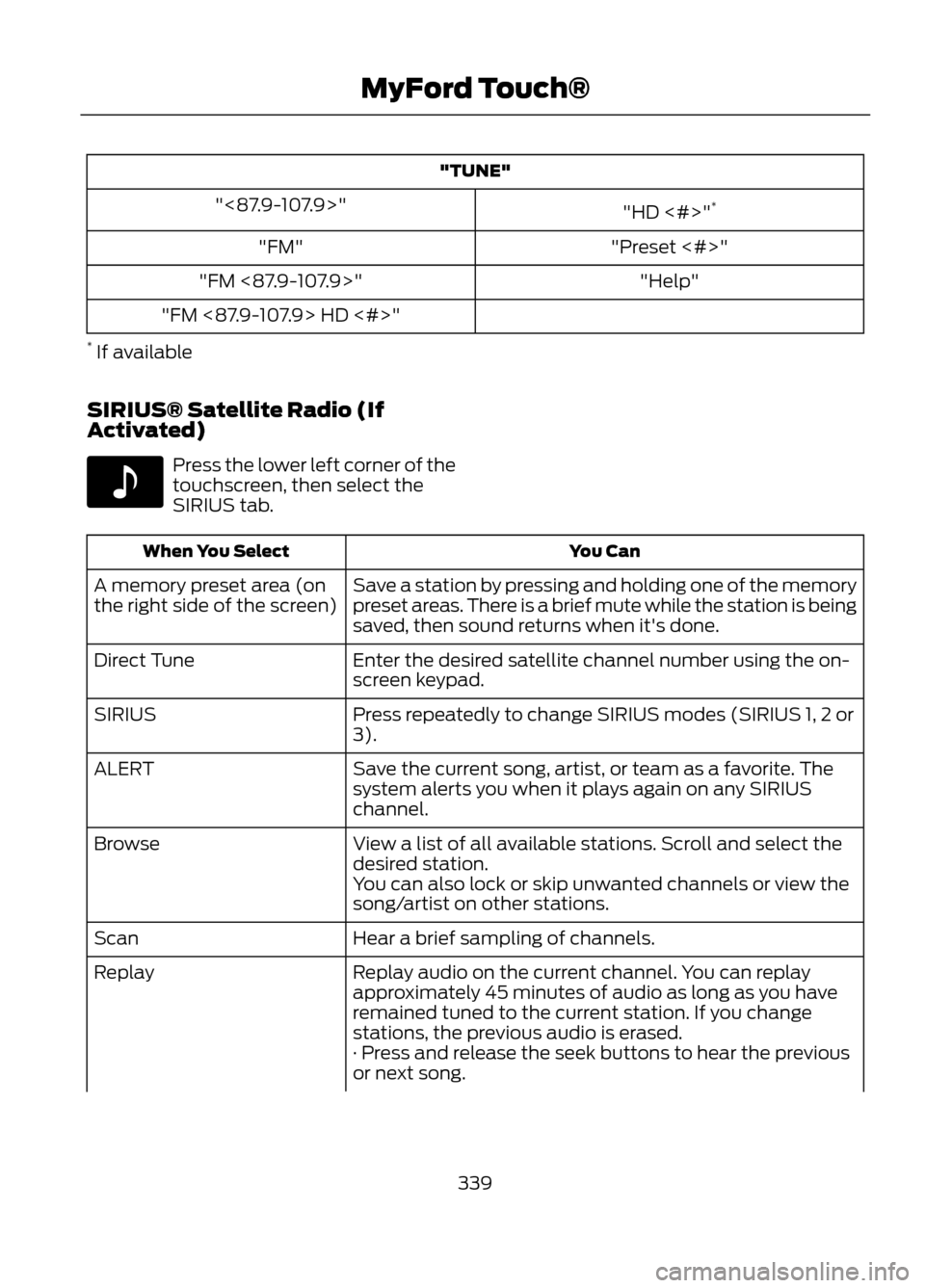
"TUNE""HD <#>"*
"<87.9-107.9>"
"Preset <#>"
"FM"
"Help"
"FM <87.9-107.9>"
"FM <87.9-107.9> HD <#>"
* If available
SIRIUS® Satellite Radio (If
Activated)
Press the lower left corner of the
touchscreen, then select the
SIRIUS tab.
You Can
When You Select
Save a station by pressing and holding one of the memory
preset areas. There is a brief mute while the station is being
saved, then sound returns when it's done.
A memory preset area (on
the right side of the screen)
Enter the desired satellite channel number using the on-
screen keypad.
Direct Tune
Press repeatedly to change SIRIUS modes (SIRIUS 1, 2 or
3).
SIRIUS
Save the current song, artist, or team as a favorite. The
system alerts you when it plays again on any SIRIUS
channel.
ALERT
View a list of all available stations. Scroll and select the
desired station.
Browse
You can also lock or skip unwanted channels or view the
song/artist on other stations.
Hear a brief sampling of channels.
Scan
Replay audio on the current channel. You can replay
approximately 45 minutes of audio as long as you have
remained tuned to the current station. If you change
stations, the previous audio is erased.
Replay
· Press and release the seek buttons to hear the previous
or next song.
339
MyFord Touch®
E142611
Page 340 of 423
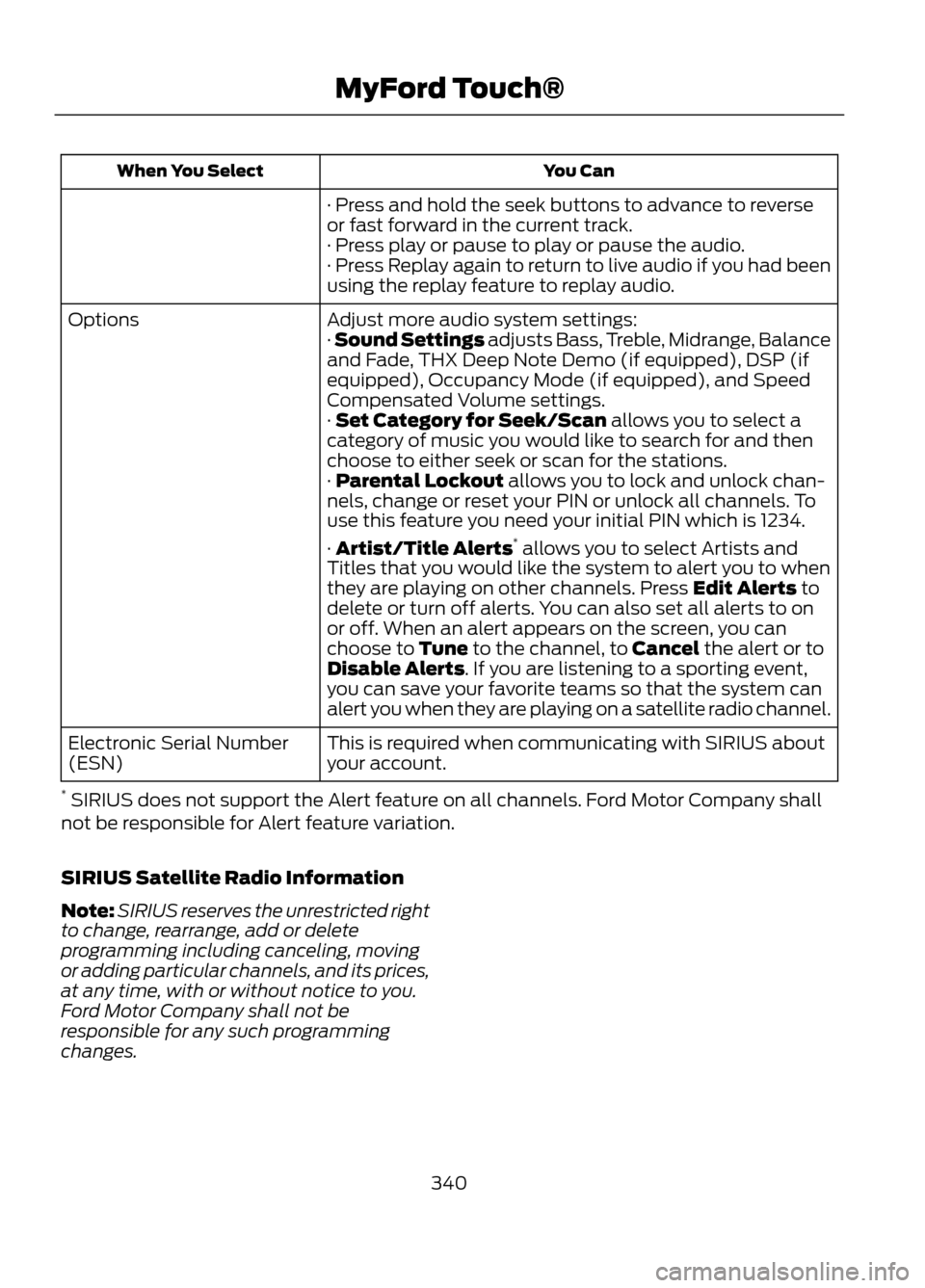
You Can
When You Select
· Press and hold the seek buttons to advance to reverse
or fast forward in the current track.
· Press play or pause to play or pause the audio.
· Press Replay again to return to live audio if you had been
using the replay feature to replay audio.
Adjust more audio system settings:
Options
· Sound Settings adjusts Bass, Treble, Midrange, Balance
and Fade, THX Deep Note Demo (if equipped), DSP (if
equipped), Occupancy Mode (if equipped), and Speed
Compensated Volume settings.
· Set Category for Seek/Scan allows you to select a
category of music you would like to search for and then
choose to either seek or scan for the stations.
· Parental Lockout allows you to lock and unlock chan-
nels, change or reset your PIN or unlock all channels. To
use this feature you need your initial PIN which is 1234.
· Artist/Title Alerts*
allows you to select Artists and
Titles that you would like the system to alert you to when
they are playing on other channels. Press Edit Alerts to
delete or turn off alerts. You can also set all alerts to on
or off. When an alert appears on the screen, you can
choose to Tune to the channel, to Cancel the alert or to
Disable Alerts. If you are listening to a sporting event,
you can save your favorite teams so that the system can
alert you when they are playing on a satellite radio channel.
This is required when communicating with SIRIUS about
your account.
Electronic Serial Number
(ESN)
* SIRIUS does not support the Alert feature on all channels. Ford Motor Company shall
not be responsible for Alert feature variation.
SIRIUS Satellite Radio Information
Note: SIRIUS reserves the unrestricted right
to change, rearrange, add or delete
programming including canceling, moving
or adding particular channels, and its prices,
at any time, with or without notice to you.
Ford Motor Company shall not be
responsible for any such programming
changes.
340
MyFord Touch®