ignition FORD ESCAPE 2013 3.G Repair Manual
[x] Cancel search | Manufacturer: FORD, Model Year: 2013, Model line: ESCAPE, Model: FORD ESCAPE 2013 3.GPages: 423, PDF Size: 4.59 MB
Page 227 of 423
When a battery replacement is required,
the battery should only be replaced with
a Ford recommended replacement battery
that matches the electrical requirements
of the vehicle.
When the battery is disconnected or a new
battery installed, the automatic
transmission must relearn its adaptive
strategy. As a result of this, the
transmission may shift firmly when first
driven. This operation is considered normal
and will fully update transmission
operation to its optimum shift feel.
If the battery has been disconnected or a
new battery has been installed, the clock
and the preset radio stations must be reset
once the battery is reconnected.
Note:Always dispose of automotive
batteries in a responsible manner. Follow
your local authorized standards for disposal.
Call your local authorized recycling center
to find out more about recycling automotive
batteries.
CHECKING THE WIPER
BLADES
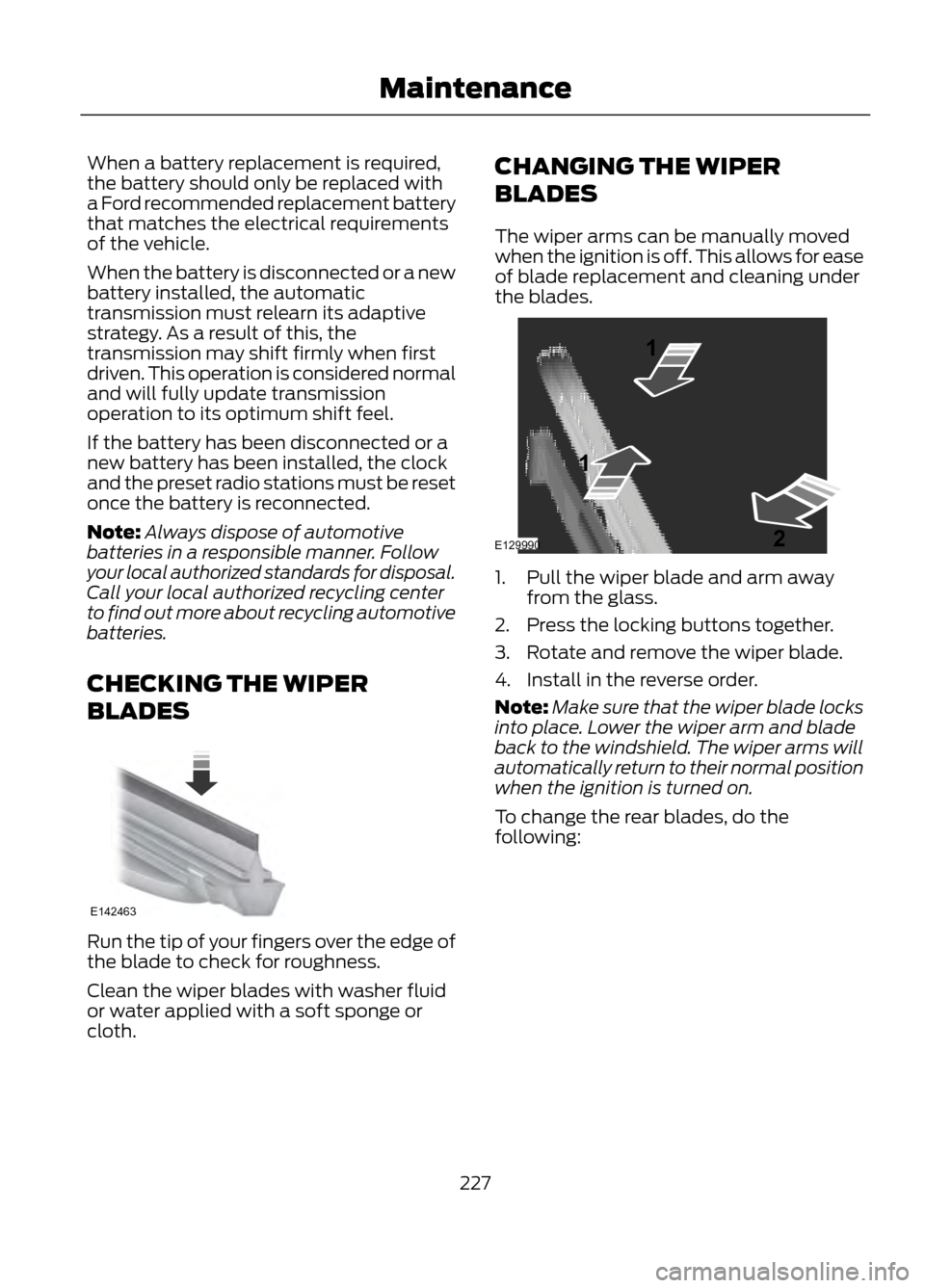
Run the tip of your fingers over the edge of
the blade to check for roughness.
Clean the wiper blades with washer fluid
or water applied with a soft sponge or
cloth. CHANGING THE WIPER
BLADES
The wiper arms can be manually moved
when the ignition is off. This allows for ease
of blade replacement and cleaning under
the blades.
1. Pull the wiper blade and arm away
from the glass.
2. Press the locking buttons together.
3. Rotate and remove the wiper blade.
4. Install in the reverse order.
Note: Make sure that the wiper blade locks
into place. Lower the wiper arm and blade
back to the windshield. The wiper arms will
automatically return to their normal position
when the ignition is turned on.
To change the rear blades, do the
following:
227
Maintenance
E142463
E129990
1
1 2
Page 238 of 423
•Never wash or rinse any ignition coil,
spark plug wire or spark plug well, or
the area in and around these locations.
• Cover the battery, power distribution
box, and air filter assembly to prevent
water damage when cleaning the
engine.
CLEANING THE WINDOWS AND
WIPER BLADES
The windows and wiper blades should be
cleaned regularly. If the wipers do not wipe
properly, substances on the vehicle ’s glass
or the wiper blades may cause squeaking
or chatter noise from the blades, and
streaking and smearing of the windshield.
To clean these items, follow these tips:
• The windows may be cleaned with a
non-abrasive cleaner such as
Motorcraft® Ultra-Clear Spray Glass
Cleaner.
• The wiper blades can be cleaned with
isopropyl (rubbing) alcohol or
Motorcraft® Premium Windshield
Washer Concentrate in the U.S., or
Premium Quality Windshield Washer
Fluid in Canada. Be sure to replace
wiper blades when they appear worn
or do not function properly.
• Do not use abrasives, as they may
cause scratches
• Do not use fuel, kerosene, or paint
thinner to clean any parts. If you cannot remove those streaks after
cleaning with the glass cleaner or if the
wipers chatter and move in a jerky motion,
clean the outer surface of the windshield
and the wiper blades using a sponge or
soft cloth with a neutral detergent or
mild-abrasive cleaning solution. After
cleaning, rinse the windshield and wiper
blades with clean water. The windshield
is clean if beads do not form when you
rinse the windshield with water.
Note:
Do not use sharp objects, such as a
razor blade, to clean the inside of the rear
window or to remove decals, as it may cause
damage to the rear window defroster ’s
heated grid lines.
CLEANING THE INTERIOR
WARNINGS
Do not use cleaning solvents, bleach
or dye on the vehicle ’s safety belts,
as these actions may weaken the
belt webbing.
On vehicles equipped with
seat-mounted airbags, do not use
chemical solvents or strong
detergents. Such products could
contaminate the side airbag system and
affect performance of the side airbag in a
collision.
For fabric, carpets, cloth seats, safety belts
and seats equipped with side airbags:
• Remove dust and loose dirt with a
vacuum cleaner.
• Remove light stains and soil with
Motorcraft® Professional Strength
Carpet & Upholstery Cleaner.
238
Vehicle Care
Page 283 of 423
The system creates candidate lists when
it has the same confidence level of several
options based on your voice command.
When turned on, you may be prompted
with as many as four possibilities for
clarification.For example, say "Say 1 after the tone to
call John Doe at home. Say 2 after the tone
to call Johnny Doe on mobile. Say 3 after
the tone to call Jane Doe at home." You
could also say "Say 1 after the tone to play
John Doe, Say 2 after the tone to play
Johnny Doe."
The System
When You Say
Makes a best guess from the media
candidate list; you may still occasionally be asked questions.
"Media candidate lists off"
Clarifies your voice command for mediacandidates.
"Media candidate lists on"
Makes a best guess from the phone
candidate list; you may still occasionally be asked questions.
"Phone candidate lists off"
Clarifies your voice command for phonecandidates
"Phone candidate lists on"
USING SYNC® WITH YOUR
PHONE
Hands-free calling is one of the main
features of SYNC. While the system
supports a variety of features, many are
dependent on your mobile phone's
functionality. At a minimum, most mobile
phones with Bluetooth wireless technology
support the following functions:
• Answering an incoming call
• Ending a call
• Using privacy mode
• Dialing a number
• Redialing
• Call waiting notification
• Caller ID Other features such as text messaging
using Bluetooth and automatic phonebook
download are phone-dependent features.
To check your phone's compatibility, refer
to your phone's user manual and visit
www.SYNCMyRide.com or
www.syncmaroute.ca.
Pairing a Phone for the First Time
Note:
SYNC can support downloading up
to approximately 2000 entries per
Bluetooth-enabled mobile phone.
Note: Make sure the vehicle ignition and
radio are turned on and the transmission is
in position P.
Note: To scroll through the menus, press
the up and down arrows on your audio
system.
Wirelessly pairing your phone with SYNC
allows you to make and receive hands-free
calls.
283
SYNC®
Page 284 of 423
1. Press the phone button; when thedisplay indicates no phone is paired,
press OK.
2. When Add Bluetooth Device appears,
press OK.
3. When Find SYNC appears in the display, press OK.
4. Put your phone into Bluetooth discovery mode. Refer to your phone's
user guide if necessary.
5. When prompted on your phone's display, enter the six-digit PIN provided
by SYNC in the radio display. The
display indicates when the pairing is
successful
Depending on your phone's capability and
your market, the system may prompt you
with questions such as setting the current
phone as the primary phone (the phone
SYNC automatically tries to connect with
first upon vehicle start-up), downloading
your phone book, etc.
Pairing Subsequent Phones
Note: Make sure the vehicle ignition and
radio are turned on and the transmission is
in position P. Note:
To scroll through the menus, press
the up and down arrows on your audio
system.
1. Press the phone button and scroll until
System Settings is selected.
2. Press OK and scroll until Bluetooth Devices is selected, then press OK.
3. Scroll until Add Bluetooth Device is selected, then press OK.
4. When Find SYNC appears in the display, press OK.
5. Put your phone into Bluetooth discovery mode. Refer to your phone's
user guide if necessary.
6. When prompted on your phone's display, enter the six-digit PIN provided
by SYNC in the radio display. The
display indicates when the pairing is
successful.
The system then prompts with questions
such as if you would like to set the current
phone as the primary phone (the phone
SYNC automatically tries to connect with
first upon vehicle start-up), download your
phone book, etc.
Phone Voice Commands
"PHONE" "Go to privacy"
"Call
"Hold"
"Call
"Join"
"Call
"Menu"2,4
"Call
"Phone book
"Call
"Phone book
"Call
284
SYNC®
Page 293 of 423
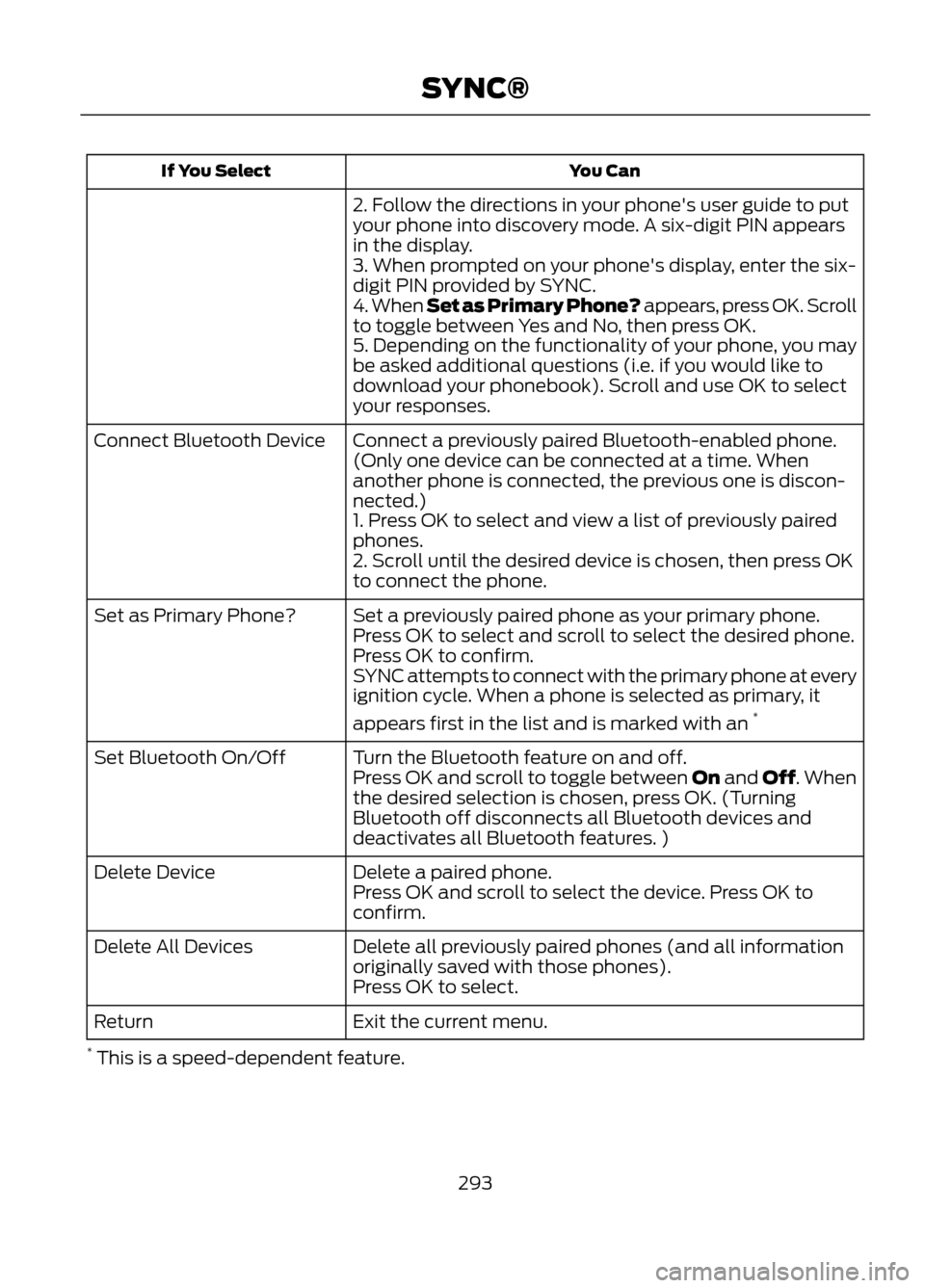
You Can
If You Select
2. Follow the directions in your phone's user guide to put
your phone into discovery mode. A six-digit PIN appears
in the display.
3. When prompted on your phone's display, enter the six-
digit PIN provided by SYNC.
4. When Set as Primary Phone? appears, press OK. Scroll
to toggle between Yes and No, then press OK.
5. Depending on the functionality of your phone, you may
be asked additional questions (i.e. if you would like to
download your phonebook). Scroll and use OK to select
your responses.
Connect a previously paired Bluetooth-enabled phone.
(Only one device can be connected at a time. When
another phone is connected, the previous one is discon-
nected.)
Connect Bluetooth Device
1. Press OK to select and view a list of previously paired
phones.
2. Scroll until the desired device is chosen, then press OK
to connect the phone.
Set a previously paired phone as your primary phone.
Set as Primary Phone?
Press OK to select and scroll to select the desired phone.
Press OK to confirm.
SYNC attempts to connect with the primary phone at every
ignition cycle. When a phone is selected as primary, it
appears first in the list and is marked with an *
Turn the Bluetooth feature on and off.
Set Bluetooth On/Off
Press OK and scroll to toggle between On and Off. When
the desired selection is chosen, press OK. (Turning
Bluetooth off disconnects all Bluetooth devices and
deactivates all Bluetooth features. )
Delete a paired phone.
Delete Device
Press OK and scroll to select the device. Press OK to
confirm.
Delete all previously paired phones (and all information
originally saved with those phones).
Delete All Devices
Press OK to select.
Exit the current menu.
Return
* This is a speed-dependent feature.
293
SYNC®
Page 347 of 423
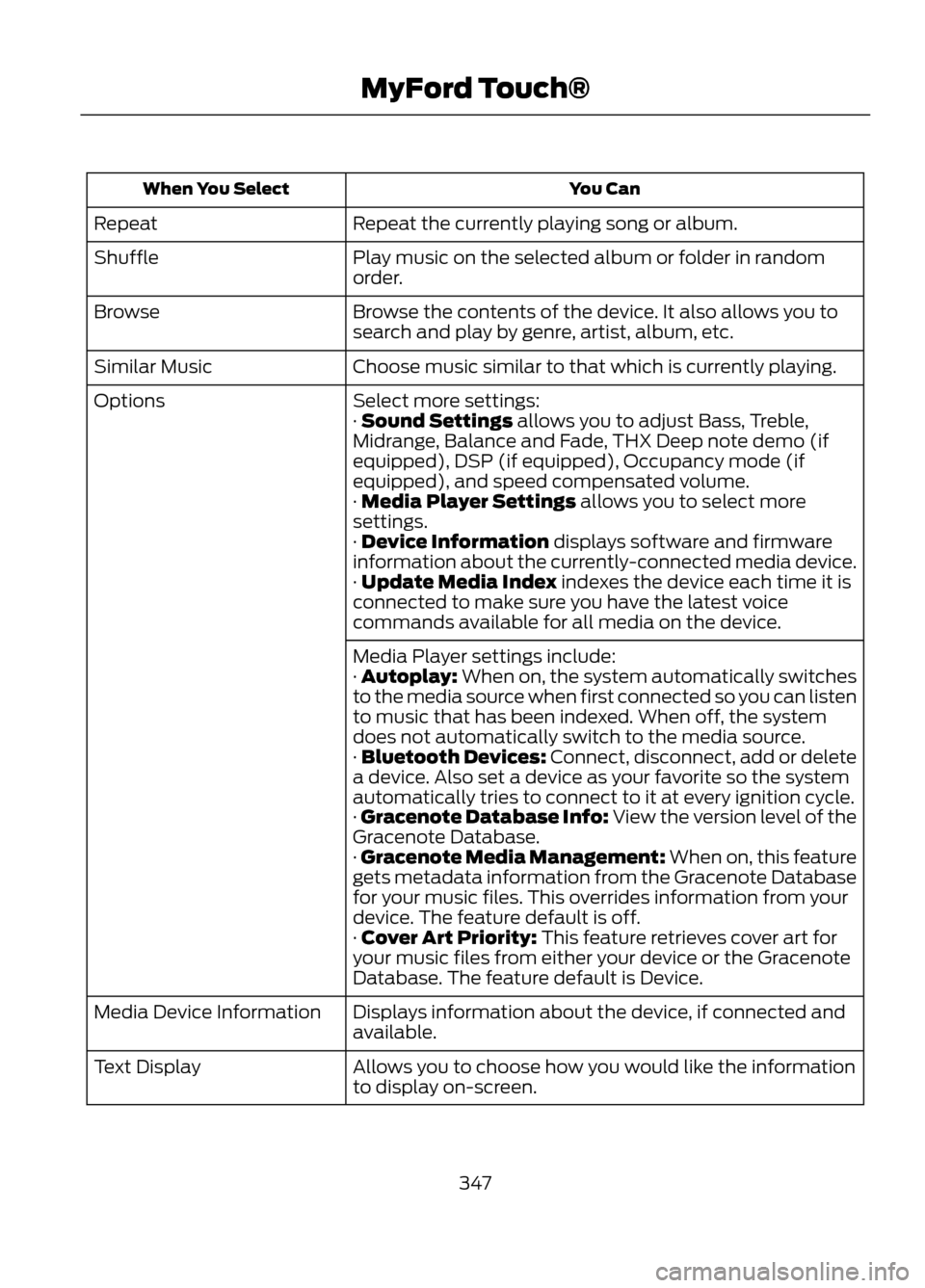
You Can
When You Select
Repeat the currently playing song or album.
Repeat
Play music on the selected album or folder in random
order.
Shuffle
Browse the contents of the device. It also allows you to
search and play by genre, artist, album, etc.
Browse
Choose music similar to that which is currently playing.
Similar Music
Select more settings:
Options
· Sound Settings allows you to adjust Bass, Treble,
Midrange, Balance and Fade, THX Deep note demo (if
equipped), DSP (if equipped), Occupancy mode (if
equipped), and speed compensated volume.
· Media Player Settings allows you to select more
settings.
· Device Information displays software and firmware
information about the currently-connected media device.
· Update Media Index indexes the device each time it is
connected to make sure you have the latest voice
commands available for all media on the device.
Media Player settings include:
· Autoplay: When on, the system automatically switches
to the media source when first connected so you can listen
to music that has been indexed. When off, the system
does not automatically switch to the media source.
· Bluetooth Devices: Connect, disconnect, add or delete
a device. Also set a device as your favorite so the system
automatically tries to connect to it at every ignition cycle.
· Gracenote Database Info: View the version level of the
Gracenote Database.
· Gracenote Media Management: When on, this feature
gets metadata information from the Gracenote Database
for your music files. This overrides information from your
device. The feature default is off.
· Cover Art Priority: This feature retrieves cover art for
your music files from either your device or the Gracenote
Database. The feature default is Device.
Displays information about the device, if connected and
available.
Media Device Information
Allows you to choose how you would like the information
to display on-screen.
Text Display
347
MyFord Touch®
Page 352 of 423
Note:Do not connect the audio input jack
to a line level output. The AIJ only works
correctly with devices that have a
headphone output with a volume control.
Note: Do not set the portable music
player's volume level higher than is
necessary to match the volume of the CD
or FM radio as this causes distortion and
reduces sound quality.
Note: If the music sounds distorted at lower
listening levels, turn the portable music
player volume down. If the problems
persists, replace or recharge the batteries
in the portable music player.
Note: The portable music player must be
controlled in the same manner when it is
used with headphones as the AIJ does not
provide control (play, pause, etc.) over the
attached portable music player.
PHONE
Hand's-free calling is one of the main
features of SYNC. Once your phone is
paired, you can access many options using
the touchscreen or voice commands. While
the system supports a variety of features,
many are dependent on your mobile
phone's functionality.
At a minimum, most mobile phones with
Bluetooth wireless technology support the
following functions:
• Answering an incoming call
• Ending a call
• Using privacy mode
• Dialing a number
• Redial
• Call waiting notification
• Caller ID Other features such as text messaging
using Bluetooth and automatic phonebook
download are phone-dependent features.
To check your phone's compatibility, refer
to your phone's user manual and visit
www.SYNCMyRide.com or
www.syncmaroute.ca.
Pairing Your Phone for the First
Time
WARNING
Driving while distracted can result in
loss of vehicle control, accident and
injury. Ford strongly recommends
that drivers use extreme caution when
using any device that may take their focus
off the road. Your primary responsibility is
the safe operation of the vehicle. We
recommend against the use of any
handheld device while driving, encourage
the use of voice-operated systems when
possible and that you become aware of
applicable state and local laws that may
affect use of electronic devices while
driving.
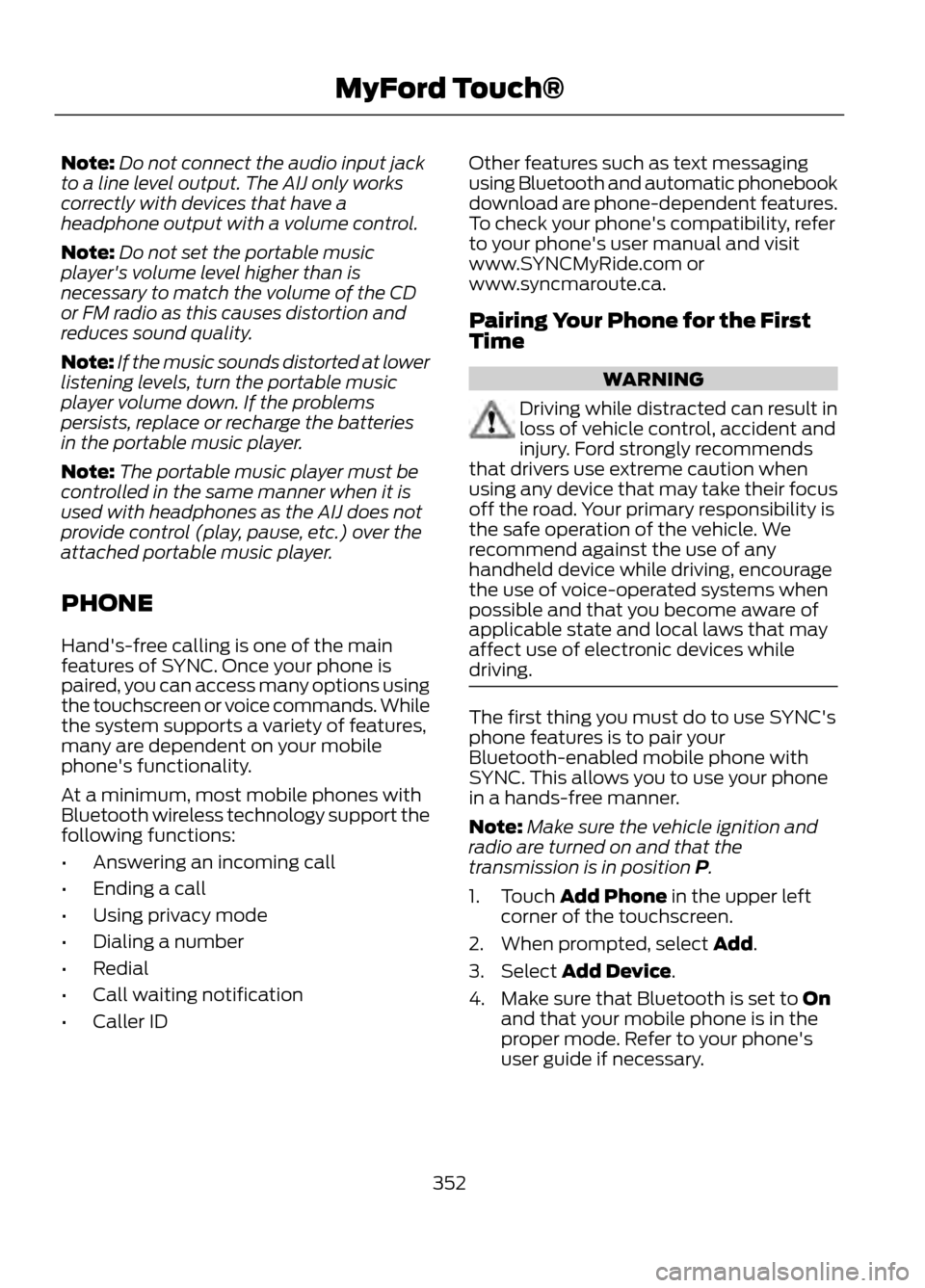
The first thing you must do to use SYNC's
phone features is to pair your
Bluetooth-enabled mobile phone with
SYNC. This allows you to use your phone
in a hands-free manner.
Note: Make sure the vehicle ignition and
radio are turned on and that the
transmission is in position P.
1. Touch Add Phone in the upper left corner of the touchscreen.
2. When prompted, select Add.
3. Select Add Device.
4. Make sure that Bluetooth is set to On and that your mobile phone is in the
proper mode. Refer to your phone's
user guide if necessary.
352
MyFord Touch®
Page 353 of 423
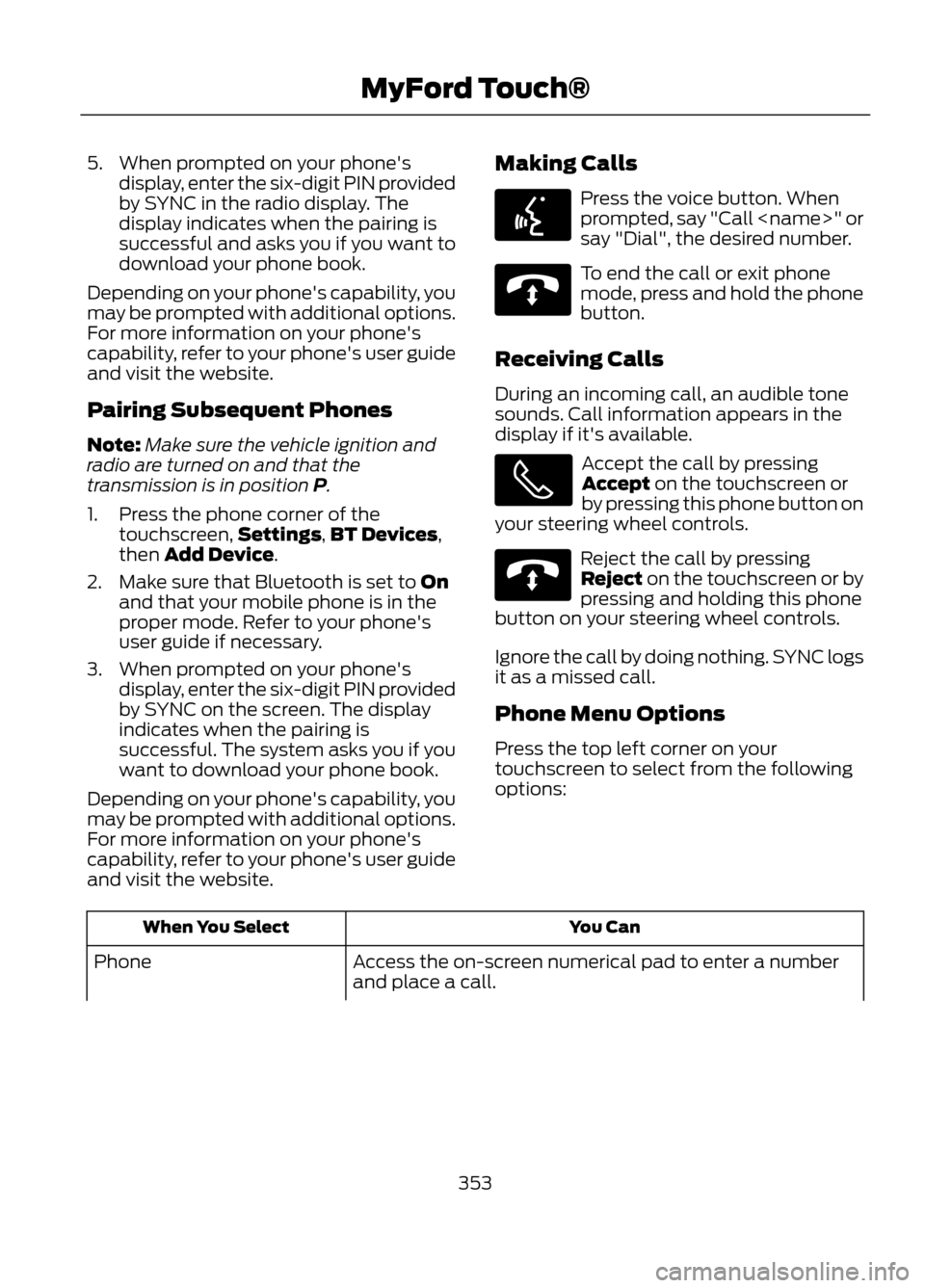
5. When prompted on your phone'sdisplay, enter the six-digit PIN provided
by SYNC in the radio display. The
display indicates when the pairing is
successful and asks you if you want to
download your phone book.
Depending on your phone's capability, you
may be prompted with additional options.
For more information on your phone's
capability, refer to your phone's user guide
and visit the website.
Pairing Subsequent Phones
Note: Make sure the vehicle ignition and
radio are turned on and that the
transmission is in position P.
1. Press the phone corner of the touchscreen, Settings,BT Devices,
then Add Device.
2. Make sure that Bluetooth is set to On and that your mobile phone is in the
proper mode. Refer to your phone's
user guide if necessary.
3. When prompted on your phone's display, enter the six-digit PIN provided
by SYNC on the screen. The display
indicates when the pairing is
successful. The system asks you if you
want to download your phone book.
Depending on your phone's capability, you
may be prompted with additional options.
For more information on your phone's
capability, refer to your phone's user guide
and visit the website. Making Calls
Press the voice button. When
prompted, say "Call
say "Dial", the desired number.
To end the call or exit phone
mode, press and hold the phone
button.
Receiving Calls
During an incoming call, an audible tone
sounds. Call information appears in the
display if it's available.
Accept the call by pressing
Accept on the touchscreen or
by pressing this phone button on
your steering wheel controls.
Reject the call by pressing
Reject on the touchscreen or by
pressing and holding this phone
button on your steering wheel controls.
Ignore the call by doing nothing. SYNC logs
it as a missed call.
Phone Menu Options
Press the top left corner on your
touchscreen to select from the following
options:
You Can
When You Select
Access the on-screen numerical pad to enter a number
and place a call.
Phone
353
MyFord Touch®
E142599
E142632
E142632
Page 413 of 423
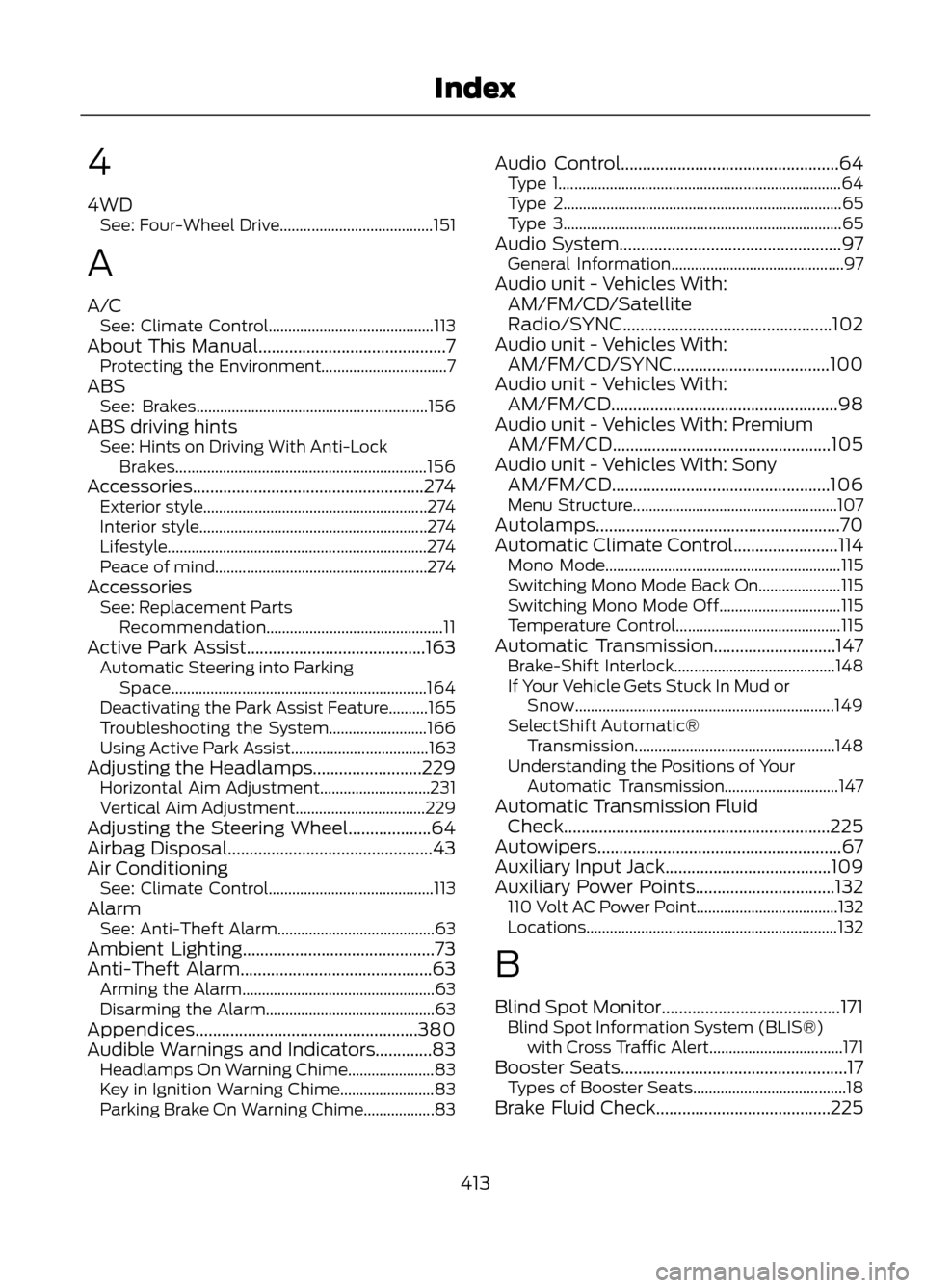
4
4WDSee: Four-Wheel Drive....................................... 151
A
A/C See: Climate Control.......................................... 113
About This Manual...........................................7 Protecting the Environment................................ 7
ABS See: Brakes........................................................... 156
ABS driving hints See: Hints on Driving With Anti-Lock
Brakes................................................................ 156
Accessories.....................................................274 Exterior style......................................................... 274
Interior style.......................................................... 274
Lifestyle.................................................................. 274
Peace of mind...................................................... 274
Accessories See: Replacement Parts
Recommendation............................................. 11
Active Park Assist.........................................163 Automatic Steering into Parking
Space................................................................. 164
Deactivating the Park Assist Feature..........165
Troubleshooting the System......................... 166
Using Active Park Assist................................... 163
Adjusting the Headlamps.........................229 Horizontal Aim Adjustment............................ 231
Vertical Aim Adjustment................................. 229
Adjusting the Steering Wheel...................64
Airbag Disposal...............................................43
Air Conditioning See: Climate Control.......................................... 113
Alarm See: Anti-Theft Alarm........................................ 63
Ambient Lighting............................................73
Anti-Theft Alarm............................................63 Arming the Alarm................................................. 63
Disarming the Alarm........................................... 63
Appendices...................................................380
Audible Warnings and Indicators.............83 Headlamps On Warning Chime...................... 83
Key in Ignition Warning Chime........................ 83
Parking Brake On Warning Chime..................83 Audio Control..................................................64
Type 1........................................................................\
64
Type 2....................................................................... 65
Type 3....................................................................... 65
Audio System...................................................97 General Information............................................ 97
Audio unit - Vehicles With: AM/FM/CD/Satellite
Radio/SYNC................................................102
Audio unit - Vehicles With: AM/FM/CD/SYNC....................................100
Audio unit - Vehicles With: AM/FM/CD....................................................98
Audio unit - Vehicles With: Premium AM/FM/CD..................................................105
Audio unit - Vehicles With: Sony AM/FM/CD..................................................106
Menu Structure.................................................... 107
Autolamps........................................................70
Automatic Climate Control........................114 Mono Mode............................................................ 115
Switching Mono Mode Back On..................... 115
Switching Mono Mode Off............................... 115
Temperature Control.......................................... 115
Automatic Transmission............................147 Brake-Shift Interlock......................................... 148
If Your Vehicle Gets Stuck In Mud or Snow.................................................................. 149
SelectShift Automatic® Transmission................................................... 148
Understanding the Positions of Your Automatic Transmission............................. 147
Automatic Transmission Fluid Check.............................................................225
Autowipers........................................................67
Auxiliary Input Jack......................................109
Auxiliary Power Points................................132 110 Volt AC Power Point.................................... 132
Locations................................................................ 132
B
Blind Spot Monitor.........................................171 Blind Spot Information System (BLIS®)
with Cross Traffic Alert.................................. 171
Booster Seats....................................................17 Types of Booster Seats....................................... 18
Brake Fluid Check........................................225
413
Index
Page 416 of 423
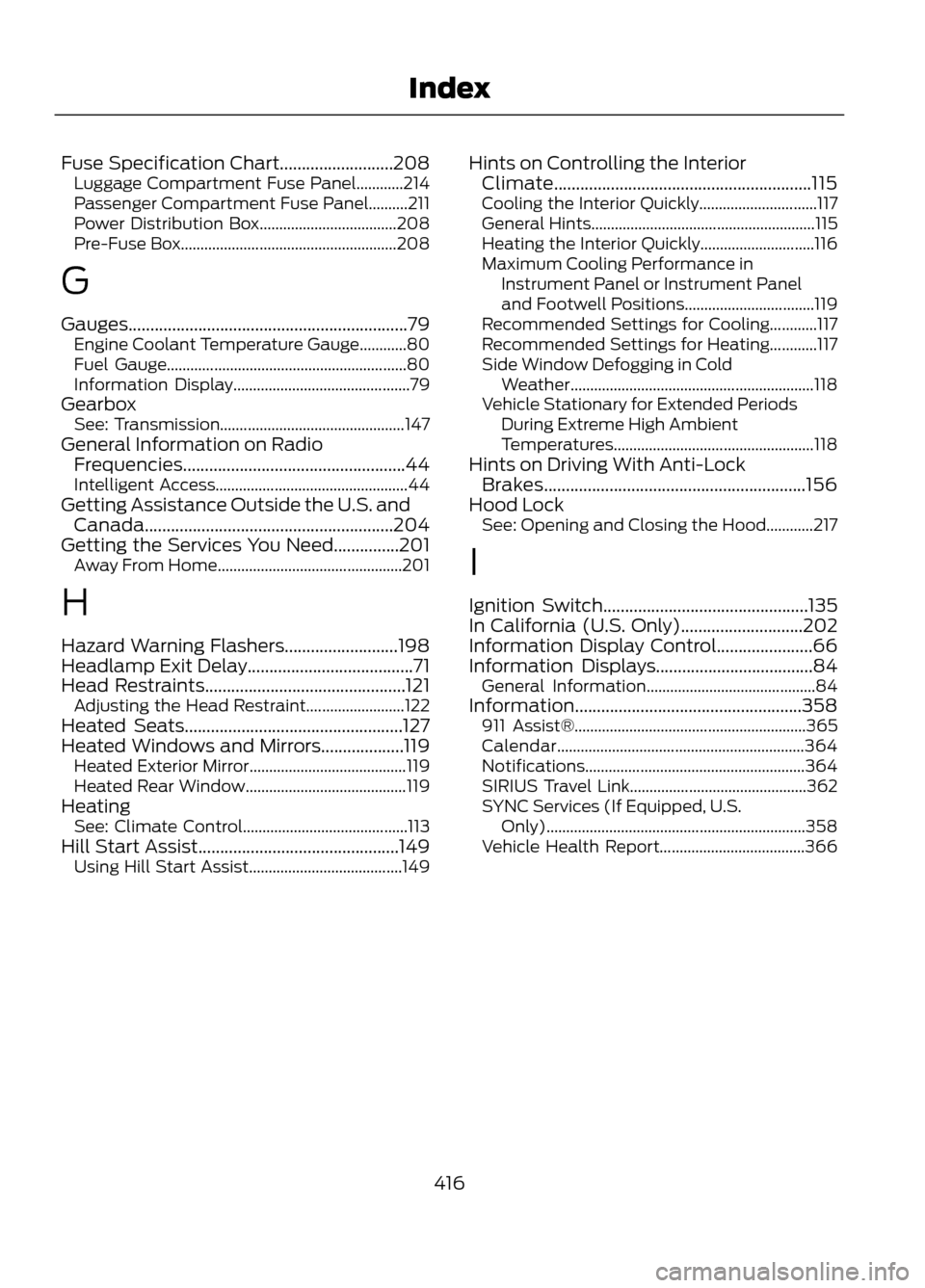
Fuse Specification Chart..........................208Luggage Compartment Fuse Panel............214
Passenger Compartment Fuse Panel..........211
Power Distribution Box................................... 208
Pre-Fuse Box....................................................... 208
G
Gauges................................................................79 Engine Coolant Temperature Gauge............80
Fuel Gauge............................................................. 80
Information Display............................................. 79
Gearbox See: Transmission............................................... 147
General Information on Radio Frequencies...................................................44
Intelligent Access................................................. 44
Getting Assistance Outside the U.S. and Canada.........................................................204
Getting the Services You Need...............201 Away From Home............................................... 201
H
Hazard Warning Flashers..........................198
Headlamp Exit Delay......................................71
Head Restraints..............................................121 Adjusting the Head Restraint......................... 122
Heated Seats..................................................127
Heated Windows and Mirrors...................119 Heated Exterior Mirror........................................ 119
Heated Rear Window......................................... 119
Heating See: Climate Control.......................................... 113
Hill Start Assist..............................................149 Using Hill Start Assist....................................... 149Hints on Controlling the Interior
Climate...........................................................115
Cooling the Interior Quickly.............................. 117
General Hints......................................................... 115
Heating the Interior Quickly............................. 116
Maximum Cooling Performance in Instrument Panel or Instrument Panel
and Footwell Positions................................. 119
Recommended Settings for Cooling............117
Recommended Settings for Heating............117
Side Window Defogging in Cold Weather.............................................................. 118
Vehicle Stationary for Extended Periods During Extreme High Ambient
Temperatures................................................... 118
Hints on Driving With Anti-Lock Brakes............................................................156
Hood Lock See: Opening and Closing the Hood............217
I
Ignition Switch...............................................135
In California (U.S. Only)............................202
Information Display Control......................66
Information Displays....................................84 General Information........................................... 84
Information....................................................358 911 Assist®........................................................... 365
Calendar............................................................... 364
Notifications........................................................ 364
SIRIUS Travel Link............................................. 362
SYNC Services (If Equipped, U.S. Only).................................................................. 358
Vehicle Health Report..................................... 366
416
Index