CD player FORD ESCAPE 2013 3.G Owners Manual
[x] Cancel search | Manufacturer: FORD, Model Year: 2013, Model line: ESCAPE, Model: FORD ESCAPE 2013 3.GPages: 423, PDF Size: 4.59 MB
Page 5 of 423
Accessories
Accessories....................................................274
Ford Extended Service Plan(ESP)
Ford Extended Service Plan (ESP).......276
SYNC®
General Information...................................279
Using Voice Recognition............................281
Using SYNC® With Your Phone.............283
SYNC® Applications and Services.......295
Using SYNC® With Your Media Player............................................................301
SYNC® Troubleshooting..........................308
MyFord Touch®
General Information....................................315
Menu.................................................................326
Entertainment...............................................332
Phone...............................................................352
Information....................................................358
Climate............................................................367
Navigation........................................................371
Appendices
End User License Agreement.................380
Scheduled Maintenance
Scheduled Maintenance..........................396
5
Table of Contents
The information contained in this publication was correct at the time of going to print. In the interest of
continuous development, we reserve the right to change specifications, design or equipment at any time
without notice or obligation. No part of this publication may be reproduced, transmitted, stored in a
retrieval system or translated into any language in any form by any means without our written permission.
Errors and omissions excepted.
© Ford Motor Company 2012
All rights reserved.
Part Number: 20120308005357
Page 97 of 423
GENERAL INFORMATION
Radio Frequencies and Reception
FactorsAM and FM frequencies are established by
the Federal Communications Commission
(FCC) and the Canadian Radio and
Telecommunications Commission (CRTC).
Those frequencies are:
•
AM: 530, 540-1700, 1710 kHz
• FM: 87.9-107.7, 107.9 MHz
Radio Reception Factors
The further you travel from an FM station, the weaker the
signal and the weaker the reception.
Distance/Strength
Hills, mountains, tall buildings, bridges, tunnels, freeway
overpasses, parking garages, dense tree foliage and
thunderstorms can interfere with your reception.
Terrain
When you pass a ground-based broadcast repeating
tower, a stronger signal may overtake a weaker one and
result the audio system muting.
Station overload
CD and CD Player Information
Note: CD units are designed to play
commercially-pressed 4.75 inch (12
centimeter) audio compact discs only. Due
to technical incompatibility, certain
recordable and re-recordable compact discs
may not function correctly when used in
Ford CD players.
Note: CDs with homemade paper
(adhesive) labels should not be inserted
into the CD player as the label may peel and
cause the CD to become jammed. It is
recommended that homemade CDs be
identified with permanent felt tip marker
rather than adhesive labels. Ballpoint pens
may damage CDs. Please contact your
authorized dealer for further information.
Note: Do not use any irregularly shaped
discs or discs with a scratch protection film
attached. Always handle discs by their edges only.
Clean the disc with an approved CD
cleaner only, wiping from the center of the
disc toward the edge. Do not clean in a
circular motion.
Do not expose discs to direct sunlight or
heat sources for extended periods of time.
MP3 Track and Folder Structure
Audio systems capable of recognizing and
playing MP3 individual tracks and folder
structures work as follows:
•
There are two different modes for MP3
disc playback: MP3 track mode
(system default) and MP3 folder
mode.
• MP3 track mode ignores any folder
structure on the MP3 disc. The player
numbers each MP3 track on the disc
(noted by the .mp3 file extension) from
T001 to a maximum of T255. The
maximum number of playable MP3
files may be less depending on the
structure of the CD and exact model
of radio present.
97
Audio System
Page 98 of 423
•MP3 folder mode represents a folder
structure consisting of one level of
folders. The CD player numbers all MP3
tracks on the disc (noted by the .mp3
file extension) and all folders
containing MP3 files, from F001
(folder) T001 (track) to F253 T255.
• Creating discs with only one level of
folders helps with navigation through
the disc files.
If you are burning your own MP3 discs, it is
important to understand how the system
reads the structures you create. While
various files may be present, (files with
extensions other than mp3), only files with
the .mp3 extension are played; other files
are ignored by the system. This enables
you to use the same MP3 disc for a variety
of tasks on your work computer, home
computer and your in-vehicle system. In track mode, the system displays and
plays the structure as if it were only one
level deep (all .mp3 files are played,
regardless of being in a specific folder). In
folder mode, the system only plays the
.mp3 files in the current folder.
AUDIO UNIT - VEHICLES WITH:
AM/FM/CD
WARNING
Driving while distracted can result in
loss of vehicle control, accident and
injury. Ford strongly recommends
that you use extreme caution when using
any device or feature that may take your
focus off the road. Your primary
responsibility is the safe operation of the
vehicle. We recommend against the use
of any handheld device while driving,
encourage the use of voice-operated
systems when possible and that you
become aware of applicable state and
local laws that may affect use of electronic
devices while driving.
98
Audio System
Page 109 of 423
Display Settings
Select to change display brightness.
Dimming
Select to display the language in English, French or
Spanish.
Language
Select to display the outside temperature in Fahrenheit
or Celsius.
Temp setting
Clock Settings
Select to set the time.
Set time
Select to set the calendar date.
Set date
Select to view clock time in a 12-hour mode or 24-hour
mode.
12/24 hour
AUXILIARY INPUT JACK
WARNINGS
Driving while distracted can result in
loss of vehicle control, accident and
injury. Ford strongly recommends
that you use extreme caution when using
any device or feature that may take your
focus off the road. Your primary
responsibility is the safe operation of the
vehicle. We recommend against the use
of any handheld device while driving,
encourage the use of voice-operated
systems when possible and that you
become aware of applicable state and
local laws that may affect use of electronic
devices while driving.
For safety reasons, do not connect
or adjust the settings on your
portable music player while the
vehicle is moving.
WARNINGS
Store the portable music player in a
secure location, such as the center
console or the glove box, when the
vehicle is in motion. Hard objects may
become projectiles in a collision or sudden
stop, which may increase the risk of serious
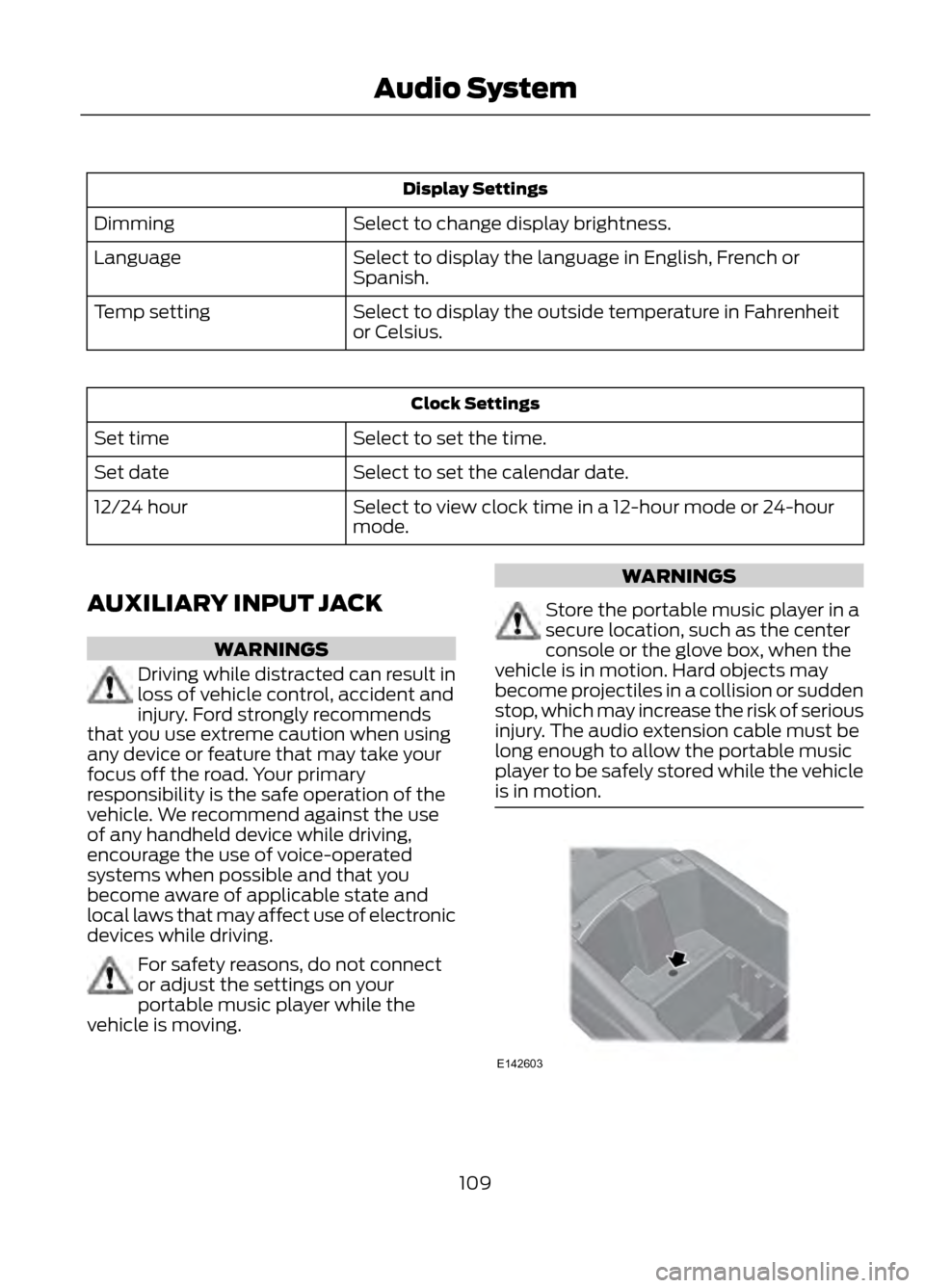
injury. The audio extension cable must be
long enough to allow the portable music
player to be safely stored while the vehicle
is in motion.
109
Audio System
E142603
Page 110 of 423
The auxiliary input jack (AIJ) allows you to
connect and play music from your portable
music player through the vehicle speakers.
You can use any portable music player
designed for use with headphones. Your
audio extension cable must have male
one-eighth inch (three and one-half
millimeter) connectors at each end.
1. Make sure the vehicle, radio andportable music player are turned off
and the transmission is in position P.
2. Plug the extension cable from the portable music player into the AIJ.
3. Turn on the radio. Select either a tuned
FM station or a CD.
4. Adjust the volume as desired.
5. Turn on your portable music player and
adjust its volume to half its maximum
level.
6. Press AUX until LINE or LINE IN appears in the display. You should hear
music from your device even if it is low.
7. Adjust the volume on your portable music player until it reaches the volume
level of the FM station or CD. Do this
by switching back and forth between
the AUX and FM or CD controls.
USB PORT (IF EQUIPPED)The USB port allows you to plug in media
playing devices, memory sticks and charge
devices (if supported). See SYNC® (page
279).
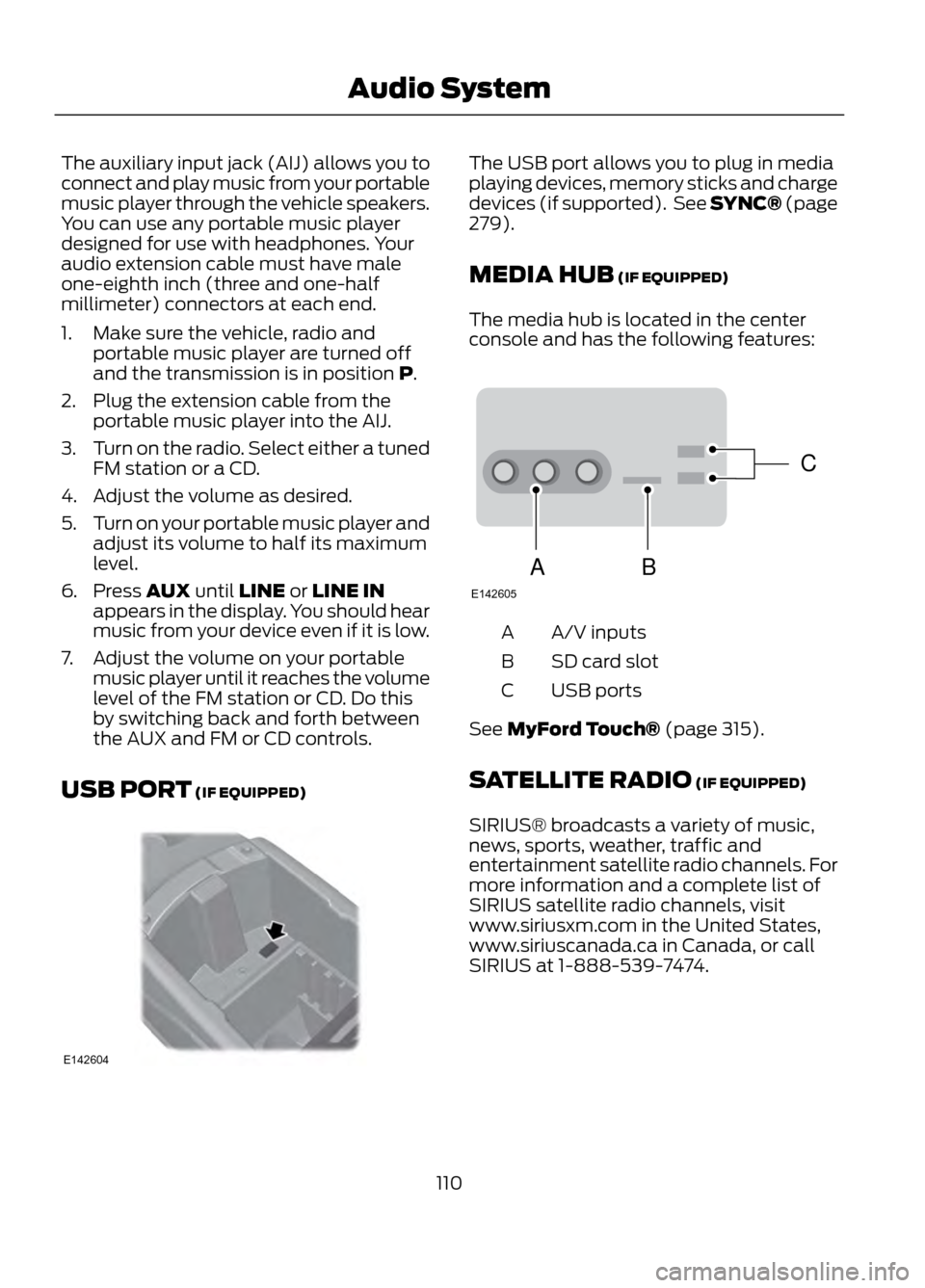
MEDIA HUB (IF EQUIPPED)
The media hub is located in the center
console and has the following features:
A/V inputs
A
SD card slot
B
USB ports
C
See MyFord Touch® (page 315).
SATELLITE RADIO (IF EQUIPPED)
SIRIUS® broadcasts a variety of music,
news, sports, weather, traffic and
entertainment satellite radio channels. For
more information and a complete list of
SIRIUS satellite radio channels, visit
www.siriusxm.com in the United States,
www.siriuscanada.ca in Canada, or call
SIRIUS at 1-888-539-7474.
110
Audio System
E142604
C
BA
E142605
Page 111 of 423
Satellite Radio Reception Factors
Potential Satellite Radio Reception IssuesFor optimal reception performance, keep the antenna
clear of snow and ice build-up and keep luggage and other
material as far away from the antenna as possible.
Antenna obstructions
Hills, mountains, tall buildings, bridges, tunnels, freeway
overpasses, parking garages, dense tree foliage and
thunderstorms can interfere with your reception.
Terrain
When you pass a ground-based broadcast repeating
tower, a stronger signal may overtake a weaker one and
the audio system may mute.
Station overload
Your display may show ACQUIRING...to indicate the
interference and the audio system may mute.
Satellite radio signal interfer-
ence
SIRIUS® Satellite Radio Service
Note: SIRIUS reserves the unrestricted right
to change, rearrange, add or delete
programming including canceling, moving
or adding particular channels, and its prices,
at any time, with or without notice to you.
Ford Motor Company shall not be
responsible for any such programming
changes.
SIRIUS satellite radio is a
subscription-based satellite radio service
that broadcasts a variety of music, sports,
news, weather, traffic and entertainment
programming. Your factory-installed
SIRIUS satellite radio system includes
hardware and a limited subscription term
which begins on the date of sale or lease
of the vehicle. Refer to your authorized
dealer for availability.
For more information on extended
subscription terms (a service fee is
required), the online media player and a
complete list of SIRIUS satellite radio
channels, and other features, please visit
www.siriusxm.com in the United States,
www.sirius.ca in Canada, or call SIRIUS at
1-888-539-7474.
Satellite Radio Electronic Serial
Number (ESN)
You need your ESN to activate, modify or
track your satellite radio account. When in
satellite radio mode, you can view this
number by pressing SIRIUS and memory
preset 1 at the same time.
111
Audio System
E142593
Page 214 of 423
Protected Components
Fuse Amp Rating
Fuse/Relay Number
Radio, Navigation DVD player, Touch
screen, Hazard light switch, Door lock
switch
15A
79
Moonroof supply
20A
80
Radio frequency receiver
5A
81
Windshield washer relay
20A
82
Central locking
20A
83
Drive door unlock supply, Double lock
20A
84
Electronic 15 feed
7.5A
85
Air bag module, Occupant classification
system, Passenger air bag deactivation
indicator
10A
86
Not used
-
87
Not used
-
88
Not used
-
89
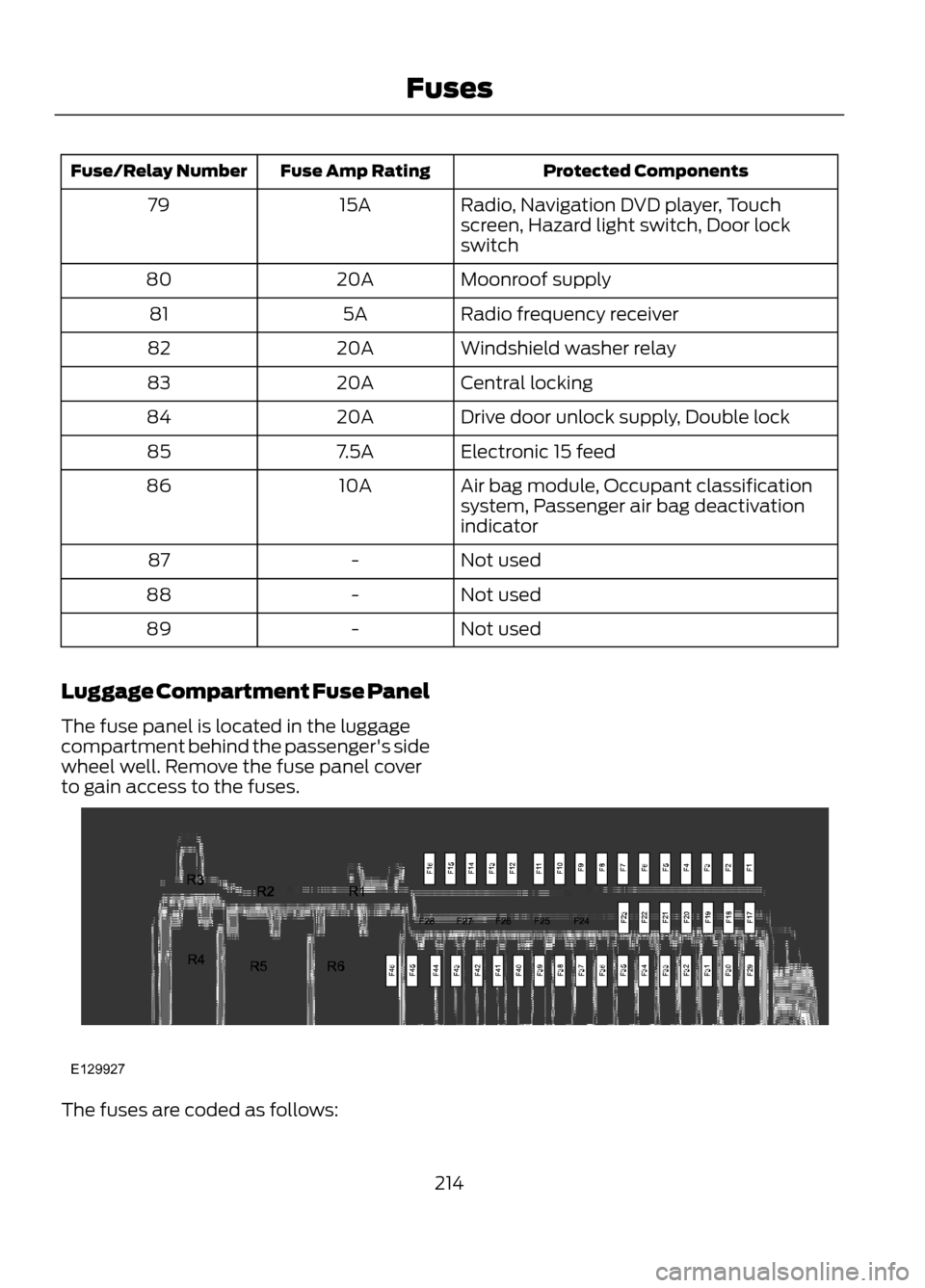
Luggage Compartment Fuse Panel
The fuse panel is located in the luggage
compartment behind the passenger's side
wheel well. Remove the fuse panel cover
to gain access to the fuses.
The fuses are coded as follows:
214
Fuses
E129927
Page 279 of 423
GENERAL INFORMATION
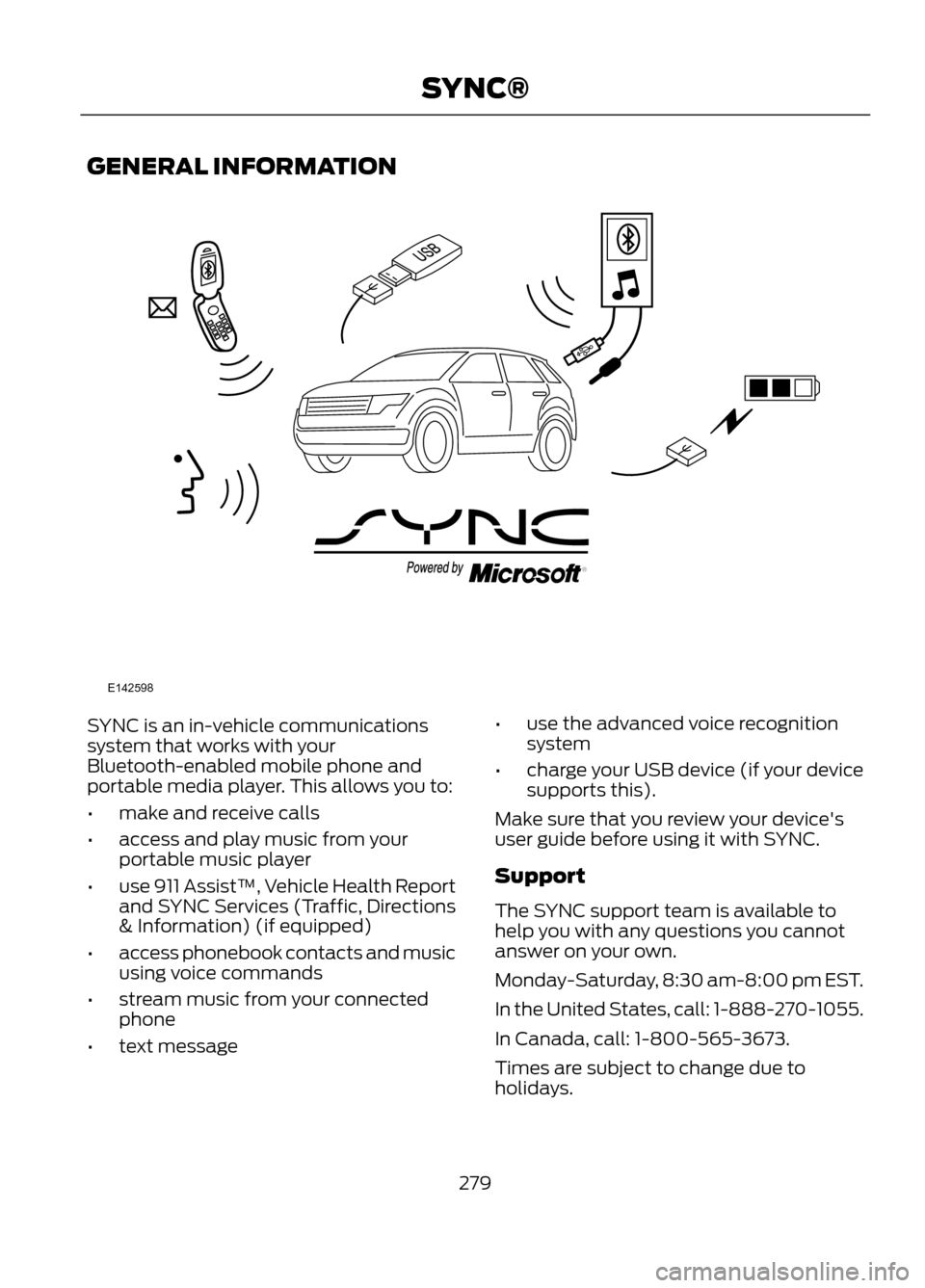
SYNC is an in-vehicle communications
system that works with your
Bluetooth-enabled mobile phone and
portable media player. This allows you to:
•make and receive calls
• access and play music from your
portable music player
• use 911 Assist™, Vehicle Health Report
and SYNC Services (Traffic, Directions
& Information) (if equipped)
• access phonebook contacts and music
using voice commands
• stream music from your connected
phone
• text message •
use the advanced voice recognition
system
• charge your USB device (if your device
supports this).
Make sure that you review your device's
user guide before using it with SYNC.
Support
The SYNC support team is available to
help you with any questions you cannot
answer on your own.
Monday-Saturday, 8:30 am-8:00 pm EST.
In the United States, call: 1-888-270-1055.
In Canada, call: 1-800-565-3673.
Times are subject to change due to
holidays.
279
SYNC®
E142598
Page 280 of 423
Driving Restrictions
For your safety, certain features are
speed-dependent and restricted when your
vehicle is traveling over 3 mph (5 km/h).
Safety Information
WARNING
Driving while distracted can result in
loss of vehicle control, accident and
injury. Ford strongly recommends
that drivers use extreme caution when
using any device that may take their focus
off the road. Your primary responsibility is
the safe operation of the vehicle. We
recommend against the use of any
handheld device while driving, encourage
the use of voice-operated systems when
possible and that you become aware of
applicable state and local laws that may
affect use of electronic devices while
driving.
When using SYNC:
• Do not operate playing devices if the
power cords or cables are broken, split
or damaged. Carefully place cords and
cables where they cannot be stepped
on or interfere with the operation of
pedals, seats, compartments or safe
driving abilities.
• Do not leave playing devices in the
vehicle during extreme conditions as it
could cause them damage. Refer to
your device's user guide for further
information.
• Do not attempt to service or repair the
system. See your authorized dealer. Privacy Information
When a mobile phone is connected to
SYNC, the system creates a profile within
your vehicle that is linked to that mobile
phone. This profile is created in order to
offer you more mobile features and to
operate more efficiently. Among other
things, this profile may contain data about
your mobile phone book, text messages
(read and unread), and call history,
including history of calls when your mobile
phone was not connected to the system.
In addition, if you connect a media device,
the system creates and retains an index of
supported media content. The system also
records a short development log of
approximately 10 minutes of all recent
system activity. The log profile and other
system data may be used to improve the
system and help diagnose any problems
that may occur.
The mobile profile, media device index, and
development log will remain in the vehicle
unless you delete it and are generally
accessible only in the vehicle when the
mobile phone or media player is
connected. If you no longer plan to use the
system or the vehicle, we recommend you
perform a Master Reset to erase all stored
information.
280
SYNC®
Page 301 of 423
SYNC Services Quick Tips
You can even access your account outside the vehicle.
Just use the number on your phone's call history. Traffic
and Directions features do not function properly but
information services and the 411 connect and text message
features are available.
USING SYNC® WITH YOUR
MEDIA PLAYER
You can access and play music from your
digital music player over the vehicle's
speaker system using the system's media
menu or voice commands. You can also
sort and play your music by specific
categories such as artists, albums, etc.
SYNC is capable of hosting nearly any
digital media player including: iPod®,
Zune ™, "Plays from device" players, and
most USB drives. SYNC also supports
audio formats such as MP3, WMA, WAV
and ACC.
Connecting Your Digital Media
Player to the USB Port
Note: If your digital media player has a
power switch, ensure that the device is
turned on.
To Connect Using Voice Commands
1. Plug the device into the vehicle's USB port.
2. Press the voice icon and when prompted, say "USB".
3. You can now play music by saying any of the appropriate voice commands.
Refer to the media voice commands.
To Connect Using the System Menu
1. Plug the device into the vehicle's USB port. 2. Press AUX and then MENU to enter
the Media menu.
3. Scroll until Select Source appears, then press OK.
4. Scroll to select USB and press OK.
5. Depending on how many digital media
files are on your connected device,
Indexing may appear in the radio
display. When indexing is complete, the
screen returns to the Play menu.
Press OK and scroll through selections of:
• Play All
• Albums
• Genres
• Playlists
• Tracks
• Explore USB
• Similar Music
• Return
What's Playing?
At any time when a track is playing, you
can press the voice icon and ask the
system "What's playing?". The system
reads the metadata tags (if populated) of
the playing track to you.
Media Voice Commands
Press the voice icon and, when
prompted, say "USB", then any
of the following:
301
SYNC®
E142599