USB FORD ESCAPE 2015 3.G User Guide
[x] Cancel search | Manufacturer: FORD, Model Year: 2015, Model line: ESCAPE, Model: FORD ESCAPE 2015 3.GPages: 449, PDF Size: 5.36 MB
Page 317 of 449
Press OK and scroll through selections of:
• Play All
• Albums
• Genres
• Playlists
• Tracks
• Explore USB
• Similar Music
• Return
What's Playing?
At any time when a track is playing, you
can press the voice icon and ask the
system "What's playing?". The system
reads the metadata tags (if populated) of
the playing track to you.
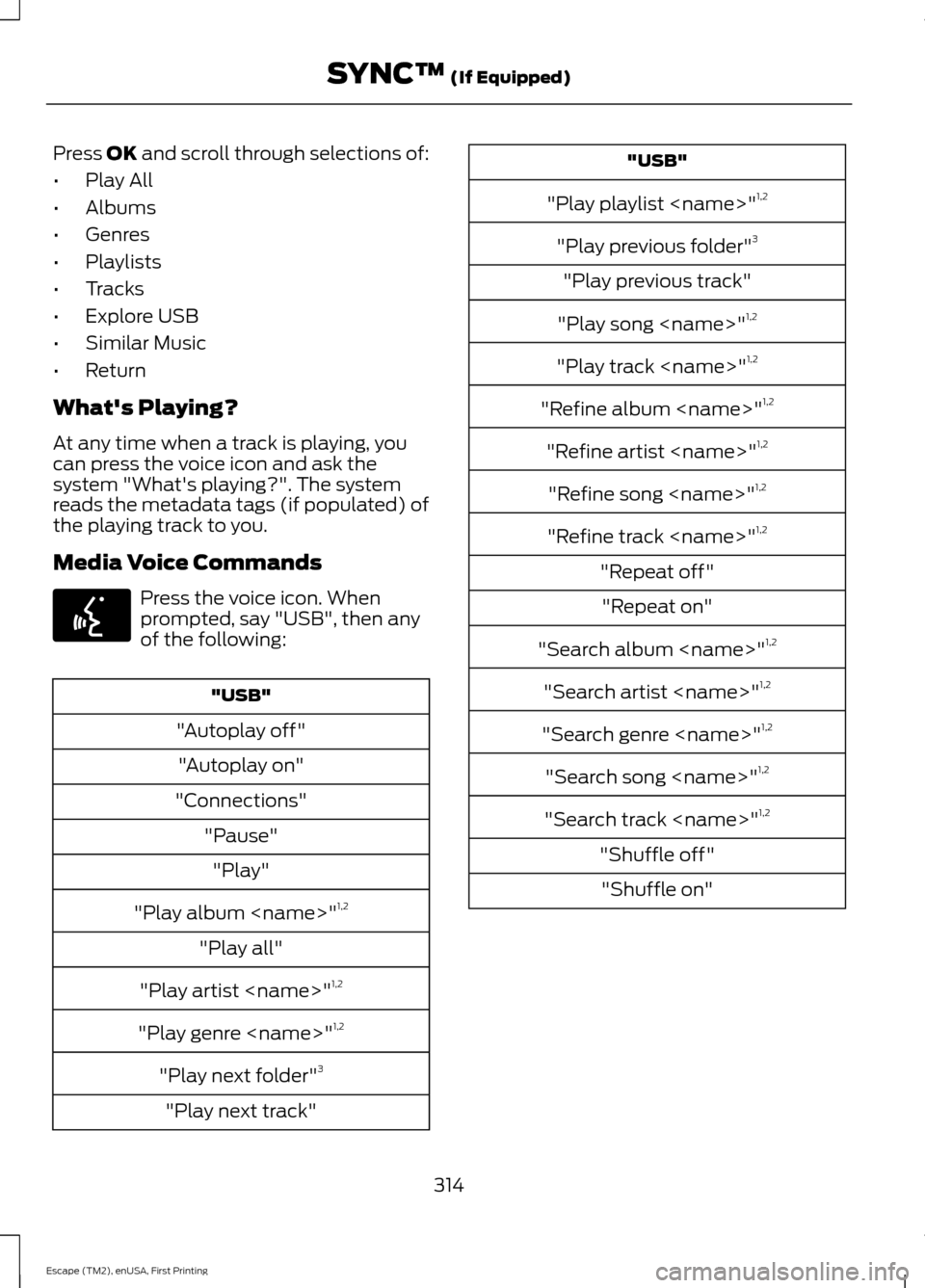
Media Voice Commands Press the voice icon. When
prompted, say "USB", then any
of the following:
"USB"
"Autoplay off" "Autoplay on"
"Connections" "Pause""Play"
"Play album
"Play all"
"Play artist
"Play genre
"Play next folder" 3
"Play next track" "USB"
"Play playlist
"Play previous folder" 3
"Play previous track"
"Play song
"Play track
"Refine album
"Refine artist
"Refine song
"Refine track
"Repeat off" "Repeat on"
"Search album
"Search artist
"Search genre
"Search song
"Search track
"Shuffle off" "Shuffle on"
314
Escape (TM2), enUSA, First Printing SYNC™
(If Equipped)E142599
Page 318 of 449
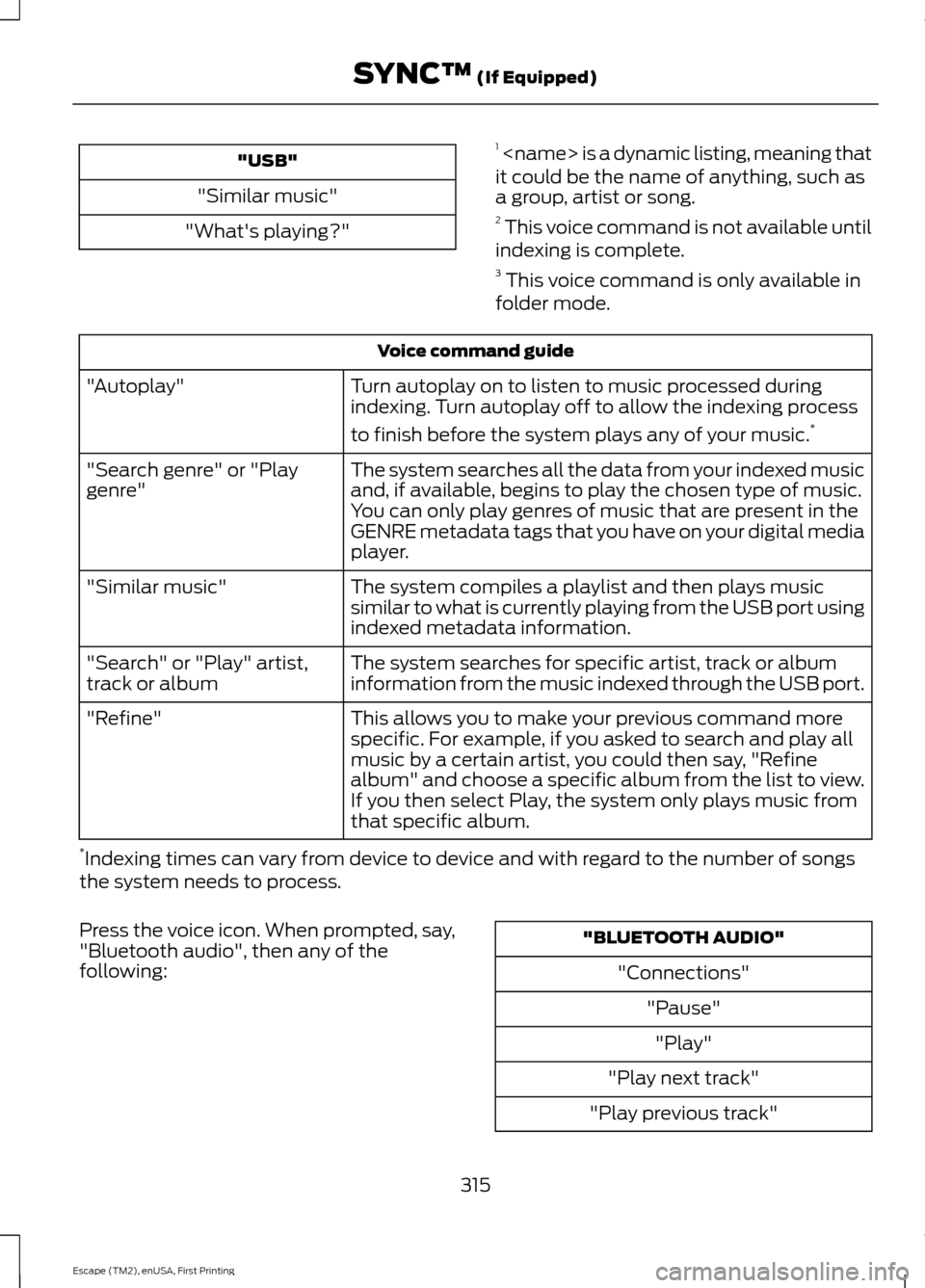
"USB"
"Similar music"
"What's playing?" 1
it could be the name of anything, such as
a group, artist or song.
2 This voice command is not available until
indexing is complete.
3 This voice command is only available in
folder mode. Voice command guide
Turn autoplay on to listen to music processed during
indexing. Turn autoplay off to allow the indexing process
to finish before the system plays any of your music. *
"Autoplay"
The system searches all the data from your indexed music
and, if available, begins to play the chosen type of music.
You can only play genres of music that are present in the
GENRE metadata tags that you have on your digital media
player.
"Search genre" or "Play
genre"
The system compiles a playlist and then plays music
similar to what is currently playing from the USB port using
indexed metadata information.
"Similar music"
The system searches for specific artist, track or album
information from the music indexed through the USB port.
"Search" or "Play" artist,
track or album
This allows you to make your previous command more
specific. For example, if you asked to search and play all
music by a certain artist, you could then say, "Refine
album" and choose a specific album from the list to view.
If you then select Play, the system only plays music from
that specific album.
"Refine"
* Indexing times can vary from device to device and with regard to the number of songs
the system needs to process.
Press the voice icon. When prompted, say,
"Bluetooth audio", then any of the
following: "BLUETOOTH AUDIO"
"Connections""Pause""Play"
"Play next track"
"Play previous track"
315
Escape (TM2), enUSA, First Printing SYNC™ (If Equipped)
Page 319 of 449
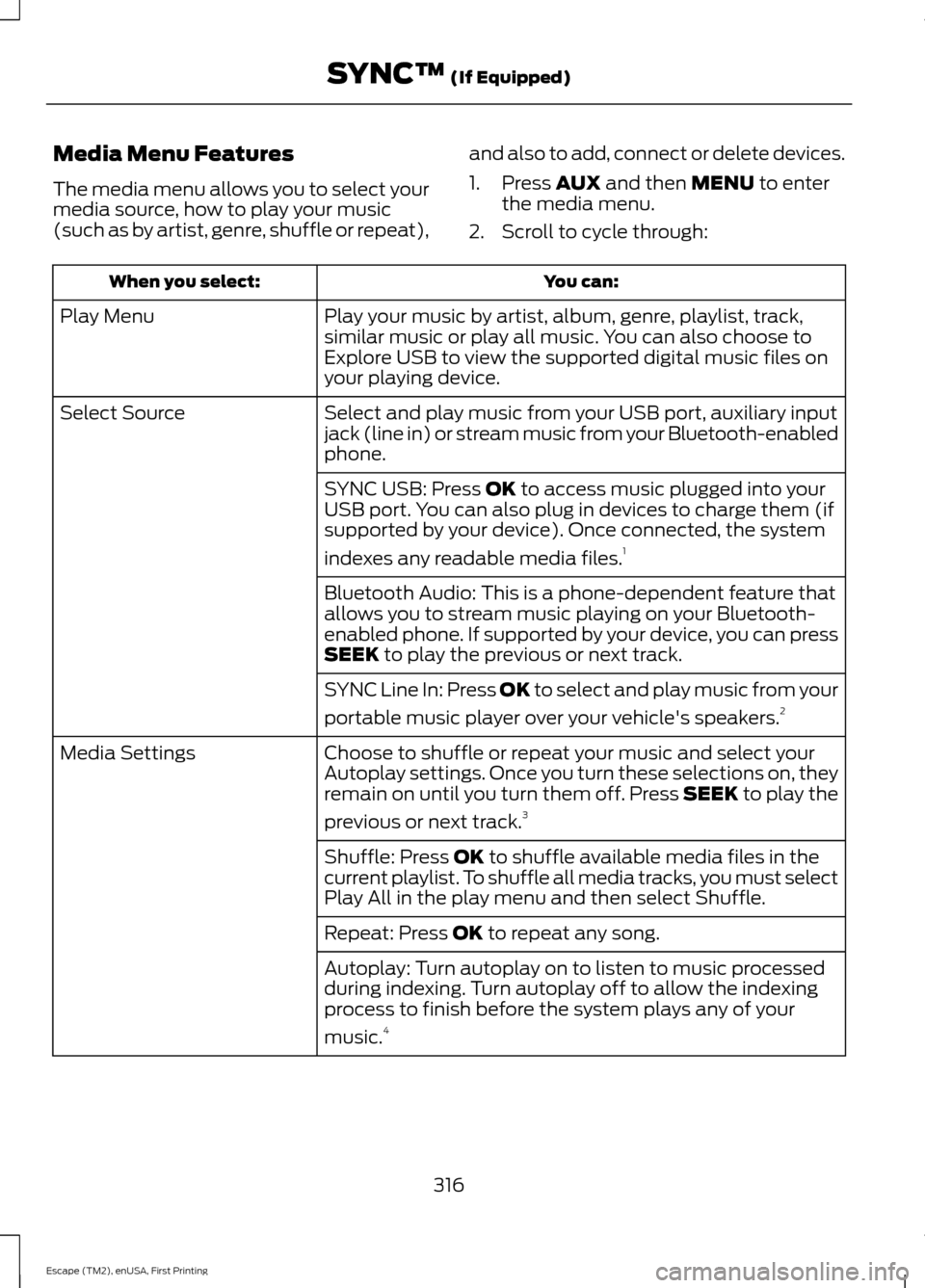
Media Menu Features
The media menu allows you to select your
media source, how to play your music
(such as by artist, genre, shuffle or repeat),
and also to add, connect or delete devices.
1. Press AUX and then MENU to enter
the media menu.
2. Scroll to cycle through: You can:
When you select:
Play your music by artist, album, genre, playlist, track,
similar music or play all music. You can also choose to
Explore USB to view the supported digital music files on
your playing device.
Play Menu
Select and play music from your USB port, auxiliary input
jack (line in) or stream music from your Bluetooth-enabled
phone.
Select Source
SYNC USB: Press
OK to access music plugged into your
USB port. You can also plug in devices to charge them (if
supported by your device). Once connected, the system
indexes any readable media files. 1
Bluetooth Audio: This is a phone-dependent feature that
allows you to stream music playing on your Bluetooth-
enabled phone. If supported by your device, you can press
SEEK
to play the previous or next track.
SYNC Line In: Press
OK to select and play music from your
portable music player over your vehicle's speakers. 2
Choose to shuffle or repeat your music and select your
Autoplay settings. Once you turn these selections on, they
remain on until you turn them off. Press SEEK to play the
previous or next track. 3
Media Settings
Shuffle: Press
OK to shuffle available media files in the
current playlist. To shuffle all media tracks, you must select
Play All in the play menu and then select Shuffle.
Repeat: Press
OK to repeat any song.
Autoplay: Turn autoplay on to listen to music processed
during indexing. Turn autoplay off to allow the indexing
process to finish before the system plays any of your
music. 4
316
Escape (TM2), enUSA, First Printing SYNC™
(If Equipped)
Page 320 of 449
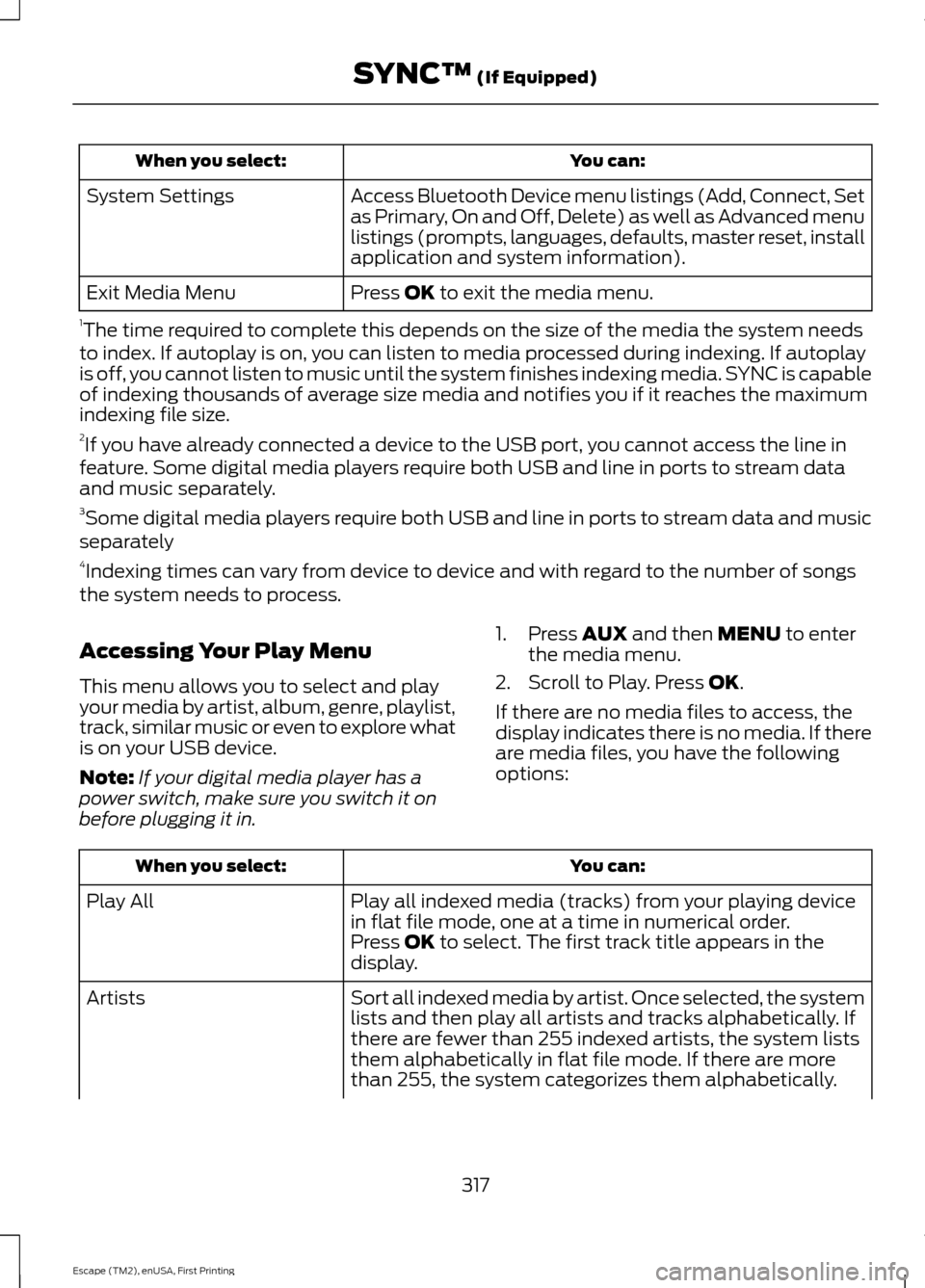
You can:
When you select:
Access Bluetooth Device menu listings (Add, Connect, Set
as Primary, On and Off, Delete) as well as Advanced menu
listings (prompts, languages, defaults, master reset, install
application and system information).
System Settings
Press OK to exit the media menu.
Exit Media Menu
1 The time required to complete this depends on the size of the media the system needs
to index. If autoplay is on, you can listen to media processed during indexing. If autoplay
is off, you cannot listen to music until the system finishes indexing media. SYNC is capable
of indexing thousands of average size media and notifies you if it reaches the maximum
indexing file size.
2 If you have already connected a device to the USB port, you cannot access the line in
feature. Some digital media players require both USB and line in ports to stream data
and music separately.
3 Some digital media players require both USB and line in ports to stream data and music
separately
4 Indexing times can vary from device to device and with regard to the number of songs
the system needs to process.
Accessing Your Play Menu
This menu allows you to select and play
your media by artist, album, genre, playlist,
track, similar music or even to explore what
is on your USB device.
Note: If your digital media player has a
power switch, make sure you switch it on
before plugging it in. 1. Press
AUX and then MENU to enter
the media menu.
2. Scroll to Play. Press
OK.
If there are no media files to access, the
display indicates there is no media. If there
are media files, you have the following
options: You can:
When you select:
Play all indexed media (tracks) from your playing device
in flat file mode, one at a time in numerical order.
Play All
Press
OK to select. The first track title appears in the
display.
Sort all indexed media by artist. Once selected, the system
lists and then play all artists and tracks alphabetically. If
there are fewer than 255 indexed artists, the system lists
them alphabetically in flat file mode. If there are more
than 255, the system categorizes them alphabetically.
Artists
317
Escape (TM2), enUSA, First Printing SYNC™
(If Equipped)
Page 321 of 449
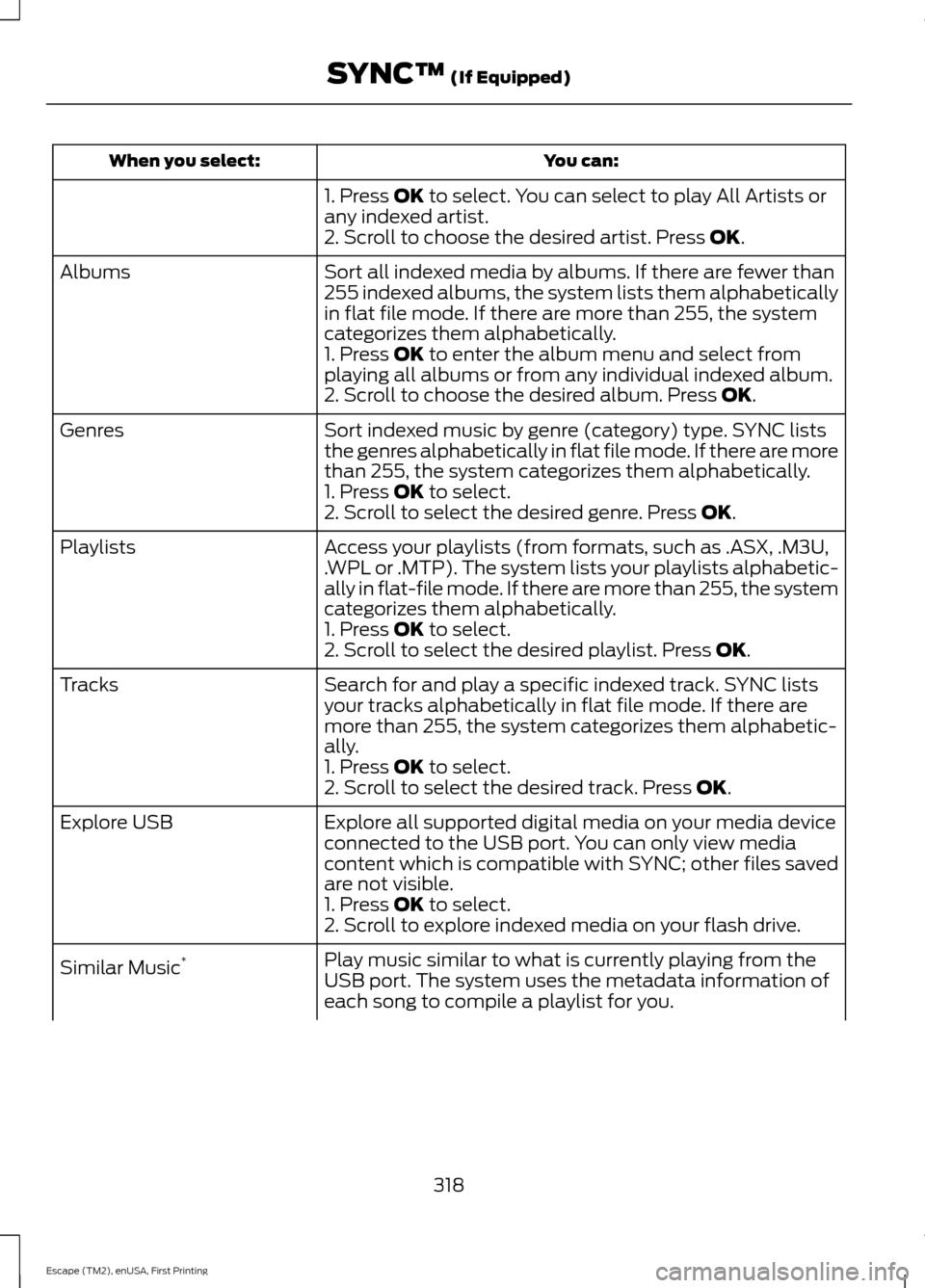
You can:
When you select:
1. Press OK to select. You can select to play All Artists or
any indexed artist.
2. Scroll to choose the desired artist. Press
OK.
Sort all indexed media by albums. If there are fewer than
255 indexed albums, the system lists them alphabetically
in flat file mode. If there are more than 255, the system
categorizes them alphabetically.
Albums
1. Press
OK to enter the album menu and select from
playing all albums or from any individual indexed album.
2. Scroll to choose the desired album. Press
OK.
Sort indexed music by genre (category) type. SYNC lists
the genres alphabetically in flat file mode. If there are more
than 255, the system categorizes them alphabetically.
Genres
1. Press
OK to select.
2. Scroll to select the desired genre. Press OK.
Access your playlists (from formats, such as .ASX, .M3U,
.WPL or .MTP). The system lists your playlists alphabetic-
ally in flat-file mode. If there are more than 255, the system
categorizes them alphabetically.
Playlists
1. Press
OK to select.
2. Scroll to select the desired playlist. Press OK.
Search for and play a specific indexed track. SYNC lists
your tracks alphabetically in flat file mode. If there are
more than 255, the system categorizes them alphabetic-
ally.
Tracks
1. Press
OK to select.
2. Scroll to select the desired track. Press OK.
Explore all supported digital media on your media device
connected to the USB port. You can only view media
content which is compatible with SYNC; other files saved
are not visible.
Explore USB
1. Press
OK to select.
2. Scroll to explore indexed media on your flash drive.
Play music similar to what is currently playing from the
USB port. The system uses the metadata information of
each song to compile a playlist for you.
Similar Music
*
318
Escape (TM2), enUSA, First Printing SYNC™
(If Equipped)
Page 326 of 449
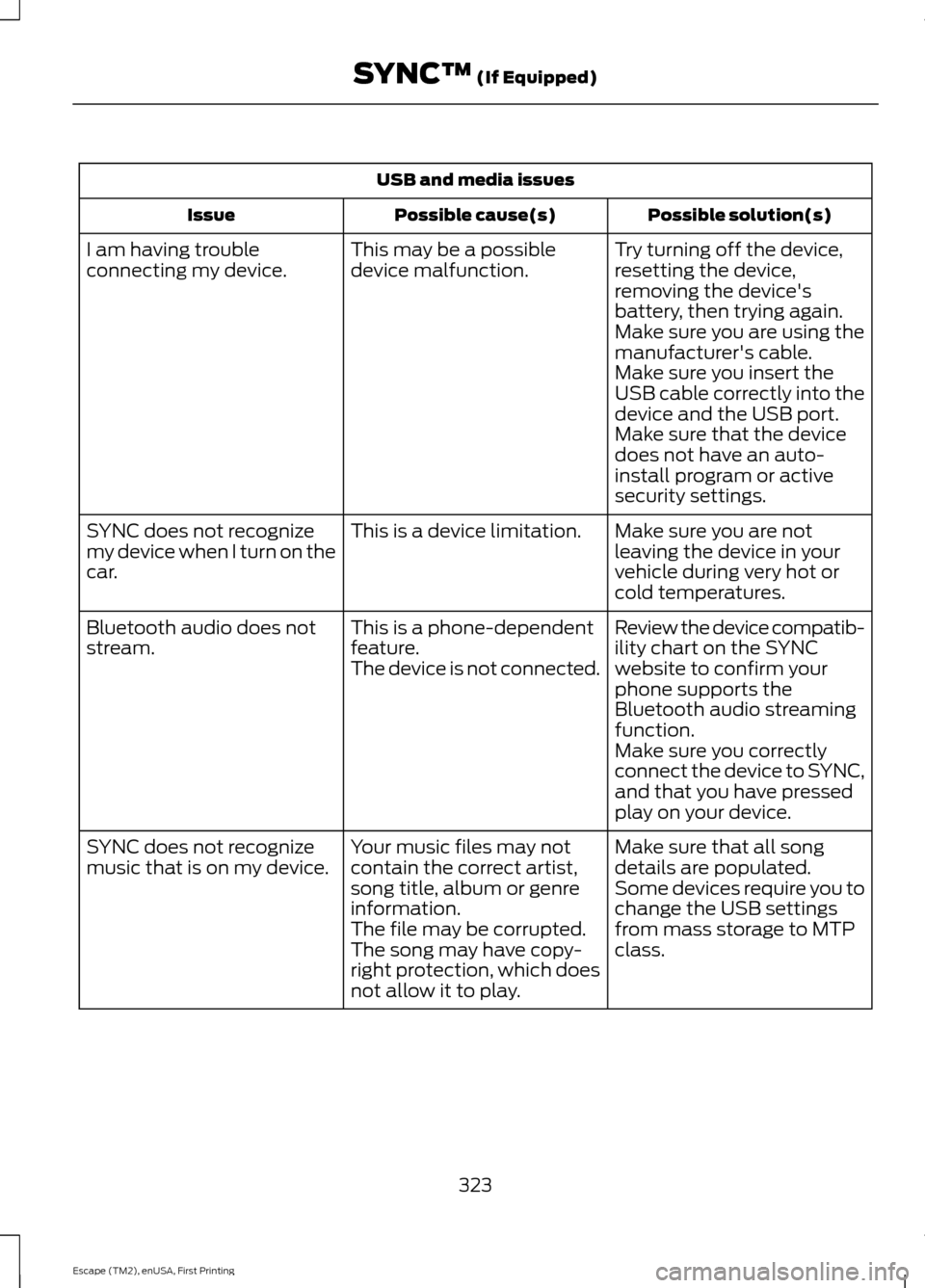
USB and media issues
Possible solution(s)
Possible cause(s)
Issue
Try turning off the device,
resetting the device,
removing the device's
battery, then trying again.
This may be a possible
device malfunction.
I am having trouble
connecting my device.
Make sure you are using the
manufacturer's cable.
Make sure you insert the
USB cable correctly into the
device and the USB port.
Make sure that the device
does not have an auto-
install program or active
security settings.
Make sure you are not
leaving the device in your
vehicle during very hot or
cold temperatures.
This is a device limitation.
SYNC does not recognize
my device when I turn on the
car.
Review the device compatib-
ility chart on the SYNC
website to confirm your
phone supports the
Bluetooth audio streaming
function.
This is a phone-dependent
feature.
The device is not connected.
Bluetooth audio does not
stream.
Make sure you correctly
connect the device to SYNC,
and that you have pressed
play on your device.
Make sure that all song
details are populated.
Your music files may not
contain the correct artist,
song title, album or genre
information.
SYNC does not recognize
music that is on my device.
Some devices require you to
change the USB settings
from mass storage to MTP
class.
The file may be corrupted.
The song may have copy-
right protection, which does
not allow it to play.
323
Escape (TM2), enUSA, First Printing SYNC™ (If Equipped)
Page 330 of 449
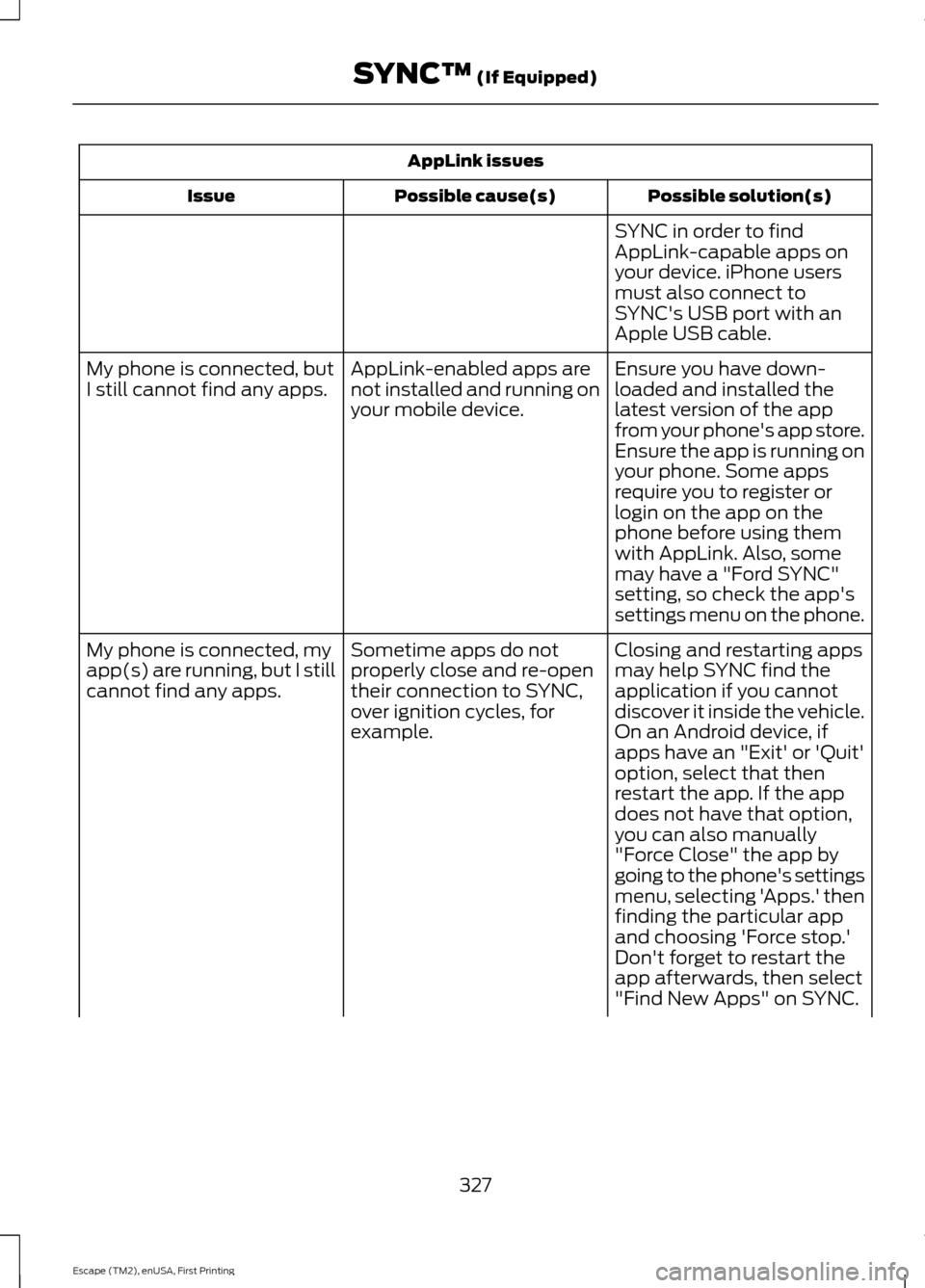
AppLink issues
Possible solution(s)
Possible cause(s)
Issue
SYNC in order to find
AppLink-capable apps on
your device. iPhone users
must also connect to
SYNC's USB port with an
Apple USB cable.
Ensure you have down-
loaded and installed the
latest version of the app
from your phone's app store.
Ensure the app is running on
your phone. Some apps
AppLink-enabled apps are
not installed and running on
your mobile device.
My phone is connected, but
I still cannot find any apps.
require you to register or
login on the app on the
phone before using them
with AppLink. Also, some
may have a "Ford SYNC"
setting, so check the app's
settings menu on the phone.
Closing and restarting apps
may help SYNC find the
application if you cannot
discover it inside the vehicle.
On an Android device, if
apps have an "Exit' or 'Quit'
Sometime apps do not
properly close and re-open
their connection to SYNC,
over ignition cycles, for
example.
My phone is connected, my
app(s) are running, but I still
cannot find any apps.
option, select that then
restart the app. If the app
does not have that option,
you can also manually
"Force Close" the app by
going to the phone's settings
menu, selecting 'Apps.' then
finding the particular app
and choosing 'Force stop.'
Don't forget to restart the
app afterwards, then select
"Find New Apps" on SYNC.
327
Escape (TM2), enUSA, First Printing SYNC™ (If Equipped)
Page 332 of 449
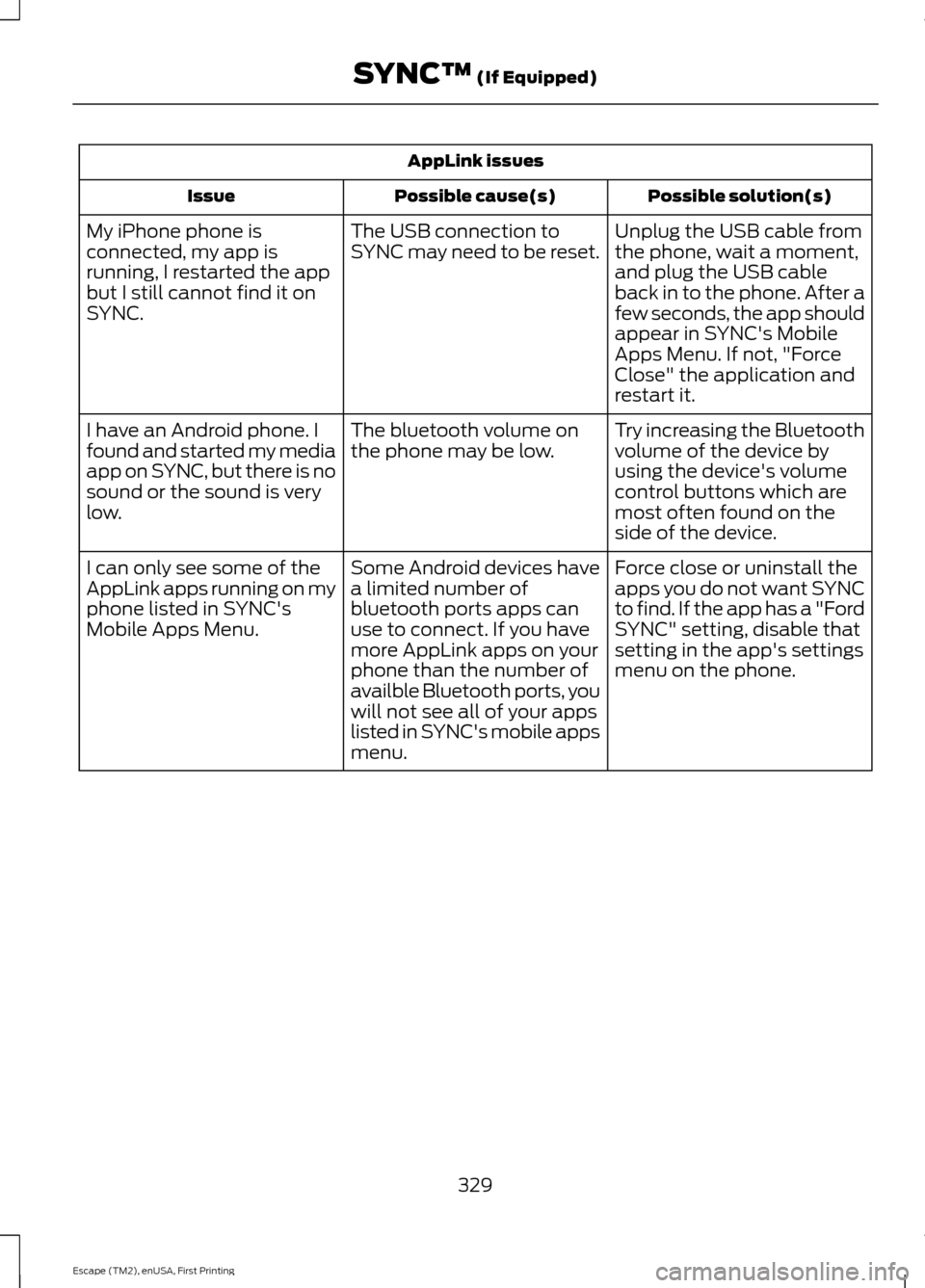
AppLink issues
Possible solution(s)
Possible cause(s)
Issue
Unplug the USB cable from
the phone, wait a moment,
and plug the USB cable
back in to the phone. After a
few seconds, the app should
appear in SYNC's Mobile
Apps Menu. If not, "Force
Close" the application and
restart it.
The USB connection to
SYNC may need to be reset.
My iPhone phone is
connected, my app is
running, I restarted the app
but I still cannot find it on
SYNC.
Try increasing the Bluetooth
volume of the device by
using the device's volume
control buttons which are
most often found on the
side of the device.
The bluetooth volume on
the phone may be low.
I have an Android phone. I
found and started my media
app on SYNC, but there is no
sound or the sound is very
low.
Force close or uninstall the
apps you do not want SYNC
to find. If the app has a "Ford
SYNC" setting, disable that
setting in the app's settings
menu on the phone.
Some Android devices have
a limited number of
bluetooth ports apps can
use to connect. If you have
more AppLink apps on your
phone than the number of
availble Bluetooth ports, you
will not see all of your apps
listed in SYNC's mobile apps
menu.
I can only see some of the
AppLink apps running on my
phone listed in SYNC's
Mobile Apps Menu.
329
Escape (TM2), enUSA, First Printing SYNC™ (If Equipped)
Page 335 of 449
•
Calendar
• Apps
ENTERTAINMENT
Press to select any of the following:
• AM
• FM
• SIRIUS
• CD
• USB
• BT Stereo
• SD Card
• A/V In
Depending on your vehicle and option
package, you may also have these controls
on your bezel:
• Power: Switch the media or climate
features off and on.
• VOL:
Control the volume of playing
media.
• Seek
and Tune: Use as you normally
would in media modes.
• Eject:
Eject a CD from the
entertainment system.
• SOURCE:
Touch the word repeatedly
to see all available media modes. The
screen does not change, but you see
the media change in the lower left
status bar.
• M:
Touch repeatedly to cycle through
available media modes.
• SOUND:
Touch the word to access the
Sound menu where you can adjust
settings such as: Bass, Treble,
Midrange, Balance and Fade, DSP
(Digital Signal Processing), Occupancy
Mode and Speed Compensated
Volume. (Your vehicle may not have
all of these sound options.) Using Your Steering Wheel
Controls
Depending on your vehicle and option
package, you can use your steering wheel
controls to interact with the touchscreen
system.
•
VOL:
Control the volume of audio
output.
• Seek:
•While in radio mode, press to seek
between memory presets or press
and hold to seek between stations.
• While in USB or CD mode, press to
seek between tracks or press and
hold to fast seek.
• Voice:
Press to start a voice session.
Press again to silence an active voice
prompt so you can begin speaking.
Press and hold to end a voice session.
• PHONE ACCEPT:
•Press to answer a call, or to switch
between calls.
• PHONE REJECT:
•Press to end a call, or to reject an
incoming call.
• HOME: Press to go to the home screen.
• I: Press to go to the information screen.
See
Steering Wheel (page 69).
Cleaning the Touchscreen Display
Use a clean, soft cloth such as one used
for cleaning glasses. If dirt or fingerprints
are still visible, apply a small amount of
alcohol to the cloth. Do not pour or spray
alcohol onto the display. Do not use
detergent or any type of solvent to clean
the display.
Support
The SYNC support team is available to
help you with any questions you are not
able to answer on your own.
332
Escape (TM2), enUSA, First Printing MyFord Touch
™
(If Equipped)
Page 336 of 449
Monday-Saturday, 8:30am-9:00pm EST.
Sunday, 10:30am-7:30pm EST.
In the United States, call: 1-800-392-3673.
In Canada, call: 1-800-565-3673.
Times are subject to change due to
holidays.
Safety Information
WARNING
Driving while distracted can result in
loss of vehicle control, crash and
injury. We strongly recommend that
you use extreme caution when using any
device that may take your focus off the
road. Your primary responsibility is the safe
operation of your vehicle. We recommend
against the use of any hand-held device
while driving and encourage the use of
voice-operated systems when possible.
Make sure you are aware of all applicable
local laws that may affect the use of
electronic devices while driving. •
Do not attempt to service or repair the
system. See an authorized dealer.
• Do not operate playing devices if the
power cords or cables are broken, split
or damaged. Place cords and cables
out of the way, so they do not interfere
with the operation of pedals, seats,
compartments or safe driving abilities. •
Do not leave playing devices in your
vehicle during extreme conditions as it
could cause them damage. See your
device's user guide for further
information.
• For your safety, some SYNC functions
are speed-dependent. Their use is
limited to when your vehicle is traveling
at speeds under 3 mph (5 km/h).
Make sure that you review your device's
manual before using it with SYNC.
Speed-restricted Features
Some features of this system may be too
difficult to use while your vehicle is moving
so they are restricted from use unless your
vehicle is stationary.
• Screens crowded with information,
such as Point of Interest reviews and
ratings, SIRIUS Travel Link sports
scores, movie times or ski conditions.
• Any action that requires you to use a
keyboard is restricted, such as entering
a navigation destination or editing
information.
• All lists are limited so the user can view
fewer entries (such as phone contacts
or recent phone call entries).
See the following chart for more specific
examples. Restricted features
Pairing a Bluetooth phone
Cellular Phone
Adding phonebook contacts or uploading phonebook
contacts (from a USB)
List entries are limited for phone contacts and recent
phone call entries
Editing the keypad code
System Functionality
Enabling Valet Mode
333
Escape (TM2), enUSA, First Printing MyFord Touch
™ (If Equipped)