USB port FORD ESCAPE 2015 3.G Owners Manual
[x] Cancel search | Manufacturer: FORD, Model Year: 2015, Model line: ESCAPE, Model: FORD ESCAPE 2015 3.GPages: 449, PDF Size: 5.36 MB
Page 8 of 449
Audio Unit - Vehicles With: Sony AM/FM/
CD...................................................................281
Digital Radio
..................................................284
Satellite Radio
..............................................286
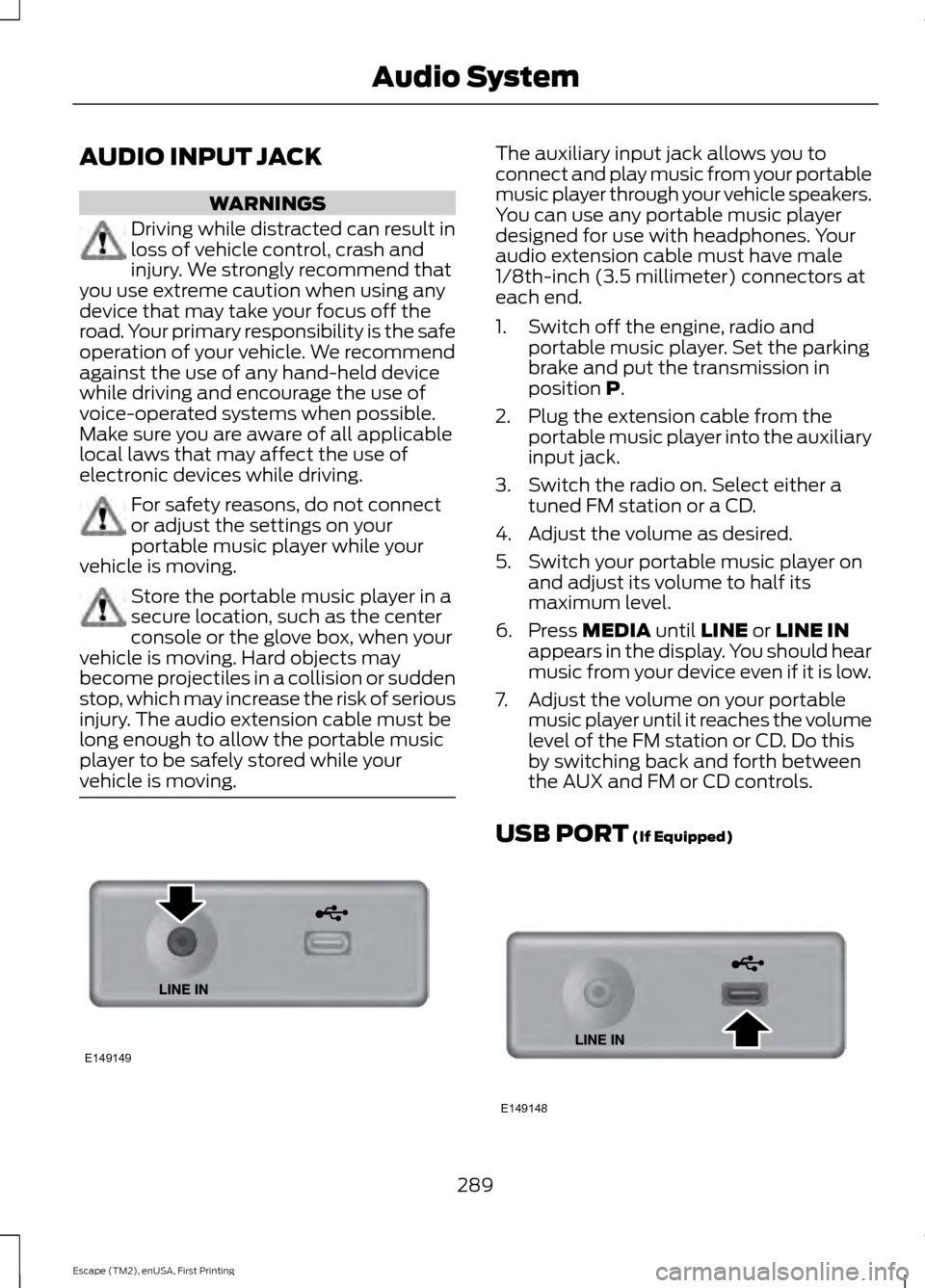
Audio Input Jack..........................................289
USB Port
.........................................................289
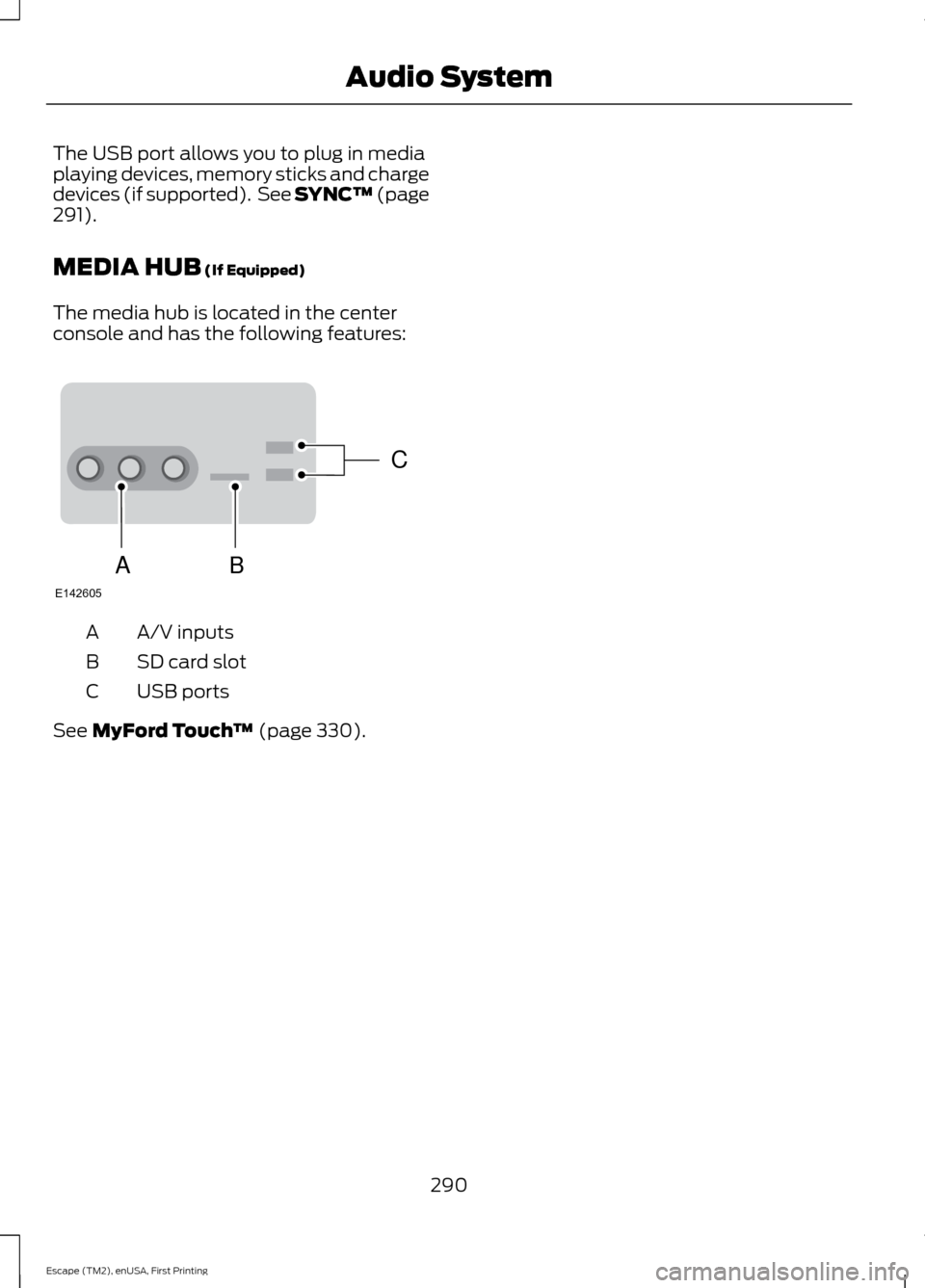
Media Hub......................................................290
SYNC™
General Information....................................291
Using Voice Recognition...........................293
Using SYNC™ With Your Phone
............295
SYNC™ Applications and Services......306
Using SYNC™ With Your Media Player............................................................313
SYNC™ Troubleshooting
...........................321
MyFord Touch ™
General Information
...................................330
Settings............................................................337
Entertainment...............................................347
Phone...............................................................364
Information....................................................370
Climate............................................................379
Navigation......................................................382
MyFord Touch ™ Troubleshooting........390
Accessories
Accessories....................................................396
Appendices
End User License Agreement.................398
Extended Service Plan (ESP)
Extended Service Plan (ESP)..................418
Scheduled Maintenance
General Maintenance Information.......420
Normal Scheduled Maintenance
..........423 Special Operating Conditions Scheduled
Maintenance.............................................426
Scheduled Maintenance Record
...........429
5
Escape (TM2), enUSA, First Printing Table of Contents
Page 127 of 449
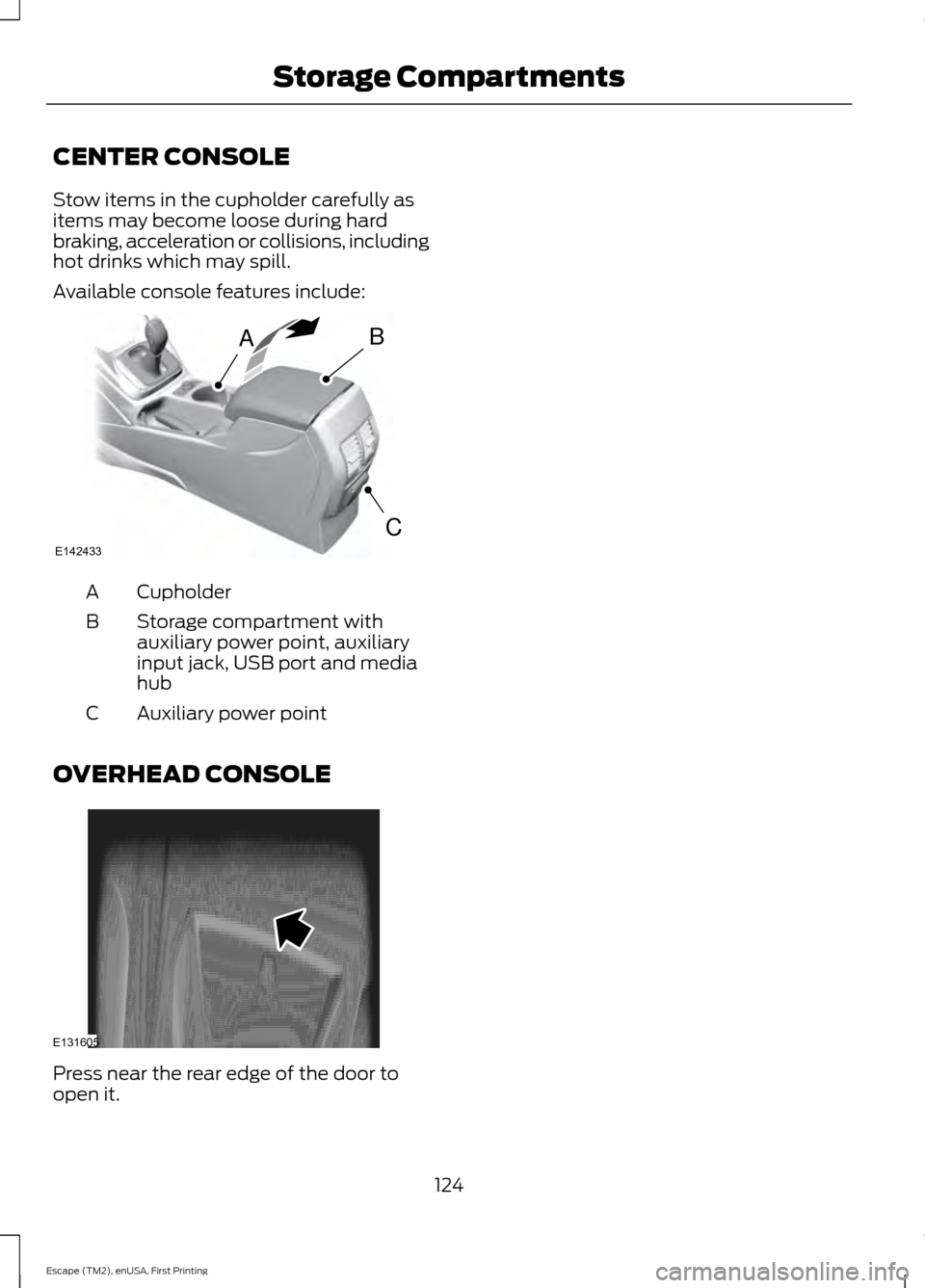
CENTER CONSOLE
Stow items in the cupholder carefully as
items may become loose during hard
braking, acceleration or collisions, including
hot drinks which may spill.
Available console features include:
Cupholder
A
Storage compartment with
auxiliary power point, auxiliary
input jack, USB port and media
hub
B
Auxiliary power point
C
OVERHEAD CONSOLE Press near the rear edge of the door to
open it.
124
Escape (TM2), enUSA, First Printing Storage CompartmentsAB
CE142433 E131605
Page 280 of 449
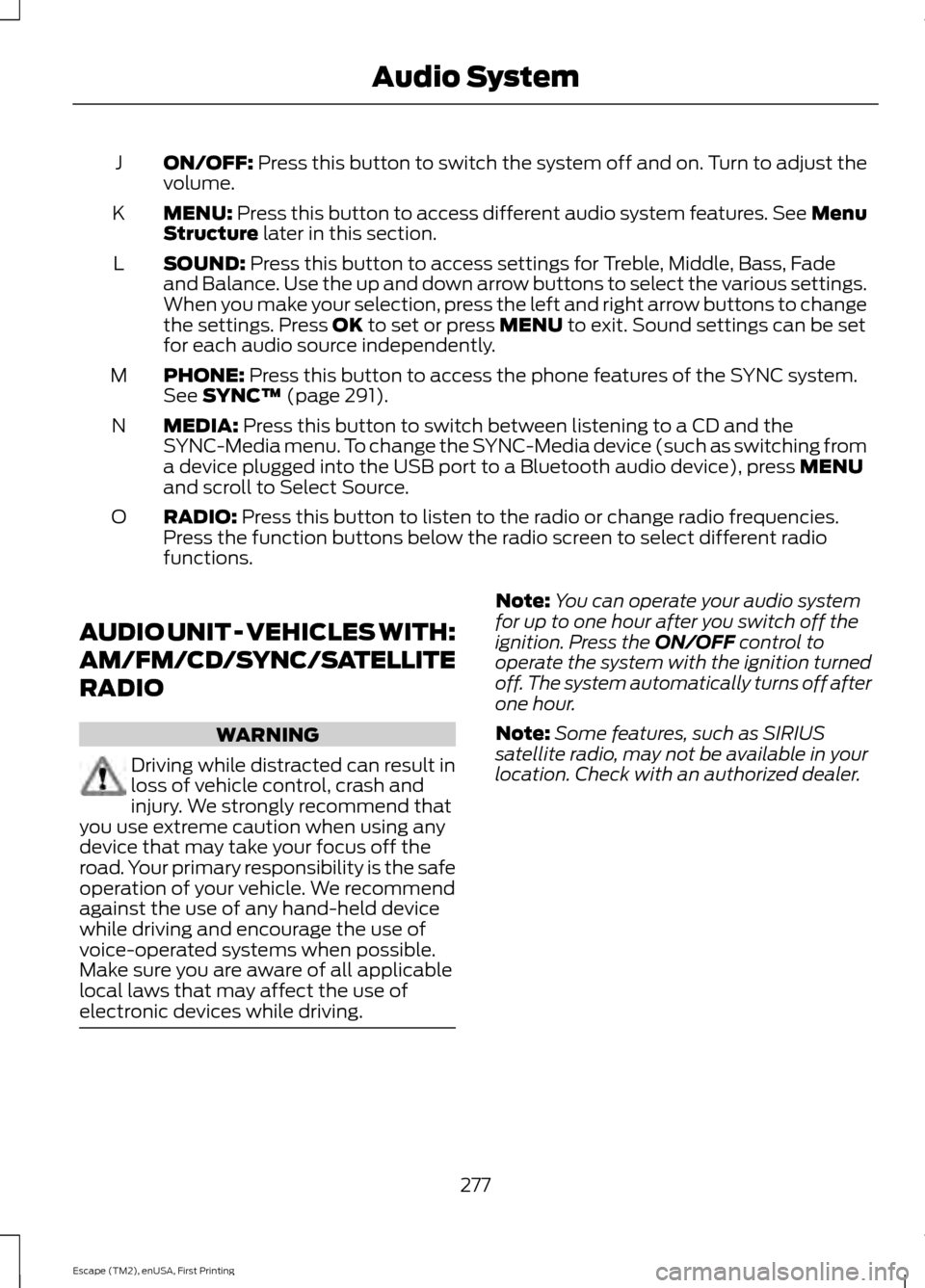
ON/OFF: Press this button to switch the system off and on. Turn to adjust the
volume.
J
MENU:
Press this button to access different audio system features. See Menu
Structure later in this section.
K
SOUND:
Press this button to access settings for Treble, Middle, Bass, Fade
and Balance. Use the up and down arrow buttons to select the various settings.
When you make your selection, press the left and right arrow buttons to change
the settings. Press
OK to set or press MENU to exit. Sound settings can be set
for each audio source independently.
L
PHONE:
Press this button to access the phone features of the SYNC system.
See SYNC™ (page 291).
M
MEDIA:
Press this button to switch between listening to a CD and the
SYNC-Media menu. To change the SYNC-Media device (such as switching from
a device plugged into the USB port to a Bluetooth audio device), press
MENU
and scroll to Select Source.
N
RADIO:
Press this button to listen to the radio or change radio frequencies.
Press the function buttons below the radio screen to select different radio
functions.
O
AUDIO UNIT - VEHICLES WITH:
AM/FM/CD/SYNC/SATELLITE
RADIO WARNING
Driving while distracted can result in
loss of vehicle control, crash and
injury. We strongly recommend that
you use extreme caution when using any
device that may take your focus off the
road. Your primary responsibility is the safe
operation of your vehicle. We recommend
against the use of any hand-held device
while driving and encourage the use of
voice-operated systems when possible.
Make sure you are aware of all applicable
local laws that may affect the use of
electronic devices while driving. Note:
You can operate your audio system
for up to one hour after you switch off the
ignition. Press the
ON/OFF control to
operate the system with the ignition turned
off. The system automatically turns off after
one hour.
Note: Some features, such as SIRIUS
satellite radio, may not be available in your
location. Check with an authorized dealer.
277
Escape (TM2), enUSA, First Printing Audio System
Page 282 of 449
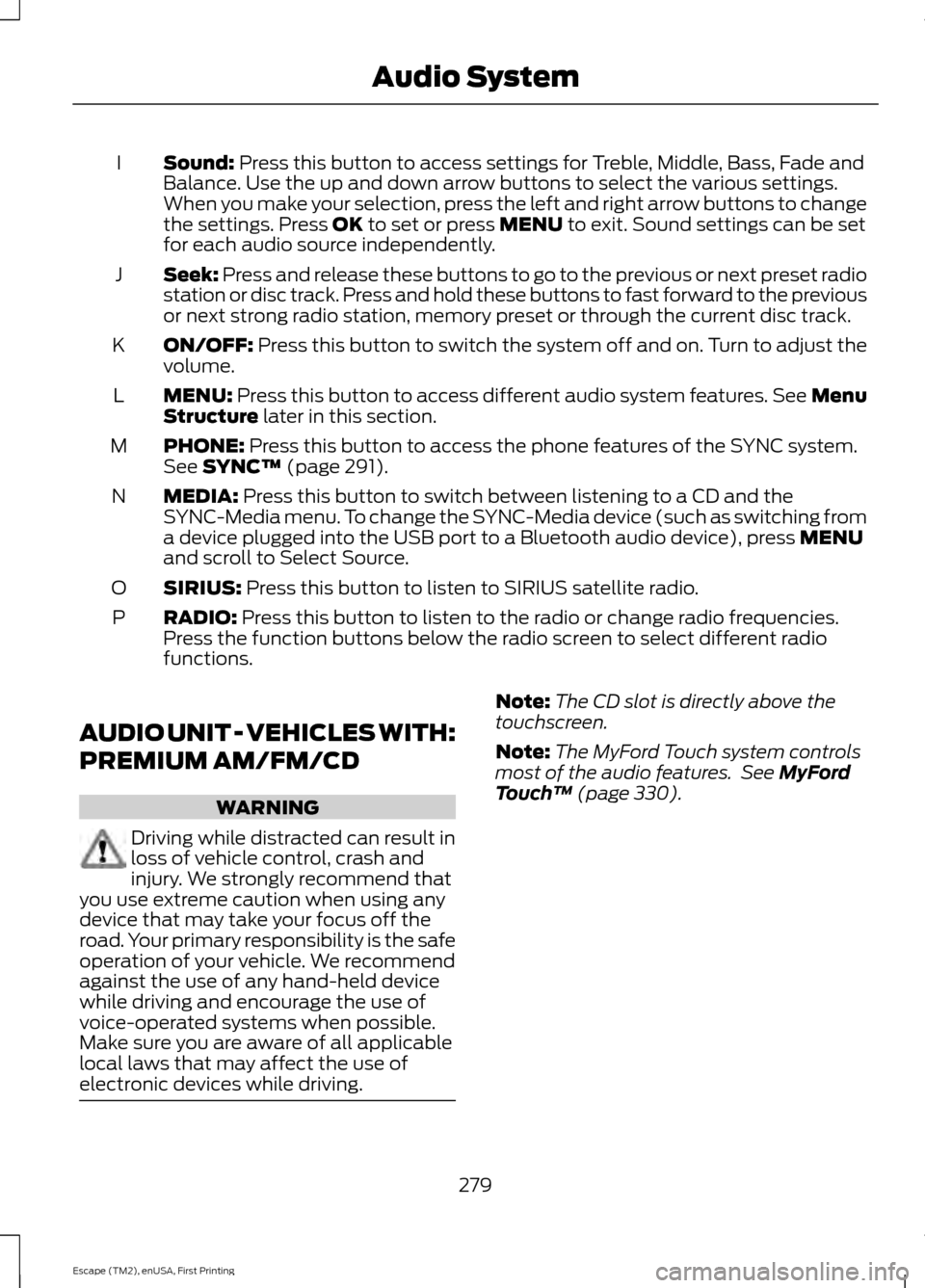
Sound: Press this button to access settings for Treble, Middle, Bass, Fade and
Balance. Use the up and down arrow buttons to select the various settings.
When you make your selection, press the left and right arrow buttons to change
the settings. Press
OK to set or press MENU to exit. Sound settings can be set
for each audio source independently.
I
Seek:
Press and release these buttons to go to the previous or next preset radio
station or disc track. Press and hold these buttons to fast forward to the previous
or next strong radio station, memory preset or through the current disc track.
J
ON/OFF:
Press this button to switch the system off and on. Turn to adjust the
volume.
K
MENU:
Press this button to access different audio system features. See Menu
Structure later in this section.
L
PHONE:
Press this button to access the phone features of the SYNC system.
See SYNC™ (page 291).
M
MEDIA:
Press this button to switch between listening to a CD and the
SYNC-Media menu. To change the SYNC-Media device (such as switching from
a device plugged into the USB port to a Bluetooth audio device), press
MENU
and scroll to Select Source.
N
SIRIUS:
Press this button to listen to SIRIUS satellite radio.
O
RADIO:
Press this button to listen to the radio or change radio frequencies.
Press the function buttons below the radio screen to select different radio
functions.
P
AUDIO UNIT - VEHICLES WITH:
PREMIUM AM/FM/CD WARNING
Driving while distracted can result in
loss of vehicle control, crash and
injury. We strongly recommend that
you use extreme caution when using any
device that may take your focus off the
road. Your primary responsibility is the safe
operation of your vehicle. We recommend
against the use of any hand-held device
while driving and encourage the use of
voice-operated systems when possible.
Make sure you are aware of all applicable
local laws that may affect the use of
electronic devices while driving. Note:
The CD slot is directly above the
touchscreen.
Note: The MyFord Touch system controls
most of the audio features. See
MyFord
Touch ™ (page 330).
279
Escape (TM2), enUSA, First Printing Audio System
Page 292 of 449
AUDIO INPUT JACK
WARNINGS
Driving while distracted can result in
loss of vehicle control, crash and
injury. We strongly recommend that
you use extreme caution when using any
device that may take your focus off the
road. Your primary responsibility is the safe
operation of your vehicle. We recommend
against the use of any hand-held device
while driving and encourage the use of
voice-operated systems when possible.
Make sure you are aware of all applicable
local laws that may affect the use of
electronic devices while driving. For safety reasons, do not connect
or adjust the settings on your
portable music player while your
vehicle is moving. Store the portable music player in a
secure location, such as the center
console or the glove box, when your
vehicle is moving. Hard objects may
become projectiles in a collision or sudden
stop, which may increase the risk of serious
injury. The audio extension cable must be
long enough to allow the portable music
player to be safely stored while your
vehicle is moving. The auxiliary input jack allows you to
connect and play music from your portable
music player through your vehicle speakers.
You can use any portable music player
designed for use with headphones. Your
audio extension cable must have male
1/8th-inch (3.5 millimeter) connectors at
each end.
1. Switch off the engine, radio and
portable music player. Set the parking
brake and put the transmission in
position P.
2. Plug the extension cable from the portable music player into the auxiliary
input jack.
3. Switch the radio on. Select either a tuned FM station or a CD.
4. Adjust the volume as desired.
5. Switch your portable music player on and adjust its volume to half its
maximum level.
6. Press
MEDIA until LINE or LINE IN
appears in the display. You should hear
music from your device even if it is low.
7. Adjust the volume on your portable music player until it reaches the volume
level of the FM station or CD. Do this
by switching back and forth between
the AUX and FM or CD controls.
USB PORT
(If Equipped) 289
Escape (TM2), enUSA, First Printing Audio SystemE149149 E149148
Page 293 of 449
The USB port allows you to plug in media
playing devices, memory sticks and charge
devices (if supported). See SYNC™ (page
291).
MEDIA HUB
(If Equipped)
The media hub is located in the center
console and has the following features: A/V inputs
A
SD card slot
B
USB ports
C
See
MyFord Touch ™ (page 330).
290
Escape (TM2), enUSA, First Printing Audio SystemC
BA
E142605
Page 294 of 449
GENERAL INFORMATION
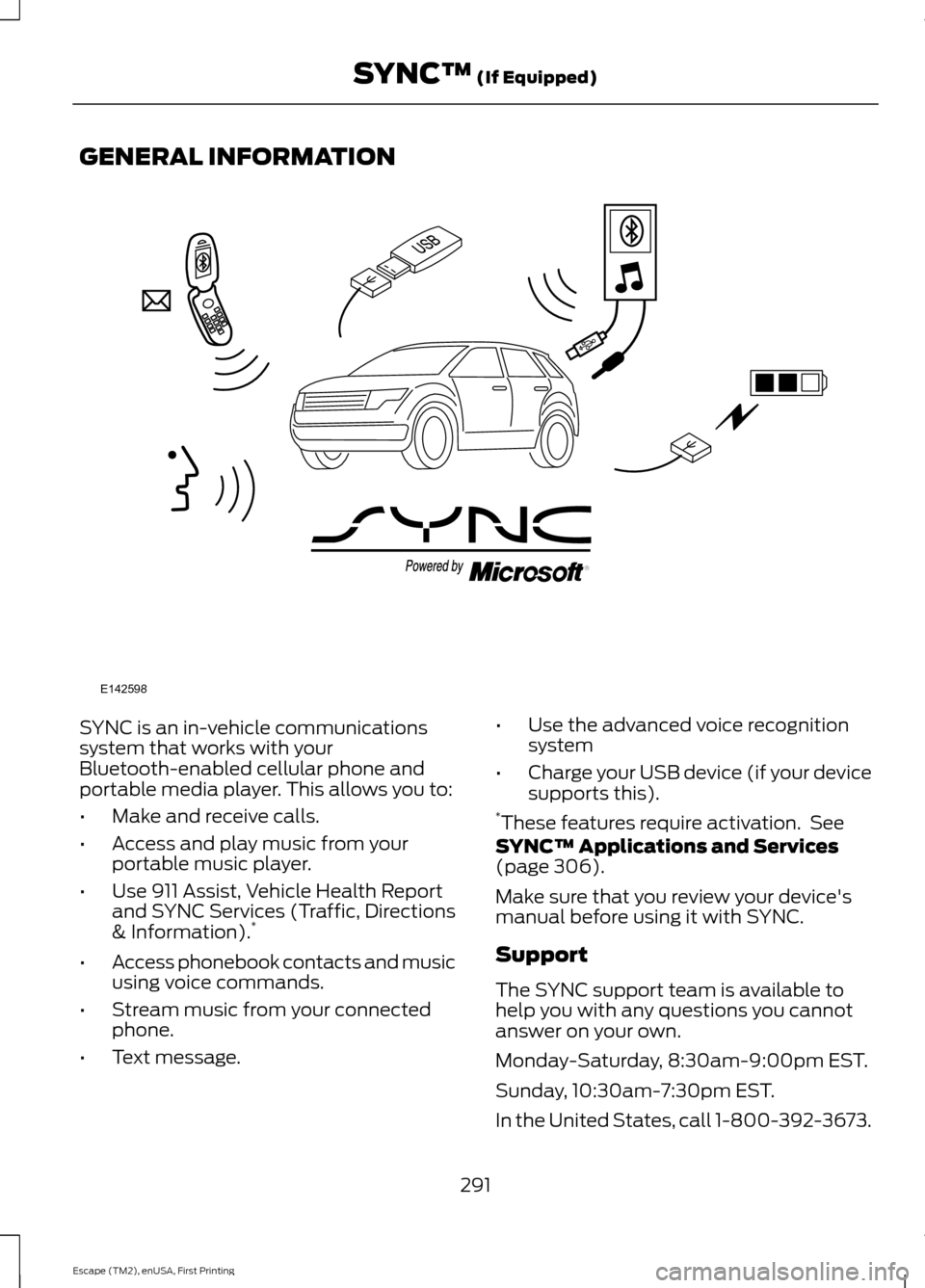
SYNC is an in-vehicle communications
system that works with your
Bluetooth-enabled cellular phone and
portable media player. This allows you to:
•
Make and receive calls.
• Access and play music from your
portable music player.
• Use 911 Assist, Vehicle Health Report
and SYNC Services (Traffic, Directions
& Information). *
• Access phonebook contacts and music
using voice commands.
• Stream music from your connected
phone.
• Text message. •
Use the advanced voice recognition
system
• Charge your USB device (if your device
supports this).
* These features require activation. See
SYNC™ Applications and Services
(page 306).
Make sure that you review your device's
manual before using it with SYNC.
Support
The SYNC support team is available to
help you with any questions you cannot
answer on your own.
Monday-Saturday, 8:30am-9:00pm EST.
Sunday, 10:30am-7:30pm EST.
In the United States, call 1-800-392-3673.
291
Escape (TM2), enUSA, First Printing SYNC™
(If Equipped)E142598
Page 296 of 449
System data cannot be accessed without
special equipment and access to the
vehicle's SYNC module. Ford Motor
Company and Ford of Canada will not
access the system data for any purpose
other than as described absent consent, a
court order, or where required by law
enforcement, other government
authorities, or other third parties acting
with lawful authority. Other parties may
seek to access the information
independently of Ford Motor Company and
Ford of Canada. For further privacy
information, see the sections on 911 Assist,
Vehicle Health Report, and Traffic,
Directions and Information.
USING VOICE RECOGNITION
This system helps you control many
features using voice commands. This
allows you to keep your hands on the
wheel and focus on what is in front of you.
Initiating a Voice Session Push the voice icon. A tone
sounds and Listening appears in
the display. Say any of the
following: If You Want To
Say
Stream audio from your phone.
"Bluetooth audio"
Cancel the requested action.
"Cancel"
Access the device connected to the auxiliary input jack.
"Line in"
Make calls.
"Phone"
Access the SYNC Services portal.
"Services" *
Return to the main menu.
"SYNC"
Access the device connected to your USB port.
"USB"
Run a vehicle health report.
"Vehicle health report" *
Adjust the level of voice interaction and feedback.
"Voice settings"
Hear a list of voice commands available in the current
mode.
"Help"
* This is an optional feature and available in the United States only.
293
Escape (TM2), enUSA, First Printing SYNC™ (If Equipped)E142599
Page 315 of 449
SYNC Services quick tips
You can personalize your Services feature to provide
quicker access to your most used or favorite information.
You can save address points such as work or home. You
can also save favorite information like sports teams or a
news category. You can learn more about personalization
by logging onto www.SYNCMyRide.com.
Personalizing
Press the voice button at any time (while connected to
SYNC Services) to interrupt a voice prompt or an audio
clip (such as a sports report) and say your voice command.
Push to interrupt
Your subscription is associated with your Bluetooth-
enabled cellular phone number, not your VIN (Vehicle
Identification Number). You can pair and connect your
phone to any vehicle equipped with SYNC Services and
continue enjoying your personalized services.
Portable
You can even access your account outside your vehicle.
Just use the number on your phone's call history. Traffic
and Directions features do not function properly but
information services and the 411 connect and text message
features are available.
SYNC AppLink
Note: This feature is only available in the
United States.
Note: You must pair and connect your
smartphone to SYNC to access AppLink.
Note: iPhone users need to connect the
phone to the USB port in order to start the
application. We recommend you lock your
iPhone after starting an application.
Note: The AppLink feature is not available
if your vehicle is equipped with the MyFord
Touch or MyLincoln Touch system.
Note: Depending on your display type, you
can access AppLink from the media menu,
the phone menu, or by using voice
commands. Once an app is running through
AppLink, you can control main features of
the app through voice commands and
steering wheel controls. To Access Using the Phone Menu
1. Press the phone button to access the
SYNC phone menu on-screen.
2. Scroll to Mobile Apps and press OK to access a list of available applications.
3. Scroll through the list of available applications and press OK to select a
particular app.
4. Once an app is running through SYNC,
you can access an app ’s menu by
pressing the MENU button to first
access the SYNC menu.
5. Select "SYNC-Media" by pressing
OK.
6. Scroll until "
then press
OK. From here, you can
access an application's features, such
as Thumbs up and Thumbs down. For
more information, please visit
www.SYNCMyRide.com.
312
Escape (TM2), enUSA, First Printing SYNC™
(If Equipped)
Page 316 of 449
To Access Using the Media Menu
1. Press the AUX button on the center
console.
2. Press
MENU to access the SYNC
menu.
3. Select "SYNC-Media" by pressing
OK.
4. Scroll to Mobile Apps and press OK to
access a list of available applications.
5. Scroll through the list of available applications and press
OK to select a
particular app.
6. Once an app is running through SYNC,
you can access an app ’s menu by
pressing the
MENU button to first
access the SYNC menu.
7. Select "SYNC-Media" by pressing
OK.
8. Scroll until "
then press
OK. From here, you can
access an application's features, such
as Thumbs up and Thumbs down. For
more information, please visit
www.SYNCMyRide.com.
To Access Using Voice Commands
1. Press the voice icon.
2. When prompted, say "Mobile Apps".
3. Say the name of the application after the tone.
4. The app should start. While an app is running through SYNC, you can press
the voice button and speak commands
specific to the app, such as "Play
Station Quickmix". Say "Help" to
discover available voice commands. USING SYNC™ WITH YOUR
MEDIA PLAYER
You can access and play music from your
digital music player over your vehicle's
speaker system using the system's media
menu or voice commands. You can also
sort and play your music by specific
categories, such as artist and album.
Note:
The system is capable of indexing up
to 6,000 songs.
SYNC is capable of hosting nearly any
digital media player including: iPod®,
Zune ™, Plays from device players, and
most USB drives. SYNC also supports
audio formats, such as MP3, WMA, WAV
and ACC.
Connecting Your Digital Media
Player to the USB Port
Note: If your digital media player has a
power switch, make sure you switch it on
before plugging it in.
To Connect Using Voice Commands
1. Plug the device into the USB port.
2. Press the voice icon and when prompted, say "USB".
3. You can now play music by saying any of the appropriate voice commands.
See the media voice commands.
To Connect Using the System Menu
1. Plug the device into the USB port.
2. Press
AUX and then MENU to enter
the media menu.
3. Scroll to Select Source. Press
OK.
4. Scroll to USB. Press
OK.
5. Depending on how many digital media
files are on your connected device,
Indexing
may appear in the radio
display. When indexing is complete, the
screen returns to the Play menu.
313
Escape (TM2), enUSA, First Printing SYNC™
(If Equipped)